NIC Firmware/Driver Updates Reset Your RSS/VMQ optimizations

When optimizing your RSS/VMQ settings for maximum performance you’ll normally (I hope) do this in PowerShell. Save that script with some comments on why you configure it that way and make it part of your Hyper-V host deployment scripts

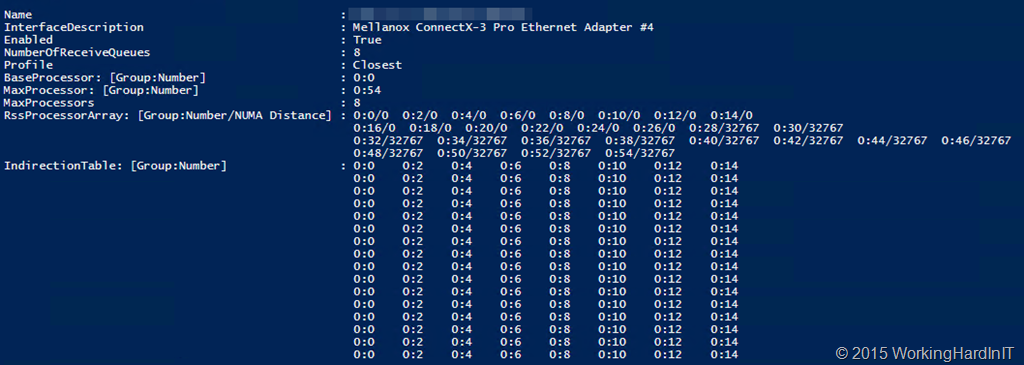
Why? Automation is king but you’ll need it again for sure. Why? Well there is this “tendency” that NIC firmware/driver updates reset your RSS/VMQ optimizations back to their defaults.That’s a bit of a bummer if you have to redo all the work instead of having a script ready to go. I have seen many a deployment where the configuration was missing after firmware/driver upgrades so please, check!

image

Figure: Where has my optimized configuration gone after a driver/firmware upgrade?

The good news is this isn’t a show stopper issue as things will keep working, but without your optimizations and with VMQ, depending on your NIC team setup for the vSwitch issues might occur. When doing NIC teaming for your virtual switch it’s important to get it right.  With switch dependent teaming (LACP/Static) the NICs in the team need to use overlapping processor sets (Min Queues). When doing switch independent teaming the NICs in the team need to use non-overlapping processor sets. So you need to configure each NIC in your team to use the different processors (Sum of Queues).

On top of that you might want to / should separate RSS/VMQ cores from each other. SMB Direct for CSV/LM will also help achieve this as there we leverage CPU offloading to the NIC.

KB3063283 Updates the Hyper-V Integration Components for Windows Server 2012 R2 to 6.3.9600.17831

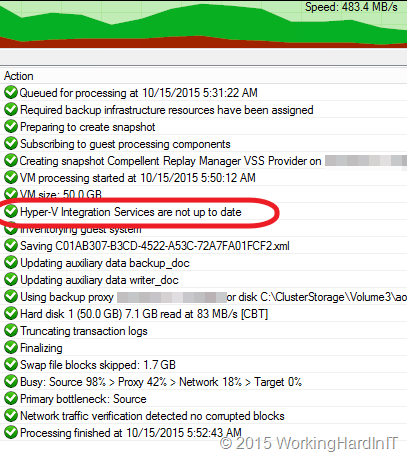
While investigating a backup issue with some VMs I noticed an entry in the VEEAM Backup & Replication logs that the Hyper-V integration components were out of date.

image

This was the case on all the guests on that particular cluster actually. A quick look at the IC version on the host showed them to be at 6.3.9600.17831.

image

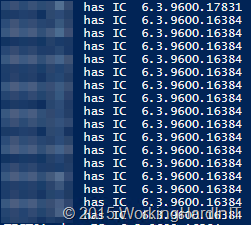
Comparing that to the ones in the guest made clear very quickly that those were at 6.3.9600.16384. So lower.

image

A web search for Hyper-V Integration components led us to KB3063283 “Update to improve the backup of Hyper-V Integration components in Hyper-V Server 2012 R2”on their Hyper-V hosts. They keep a tight ship but due to regulations they are normally 3 to 4 months behind in patches and updates. So in their case they only recently installed that update. KB3063283 Updates the Hyper-V Integration Components for Windows Server 2012 R2 to 6.3.9600.17831

So a little word of warning while you are keeping your Hyper-V environment up to date (you should), don’t forget to update the integration components of your virtual machines. A good backup product like Veeam Back & Replication will log this during backups. It might not make the backups fail per se but they have been updated for a good reason. This upgrade  was even specifically for backup related issues so it’s wise to upgrade the virtual machines to this version a.s.a.p..

Kemp LoadMaster OEM Servers and Dell Firmware Updates with Lifecycle Controller

When you buy a DELL OEM based Kemp Technologies LoadMaster you might wonder who will handle the hardware updates to the server. Well Dell handles all OEM updates via its usual options and as with all LoadMasters Kemp Technologies handles the firmware update of the LoadMaster image.

KempLM320

Hardware wise both DELL and Kemp have been two companies that excel in support. If you can find the solution that meets your needs it’s a great choice. Combine them and it make for a great experience.  Let me share a small issue I ran into updating Kemp Loadmaster OEM Servers and Dell Firmware Updates with Lifecycle Controller

For a set of DELL R320 loadmasters in HA is was upgrading ( I not only wanted to move to 7.1-Patch28b-BARE-METAL.bin but I also wanted to take the opportunity to bring the firmware of those servers to the latest versions as that had been a while (since they had been delivered on site).

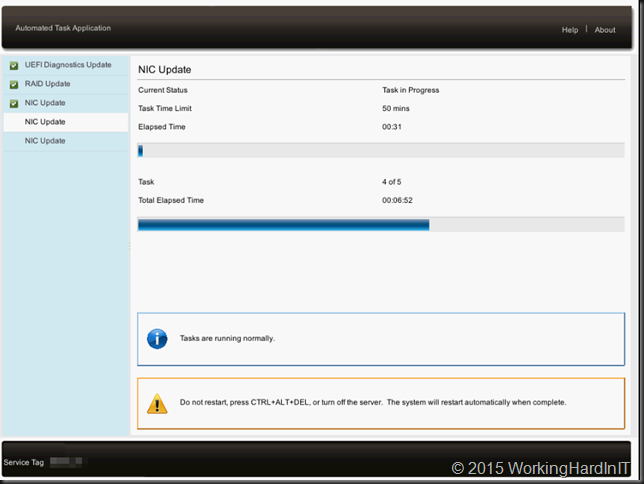
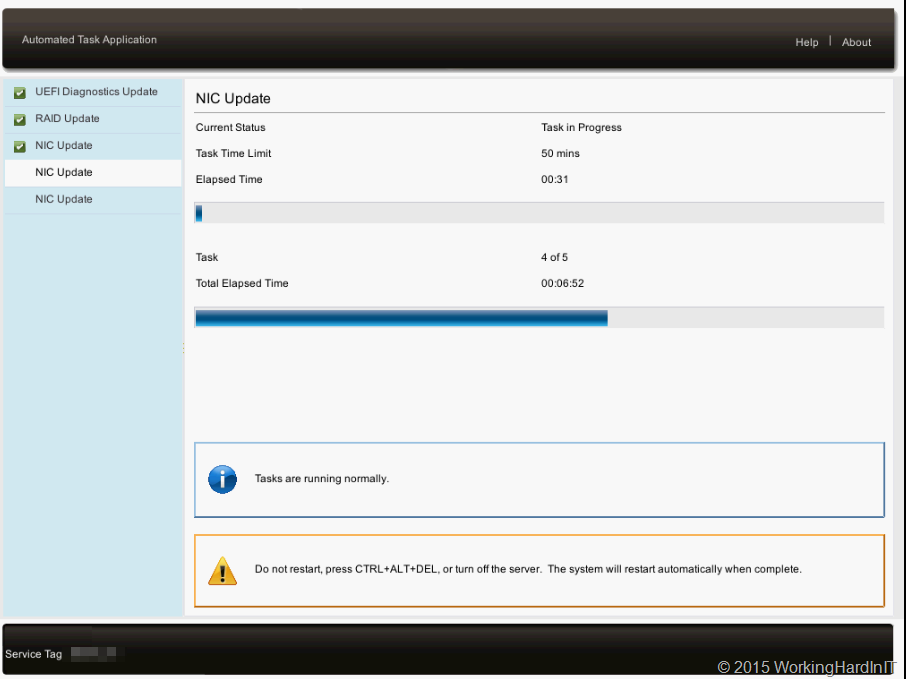
There is no OS that runs in those server,s as they are OEM hardware based appliances for the Loadmaster image. No worries these DELL servers come with DRAC & Lifecycle controllers so you can leverage those to do the firmware updates from a Server Update Utility ISO locally, via virtual media, over over the network, via FTP or a network share. FTP is either the DELL FTP Site or an internal one.
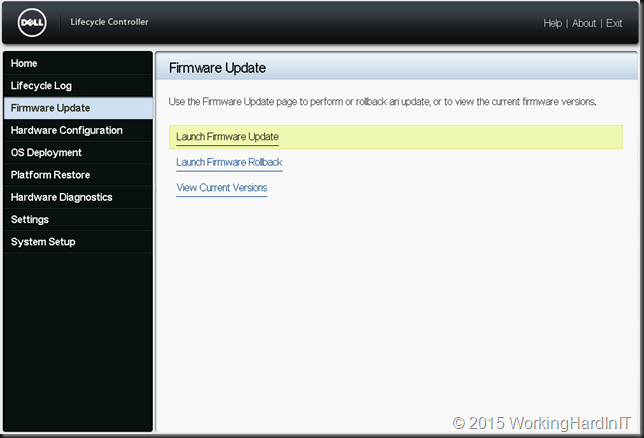
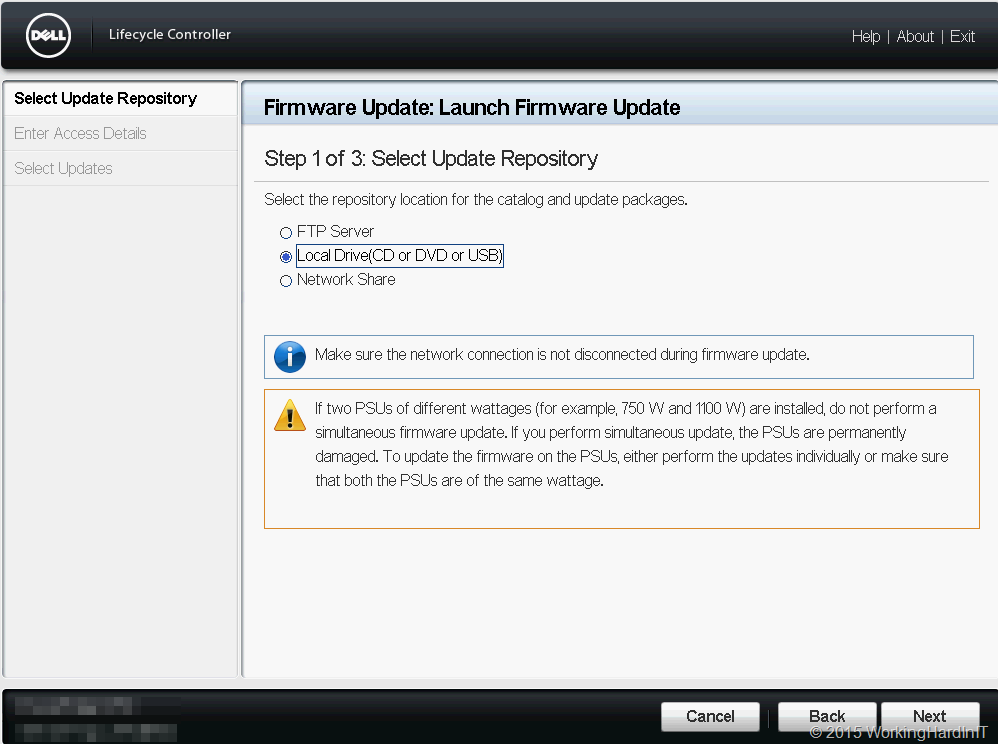
image

image

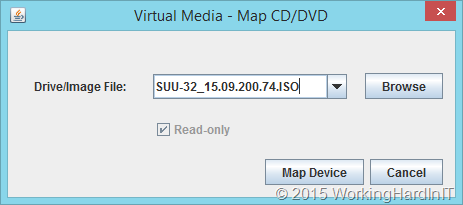
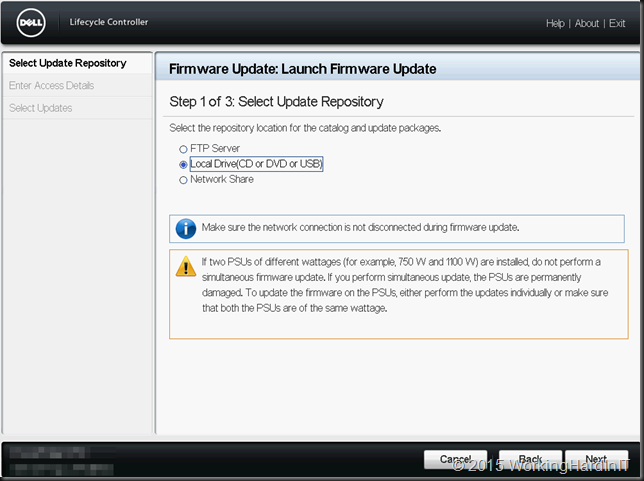
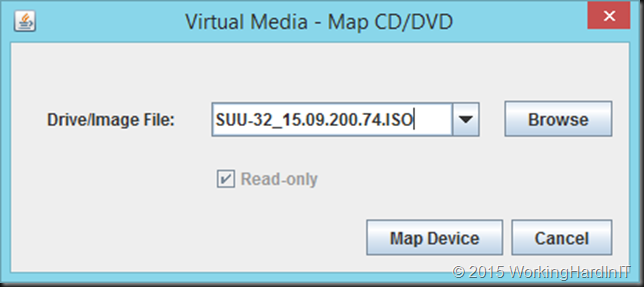
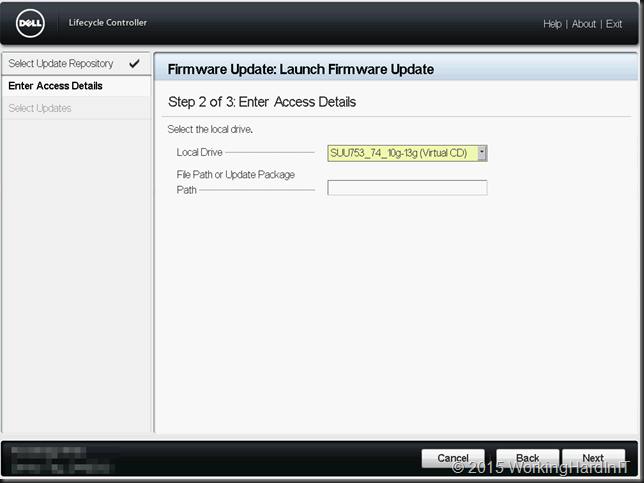
Now as I had just downloaded the  latest SUU at the time (SUU-32_15.09.200.74.ISO – for now you need to use the 32 bit installers with the life cycle controller) I decided to just mount it via the virtual media, boot to the lifecycle controller and update using local media.
image

image

But I got stuck  …

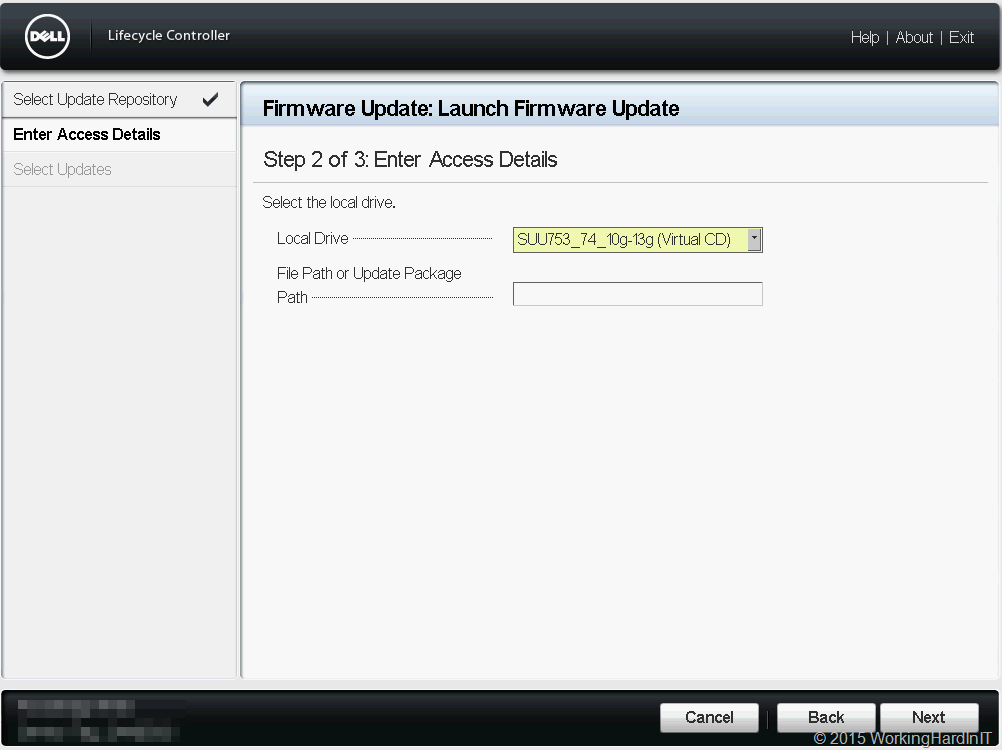
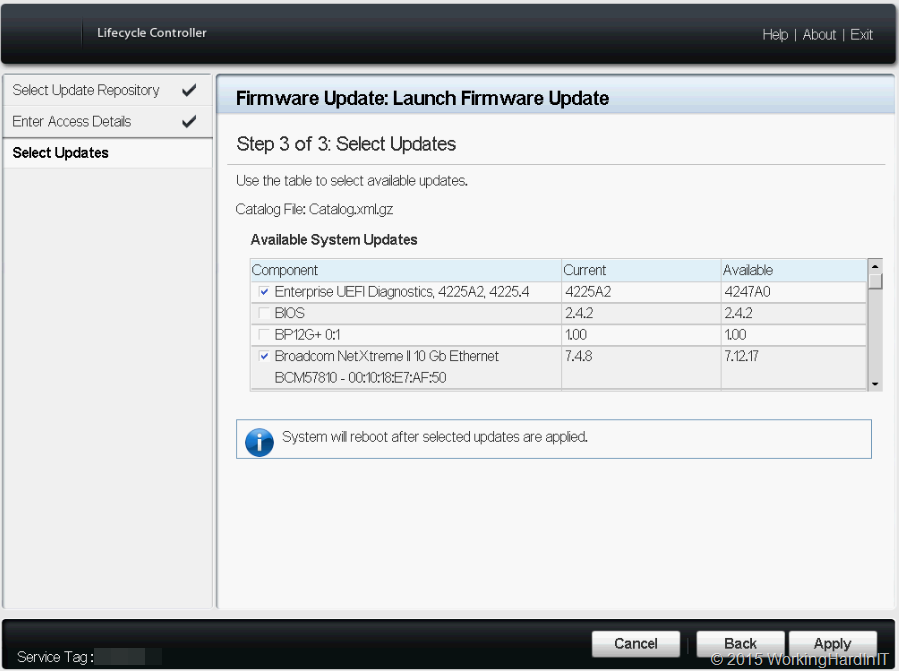
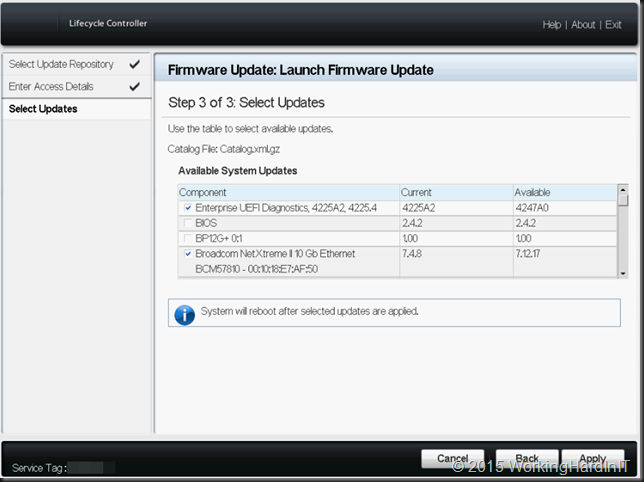
It doesn’t throw an error but it just returns to the start point and nothing can fix it. Not even adding “/repository”  to the file path . You can type the name of an individual DUP (32 bit!) and that works. Scanning the entire repository however wouldn’t move beyond step 2 “Enter Access Details”.

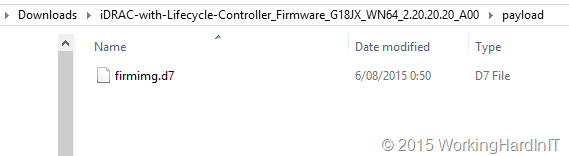
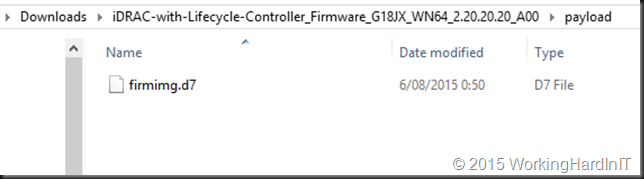
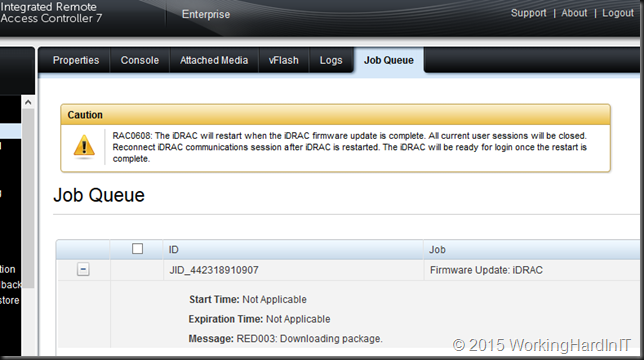
Scanning for an individual DUP seemed to work but leaving the file path blank while trying to find all eligible updates seemed not to return any results so I could not advance. The way I was able to solve this was by leveraging the DRAC ability to update it own firmware using the firmware image file to the most recent version. I just got mine by extracting the DUP and taking the image file from the payload sub folder.
image

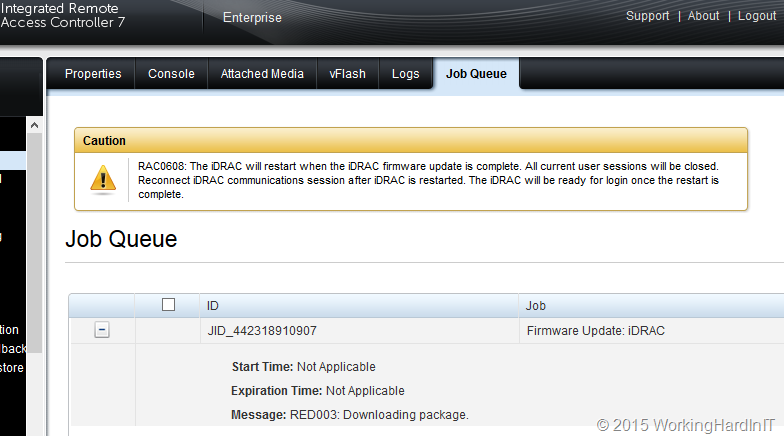
You can read on how to upgrade DRAC / Lifecycle Controller via the DRAC here.
image

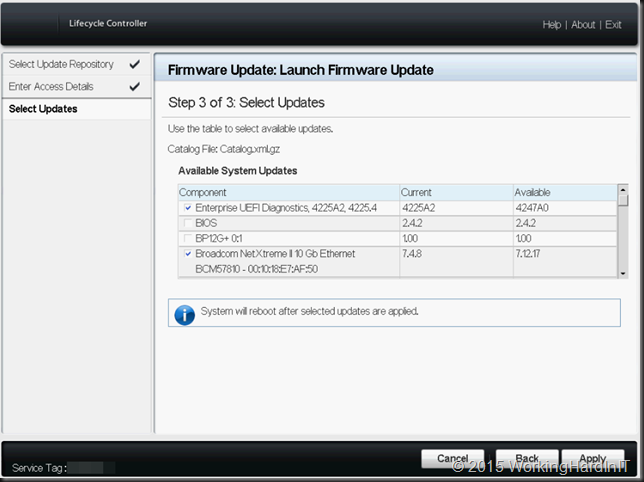
When you’ve done that, I give the system a reboot for good measure, and try again. I have found in all my cases fixes the issue. My take on this is that older firmware can’t handle more recent SUU repositories. So give it a try if you run into this and you’ll be well on your way to get your firmware updated. If you need help with this process DELL has excellent documentation here in “Lifecycle Controller Platform Update/Firmware Update in Dell PowerEdge 12th Generation Servers”
image

image

image

The end result is a fully updated DELL Server / Kemp Loadmaster. Mission accomplished. All this can be done from the comfort of your home office. A win-win for both you and your customer/employer. Think about it, it would be a shame to miss out on all the benefits you get from working in the cloud when your on premises part of a hybrid infrastructure forces you to get in a car and drive to a data center 70 km away. Especially at 21:21 at night.

BitLooker In Veeam Backup and Replication v9

When your backup size is bigger than the amount of disk space used in the virtual machine you might wonder why that is. Well it’s deleted data who’s blocks have not been released for reuse by the OS yet. BitLooker in Veeam Backup and Replication v9 as announced at VeeamOn 2015 offers a solution for this situation. BitLooker analyses the NFTS MFT to identify deleted data. It uses this information to reduce the size of an imaged based backup file and helps reduce bandwidth needed for replication. It just makes sense!

BitLooker In Veeam Backup and Replication v9

I really like these additions that help out to optimize the consumption of backup storage. Now I immediately wondered f this would make any difference on the recent versions of Hyper-V that support UNMAP. Well, probably not. My take on this is that the Hyper-V virtual Machine is aware of the deleted blocks via UNMAP this way so they will not get backed up. This is one of the examples of the excellent storage optimization capabilities of Hyper-V.

UNMAP

It’s a great new addition to Veeam Backup & Replication v9. Especially when you’re running legacy hypervisors like like Windows Server 2008 R2 or older, or (at the time of writing) VMware. When you’ve been rocking Windows Server 212 R2 for the last three years Hyper-V already had your back with truly excellent UNMAP support in the virtual layer.