Saying Goodbye To Old Hardware Responsibly

Last year we renewed our SAN storage and our backup systems. They had been serving us for 5 years and where truly end of life as both technologies uses are functionally obsolete in the current era of virtualization and private clouds. The timing was fortunate as we would have been limited in our Windows 2012, Hyper-V & disaster recovery plans if we had to keep it going for another couple of years.

Now any time you dispose of old hardware it’s a good idea to wipe the data securely to a decent standard such as DoD 5220.22-M. This holds true whether it’s a laptop, a printer or a storage system.

We did the following:

  • Un-initialize the SAN/VLS
  • Reinitialize the SAN/VLS
  • Un-initialize the SAN/VLS
  • Swap a lot of disks around between SAN/VLS and disk bays in a random fashion
  • Un-initialize the SAN/VLS
  • Create new (Mirrored) LUNS, as large as possible.
  • Mounted them to a host or host
  • Run the DoD grade  disk wiping software against them.
  • That process is completely automatic and foes faster than we were led to believe, so it was not really such a pain to do in the end. Just let it run for a week 24/7 and you’ll wipe a whole lot of data. There is no need to sit and watch progress counters.
  • Un-initialize the SAN/VLS
  • Have it removed by a certified company that assures proper disposal

We would have loved to take it to a shooting range and blast the hell of of those things but alas, that’s not very practical Smile nor feasible Sad smile. It would have been very therapeutic for the IT Ops guys who’ve been baby sitting the ever faster failing VLS hardware over the last years.

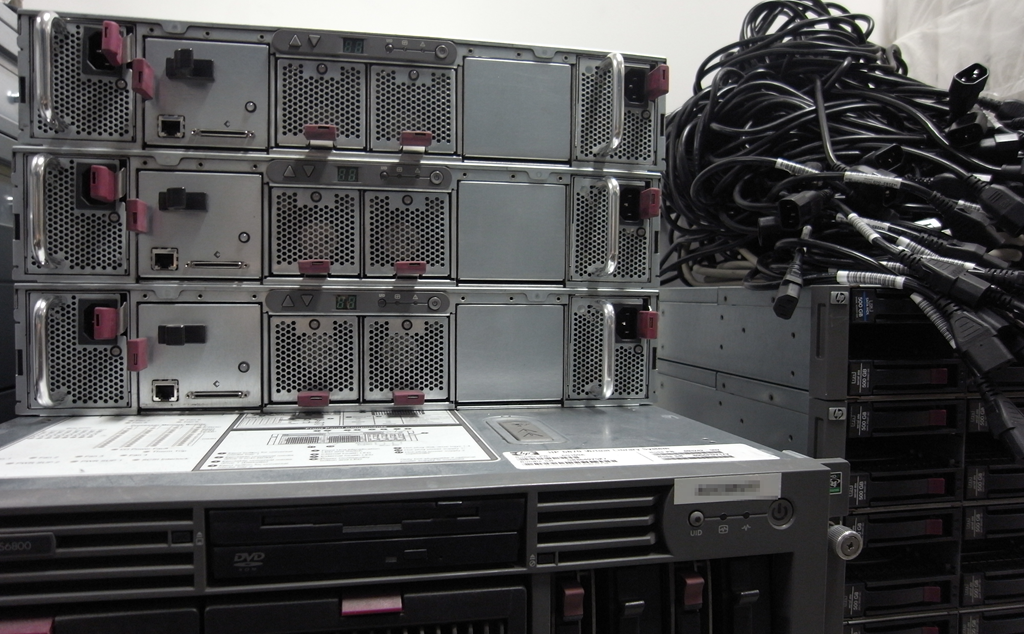
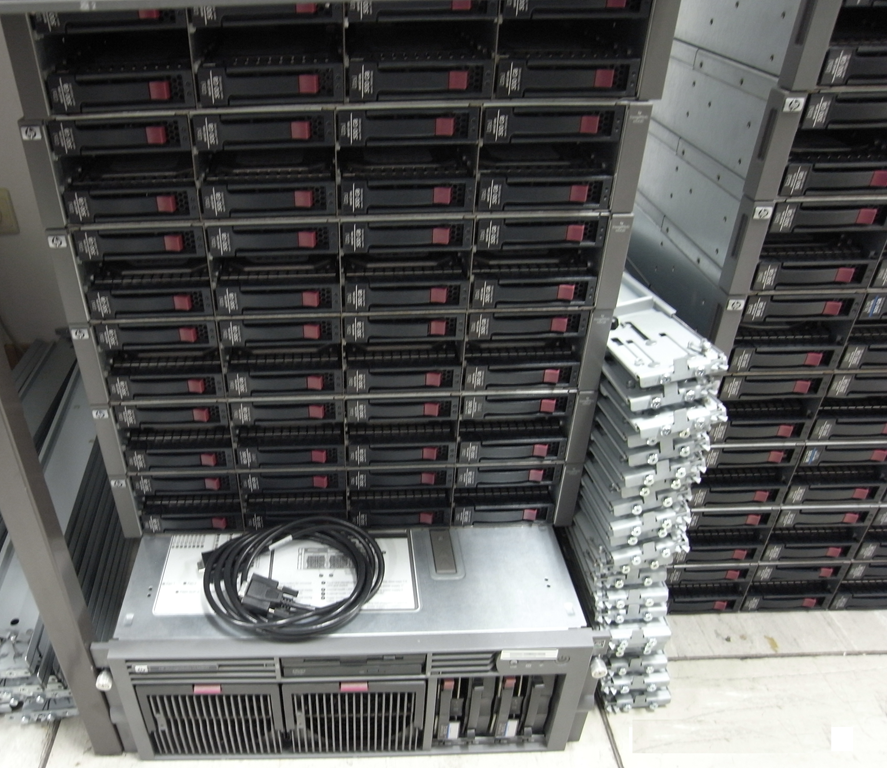
Here’s some pictures of the decommissioned systems. Below are the two old VLS backup systems, broken down and removed from the data center waiting disposal. It’s cheap commodity hardware with a reliability problem when over 3 years old and way to expensive for what is. Especially for up and out scaling later in the life time cycle, it’s just madness. Not to mention that those thing gave us more issues the the physical tape library (those still have a valid a viable role to play when used for the correct purposes). Anyway I consider this to have been my biggest technology choice mistake ever. If you want to read more about that go to Why I’m No Fan Of Virtual Tape Librariesimageimage
To see what replaced this with great success go to Disk to Disk Backup Solution with Windows Server 2012 & Commodity DELL Hardware – Part II

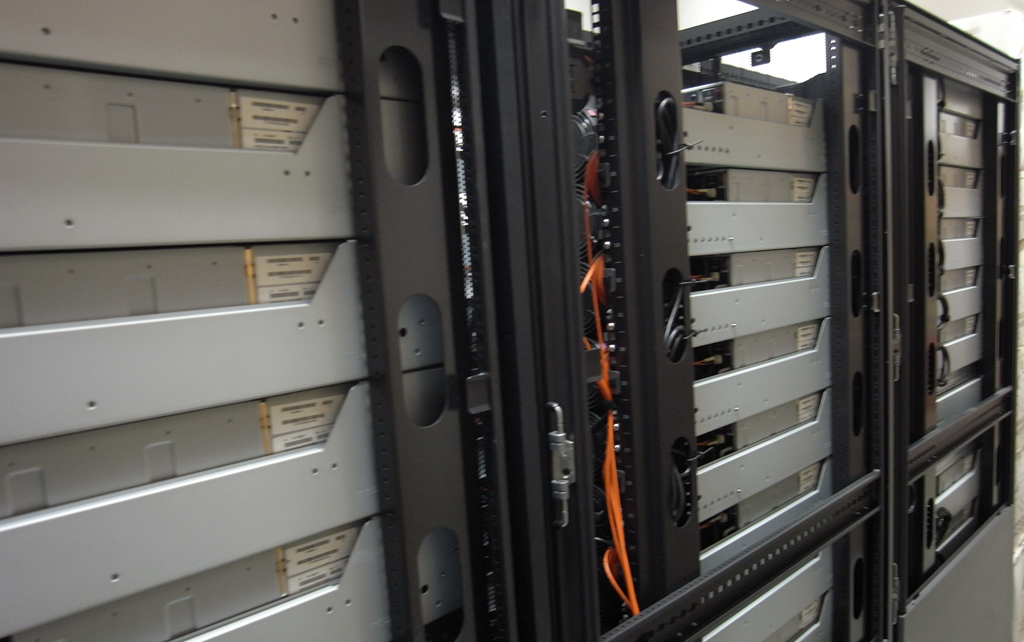
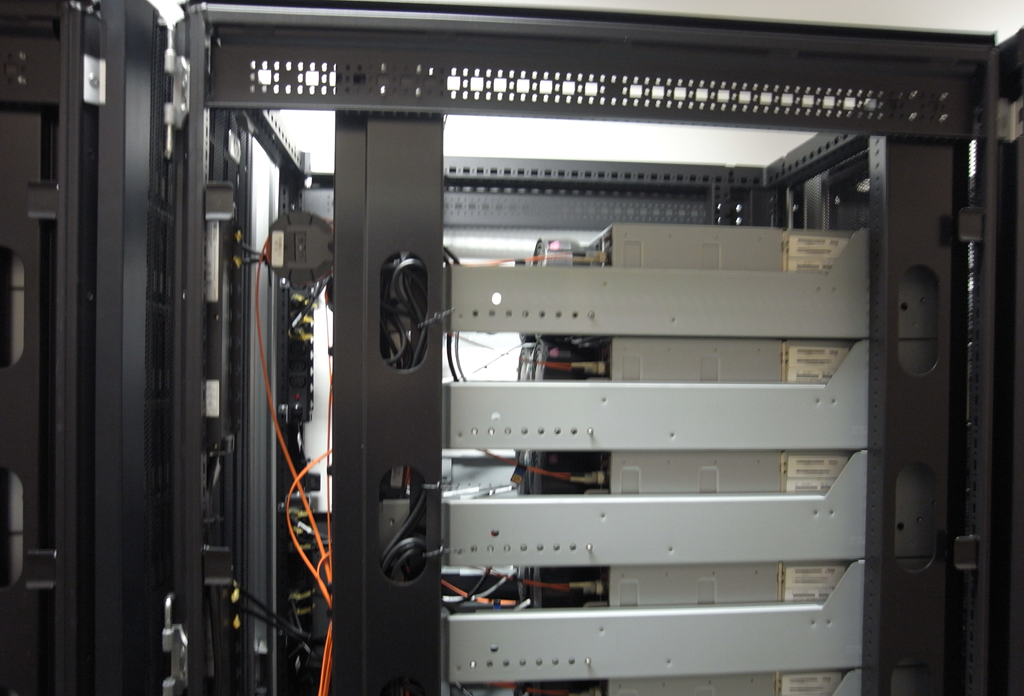
The old EVA 8000 SANs are awaiting removal in the junk yard area of the data center. They served us well and we’ve been early customers & loyal ones. But the platform was as dead as a dodo long before HP wanted to even admit to that. It took them quite a while to get the 3Par ready for the same market segment and I expect that cost them some sales. They’re ready today, they were not 24-12 months ago. image
image

So they’ve been replaced with Compellent SANs. You can read some info on this on previous blogs Multi Site SAN Storage & Windows Server 2012 Hyper-V Efforts Under Way and Migration LUNs to your Compellent SAN

The next years the storage wares will rage and the landscape will change a lot. But We’re out of the storm for now. We’ll leverage what we got Smile. One tip for all storage vendors. Start listening to your SME customers a lot more than you do now and getting the features they need into their hands. There are only so many big enterprises so until we’re all 100% cloudified, don’t ignore us, as together we buy a lot of stuff to. Many SMEs are interested in more optimal & richer support for their windows environments if you can deliver that you’ll see your sales rise. Keep commodity components, keep building blocks and from factors but don’t use a cookie cutter to determine our needs or “sell” us needs we don’t have. Time to market & open communication is important here. We really do keep an eye on technologies so it’s bad to come late to the party.
Hyper-V Cluster Node Pause & Drain fails – Live Migrations fail with “The requested operation cannot be completed because a resource has locked status”

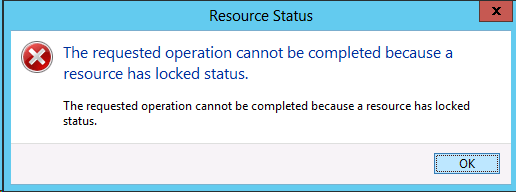
One night I was doing some maintenance on a Hyper-V cluster and I wanted to Pause and drain one of the nodes that was up next for some tender loving care. But I was greeted by some messages:

image

[Window Title]
Resource Status

[Main Instruction]
The requested operation cannot be completed because a resource has locked status.

[Content]
The requested operation cannot be completed because a resource has locked status.

[OK]

Strange, the cluster is up and running, none of the other nodes had issues and operational wise all VMs are happy as can be. So what’s up? Not to much in the error logs except for this one related to a backup. Aha …We fire up disk part and see some extra LUNs mounted + using “vssadmin list writers“ we find:

clip_image002


Writer name: ‘Microsoft Hyper-V VSS Writer’
…Writer Id: {66841cd4-6ded-4f4b-8f17-fd23f8ddc3de}
…Writer Instance Id: {2fa6f9ba-b613-4740-9bf3-e01eb4320a01}
…State: [5] Waiting for completion
…Last error: Unexpected error

Bingo! Hello old “friend”, I know you! The Microsoft Hyper-V VSS Writer goes into an error state during the making of hardware snapshots of the LUNs due to almost or completely full partitions inside the virtual machines. Take a look at this blog post on what causes this and how to fix fit. As a result we can’t do live migrations anymore or Pause/Drain the node on which the hardware snapshots are being taken.

And yes, after fixing the disk space issue on the VM (a SDT who’s pumped the VM disks 99.999% full) the Hyper-V VSS writer get’s out of the error state and the hardware provider can do it’s thing. After the snapshots had completed everything was fine and I could continue with my maintenance.

PowerShell: Monitoring DrainStatus of a Hyper-V Host & The Time Limited Value of Information In Beta & RC Era Blogs

I was writing some small PowerShell scripts to kick pause and resume Hyper-V cluster hosts and I wanted to monitor the progress of draining the virtual machines of the node when pausing it. I found this nice blog about Draining Nodes for Planned Maintenance with Windows Server 2012 discussing this subject and providing us with the properties to do just that.

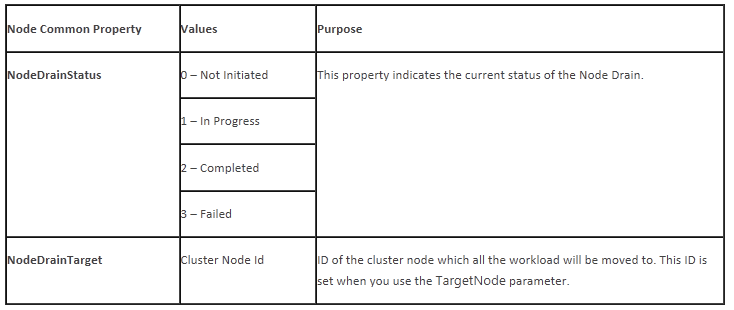
It seems we have two common properties at our disposal: NodeDrainStatus and NodeDrainTarget.

image

So I set to work but I just didn’t manage to get those properties to be read. It was like they didn’t exist. So I pinged Jeff Wouters who happens to use PowerShell for just about anything and asked him if it was me being stupid and missing the obvious. Well it turned out to be missing the obvious for sure as those properties do no exist. Jeff told me to double check using:

Get-ClusterNode MyNode -cluster MyCluster | Select-Object -Property *

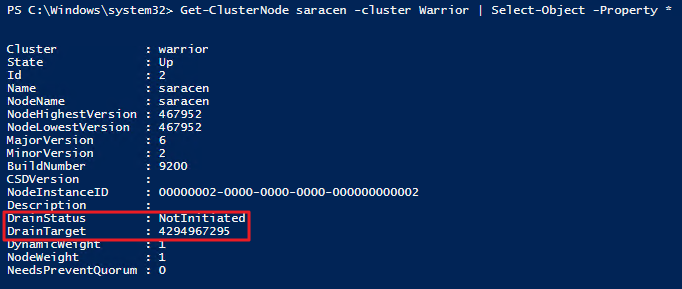
Guess what, it’s not NodeDrainStatus and NodeDrainTarget but DrainStatus and DrainTarget.

image

What put me off here was the following example in the same blog post:

Get-ClusterResourceType "Virtual Machine" | Get-ClusterParameter NodeDrainMoveTypeThreshold

That should have been a dead give away. As we’ve been using MoveTypeTresHold a lot the recent months and there is no NodeDrain in that value either. But it just didn’t register. By the way you don’t need to create the property either is exists. I guess this code was valid with some version (Beta?) but not anymore. You can just get en set the property like this

Get-ClusterResourceType “Virtual Machine” -Cluster MyCluster | Get-ClusterParameter MoveTypeThreshold

Get-ClusterResourceType “Virtual Machine” -Cluster MyCluster | Set-ClusterParameter MoveTypeThreshold 2000

So lessons learned. Trust but verify Smile.  Don’t forget that a lot of things in IT have a time limited value. Make sure that to look at the date of what you’re reading and about what pre RTM version of the product the information is relevant to.
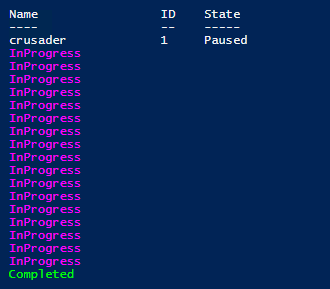
To conclude here’s the PowerShell snippet I used to monitor the draining process.


Suspend-clusternode –Name crusader -Cluster warrior -Drain

Do
{
    Write-Host (get-clusternode –Name “crusader” -Cluster warrior).DrainStatus -ForegroundColor Magenta    
    Sleep 1
}
until ((get-clusternode –Name “crusader” -Cluster warrior).DrainStatus -ne "InProgress")

If ((get-clusternode –Name “crusader” -Cluster warrior).DrainStatus -eq "Completed")
{
    Write-Host (get-clusternode –Name “crusader” -Cluster warrior).DrainStatus -ForegroundColor Green
}

Which outputs

image

Understanding Virtual Machine Priority and Preemption Behavior

Introduction

By reading Aidan Finn his blog You Pause A Clustered Hyper-V Host And Low Priority VMs are QUICK MIGRATED! you will learn something about how virtual machine priorities work during the pausing and draining of a clustered Hyper-V host. They are either Live or quick migrated depending on the value of the MoveTypeThreshold cluster parameter for resources of the type “Virtual Machine”. By default it’s at 2000 and that happens to be the value of the virtual machine priority “Low”.

Changing this value can alter the default behavior. For example setting the MoveTypeThreshold value to 1000 using PowerShell

Get-ClusterResourceType “Virtual Machine” | Set-ClusterParameter MoveTypeThreshold 1000

makes sure that only VMs with a priority set to “No Auto Restart”  are quick migrated. The  low priority machines would than also live migrate where by default they quick migrate.

  • Virtual Machines with Priority equal to or higher than the value specified in MoveTypeThreshold will be moved using Live Migration.
  • Virtual Machines with Priority lower than the value specified in MoveTypeThreshold will be moved using Quick Migration.

Virtual Machine Priorities
3000 = High
2000 = Medium
1000 = Low
0 = Virtual machine does not restart automatically.

Another Scenario to be aware of  to avoid surprises

Note that al this also comes into play in other scenario’s. One of them is when you attempt to start a guest that requires more resources than available on the host. Preemption kicks in and the lower priority virtual machines go into a saved state.  If you didn’t plan for this it could be a bit of a surprise, causing service interruption. What’s also important to know is that preemption kicks in even when there is no chance that putting lower priority virtual machines into saved mode will free enough resources for (all) the VMs you’re trying to start. So that service interruption might do you no good. If this is the case the Low priority VMS come back up when there are sufficient resources left.  Do note however that the ones set top “No Auto Restart” remain in a saved state. Look below for an example on how this could happen.

How does this happen?

Let’s say you have a brand new VM that has gotten 16GB of RAM as requested by the business. When that large memory guest starts it will fail due to the fact that there are not enough memory resources available on the host that only has 16GB available. But as it attempts to start, the need for memory resources is detected and preemption comes into play. The guests with “Low” and “No Auto Restart” priorities are put into a saved state as the large memory VM has the default medium priority and the MoveTypeTreshold is at the default of 2000. You need to be ware of this behavior. Preemption kicks in and the machines are still saving while starting the large memory VM has already failed as they couldn’t free enough resources anyway.

image

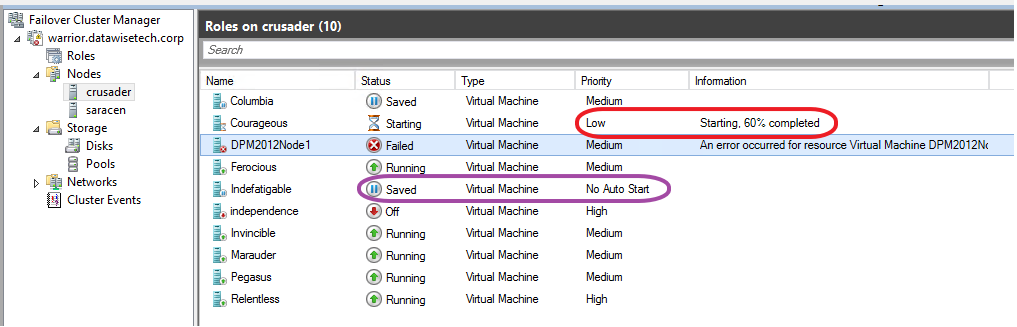
The good new is that, as you can see below, is that the low priority guest starts again after starting the large memory guest has failed. No use keeping it saved as it can run and service customers. So the service interruption for this VM is limited but it does happen. Please also note that the guest set to No Auto Restart doesn’t come up again as it’s priority status says exactly that. So, this one becomes collateral damage.

image

As you can see it’s important to know how priorities and preemption work together and behave. It also good to know that changing the threshold come into play in more situations that just pausing & draining a host of during a fail over. While the cluster will try it’s best to keep as many VMs up and running you might have some unintended consequences under certain conditions. A good understanding of this can prevent you from being bitten here. So build a small cheap lab so you can play with stuff. This helps to gain a better understanding of how features work and behave. If you want to play some more, set the priority of the memory hungry VM to high you’ll see even more interesting things happen.