Introduction
When using file shares as backup targets you should leverage Continuous Available SMB 3 file shares. For now, at least. A while back Anton Gostev wrote a very interesting piece in his “The Word from Gostev”. It was about an issue that they saw with people using SMB 3 files shares as backup targets with Veeam Backup & Replication. To some it was a reason to cry wolf. But it’s a probably too little-known issue that can and a such might (will) occur. You need to be aware of it to make good decisions and give good advice.
I’m the business of building rock solid solutions that are highly available to continuous available. This means I’m always looking into the benefits and drawbacks of design choices. By that I mean I study, test and verify them as well. I don’t do “Paper Proof of Concepts”. Those are just border line fraud.
So, what’s going on and what can you do to mitigate the risk or avoid it all together?
Setting the scenario
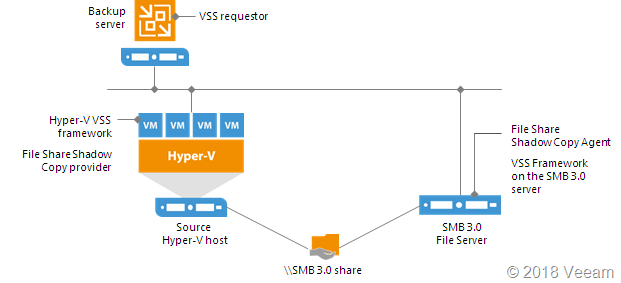
Your backup software (in our case Veeam Backup & Recovery) running on Windows leverages an SMB 3 file share as a backup target. This could be a Windows Server file share but it doesn’t have to be. It could be a 3rd party appliance or storage array.
The SMB client
The client is the SMB 3 Client Microsoft delivers in the OS (version depends on the OS version). But this client is under control of Microsoft. Let’s face it the source in these scenarios is a Hyper-V host/cluster or a Windows SMB 3 Windows File share, clustered or not.
The SMB server
In regards to the target, i.e. the SMB Server you have a couple of possibilities. Microsoft or 3rd party.
If it’s a third-party SMB 3 implementation on Linux or an appliance. You might not even know what is used under the hood as an OS and 3rd party SMB 3 solution. It could be a storage vendors native SMB 3 implementation on their storage array or simple commodity NAS who bought a 3rd party solution to leverage. It might be high available or in many (most?) cases it is not. It’s hard to know if the 3rd party implements / leverages the full capabilities of the SMB 3 stack as Microsoft does or not. You light not know of there are any bugs in there or not.
You get the picture. If you bank on appliances, find out and test it (trust but verify). But let’s assume its capabilities are on par with what Windows offers and that means the subject being discussed goes for both 3rd party offerings and Windows Server.
When the target is Windows Server we are talking about SMB 3 File Shares that are either Continuous Available or not. For backup targets General Purpose File Shares will do. You could even opt to leverage SOFS (S2D for example). In this case you know what’s implemented in what version and you get bug fixes from MSFT.
When you have continuously available (CA) SMB 3 shares you should be able to sleep sound. SMB 3 has you covered. The risks we are discussing is related to non-CA SMB 3 file shares.
What could go wrong?
Let’s walk through this. When your backup software writes to an SMB 3 share it leverages the SMB 3 client & server in the SMB 3 stack. Unlike when Veeam uses its own data mover, all the cool data persistence stuff is handled by Windows transparently. The backup software literally hands of the job to Windows. Which is why you can also leverage SMB Multichannel and SMB direct with your backups if you so desire. Read Veeam Backup & Replication leverages SMB Multichannel and Veeam Backup & Replication Preferred Subnet & SMB Multichannel for more on this.
If you are writing to a non-CA SMB 3 share your backup software receives the messages the data has been written. Which actually means that the data is cached in the SMB Clients “queue” of data to write but which might not have been written to the storage yet.
For short interruptions this is survivable and for Office and the like this works well and delivers fast performance. If the connection is interrupted or the share is unavailable the queue keeps the data in memory for a while. So, if the connection restores the data can be written. The SMB 3 Client is smart.
However, this has its limits. The data cache in the queue doesn’t exist eternally. If the connectivity loss or file share availability take too long the data in the SMB 3 client cache is lost. But it was not written to storage! To add a little insult to injury the SBM client send back “we’re good” even when the share has been unreachable for a while.
For backups this isn’t optimal. Actually, the alarm bell should start ringing when it is about backups. Your backup software got a message the data has been written and doesn’t know any better. But is not on the backup target. This means the backup software will run into issues with corrupted backups sooner or later (next backup, restores, synthetic full backups, merges, whatever comes first).
Why did they make it this way?
This is OK default behavior. it works just fine for Office files / most knowledge worker client software that have temp files, auto recovery, and all such lovely capabilities and work is mostly individual and interactive. Those applications are resilient to this by nature. Mind you, all my SMB 3 file share deployments are clustered and highly available where appropriate. By “appropriate” I mean when we don’t have off line caching for those shares as a requirement as those too don’t mix well (https://blogs.technet.microsoft.com/filecab/2016/03/15/offline-files-and-continuous-availability-the-monstrous-union-you-should-not-consecrate/). But when you know what your doing it rocks. I can actually failover my file server roles all day long for patching, maintenance & fun when the clients do talk SMB 3. Oh, and it was a joy to move that data to new SANs under the hood. More on that perhaps in another post. But I digress.
You need adequate storage in all uses cases
This is a no brainer. Nothing will save you if the target storage isn’t up to the task. Not the Veeam data move or SMB3 shares with continuous availability. Let’s be very clear about this. Even at the cost-effective side of the equation the storage has to be of sufficient decent quality to prevent data loss. That means decent controllers with battery cached IO as safe guard etc. Whether that’s a SAN or a “simple” raid controller or pass through HBA’s for storage spaces, doesn’t matter. You have to have it. Putting your data on SATA drives without any save guard is sure way of risking data loss. That’s as simple as it gets. You don’t do that, unless you don’t care. And if you care, you would not be reading this!
Can this be fixed?
Well as a non-SMB 3 developer I would say we need an option added that the SMB 3 client can be configured to not report success until that data has been effectively written on the target, or at least has landed somewhere on quality, cache protected storage.
This option does not exist today. I do not work for Microsoft but I know some people there and I’m pretty sure they want to fix it. I’m just not sure how big of a priority it is at the moment. For me it’s important that when a backup application goes to a non-continuous available file share it can request that it will not cache and the SMB Server says “OK” got it, I will behave accordingly. Now the details in the implementation will be different but you get the message?
I would like to make the case that it should be a configurable option. It is not needed for all scenarios and it might (will) have an impact on performance. How big that would be I have no clue. I’m just a blogger who does IT as a job. I’m not a principal PM at Microsoft or so.
If you absolutely want to make sure, use clustered continuous available file shares. Works like a charm. Read this blog Continuous available general purpose file shares & ReFSv3 provide high available backup targets, there is even one of my not so professional videos show casing this.
It’s also important not to panic. Most of you might even never has heard or experienced this. But depending on the use case and the quality of the network and processes you might. In a backup scenario this is not something that makes for a happy day.
The cry wolf crowd
I’ll be blunt. WARNING. Take a hike if you have a smug “Windoze sucks” attitude. If you want to deal dope you shouldn’t be smoking too much of your own stuff, but primarily know it inside out. NFS in all its varied implementations has potential issues as well. So, I’d also do my due diligence with any solution you recommend. Trust but verify, remember?! Actually, an example of one such an issue was given for an appliance with NFS by Veeam. Guess what, every one has issues. Choose your poison, drink it and let other chose theirs. Condescending remarks just make you look bad every time. And guess what that impression tends to last. Now on the positive side, I hear that caching can be disabled on modern NFS client implementations. So, the potential issue is known and is is being addressed there as well.
Conclusion
Don’t panic. I just discussed a potential issue than can occur and that you should be aware off when deciding on a backup target. If you have rock solid networking and great server management processes you can go far without issues, but that’s not 100 % fail proof. As I’m in the business of building the best possible solutions it’s something you need to be aware off.
But know that they can occur, when and why so you can manage the risk optimally. Making Windows Server SMB 3 file shares Continuously Available will protect against this effectively. It does require failover clustering. But at least now you know why I say that when using file shares as backup targets you should leverage continuous available SMB 3 file shares
When you buy appliances or 3rd party SMB 3 solutions, this issue also exists but be extra diligent even with highly available shares. Make sure it works as it should!
I hope Microsoft resolves this issue as soon as possible. I’m sure they want to. They want their products to be the best and fix any possible concerns you might have.