Upgrading Your DELL Compellent Storage Center Firmware (Part 1)

This is Part 1 of this blog. You’ll find Part 2 over here

Well the Compellent firmware 6.3.10 has gone public and it’s time to put it on our systems. 6.3 brings interesting features like ODX and UNMAP to us Windows Server 2012 Hyper-V users. It also introduces some very nice improvements to synchronous replication and Live Volumes. But’s those are matters for other blog posts. Here We’ll focus on the upgrade.

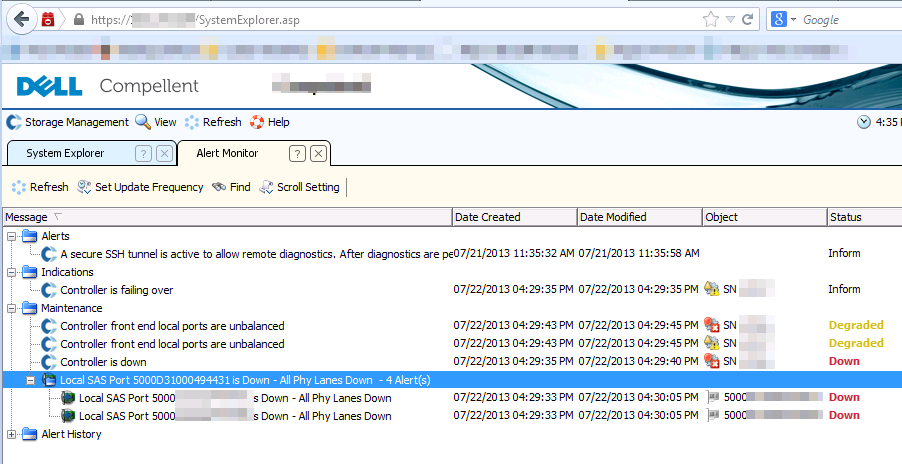
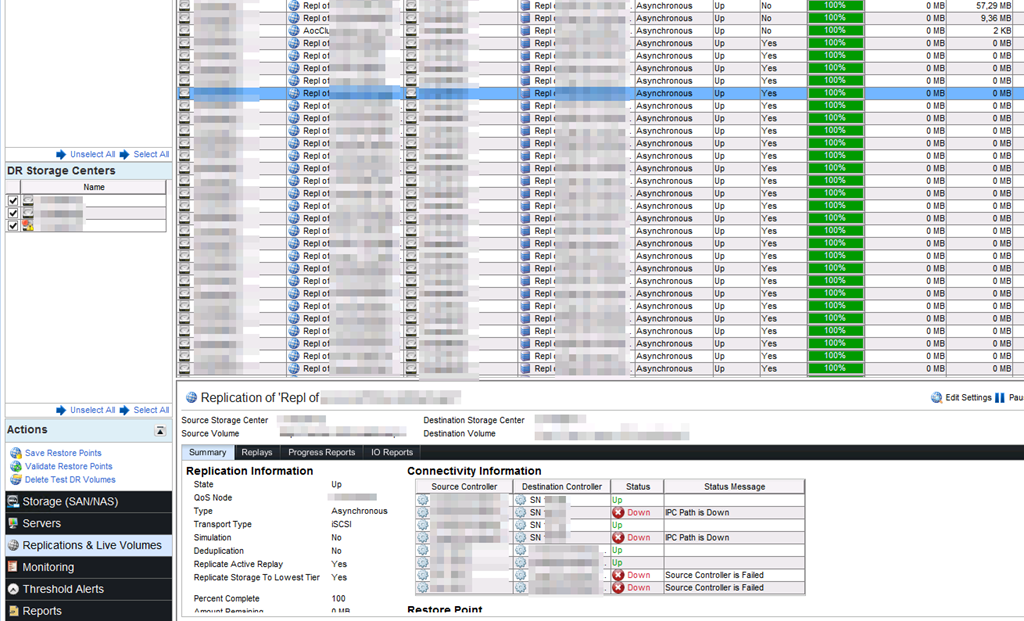
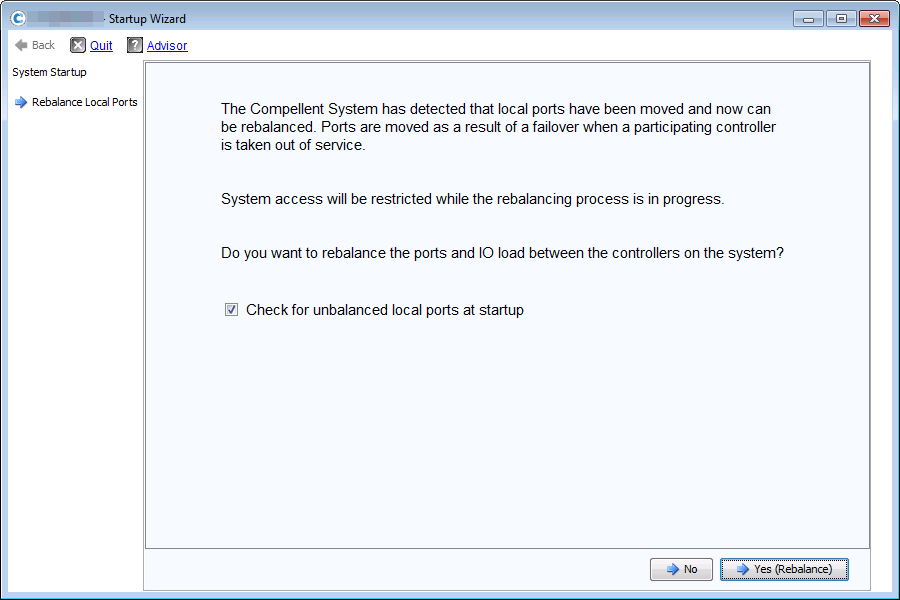
In part 1 we’ll look at how we prepare the Compellent to be ready to apply the upgrade. We make sure on our side we have no outstanding issues on the SAN. Then we made sure we upgraded Enterprise Manager and Replay Manager to the latest versions. At this time of writing that is EM 6.3.5.7 and RM 7.0.1.1. We could do this prior to the firmware upgrade because 6.2.2. is also supported by these versions. Once we established all was working well with this software we contacted CoPilot to check our systems (the check it’s health an applicability as well). When all is in order they’ll release the firmware to us. Then It’s time to run a check for update on the systems.

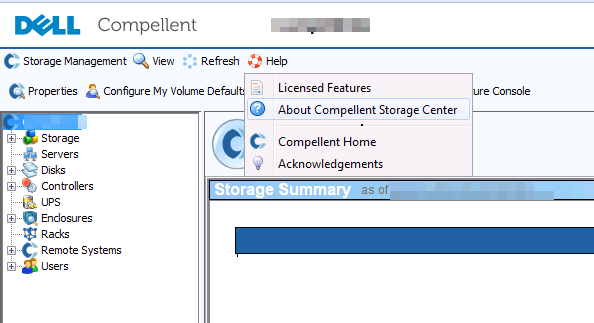
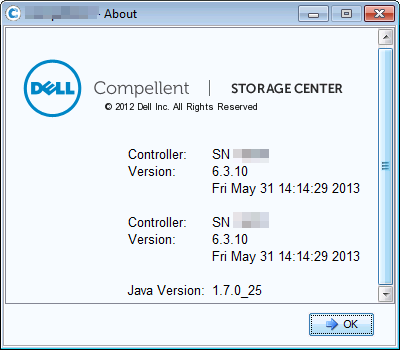
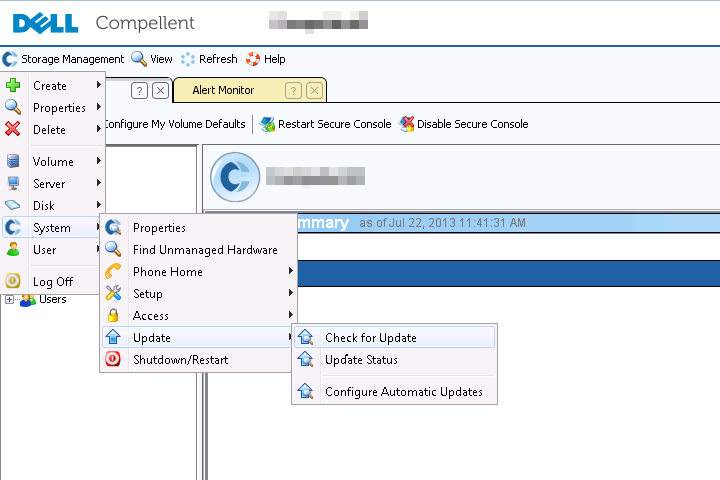
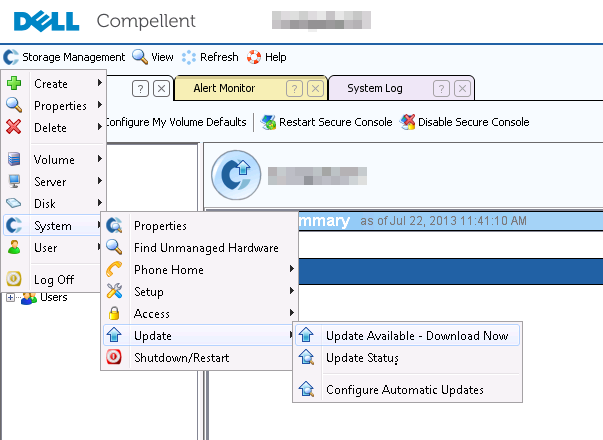
Log in to your Compellent system and navigate to the Storage Management menu. Click on “System”, select Update and finally click on “Check for Update”.
image

The tool will check for updates.

image

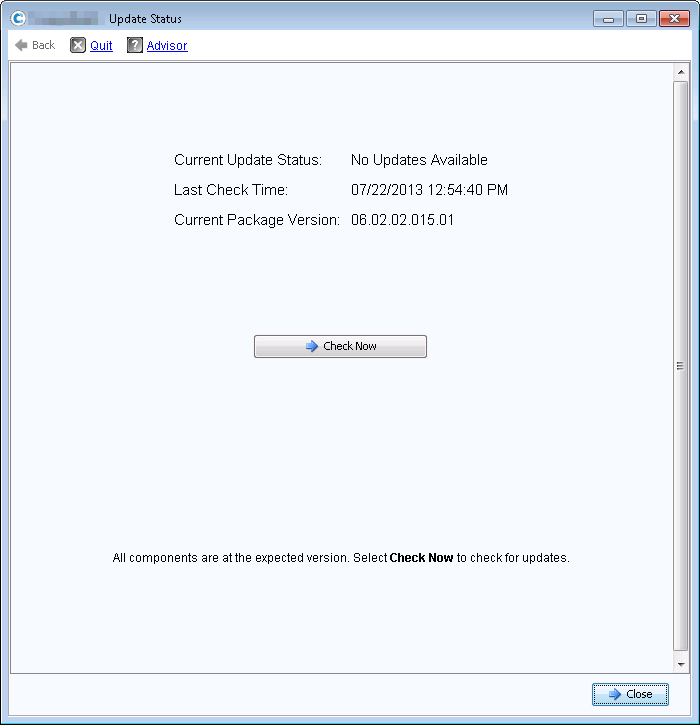
If no new firmware has been released to your systems you’ll see this.image

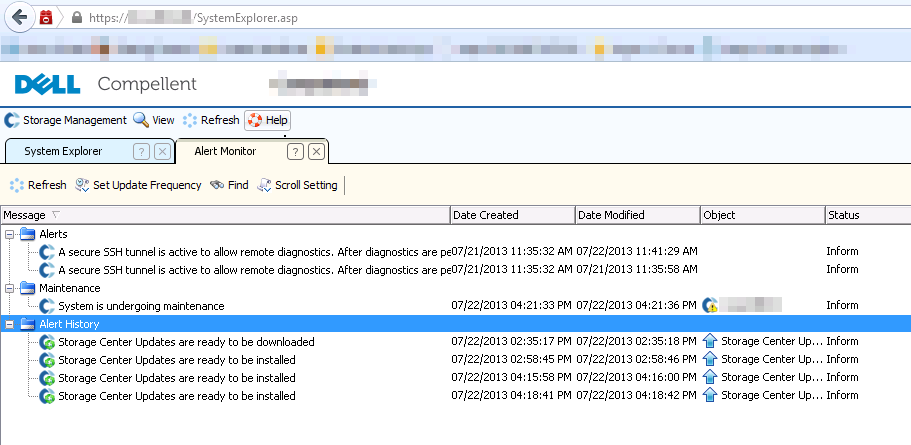
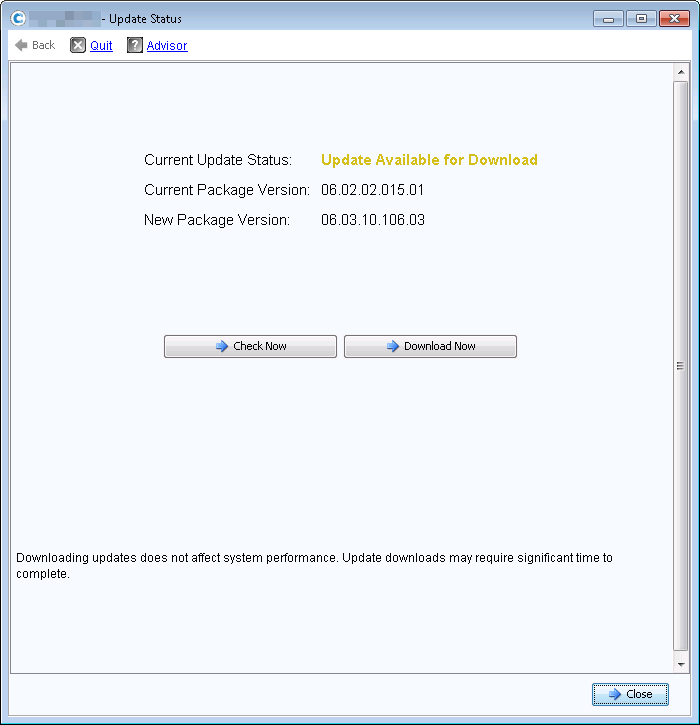
If new firmware has been released you see this in the update status.image

This also shows in the Storage Center GUI

image

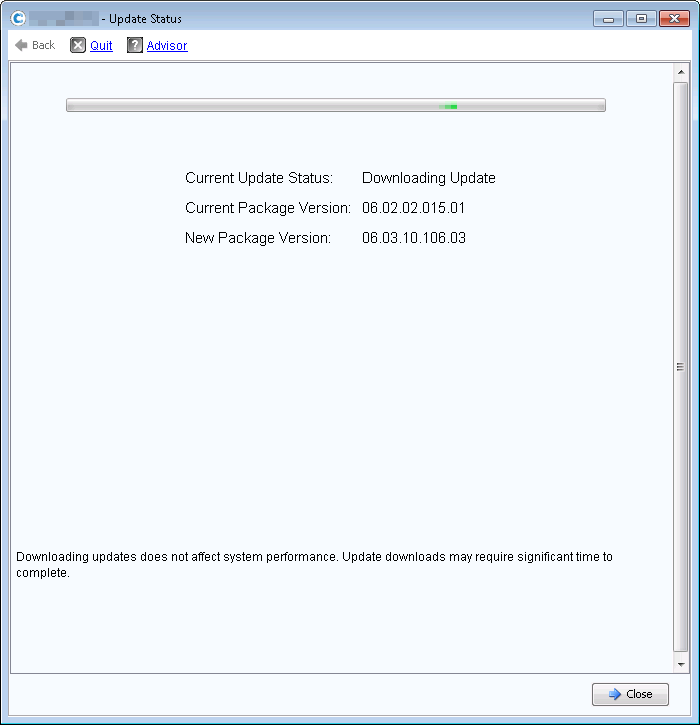
Downloading the update.

image

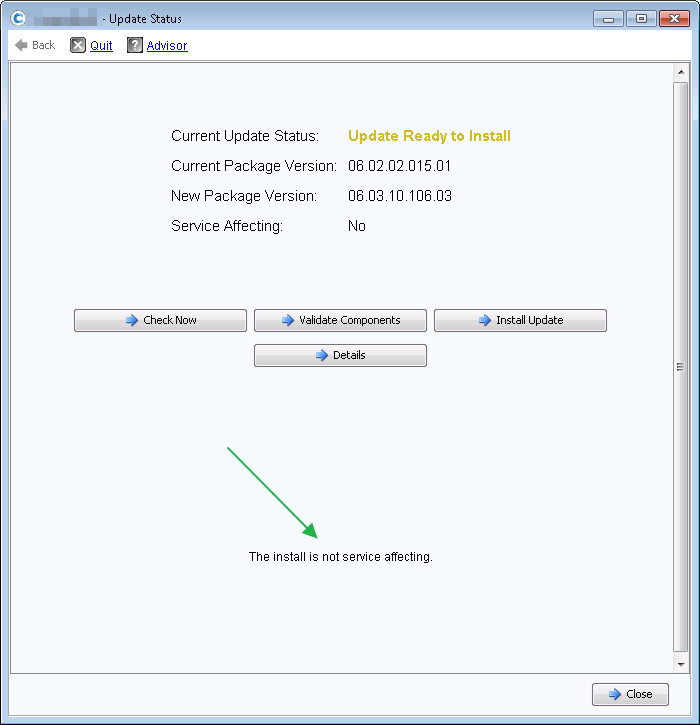
The download takes a while. Once it’s done you’ll see that the update is ready to install. Note that this update is non service affecting in OUR case (green arrow). We won’t install it yet however. We’ll look at the details & validate the components. Due diligence pays off Winking smileimage

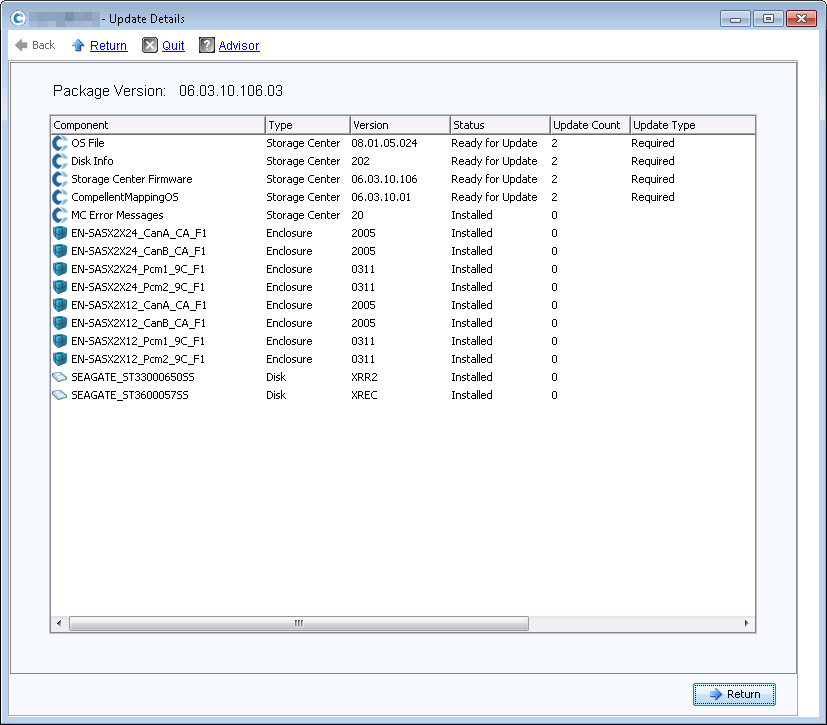
Click on details to get some more information about what’s in the update. image

You can see that our disk and enclosure firmware is up to date already from a previous update. The ones related to 6.3.10 are mandatory( required, not optional). When done, hit Return.

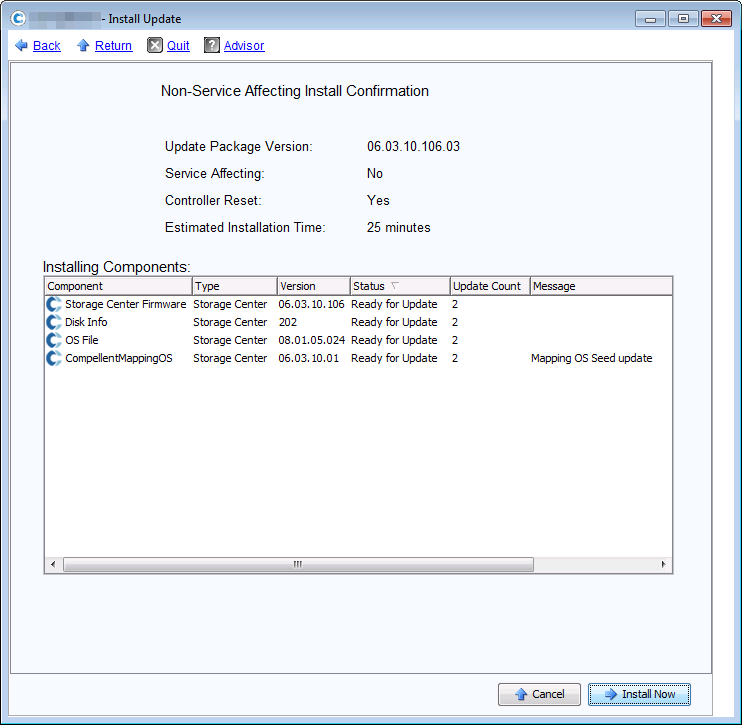
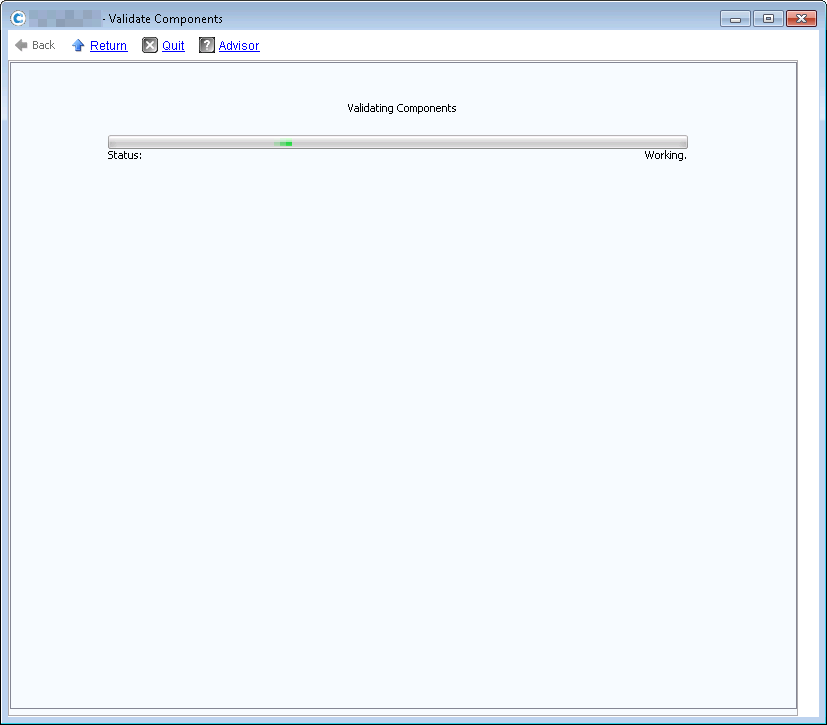
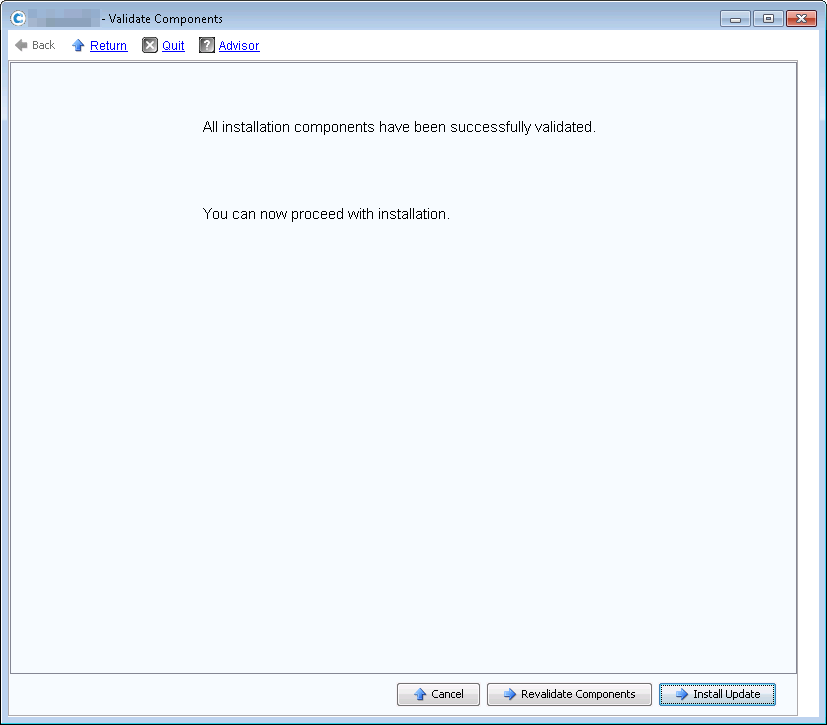
We now select “Validate Components” to make sure we’re good to go and won’t get any surprises. Trust but verify is one of our mantras.image

image

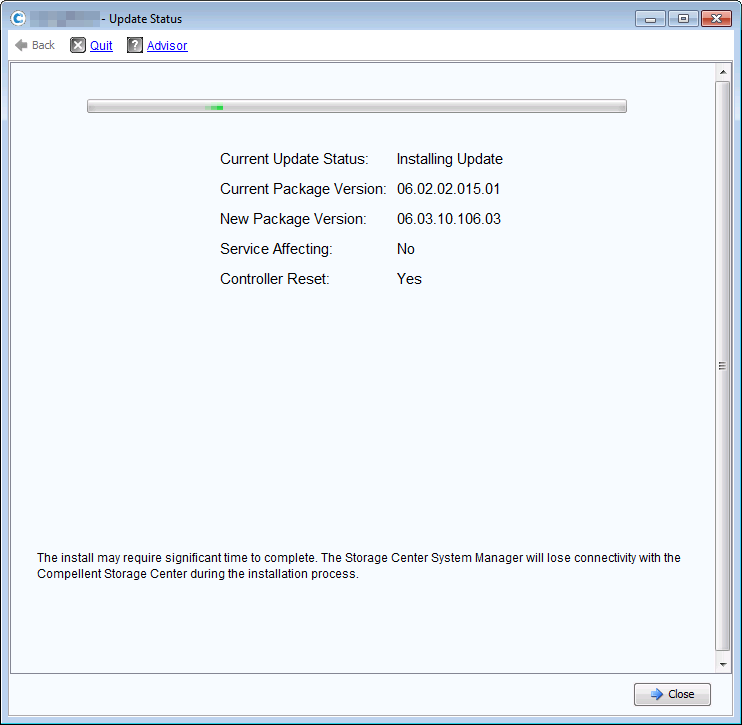
So now we are ready to run the update.  We’ll leave that for Part 2.

Virtual Receive Side Scaling (vRSS) In Windows Server 2012 R2 Hyper-V

What is it?

One of the cool new features that takes scalability in Windows Server 2012 R2 Hyper-V to a new level is virtual Receive Side Scaling (vRSS). While since In Windows Server 2012, Receive Side Scaling (RSS) over SR-IOV is supported it’s best suited for some specialized environments that require the best possible speeds at the lowest possible latencies. While SR-IOV is great for performance it’s not as flexible as for example you can’t team them so if you need redundancy you’ll need to do guest NIC Teaming.

vRSS is supported on the VM network path (vNIC, vSwitch, pNIC) and allows VMs to scale better under heavier network loads. The lack of RSS support in the guest means that there is only one logical CPU (core 0) that has to deal with all the network interrupts.  vRSS avoid this bottleneck by spreading network traffic among multiple VM processors. Which is great news for data copy heavy environments.

What do you need?

Nothing special, it works with any NICs that supports VMQ and that’s about all 10Gbps NICs you can buy or posses. So no investment is needed. It’s basically the DVMQ capability on the host NIC that has VMQ capabilities that allows for vRSS to be exposed inside of the VM over the vSwitch. To take advantage of vRSS, VMs must be configured to use multiple cores, and they must support RSS => turn it on in the vNIC configuration in the guest OS and don’t try to use a home PC 1Gbps card Winking smile

image

vRSS is enabled automatically when the VM uses RSS on the VM network path. The other good news is that this works over NIC Teaming. So you don’t have to do in guest NIC Teaming.

What does it look like?

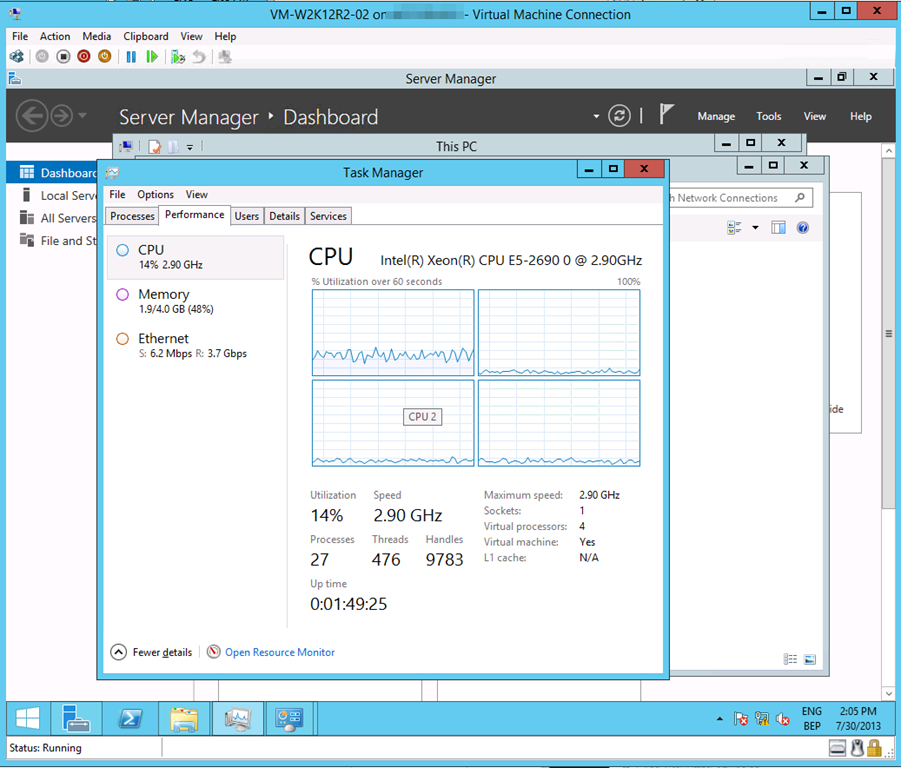
Now without SR-IOV it was a serious challenge to push that 10Gbps vNIC to it’s limit due to all the interrupt handling being dealt with by a single CPU core. Here’s what a VMs processor looks like under a sustained network load without vRSS. Not to shabby, but we want more Smile

image
As you can see the incoming network traffic has the be dealt with by good old vCore 0. While DVMQ allows for multiple processors on the host dealing with the interrupts for the VMs it still means that you have a single core per VM. That one core is possibly a limiting factor (if you can get the network throughput and storage IO, that is). vRSS deals with this limitation. Look at the throughput we got copying  lot of data to the VM below leveraging vRSS. Yeah that’s 8.5Gbps inside of a VM. Sweet Open-mouthed smile. I’m sure I can get to 10Gbps …

image

Some ODX Fun With Windows Server 2012 R2 And A Dell Compellent SAN

I’m playing and examining some of the ODX capabilities of our SANs (Dell, Compellent) at the moment. It all seems pretty impressive in the demo’s. But how does that behave in real live on our gear? How impressive is ODX? Well pretty darn impressive actually. And as all great power it needs to be wielded carefully, with insight and thought.

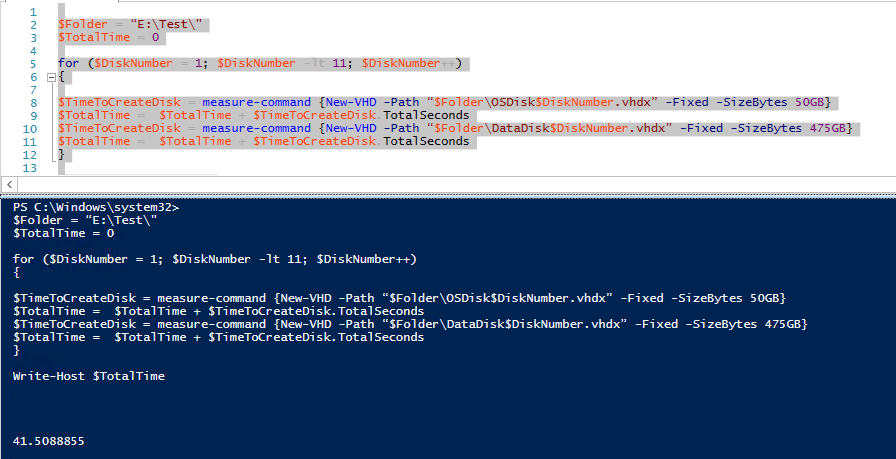
Let’s create some fixed virtual disks. 10 * 50GB vhdx and 10* 475GB vhdx. We run a simple quick PowerShell script:

image

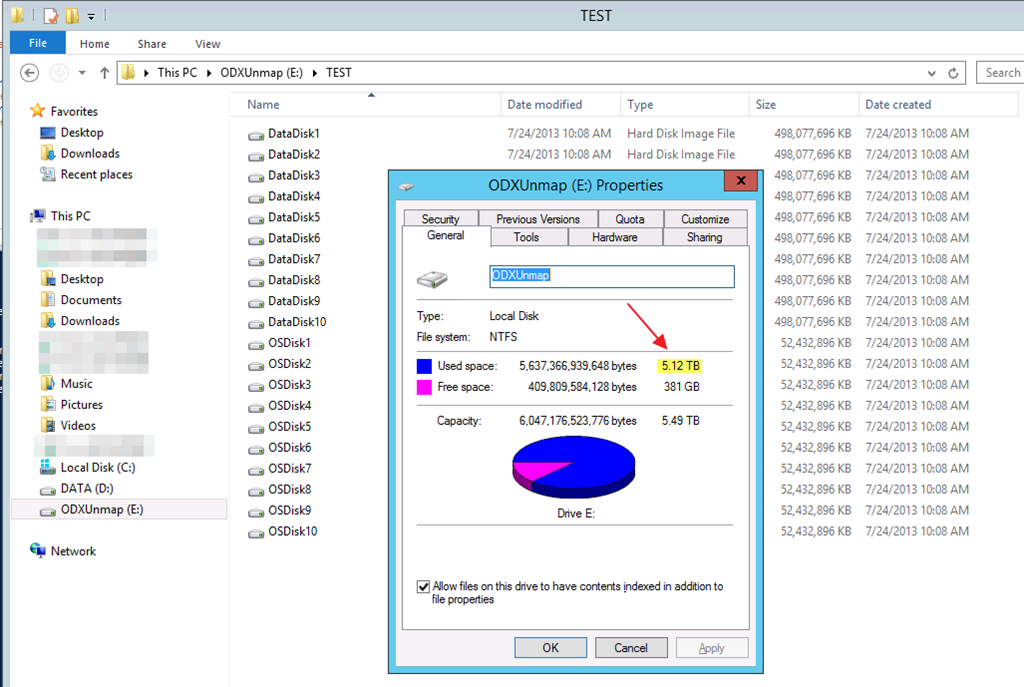
You see this correctly, it’s 41.5088855 seconds. let’s round up to 42 seconds. That’s 20 fixed VHDX files. 10 of 50GB, 10 of 475GB in 42 seconds. That’s a total of 5.12TB of vhdx files.

image

Compared to creating a single 5TB vhdx file this isn’t to shabby as that get done in 26 seconds!

You can only dream of the kind of scenario’s this kind of power enables. Woooot!!!

House Keeping In The Cluster Aware Updating GUI

When you work in an environment with multiple clusters and some of them are replaced, destroyed etc, you’ll end up with stale clusters in the “Recent Clusters” list of the Cluster Aware Updating GUI. In the example below the red entry (had to obfuscate, sorry) is a no longer existing cluster but it’s very similar to a new one that was created to fix a naming standard error. So we’d like to get rid of those to prevent mistakes and cluttering up the GUI with irrelevant information.image

The Recent Cluster list is tied to your user profile and you can end up with a list polluted with stale entries of no longer existing clusters. To clean them out you can dive into the registry and navigate to:

HKEY_CURRENT_USERSoftwareMicrosoftWindowsCurrentVersionClusterAwareUpdatingClusterMRUimage

Simply delete the entries that contain the values of the old cluster that are no longer in existence.

Close the Cluster Aware Updating GUI it still open and reopen it. You’ll see the stale entries to the one or more no longer exiting clusters in “Recent Clusters” is gone.image