As an early adopter of Windows Server 2012 it’s not about being the fist it’s about using the great new features. When you leverage the Cluster Aware Updating (CAU) Plug-in to deploy hardware vendor updates like those from DELL which are called DUPs (Dell Update Packages) you have the option to to log the process via parameter /L
This looks like this in the config XML file for the CAU (I’ll address this XML file in more details later).
<Folder name="Optiplex980DUPS" alwaysReboot="false">
<Template path="$update$" parameters="/S /L=\zuluCAULoggingCAULog.log"/>
As you can see I use a file share as I don’t want to log locally because this would mean I’d have to collect the logs on all nodes of a cluster. Now if you log to file share you need to do two things that we’ll discuss below.
1. Set up a share where you can write the log or logs to
Please note that you cannot and should not use the CAU file share for this. First off all only a few accounts are allows to have write permissions to the CAU file share. This is documented in How CAU Plug-ins Work
Only certain security principals are permitted (but are not required) to have Write or Modify permission. The allowed principals are the local Administrators group, SYSTEM, CREATOR OWNER, and TrustedInstaller. Other accounts or groups are not permitted to have Write or Modify permission on the hotfix root folder.
This makes sense. SMB Signing and Encryption are used to protect tampering with the files in transit and to make sure you talk to the one an only real CAU file share. To protect the actual content of that share you need to make sure now one but some trusted accounts and a select group of trusted administrators can add installers to the share. If not you might be installing malicious content to your cluster nodes without you ever realizing. Perhaps some auditing on that folder structure might be a good idea?

This means that you need a separate file share so you can add modify or at least write permissions to the necessary accounts on the folder. Which brings us to the second thing you need to do.
2. Set up Write or Modify permissions on the log share
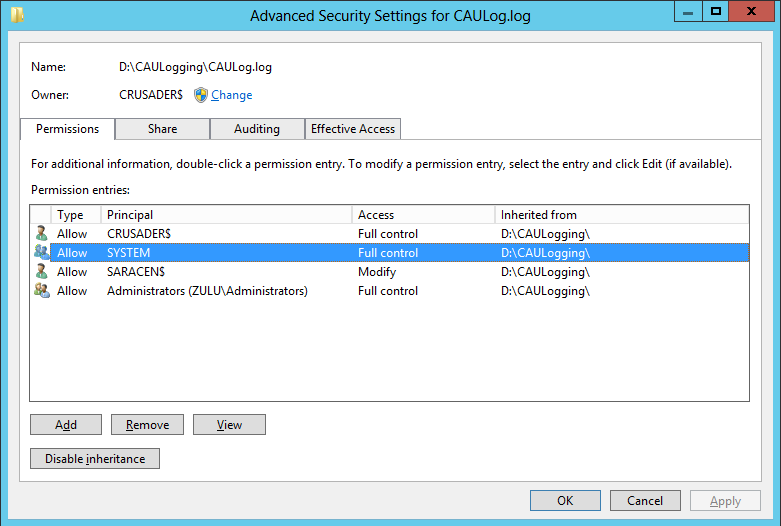
You’ll need to set up Write or Modify permissions on the log share for all cluster node computer accounts. To make this work more practically with larger clusters please you can add the computer accounts to an AD group, which makes for easier administration).
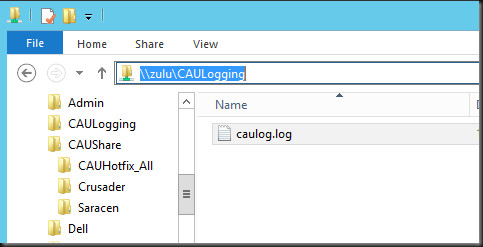
The two nodes here have permissions to write to the location

As you can see the first node to create the loge file is the owner:
Some extra tips
The log can grow quite large if used a lot. Keep an eye on it so avoid space issues or so it doesn’t get too big to handle and be useful. And for clarities sake you might get a different log per cluster or even folder type. You can customize to your needs.
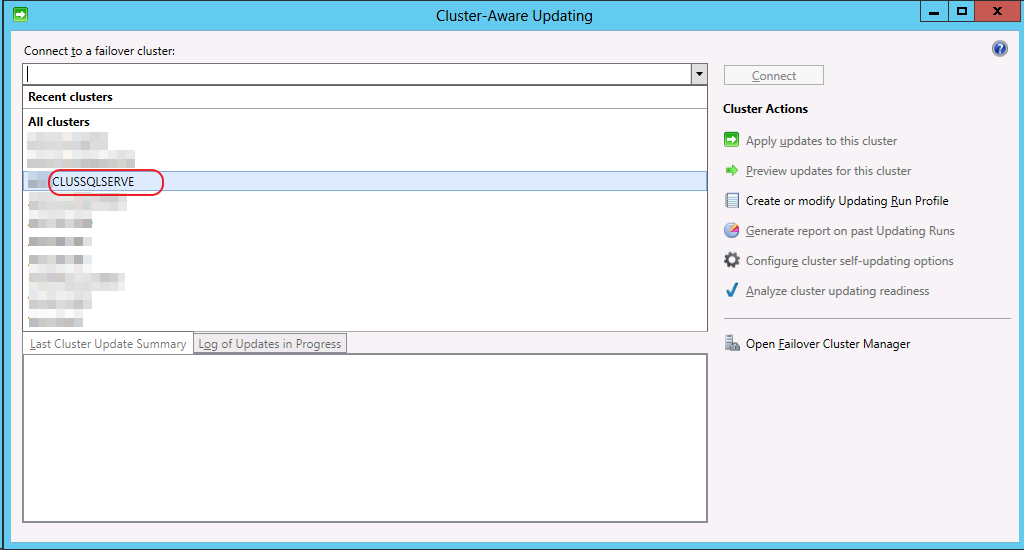
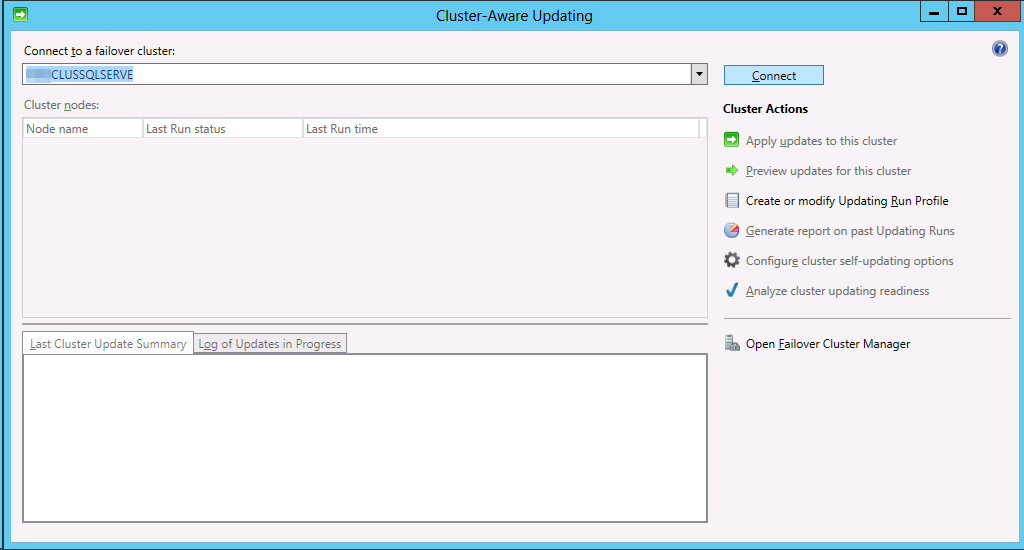

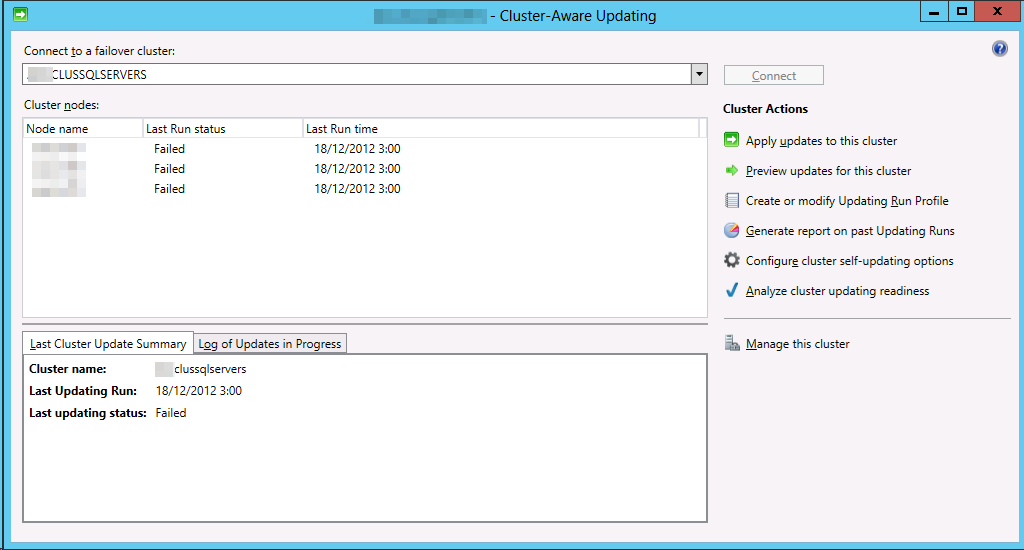
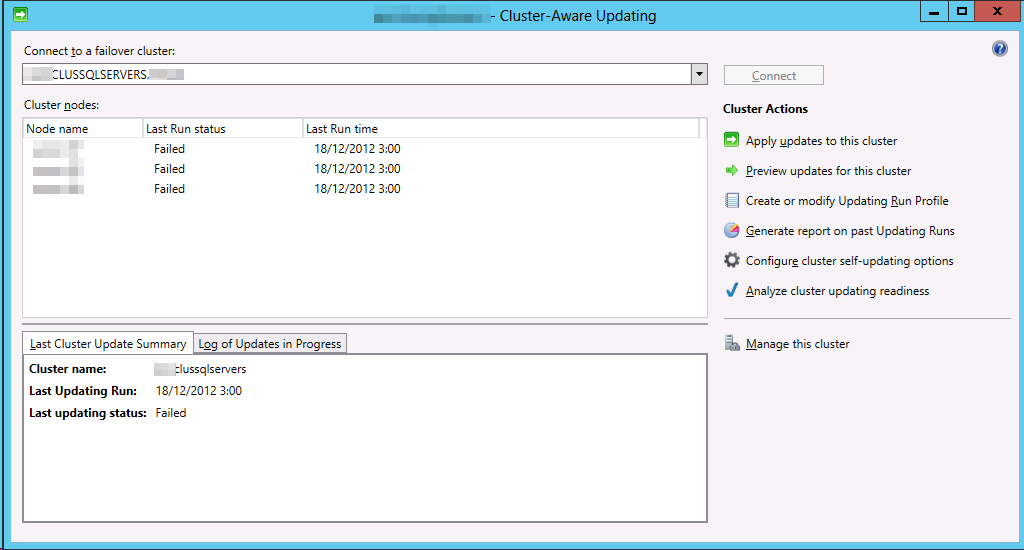
 . The CAU GUI returns the cluster CNO name and that’s the NetBIOS name which can be only 15 characters long. Selecting it in CUA to connect to the cluster doesn’t work. You need to fill out the complete name. As we demonstrated the CAU GUI does also accept a FQDN. To prevent running into this issue consider not making your cluster names longer than 15 characters as then the CNO and the cluster name will be identical and is a smart thing to do as you’ll avoid possible duplicate CNOs trying (and failing) to be created or other bugs
  .
.