Blue ring to celebrate 5 years as a Microsoft MVP

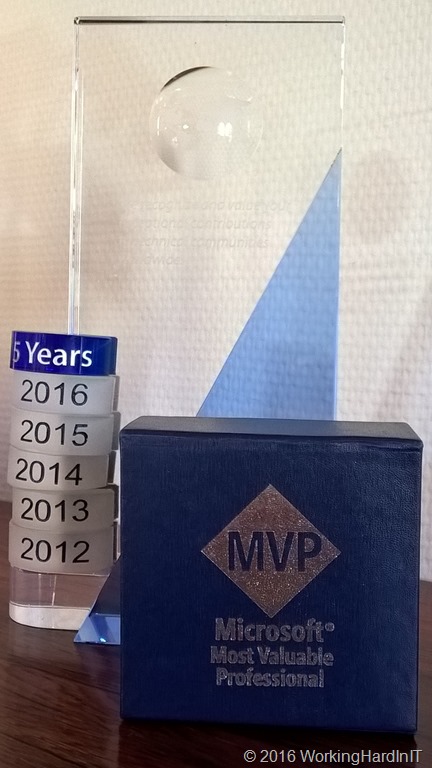
A week ago I got a package in the post. It contained a smaller box with in it a blue ring to celebrate 5 years as a Microsoft Most Valuable Professional (MVP). First in the Hyper-V expertise and now in Cloud and Datacenter Management.

MVPAward5Years

To all the people and organizations that have given me opportunities, that supported me and trusted me, I’d like to say thank you. It’s been a blast to be able to learn, test, design, build ad support so many solutions over the years. Sharing those experiences and insights helped me grow as much as anyone else. I’m convinced that every Euro or Dollar spent on my growth has had a ROI much greater than it ever cost. The mission for the years ahead is to keep learning and evolving. The job is for paying bills but all the effort and time spent is another occupational level, one I hope every one finds to have fun  whilst working.

Thank you!

RD Gateway Management Console crashes with .NET framework 4.6.1 update (KB3102467)


UPDATE: KB – the June 2016 update rollup KB 3161606  June 2016 update rollup for Windows RT 8.1, Windows 8.1, and Windows Server 2012 R2  contains the fix for this. See KB3162871 RD Gateway Manager console crashes with the latest .NET Framework 4.6.1 update on Windows Server 2012 R2 

Apparently the Exchange console and Skype for Business Server  2015 is not the only victim of Microsoft pushing out the .NET framework 4.6.1 update (KB3102467) to servers via Windows updates and WSUS. A colleague of mine described Windows updates as a game of Russian roulette, indicating there’s al least a QA concern …

The most recent victim I found was the RD Gateway management console on Windows Server 2012 R2. You might have the same issue on older Windows Versions but I’m only running W2K12R2 (it’s 2016 after all).

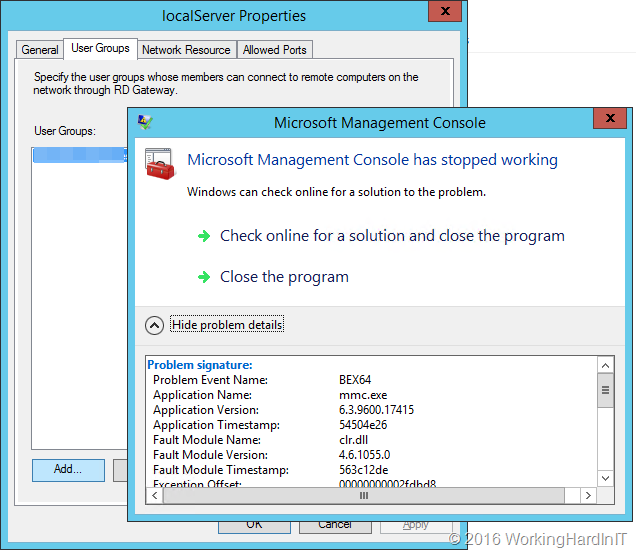
The result is that when you’re editing a Connection Authorization Policies or Resource Authorization Policies their membership settings (adding/removing groups) the MMC just crashes. Creating new ones is equally problematic!

image

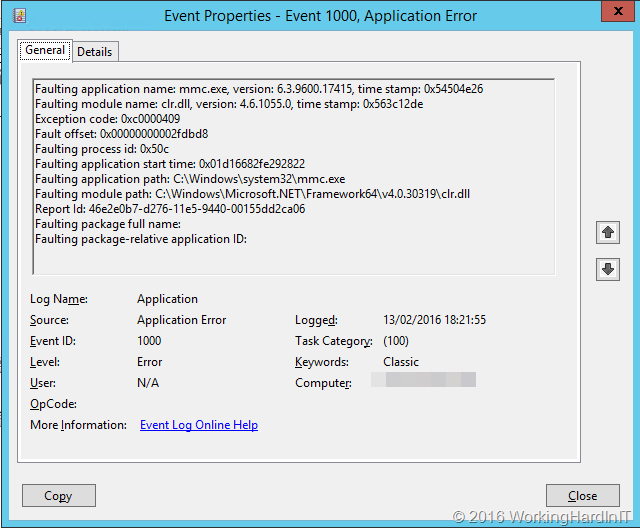
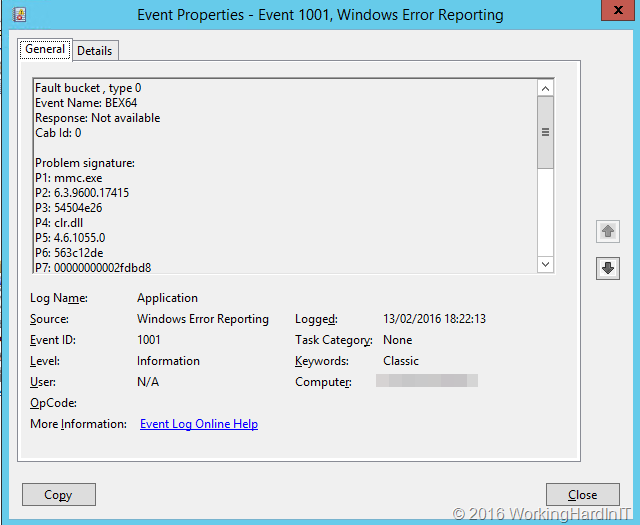
You see the following errors logged in the event viewer:

Faulting application name: mmc.exe, version: 6.3.9600.17415, time stamp: 0x54504e26
Faulting module name: clr.dll, version: 4.6.1055.0, time stamp: 0x563c12de
Exception code: 0xc0000409
Fault offset: 0x00000000002fdbd8
Faulting process id: 0x12ec
Faulting application start time: 0x01d166820b2de977
Faulting application path: C:\Windows\system32\mmc.exe
Faulting module path: C:\Windows\Microsoft.NET\Framework64\v4.0.30319\clr.dll
Report Id: 57bbb59c-d275-11e5-9440-00155dd2ca06
Faulting package full name:
Faulting package-relative application ID:

image

Followed by

image

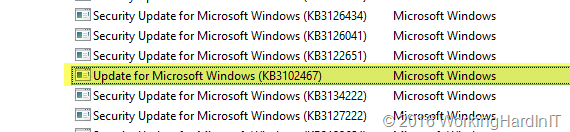
The culprit once again is the .NET Framework  4.6.1 update (KB3102467)  for Microsoft Windows.

image

Get rid of that update to restore functionality. Come on Microsoft, Quality assurance! You need people to update ever faster for both security reasons and in order to keep up with technologies and the cloud cadence. You need to make sure they can do so without worrying all the time!

Shared VHDX In Windows 2016: VHDS and the backing storage file

Introduction into the VHD Set

I have talked about the VHD Set with a VHDS file and a AVHDX backing storage file in Windows Server 2016 in a previous blog post A first look at shared virtual disks in Windows Server 2016. One of the questions I saw pass by a couple of times is whether this is still a “normal VHDX” or a new type of virtual disk. Well the VHDS files is northing but a small file containing some metadata to coordinate disk actions amongst the guest cluster nodes accessing the shared virtual disk. The avhdx file associated with that VHDS file is an automatically managed dynamically expanding or fixed virtual disk. How do I know this? Well I tested it.

There is nothing that preventing you from copying or moving the avhdx file of a VHD Set that not in use. You can rename the extension from avhdx to vhdx. You can attach it to another VM or mount it in the host and get to the data. In essence this is a vhdx file. The “a” in avhdx stands for automatic. The meaning of this is that an vhdx is under control of the hypervisor and you’re not supposed to be manipulating it but let the hypervisor handle this for you. But as you can see for yourself if you try the above you can get to the data if that’s the only option left. Normally you should just leave it alone. It does however serve as proof that the VHD Set uses an standard virtuak disk (VHDX) file.

I’ll demonstrate this with an example below.

Fun with a backing storage file in a VHD Set

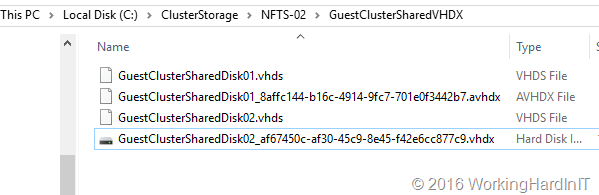
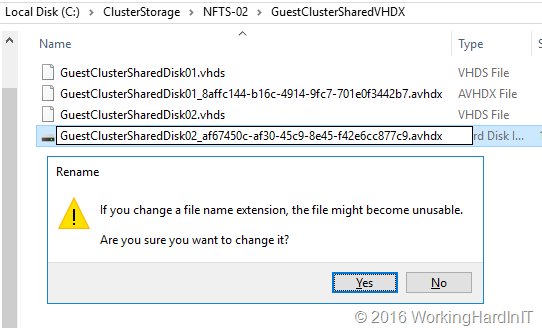
Shut down all the nodes of the guest cluster so that the VHD Set files are not in use. We then rename the virtual disk’s extension avhdx to vhdx.

image

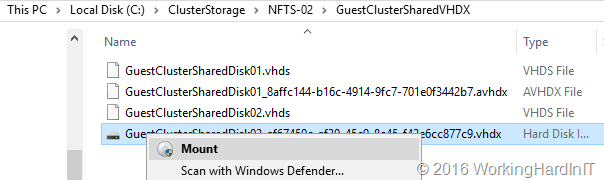
You can then mount it on the host.

image

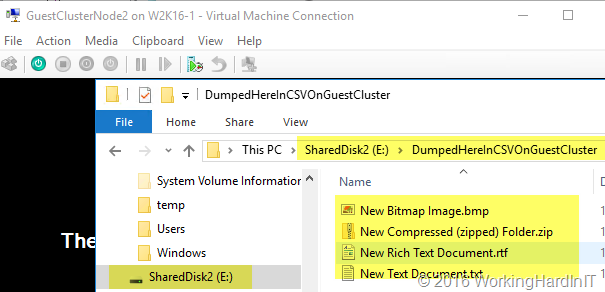
And after mounting the VHDX we can see the content of the virtual disk we put there when it was a CSV in that guest cluster.

image

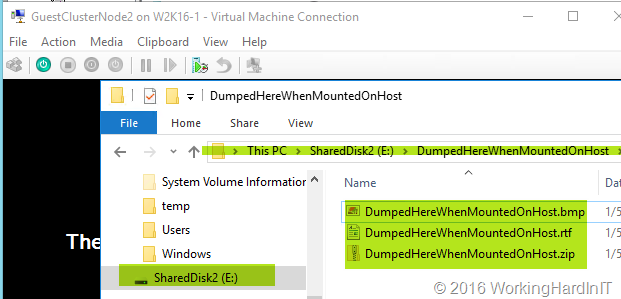
We add some files while this vhdx is mounted on the host

image

Rename the virtual disk back to a avhdx extension.

image

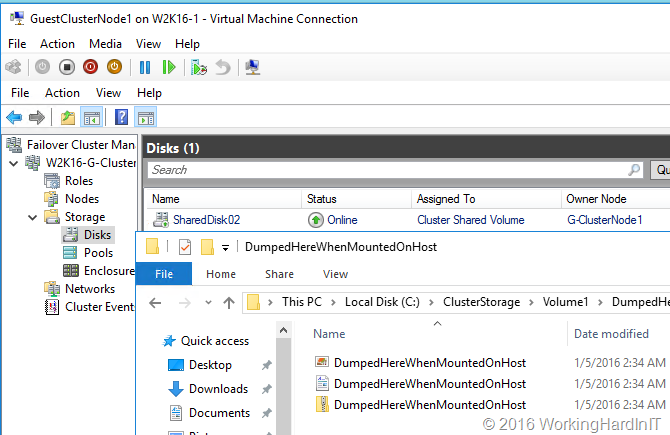
We boot the nodes of the guest cluster and have a look at the data on the CSV. Bingo!

image

I’m NOT advocating you do this as a standard operation procedure. This is a demo to show you that the backing storage files are normal VHDX files that are managed by the hypervisor and as such get the avhdx extension (automatic vhdx) to indicate that you should not manipulate it under normal circumstances. But in a pinch, it a normal virtual disk so you can get to it with all options and tools at your disposal if needed.

WEBINAR: Troubleshooting Microsoft Hyper-V – 4 Tales from the Trenches

I’ve teamed up with Altaro as a guest in one of their Hyper-V webinars to discuss trouble shooting Microsoft Hyper-V. I’ll be joining my fellow Microsoft Cloud and Datacenter Management  Andy Syrewicze for this in a virtual cross Atlantic team

WEBINAR: Troubleshooting Microsoft Hyper-V - 4 Tales from the Trenches

We’ll give you some pointers on good practices and where to start when things go south. We’ll also add some real world examples to the mix to spice things up. As you can imagine these issues are often a lot more fun after the facts and after having solved them. If you work in IT long enough you know that one day (or night) trouble will come knocking and that the stress related with that can be gut wrenching.

The good news is that it isn’t the end of the world. In well designed and managed environment you can minimize downtime and you do not have to suffer through unrecoverable losses as long as you’re well prepared. We hope this webinar will help the attendees prevent those problems in their environment. If not, it will provide you with some insight on how to prepare for and handle them.

The webinar is on February 25th, 2016 at 4pm CET / 10am EST!

The time has been chosen to make it feasible for as many many people across all time zones to attend. So, go on, register, it’s free and both Andy and I are looking forward to sharing our trouble shooting tales from the trenches.

webinar-Join-button-troubleshooting-hyperv