Upgrading The DELL PowerVault MD3600 Disk Firmware

In this post I’ll walk you through an disk firmware upgrade of a PowerVault MD3600F with 7 MD1200 extension bays filled with disks. We have several of these attached to R710 that act as Disk2Disk backup media servers with 10Gpbs networking and running W2K12R2 of course. At the moment of writing we’re at PowerVault MD Series Storage HDD (SSD) Firmware A13 and in our case we’ll be updating to Seagate_ST2000MN0001_PS08.

First of all read the readme.txt and such to make sure you’re not missing any special instructions for particular cases that might exist such as being on to old controller firmware that you need to upgrade first. Do your home work & due diligence. Of course I’m not responsible for whatever it is you do to your environment. The standard disclaimer of my blog applies Smile

I always make sure my controller firmware is up to date before I don disk firmware updates unless I’m instructed to act otherwise. In general you should not be applying firmware updates and such constantly and  all over the place to keep busy. It is, however, a good practice to keep an eye on releases and see if they fix any risky bugs you might be vulnerable to.  You also don’t get to far behind on firmware updates as this can complicate thing later in the useful service life or you hardware. Fear, doubt and only doing do something when things have broken down are also not a good practice.

So first of all get the latest version of your PowerVault Modular Disk Storage Manager software if you haven’t already. Often you’ll need to have a least a certain version before you can even do newer firmware updates. So just get this in order before starting, especially if they tell you to, don’t try and outsmart the system. Then download the disk firmware form the DELL support website or via the DELL Storage Community Wiki http://en.community.dell.com/techcenter/storage/w/wiki/4234.dell-powervault-md-downloads.aspx?dgc=SM&cid=257966&lid=4630585 and safe it to disk.

Fire up the PowerVault Modular Disk Storage Manager by clicking the icon …image

Enjoy the splash screen during the launch …image

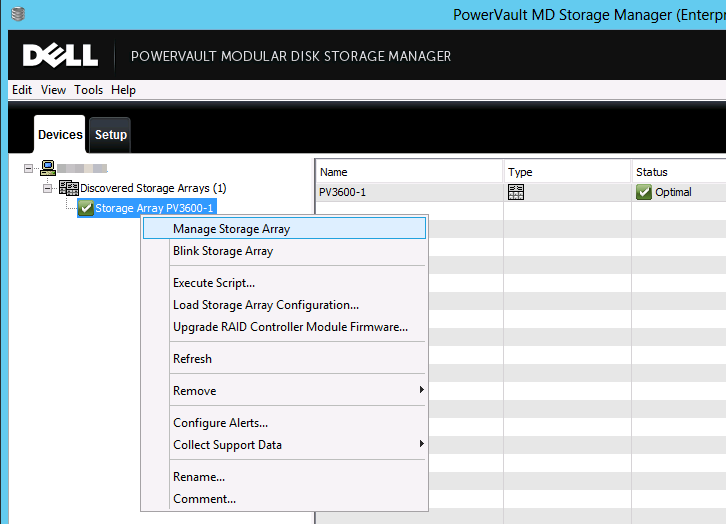
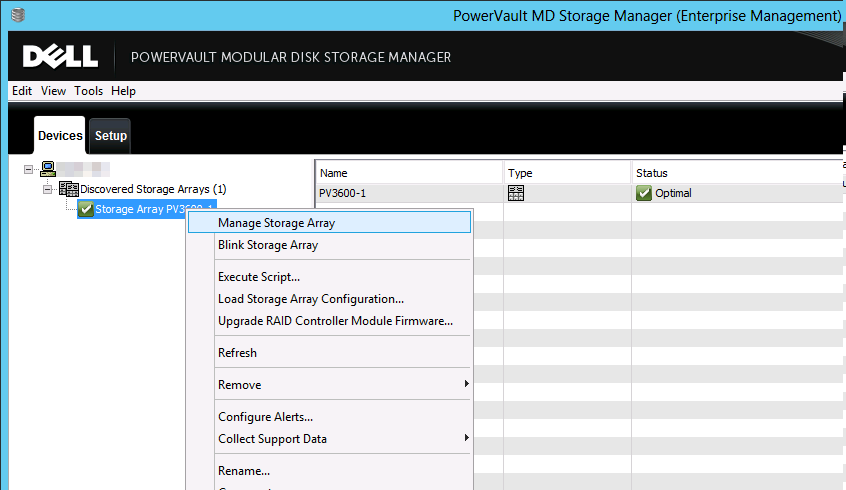
Right click your storage array and select “Manage Storage Array”image
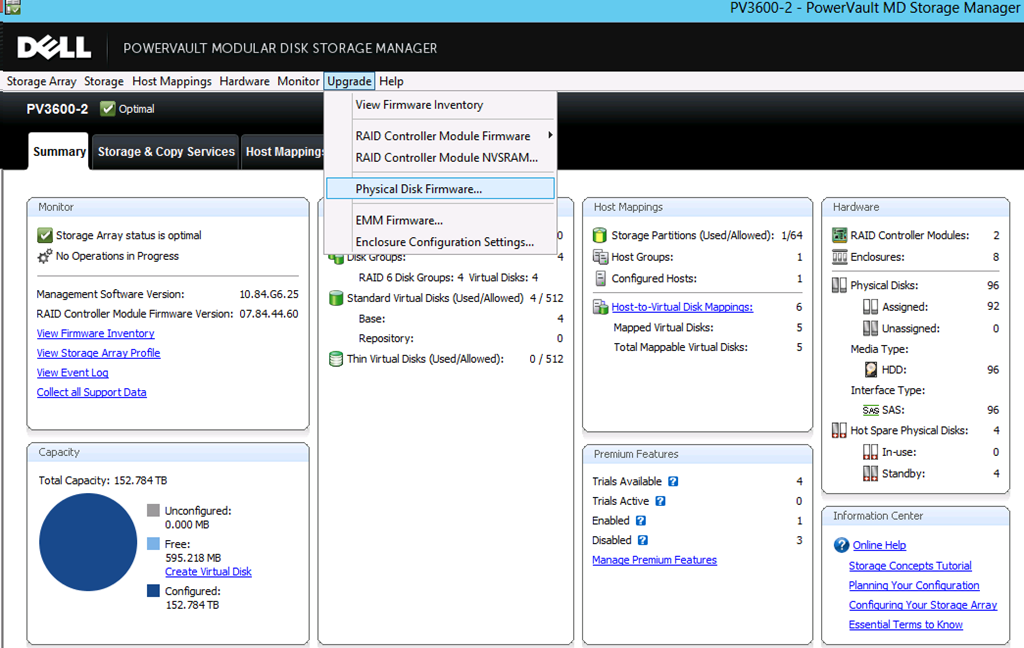
On the menu click Upgrade and select “Physical Disk Firmware…”image
A wizard pops up with some friendly advice and you are warned to stop all I/O. Which  is something you should really do. If you can un mount the file system(s) – off line it in Windows – you can do this to makes sure no I/On kick of during the upgrade. Depending on your workload this might require a maintenance window or not. For us just setting the backups to not run, stopping the agents/services of the backup product on these media servers and taking the storage LUNS off line is enough.image
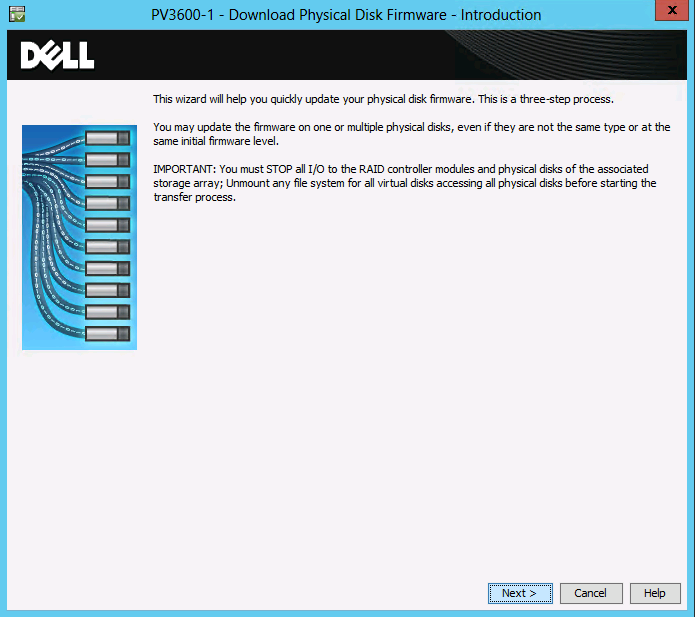
When you have done so click Next. As you can see I have only one disk type in my MD3600F and its MD1200 extension disk bays and they are all on the same firmware.
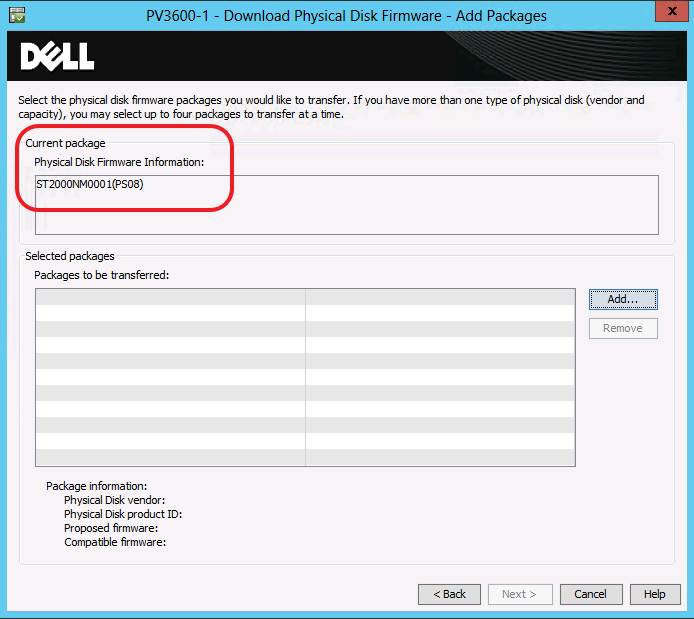
image

Click on Add and browse to the location where you unzipped the disk firmware package. There’s a bunch of them but it should be straight forward to select the correct one. If not perhaps you shouldn’t be doing this Smile
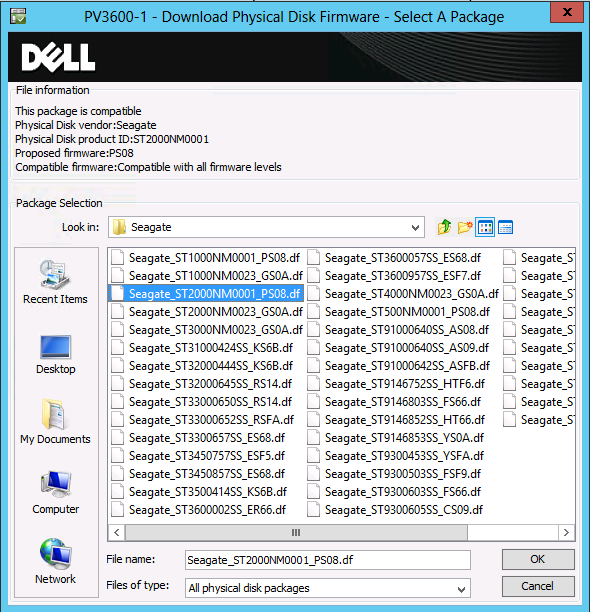
image

In this example you see on disk type all being moved to one new firmware. If you have multiple disk types or brands you can select multiple firmware packages to be transferred. That’s quite handy.
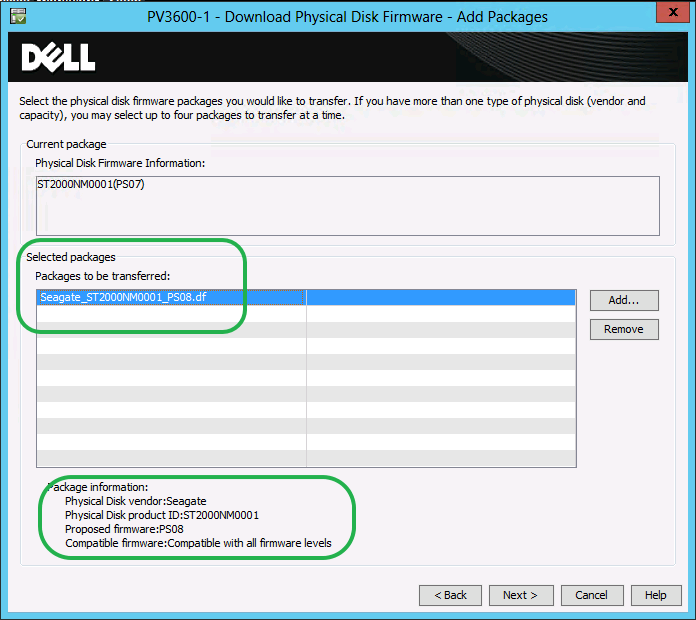
image

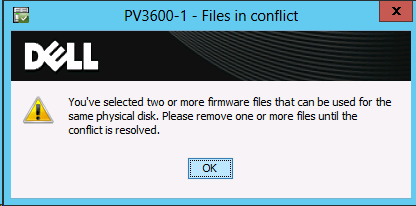
When done click Next to continue. Note: Don’t select more that one version of the firmware for the same type of disk. That will just throw an error message at you telling you that’s not you smartest move.image
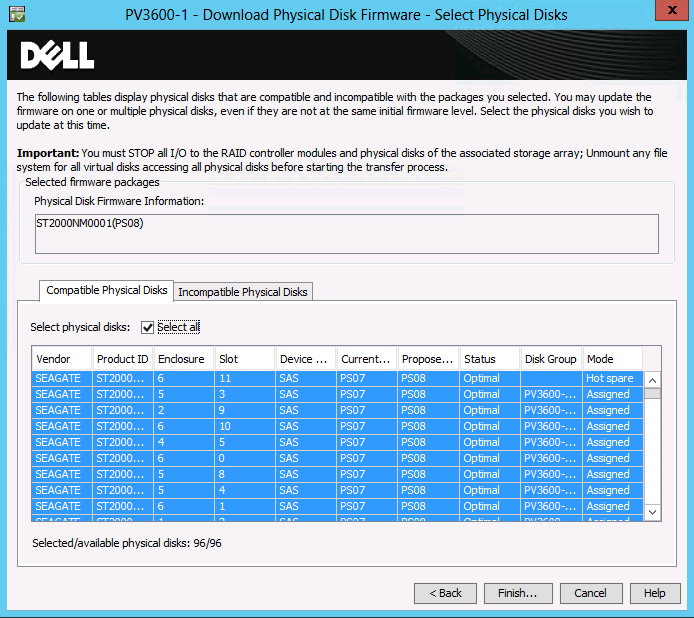
You can select all hard disk to deploy the firmware. I use this but I tend to test a run on one disk (a hot spare) first before I do this. If that one is successful I choose “Select All” click finish.
image

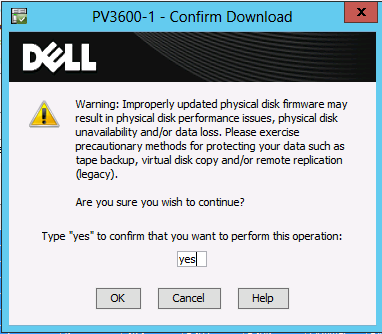
To make sure that you know what you’re doing and probably keep any lawyers at bay you must type in yes before you can continue. Yes making backups is always prudent. Always have at least one way out.
image

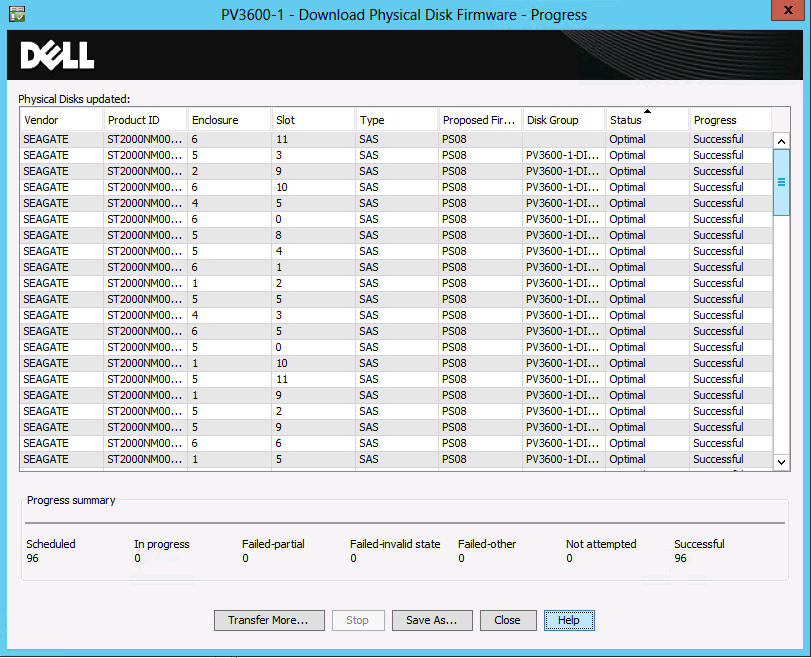
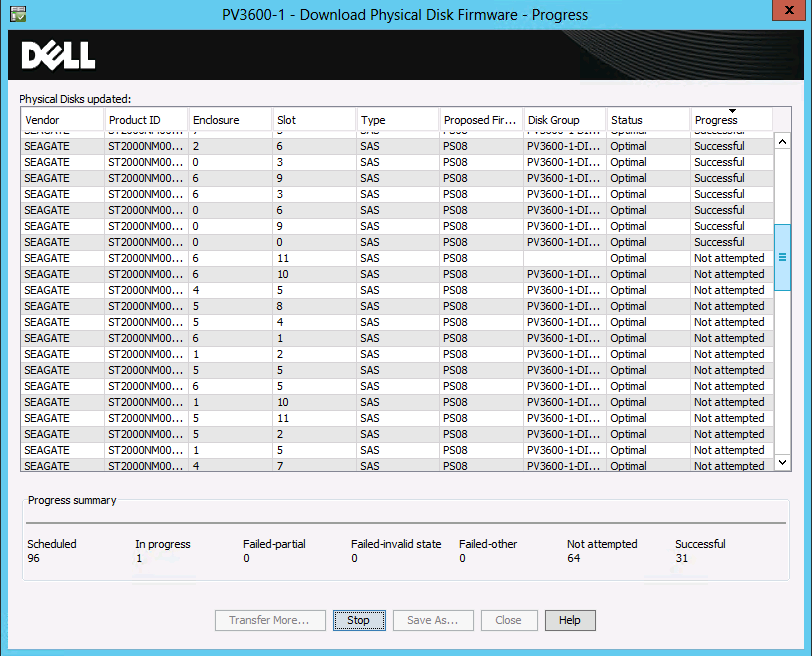
You can follow the firmware update process in the right hand column which displays the progress (Not attempted, in progress,Successful).
image

This process goes faster than you might think. When they are all done, close the wizard. Congratulations you have just installed the new disk firmware to 96 disks Smile.image

If, for 100% safety, you have brought your storage off line, you can it online and resume normal operations. I tend to give the hosts a reboot to see all still works as it should.
Upgrading The DELL MD3600F Controller Firmware Using the Modular Disk Storage Manager

As part of our hardware maintenance we’re deploying the updates of SUU 7.3.1 right now. As part of that effort we’re also making sure the PowerVault disk bays are getting their updates. We’ve got a couple of PowerVault MD3600F with 7 MD1200 extension bays filled with disks attached to R710  Power Edge servers that act as Disk2Disk backup media servers with 10Gpbs networking and running W2K12R2.

In general you should not be applying firmware updates and such constantly and all over the place just to keep busy. It is, however, a good practice to keep an eye on releases and see if they fix any risky bugs you might be vulnerable to. You see that sometimes these fix issues you don’t want to run into and those are often marked urgent. You also don’t get to far behind on firmware updates as this can complicate thing later in the useful service life or you hardware. First of all read the readme.txt and such to make sure you’re not missing any special instructions for particular cases that might exist. The standard disclaimer of my blog applies Smile, you’re responsible for your own actions.

First of all get the latest version of your PowerVault Modular Disk Storage Manager software if you haven’t already. Often you’ll need to have a least a certain version before you can even do newer firmware updates. So just get this in order before starting, especially if they tell you to, don’t try and outsmart the system. Download the disk firmware form the DELL support website or via the DELL Storage Community Wiki http://en.community.dell.com/techcenter/storage/w/wiki/4234.dell-powervault-md-downloads.aspx?dgc=SM&cid=257966&lid=4630585 and safe it to disk.

Here’s an example of a read me file you’d better not ignore. If you do, the Modular Disk Storage Manager will not allow you to upgrade anyway.

*** ATTENTION ***
If your PowerVault MD32xx/MD36xx series storage array is currently running a firmware version lower than 07.75.28.60, you cannot directly install the RAID controller firmware version 07.84.47.60 included in this release.
Instead, you must first install the bridge firmware version 07.75.28.60. After the bridge firmware is successfully installed, you can then install RAID controller firmware 07.84.47.60.

Specifically, follow these steps:
1. *** IMPORTANT *** Install Dell PowerVault MD Storage Manager (MDSM) software from the Resource DVD version 4.1.2.29 or higher.
2. Extract the following files from the Bridge_Firmware_07_75_28_60.zip archive:
* Bridge_Firmware_07_75_28_60.dlp
3. Download and activate RAID controller bridge firmware version 07.75.28.60 (contained in the Bridge_Firmware_07_75_28_60.dlp file)
4. Once the bridge firmware installation is successfully completed, wait at least 30 minutes to allow the attached hosts to re-discover the storage array.
5. Download and activate the RAID controller firmware version 07.84.47.60 (contained in the MD3xxx_MD3xxx_Firmware_07_84_47_60.dlp file) together with the NVSRAM configuration file version N26X0-784890-X04 (contained in the MD3xxx_MD3xxx_NVSRAM_N26X0-784890-X04.dlp file) using the Dell PowerVault MD Storage Manager for your corresponding array type.
* MD3200_MD3220_Firmware_07_84_47_60.dlp and MD3200_MD3220_N26X0_784890_004.dlp (6G Non-Dense SAS)
* MD3200i_MD3220i_Firmware_07_84_47_60.dlp and MD3200i_MD3220i_N26X0_784890_004.dlp (1G Non-Dense iSCSI)

* MD3600i_MD3620i_Firmware_07_84_47_60.dlp and MD3600i_MD3620i_N26X0_784890_904.dlp (10G Non-Dense iSCSI)
* MD3600f_MD3620f_Firmware_07_84_47_60.dlp and MD3600f_MD3620f_N26X0_784890_904.dlp (8G Non-Dense FC)
* MD3260_Firmware_07_84_47_60.dlp and MD3260_N26X0_784890_004.dlp (6G Dense SAS)
* MD3260i_Firmware_07_84_47_60.dlp and MD3260i_N26X0_784890_004.dlp (1G Dense iSCSI)
* MD3660i_Firmware_07_84_47_60.dlp and MD3660i_N26X0_784890_904.dlp (10G Dense iSCSI)
* MD3660f_Firmware_07_84_47_60.dlp and MD3660f_N26X0_784890_904.dlp (8G Dense FC)

*** WARNING ***
If you have a single controller PowerVault MD32/MD36 series storage array you must stop all I/O operations before starting the RAID controller firmware upgrade.

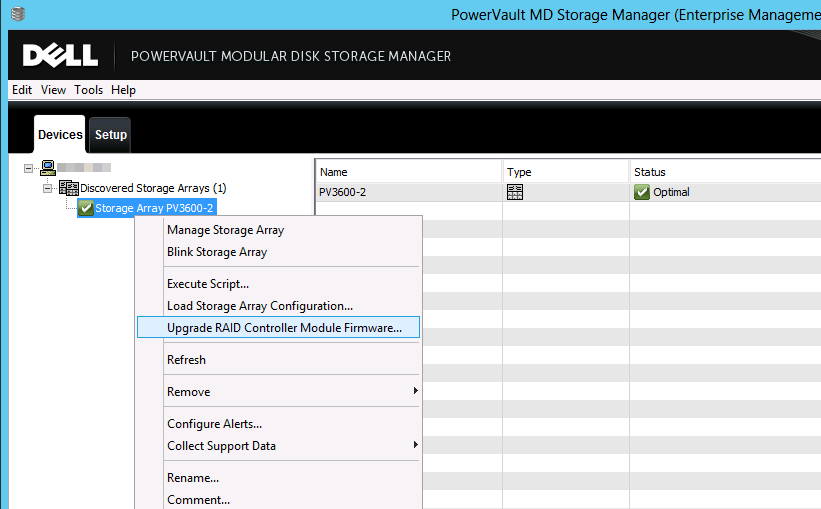
Launch the PowerVault Modular Disk Storage Manager, right click your array and select Upgrade Raid Controller Module Firmware.image

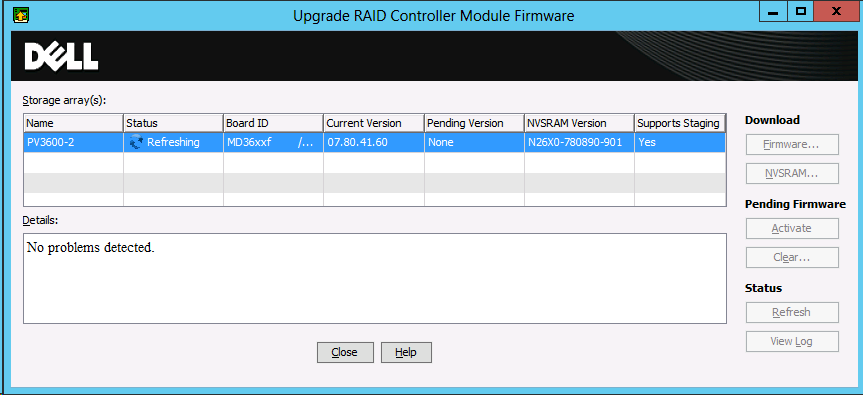
Wait while the status is being refreshed.Image 017

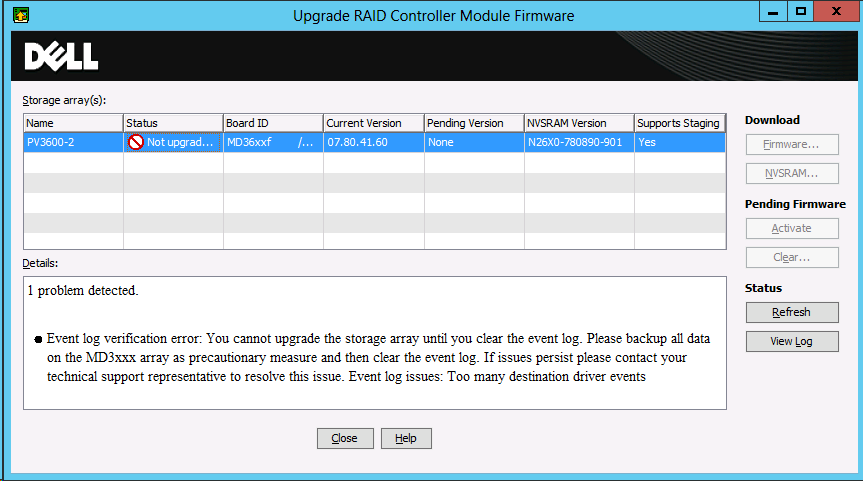
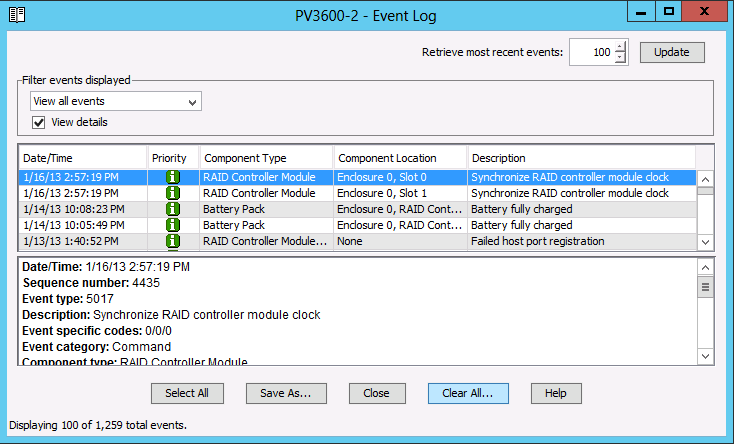
You might run into a an issue if the event log contains to many entries. In that case you’ll be warned you can’t upgrade until you’ve cleared it as shown below. Here are some screenshots from another previous upgrade where I ran into this issue.Image 018

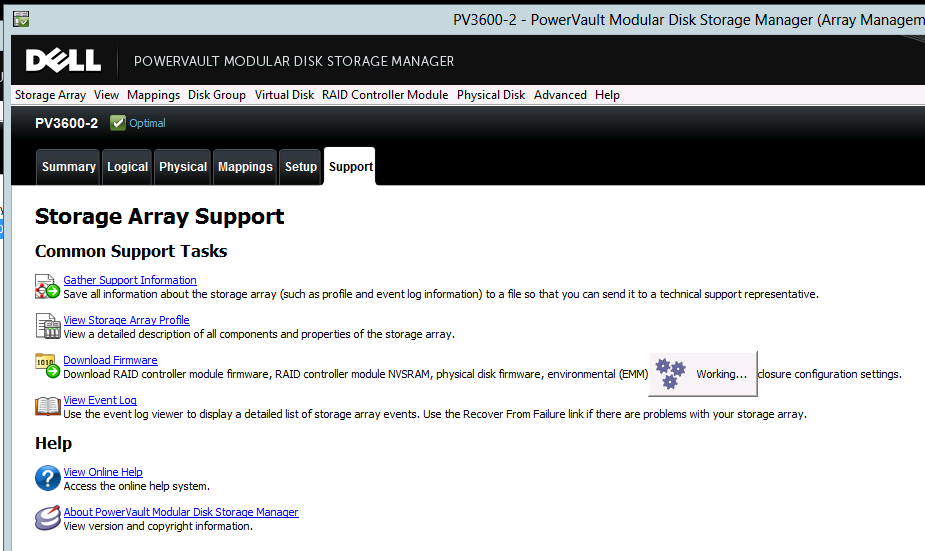
In that case open up the Manage Storage Array  for your array.image just

Navigate to the support tab on your and got to “View Event Log”. image

It’s always wise to have a look to see if you have any issues before upgrading anyway. If you need to save the log for some reason do so otherwise just clear it with the Clear All button.image

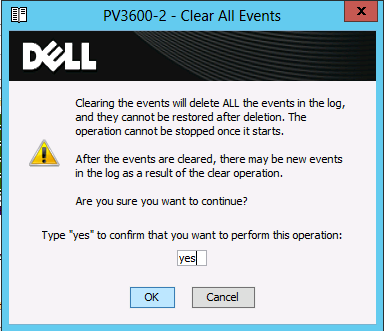
The lawyers need assurance you confirm that you know what you’re doing so type yes in the warning form and click OK.

image 

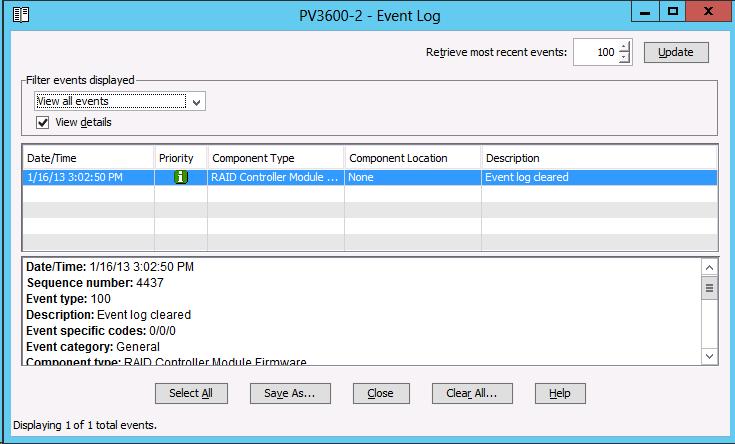
You get an entry telling you the log has been cleared and you can close the form.image

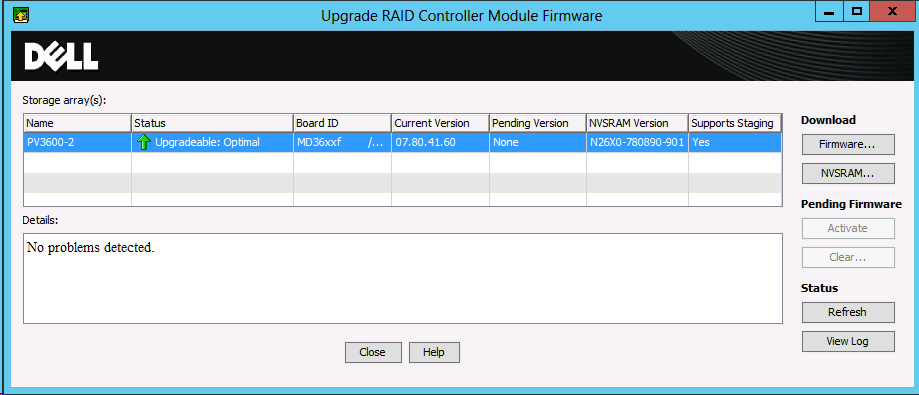
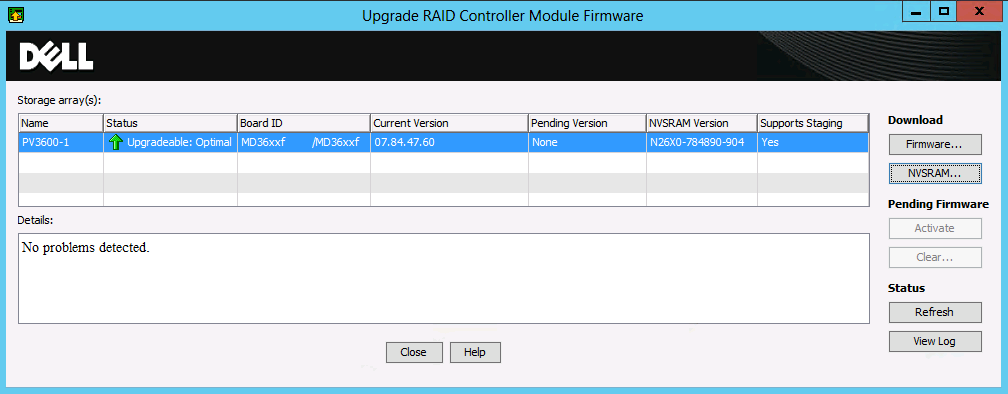
If you launch the Upgrade Raid Controller Module Firmware menu option again you’ll now see that you’re good to go with the upgradeImage 024

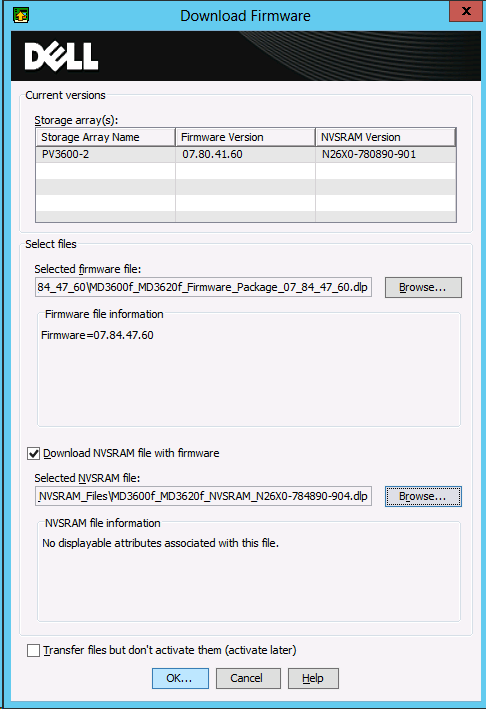
Click on Download, Firmware and browse to the  and the NVSRAM. I prefer to do both in one go but you don’t have to. Just make sure that when both need an upgrade you don’t forget to do it when upgrading them separately. You can opt to download the firmware and  NVSRAM but activate them later. I normally do it all in one go (the default option).image

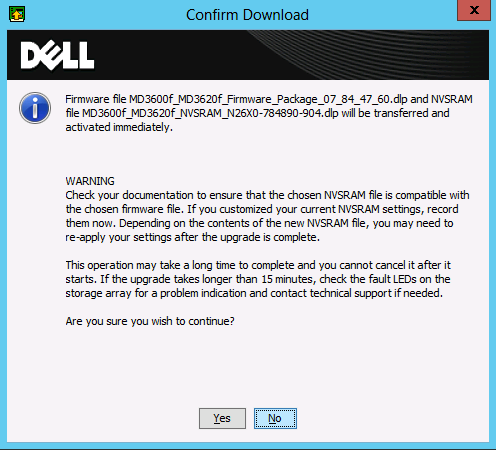
They’ll warn you no to do silly things, meaning you have to make sure that the firmware and NVSRAM versions are compatible. Read the documentation to make sure your OK.

image

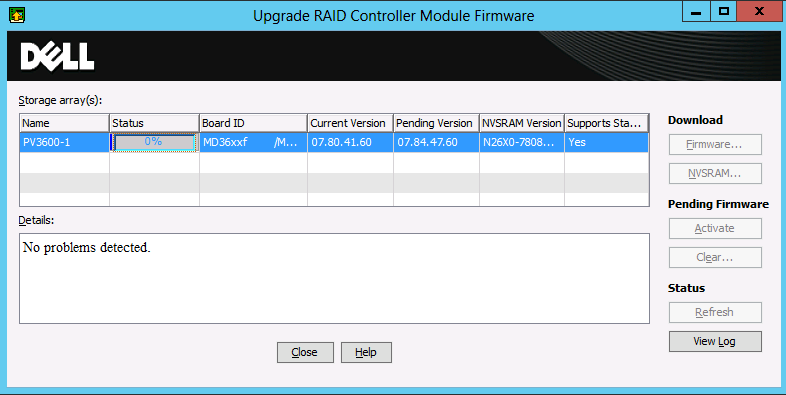
If you’re good to go, click Yes and the update kicks of. First it’s the firmware update that runs.

image

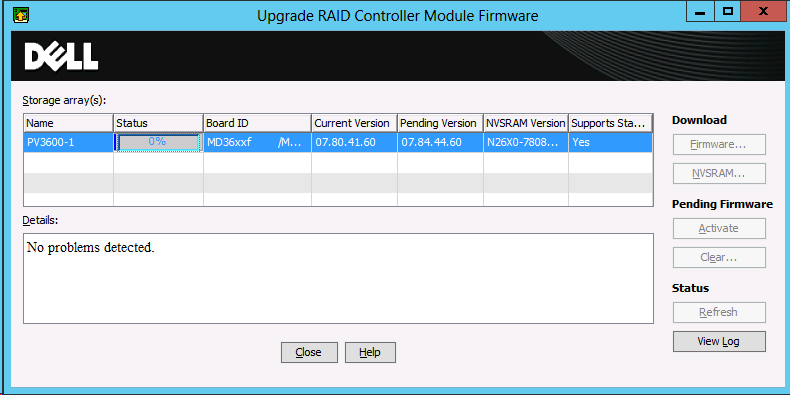
When that’s done you’ll see the new firmware version in the Pending Version column. After that the NVSRAM update kicks in automatically. This takes a bit longer.Image 013

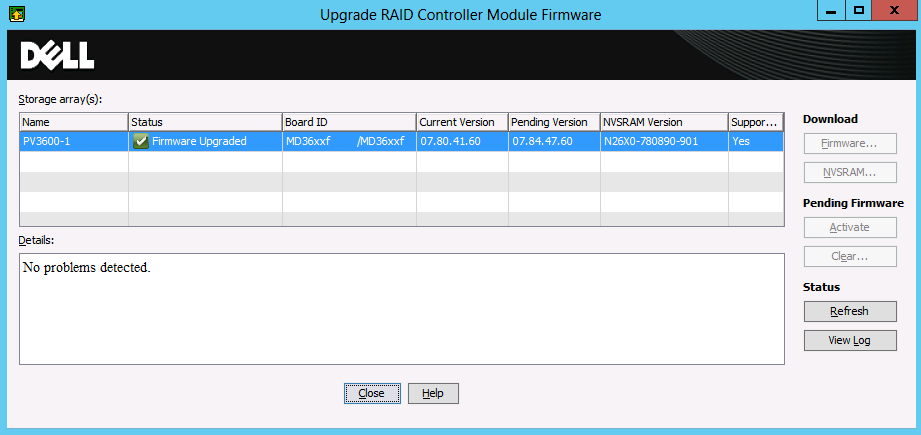
Once it’s done you get the green check indicating your firmware has upgraded successfully. We chose to activate in the same run but it’s not visible yet.image

Now to see this reflected I the version columns you‘ll need to close and reopen the Upgrade Raid Controller Module Firmware wizard again.
image

Close the wizard. You’re done upgrading the Raid Controller Firmware. Next things to do would be to upgrade disk firmware and perhaps the EMM (Enclosure Management Module) firmware of the extension disk bays if applicable. They

Live Migration Can Benefit From Jumbo Frames

Does live migration benefit from Jumbo frames? This question always comes back so I’d just blog it hear again even if I have mentioned it as part of other blog posts. Yes it does! How do I know. Because I’ve tested and used it with Windows Server 2008 R2, 2012 & 2012 R2. Why? because I have a couple of mantra’s:

  • Assumption are the mother of all fuckups
  • Assume makes an ASS out of U and ME
  • Trust but verify

What can I say. I have been doing 10Gbps since for Live Migration with Hyper-V. And let me tell you my experiences with an otherwise completely optimized server (mainly BIOS performance settings): It will help you with up to 20% more bandwidth use.

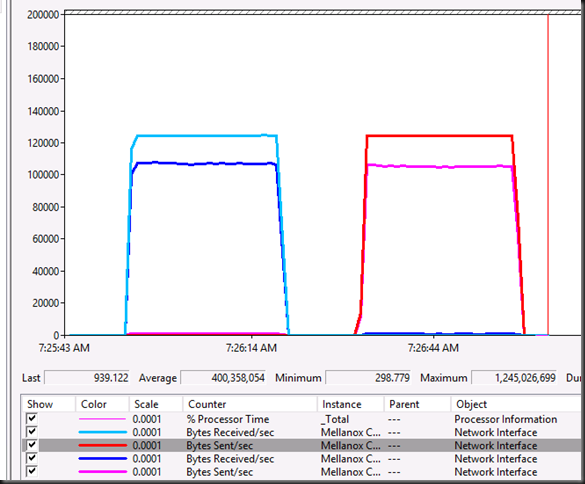
And thanks to Windows Server 2012 R2 supporting SMB for live migration we can very nicely visualize this with 2*10Gbps NICS, not teamed, used by live migration leveraging SMB Multichannel. On one of the 10Gbps we enable Jumbo Frames on the other one we do not. We than live migrate a large memory VM back and forth. Now you tell me which one is which.

image

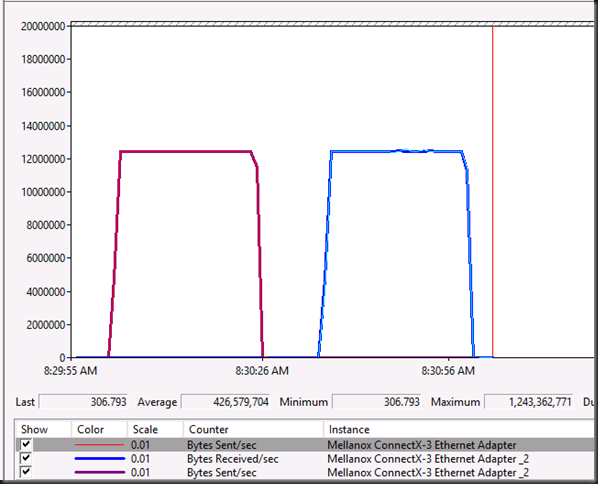
Now enable Jumbo frames on both 10Gbps NICs and again we live migrate the large memory VM back and forth. More bandwidth used, faster live migration.

image

I can’t make it any more clear. No jumbo frames will not kill your performance unless you have it messed up end to end. Don’t worry if you have a cheaper switch where you can only enable it switch wide instead op port per port. The switch is a pass through. So unless you set messed up sizes on sender/receiving host that the switch in between can’t handle, it will work even without jumbo frames and without heaven falling down on your head Smile. Configure it correctly, test it, and you’ll see.

DELL Server DRAC Card Soft Reset With Racadmin

Sometimes a DRAC goes BOINK

Sometimes a DRAC (Dell Remote Access Card) can give you issues. Sometimes it’s some lingering process or another hiccup that causes this. You can try a reboot but that doesn’t always fix the issue. You can go into the BIOS and cancel any running System Services. A “confused” DRAC card can also be fixed by shutting down the server and cutting power for 5 to 10 minutes. That’s good to know as a last resort but not very feasible a lot of times, bar a maintenance window when you’re on premise.

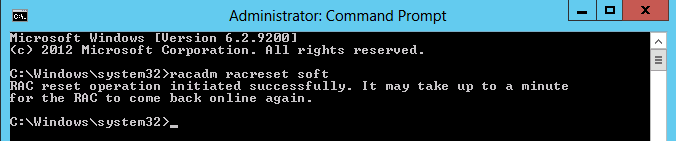
You can also try to do a local or a remote reset of the DRAC card via OpenManage  (OMSA), racadmin. See RACADM Command Line Interface for DRAC for more information on how and when to use this tool. The racadmin can be used for a lot of remote configuration and administration and one of those is a “soft reset” or basically a powercycle, aka reboot, of the drac card itself. Don’t worry your server stays up Smile.

Local: racadmin racreset soft

Remote: racadm -r <ip address> -u <username> -p <password> racreset soft

Real life example

I was doing routine maintenance on 4 Hyper-V clusters and as part of that DUPs (Dell update packages) were being deployed to upgrade some firmware. This can be automated nicely via Cluster Aware Updating and the logging option will help you pin point the issue. See https://blog.workinghardinit.work/2013/01/09/logging-cluster-aware-updating-hotfix-plug-in-installations-to-a-file-share/ for more information on this.

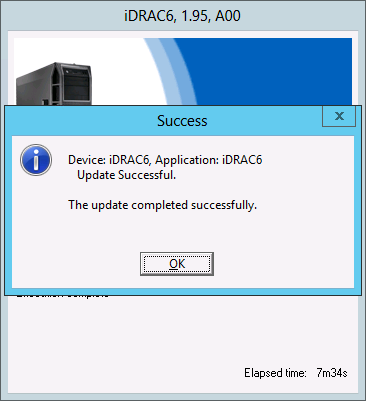
Just like we found that the DRAC upgrade was not succeeding on two nodes.

One it was due to the DUP not being able to access the Virtual USB Device

Software application name: iDRAC6
   Package version: 1.95
   Installed version: 1.92

Executing update…

Device does not impact TPM measurements.

Device: iDRAC6, Application: iDRAC6
  Failed to access Virtual USB Device

==================> Update Result <==================

Update was not applied

================================================

Exit code = 1 (Failure)

and the other was because there was some other lingering DRAC process.

 iDRAC is currently unable to process this request because of another task.
  Please attempt one or more of the following steps to cancel the pending iDRAC task:
  1) Wait 30 minutes and retry your request.
  2) Reboot the system; Press F10; select ‘Exit and Reboot’ from Unified Server Configurator, and retry your request.
  3) Reboot the system; Press Ctrl-E; select ‘System Services’. Then change ‘Cancel System Services’ to YES, which will close the pending task;
      Then press Enter at the warning message. Press ESC twice and select ‘Save Changes and Exit’ and retry your request.

==================> Update Result<==================

Update was not applied

================================================
Exit code = 1 (Failure)

They give some nice suggestions but the racreset is another nice one to have I your toolkit. It’s fast and effective.

Run racadmin racreset soft

image

Wait for a couple of minutes and then run the DUP or the items in SUU that failed. With some luck this will succeed now.

image