Hotfixes For Hyper-V & Failover Clustering Can Be Confusing KB2496089 & KB2521348

As I’m building or extending a number of Hyper-V Clusters in the next 4 months I’m gathering/updating my list with the Windows 2008 R2 SP1 hotfixes relating to Hyper-V and Failover Clustering. Microsoft has once published KB2545685: Recommended hotfixes and updates for Windows Server 2008 R2 SP1 Failover Clusters but that list is not kept up to date, the two hotfixes mentioned are in the list below. I also intend to update my list for Windows Server 2008 SP2 and Windows 2008 R2 RTM. As I will run into these and it’s nice to have a quick reference list.

I’ll include my current list below. Some of these fixes are purely related to Hyper-V, some to a combination of hyper-V and clusters, some only to clustering and some to Windows in general. But they are all ones that will bite you when running Hyper-V (in a failover cluster or stand-alone). Now for the fun part with some hotfixes, I’ll address in this blog post. Confusion! Take a look at the purple text and the green text hotfixes and the discussion below. Are there any others like this I don’t know about?

* KB2496089 is included in SP1 according to “Updates in Win7 and WS08R2 SP1.xls” that can be downloaded here (http://www.microsoft.com/download/en/details.aspx?displaylang=en&id=269) but the Dutch language KB article states it applies to W2K8R2SP1 http://support.microsoft.com/kb/2496089/nl

Artikel ID: 2498472 – Laatste beoordeling: dinsdag 10 februari 2011 – Wijziging: 1.0

Vereisten

Deze hotfix moet worden uitgevoerd een van de volgende besturings systemen:

  • Windows Server 2008 R2
  • Servicepack 1 (SP1) voor Windows Server 2008 R2
Voor alle ondersteunde x64 versies van Windows Server 2008 R2

6.1.7600.20881
4,507,648
15-Jan-2011
04: 10
x64

Vmms.exe
6.1.7601.21642
4,626,944
15-Jan-2011
04: 05
x64

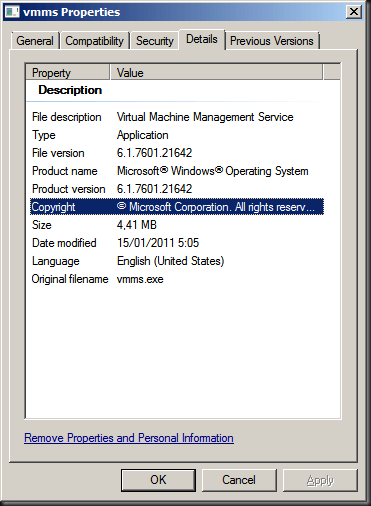
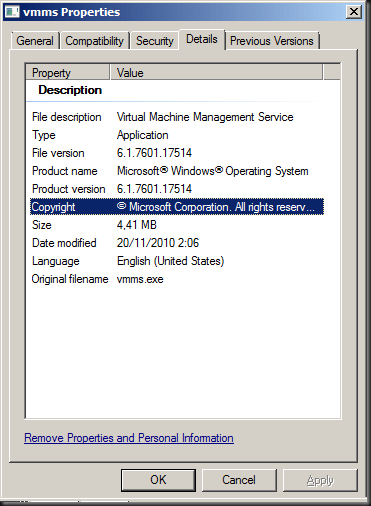
When you try to install the hotfix it will. So is it really in there? Compare file versions! Well the version after installing the hotfix on a W2K8R2 SP1 Hyper-V server the version of vmms.exe was 6.1.7601.21642 and on a Hyper-V server with SP1 its was 6.1.7061.17514. Buy the way these are English versions of the OS, no language packs installed.

With hotfix installed on SP1
Without hotfix installed on SP1
To make matters even more confusing while the Dutch KB article states it applies to both W2K8R2 RTM and W2K8R2SP1 but the English version of the article has been modified and only mentions W2K8R2 RTM anymore.

http://support.microsoft.com/kb/2496089/en-us

Article ID: 2496089 – Last Review: February 23, 2011 – Revision: 2.0

For all supported x64-based versions of Windows Server 2008 R2

Vmms.exe
6.1.7600.20881
4,507,648
15-Jan-2011
04:10
x64

So what gives? Has SP1 for W2K8R2 been updated with the fix included and did the SP1 version I installed (official one right after it went RTM) in the lab not yet include it? Do the service packs differ with language, i.e. only the English one got updated?. Sigh :-/ Now for the good news: ** It’s all very academic because of this KB 2521348 A virtual machine online backup fails in Windows Server 2008 R2 when the SAN policy is set to “Offline All” which brings the vmms.exe version to 6.1.7601.21686 and this hot fix supersedes KB2496089. See http://blogs.technet.com/b/yongrhee/archive/2011/05/22/list-of-hyper-v-windows-server-2008-r2-sp1-hotfixes.aspx where this is explicitly mentioned.

Ramazan Can mentions hotfix 2496089 and whether it is included in SP1 in the comments on his blog post http://ramazancan.wordpress.com/2011/06/14/post-sp1-hotfixes-for-windows-2008-r2-sp1-with-failover-clustering-and-hyper-v/ but I’m not very convinced it is indeed included. The machines I tested on are running W2K8R2 English RTM updated to SP1, not installations for the media including SP1 so perhaps there could also be a difference. It also should not matter that if you install SP1 before adding the Hyper-V role, so that can’t be the cause.

Anyway, keep your systems up to date and running smoothly, but treat your Hyper-V clusters with all due care and attention.

  1. KB2277904: You cannot access an MPIO-controlled storage device in Windows Server 2008 R2 (SP1) after you send the “IOCTL_MPIO_PASS_THROUGH_PATH_DIRECT” control code that has an invalid MPIO path ID
  2. KB2519736: Stop error message in Windows Server 2008 R2 SP1 or in Windows 7 SP1: “STOP: 0x0000007F”
  3. KB2496089: The Hyper-V Virtual Machine Management service stops responding intermittently when the service is stopped in Windows Server 2008 R2
  4. KB2485986: An update is available for Hyper-V Best Practices Analyzer for Windows Server 2008 R2 (SP1)
  5. KB2494162: The Cluster service stops unexpectedly on a Windows Server 2008 R2 (SP1) failover cluster node when you perform multiple backup operations in parallel on a cluster shared volume
  6. KB2496089: The Hyper-V Virtual Machine Management service stops responding intermittently when the service is stopped in Windows Server 2008 R2 (SP1)*
  7. KB2521348: A virtual machine online backup fails in Windows Server 2008 R2 (SP1) when the SAN policy is set to “Offline All”**
  8. KB2531907: Validate SCSI Device Vital Product Data (VPD) test fails after you install Windows Server 2008 R2 SP1
  9. KB2462576: The NFS share cannot be brought online in Windows Server 2008 R2 when you try to create the NFS share as a cluster resource on a third-party storage disk
  10. KB2501763: Read-only pass-through disk after you add the disk to a highly available VM in a Windows Server 2008 R2 SP1 failover cluster
  11. KB2520235: “0x0000009E” Stop error when you add an extra storage disk to a failover cluster in Windows Server 2008 R2 (SP1)
  12. KB2460971: MPIO failover fails on a computer that is running Windows Server 2008 R2 (SP1)
  13. KB2511962: “0x000000D1” Stop error occurs in the Mpio.sys driver in Windows Server 2008 R2 (SP1)
  14. KB2494036: A hotfix is available to let you configure a cluster node that does not have quorum votes in Windows Server 2008 and in Windows Server 2008 R2 (SP1)
  15. KB2519946: Timeout Detection and Recovery (TDR) randomly occurs in a virtual machine that uses the RemoteFX feature in Windows Server 2008 R2 (SP1)
  16. KB2512715: Validate Operating System Installation Option test may identify Windows Server 2008 R2 Server Core installation type incorrectly in Windows Server 2008 R2 (SP1)
  17. KB2523676: GPU is not accessed leads to some VMs that use the RemoteFX feature to not start in Windows Server 2008 R2 SP1
  18. KB2533362: Hyper-V settings hang after installing RemoteFX on Windows 2008 R2 SP1
  19. KB2529956: Windows Server 2008 R2 (SP1) installation may hang if more than 64 logical processors are active
  20. KB2545227: Event ID 10 is logged in the Application log after you install Service Pack 1 for Windows 7 or Windows Server 2008 R2
  21. KB2517329: Performance decreases in Windows Server 2008 R2 (SP1) when the Hyper-V role is installed on a computer that uses Intel Westmere or Sandy Bridge processors
  22. KB2532917: Hyper-V Virtual Machines Exhibit Slow Startup and Shutdown
  23. KB2494016: Stop error 0x0000007a occurs on a virtual machine that is running on a Windows Server 2008 R2-based failover cluster with a cluster shared volume, and the state of the CSV is switched to redirected access
  24. KB2263829: The network connection of a running Hyper-V virtual machine may be lost under heavy outgoing network traffic on a computer that is running Windows Server 2008 R2 SP1
  25. KB2406705: Some I/O requests to a storage device fail on a fault-tolerant system that is running Windows Server 2008 or Windows Server 2008 R2 (SP1) when you perform a surprise removal of one path to the storage device
  26. KB2522766: The MPIO driver fails over all paths incorrectly when a transient single failure occurs in Windows Server 2008 or in Windows Server 2008 R2

KB Article 2522766 & KB Article 2135160 Published Today

At this moment in time I don’t have any more Hyper-V clusters to support that are below Windows Server 2008 R2 SP1. That’s good as I only have one list of patches to keep up to date for my own use. As for you guys still taking care of Windows 2008 R2 RTM Hyper-V cluster you might want to take a look at KN article 2135160 FIX: "0x0000009E" Stop error when you host Hyper-V virtual machines in a Windows Server 2008 R2-based failover cluster that was released today. The issue however is (yet again) an underlying C-State issue that already has been fixed in relation to another issue published as KB article 983460 Startup takes a long time on a Windows 7 or Windows Server 2008 R2-based computer that has an Intel Nehalem-EX CPU installed.

And for both Windows Server 2008 R2 RTM and SP1 you might take a look at an MPIO issue that was also published today (you are running Hyper-V on a cluster and your are using MPIO for redundant storage access I bet) KB article 2522766 The MPIO driver fails over all paths incorrectly when a transient single failure occurs in Windows Server 2008 or in Windows Server 2008 R2

It’s time I add a page to this blog for all the fixes related to Hyper-V and Failover Clustering with Windows Server 2008 R2 SP1 for my own reference Smile

Hyper-V Is Right Up There In Gartner’s Magic Quadrant for x86 Server Virtualization Infrastructure

So how do you like THEM apples?

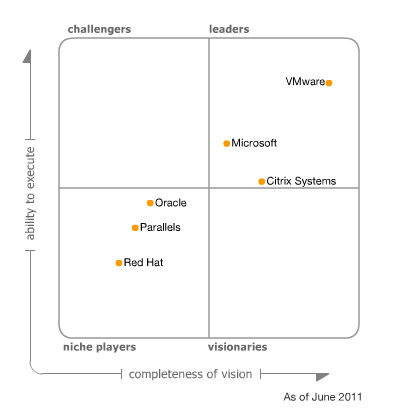
Well take a look at this people, Gartner published the following on June 30th Magic Quadrant for x86 Server Virtualization Infrastructure

Figure 1: Magic Quadrant for x86 Server Virtualization Infrastructure (Source: Gartner 2011)

That’s not a bad spot if you ask me. And before the “they paid there way up there” remarks flow in, Gartner works how Gartner works and it works like that for everyone (read” the other vendors” on there) so that remark could fly right back into your face if you’re not careful. To get there in 3 years time is not a bad track record. And if you believe some of the people out there this can’t be true. Now knowing that they only had Virtual Server to offer before Hyper-V was available and I was not using that anywhere. No, not even for non-critical production or testing as the lack of X64 bit VM support made it a “no go” product for me. So the success if Hyper-V is quite an achievement. But back in 2008, I did go with Hyper-V as a high available virtualization solution, after having tested and evaluated it during the Beta & Release Candidate time frame. Some people thought I was making a mistake.

But the features in Hyper-V were  “good enough” for most needs I needed to deal with and yes I knew VMware had a richer offering and was proven technology, something people never forget to mention that to me for some reason. I guess they wanted to make sure I hadn’t been living under a rock the last couple of years. They never mentioned the cost and some trends however or looked at the customer’s real needs. Hyper-V was a lot better than what most environments I had to serve had running at the time. In 2008 those people I needed to help were using VMware Server or Virtual Server. Both were/are free but for anything more than lightweight applications on the “not that important” list they are not suitable. If you’re going to do virtualization structurally you need high availability to avoid the risks associated with putting all your eggs in one basket. However, as you might have guessed these people did not use ESX. Why? In all honesty, the cost associated.

In the 2005-2007 time frame servers were not yet at the cost/performance ratio spent they reached in 2008 and far cry from where they are now. Those organizations didn’t do server virtualization because from the cost perspective in both licensing fees for functionality and hardware procurement. It just didn’t fit in yet.  The hardware cost barrier had come down and now with Hyper-V 1.0 we got a hypervisor that we knew could deliver something that was good enough to get the job done at a cost they could cover. We also knew that Live Migration and Dynamic Memory were in the pipelines and the product would only become better. Having tested Hyper-V I knew I had a technology to work with at a very reasonable price (or even for free) and that included high availability.  Combine this with the notion at the time that hypervisors are becoming commodities and that people are announcing the era of the cloud. Where do you think the money needs to go? Management & Applications. Where did Microsoft help with that? The System Center suite. System Center Virtual Machine Manager and Operations Manager. Are those perfect at their current incarnations? Nope. But have you looked at SCVMM 2012 Beta? Do you follow the buzz around Hyper-V 3.0 or vNext? Take a peek and you know where this is going. Think private & hybrid cloud. The beef with the MS stack lies in the hypervisor & management combination. Management tools and integration capability to help with application delivery and hence with the delivery of services to the business. Even if you have no desire or need for the public cloud, do take a look. Having a private cloud capability enhances your internal service delivery. Think of it as “Dynamic IT on Steroids”. Having a private cloud is a prerequisite for having a Hybrid cloud, which aids in the use of the public cloud when that time comes for your organization. And if never, no problem, you have gotten the best internal environment possible, no money or time lost. See my blog for more Private Clouds, Hybrid Clouds & Public Clouds musings on this.

Is Hyper-V and System Center the perfect solution for everyone in every case? No sir.  No single product or product stack can be everything to everyone. The entire VMware versus Hyper-V mud-slinging contests are at best amusing when you have the time and are in the mood for it. Most of the time I’m not playing that game. The consultant’s answer is correct: “It depends”. And very few people know all virtualization products very well and have equal experience with them. But when you’re looking to use virtualization to carry your business into the future you should have a look at the Microsoft stack and see if can help you. True objectivity is very hard. We all have our preferences and monetary incentives and there are always those who’ll take it to extreme levels. There are still people out there claiming you need to reboot a Windows server daily and have BSODs all over the place. If that is really the case they should not be blaming technology. If the technology was that bad they would not need to try and convince people not to use it, they would run away from it by themselves and I would be asking you if you want fries with your burger. Things go “boink” sometimes with any technology, really, you’d think it was created by humans, go figure. At BriForum 2011 in London this year it was confirmed that more and more we’re seeing multi hypervisors in use with large to medium organizations. That means there is a need for different solutions in different areas and that Hyper-V was doing particularly well in greenfield scenarios.

Am I happy with the choices I made? Yes. We’re getting ready  to do some more Hyper-V projects and those plans even include SCVMM 2012 & SCOM 2012 together with and upgrade path to Hyper-V vNext. I mailed the Gartner link to my manager, pointing out my obstinate choice back then turned out rather well Winking smile.

Follow Up on Power Options for Performance When Virtualizing

So some people asked where they can find and configure those power settings we were talking about in a previous blog Consider CPU Power Optimization Versus Performance When Virtualizing. So in this blog entry, I’ll do a quick run-through of this. As I can get my hands on some DELL servers from two different generations (G10/G11), the screenshots are of those servers.

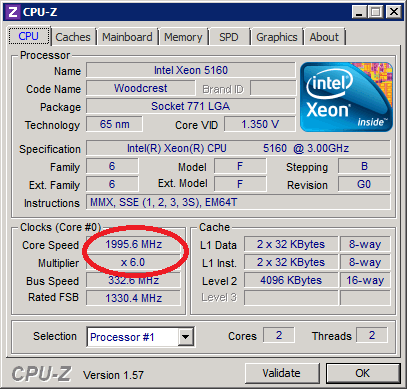
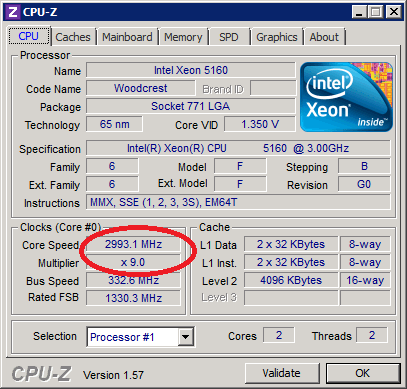
Let’s first look at CPUz screenshots from a DELL PE2950 III where we see to different P-States. So here we see the fluctuation between CPU Power. This CPU knows SpeedStep but not TurboBoost for example.

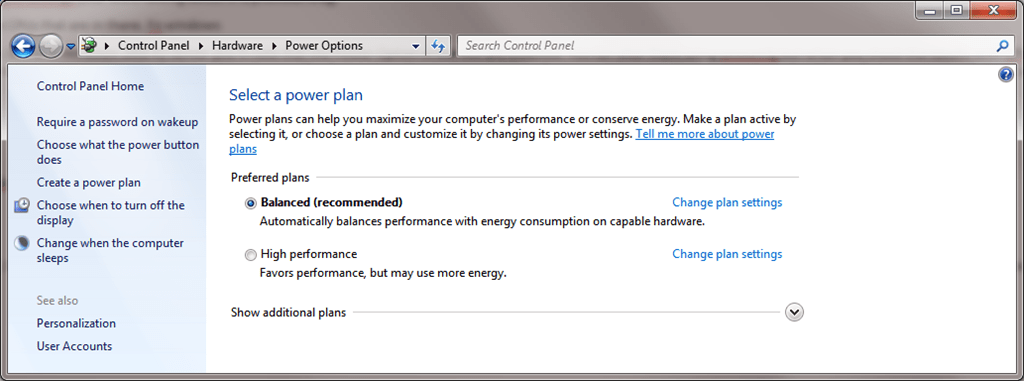
By default/normally SpeedStep is enabled in the BIOS and Windows 2008 R2 has the “Balanced” power plan as a default. So this shows up something like this.

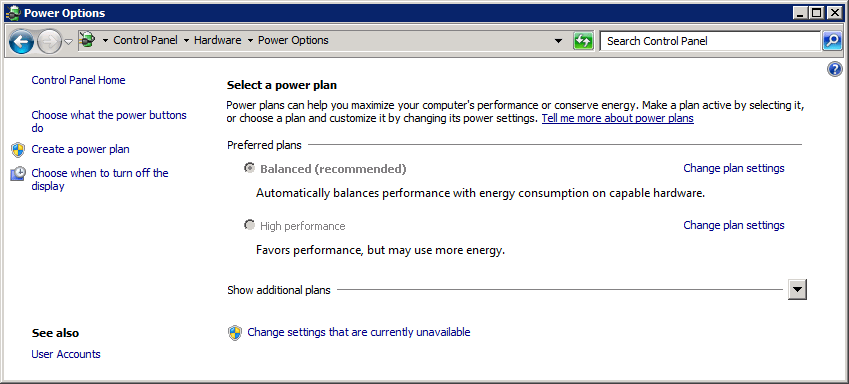
This means you can play around and set the power plan in Windows. So far so good. Naturally, when your PCU doesn’t support fancy power there not much Windows can do for you on that front. Depending on the CPU you can also enable features like C-Sate (core parking), P-states (SpeedStep), and TurboBoost in the BIOS. Where exactly and what it is called depends a bit on the hardware /BIOS you’re running and the CPUs that are in there. When you disable all power saving settings in the BIOS or set the for maximum performance you can’t use it in Windows anymore. That’s when you’ll see something like this:

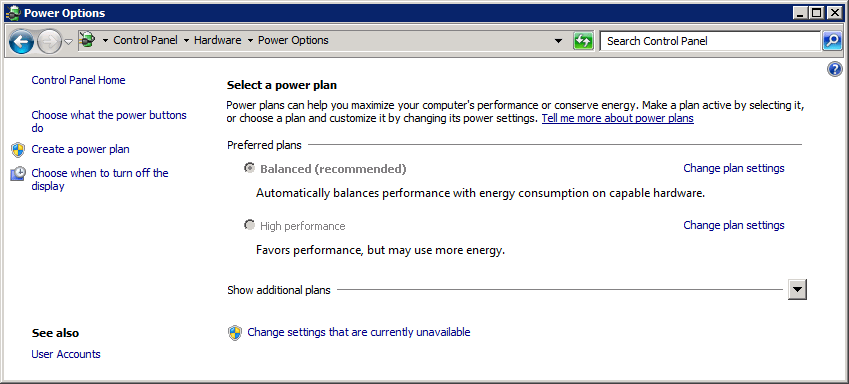
So on a Windows 2008 R2 Server, you’ll note that the Power Options in the GUI are disabled when BIOS options are set to maximum performance. Note that when you install the Hyper-V role it turns Standby & Hibernation off. No need for that, unless it’s you demo machine/laptop and then you can turn it back on (see Hibernate and Sleep with Hyper-V Role Enabled). But Microsoft does state that P-states (SpeedStep) are supported and can be used, but it needs to be enabled in the BIOS for this.

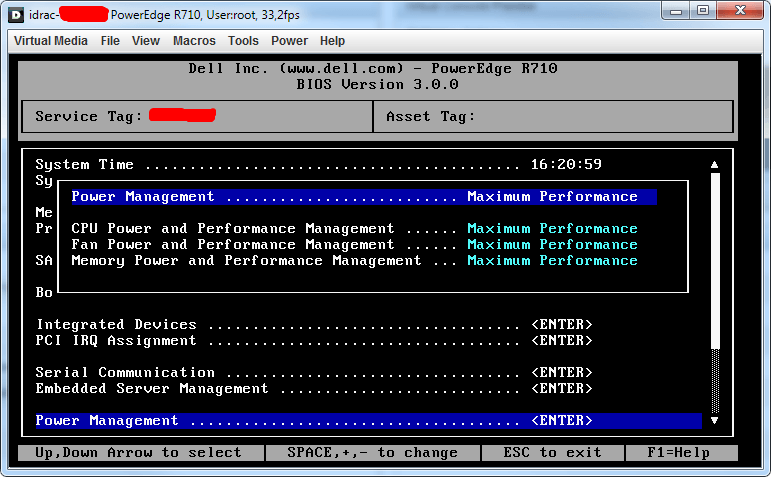
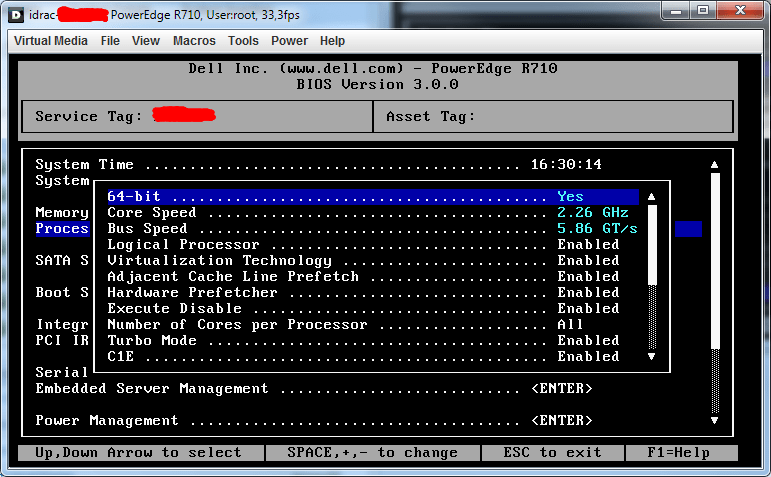
To demonstrate the settings let’s look at the BIOS of a DELL R710 this looks like what you see in the picture below. You disable SpeedStep by setting the option for CPU Power and Performance Management to “Maximum Performance”. For DELL G11 hardware you can find more information on the available options in the article Best Practices in Power Management. I suggest you search for the documentation for the servers you have at hand to see what the vendors have to offer in advice on settings and how to set them.

Possible Values here are:

Static MAX Performance
DBPM Disabled ( BIOS will set P-State to MAX) Memory frequency = Maximum Performance Fan algorithm = Performance

OS Control
Enable OS DBPM Control (BIOS will expose all possible P states to OS) Memory frequency = Maximum Performance Fan algorithm = Power

Active Power Controller
Enable DellSystem DBPM (BIOS will not make all P states available to OS) Memory frequency = Maximum Performance Fan algorithm = Power

Custom
CPU Power and Performance Management: Maximum Performance | Minimum Power | OS DBPM | System DBPM Memory Power and Performance Management: Maximum Performance |1333Mhz |1067Mhz |800Mhz| Minimum Power Fan Algorithm Performance | Power

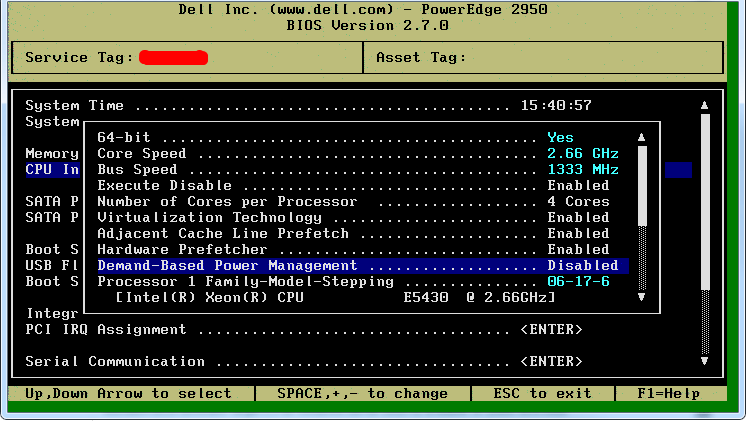
And since I’m a nice guy for all you people running a bit older hardware like a PE2950 III there it is called “Demand-Based Power Management” under the CPU Information and you actually disable it.

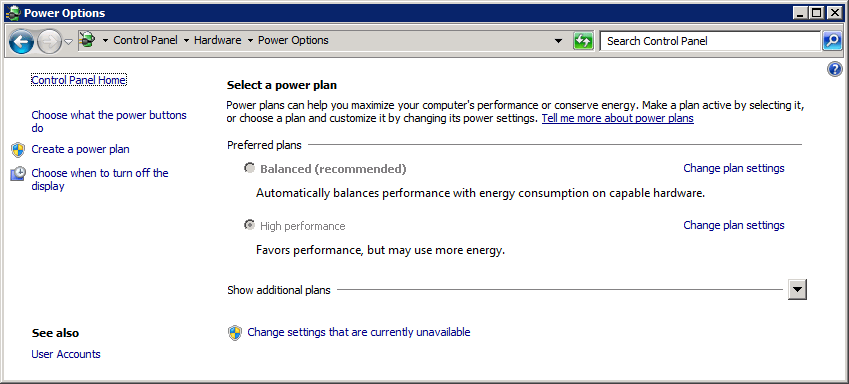
Now when you’re running Hyper-V and you disabled SpeedStep or “Cool’n’Quiet” you’ll see something like this in the GUI:

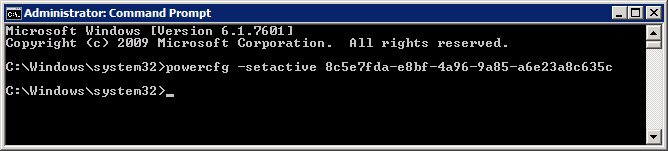
There is nothing to configure so it’s greyed out but it doesn’t really reflect your intentions. There can change this using the GUI if the fact the faded out options are not reflecting what you configured in the BIOS  annoys you or you can use powercfg to make them less “contradictionary”. All you need to do is run the following line from the command prompt: “powercfg -setactive 8c5e7fda-e8bf-4a96-9a85-a6e23a8c635c” …

… and immediately you’ll see the greyed out GUI reflect a bit more what you actually set in the BIOS. Mind you this is cosmetics, but hey, we’re inclined that way by evolution.

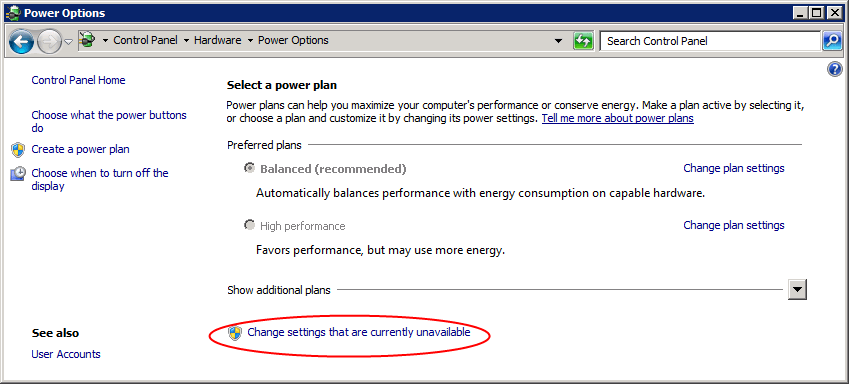
As stated above you can also use the “Change settings that are currently unavailable” to enable the radio buttons for “High performance” but do note again that if you didn’t enable the operating system to control the power it’s cosmetics.

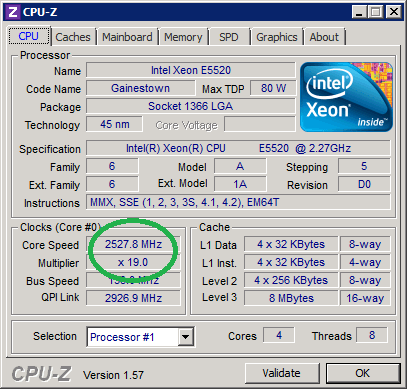
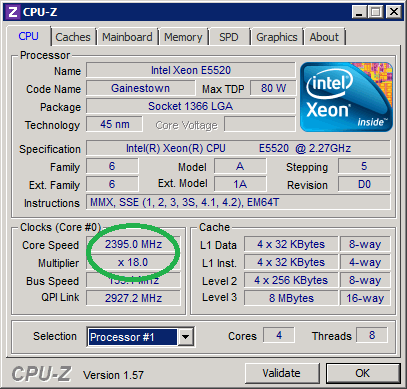
So now when you think you have this figured out and you’re gazing at CPUz to watch the results you might still see some differences. Aha, well there is still Turbo Boost (no, not that turbo button on your 1990’s PC)  seen in the DELL R710 BIOS as Turbo Mode (AMD offers similar functionality in Turbo Core)that we left enabled under “Processor Information” in the BIOS. This means that sometimes, when the CPU can use an extra power boost, it will get it, on top of the full power it has now by default since we configured it for Maximum Performance.

So Turbo Mode will sometimes cause you to see a higher frequency than what your CPU’s specification says it has in CPUz as in the left picture below. Without Turbo Boost it looks more like the specs (right picture below)

And voila, that was a quick overview of where to see & do what. I don’t have access to more modern HP kit right now so the BIOS screenshots are from 2 different generations DELL Servers, but you’ll figure it out for your hardware I’m sure. Hope this clarifies certain things to you all. I know there is a lot more to all this, how it works, how many P-states there are but I’m not a CPU engineer or a hardcore overclocker. I’m just a systems engineer trying to get the most out of his hardware in a realistic way.