We were dealing with some issues on on several WNLB clusters running on a Windows Server 2012 R2 Hyper-V cluster after a migration from an older cluster. So go read that and come back  .
.
Are you back? Good.
Let’s look at the situation we’ll use to show case one possible solution to the issues. If you have a 2 node Hyper-V cluster, are using NIC Teaming for the switch and depending on how teaming is set up you’ll might run into these issues. Here we’ll use a single switch to mimic a stacked one (the model available to me is non stackable and I have only one anyway).
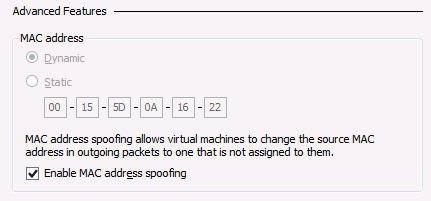
- Make sure you enable MAC Spoofing on the appropriate vNIC or vNICs in the advanced settings
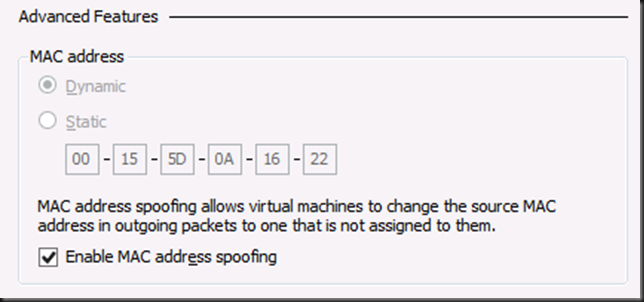
- Note that there is no need to use a static MAC address or copy your VIP mac into the settings of your VM with Windows Server 2012 (R2) Hyper-V
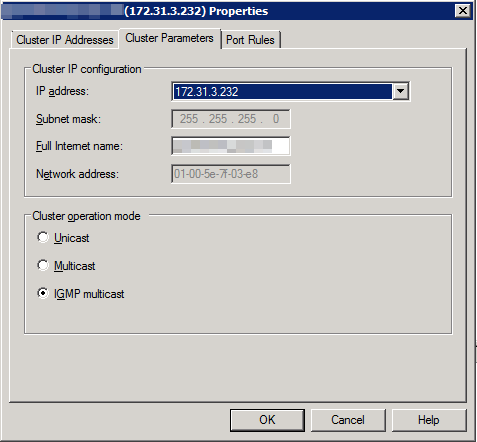
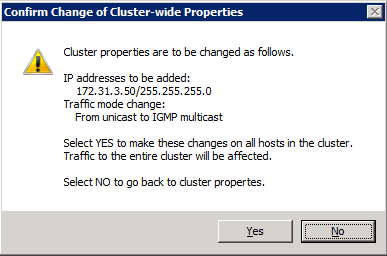
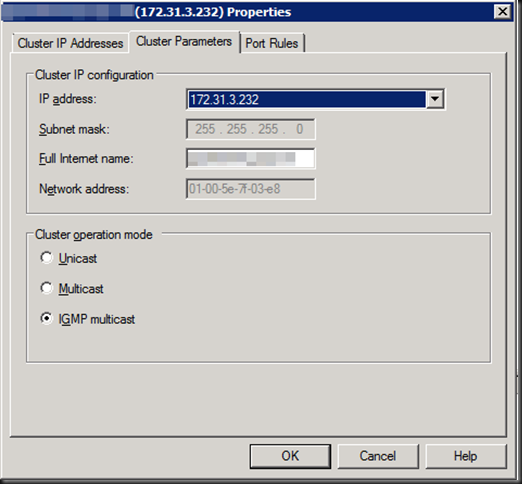
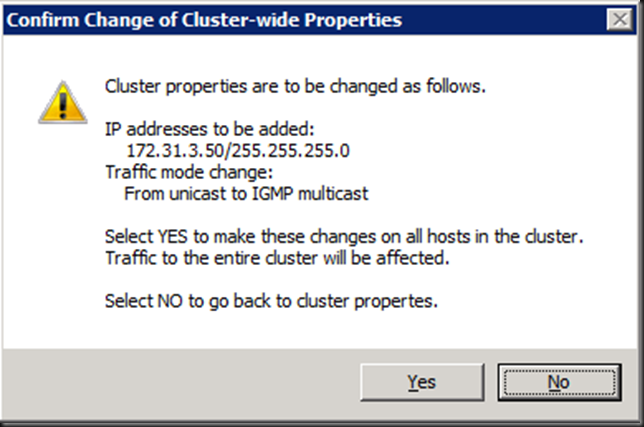
- Set up WNLB with IGMP multicast as option. While chancing this there will be some advice warnings thrown at you
I’m not going in to the fact that since W2K8 the network default configurations are all about security. You might have to do some configuration work to get the network flow to do what it needs to do. Lots on this weak host/strong host model behavior on the internet . Even wild messy ramblings by myself here.
On to the switch itself!
Why IGMP multicast? Unicast isn’t the best option and multicast might not cut it or be the best option for your environment and IGMP is less talked about yet it’s a nice solution with Windows NLB, bar replacing into with a hardware load balancer. For this demo I have a DELL PowerConnect 5424 at my disposal. Great little switch, many of them are still serving us well after 6 years on the job.
What MAC address do I feed my switch configurations?
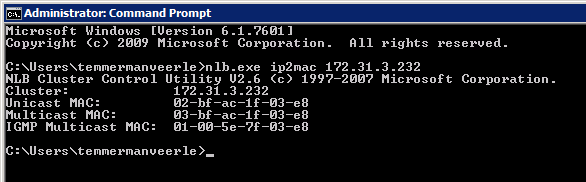
Ah! You are a smart cookie, aren’t you. A mere ipconfig reveals only the unicast MAC address of the NIC. The GUI on WNLB shows you the MAC address of the VIP. Is that the correct one for my chosen option, unicast, multicast or IGMP multicast? No worries, the GUI indeed shows the one you need based on the WNLB option you configure. Also, take a peak at nlb.exe /? and you’ll find a very useful option called ip2mac.
Let’s run that against our VIP:
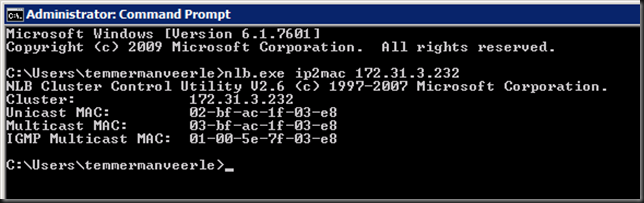
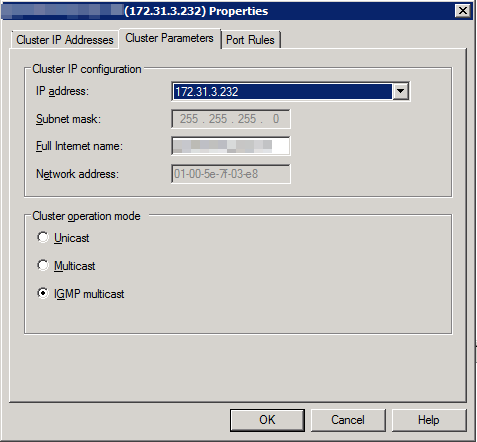
And compare it to what we see in the GUI, you’ll notice that show the MAC to use with IGMP multicast as well.
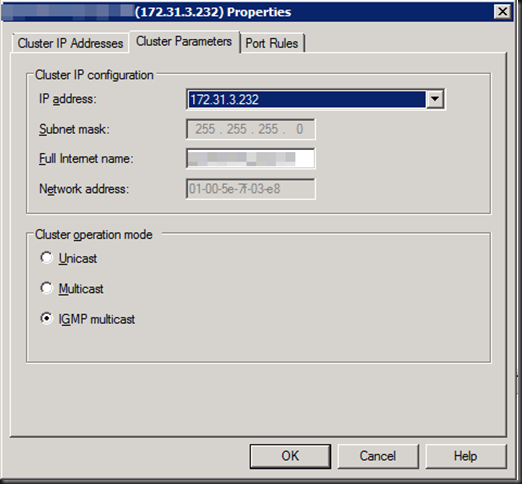
You might want to get the MAC address before you configure WNLB from unicast to IGMP multicast. That’s where the ip2mac option comes in handy.
Configuring your switch(es)
We have a multicast IP address that we’ll convert into the one we need to use. Most switches like the PowerConnect 5424 in the example will do that for you by the way.
I’m not letting the joining of the members to the Bridge Multicast Group happen automatically so I need to configure this. I actually have to VLANs, each Hyper-V host has 2 LACP NIC team with Dynamic load balancing connected to an LACP LAGs on this switch (it’s a demo, yes, I know no switch redundancy). I have tow as some WNLB nodes have multiple clusters and some of these are on another VLAN.
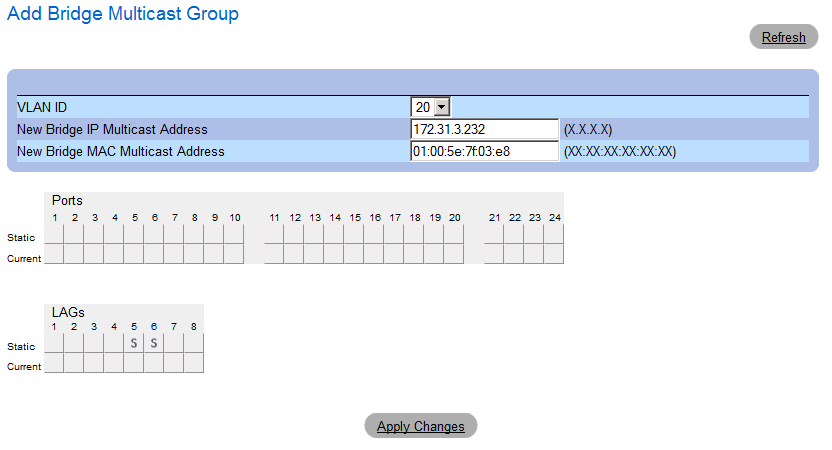
I create a Bridge Multicast Group. For this I need the VLAN, the IGMP multicast MAC address and cluster IP address
When I specify the IGMP multicast MAC I take care to format it correctly with “:” instead of “–“ or similar.
You can type in the VIP IP address or convert is per this KB yourself. If you don’t the switch will sort you out.
The address range of the multicast group that is used is 239.255.x.y, where x.y corresponds to the last two octets of the Network Load Balancing virtual IP address.
For us this means that our VIP of 172.31.3.232 becomes 239.255.3.232. The switch handles typing in either the VIP or the converted VIP equally well.
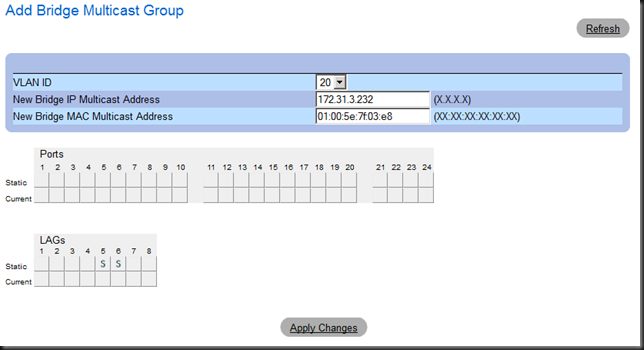
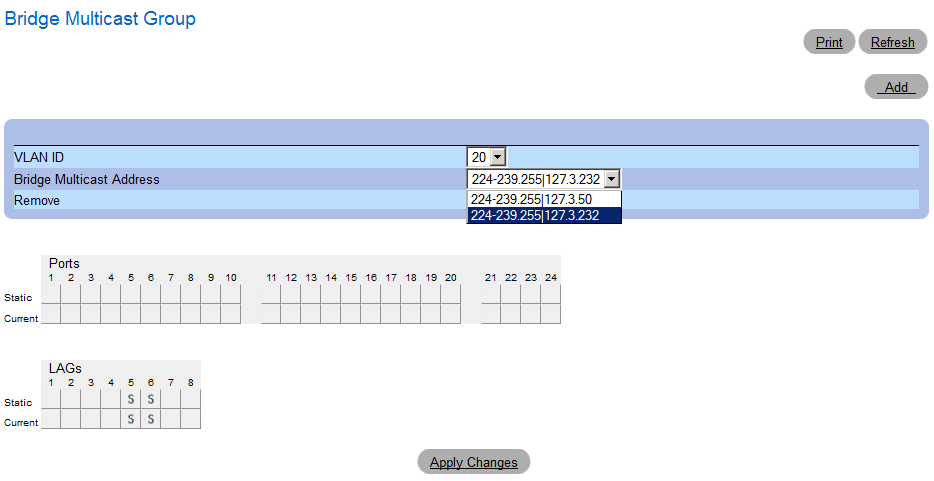
This is what is looks like, here there are two WNLB clusters in ICMP multicast mode configured. There are more on the other VLAN.
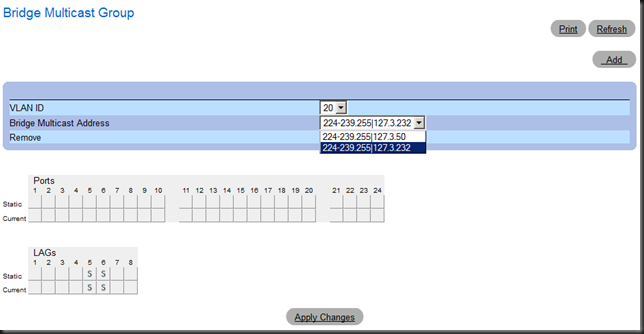
We leave Bridge Multicast Forwarding here for what it is, no need in this small setup. Same for IGMP Snooping. It’s enable globally and we’ve set the members statically.
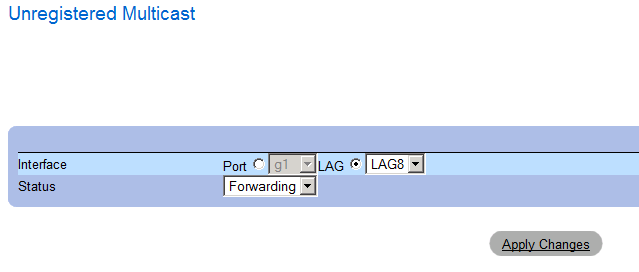
We make unregistered multicast is set to forwarding (default).
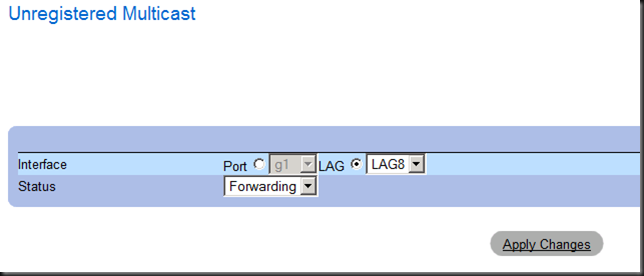
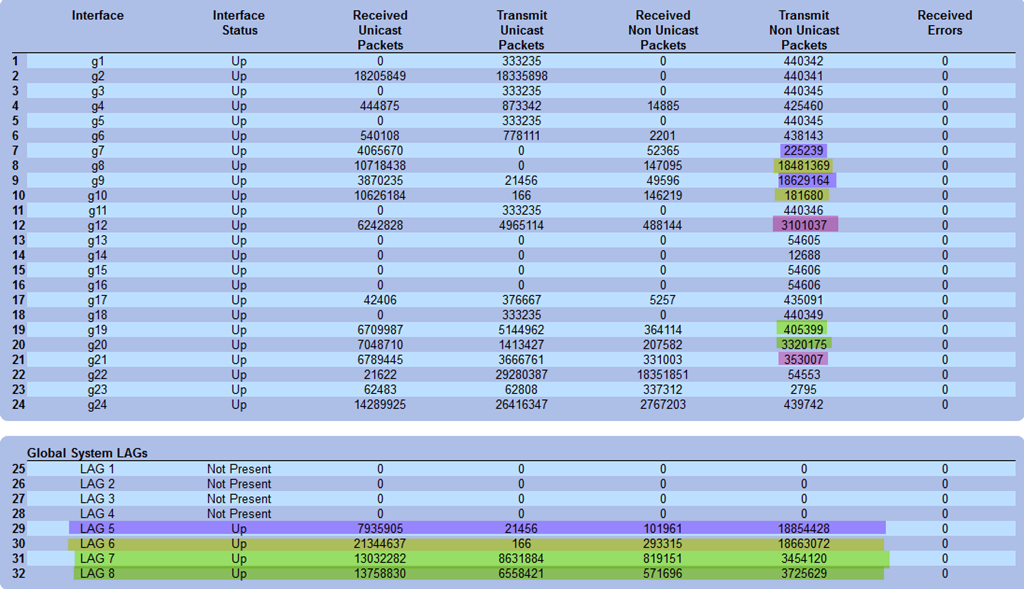
Basically, we’re good to go now. Looking at the counters of the interfaces & LAGs you should see that the multicast traffic is targeted at the members of the LAGs/LAGs and not all interfaces of the switch. The difference should be clear when you compare the counters adding up before and after you configured IGMP.
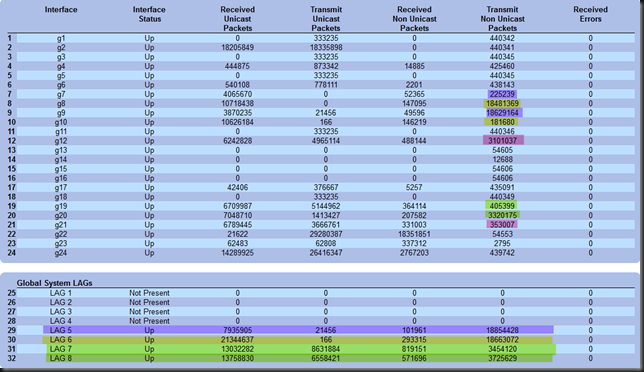
The Results
No over the top switch flooding, I can simultaneously live migrate multiple WLNB nodes and have them land on the same switch without duplicate IP address warning. Will this work for you. I don’t know. There are some many permutations that I can’t tell you what you should do in your particular situation to make it work well. I’ll just quote myself from my previous blog post on this subject:
“"If you insist you want my support on this I’ll charge a least a thousand Euro per hour, effort based only. Really. And chances are I’ll spend 10 hours on it for you. Which means you could have bought 2 (redundancy) KEMP hardware NLB appliances and still have money left to fly business class to the USA and tour some national parks. Get the message?”
But you have seen some examples on how to address issues & get a decent configuration to keep WNLB humming along for a few more years. I really hope it helps out some of you struggling with it.
Wait, you forgot the duplicate IP Address Warning!
No, I didn’t. We’ll address that here. There are some causes for this:
- There is a duplicate IP address. If so, you need to address this.
- A duplicate IP address warning is to be expected when you switch between unicast and multicast NLB cluster modes (http://support.microsoft.com/kb/264645). Follow the advice in the KB article and clearing the ARP tables on the switches can help and you should get rid of it, it’s transient.
- There are other cause that are described here Troubleshooting Network Load Balancing Clusters. All come down to the fact that somehow you’re getting multiple MAC address associated with the same IP address. One possible cause can be that you migrated form an old cluster to a new cluster, meaning that the pool of dynamic IP addresses is different and hence the generated VIP MAC … aha!
- Another reason, and again associated multiple MAC address associated with the same IP address is that you have an old static ARP entry for that IP address somewhere on your switches. Do some house cleaning.
- If all the above is perfectly fine and you’re certain this is due to some Hyper-V live migration, vSwitch, firmware, driver bug you can get rid of the warning by disabling ARP checks on the cluster members. Under HKLMSYSTEMCurrentControlSetServicesTcpipParameters, create a DWORD value with as name “ArpRetryCount” and set the value to 0. Reboot the server for this to take effect. In general this is not a great idea to do. But if you manage your IP addresses well and are sure no static entries are set on the switch it can help avoid this issue. But please, don’t just disable “ArpRetryCount” and ignore the root causes.
Conclusion
You can still get WNLB to work for you properly, even today in 2014. But it’s time to start saying goodbye to Windows NLB. The way the advanced networking features are moving towards layer 3 means that “useful hacks” like MAC spoofing for Windows NLB are going no longer going to work. But until you have implement hardware load balancing I hope this blog has given you some ideas & tips to keep Windows NLB running smoothly for now. I’ve done quite few and while it takes some detective work & testing, so far I have come out victorious. Eat that Windows NLB! I have always enjoyed making it work where people said it couldn’t be done. But with the growing important of network virtualization and layer 3 in our networks, this nice hack, has had it’s time.
For some reasons developers like Windows NLB as “it’s easy and they are in control as it runs on their servers”. Well … as you have seen nothing comes free and perhaps our time is better spend in some advanced health checking and failover in hardware load balancing. DevOps anyone?