Copy Cluster Roles Hyper-V Cluster Migration Fails at Final Step with error Virtual Machine Configuration ‘VM01’ failed to register the virtual machine with the virtual machine service

I was working on a migration of a nice two node Windows Server 2012 Hyper-V cluster to Windows Server 2012 R2. The cluster consist out of 2 DELL R610 servers and a DELL  MD3200 shared SAS disk array for the shared storage. It runs all the virtual machines with infrastructure roles etc. It’s a Cluster In A Box like set up. This has been doing just fine for 18 months but the need for features in Windows Server 2012 R2 became too much to resists. As the hardware needs to be recuperated and we have a maintenance windows we use the copy cluster roles scenario that we have used so many times before with great success. It’s the Perform an in-place migration involving only two servers scenario documented on TechNet and as described in one of my previous blogs Migrating a Hyper-V Cluster to Windows 2012 R2 for your convenience.

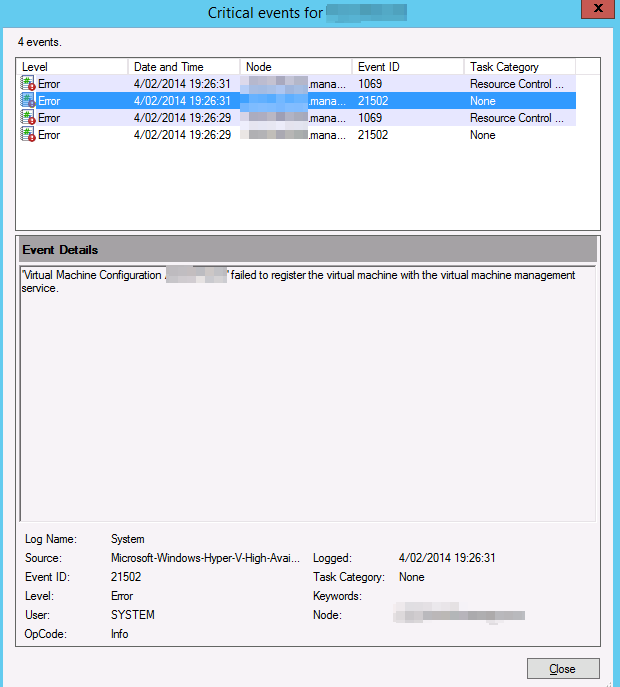
Virtual Machine Configuration ‘VM01’ failed to register the virtual machine with the virtual machine service

As the source host was running on Windows Server 2012 we could have done the live migration scenario but the down time would be minimal and there is a maintenance window. So we chose this path.

So we performed a good health check. of the source cluster and made sure we had no snapshots left hanging around. Yes it’s supported now for this migration scenario but I like to have as few moving parts as possible during a migration.

It all went smooth like silk. After shutting down the VMs on the source cluster node, bringing the CSV off line (and un-presenting the LUN from the source node for good measure), we present that LUN to the target host. We brought the CSV on line and when that was completed successfully we were ready to bring the virtual machines on line and that failed …

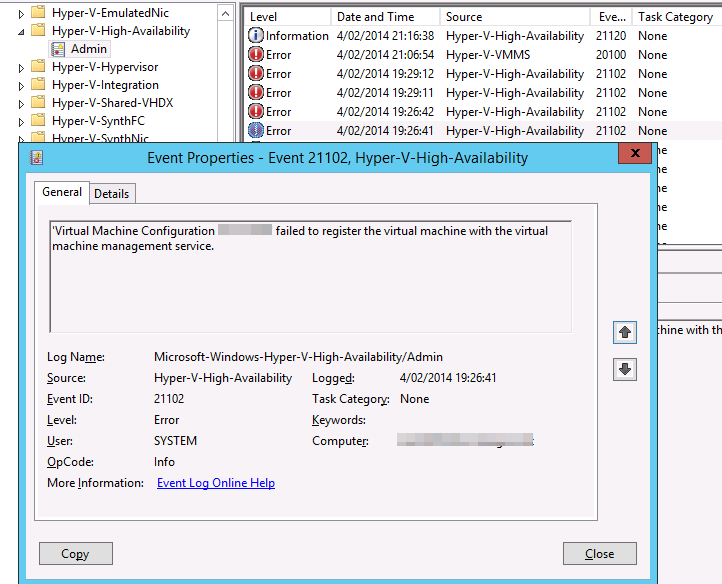
Log Name:      Microsoft-Windows-Hyper-V-High-Availability-Admin
Source:        Microsoft-Windows-Hyper-V-High-Availability
Date:          4/02/2014 19:26:41
Event ID:      21102
Task Category: None
Level:         Error
Keywords:     
User:          SYSTEM
Computer:      VM01.domain.be
Description:
‘Virtual Machine Configuration VM01’ failed to register the virtual machine with the virtual machine management service.
image

image


Let’s dive into the other event logs. On the host the application security and system event log are squeaky clean. The Hyper-V event logs are pretty empty or clean to except for these events in the Hyper-V-VMMS Admin log.

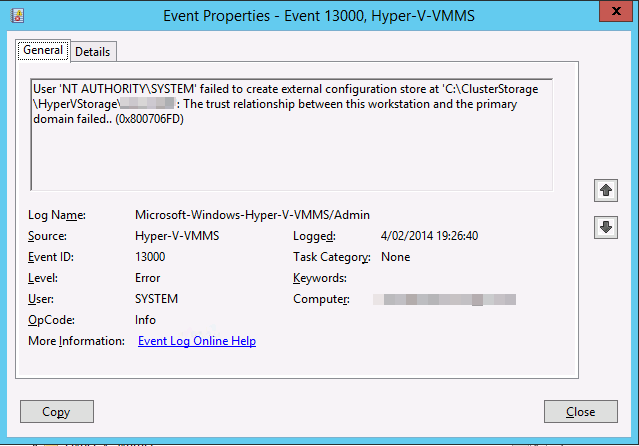
Log Name:      Microsoft-Windows-Hyper-V-VMMS-Admin
Source:        Microsoft-Windows-Hyper-V-VMMS
Date:          4/02/2014 19:26:40
Event ID:      13000
Task Category: None
Level:         Error
Keywords:     
User:          SYSTEM
Computer:      VM01.domain.be
Description:
User ‘NT AUTHORITYSYSTEM’ failed to create external configuration store at ‘C:ClusterStorageHyperVStorageVM01’: The trust relationship between this workstation and the primary domain failed.. (0x800706FD)
 

image

Bingo. It must be the fact that no domain controller is available. It’s completely self contained cluster and both domain controller virtual machines are highly available and reside on the CSV. Now the CSV does come on line without a DC since Windows Server 2012 so that’s not the issue. it’s the process of registering the VMs that fails without a DC in an Active Directory environment.

Getting passed this issue

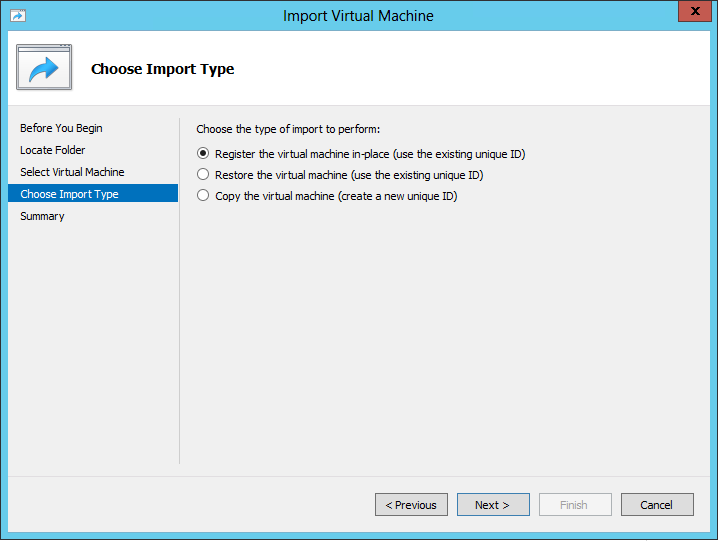
There are multiple ways to resolve this and move ahead with our cluster migration. As the environment is still fully functional on the source cluster I just removed a DC virtual machine from high availability on the cluster. I shut it down and exported it. I than copied it over to the node of the new cluster  (we’re going to nuke the source host afterwards and install W2K12R2, so we moved it to the new host where it could stay) where I put it on local storage and imported it. For this is used the “Register the virtual machine in-place option”. I did not make it high available.
image

After verifying that we could ping the DC and it was up and running well we tried the final phase of the migration again. It went as smooth as we have come to expect!

Other options would have been to host the DC virtual machine on a laptop or other server. If you could no longer get to the the DC for export & import or heck even a shared nothing migration depending on your environment can help you out of this pickle. A restore from backup would also work. But here in that 2 node all in one cluster our approach was fast and efficient.

So there you go. Tip to remember. Virtualizing domain controllers is fully supported, no worries there but you need to make sure that if you have a dependency on a DC you don’t have the DC depending on that dependency. It’s chicken an egg thing.
Some Insights Into How Windows 2012 R2 Hyper-V Backups Work

How Windows Server 2012 R2 backups differ from Windows Server 2012 and earlier

You’ll remember our previous blog about an error when backing up a virtual machine on Windows Server 2012 R2, throwing this error:

Dealing With Event ID 10103 “The virtual machine ‘VM001’ cannot be hot backed up since it has no SCSI controllers attached. Please add one or more SCSI controllers to the virtual machine before performing a backup. (Virtual machine ID DCFE14D3-7E08-845F-9CEE-21E0605817DC)” In Windows Server 2012 R2

The fix was easy enough, adding a virtual SCSI controller to the virtual machine. But why does it need that now?

Well, this all has to do with the changed way Windows Server 2012 R2 backups work. Before Windows Server 20012 R2 the VSS provider created a VSS snapshot inside the guest virtual machine. That snapshot was exposed to the host, to create a volume snapshot for backup purposes. Right after the volume snapshot has been taken this VSS snapshot inside the guest virtual machine needed to be reverted. The backups then run against that volume snapshot and is consistent thanks to both host & guest VSS capabilities.

For an overview of VSS based backup process in general take a peak at Overview of Processing a Backup Under VSS

Now it is the “Hyper-V Integration Services Shadow Copy Provider” that is being used. When the the host initiates a volume snapshot (Microsoft or hardware VSS provider) the host VSS writer goes in to freeze. This process leverages the Hyper-V Integration Services Shadow Copy Provider  to create the virtual machine checkpoint. After that the volume/LUN/CSV snapshot is taken. When that is done the host VSS writes goes into thaw and the virtual machine checkpoint is deleted. After that the backup runs against the Volume snapshot and at the end that is also deleted. You can follow this process quite nicely in the GUI of your Hyper-V host, you SAN (if you use a Hardware VSS provider).

Dear storage vendors: a great, reliable, fast VSS Hardware Provider is paramount to success in a Microsoft environment. You need to get this absolutely right and out of the door before spending any more time and money on achieving yet more IOPS. Keep scalability in mind when doing this.

Dear backup software vendors: think about the scalability when designing your products. If we have 200 or 500 or a thousand VMs … can we leverage CSV based backups to protect every VM on the LUN or do we need to snap the LUN for every VM backed up? Choice there is good for both data protection schemes and scalability.

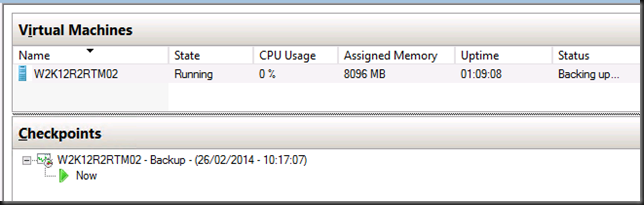
At this stage the hardware VSS snapshot is being taken …

image_thumb3

Contrary to common belief this means that the backup will indeed application consistent to the time of the checkpoint as the CSV snapshot being taken is of a consistent checkpoint. It’s the delta in the active avhdx that is only crash consistent, like any running VM by the way. Now pay attention to the screenshot below. The two red arrows are indicating to ntfs source events, two volumes seem to be exposed to the next free drive letters. E: and F: here as C: is the virtual machine OS and D: the DVD.

image_thumb5

Look at the detail. Indeed two. Well it the previous screenshot we only saw one in the CSV path but there are two avhdx files indeed.

image_thumb[1]

Exposing a snapshot on the SAN to a server actually shows us this much better … look here at the avhdx with the GUID and one with “AutoRecovery” in the name. So that makes for two nfts events … and as the backup needs to do this life it requires a vSCSI controller to be present in the virtual machine … and vIDE controller can’t do this.

image_thumb[3]

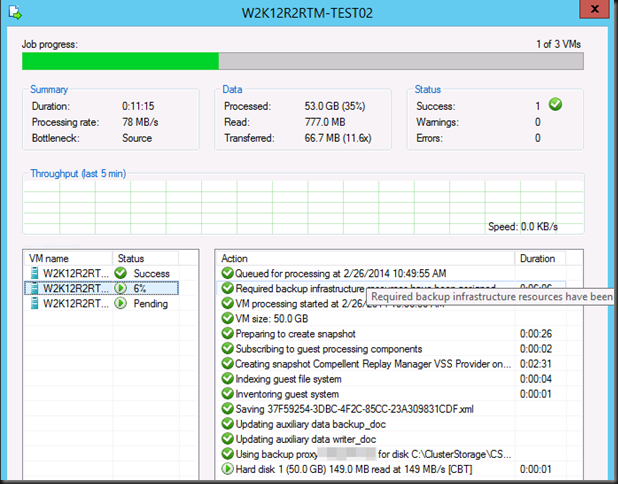
Anyway, enough under the hood detective work for now, In VEEAM that stage looks like this:

image_thumb7

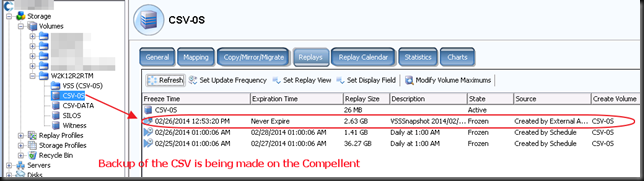
And on the Compellent it looks like this. The screenshots are from different backups at different times so don’t get confused about the time stamps here. It’s just as illustration of what you can expect to see.

image_thumb12

Now when the CSV snapshot has been taken the virtual machine checkpoint is removed. At that time the backup runs against the CSV snapshot. In our case (hardware VSS provider) this is a snapshot on the SAN that gets exposed in a view and mapped to the off host backup proxy VEEAM server. On the DELL Compellent it looks like this.

image_thumb16

This takes a while to o…but after a while the backup will kick off. Do not that the checkpoint has merged and is no longer visible at this time.

image_thumb18

Once the backup is complete, the mapping is removed, the view deleted and the snapshot expired. So your SAN is left as the backup found it.

There you go. I hope this helped clarify certain things on how Hyper-V guest backups work in Windows 2012 R2. So your backups are still application consistent, just not when you’re running Linux or DOS or NT4.0 as there is no support / VSS for that. However they are based on a  consistent virtual machine snapshot which explains why Hyper-V backups can protect Linux guests very adequately!

Dealing With Event ID 10103 “The virtual machine ‘VM001’ cannot be hot backed up since it has no SCSI controllers attached. Please add one or more SCSI controllers to the virtual machine before performing a backup. (Virtual machine ID DCFE14D3-7E08-845F-9CEE-21E0605817DC)” In Windows Server 2012 R2

I was doing backups of a Windows 2012 R2 Hype-V cluster recently and it runs only Windows Server 2012 R2 virtual machines. It’s a small but very modern and up to date cluster Smile.

Using VEEAM as backup software I have high expectations and VEEAM did deliver. All went well except for one virtual machine.

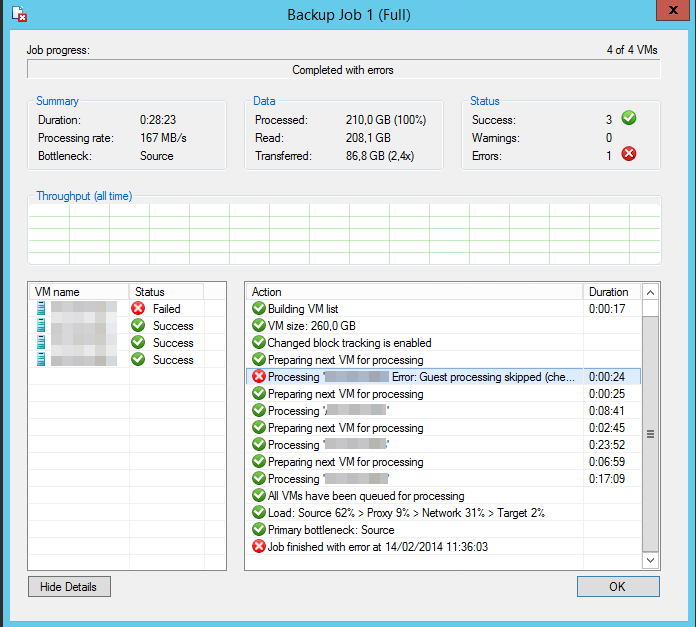
image

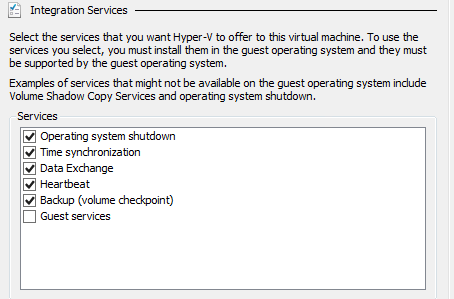
VEEAM states "Processing Error. Guest processing skipped (check guest OS VSS state and integration components version)". Well all  virtual machines  are W2K12R2 as are the cluster host and all IC components are up to date and backup (volume checkpoint) is enabled.

image

I dove into the Hyper-V log and sure enough I found following event:

The virtual machine ‘VM001’ cannot be hot backed up since it has no SCSI controllers attached. Please add one or more SCSI controllers to the virtual machine before performing a backup. (Virtual machine ID DCFE14D3-7E08-845F-9CEE-21E0605817DC).

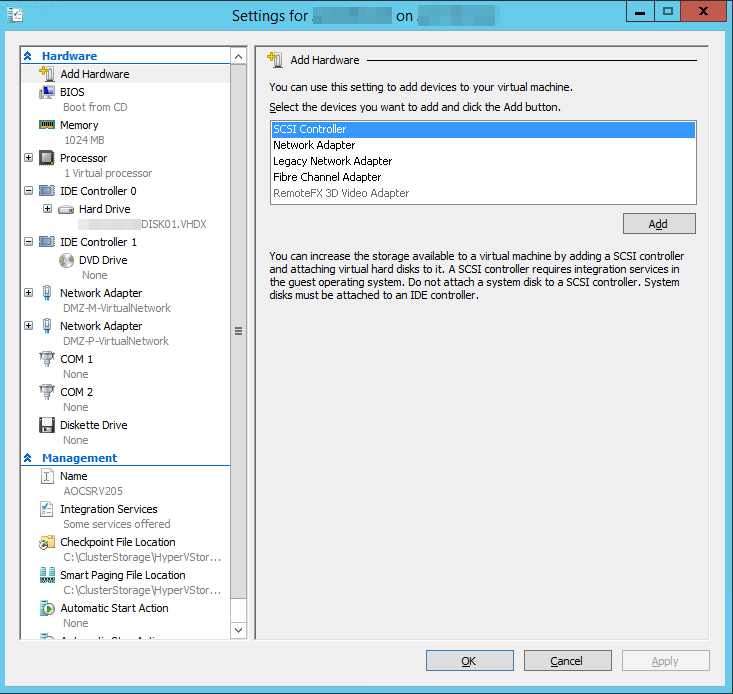
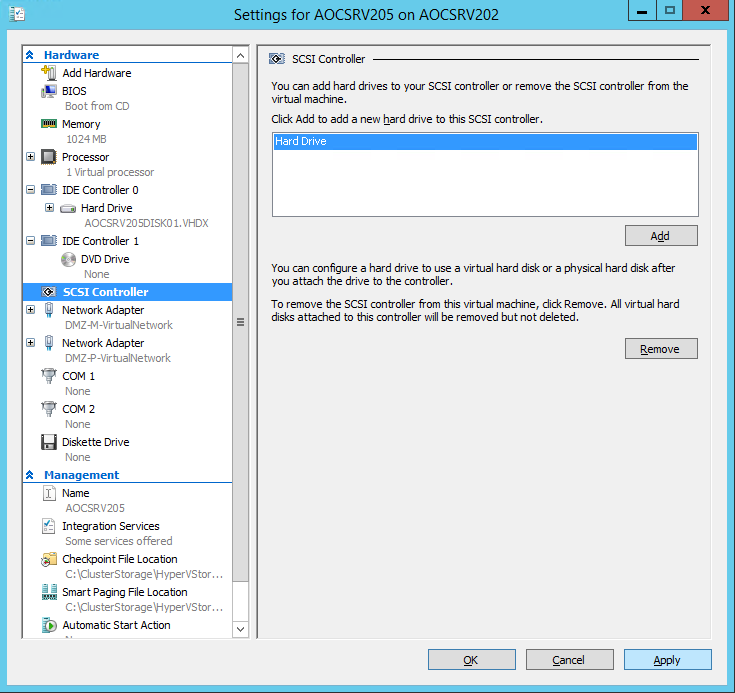
As it turns out in in Windows Server 2012 R2 the VM requires a SCSI controller for the backup to function. It doesn’t need to have any storage attached. It just needs one to be there (default). So the fix is easy, just add one.

image

image

Click “Apply” and “OK”. You can now start the virtual machine and that’s it. Once we fixed that it was a squeaky clean backup run.

But why does it need to be there?

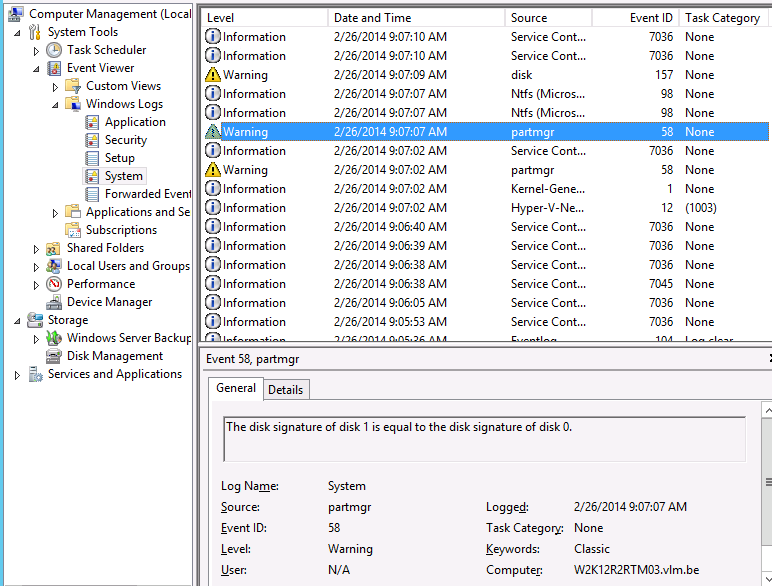
Well when we monitor the event logs inside a virtual machine we are backing up we see that during the backup process, very briefly a VHDX get’s mounted inside the guest.

image

To answer this question we need to dive into how Windows Server 2012 R2 backups work as that is different from how it used to be. You can read about that over here when it’s published.

Hyper V Amigos Showcast Episode 1: who we are

The very first episode of the Hyper-V Amigos Showcast has gone live. We’ll try to discuss & showcase Hyper-V and related technologies for benefit of all mankind.

In this first episode we introduce ourselves and talk a bit about on the state of our industry and how that relates to our jobs.

Carsten Rachfahl & Didier Van Hoye introduce themselves

Enjoy!