Eventually, we all make the mistake of locking ourselves out of our firewalls. Let’s look at how to fix locking yourself out of OPNsense. Let’s look at how to fix locking yourself out of OPNsense.
With OPNsense, this is mainly due to an error in Interface configuration and firewall rules. You know, when we are too “strict” and deny traffic from private networks on the interface we use for management.
How to fix locking yourself out of OPNsense
Cause 1: Firewall rules are blocking you
These can be user-treated rules or the rules added when you select to block private address ranges on an interface.
There is an easy solution, but it requires console access. If OPNsense runs in a virtual machine, that is relatively easy, especially in the lab or when you are the hypervisor administrator. Now, if OPNsense is running on an appliance, you’ll probably need physical access to that device. Bring a keyboard and a monitor with whatever cable (VGA/DVI/HDMI/DisplayPort/USB-C) is required, or connect a physical console cable to connect to the device. This can only be done remotely if the console port is available over ethernet.
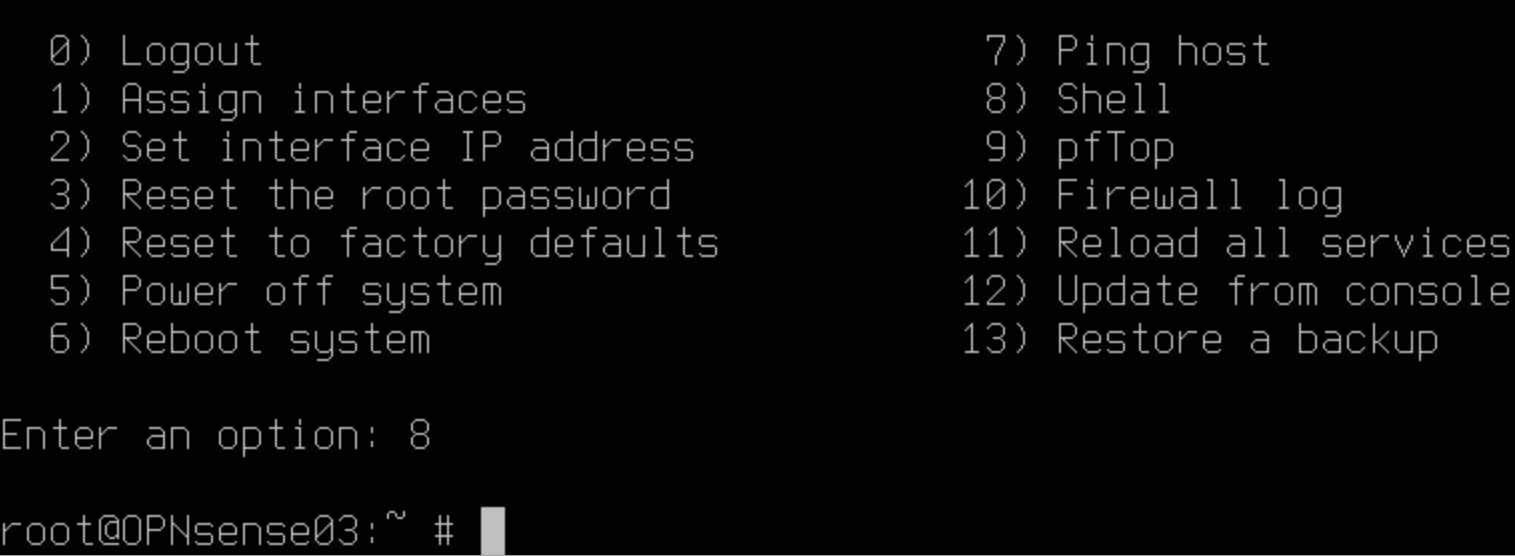
Log in with an account with sufficient rights and drop into the shell by selecting option 8.
Type:
pfctl -d
Hit “Enter”. This turns the OPNsense device into a router only by disabling the firewall. That means you now have access again via HTTPS or SSH on the interfaces you list for administration despite the error you made in the firewall rules for those interfaces.
Connect via the Web GUI and fix that mistake. When done, turn the firewall back on. To do so type:
pfctl -e
Hit “Enter”. The firewall is now enabled again.
Test whether you still have Web GUI or SSH access. If so, mission accomplished.
Cause 2: You no longer have HTTPS/SSH listening on the interface you have access to
By default, you listen to all non WAN interfaces. You might have reduced this to one or more but accidentally forgot to select the one(s) you need.
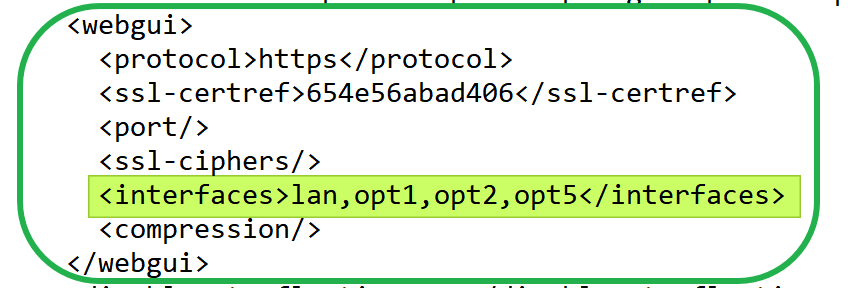
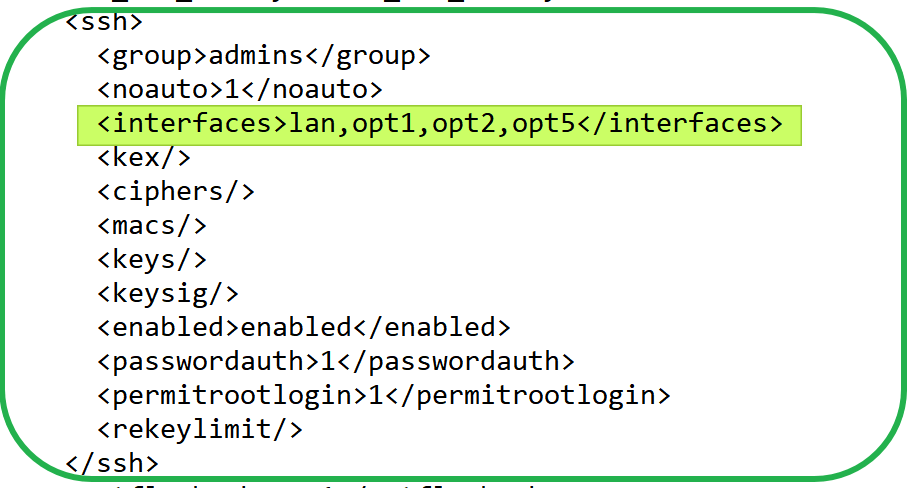
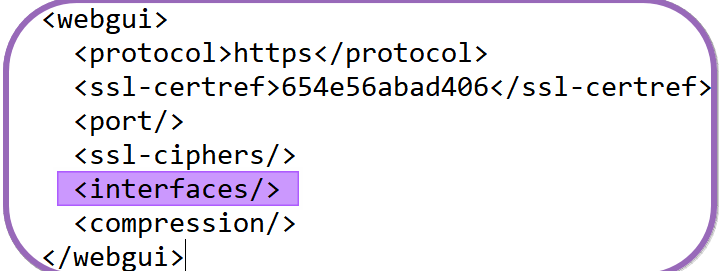
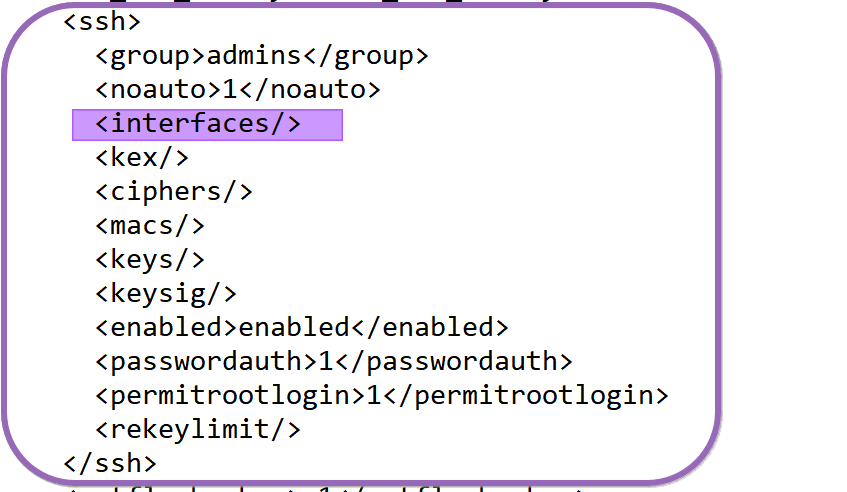
No fear, under /conf/conf.xml, you can edit the administrative webgui and ssh settings. In the example below, I have customized those settings (via the WebGUI) to listen to the specified ports.
WebGUI
SSH
Add the missing interface(s) or allow the WebGUI and SSH to listen to all of them again by reverting the settings back to default and not specifying any interfaces, as in the example below.
WebGUI
SSH
To edit these files, you can use vi, which is available by default. If you prefer Nano or such, you can install it via the FreeBSD package manager:
pkg install nano
Voila, those are the most common ways to get out of a pickle when you have locked yourself out of OPNsense.
This blog serves as a Proximus IPTV decoder DHCP Options Reference. It is nothing more than an ICS DHCP .conf file to leverage in OPNsense to help tweak the configuration for Proximus (Fiber, SIngle VLAN 20) IPTV work on an OPNsense appliance (physical or virtual) instead of via the Internet Box. See DHCP — OPNsense documentation.
I still need to put in the lab time to try to convert my config to KEA DHCP, as ICS DHCP is getting a bit old.
This blog post is meant to be a reference document I can return to and add to when needed. Please feel free to add to it or correct info via the comments. I am working on more elaborate documentation explaining how you can use your 3rd party OPNsense Firewall/Router with Porximus (Internet, IPTV, and VOIP) in the single VLAN 20 setup they are now rolling out. The official documentation is a bit too vague in certain areas. Also, with so many devices, Proximus has no commercial interest in supporting them. That said, OPNsense, pfSense, Unifi, OpenWRT, DD-WRT, MicroTik, and others would cover the most popular ones and do miracles to make an ISP/telco loved instead of seen as a necessary evil. With the prices they charge, they should be able to afford and fund that effort.
Later, when “complete,” I’ll also throw this on GitHub.
Custom ICS DHCP config file Proximus Decoders
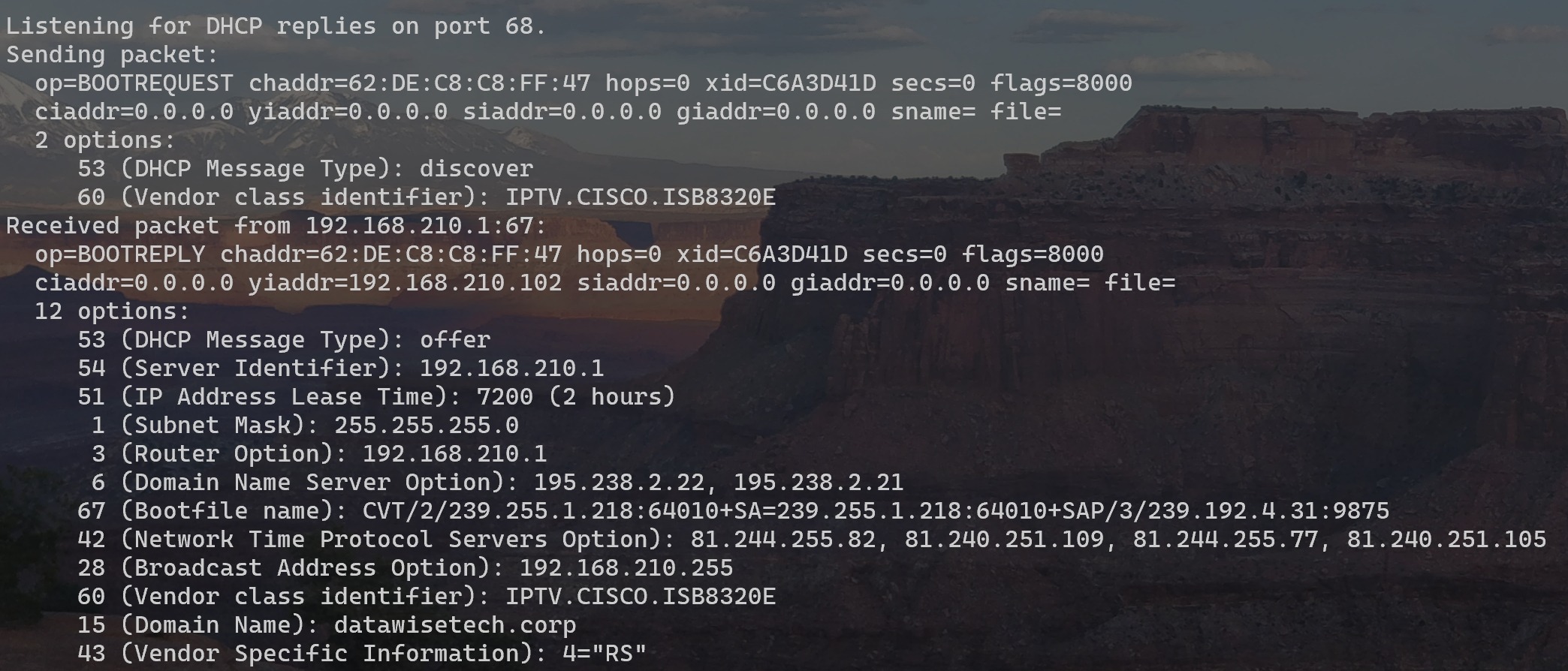
You’ll need to use your own interfaces (physical or VLAN) subnet, grab the MAC address of your decoder(s), and verify your decoder(s) hardware version (sniff it or grab it from the system Info via your TV). I got the other values for the DHCP options by capturing DHCP traffic from the decoder. Hence, this blog is my Proximus IPTV decoder DHCP Options Reference.
option space ProximusDecoderV5C;
option ProximusDecoderV5C.serviceName code 4 = text;

# This decoder works with Proximus Fiber To The Home and is the one I could test with.
# Please fill out the MAC address of your decoder. The "1" means ethernet and is not part of the MAC address.
class "ProximusDecoderV5C" {
    match if (substring(hardware, 0, 7) = 1:62:de:c8:c8:ff:47 and substring(option vendor-class-identifier, 0, 19) = "IPTV.CISCO.ISB8320E");
}
# Below classes are older or newer decoders and the info I could find about them for this use case.
# You must figure it out with network captures, Wireshark, and DHCP tests.

# This is an older decoder V5 (Mini?) - Obsolete and probably does not work with Proximus Fiber To The Home
# Please fill out the MAC address of your decoder. The "1" means ethernet and is not part of the MAC address.
#I do not have access, so I could not sniff out DHCP Option 43 to find it.
class "ProximusDecoderV5" {
    match if (substring(hardware, 0, 7) = 1:62:de:c8:c8:ff:48 and substring(option vendor-class-identifier, 0, 18) = "IPTV.CISCO.IPV5001");
}

# This is decoder V6- Obsolete and being replaced. Maybe due to it being Huawei? It might or might not work with Proximus Fiber To The Home.
# I do not have access, so I could not sniff out DHCP Option 43 to find it.
# Please fill out the MAC address of your decoder. The "1" means ethernet and is not part of the MAC address.
class "ProximusDecoderV6" {
    match if (substring(hardware, 0, 7) = 1:62:de:c8:c8:ff:49 and substring(option vendor-class-identifier, 0, 19) = "IPTV.HUAWEI.EC6109V1");
}

#This is decoder V7. I have not had one to play with, so I am unsure of the system version. CHECK IT YOURSELF! Works with Proximus Fiber To The Home.
#I do not have access, so I could not sniff out DHCP Option 43 to find it.
#Please fill out the MAC address of your decoder. The "1" means ethernet and is not part of the MAC address.
class "ProximusDecoderV7" {
    match if (substring(hardware, 0, 7) = 1:62:de:c8:c8:ff:50 and substring(option vendor-class-identifier, 0, 19) = "IPTV.TECHNICOLOR.UIW4020PXM");
}


# Anything else you might plug-in like a smart TV directly - optionally you can just refuse to lease it an address to block use by unknown devices>
# Alteratively you can filter on MAC addresses.
class "NotProximusDecoder" {
    match if not (substring(option vendor-class-identifier, 0, 19) = "IPTV.CISCO.ISB8320E");
}

subnet 192.168.210.0 netmask 255.255.255.0 {
    Pool{
        allow members of "ProximusDecoderV5C";
        range 192.168.210.101 192.168.210.111;

        # Route/GW for the subnet of IPTV VLAN
        option routers 192.168.210.1;

        # Subnetmask for the subnet of IPTV VLAN
        option subnet-mask 255.255.255.0;

        # Broadcast address for the subnet of IPTV VLAN
        option broadcast-address 192.168.210.255;
        # Proximus STB/decoder V5c has this VCI (checked with DHCP client tool and Wireshark
        option vendor-class-identifier "IPTV.CISCO.ISB8320E";

        # Vendor-specific option space for IPTV
        vendor-option-space ProximusDecoderV5C;

        # Proximus defined IPTV specific options
        option ProximusDecoderV5C.serviceName = "RS";

        # Bootfile name for the device
        option bootfile-name "CVT/2/239.255.1.218:64010+SA=239.255.1.218:64010+SAP/3/239.192.4.31:9875"; # Option 67

        # Proximus NTP servers (Option 42)
        option ntp-servers 81.244.255.82, 81.240.251.109, 81.244.255.77, 81.240.251.105;

        # Proximus DNS servers (Option 6)
        option domain-name-servers 195.238.2.22, 195.238.2.21;
        max-lease-time 86400;
    }
    Pool{
        allow members of "NotProximusDecoder";
        range 192.168.210.201 192.168.210.211;

        # Route/GW for the subnet of IPTV VLAN
        option routers 192.168.210.1;

        # Subnetmask for the subnet of IPTV VLAN
        option subnet-mask 255.255.255.0;

        # Broadcast address for the subnet of IPTV VLAN
        option broadcast-address 192.168.210.255;

        # Proximus NTP servers (Option 42)
        option ntp-servers 81.244.255.82, 81.240.251.109, 81.244.255.77, 81.240.251.105;

        # Proximus DNS servers (Option 6)
        option domain-name-servers 195.238.2.22, 195.238.2.21;
        max-lease-time 86400;
    }
}