Do Azure VPN Gateways that leverage BGP support BFD?

Introduction

Anyone doing redundant, high-available VPN gateways leveraging BGP (Border Gateway Protocol) has encountered BFD (Bi-Directional Forwarding Detection). That said, BFD is not limited to BGP but also works with OSPF and OSPF6. But before we answer whether Azure VPN Gateways that leverage BGP support BFD, l briefly discuss what BFD does.

Bi-Directional Forwarding Detection

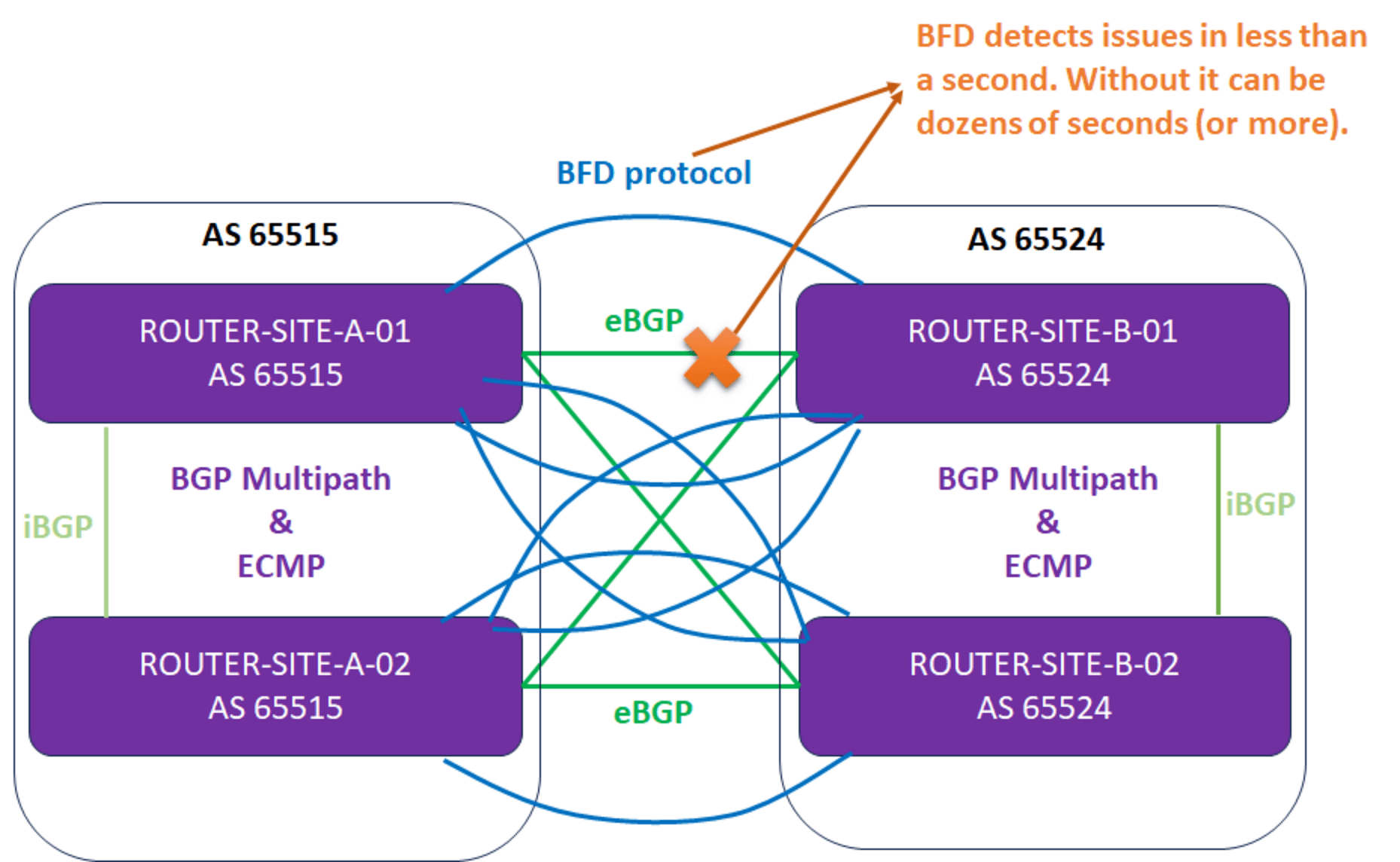
The BFD (Bi-Directional Forwarding Detection) protocol provides high-speed and efficient detection for link failures. It works even when the physical link has no failure detection support itself. As such, it helps routing protocols, such as BGP, failover much quicker than they could achieve if left to their own devices.

BFD control packets are transmitted via UDP from source ports between 49152-65535 to destination port 3784 (single-hop, RFC 5880, RFC 5881, and RFC 5882) or 4784 (multi-hop, RFC 5883). It can be IPv4 as well as IPv6. See Bidirectional Forwarding Detection on Wikipedia for more information. Note that this works between directly connected routers (single-hop) or (multi-hop).
Azure VPN Gateways that leverage BGP support BFD

Currently, OPNsense and pfSense, with the FRR (Flexible Rigid Routing) plugin, support BFD integration with BGP, Open Shortest Path First (OSPF), and Open Shortest Path First version 6 (OSPF6). Naturally, most vendors support this, but I mention OPNsense and pfSense because they offer free, fully functional products that are very handy for demos and lab testing.

Do Azure VPN Gateways that leverage BGP support BFD?

TL;DR: No.

You do not find much information when you search for BFD information about Microsoft Azure networking. Only for Azure ExpressRoute does Microsoft clearly state that it is supported and provides information.

But what about Azure VPN gateways with BFD? Well, no, that is not supported at all. You can try to set it up, but your VPN Gateways on-premises is shouting into a void. The session status with the peers will always be “down.” It just won’t work.
Visualize an Always On VPN device tunnel connection while disabling the disconnect button

Visualize an Always On VPN device tunnel connection while disabling the disconnect button

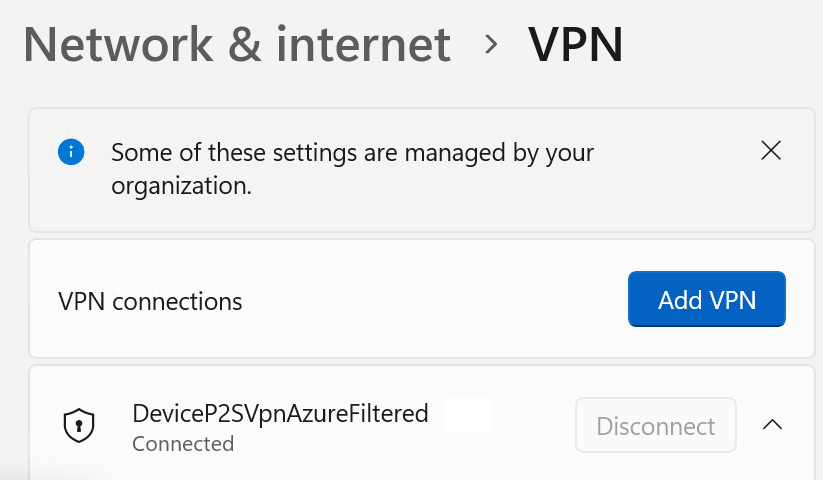
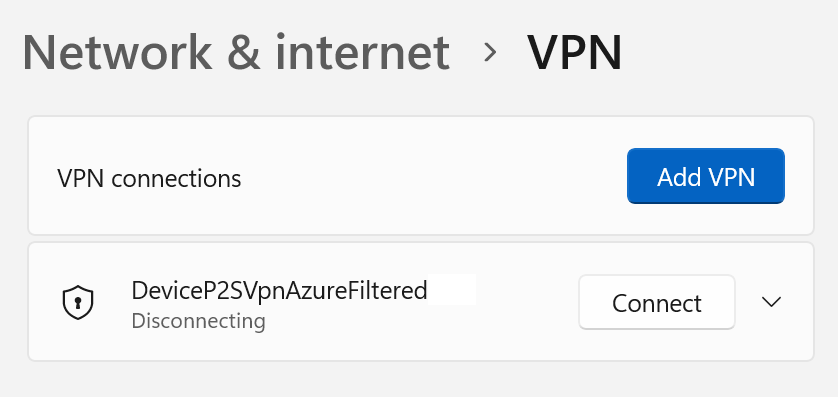
The need to visualize an Always On VPN device tunnel connection while disabling the disconnect button arises when the user experiences connectivity issues. End users should be able to communicate quickly to their support desk whether or not they have a connected Always On VPN device tunnel. They usually do not see the device VPN tunnel in the modern UI. Only user VPN tunnels show up. Naturally, we don’t want them to disconnect the device VPN or change its properties, so we want to disable the “disconnect” and the “advanced setting buttons. Since a device VPN tunnel runs as a “SYSTEM,” they cannot do this anyway. The GUI shows “Disconnecting” but never complete.

Refreshing the GUI correctly shows “Connected” again. However, it makes sense to disable the buttons to indicate this. So how to we set all of this up?

Visualize an Always On VPN device tunnel connection

Visualizing the Always On VPN device tunnel in the modern GUI is something we achieve via the registry. Scripting deploying these registry settings via GPO or Intune is the way to go.

New-Item -Path ‘HKLM:\SOFTWARE\Microsoft\Flyout\VPN’ -Force
New-ItemProperty -Path ‘HKLM:\Software\Microsoft\Flyout\VPN\’ -Name ‘ShowDeviceTunnelInUI’ -PropertyType DWORD -Value 1 -Force

Disable the disconnect button and the advanced options buttons

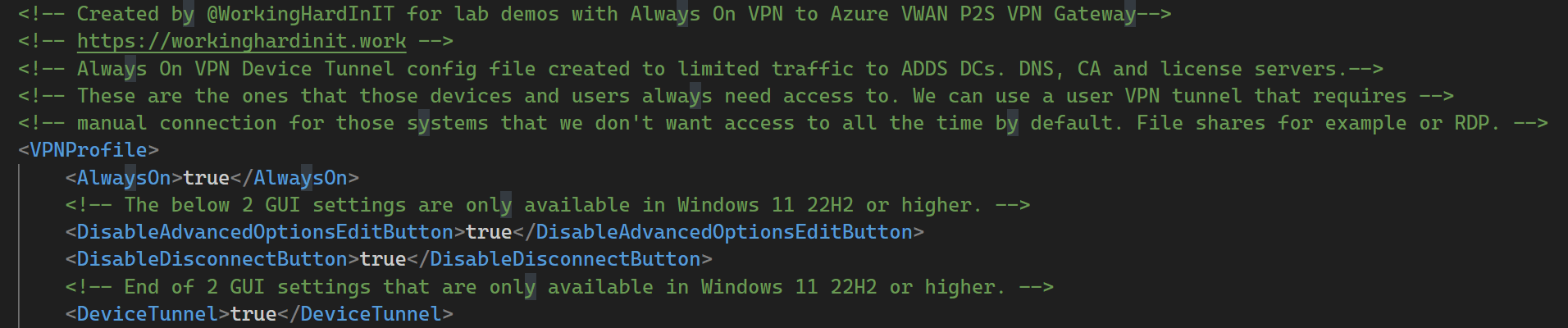
Now that the Always On VPN device tunnel is visible in the GUI, we want to disable the disconnect button and the advanced options buttons. How? Well, we can do this in Windows 11 22H2 or more recent versions. For this, we add the following to the VPN configuration file.

<!-- The below 2 GUI settings are only available in Windows 11 22H2 or higher. --><DisableAdvancedOptionsEditButton>true</DisableAdvancedOptionsEditButton><DisableDisconnectButton>true</DisableDisconnectButton>

  <!– These GUI settings below are only available in Windows 11 22H2 or higher. –>    <DisableAdvancedOptionsEditButton>true</DisableAdvancedOptionsEditButton>    <DisableDisconnectButton>true</DisableDisconnectButton>

Visualize a device VPN tunnel connection while disabling the disconnect button

Results

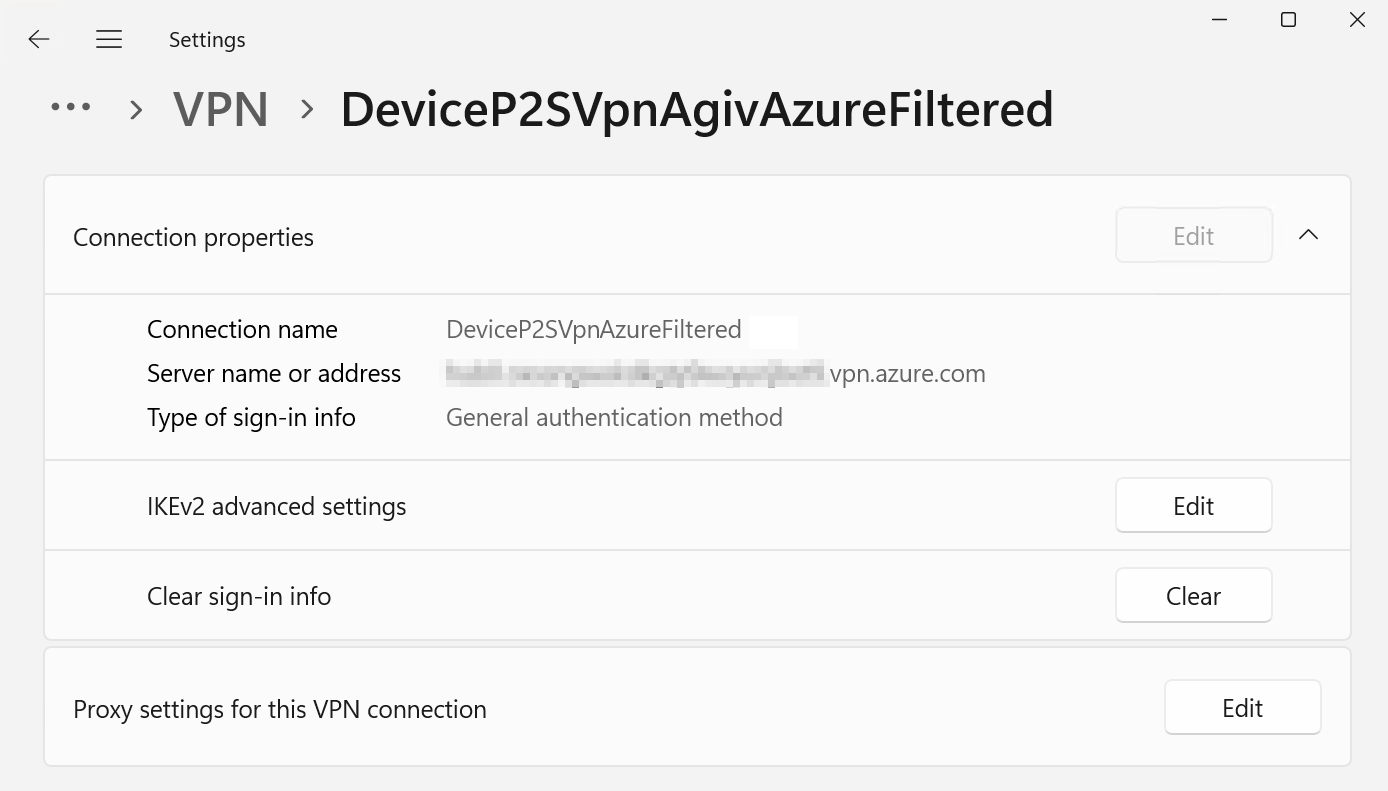
For an administrative account, the Always On VPN device tunnel is visible, but the buttons are dimmed (greyed out).

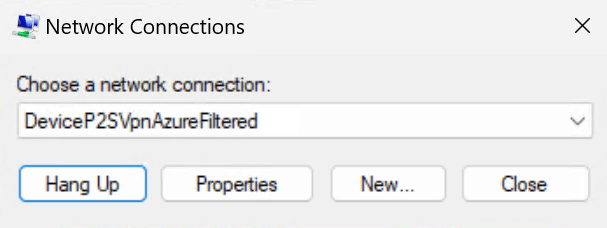
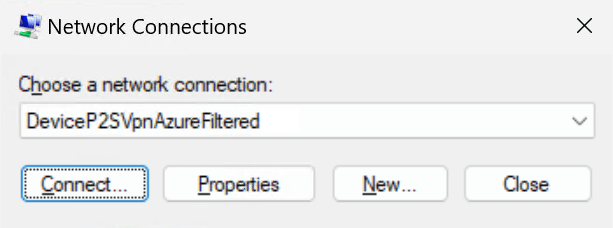
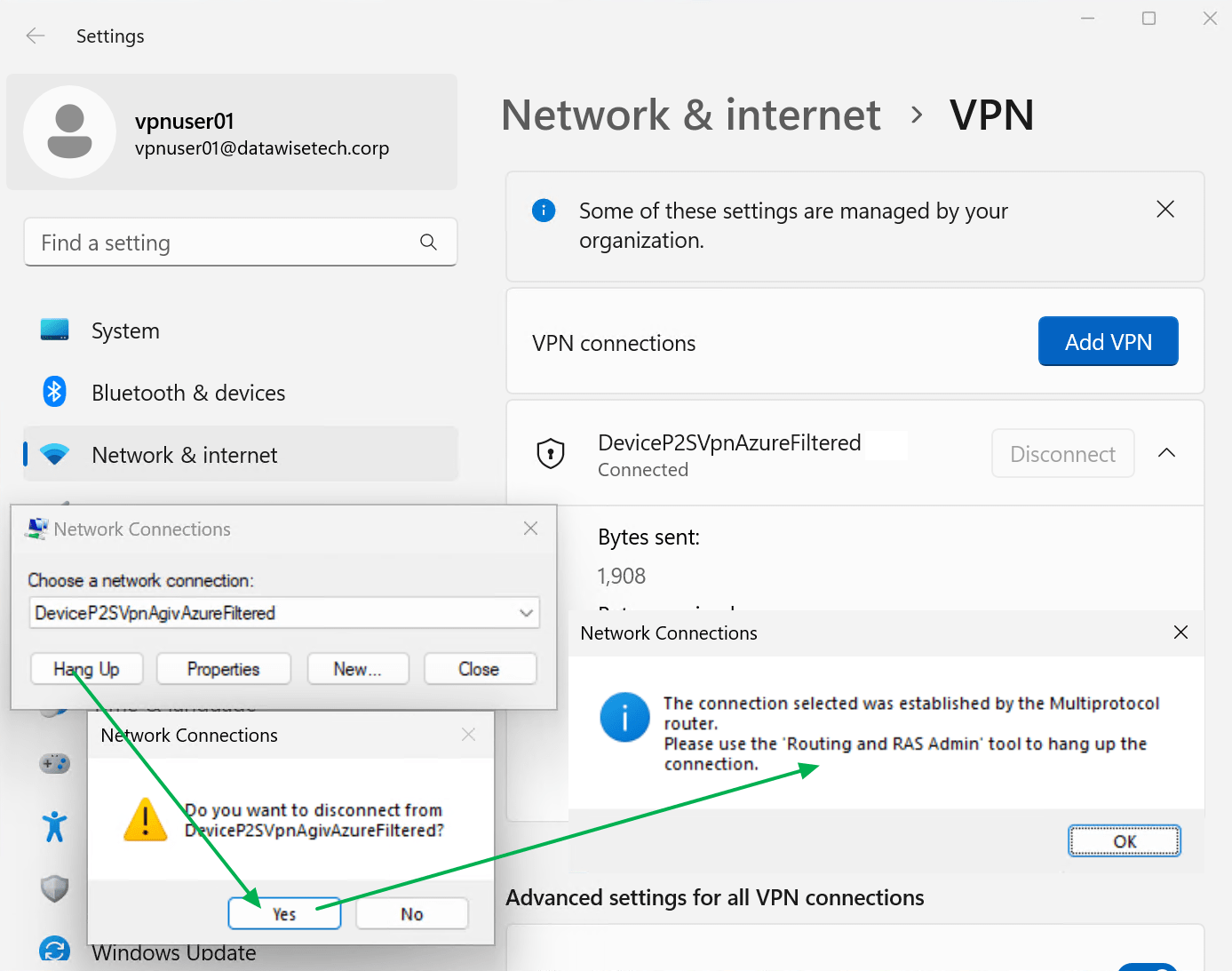
As before, the administrator can still use the rasphone GUI to hang up the Always On VPN device tunnel or edit the properties like before. Usually, you’ll configure the setting with Intune or via GPO with Powershell and custom XML. There is also a 3rd party option for configuring Always On VPNs via GPO (AOVPN Dynamic Profile Configurator).

For a non-administrator user account, the GUI looks precisely the same. The big difference is that when such a user launches the rasphone GUI, they cannot “Hang Up” the connection. The error message may not be the clearest, but in the end, a user with non-administrative rights cannot disconnect the Always On VPN device tunnel.

So now we have the best of both worlds. An administrator and a standard user can see that the Always On VPN device tunnel is connected. Remember that disabling the buttons requires Windows 11 22H2 or more recent. This blog was written using 23H2. The administrator can use the rasphone GUI or rasdial CLI to access the Always On VPN device tunnel like before.

Conclusion

Device VPN tunnels are supposed to be connected at all times, whether a user is logged on or not. It is also something that users are not supposed to be concerned about in contrast to a user VPN tunnel. However, it can be beneficial to see whether the Always On VPN device tunnel is connected. That is most certainly so when talking to support about an issue. We showed you how to achieve this, combined with disabling the “disconnect” and “advanced” options buttons), in this blog post.