Why the AirConsole 2.0 Standard? in IT, you need to configure or troubleshoot network devices every now and then, such as routers, switches, firewalls, … all these have a serial connection for initial setup, troubleshooting or upgrades.
Working at a network rack or in a network room is often tedious and bad for you to very non-ergonomically balance a laptop while managing cables and typing. That is where the Airconsole comes in for me. There are other use cases such as for a permanent setup as a serial server. We also have those, but personally, the Airconsole 2.0 Standard is a handy piece of portable kit for me to have available.
The Airconsole 2.0 Standard
I am using the Airconsole 2.0 Standard. They have different versions and editions (bigger battery, Low Energy versions, etc). For my purposes the standard edition gets the job done.
It offers both Bluetooth and WiFi connectivity, but it also has a RJ45 up-link. This makes it very flexible. Especially combined with the configuration options via the web interface that allows for many network scenarios. I must say I find the lack of TLS for the web interface my biggest criticism.
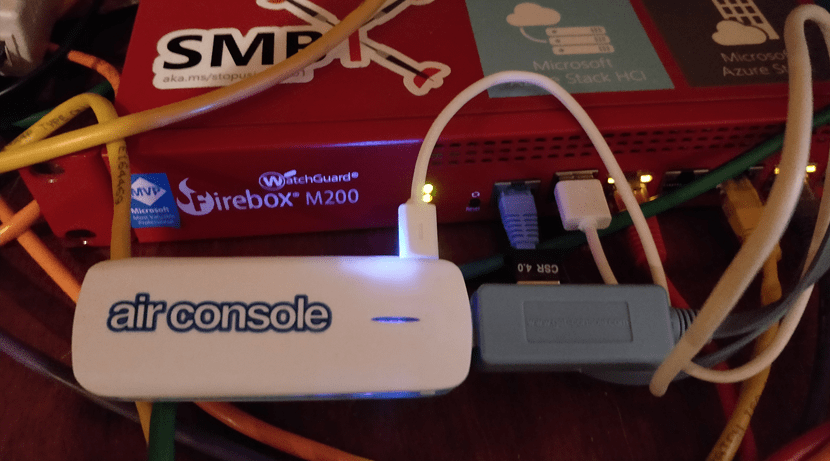
The air console on my Lab WatchGuard Firebox M200. The usb port on the firebox provides power. Ideal for those longer configuration jobs.
I got the standard edition as I have enough RJ45 to serial adapters lying around. It is easy enough to set up for anyone who has previous basic networking experience.
Using the Airconsole 2.0 Standard on Windows
Next to the apps for mobile devices (Smartphones and tablets with IOs or Android), you can use it on your laptop which will be the most used option for me. A smartphone is nice for a quick check of something. For real work, I prefer a laptop or desktop.
Bluetooth
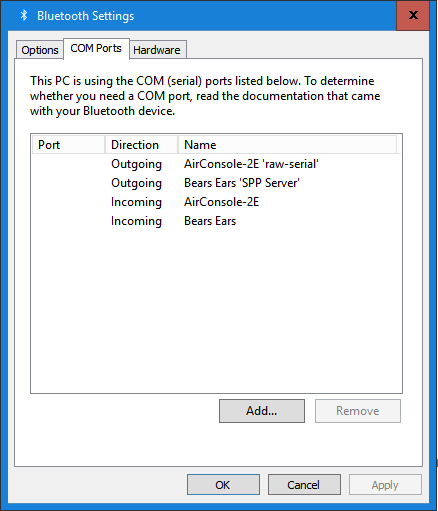
Bluetooth does not require drivers to be installed. That just works out of the box. It adds the needed COM ports using the built-in Windows Serial Port Profile drivers. Just pair the AirConsole with your device and you should see the Bluetooth COM ports come up.
If you don’t succeed at first, try again. Bluetooth can be a bit finicky at times.
Wifi
The WiFi option requires a driver to be installed on your Windows OS. While the drivers are a bit older they do work well with recent editions such as Windows Server 2019 and Windows 10 as well as older operating systems.
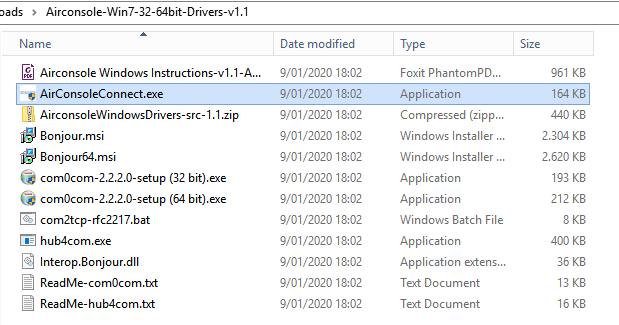
There are a couple of types of this product. Make sure you download the correct drivers and software. For the Airconsole 2.0 Standard, you can find it here, you need to install Apple Bonjour for Windows. First of all, Unpack the zip file
Now, install Bonjour64.exe (I’m hoping no one is still stuck in the 32-bit world). It is very weird for me to install this on Windows which is normally kept free of apple bloatware. But this is for a good cause. After this, you install the com0com-2.2.2.0-setup (64 bit).exe. This will create the first COM port pair (they make the link between your device and the actual serial port). You can add more pairs with different settings to have them ready for your most-used devices.
Connecting to your console via WiFi
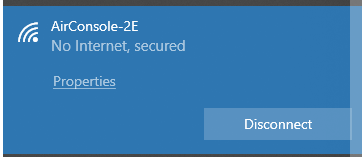
Before you go any further make sure you connected your WiFi to the Airconsole-2E WAP.
Without connectivity, nothing much can will happen. Once that is done launch the AirConsoleConnect.exe with admin privileges. You can now select the COM port you want to map the Airconsole to from the COM port combo box. All you need to do is click connect.
This is me connecting to the Firebox M200 CLI over WiFi. I have selected to show the debug dialog.
Connected to the Firebox M200 CLI over WiFi
Varia
If both WiFi and Bluetooth are available WiFi is preferred and uses as it gives better performance.
Plugin the USB charging cable to a USB port on the network device is possible
You can add virtual COM port pairs for WiFi and customize those to your hears content.
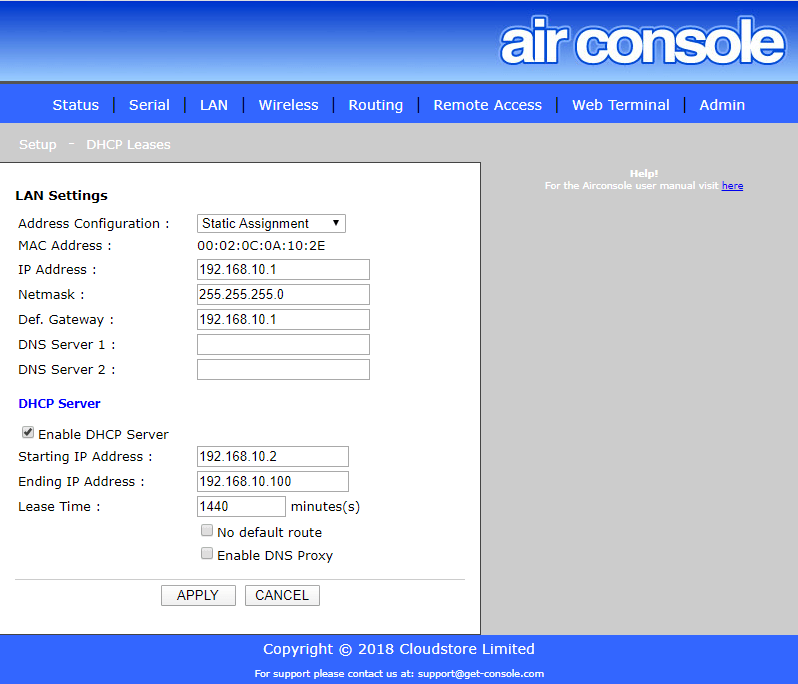
Via http://192.168.10.1 you can manage your AirConsole. You can configure the network settings (subnet, DHCP, DNS), configure your WiFi (SSID, Network mode, channel, etc.), change the password, upgrade the AirConsole, etc. Pretty nice. As said above, in this day and age we’d hope for TLS 1.2, but we have not https capabilities at all, which is a pity. But then, this is not a permanent setup.
The AirConsole is a handy piece of kit to have around. It is more versatile then I figured when I first got it and with the options available can turn it into a nice serial server.
Someone asked me to help investigate an issue that was hindering client/server applications. They suffered from intermittent TLS issues with Windows Server 2012 R2 connecting to SQL Server 2016 running on Windows Server 2016 or 2019. Normally everything went fine but one in every 250 to 500 connection of the server-client to a database on SQL Server 2016 they got the error below.
System.ServiceModel.CommunicationException: The InstanceStore could not be initialized. —> System.Runtime.DurableInstancing.InstancePersistenceCommandException: The execution of the InstancePersistenceCommand named {urn:schemas-microsoft-com:System.Activities.Persistence/command}CreateWorkflowOwner was interrupted by an error. —> System.Data.SqlClient.SqlException: A connection was successfully established with the server, but then an error occurred during the login process. (provider: SSL Provider, error: 0 – An existing connection was forcibly closed by the remote host.) —> System.ComponentModel.Win32Exception: An existing connection was forcibly closed by the remote host
Now actually retrying the connection in the code could work around this. Good code should have such mechanisms implemented. But in the end, there was indeed an issue.
Intermittent TLS issues with Windows Server 2012 R2 connecting to SQL Server 2016 running on Windows Server 2016 or 2019
I did a quick verification of any network issues. The network was fine, so I could take this cause of the table. The error itself did not happen constantly, but rather infrequently. All indications pointed to a (TLS) configuration issue. “An existing connection was forcibly closed by the remote host” was the clearest hint for this. But then one would expect this to happen every time.
We also checked that the Windows Server 201 R2 hosts were fully up to date and had either .NET 4.7 or .NET 4.8 installed. These versions support TLS 1.2 without issues normally.
Also, on Windows Server 2012 R2 TLS 1.2 is enabled by default and does not require editing the registry to enable it. You have to do this is you want to disable it and re-enable it.
For 64-bit operating systems: [HKEY_LOCAL_MACHINE\SOFTWARE\Microsoft.NETFramework\v2.0.50727] “SystemDefaultTlsVersions”=dword:00000001
[HKEY_LOCAL_MACHINE\SOFTWARE\Wow6432Node\Microsoft.NETFramework\v2.0.50727] “SystemDefaultTlsVersions”=dword:00000001 For 32-bit operating systems: [HKEY_LOCAL_MACHINE\SOFTWARE\Microsoft.NETFramework\v2.0.50727] “SystemDefaultTlsVersions”=dword:00000001
Note If the application has set the ServicePointManager.SecureProtocol in code or through config files to a specific value or uses the SslStream.AuthenticateAs* APIs to specify a specific SslProtocols enum, the registry setting behavior does not occur. But in our test code, we also have control over this. So we can test a lot of permutations.viu
Test code
To properly dive into the issue we needed to reproduce the error at will or at least very fast. So for that, we contacted a dev and asked him to share the code paths that actually made the connections to the databases. This is to verify if there were multiple services connecting and maybe only one had issues. It turned out it was all the same. It all failed in the same fashion.
So we came up with a test program to try and reproduce it as fast as possible even if it occurred infrequently. That ability, to test configuration changes fast, was key in finding a solution. With this test program, we did not see this issue with clients that were running on Windows Server 2016 or Windows Server 2019. Not with the actual services in the environments test or in production nor with our automated test tool. Based on the information and documentation of .NET and Windows Server 2012 R2 this should not have been an issue there either. But still, here we are.
The good thing about the test code is that we can easily play with different settings in regards to the TLS version specified in the code. We noted that using TLS 1.1 or 1.0 would show a drop in connection errors versus TLS 1.2 but not eliminate them. No matter what permutation we tried we just got a difference in frequency of the issue. We were not able to get rid of the error. Now that we had tried to deal with the issue on the application level we decided to focus on the host.
The host
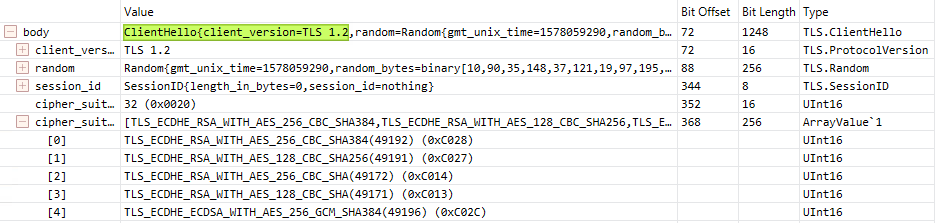
Even with no TLS 1.2 enforced the Windows Server 2012 R2 client hello in its connection to the SQL Server host uses TLS 1.2. The cipher they select ( TLS_DHE_RSA_WITH_AES_256_GCM_SHA384) is actually considered weak. This is evident when we look at the client and server hello to port 1433.
Client helloServer Hello
Trying to specify the TLS version in the test code did nor resolve the issue. So we now tried solving it on the host. We are going for best practices on the Windows Server 2012 R2 client side. ! In the end, I ended up doing the following
Allowed only TLS 1.2
Allowed only Secure ciphers & Ordered those for Perfect Forward Privacy
Enforce the OS to always select the TLS version
Enforce the use of the most secure (TLS 1.2 as that is the only one we allow)
Note that there is no support for TLS 1.3 at the moment of writing.
After this, we ran our automated tests again and did not see even one occurrence of these issues anymore. This fixed it. It worked without any other changes except for one. There was one application that had not been upgraded to .NET 4.6 or higher and enforced TLS 1.1. So we leaned on the app owners a bit to have them recompile their code. In the end, they went with 4.8.
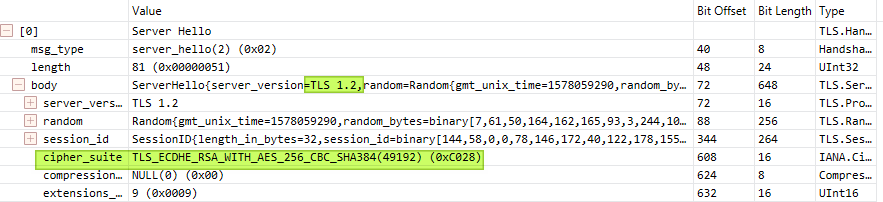
In the network capture of connections, we see they now select a secure cipher (TLS_ECDHE_RSA_WITH_AES_256_CBC_SHA384).. With this setup, we did not experience the flowing infrequent error anymore. “System.Data.SqlClient.SqlException: A connection was successfully established with the server, but then an error occurred during the login process. (provider: SSL Provider, error: 0 – An existing connection was forcibly closed by the remote host.) —> System.ComponentModel.Win32Exception: An existing connection was forcibly closed by the remote host“
Client HelloServer Hello
The cause
We had an assumption is that once in a while and older/weaker ciphers were used and that this causes the connection error. By implementing best practices we disabled those which prevent this from happening. As we did not change the source code om most machines it either used the .Net framework defaults or the specified settings.
As you can read above, what finally did the trick was implementing a TLS 1.2 only best practices configuration on the Windows Server 2012 R2 hosts.
If you run into a similar issue please test any solution, including mine here, before implementing it. TLS versions that software and operating systems require or are able to use differ. So any solution needs to be tested end to end for a particular use case. Even more so if ServicePointManager.SecureProtocol in code or through config files or via SslStream.AuthenticateAs* APIs are in play.
In this particular environment forcing TLS 1.2 and having the OS control which TLS version is being used by the .NET applications worked. Your mileage may differ and you might need to use a different approach to fix the issue in your environment. Big boy rules apply here!
Conclusion
Tech debt will sooner or later always rear its ugly head. There is a reason I upgrade and update regularly and well ahead of deadlines. I have always been doing that as much as possible (SSL Certs And Achieving “A” Level Security With Older Windows Version) . But in this case that this seemed more like a bug than a configuration issue. It only happened every now and then which meant troubleshooting was a bit more difficult. But that was addressed with a little test program. this helped us test configuration changes to fix these Intermittent TLS issues with Windows Server 2012 R2 connecting to SQL Server 2016 running on Windows Server 2016 or 2019 fast and easily. I shared this case as it might help other people out there struggling with the same issue.