Hyper-V Amigos Showcast Episode 20 and 21

Introduction

This is just a quick blog post to let you know the Hyper-V Amigos have released 2 webcasts recently. These are Hyper-V Amigos Showcast Episode 20 and 21. You will find a link to the videos and a description of the content below.

Hyper-V Amigos Showcast – Episode 20

In episode 20 of the Hyper-V Amigo ShowCast, we continue our journey in the different ways in which we can use storage spaces in backup targets. In our previous “Hyper-V Amigos ShowCast (Episode 19)– Windows Server 2019 as Veeam Backup Target Part I” we looked at stand-alone or member servers with Storage Spaces. With both direct-attached storage and SMB files shares as backup targets. We also played with Multi Resilient Volumes.

For this webcast, we have one 2 node S2D cluster set up for the Hyper-V workload (Azure Stack HCI). On a second 2 node S2D cluster, we host 2 SOFS file shares. Each on their own CSV LUN. SOFS on S2D is supported for backups and archival workloads. And as it is SMB3 and we have RDMA capable NICs we can leverage RDMA (RoCE, Mellanox ConnectX-5) to benefit from CPU offloading and superb throughput at ultra-low latency.

Hyper-V Amigos Show Cast Episode 20

Some extra information

The General Purpose File Server (GPFS role) is not supported on S2D for now. You can use GPFS with shared storage and in combination with continuous availability. This performs well as a high available backup target as well. The benefit here is that this is cost-effective (Windows Server Standard licenses will do) and you get to use the shared storage of your choice. But in this show cast, we focus on the S2D scenario and we didn’t build a non-supported scenario.

You would normally expect to notice the performance impact of continuous availability when you compare the speeds with the previous episode where we used a non-high available file share (no continuous availability possible). But we have better storage in the lab for this test, the source system is usually the bottleneck and as such our results were pretty awesome.

The lab has 4 Tarox server nodes with a mix of Intel Optane DC Memory (Persistent Memory or Storage Class Memory), Intel NVMe and Intel SSD disks. For the networking, we leverage Mellanox ConnectX-5 100Gbps NICs and SN2100 100Gbps switches. Hence we both had a grin on our face just prepping this lab.

As a side note, the performance impact of continuous availability and write-through is expected. I have written about it before here. The reason why you might contemplate to use it. Next to a requirement for high availability, is due to the small but realistic data corruption risk you have with not continuously available SMB shares. The reason is that they do not provide write-through for guaranteed data persistence.

We also demonstrate the “Instant Recovery” capability of Veeam to make workloads available fast and point out the benefits.

Hyper-V Amigos Showcast – Episode 21

In episode 21 we are diving into leveraging the Veeam Agent for Windows integrated with Veeam Backup & Replication (v10 RC1)  to protect our physical S2D nodes. For shops that don’t have an automated cluster node build processes set up or rely on external help to come in and do it this can be a huge time saver.

We walk through the entire process and end up doing a bare metal recovery of one of the S2D nodes. The steps include:

  • Setting up an Active Directory protection group for our S2D cluster.
  • Creating a backup job for a Windows Server, where we select failover cluster as type (Which has only the “Managed by Backup Server”  as the mode).
  • We run a backup
  • After that, we create the Veeam Agent Recovery Media (the most finicky part)
  • Finally, we restore one of the S2D hosts completely using the bare metal recovery option

Some more information

Now we had some issues in the lab one of them suffering to a BSOD on the laptop used to make the recording and being a bit too impatient when booting from the ISO over a BMC virtual CD/DVD. Hence we had to glue some parts together and fast forward through the boring bits. We do appreciate that watching a system bot for 10 minutes doesn’t make for good infotainment. Other than that, it went fine and we were able to demonstrate the process from the beginning to the end.

As is the case with any process you should test and experiment to make sure you are familiar with the process. That makes it all a little easier and hurt a little less when the day comes you have to do it for real.

We hope the show cast helps you look into some of the capabilities and options you have with Veeam in regards to protecting any workloads. Long gone are the days that Veeam was only about protecting virtual Machines. Veeam is about protecting data where ever it lives. In VMs, physical servers, workstations, PCs, laptop, on-prem, in the cloud and Office 365. On top of that, you can restore it where ever you want to avoid lock-in and costly migration projects and tools. Check it out.

Conclusion

We will be doing more web casts on Veeam Backup & Replication v10 in 2020 as it will be generally available in Q1 as far I can guess.

Hyper-V Amigos Showcast Episode 20 and 21

But with Hyper-V Amigos Showcast Episode 20 and 21, that’s it for 2019. Enjoy the holidays during this festive season. The Hyper-V Amigos wish you a Merry X-Mas and a very happy New Year in 2020!
Veeam Vanguard Renewals and Nominations 2020

Introduction

Are you are working with Veeam software solutions? Are you passionate about sharing your experiences, knowledge, and insights? If so, you might want to consider a nomination for the Veeam Vanguard program. If you are already a Veeam Vanguard I’m pretty sure you already know submissions for Veeam Vanguard Renewals and Nominations 2020 are open.

Veeam Vanguard Renewals and Nominations

As we are nearing the end of 2019 Veeeam has opened the Veeam Vanguard Renewals and Nominations for 2020.

Describing the Veeam Vanguard program is not easily done. But Nikola Pejková has done a great job to do exactly that in Join the Veeam Vanguard 2020 class! She also explains how to nominate someone or yourself. Read the blog post and find out if this is something for you. I enjoy being a part of it because I get to learn with and from some of the best minds in the industry. This allows me to help others better while also keeping up with the changing IT landscape whilst helping others.

Veeam Vanguard Renewals and Nominations 2020
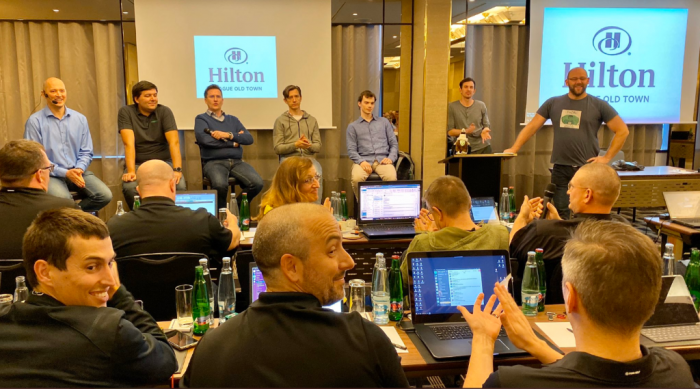
My fellow Veeam Vanguard and me in a Q&A session with the Veeam R&D and PM teams at the Veeam Vanguard Summit.

I would like to emphasize that the diversity of the Veeam Vanguard is paramount to me. It works because we have people in there form around the globe, from all kinds of backgrounds and job roles. This helps open up discussions with different points of view and experiences. Customers, consultants, and partners look at needs and solutions from their perspectives. Having us together in the Vanguard benefits us all and prevents tunnel vision.

Nominate someone, yourself or be nominated

Nikola explains how to do this in her blog so read Join the Veeam Vanguard 2020 class! and apply to become Vanguard! It is quite an experience. Quality people who are active in the commumnity and help by sharing their knowledge are welcomed and appreciated. Maybe you’ll find yourself to be a Veeam Vanguard in 2020!

Resolve the 500 Internal Server Error for PHP 7.4 with IIS on Windows Server for WordPress 5.31

Resolve the 500 Internal Server Error for PHP 7.4 with IIS on Windows Server for WordPress

Many of my readers will know I run a tight ship when it comes to keeping my blog infrastructure up to date and as secure as I can. This means, among other things, I keep my operating system recent and patched. The same goes for my MySQL database, PHP versions, and WordPress + plugins.

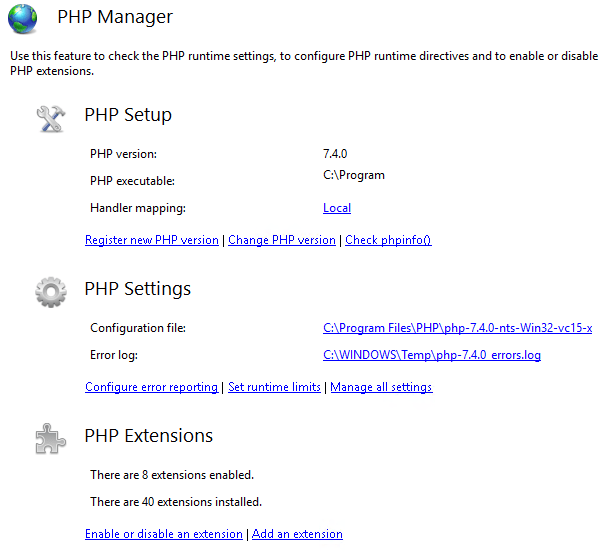
Recently I wanted to upgrade to PHP 7.4 that was just released and should be compatible with WordPress 5.3.1.

Resolve the 500 Internal Server Error for PHP 7.4 with IIS on Windows Server

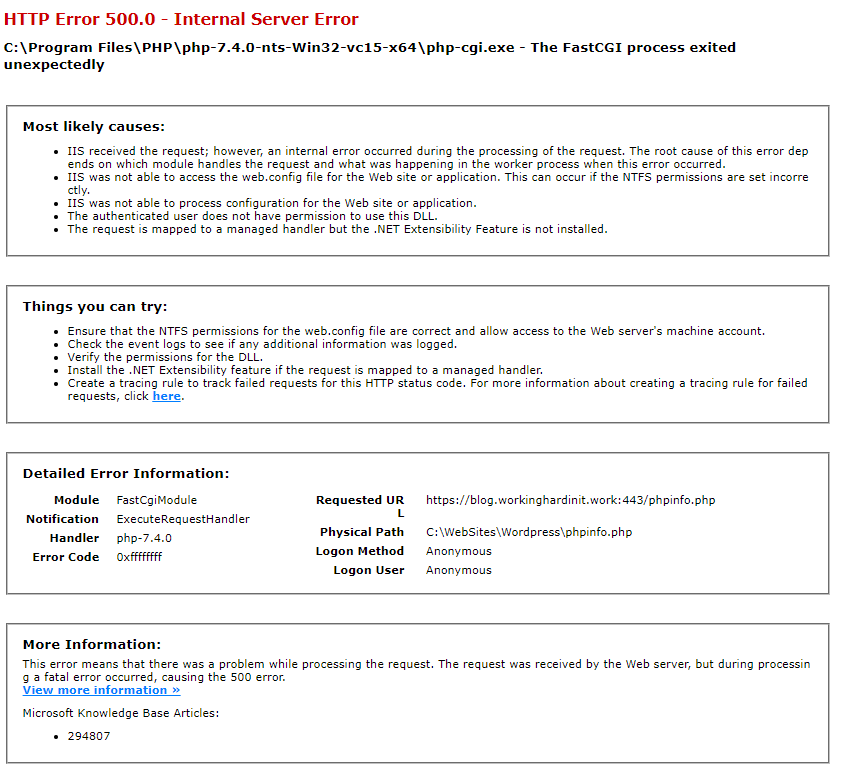
But once I switched to PHP 7.4 my site responded with the dreaded 500 Internal Server Error. Instead of going trial and error I decided to zoom in fast to the root cause to resolve the 500 Internal Server Error for PHP 7.4 with IIS on Windows Server.

Troubleshooting steps

The fasted way to figure out what issues PHP has is to open an elevated command prompt and navigate to the install path of your PHP version. For me, that would be C:\Program Files\PHP\php-7.4.0-nts-Win32-vc15-x64. Note that IIS with requires the non thread safe version of PHP.

Once there run php -m

I got greeted by this warning.

PHP Warning: ‘vcruntime140.dll’ 14.0 is not compatible with this PHP build linked with 14.16 in Unknown on line 0

Resolve the 500 Internal Server Error for PHP 7.4 with IIS on Windows Server

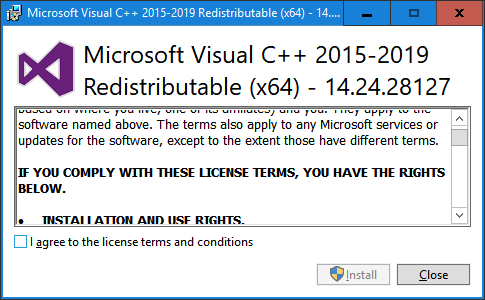
That ‘s clear enough. I need to upgrade my Visual C++ runtime. I have but I need a more recent version. Basically the one for Visual ++ 2105-2019. You can grab those here for both x64 and x86.

https://aka.ms/vs/16/release/VC_redist.x64.exe
https://aka.ms/vs/16/release/VC_redist.x86.exe

I tend to install both. Just in case I have an issue with x64 PHP I can try the x86 version to try and resolve it, Normally I default to x64 bit and for the past years that has worked very well.

Once I had installed those my blog sprung back to life and that was it. If you run php -m again you won’t see the warning anymore. No need to switch themes (I have a simple one that has longevity). I also do not have to empirically disable/enable plugins. I select quality, free and modern plugins that I keep up to date or replace when needed. So, for me, that was the fix. Since most troubleshooting guided don’t start here, give it a shot. The HTTP Error 500.0 – Internal Server Error is an annoying one to troubleshoot. The PHP error log might not tell you anything as it goes wrong before it can log anything and enabling more detailed error handling does not always pinpoint something precisely. It might even send you on a wild goose chase.

Resolve the 500 Internal Server Error for PHP 7.4 with IIS on Windows Server
Not very specific is it?

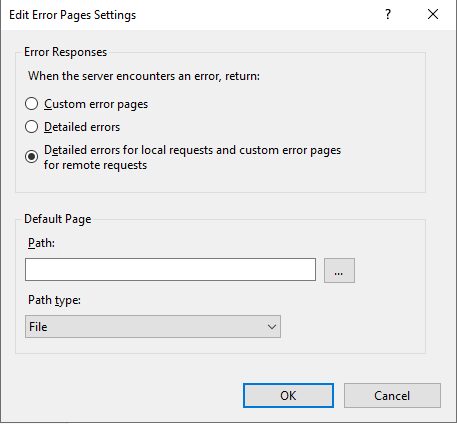
If you did change the feature settings for the error pages for your site to get more detailed information to “Detailed errors” don’t forget to set it back. Configure it back to the default of  “Detailed error for local requests and custom error pages for remote requests” or your custom pages. You don’t want the details shown publically.

That’s it. I hope it helps someone who tries to resolve the 500 Internal Server Error for PHP 7.4 with IIS on Windows Server