KB4512534 fixes GUI activation issues with Windows Server 2019 MAK keys
Just a quick post to share some good news. In the recently released KB4512534 Microsoft fixed a rather long outstanding issue with the MAK activation of Windows Server 2019. I verified that KB4512534 fixes GUI activation issues with Windows Server 2019 MAK keys. Until now trying to activate a Windows Server 2019 installation with a MAK key via the GUI always failed. Using slmgr.vbs /ipk works.
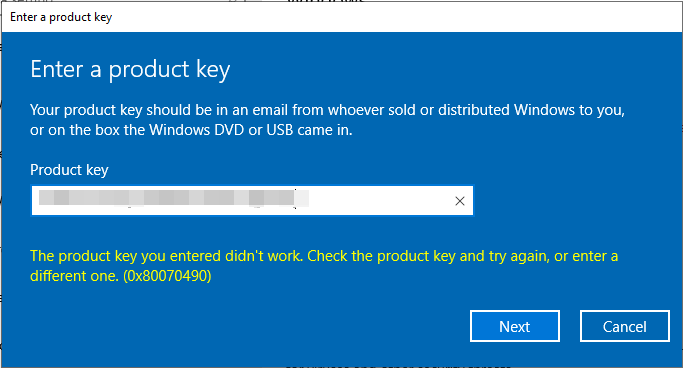
Activating with a MAK key via the GUI before KB4512354 failed wit error code 0X80070490
But that issue has now been resolved.
For the use cases where we need a MAK and a GUI is prefered by the support people, this was a bit annoying. For that reason, I was quite happy to read the following in the notes of KB4512534
Addresses an issue that prevents server editions from activating with a Multiple Activation Key (MAK) in the graphical user interface (GUI). The error is, “0x80070490”.
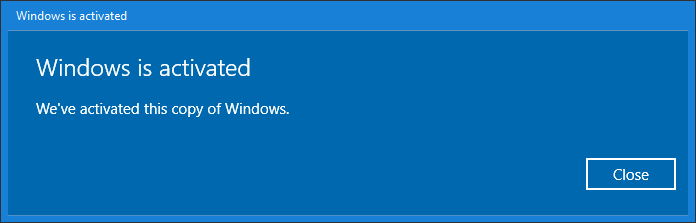
I had to try it and yes I can confirm that it works! It took Microsoft a while to fix this. As we had a working alternative (slmgr.vbs) and the VLK activation had no issues this problem was not a show stopper.
KB4512534 fixes the GUI activation issue with a Windows Server 2019 MAK key
KB4512534 is available via Windows Updates, WSUS and the Windows Catalog. Please find more information here. So one more annoyance fixed that many people can encounter when starting out with Windows Server 2019. That is a good thing
I made a rough video on how to configure Persistent Memory for Hyper-V. The server in this demo is a DELL R740. The type of persistent memory (PMEM) is NVDIMM-N. There were 6 modules in the system. In collaboration with my fellow MVPs Carsten Rachfahl and Anton Kolomyeytsev I hope to showcase storage class memory (SCM) as well (Intel Optane DC Persistent Memory, and later also NVDIMM-P). I can only hope that NRAM gets to market for real in 2020 so we can get memory class storage (MCS) out there. That would change the storage and memory world even more. If it can live up to its promise.
The video
In the video on how to configure Persistent Memory for Hyper-V, I walk you through the NVDIMM configuration in the BIOS first. Then we configure the PMEM regions on the host to get PMEM Disks.
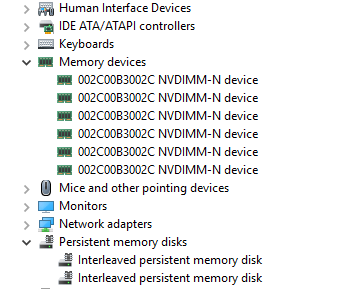
Interleaved PMEM on the host
After initializing and formatting them we create the new .vhdpmem type of virtual disk on them. The virtual machine we want to present them to requires a new type of storage controller, a virtual machine PMEM controller, to be able to add the .vhdpmem disks. Once you have done that the PMEM disks will be visible inside the virtual machine.
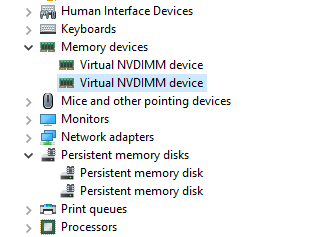
PMEM inside the virtual machine
Inside the virtual machine, we initialize those PMEM disks and format them with NTFS. We put some large test files on them and run a diskspd test to show you how it performs. That’s it.
Below you will find the PowerShell I used in the video. Adapt where needed for your setup and configuration.
PowerShell on the host
<#
Didier Van Hoye
Microsoft MVP Cloud & Datacenter Management
Twitter: @WorkigHardInIT
blog: https://blog.workinghardinit.work
#>

#Take a look at the unused PMEM regions
Get-PmemUnusedRegion

#We don't have PMEM disks yet
Get-pmemdisk

#We create PMEM disks from the unuses regions
Get-PmemUnusedRegion | New-PmemDisk -AtomicityType None
#Greate PMEM disk out of the unused regions
#New-PmemDisk -RegionId 1 -AtomicityType None

#List the PMEM disks
Get-pmemdisk


#Grab the physical disk that have Storage Class Memory (SCM) media or bus type.
Get-PhysicalDisk | Where Mediatype -eq SCM | ft -AutoSize
Get-Disk | Where BusType -eq SCM | ft -AutoSize


#Initialize the pmem disks
Get-Disk | Where BusType -eq SCM | Initialize-Disk –PartitionStyle GPT

#Take a look at the initialized disks
Get-Disk | Where BusType -eq SCM

#Create partitions and format them
New-Partition -DiskNumber 6 -UseMaximumSize -driveletter P  | Format-Volume -FileSystem NTFS -NewFileSystemLabel PMEM01 -IsDAX $True
New-Partition -DiskNumber 7 -UseMaximumSize -driveletter Q  | Format-Volume -FileSystem NTFS -NewFileSystemLabel PMEM02 -IsDAX $True

Get-Partition | fl *
Get-Volume -driveletter P,Q | Get-Partition | ft Driveletter, IsDax

#Show that the volumes are DAX
fsutil fsinfo volumeinfo P:

#On those PMEM disk with a DAX file system we create a VHDPMEM virtual disk
New-VHD 'P:\Virtual Disks\DEMOVM-PMDisk02.vhdpmem' -Fixed -SizeBytes 31GB
New-VHD 'Q:\Virtual Disks\DEMOVM-PMDisk02.vhdpmem' -Fixed -SizeBytes 31GB

Get-VMPmemController PMEMVM
(Get-VMPmemController PMEMVM).Drives

#We add a virtual PMEM controller to our VM
#make sure the VM is shut down.
Add-VMPmemController PMEMVM

#Check if it is there
Get-VMPmemController PMEMVM

#We add our VHDPMEM virtual disks to the VM
Add-VMHardDiskDrive -VMName PMEMVM -ControllerType PMEM -ControllerNumber 0 -ControllerLocation 1 -Path 'P:\Virtual Disks\DEMOVM-PMDisk02.vhdpmem'
Add-VMHardDiskDrive -VMName PMEMVM -ControllerType PMEM -ControllerNumber 0 -ControllerLocation 2 -Path 'Q:\Virtual Disks\DEMOVM-PMDisk02.vhdpmem'

#Check if the disks are there
Get-VMPmemController PMEMVM
(Get-VMPmemController PMEMVM).Drives

#That's it on the host, we now go in to the VM and initialize and format our PMEM disk there for use.
After a couple of successful presentations on Persistent Memory (PMEM) I created a performance demo of PMEM in Hyper-V video to showcase the performance. I am not a great video talent so this is a bit rough but it does get the message across.
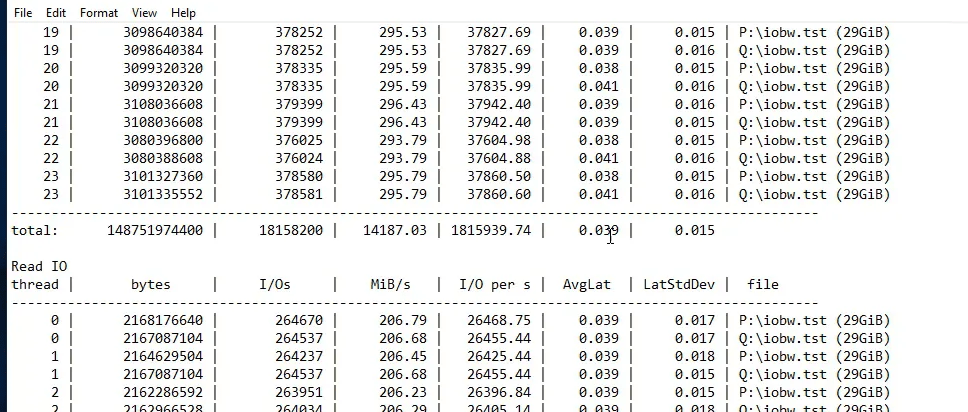
The performance of PMEM is nothing short of impressive. A video might help showcase this better than a screenshot. If 1.5 million IOPS in a VM doesn’t get you excited look at the latency of 0.04 ms or less with a workload of 8K IO size, 30% write, 30% random IO.
A follow-up video is to come soon. In that one, I configure PMEM in the BIOS, on the host and present it to a virtual machine on Windows Server 2019. I hope the results of the IO tests in this Performance Demo of PMEM in Hyper-V in this video will get you interested in how to set this up.
A bright future
Persistent Memory has a bright future all across the industry in servers, storage arrays, IoT and mobile devices, laptops and PC’s especially if MRAM and NRAM ever take off. My interest in it reminds me of the time when I started looking beyond 10/40Gbps networking and RDMA. The progress there converges excellently with persistent memory and FPGAs to show the path to composable infrastructure and help us deal with ever more data and processing needs.