Optimize the Veeam preferred networks backup initialization speed

When Veeam preferred networks cause slow backup initialization speeds

When using preferred networks in Veeam you choose to use another than the default host network for backups and restores. In this post, we’ll discuss how to optimize the Veeam preferred networks backup initialization speed because we aim for optimal performance. TL-DR: You need to provide connectivity to the preferred networks for the Veeam Backup & Replication server. It seems a common mistake I run into every now and then. Ultimately it makes people think Veeam is slow. No, it is just a configuration mistake.

Why use a preferred network?

Backups can fill up a 1Gbps pipe very fast. Many people still use 1Gbps networking as default connectivity to the hosts. Even when they leverage 10Gbps or better it is often in a converged network setup. This means that only part of the bandwidth goes to host connectivity. Few have 10Gbps for “just” host connectivity. This means it makes sense to select a different higher bandwidth network for backup and restore traffic.

Hence for high volume, high-performance backup and restores it is smart to look for a bigger pipe to leverage. Some environments have dedicated backup networks at 10Gbps or better. But we find way more high bandwidth networks for other purposes. In Hyper-V environments, you’ll have those for SMB networking like CSV, Live Migration variants and storage replication. Hyper-Converged Infrastructure deployments use these networks for storage as well. With S2D you’ll find more and more 25/50/100Gbps. All these can be leveraged as a preferred backup network in Veeam

Setting up a preferred network

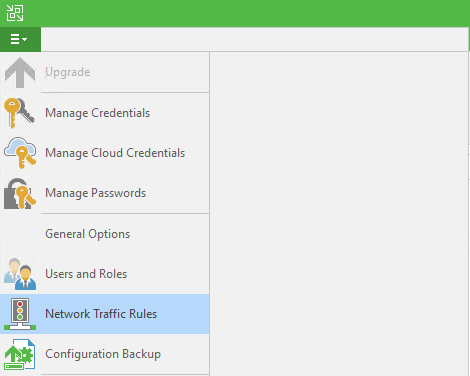
Setting up a preferred network is easy. First of all, you figure out which network to use. You then add those to the preferred networks as follows:

In file menu select “Network Traffic Rules”
Optimize the Veeam preferred network backup initialization speed

Click “Add” and specify the source IP as well as the target IP range. You can op to encrypt the traffic and /or set a bandwidth limit.
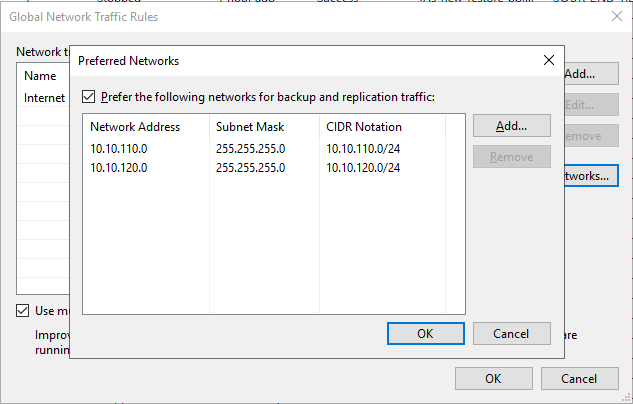
We have two SMB storage networks available, we enter both.

There is no need to have the preferred network registered in DNS. It will work fine without.

I hope it is clear that the source (Hyper-V Hosts), the target (backup repository or the extends in a Scale-Out Backup Repository) and any Off Host Proxies need connectivity to the preferred network(s). If you leverage WAN accelerators, Gateways Servers, log shipping servers than these also need access. Last but not least you should also make sure that the Veeam Backup Server (VBR) has access to the preferred networks. This is one that a lot of people seem to forget. May because it is most often a VM if it is not a shared role on the repository server or such and things do work without it.

When the VBR server has no access to the preferred networks things still work but initialization of the backup and restore jobs is a lot slower. Let’s test this.

Slow Initialization of backup and restore jobs

As a result of using preferred networks you might probably notice the following:

  • First of all, we notice a slow down in the overall initialization of the backup and restore job.
  • This manifests itself in a slow start of the actual VM backup/restore and reducing the number of simultaneous backups/restores of VMs within a job.

Without the VBR server having connectivity to the preferred networks
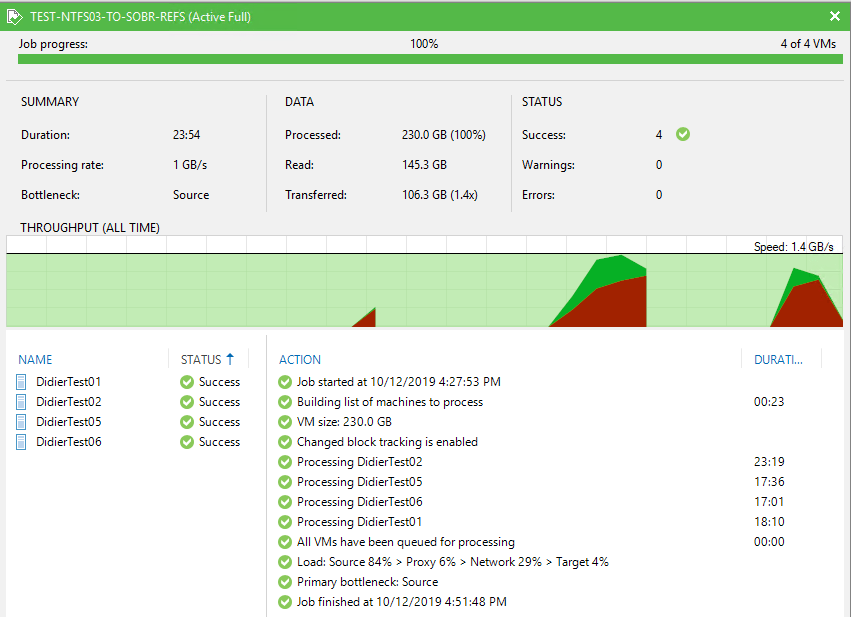
23:54 to complete the backup job (no connectivity to the preferred network)

Optimize the Veeam preferred networks backup initialization speed

With the VBR server having connectivity to the preferred networks. Notice how smooth and continuous the throughput is.
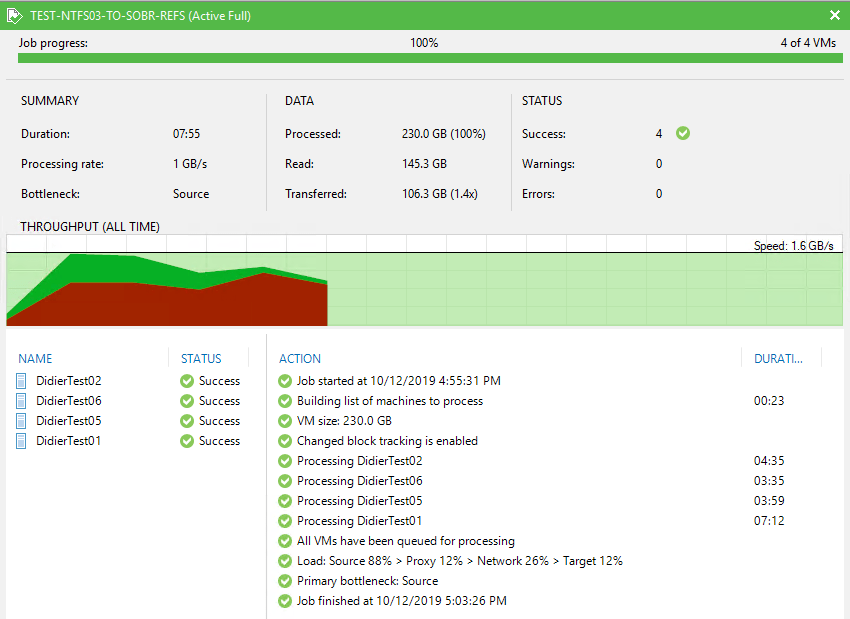
07:55 to complete the backup job (with connectivity to the preferred network) => 3 times as fast.

When you look into the Veeam backup logs for this job you will find at various stages attempts by the VBR server to connect to the preferred networks. If it can’t it has to wait until it times out. You see entries like:

A connection attempt failed because the connected party did not properly respond after a period of time, or established connection failed because connected host has failed to respond 10.10.110.2:2509 (System.Net.Sockets.SocketException)

Optimize the Veeam preferred network backup initialization speed
Just a small part of all the NetSocket time out you will find for every single VM in the job. Here VBR is trying to connect to one of the extends in the SOBR.

This happens for every file in the backups (config files and disks) for every extend in the Scale-Out Backup Repository (per VM backup chain). This slows down the entire backup job tremendously.

Conclusion

I always make sure that the VBR servers in my environments have preferred network connectivity. Consequently, initialization is faster for both backups and restores. Test it out for yourself! It is the first thing I check when people complain of really slow backup. Do they have preferred networks set up? Check if the VBR server has connectivity to them!

Attending the Veeam Vanguard Summit 2019

Attending the Veeam Vanguard Summit 2019

I am dedicating the week of the 14th -18th of October to attending the Veeam Vanguard Summit 2019. As a Veeam Vanguard, I am quite lucky to be invited to this event. I will meet fellow technologists, architects, and Vanguards from all over the world. This is a unique opportunity to learn with and from each other.

Attending the Veeam Vanguard Summit 2019
Veeam Vanguard Summit 2019

From Veeam there will be Product Strategists, Technical Analysts, Technologists, Research & Development team members as well as social media and marketing experts.

There is quite an impressive assembly of intellect, expertise, and knowledge. It is great to be in such company as there is much to learn and understand in the business of data protection and management. I sometimes feel out of my depth and comfort zone at this event. That is normal, For one, Veeam solutions and efforts span the complete breadth, depth, and width of the IT industry. On top of that, I am there to learn and then it is actually great that I am not the smartest one in the room while discussing a given subject.

Anyway, soon I will travel to Prague and make the most of my time there. As always I am looking forward to seeing many buddies and friends. And I get to meet the new Veeam team member and the new Veeam vanguards. This week will be one filled with technology and the business of data management discussions from breakfast to dinner. I love it. Thank you Veeam for inviting me over, I appreciate the opportunity!

Licensed Replay Manager Node Reports being unlicensed

Licensed Replay Manager Node Reports being unlicensed

I was doing a hardware refresh on a bunch of Hyper-V clusters. This meant deploying many new DELL PowerEdge R740 servers. In this scenario, we leverage SC Series SC7020 AFA arrays. These come with Replay Manager software which we use for the hardware VSS provider. On one of the replaced nodes, we ran into an annoying issue. Annoying in the fact that the licensed Replay Manager Node reports being unlicensed in the node’s application event log. The application consistent replays do work on that node. But we always get the following error in the application event log:

Product is not licensed. Use Replay Manager Explorer ‘Configure Server’ or  PowerShell command ‘Add-RMLicenseInfo’ to activate product license.

Product is not licensed. Use Replay Manager Explorer 'Configure Server' or  PowerShell command 'Add-RMLicenseInfo' to activate product license.

On the Replay Manager Explorer, we just see that everything is fine and licensed. Via the GUI or via PowerShell we could not find a way to “re-license” an already installed server node.

What we tried but did not help

This is not a great situation the be in, therefore we need to fix it. First of all we removed the problematic node from Replay Manager explorer and tried to re-add it. That did not help to be able to relicense it. Uninstalling the service on the problematic node also did not work. Doing both didn’t fix it either. We need another approach.

The fix

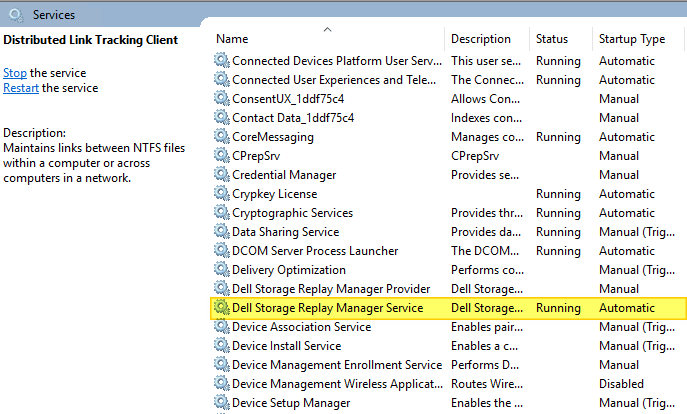
The trick to fixing the licensed Replay Manager Node reports being unlicensed is as follows. Stop the “Dell Storage Replay Manager Service” service.

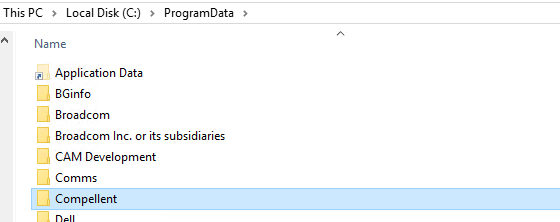
Delete (or rename if you want to be careful) the Compellent folder under C:\ProgramData

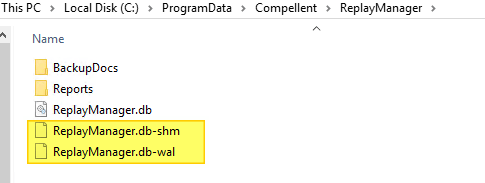
Restart the “Dell Storage Replay Manager Service” service. As a result you will see the folder and the files inside being regenerated. Wait until the temp files (ReplayManager.db-shm and ReplayManager.db-wal) of this process are gone.

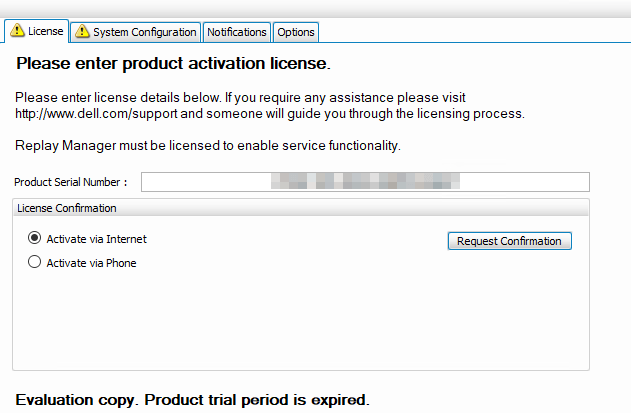
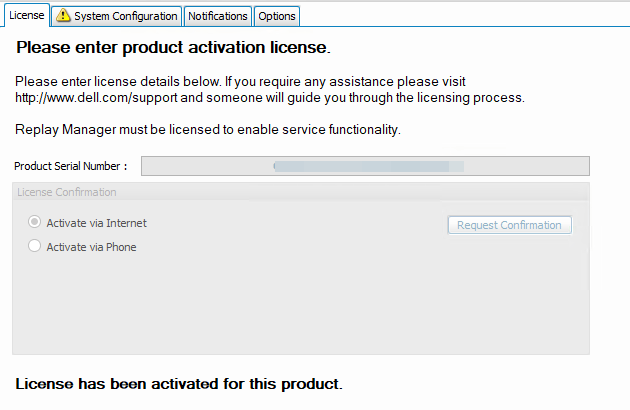
Open up Replay Manager Explorer or relaunch it for good measure if still open. Connect to the problematic node. Navigate to “Configure Server” On the license tab it reports that it is unlicensed. Now enter the license code and request confirmation (Activate via Internet) or Activate via phone.

The node is now licensed again.

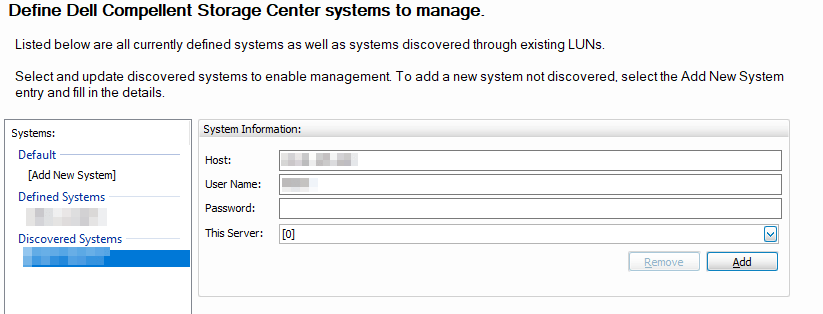
The node is licensed again. The system needs to be configured.

The image above shows the node is licensed again. You now need to configure the system again because that info is lost. For that, enter the username and password for your SC Arrays and add the correct node.

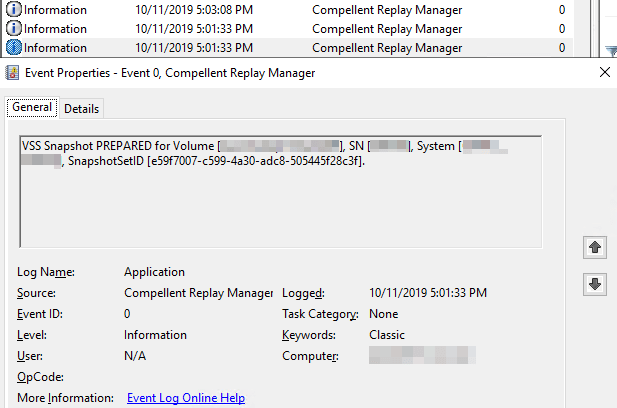
We now test creating a replay! Most importantly, we check the node’s application event log. The error Product is not licensed. Use Replay Manager Explorer ‘Configure Server’ or  PowerShell command ‘Add-RMLicenseInfo’ to activate product license. has gone!

We only see the 3 informational entries (prepared, committed, successful) associated with a successful and completed replay.

Above all, I hope this helps others who run into this.