IIS 6.0 SMTP Service in-place upgrade to Windows Server 2022

IIS 6.0 SMTP Service in-place upgrade to Windows Server 2022

This will be a “notes from the field” type of blog post where I will guide you to successfully execute an IIS 6.0 SMTP Service in-place upgrade to Windows Server 2022. In this case, the original operating system version is Windows Server 2019. However, these notes can be used for upgrades between other Windows Server versions as well.

Yes, there are still valid reasons to run an SMTP relay service today. I use SendGrid as a smart host with these and I actually have these setup behind a KEMP LoadMaster for High Availability.

What could go wrong?

What could go wrong? Well, nothing unless you didn’t plan certain things in advance. Below are the issues you will face. and need to prepare for and fix in order to perform an IIS 6.0 SMTP Service in-place upgrade to Windows Server 2022

  • The IIS 6 Management Console will be missing

For some reason that gets dropped during the in-place upgrade. The fix is to reinstall it. Easy enough.

  • Your SMTP Virtual services configuration will be wiped out during an in-place upgrade.

Yes, it will be a very empty console. Which is a scary experience if you did not prepare for it.
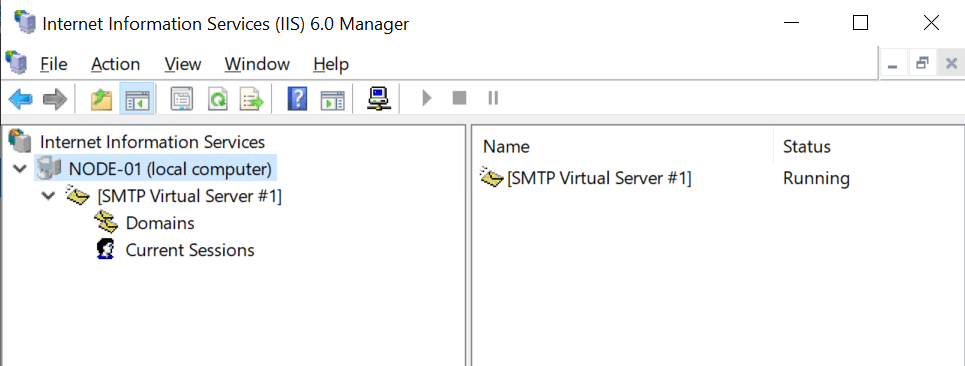
All your SMTP virtual servers will be gone

The trick is to create a backup and restore it. That way you get your configuration back. So, first of all, create a backup of your IIS configuration. We will go over this later. Secondly, before you can restore your backup you need to reinstall the IIS 6 Management Console as stated above. When you have restored the backup reboot the server, but before you do reconfigure the Simple Mail Transport Protocol service to start automatically.

  • Simple Mail Transport Protocol Service

The Simple Mail Transport Protocol Service will be set to reset to its default, which is to start manually start instead of automatically. This one is easily fixed but you need to remember to do so as your SMTP Virtual Servers will not be running after a restart. And as you keep your servers patched that will be at least once a month probably.

Step-by-step

  • Backup the current configuration

The easiest way to do this is via appcmd. Open an elevated command prompt and navigate to C:\Windows\System32\inetsrv. Run the following command.

appcmd add backup MYBACKUPNAME

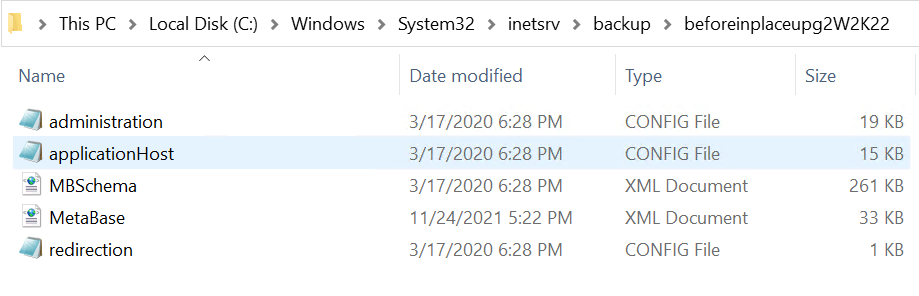
The backup is stored under C:\Windows\System32\inetsrv\Backups\MYBACKUPNAME. Verify it is there, it should contain the following files:

  1. administration.config
  2. applicationHost.config
  3. MBSchema.xml
  4. MetaBase.xml
  5. redirection.config
IIS 6.0 SMTP Service in-place upgrade to Windows Server 2022
Verify your backup files are there

This folder is preserved during the upgrade but you can always grab a copy to be on the safe side.

  • Perform the in-place upgrade

This is the normal process, nothing special about it unless you run into trouble, which is not very likely in well-maintained environments.

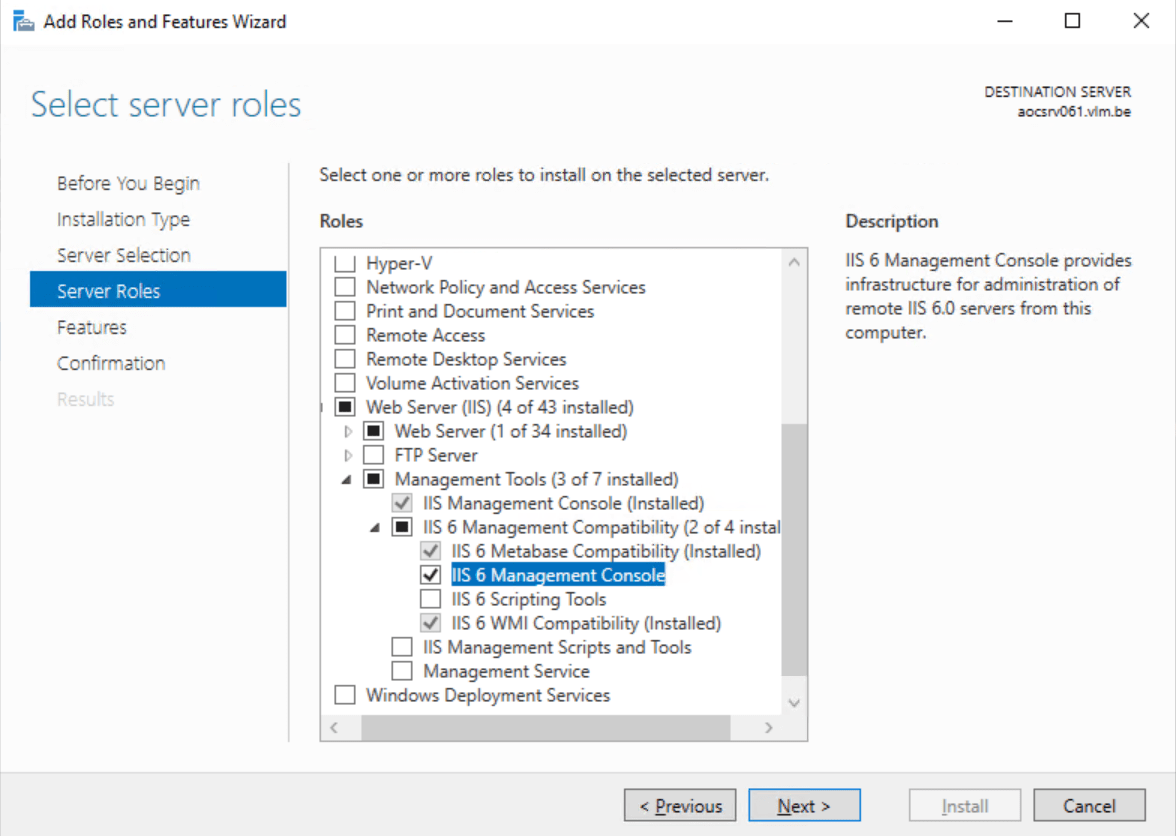
  • Reinstall the IIS 6 Management console

This is easily done via the Add Roles and Features Wizard and does not require a reboot.
IIS 6.0 SMTP Service in-place upgrade to Windows Server 2022
Reinstall the IIS 6 Management Console
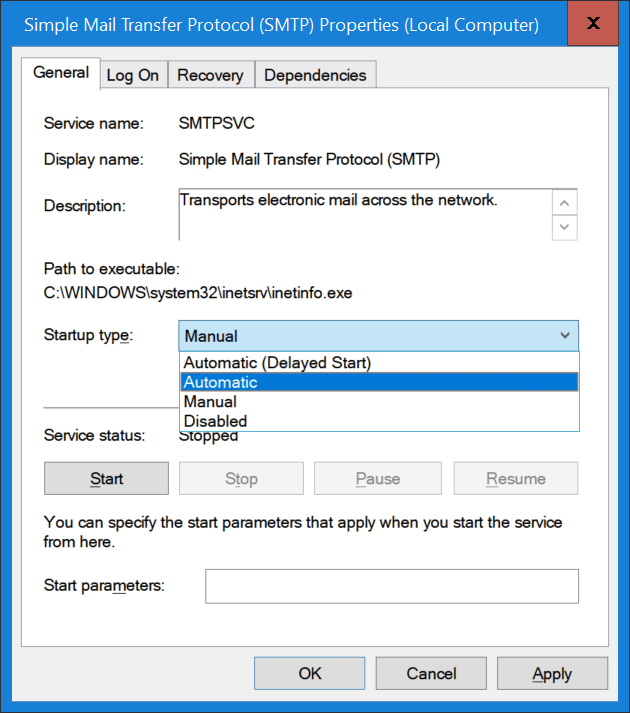
  • Set the Simple Mail Transport Protocol service to start automatically
IIS 6.0 SMTP Service in-place upgrade to Windows Server 2022
Set the Simple Mail Transport Protocol service startup type to Automatic
  • Restore your IIS backup

Open an elevated command prompt and navigate to C:\Windows\System32\inetsrv. Run the following command.

appcmd restore backup MYBACKUPNAME

  • Restart the server

When you have restarted the server open the IIS 6 Management console. Your SMTP virtual Services should be backup up and running.
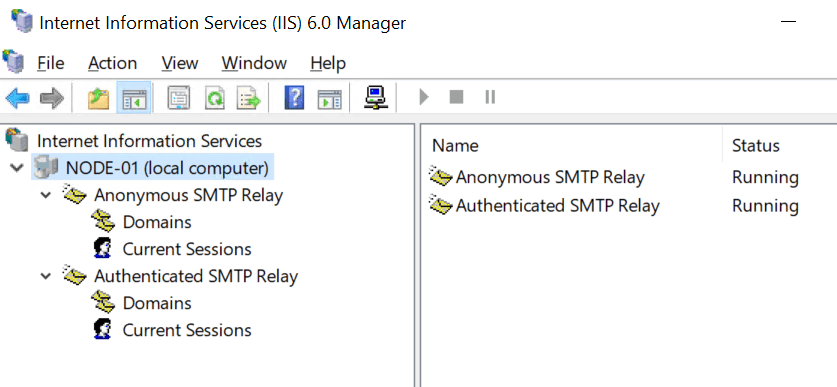
IIS 6.0 SMTP Service in-place upgrade to Windows Server 2022
You have your SMTP Virtual Servers back!

Test your SMTP functionality via a PowerShell script for example to verify all is well.

Conclusion

In-place upgrades work quite well but certain roles and configurations have their quirks and issues to solve. Some lab work to test scenarios and their outcome is helpful when preparing an in-place upgrade.

This is the case for IIS 6.0 based SMTP Service role. We have shown you how to work around this and successfully perform an IIS 6.0 SMTP Service in-place upgrade to Windows Server 2022. The thing is, this is not related to Windows Server 2022, it is an IIS 6.0 issue.

With virtual machines leverage the luxury of checkpoints for fast and easy recovery before you begin. Also, make sure you have a tested backup to restore. Always have options and avoid painting yourself into a corner.

FIDO2 AAGUID lists

AAGUID lists per vendor

This post is a personal repository of the FIDO2 AAGUID lists for the security keys from different vendors. That way I have a quick reference publically available for my own use whilst helping others find them as well.

FEITIAN FIDO2 AAGUID lists

Product TypeFIDO2 AAGUID
FIDO Java card 2c0df832-92de-4be1-8412-88a8f074df4a
FIDO fingerprint card 8c97a730-3f7b-41a6-87d6-1e9b62bda6f0
MultiPass FIDO 310b2830-bd4a-4da5-832e-9a0dfc90abf2
iePass FIDO 6e22415d-7fdf-4ea4-8a0c-dd60c4249b9d
ePass FIDO833b721a-ff5f-4d00-bb2e-bdda3ec01e29
ePass FIDO NFC ee041bce-25e5-4cdb-8f86-897fd6418464
BioPass K26/K27 77010bd7-212a-4fc9-b236-d2ca5e9d4084
BioPass K26/K27 Plusb6ede29c-3772-412c-8a78-539c1f4c62d2
BioPass K45 77010bd7-212a-4fc9-b236-d2ca5e9d4084
BioPass K45 plus b6ede29c-3772-412c-8a78-539c1f4c62d2
Allin Pass 2ded745-4bed-47d4-abaa-e713f51d6393

Yubikey FIDO2 AAGUID lists

For an online version from the vendor, see YubiKey Hardware FIDO2 AAGUIDs – Yubico

Product Name or Laser MarkingFirmwareFIDO2 AAGUID
YubiKey 5 (USB-A, No NFC)5.1cb69481e-8ff7-4039-93ec-0a2729a154a8
YubiKey 5 (USB-A, No NFC)5.2, 5.4ee882879-721c-4913-9775-3dfcce97072a
YubiKey 5 NFC5.1fa2b99dc-9e39-4257-8f92-4a30d23c4118
YubiKey 5 NFC5.2, 5.42fc0579f-8113-47ea-b116-bb5a8db9202a
YubiKey 5 NFC FIPS5.4c1f9a0bc-1dd2-404a-b27f-8e29047a43fd
YubiKey 5 Nano5.1cb69481e-8ff7-4039-93ec-0a2729a154a8
YubiKey 5 Nano5.2, 5.4ee882879-721c-4913-9775-3dfcce97072a
YubiKey 5 Nano FIPS5.473bb0cd4-e502-49b8-9c6f-b59445bf720b
YubiKey 5C5.1cb69481e-8ff7-4039-93ec-0a2729a154a8
YubiKey 5C5.2, 5.4ee882879-721c-4913-9775-3dfcce97072a
YubiKey 5C FIPS5.473bb0cd4-e502-49b8-9c6f-b59445bf720b
YubiKey 5C Nano5.1cb69481e-8ff7-4039-93ec-0a2729a154a8
YubiKey 5C Nano5.2, 5.4ee882879-721c-4913-9775-3dfcce97072a
YubiKey 5C Nano FIPS5.473bb0cd4-e502-49b8-9c6f-b59445bf720b
YubiKey 5C NFC5.2, 5.42fc0579f-8113-47ea-b116-bb5a8db9202a
YubiKey 5C NFC FIPS5.4c1f9a0bc-1dd2-404a-b27f-8e29047a43fd
YubiKey 5Ci5.2, 5.4c5ef55ff-ad9a-4b9f-b580-adebafe026d0
YubiKey 5Ci FIPS5.485203421-48f9-4355-9bc8-8a53846e5083
Security Key By Yubico5.1f8a011f3-8c0a-4d15-8006-17111f9edc7d
Security Key By Yubico5.2b92c3f9a-c014-4056-887f-140a2501163b
Security Key NFC5.16d44ba9b-f6ec-2e49-b930-0c8fe920cb73
Security Key NFC5.2149a2021-8ef6-4133-96b8-81f8d5b7f1f5
Per product and interface type

FIDO2 AAGUIDDescription
149a2021-8ef6-4133-96b8-81f8d5b7f1f5Security Key by Yubico with NFC
2fc0579f-8113-47ea-b116-bb5a8db9202aYubiKey 5 Series with NFC
6d44ba9b-f6ec-2e49-b930-0c8fe920cb73Security Key by Yubico with NFC
73bb0cd4-e502-49b8-9c6f-b59445bf720bYubiKey 5 FIPS Series
85203421-48f9-4355-9bc8-8a53846e5083YubiKey 5Ci FIPS
b92c3f9a-c014-4056-887f-140a2501163bSecurity Key by Yubico
c1f9a0bc-1dd2-404a-b27f-8e29047a43fdYubiKey 5 FIPS Series with NFC
c5ef55ff-ad9a-4b9f-b580-adebafe026d0YubiKey 5Ci
cb69481e-8ff7-4039-93ec-0a2729a154a8YubiKey 5 Series
ee882879-721c-4913-9775-3dfcce97072aYubiKey 5 Series
f8a011f3-8c0a-4d15-8006-17111f9edc7dSecurity Key by Yubico
fa2b99dc-9e39-4257-8f92-4a30d23c4118YubiKey 5 Series with NFC
FIDO MDS

TrustKey FIDO2 AAGUID lists

Again, for an on line version from the vendor, see TrustKey Product IDs – Steen Harbach AG

ProductModelVIDPIDAAGUID
G310eFA3100x311F0x4A1A95442b2e-f15e-4def-b270-efb106facb4e
G320eFA3200x311F0x4C2A87dbc5a1-4c94-4dc8-8a47-97d800fd1f3c
T110eTA1100x311F0xA7F9da776f39-f6c8-4a89-b252-1d86137a46ba
T120eTA1200x311F0xA6E9e3512a8a-62ae-11ea-bc55-0242ac130003