Upgrading Hyper-V Cluster Nodes to Windows Server 2012 (Beta) – Part 1

This is a multipart series based on some lab test & work I did.

  1. Part 1 Upgrading Hyper-V Cluster Nodes to Windows Server 2012 (Beta) – Part 1
  2. Part 2 Upgrading Hyper-V Cluster Nodes to Windows Server 2012 (Beta) – Part 2
  3. Part 3 Upgrading Hyper-V Cluster Nodes to Windows 8 (Beta) – Part 3

After I got back from the MVP Summit 2012 in Bellevue/Redmond I could wait to start playing with a Windows 8 Hyper-V cluster so I decided to upgrade my Windows 2008 R2 cluster nodes to Windows 8. That means evicting them on by one, upgrading them and adding them to a new Windows 8 cluster. As we can build a one node cluster this can be done a node at the time. This isn’t a fail proof definite “How To”, I’m just sharing what I did.

Evicting a node

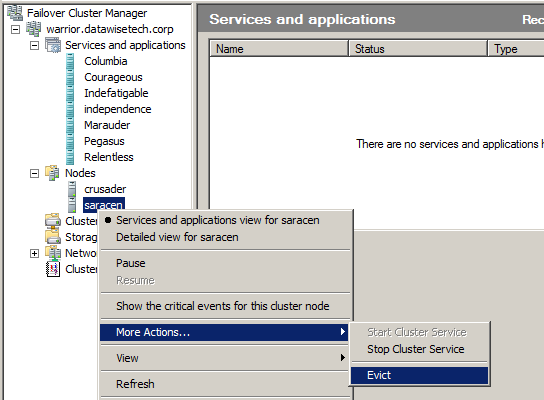
Before evicting a node make sure all virtual machines are running on the other node(s). As you can see the cluster warrior has 2 nodes, crusader & saracen (I was listening to some Saxon heavy metal at the time I built that lab setup). We evacuated node saracen prior to evicting it.
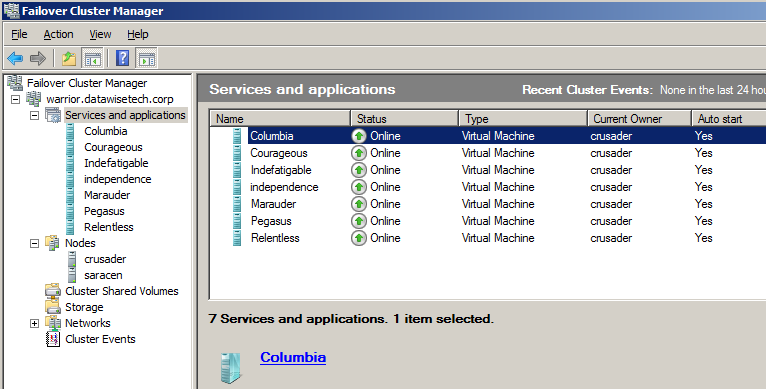
image

Evict the node & confirm when asked.
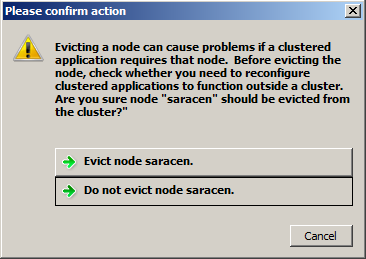
image

image

When this is done all storage is off line to the node evicted from the cluster. No need to worry about that.

Upgrade that node to Windows 8

To anyone having installed/upgraded to Windows 2008 R2 this should all be a very recognizable experience. Being lazy, I left the iSCSI initiator configuration in there with the Hyper-V & failover cluster roles installed during the upgrade. Now for production environments I like to build my nodes from scratch to have an exactly known, new and clean installation base. But for my test lab at home I wanted to get it done as fast as possible. If only the days had more hours …For extra safety you can pull the plug (or disable the switch ports) on your iSCSI or FC connections and make sure no storage is presented to the node during the upgrade process. Now please do mind is use Intel server grade NIC adaptors for which Windows 8 beta has drivers. Your situation may vary so I can’t guarantee the 7 year old FC HBA in your lab server will just work, OK!?

So run setup.exe from the Windows 8 (Beta) ISO you extracted to a folder on the server or  from the (bootable) USB you created with the downloaded ISO.
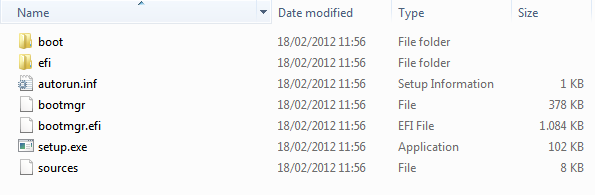
image


The Windows Setup installer will start.
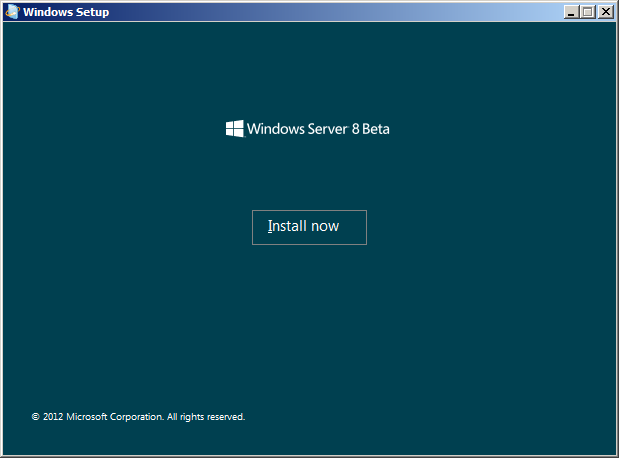
04 run setup


Click on “Install now” to proceed and start the setup process.

image


Select to “Go online to get the latest updates for Setup (Recommended)”
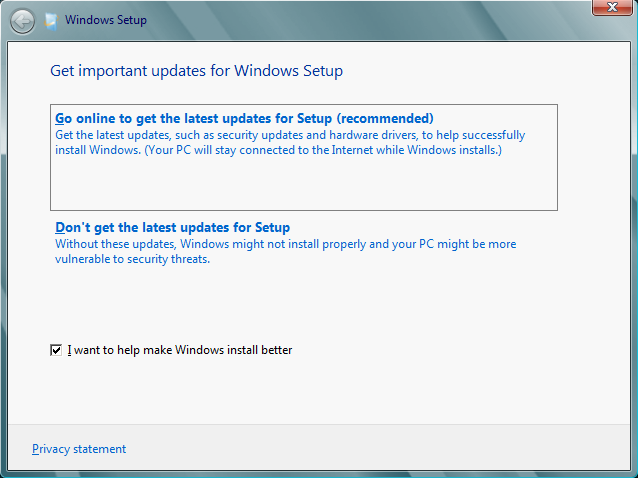
image


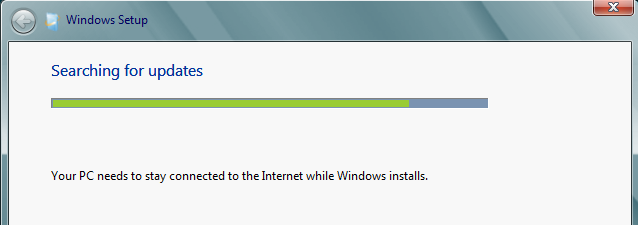
So it looks for updates on line.

image


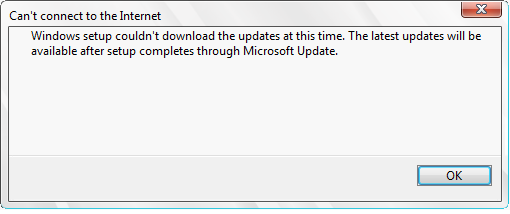
It didn’t find any but that’s OK.

image


Select the installation you want. I went with for Server with a GUI as I want screen shots. But as I wrote in the blog post Windows 8 Server With GUI, Minimal Server Interface & Server Core Lesson with the Desktop Experience Feature you can turn it into a Server Core Installation and back again now. So no regrets with any choice you make here, which is a nice improvement that can save us a lot of time.
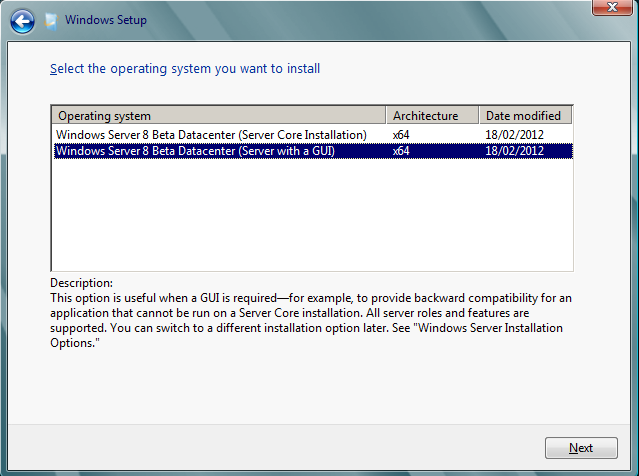
image

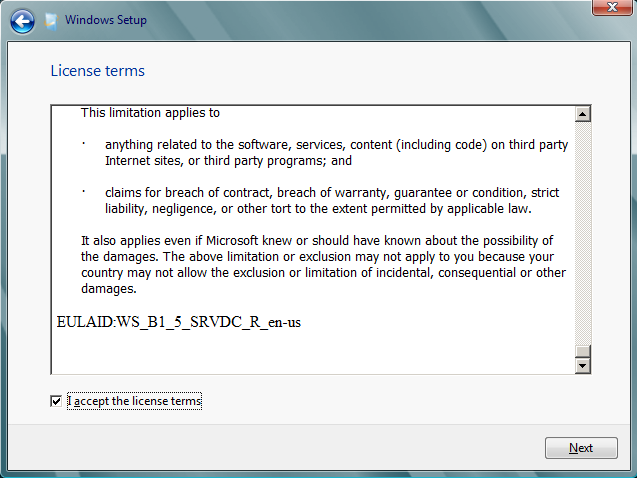
Accept the EULA

image


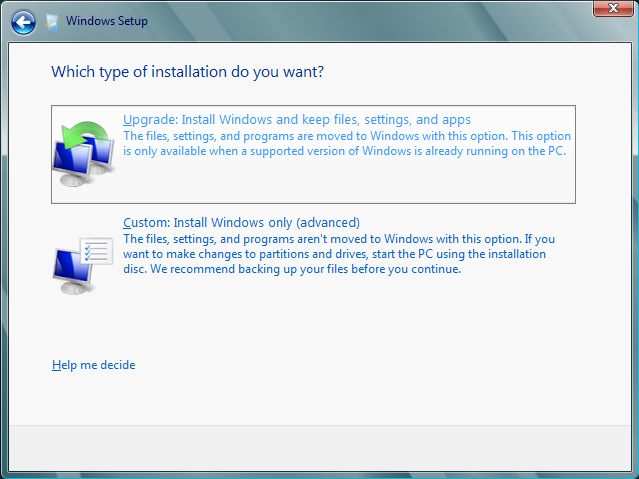
We opt to upgrade (in production I go for a clean install)
image


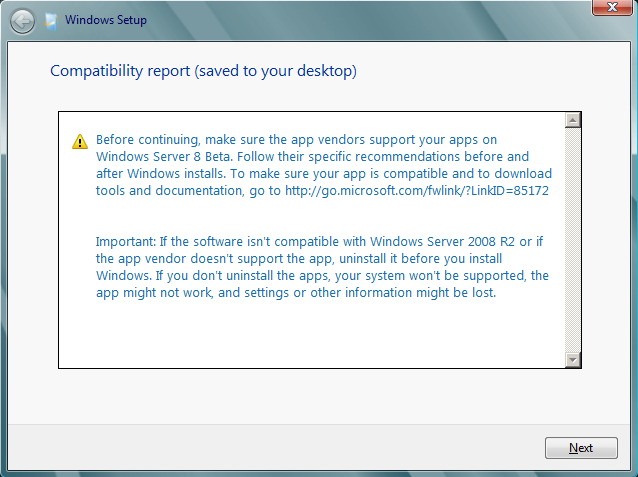
I get notified that I have to remove PerfectDisk. I had an evaluation copy of Raxco PerfectDisk installed I used to do some testing with redirected CSV traffic and defragmentation (see Some Feedback On How to defrag a Hyper-V R2 Cluster Shared Volume).

image


So the upgrade was cancelled.

image


I uninstalled PerfectDisk but still it was a no go. I  had to remove all traces of it in the registry & files systems that the uninstall left or the upgrade just wouldn’t start. But after that it worked.
image


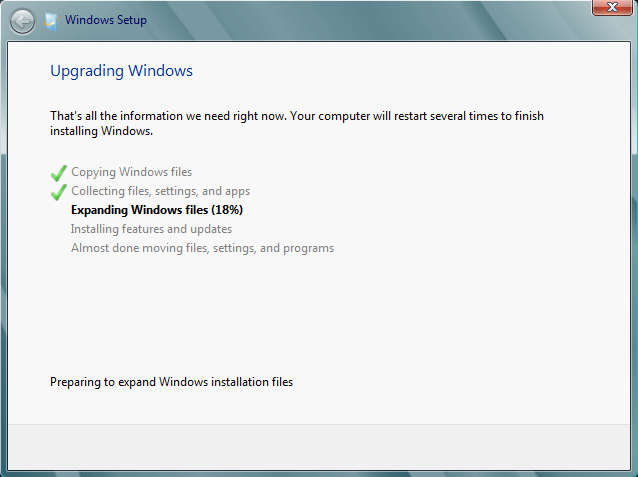
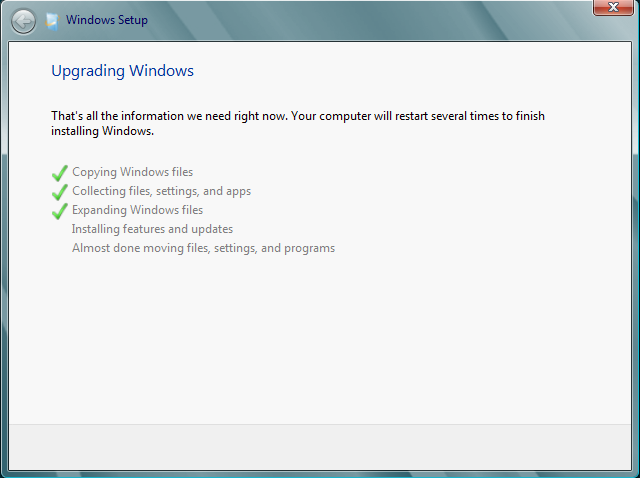
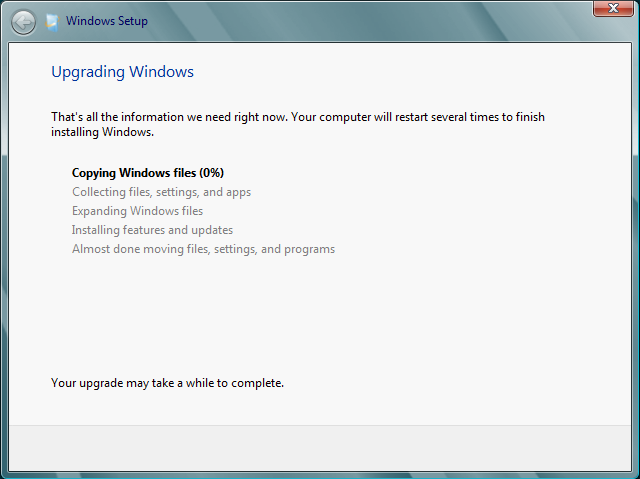
That means we can kick of the upgrade! It all looks very familiar Smile It takes a couple of reboots and some patience. But all in all it’s a fast process.
image

image

image

image

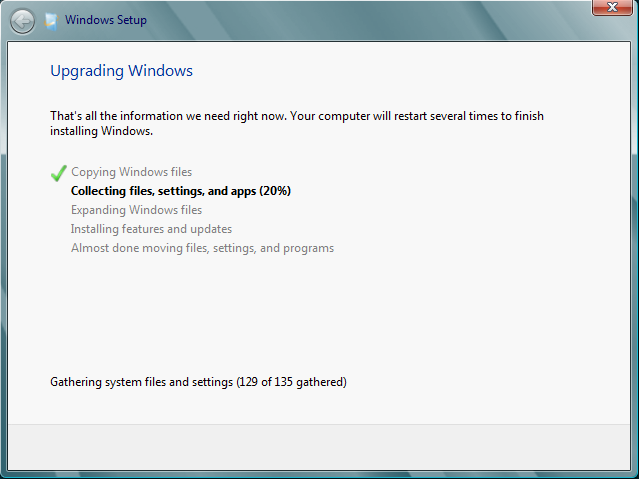
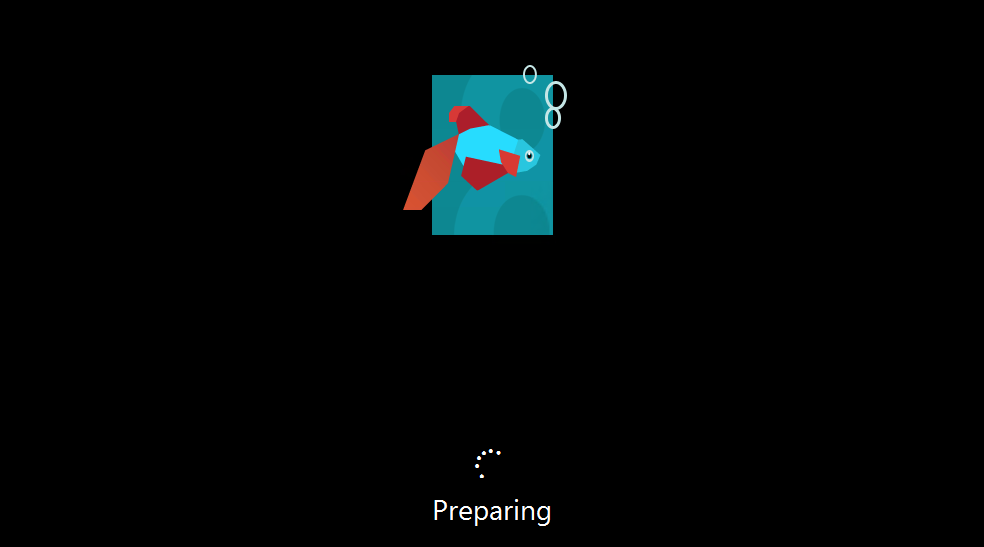
After this step it takes a couple of reboots and some patience. But all in all it’s a fast process. After some reboots and a screen that goes dark in between those …we get our restyled beta fish.
image

image

image

And voila we’re where we need to be … Smile

image


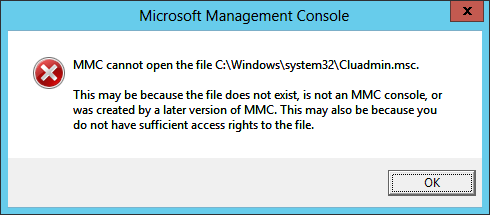
After the upgrade process I ran into one error. The GUI for Failover Clustering would not start. The solution if found for that was simply to remove that role and add it again. That did the trick.
ClusGUI


So this was a description of the first steps to transition a  Windows 2008 R2 SP1 cluster to a  Windows 8 (Beta) Cluster. As seen we evict the nodes one by one to upgrade them or do a clean install. In the latter case you’ll need to do the iSCSI initiator configuration again,  install the Failover Cluster role and in the case of a Hyper-V cluster the Hyper-V role. The nodes can than be added to a new Windows 8 cluster, starting out with a one node cluster. More on that in the second part of this blog post.
Windows 8 Hyper-V Improved Integration Services Setup

In Windows 8 Beta there is a nice and functional improvement in Hyper-V Manager when you want to install or upgrade the Integration Services. It shows you what version (if any) is installed and if an upgrade is needed or not. Until now it just “mentioned” that “a previous” (no version, could be the latest one) were installed and happily let you reinstall them needed or not. Begs the questions how does this all deal with “corrupted” integration services if such a thing exists. I, personally, have never seen it. Uninstall/reinstall I guess when you come across it as I don’t know of a forced/repair install option.

Walkthrough of The Improved Integration Services Setup

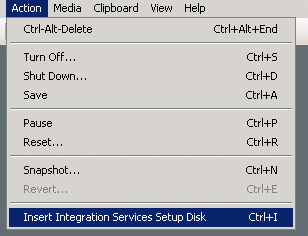
In the Virtual Machine console navigate to Action and select “Insert Integration Services Setup Disk”

image

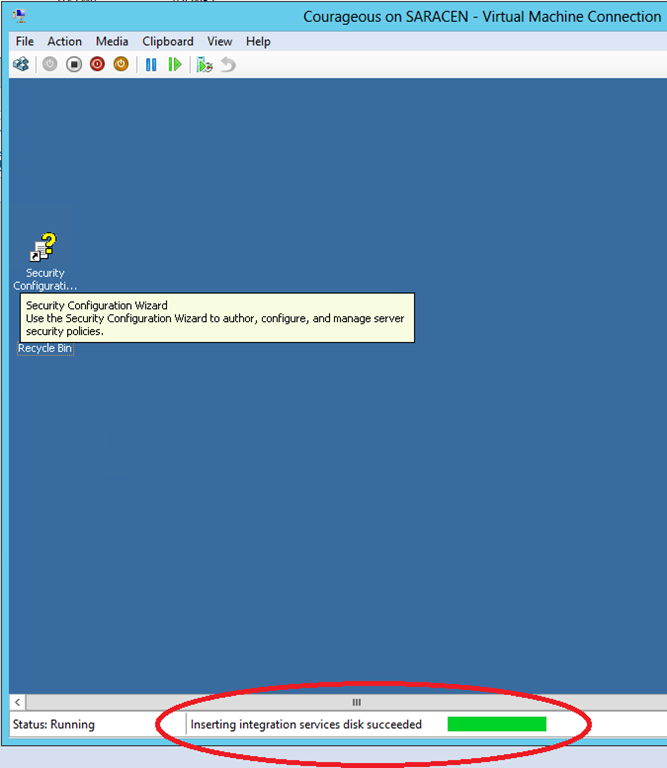
In the Virtual Machine console you’ll see that inserting the integration services disk succeeded.

image

Like before, if the setup process doesn’t start automatically just navigate to the DVD and kick start it yourself.

10


As you can see below it now shows what version (if any) of the integration services is already installed and asks you if you want to update. In the example below you can see it has the Windows 2008 R2 SP1 version of the integration services. This is as expected as this machine (a W2K3R2SP2 guest) was imported from a Hyper-V cluster running that Windows 2008 R2 SP1.

Integration Comopnents


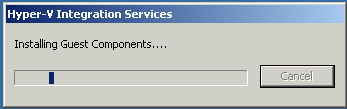
You click OK and the installation process for the integration services will start.

02

03


When the installation is done you’ll be notified that the virtual machines needs to restart.

image


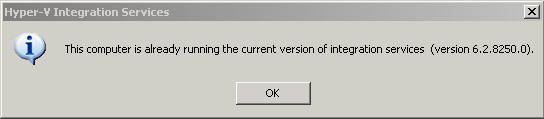
The server will reboot and if you then try to install the integration services again it will notify you that it has already the correct version of the integration tools running.

09


Remarks

If you hit an error in the Beta of Windows 8 Hyper-V I advise two things I have experienced myself in the labs.

  1. Make sure you have enough disk space. I had one test server that had only a few MB left on the C partition and that bit me Smile
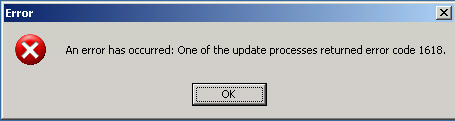
  2. Make sure you do it after a clean reboot. Just to make sure you have no pending hardware detection/installs lingering around. I experienced this one on a Windows 2003 R2 SP2 guest. Error code 1618, yup that means Another installation is already in progress.

04

Windows 8 Hyper-V Cluster Beta Teaser

What does an MVP do after a day of traveling back home from the MVP Summit 2012 in Redmond? He goes to bed and gets up early next morning to upgrade his Windows 2008 R2 SP1 Hyper-V Cluster to Windows 8. That means when I boot the lab nodes these days I get greeted by the “beta fish” we knew from Windows 2008 R /Windows 7 but it’s “metro-ized”

image

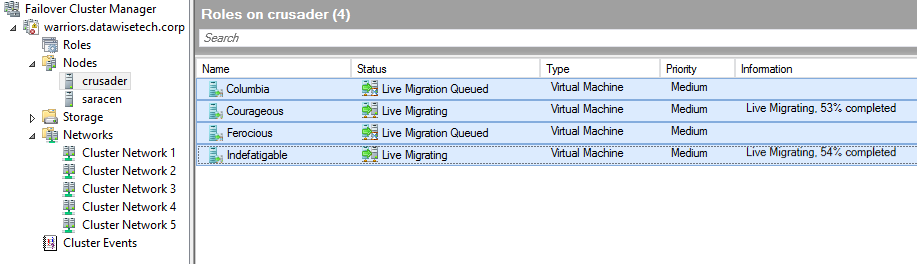
Here is a teaser screenshot from concurrent Live Migrations in action on a new Windows Server 8 Beta Hyper-V cluster in the lab. As you can see this 2 node cluster is handling 2 concurrent Live Migrations at the time. The other guests are queued. The number of Live Migrations you can do concurrently is dictated by how much bandwidth you want to pay for. In the lab that isn’t very much as you can see Winking smile.

ConcurrentLiveMigrations

In Hyper-V 3.0 you can choose the networks to use for Live Migrations with a preference order. Just like it was in W2K8R2. So if you want more bandwidth you’ll have to team some NIC ports together or put more NICs in and you should be fine. It does not use multichannel. You have to keep in mind that each live migration only utilizes a single network connection, even if multiple interfaces are provided or network teaming is enabled.  If there are multiple simultaneous live migrations, different migrations will be put on different network connections.

If the Live Migration network should become unavailable the CSV network in this example will take over. The CSV & the Live Migration network serve as each others redundant backup network.

LiveMigNetworks

There is more to come but I have only 24 hours in a day and they are packed. Catch you later!

Integration Services Version Check Via Hyper-V Integration/Admin Event Log

I’ve written before (see "Key Value Pair Exchange WMI Component Property GuestIntrinsicExchangeItems & Assumptions") on the need to & ways with PowerShell to determine the version of the integration services or integration components running in your guests. These need to be in sync with the one running on the hosts. Meaning that all the hosts in a cluster should be running the same version as well as the guests.

During an upgrade with a service pack this get the necessary attention and scripts (PowerShell) are written to check versions and create reports and normally you end up with a pretty consistent cluster. Over time virtual machines are imported, inherited from another cluster of created on a test/developer host and shipped to production. I know, I know, this isn’t something that should happen, but I don’t always have the luxury of working in a perfect world.

Enough said. This means you might end up with guests that are not running the most recent version of the integration tools. Apart from checking manually in the guest (which is tedious, see my blog "Upgrading a Hyper-V R2 Cluster to Windows 2008 R2 SP1" on how to do this) or running previously mentioned script you can also check the Hyper-V event log.

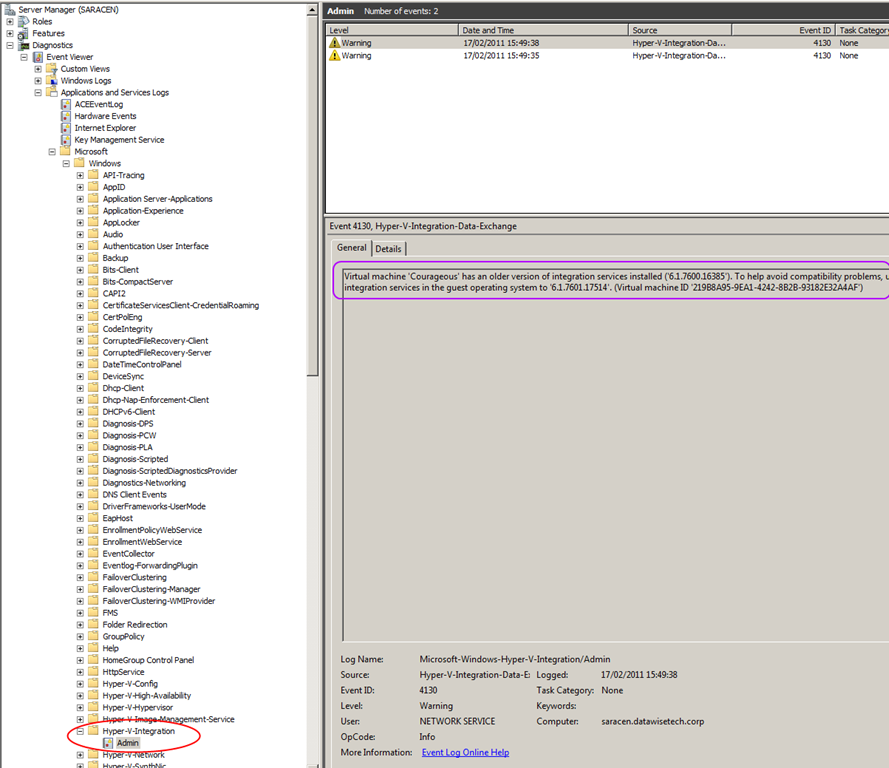
Another way to spot virtual machines that might not have the most recent version of the integration tools is via the Hyper-V logs. In Server Manager you drill down in the “Diagnostics” to, “Event Viewer” and than navigate your way through  "Applications and Services Logs", "Microsoft", "Windows" until you hit “Hyper-V-Integration

image

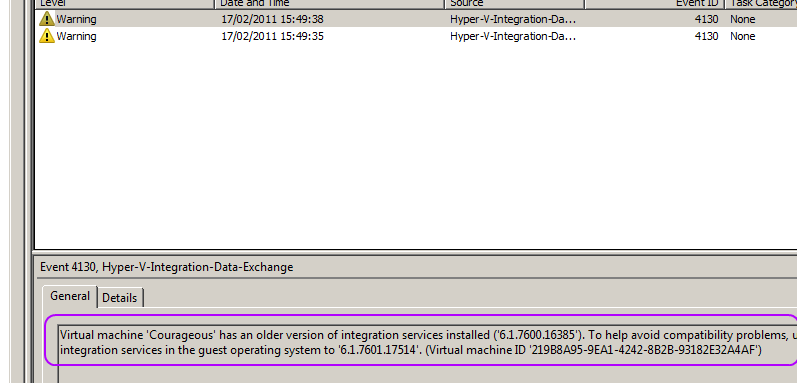
Take a closer look and you’ll see the warning about 2 guests having an older version of the integration tools installed.

image

As you can see it records a warning for every virtual machine whose integration services are older than the host running Hyper-V. This makes it easy to grab a list of guest needing some attention. The down side is that you need to check all hosts, not to bad for a small cluster but not very efficient on the larger ones.

So just remember this as another way to spot virtual machines that might not have the most recent version of the integration tools. It’s not a replacement for some cool PowerShell scripting or the BPA tools, but it is a handy quick way to check the version for all the guests on a host when you’re in a hurry.

It might be nice if integration services version management becomes easier in the future. Meaning a built-in way to report on the versions in the guests and an easier way to deploy these automatically if there not part of a service pack (this is the case when the guest OS and the host OS differ or when you can’t install the SP in the guest for some application compatibility reason). You can do this in bulk using SCVMM and of cause Scripting this with PowerShell comes to the rescue here again, especially when dealing with hundreds of virtual machines in multiple large clusters. Orchestration via System Center Orchestrator can also be used. Integration with WSUS would be another nice option, for those that don’t have Configuration Manager or Orchestrator but that’s not supported as far as I know for now.