
Now that Windows 2008 R2 SP1 is being deployed some scripts to check whether the Integration Components (IC) in Hyper-V VM guests are upgraded came back on the radar screen. Host are being upgraded and thus the clients need upgraded IC as well. Now to check this for hundreds or thousands of guest we need some automation. PowerShell comes in handy for this and some neat scripts can be found around the internet. The most concise PowerShell code to do this, that I know of, is the one Peter Noorderijk (great Dutch IT Pro) uses in his PowerShell function Get-IntegrationServicesVersion on his blog How to check the version of the Integration Components. As he provided this script just when I needed one I used it. This worked fine until I ran into an issue with it on some clusters. On two test clusters and two production clusters, it did the job as expected. On one test cluster and one production cluster, we ran into the situation where the output seemed wrong. The screenshot below is an example of this.
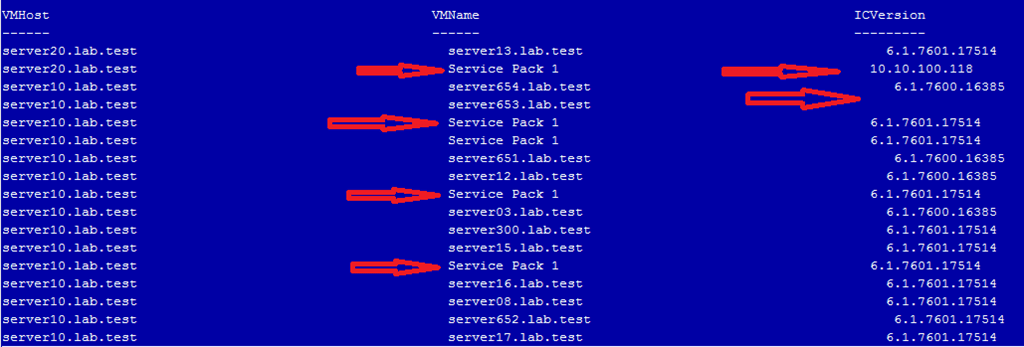
The red arrows indicate wrong data for the VMname and ICVersion. What happened here? Well, when we read out the GuestIntrinsicExchangeItems property from the WMI object Msvm_KvpExchangeComponent we get back XML. That XML needs to be parsed to display it for human consumption. The function depends on fixed positions containing the correct data. I’ve marked the relevant portions with a red arrow above, they come from$vmkvp[0] en $vmkvp[14] in the script below.
function Get-Integ.rationServicesVersion ($HVhost = $(throw “HVHost required”))
    {
    $kvps = Get-WmiObject -Namespace rootvirtualization -ComputerName $HVHost -Query “Select GuestIntrinsicExchangeItems From Msvm_KvpExchangeComponent”
        foreach ($kvp in $kvps)
         {
         $vmkvp = $Kvp.GuestIntrinsicExchangeItems
         $vmkvp | select-object @{Label=”VMHost”;Expression={$hvhost}},
                                @{Label=”VMName”;Expression={([xml]$vmkvp[0]).instance.property[1].value}},
                                @{Label=”ICVersion”;Expression={([xml]$vmkvp[14]).instance.property[1].value}} -first 1
         }
    }

foreach ($hvhost in get-content servers.txt) {Get-IntegrationServicesVersion $hvhost}
And indeed, when we dump the XML for two of the affected servers out to text files you can see the order is indeed different so counting on the exact location in an array is what tripped us up here.
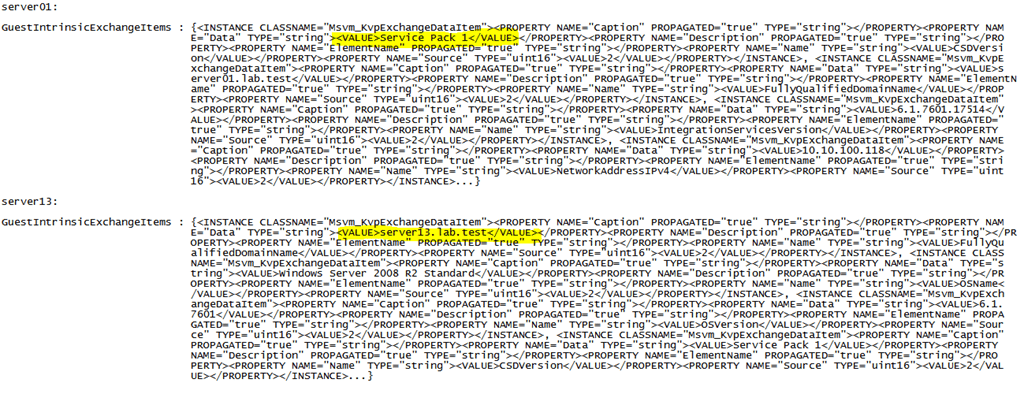
Should this ever happen? Am I making a scripting mistake somewhere? Running a check with a VBScript that parses the XML using XDOM (just in case my PowerShell skills are the cause of this) confirms the order is different but that the key pairs match up and are correct
| D:SysAdminPowerShellScripts>cscript.exe test.vbs
Microsoft (R) Windows Script Host Version 5.8 Copyright (C) Microsoft Corporation. All rights reserved. Guest OS information for server01 CSDVersion : Service Pack 1 FullyQualifiedDomainName : server01.lab.test IntegrationServicesVersion : 6.1.7601.17514 NetworkAddressIPv4 : 10.10.100.118 NetworkAddressIPv6 : fe80::a177:729:8840:250%9 OSBuildNumber : 7601 OSEditionId : 7 OSMajorVersion : 6 OSMinorVersion : 1 OSName : Windows Server 2008 R2 Standard OSPlatformId : 2 OSVersion : 6.1.7601 ProcessorArchitecture : 9 ProductType : 3 RDPAddressIPv4 : 10.10.100.118 RDPAddressIPv6 : fe80::a177:729:8840:250%9 ServicePackMajor : 1 ServicePackMinor : 0 SuiteMask : 272 |
D:SysAdminPowerShellScripts>cscript.exe test.vbs
Microsoft (R) Windows Script Host Version 5.8 Copyright (C) Microsoft Corporation. All rights reserved. Guest OS information for server13 FullyQualifiedDomainName : server13.lab.test OSName : Windows Server 2008 R2 Standard OSVersion : 6.1.7601 CSDVersion : Service Pack 1 OSMajorVersion : 6 OSMinorVersion : 1 OSBuildNumber : 7601 OSPlatformId : 2 ServicePackMajor : 1 ServicePackMinor : 0 SuiteMask : 272 ProductType : 3 OSEditionId : 7 ProcessorArchitecture : 9 IntegrationServicesVersion : 6.1.7601.17514 NetworkAddressIPv4 : 10.10.100.112 NetworkAddressIPv6 : fe80::c18b:e3f2:7f05:31e4%12 RDPAddressIPv4 : 10.10.100.112 RDPAddressIPv6 : fe80::c18b:e3f2:7f05:31e4%12 |
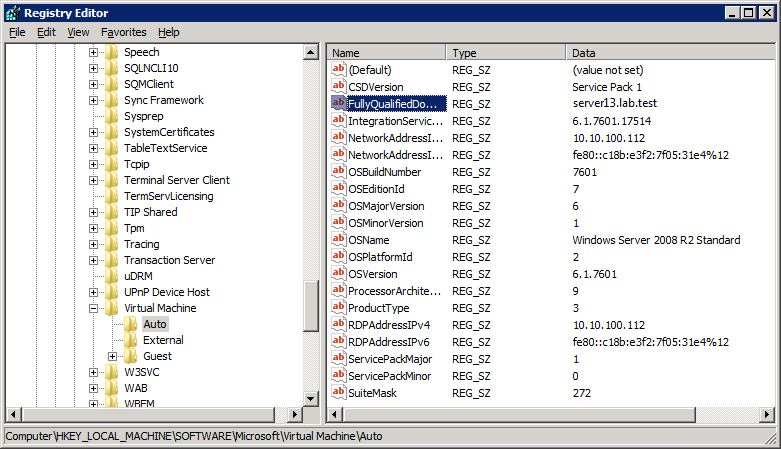
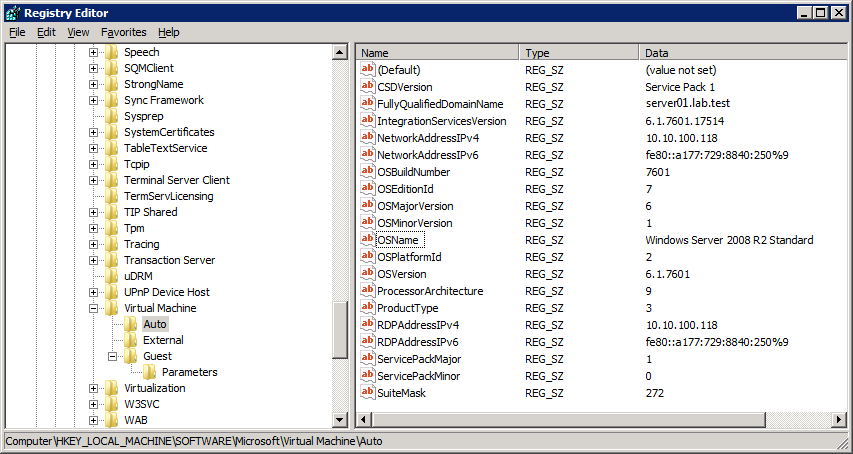
When I look at where that data lives in the registry on those servers it all looks exactly the same, neatly ordered buy the RegEdit GUI:
 |
 |
So when getting that data from the Key-Value Pair Exchange WMI component with the property GuestIntrinsicExchangeItems you get a bunch of XML. That has to be parsed to be displayed in a readable fashion. The problem we are seeing is due to the fact that the items in the XML file are not in the same order. Peter’s function assumes it is. However this does not happen to be the case for most virtual machines, the majority is in the expected order. I don’t know why that is or if this is supposed to happen but it doesn’t seem to cause any harm. All is fully functional and operational in Hyper-V Manager, SCVMM 2008R2 … etc. Perhaps an MVP or Microsoft guru can shed some light on this. It seems like a bug waiting to happen if a developer of Hyper-V management software makes the same assumption. Of is this never suppose to happen and do I need to worry? I don’t know  I reinstalled the IC on the guests that have a different ordering and live migrated them, but that didn’t change anything
Anyway if you want to make sure you get the correct output we’ll need another approach that doesn’t make assumptions. You can roll your own and get the output customized to your needs but you need to parse the XML using a filter. An example of this is listed below.
# Filter for parsing XML data
filter Import-CimXml
{
# Create new XML object from input
$CimXml = [Xml]$_
$CimObj = New-Object -TypeName System.Object

# Iterate over the data and pull out just the value name and data for each entry
foreach ($CimProperty in $CimXml.SelectNodes("/INSTANCE/PROPERTY[@NAME='Name']"))
 {
     $CimObj | Add-Member -MemberType NoteProperty -Name $CimProperty.NAME -Value $CimProperty.VALUE
 }

 foreach ($CimProperty in $CimXml.SelectNodes("/INSTANCE/PROPERTY[@NAME='Data']"))

 {
     $CimObj | Add-Member -MemberType NoteProperty -Name $CimProperty.NAME -Value $CimProperty.VALUE
 }


# you send the output from the property to the filter via a pipe
$KvpComponentVMGuest.GuestIntrinsicExchangeItems $vmkvp |Import-CimXml
Maarten Wijsman (a fellow blogger at http://www.hyper-v.nu like Peter) has a nice example script here that also uses a filter Import-CimXML. Do note that there are variants on this filter depending on what output you desire that explains the difference between the filters.
