Load Balance DNS Server Search Order
DNS servers need to be configured correctly, operate perfectly and respond as fast as possible to their clients. For some applications this is critical, but many have a more relaxed attitude. Hence a DNS Server has a full second to respond to a query. That means that even when you have 2 DNS servers configured on the clients the second will only be used when the first is not available or doesn’t respond quickly enough. This has a side effect which is that moving traffic away from an overloaded DNS servers isn’t that easy or optimal. We’ll look at when to use a PowerShell script to Load balance DNS server search order.
DHCP now and then
The trick here is to balance the possible DNS servers search order amongst the clients. We used to do this via split scopes and use different DNS servers search orders in each scope. When we got Windows server 2012(R2) we not only gained policies to take care of this but also DHCP failover with replica. That’s awesome as it relieves us of much of the tedious work of keeping track of maintaining split scopes and different options on all DCHP servers involved. For more information in using the MAC addresses and DCHP policies to load balance the use of your DNS servers read this TechNet article Load balancing DNS servers using DHCP Server Policies.
Fixed IP configurations
But what about servers with fixed IP addresses? Indeed, the dream world where we’ll see dynamically assigned IP configuration everywhere is a good one but perfection is not of this world. Fixed IP configurations are still very common and often for good reasons. Some turn to DCHP reservations to achieve this but many go for static IP configuration on the servers.
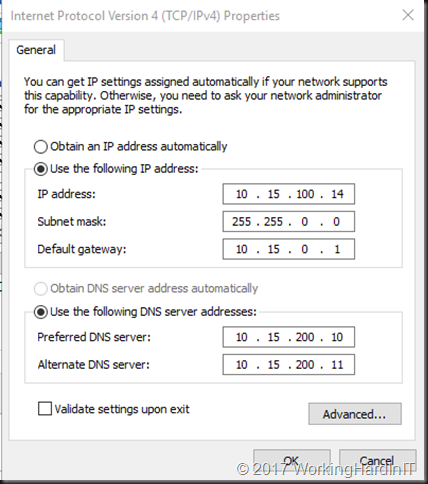
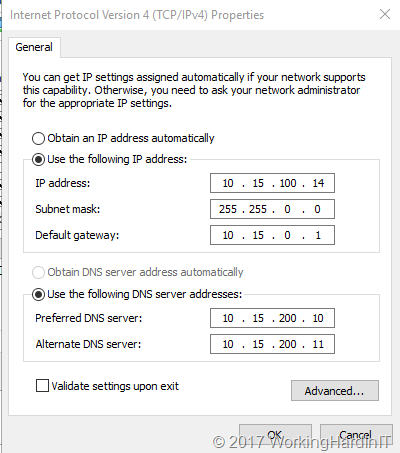
When that’s the case, our sys admins are told the DNS servers to use. Most of the time they’ll enter those in the same order over and over again, whether they do this manual or automated. So that means that the first and second DNS server in the search order are the same everywhere. No load balancing to be found. So potentially one DNS server is doing all the work and getting slower at it while the second or third DNS servers in the search order only help out when the first one is down or doesn’t respond quickly enough anymore. Not good. When you consider many (most?) used AD integrated DNS for their MSFT environments that’s even less good.
PowerShell Script to Load Balance DNS Server Search Order
That’s why when replacing DNS Servers or seeing response time issues on AD/DNS servers I balance the DNS server search order list. I do this based on their IP address its last octet. If that’s even, DNS Server A is the first in the search order and if not it’s DNS Server B that goes in first. That mixes them up pseudo random enough.
I use a PowerShell script for that nowadays instead of my age-old VBScript one. But recently I wanted to update it to no longer use WMI calls to get the job done. That’s the script I’m sharing here, or at least the core cons pet part of it, you’ll need to turn it into a module and parameterize if further to suit your needs. The main idea is here offering an alternative to WMI calls. Do note you’ll need PowerShell remoting enabled and configured and have the more recent Windows OS versions (Windows Server 2012 and up).
cls
#The transcipt provides a log to check what was found and what changed.
Start-Transcript -Path C:\SysAdmin\MyDNSUpdateLog.txt #
$VMsOnHost = (Get-VM -ComputerName MyHyperVHostorClusterName).Name

foreach ($VM in $VMsOnHost)
{
    Invoke-Command -ComputerName $VM -ScriptBlock {

    #This function checks if the last octet of an IP address is even or not
    Function IsLastOctetEven ($IPAddress)
        {
             #$FirstIP
             $Octets = $IPAddress.Split(".")
             #$Octets[3] #0 based array, grab 4th octet

             #See if 4th octect is even
             $Boolean = [bool]!($Octets[3]%2)
             if ($Boolean)
             {
                 Return $Boolean
                 #write-host "even"
             }
             else
             {
                 Return $Boolean
                 #write-host "odd"
             }
        }

        $OldDns1 = "10.15.200.10"
        $OldDns2 = "10.15.200.11"
        $NewDns1 = "10.18.50.110"
        $NewDns2 = "10.18.50.120"

        $NicInterfaces = Get-DnsClientServerAddress

        foreach ($NICinterface in $NicInterfaces)
        {
                #Here we filter out all interfaces that are not used for client/server connectivity.
                #Cluster Interfaces, HeartBeats, Loop back adapters, ...
                #We also filter out IPv6 here as this is for a IVp4 environment.
             if($NicInterface.InterfaceAlias -notmatch "isatap" -and $NicInterface.InterfaceAlias -notmatch "Pseudo" `
                -and $NicInterface.InterfaceAlias.Contains("Local Area Connection*") -ne $True `
                -and $NicInterface.InterfaceAlias.Contains("KEMP-DSR-LOOPBACK") -ne $True `
                -and $NicInterface.InterfaceAlias.ToLower().Contains("Heartbeat".Tolower()) -ne $True `
                -and $NicInterface.InterfaceAlias.Contains("NLB-PRIVATE") -ne $True-and $NicInterface.AddressFamily -ne "23")
             {

                $Output = "Hello from  $env:computername" + $NICinterface.InterfaceAlias
                write-Output $Output

                $Output = $NicInterface.InterfaceAlias +": DNS1=" + $NicInterface.ServerAddresses.GetValue(0) + " & DNS2=" +  $NicInterface.ServerAddresses.GetValue(1)
                write-Output $Output

                If (($NicInterface.ServerAddresses.GetValue(0) -like $OldDns1 -or $NicInterface.ServerAddresses.getvalue(0) -like $OldDns2) -and ($NicInterface.ServerAddresses.getvalue(1) -like $oldDns1 -or $NicInterface.ServerAddresses.getvalue(1) -like $OldDns2))
                {
                    #If the IP address is DHCP assignd, leave it alone,
                    #that's handled via DHCP policies on the MAC address
                    $GetNetIPInfo = Get-NetIpAddress -InterfaceIndex  $NicInterface.InterfaceIndex
                     if ($GetNetIPInfo.PrefixOrigin -like "DHCP")
                     {
                        $VM
                        write-output "DHCP address - leave it alone"
                     }
                     Else
                     {
                         $IPAddresses = $GetNetIPInfo.IPv4Address
                         $FirstIP = $IPAddresses[1] #1 based array

                         if (IsLastOctetEven($FirstIP)){
                            $VM
                            write-output "EVEN 4th IP octet => so DNS search order becomes $NewDns1 , $NewDns2"
                            Set-DnsClientServerAddress -InterfaceIndex $NicInterface.InterfaceIndex -ServerAddresses ($NewDns1,$NewDns2)
                         }
                         else
                         {
                            $VM
                            write-Output "ODD 4th IP octet => so DNS search order becomes $NewDns2 , $NewDns1"
                            Set-DnsClientServerAddress -InterfaceIndex $NicInterface.InterfaceIndex -ServerAddresses ($NewDns2, $NewDns1)
                         }
                         $NicInterface |  Select-Object -ExpandProperty ServerAddresses
                     }
                }
                else
                {
                    $VM
                    write-Output "Existing DNS values not like expected old values. They are propably already changed"
                }
            }
        }
    }
}
Stop-Transcript



 .
.