DELL PowerEdge VRTX Has Potential Beyond ROBO As a Scale Out File Server Building Block

The PowerEdge VRTX

I went to have a chat with Dell at TechEd 2013 Europe in Madrid. The VRTX was launched during DELL Enterprise Forum early June 2013 this concept packs a punch and I encourage you to go look at the VRTX (pronounced as “Vertex”) in more detail here. It’s a very quite setup which can be hooked up to standard power. Pretty energy efficient when you consider the power of the VRTX. And the entire setup surely packs a lot of punch at an attractive price point.
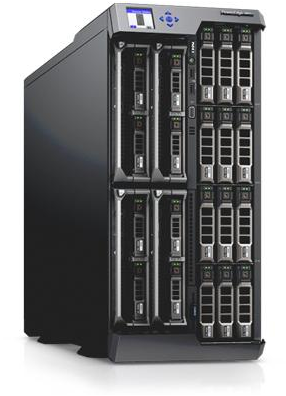
image image

It can serve perfectly for Remote Office / Branch Office (ROBO) deployments but has many more use cases as it’s very versatile. In my humble opinion DELL’s latest form factor could be used for some very nice scale out scenarios. It’s near perfect for a Windows Server 2012 Scale Out File Server (SOFS) building block. While smaller ones can be build using 1Gbps the future just needs 10Gbps networking.

10Gbps, RDMA (iWarp, RoCE)

That’s the first thing I missed and the first thing I was told that would arrive very soon. So I’m  very happy with that. With sufficient 10Gbps ports to servers and  iWarp or RoCE RDMA capable NICs (there’s cheap enough compared to ordinary 10Gbps cards not to have to leave that capability out) we have all we need to function as powerful building block for the Scale Out File Server model with Windows Server 2012 (R2) where the CSV network becomes the storage network leveraging redirected IO. For this concept look at this picture from a presentation a year ago. SMB 3.0 Multichannel and RDMA make this possible.

image

While then I drew the SOFS building blocks out of R720 7 & MD1200  hardware, the VRTX could fit in there perfectly!

Storage Options

Today DELL uses their implementation of Clustered PCI Raid for shared storage which is supported since Windows Server 2012. This is great. For the moment it’s a non redundant setup but a redundant one is in the works I’m told. Nice, but think positive, redirected IO  (block level) over SMB 3.0 would save our storage IO even today. It would be a very wise and great addition to the capabilities of this building block to add the option & support for Storage Spaces. This would make the Scale Out File Server concept shine with the VRTX.

Why? Well I would give us following benefits in the storage layer and the VHDX format in Hyper-V can take benefits :

  • Deduplication
  • Thin Provisioning
  • Management Delegation
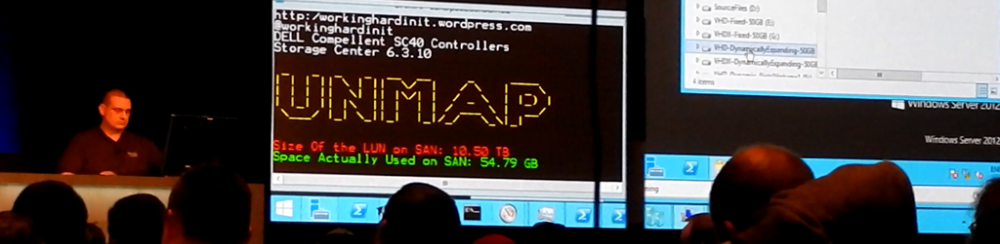
  • UNMAP
  • Write Cache
  • Full benefits of ReFS on storage spaces for data protection
  • Automatic Data Tiering with commodity SSD (ever cheaper & bigger) and SAS disks perhaps even the Near Line ones (less power & cooling, great capacity)
  • Potential for JBOD redundancy

Look at that feature set people, in box, delivered by Windows. Sweet! Combine this with 10Gbps networking and DELL has not only a SOFS building block in their port folio, it also offers significant storage features in this package. I for one would like them to do so and not miss out on this opportunity to offer even more capabilities in an attractive price package. Dell could be the very first OEM to grab this new market opportunity by supporting the scale out approach and out maneuver their competitors

Anything Else?

Combine such a building block as described above with their unmatched logistical force for distribution and support this will be a hit a a prime choice for Windows shops. They already have the 10Gbps networking gear & features (DCB) in the PowerConnect 81XX & Force10 S4810 switches. It could be an unbeatable price / capabilities / feature combo that would sell very well.

If we go for SOFS we might need more storage in a single building block with a 4 node cluster. Extensibility might be nice for this. More not just as in capacity but I need to work out the IOPS the available configurations can give us.
Verifying SMB 3.0 Multichannel/RDMA Is Working In Windows Server 2012 (R2)

So you have spend some money on RDMA cards (RoCE in this example), spent even more money on 10Gbps Switches with DCB capabilities and last but not least you have struggled for many hours to get PFC, ETS, … configured. So now you’d like to see that your hard work has paid of, you want to see that RDMA power that SMB 3.0 leverages in action. How?

You could just copy files and look at the speed but when you have sufficient bandwidth and the limiting factor is in disk IO for example how would you know? Well let’s have a look below.

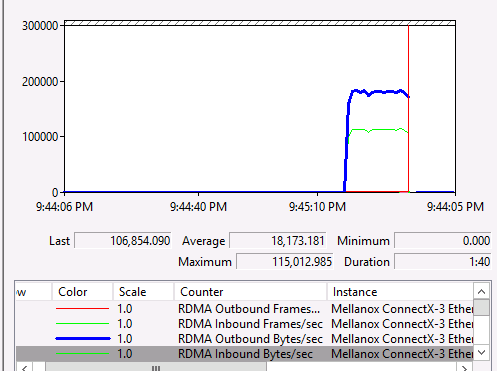
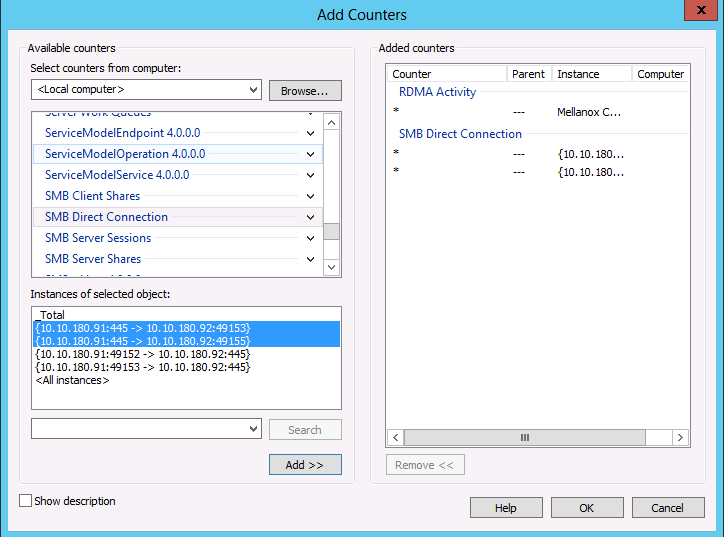
You can take a look at performance monitor for RDMA specific counters like “RDMA Activity” and “SMB Direct Connection”.image

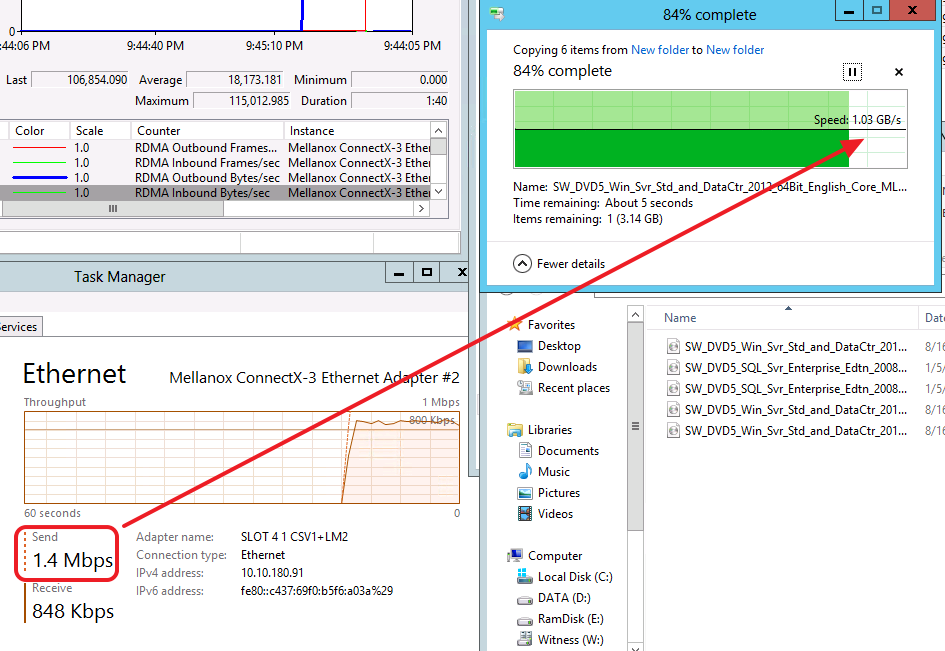
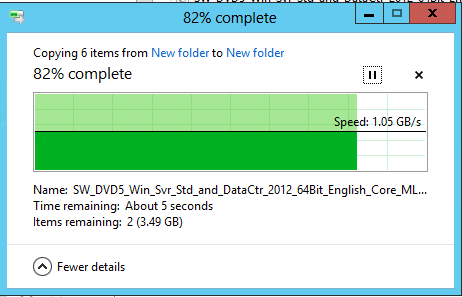
Whilst copying six 3.4GB ISO files over the RDMA connection we see a speed of 1.05 GB/s. Not to shabby.  But hay nothing a good 10Gbps with TCP/IP can handle under the right conditions.image

It’s the RDMA counters in Performance Monitor that show us the traffic that going via SMB Direct.image

Another give away that RDMA is in play comes from Task Manager, Performance counters for the RDMA NIC => 1.3Mbps send traffic can’t possibly give us 1.05GB/s in copy speed magically Smile

image

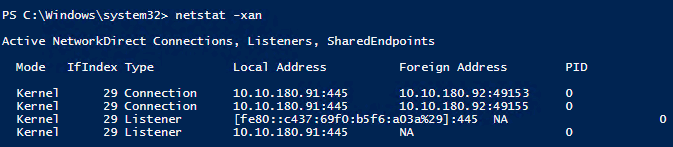
When you run netstat –xan (instead of the usual –an) you get to see the RDMA connection. The mode is “Kernel” instead of the usual “TCP” or “UDP” with –an showing the TCP/IP connections/Listerners.

 image

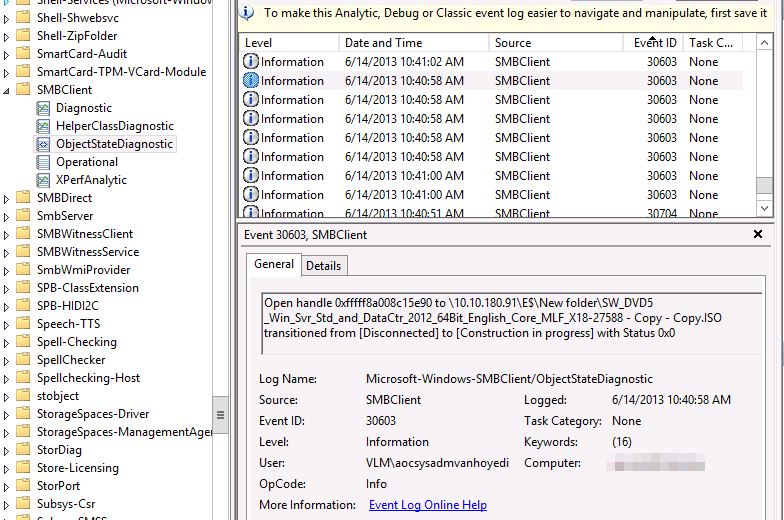
If you want to go all geeky there is an event log where you look at RDMA events amongst others. Jose Baretto discusses this in Deploying Windows Server 2012 with SMB Direct (SMB over RDMA) and the Mellanox ConnectX-3 using 10GbE/40GbE RoCE – Step by Step with instructions how to use it. You’ll need to go to Event Viewer.On the menu, select “View” then “Show Analytic and Debug Logs”
Expand the tree on the left: Applications and Services Log, Microsoft, Windows, SMB Client, ObjectStateDiagnostic. On the “Actions” pane on the right, select “Enable Log”
You then run your RDMA work. And then disable the log to view the events. Some filtering & PowerShell might come in handy to comb through them.image

Still Need To Optimizing Power Settings On DELL 12th Generation Servers For Lightning Fast Hyper-V Live Migrations?

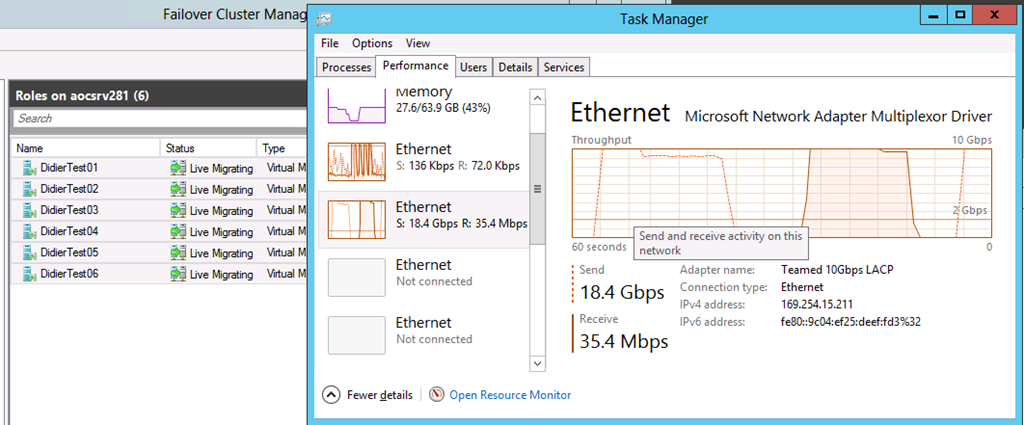
Do you remember my blog from 2011 on optimizing some system settings to get way better Live Migration performance with 10Gbps NICs?  It’s over here Optimizing Live Migrations with a 10Gbps Network in a Hyper-V Cluster. This advice still holds true, but the power optimization settings & interaction between DELL Generation 12 Server and with Windows Server 2012 has improved significantly. Where with Windows Server 2008 R2 we could hardly get above 16% bandwidth consumption out of the box with Live Migration over a 10Gbps NIC today this just works fine.

Don’t believe me?image You do now? A cool Winking smile

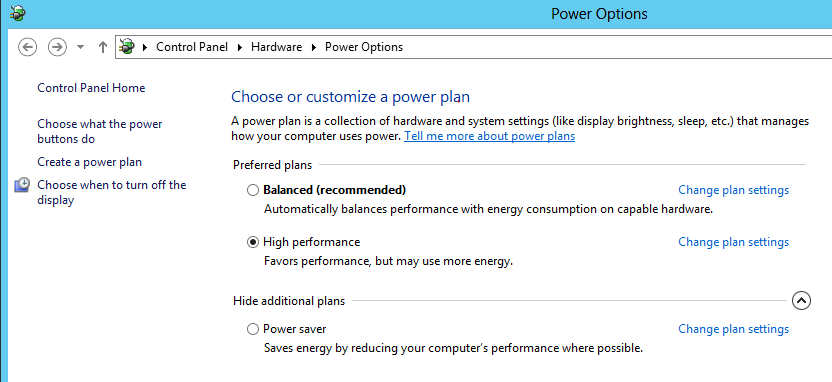
For overall peak system performance you might want to adjust your Windows configuration settings to run the High Performance preferred power plan, if that’s needed.image

You might do no longer need to dive into the BIOS. Of cause if you have issues because your hardware isn’t that intelligent and/or are still running Windows 2008 R2 you do want to there. As when it comes to speed we want it all and we want it now Smile and than you still want to dive into the BIOS and tweak it even on the DELL 12th Generation hardware. Test & confirm I’d say but you should notice a difference, all be it smaller than with Windows Server 2008 R2.
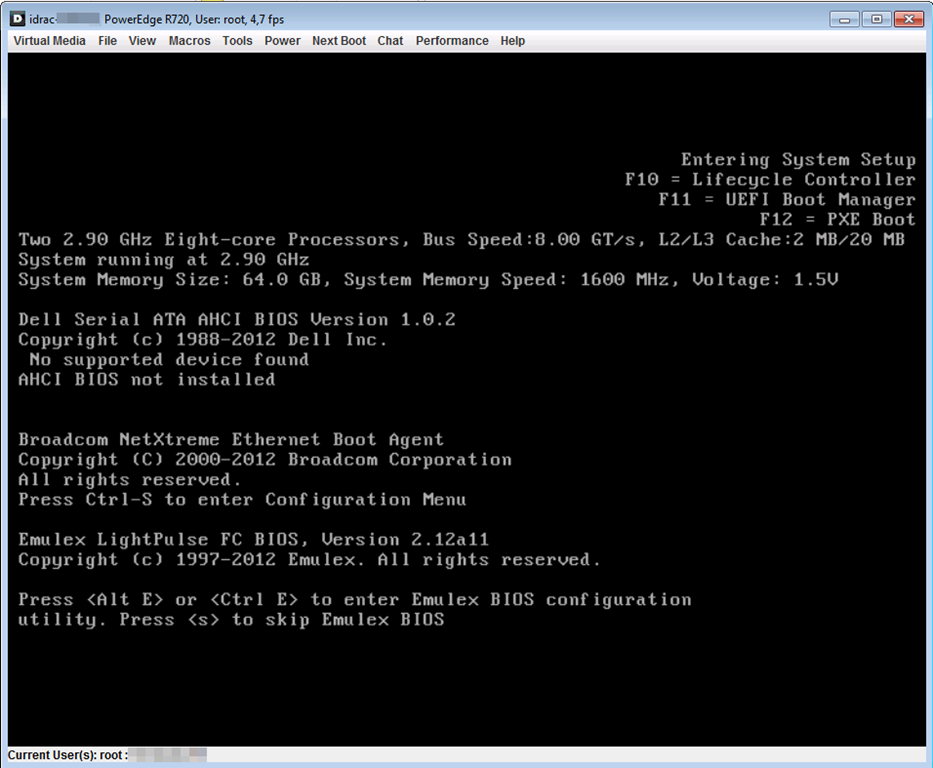
Well let’s revisit this again as we are now no longer working with Generation 10 or 11 servers with an “aged” BIOS. Now we have decommissioned the Generation 10 server,  upgrade the BIOS of our Generation 11 Servers and acquired Generation 12 servers. We also no use UEFI for our Hyper-V host installations. The time has come to become familiar with those and the benefits they bring. It also future proofs our host installations.

So where and how do I change the power configuration settings now? Let’s walk through one together. Reboot your server and during the boot cycle hit F2 to enter System Setup.image

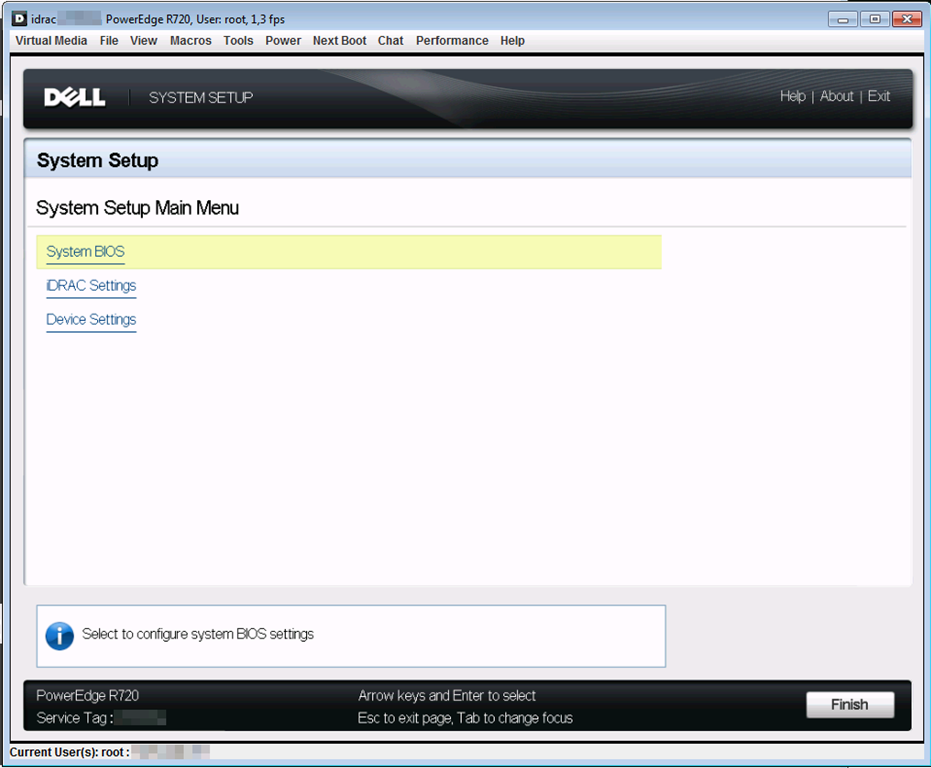
Select System BIOSimage

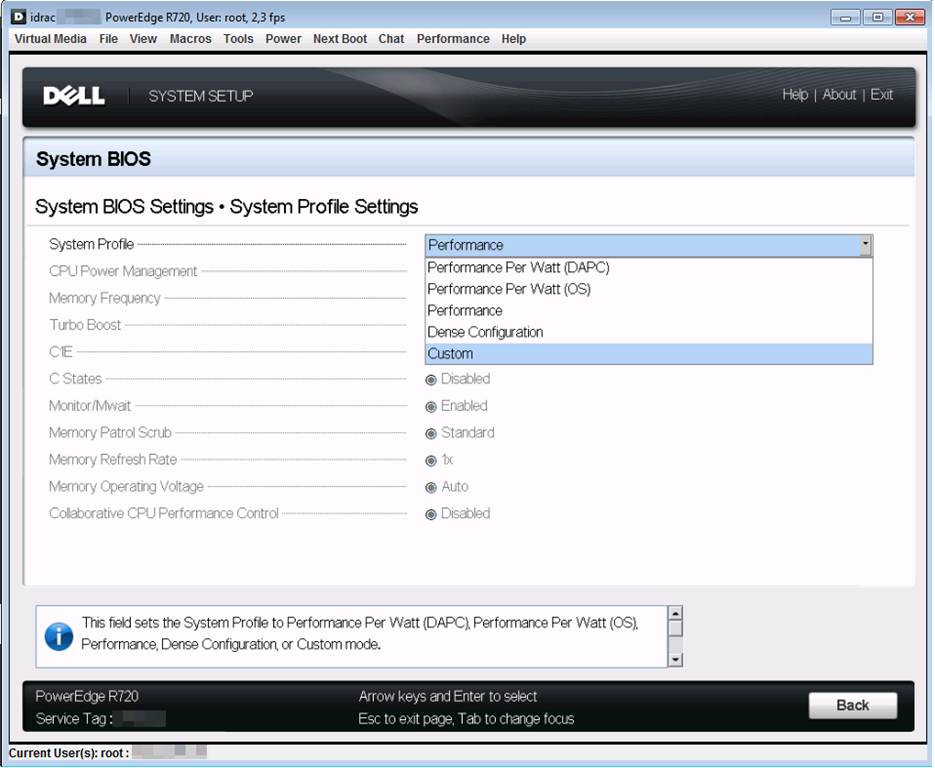
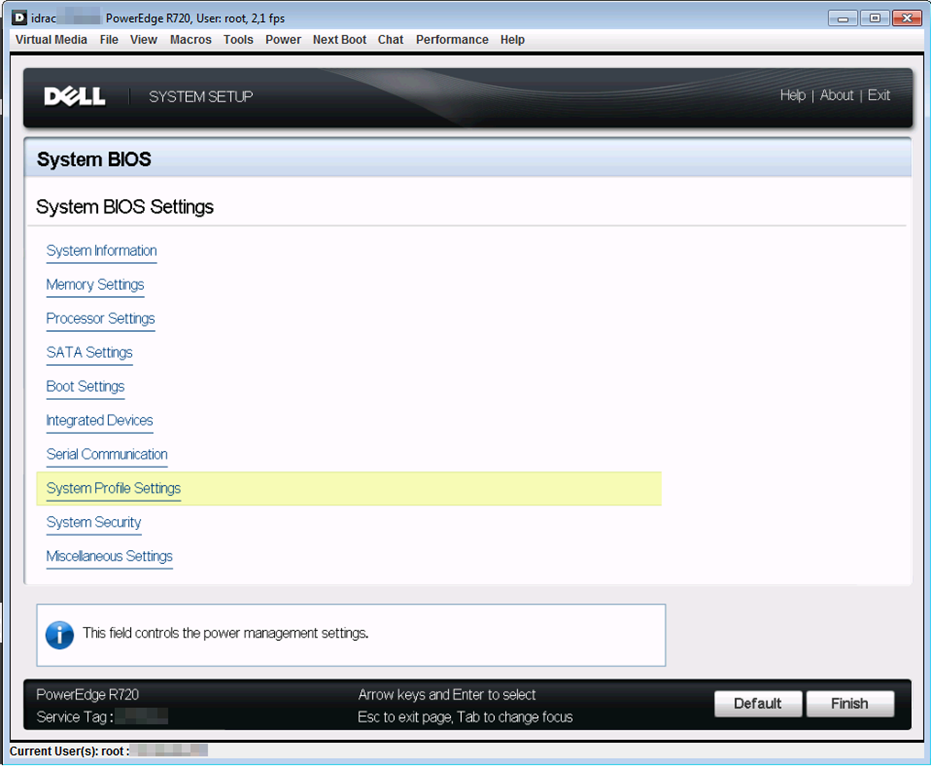
Click on System Profile Settingsimage

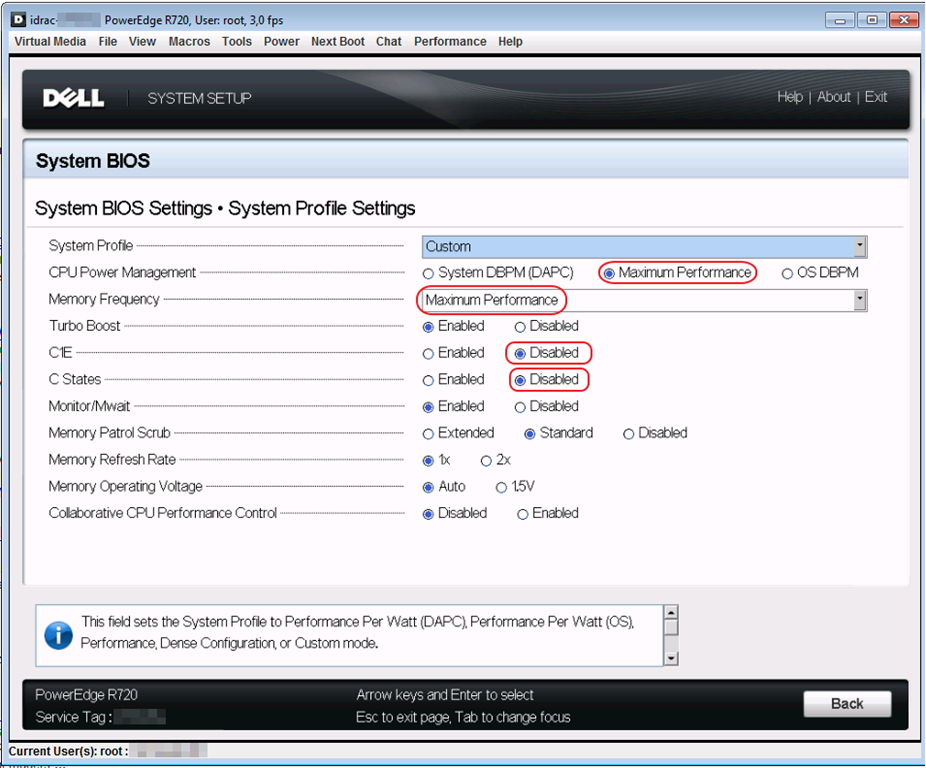
The settings you want to adapt are:

  • CPU Power Management should be on Maximum Performance
  • Setting Memory Frequency to “Maximum Performance”
  • C1E states should be disabled
  • C states should be disabled

image

That’s it. The below configuration has optimized your power settings on a DELL Generation 12 server like the R720.image

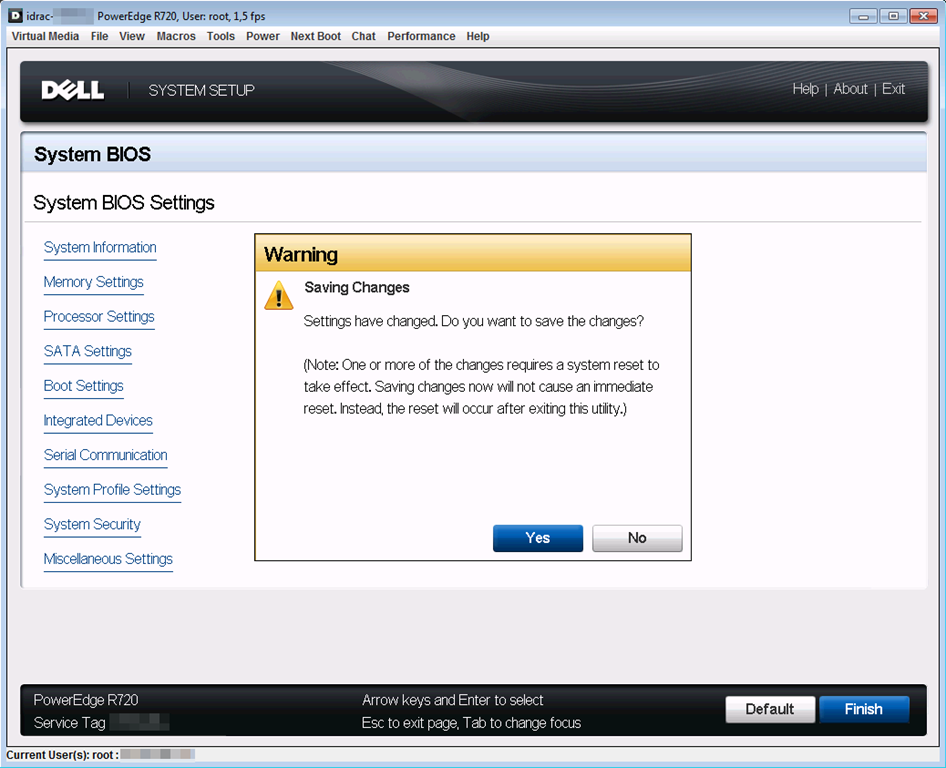
When don, click “Back” and than Finish. A warning will pop up and you need to confirm you want to safe your changes. Click “Yes” if you indeed want to do this.image

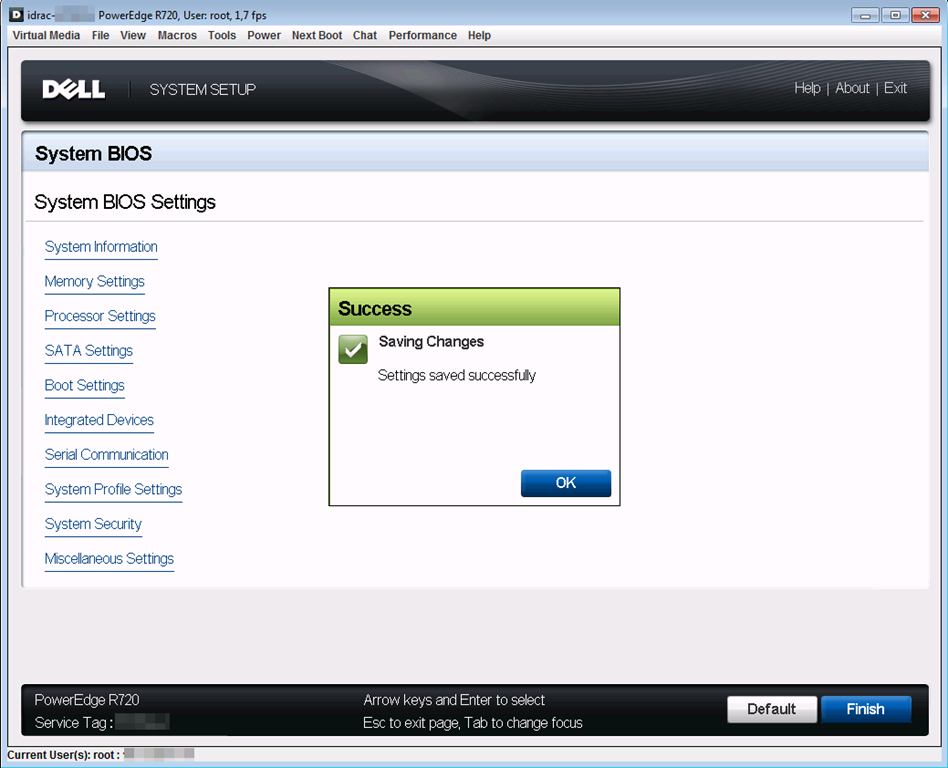
You’ll get a nice confirmation that your settings have been saved. Click “OK” and then click Finish.image

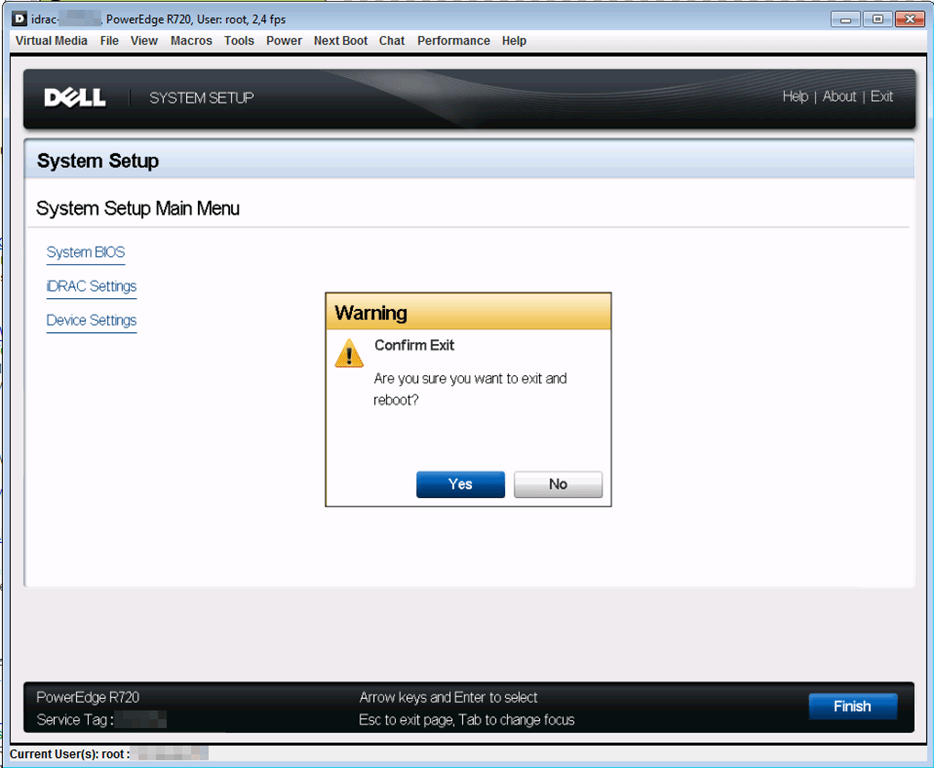
Confirm that you want to exit and reboot by clicking yes and voila, when the server comes back on it will be running a full speed at the cost of more power consumption, extra generated heat and cooling.image

Remember, if you don’t need to run at full power, don’t. And if you consider using  Dynamic Optimization and Power Optimization in System Center Virtual Machine Manager 2012. Save a penguin!

Complete VM Mobility Across The Data Center with SMB 3.0, RDMA, Multichannel & Windows Server 2012 (R2)

Introduction

The moment I figured out that Storage Live Migration (in certain scenarios) and Shared Nothing Live Migration leverage SMB 3.0 and as such Multichannel and RDMA in Windows Server 2012 I was hooked. I just couldn’t let go of the concept of leveraging RDMA for those scenarios.  Let me show you the value of my current favorite network design for some demanding Hyper-V environments. I was challenged a couple of time on the cost/port of this design which is, when you really think of it, a very myopic way of calculating TCO/ROI. Really it is. And this week at TechEd North America 2013 Microsoft announced that all types of Live Migrations support Multichannel & RDMA (next to compression) in Windows Server 2012 R2.  Watch that in action at minute 39 over here at Understanding the Hyper-V over SMB Scenario, Configurations, and End-to-End Performance. You should have seen the smile on my face when I heard that one! Yes standard Live Migration now uses multiple NIC (no teaming) and RDMA for lightning fast  VM mobility & storage traffic. People you will hit the speed boundaries of DDR3 memory with this! The TCO/ROI of our plans just became even better, just watch the session.

So why might I use more than two 10Gbps NIC ports in a team with converged networking for Hyper-V in Windows 2012? It’s a great solution for sure and a combined bandwidth of 2*10Gbps is more than what a lot of people have right now and it can handle a serious workload. So don’t get me wrong, I like that solution. But sometimes more is asked and warranted depending on your environment.

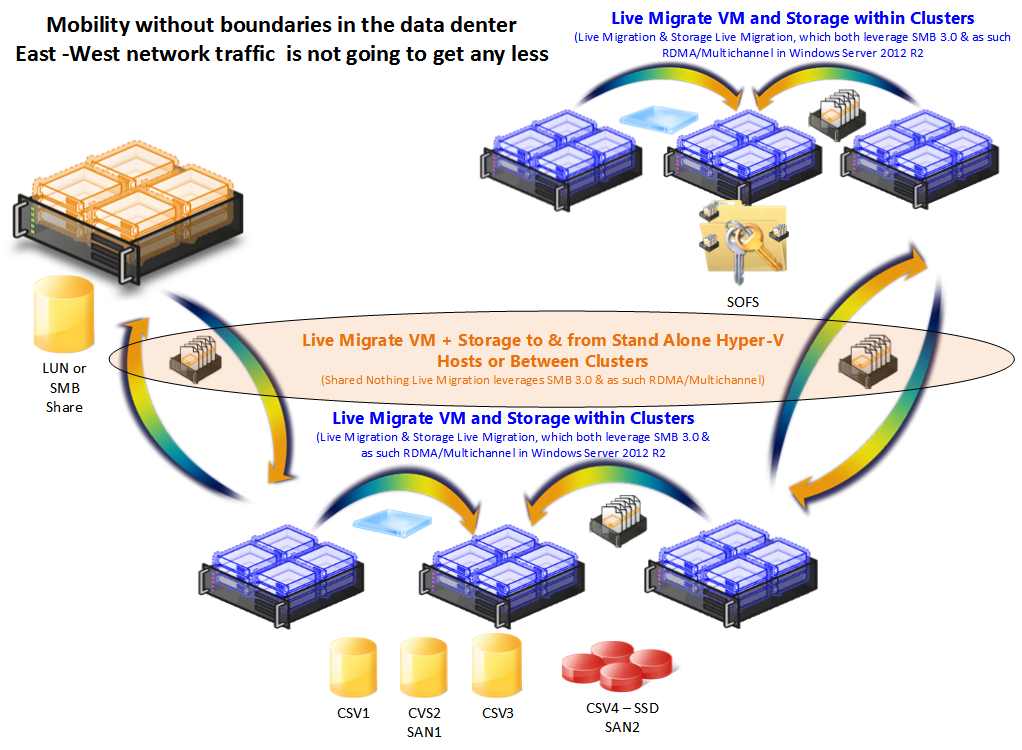
The reason for this is shown in the picture below. Today there is no more limit on the VM mobility within a data center. This will only become more common in the future.

image

This is not just a wet dream of virtualization engineers, it serves some very real needs. Of cause it does. Otherwise I would not spend the money. It consumes extra 10Gbps ports on the network switches that need to be redundant as well and you need to have 10Gbps RDMA capable cards and DCB capable switches.  So why this investment? Well I’m designing for very flexible and dynamic environments that have certain demands laid down by the business. Let’s have a look at those.

The Road to Continuous Availability

All maintenance operations, troubleshooting and even upgraded/migrations should be done with minimal impact to the business. This means that we need to build for high to continuous availability where practical and make sure performance doesn’t suffer too much, not noticeably anyway. That’s where the capability to live migrate virtual machines of a host, clustered or not, rapidly and efficiently with a minimal impact to the workload on the hosts involved comes into play.

Dynamics Environments won’t tolerate downtime

We also want to leverage our resources where and when they are needed the most. And the infrastructure for the above can also be leveraged for that. Storage live migration and even Shared Nothing Live Migration can be used to place virtual machine workloads where they are getting the resources they need. You could see this as (dynamically) optimizing the workload both within and across clusters or amongst standalone Hyper-V nodes. This could be to a SSD only storage array or a smaller but very powerful node or cluster in regards to CPU, memory and Disk IO. This can be useful in those scenarios where scientific applications, number crunching or IOPS intesive  software or the like needs them but only for certain times and not permanently.

Future proofing for future storage designs

Maybe you’re an old time fiber channel user or iSCSI rules your current data center and Windows Server 2012 has not changed that. But that doesn’t mean it will not come. The option of using a Scale Out File Server and leverage SMB 3.0 file shares to providing storage for Hyper-V deployments is a very attractive one in many aspects. And if you build the network as I’m doing you’re ready to switch to SMB 3.0 without missing a heart beat. If you were to deplete the bandwidth x number of 10Gbps can offer, no worries you’ll either use 40Gbps and up or Infiniband. If you don’t want to go there … well since you just dumped iSCSI or FC you have room for some more 10Gbps ports Smile

Future proofing performance demands

Solutions tend to stay in place longer than envisioned and if you need some long levity and a stable, standard way of doing networking, here it is. It’s not the most economical way of doing things but it’s not as cost prohibitive as you think. Recently I was confronted again with some of the insanities of enterprise IT. A couple of network architects costing a hefty daily rate stated that 1Gbps is only for the data center and not the desktop while even arguing about the cost of some fiber cable versus RJ45 (CAT5E). Well let’s look beyond the North – South traffic and the cost of aggregating band all the way up the stack with shall we? Let me tell you that the money spent on such advisers can buy you in 10Gbps capabilities in the server room or data center (and some 1Gbps for the desktops to go) if you shop around and negotiate well. This one size fits all and the ridiculous economies of scale “to make it affordable” argument in big central IT are not always the best fit in helping the customers. Think  a little bit outside of the box please and don’t say no out of habit or laziness!

Conclusion

In some future blog post(s) we’ll take a look at what such a network design might look like and why. There is no one size fits all but there are not to many permutations either. In our latest efforts we had been specifically looking into making sure that a single rack failure would not bring down a cluster. So when thinking of the rack as a failure domain we need to spread the cluster nodes across multiple racks in different rows. That means we need the network to provide the connectivity & capability to support this, but more on that later.