Introduction
Between this blog NIC Teaming in Windows Server 2012 Brings Simple, Affordable Traffic Reliability and Load Balancing to your Cloud Workloads which states “TCP/IP can recover from missing or out-of-order packets. However, out-of-order packets seriously impact the throughput of the connection. Therefore, teaming solutions make every effort to keep all the packets associated with a single TCP stream on a single NIC so as to minimize the possibility of out-of-order packet delivery. So, if your traffic load comprises of a single TCP stream (such as a Hyper-V live migration), then having four 1Gb/s NICs in an LACP team will still only deliver 1 Gb/s of bandwidth since all the traffic from that live migration will use one NIC in the team. However, if you do several simultaneous live migrations to multiple destinations, resulting in multiple TCP streams, then the streams will be distributed amongst the teamed NICs” and other information out their such as support forum replies it is dictated that when you live migrate between two nodes in a cluster only one stream is active and you will never exceed the bandwidth of a single team member. When running some simple tests with a 10Gbps NIC team this seems true. We also know that you can consume near to all of the aggregated bandwidth of the members in a NIC Team for live migration if you these conditions are met:
1. The Live Migrations must not all be destined for the same remote machine. Live migration will only use one TCP stream between any pair of hosts. Since both Windows NIC Teaming and the adjacent switch will not spread traffic from a single stream across multiple interfaces live migration between host A and host B, no matter how many VMs you’re migrating, will only use one NIC’s bandwidth.
2. You must use Address Hash (TCP ports) for the NIC Teaming. Hyper-V Port mode will put all the outbound traffic, in this case, on a single NIC.
When we look at these conditions and compare them to the behavior we expect from the various forms of NIC teaming in Windows 2012 this is a bit surprising as one might expect all member to be involved. So let’s take a look at some of the different NIC Teaming setups.
Any form of NIC teaming with Hyper-V Port Mode
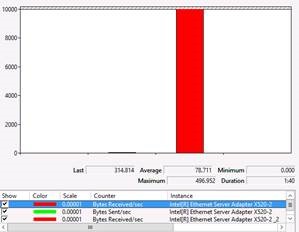
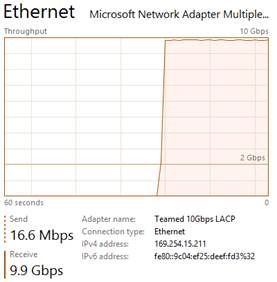
This one is easy as condition 2 above is very much true. In all my testing with any NIC team configuration in the Hyper-V Port mode traffic distribution algorithms I have not been able to exceed 10Gbps. I have seen no difference between dependent static of LACP mode or switch independent (active-active) for this condition. As you can see in the screenshot below, the traffic maxes out at 10Gbps.
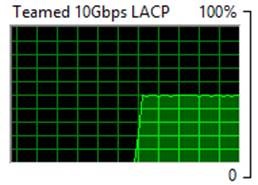
This is also demonstrated in the following screenshots taking with the resource manager where you can see only half of the bandwidth of the Team is being used.
Exceeding a single NIC team member’s bandwidth when migrating between 2 nodes
The first condition of the previous heading doesn’t seem true. In some easy testing with a low number of virtual machines and not too much memory assigned you never exceed the bandwidth of one 10Gbps NIC team member. So on the surface, with some quick testing it might seem that way.
But during testing on a 2 node cluster with dual port 10Gbps cards and I have found the following
Switch Dependent LACP and Static
- Take a sufficient number of large memory virtual machines to exceed the capacity of a single 10Gbps pipe for a longer time (that way you’ll see it in the GUI).
- Live migrate them all from host A to host B (“Pause” with “Drain Roles” or “select all” + “Move”)
- Note that with a 2 node cluster there is no possibility to Live Migrate to multiple nodes simultaneous. It’s A to or B or B to A or both at the same time.
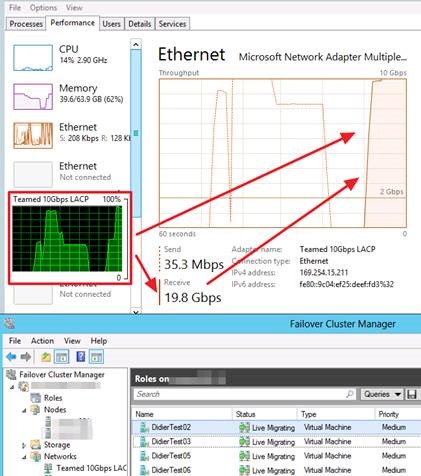
Basically it didn’t take long to see well over 10Gbpsbeing used. So the information out there seems to be wrong. Yes we can leverage the aggregated bandwidth when we migrate from host A to host B as long as we have enough memory assigned to the VMs and we migrate a sufficient number of them. Switch dependent teaming, whether it is static or LACP does its job as you would expect.
Let’s think about this. The number of VMs you need to lie migrate to see > 10Gbpss used is not fixed in stone. Could it be that there is some intelligence in the Live Migration algorithm where it decides to set up multiple streams when a certain number of virtual machines with sufficient memory are migrated as the sorting is mitigated by the amount of bandwidth that can leveraged? Perhaps he VMMS.EXE kicks off more streams when needed/beneficial? Further experimenting indicates that this is not the case. All you need is > 1 VM being live migrated. When looking at this in task manager you do need them to be of sufficient memory size and/or migrate enough of them to make it visible. I have also tried playing with the number of allowed simultaneous live migrations to see if this has an effect but I did not find one (i.e. 4, 6 or 12).
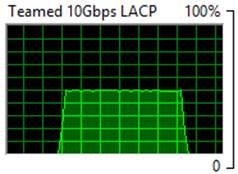
It looks like it is more like one TCP/IP connection per Live Migration that is indeed tied to one NIC member. So when you live migrate VMS between two hosts you see one VM live migration go over 1 member and the other the other as static/LACP switch dependent teaming did does its job. When you do enough live migrations of large VMs simultaneously you see this in Task Manager as shown below. In this case as each VM live migration stream sticks to a NIC team member you do not need to worry about out of order packets impacting performance.
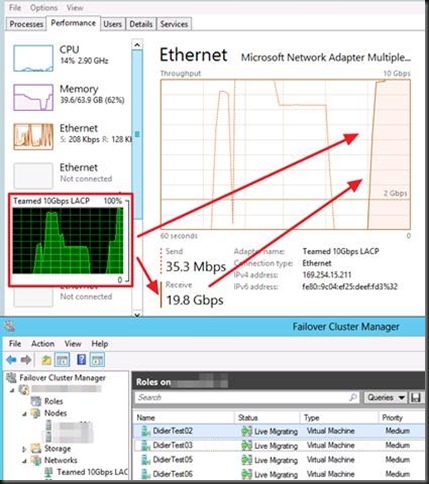
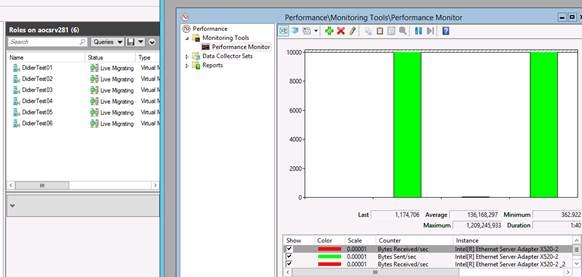
But to make sure and to prevent falling victim to the fall victim to the limits of the task manger GUI during testing this behavior we also used performance monitor to see what’s going on. This confirms we are indeed using both 10Gbps NIC team member on both the target and the source host server. This is even the case with 2 virtual machines Live Migration. As long as it’s more than one and the memory assigned is enough to make the live migration last long enough you can see it in Task Manager; otherwise it might miss it. Performance Monitor however does not..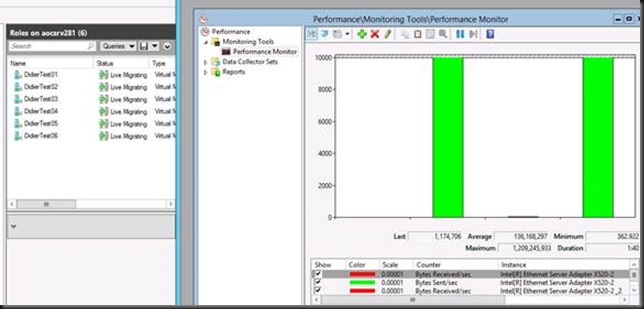
This is interesting and frankly a bit unexpected as the documentation on this subject is not reflecting this. However it IS in agreement with the NIC teaming documented behavior for other tan Live Migration traffic. We took a closer look however and can reproduce this over and over again. Again we tested both switch dependent static and LACP modes and we found the behavior to be the same.
Switch Independent with Address Hash
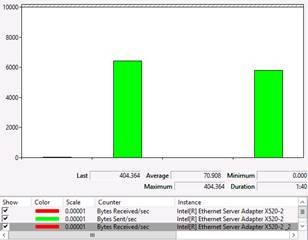
Let’s test Live Migration over switch independent teaming with Address Hash. Here we see that the source server sends on the two member of the NIC team but that the target server receives on only one. This is normal behavior for switch independent teaming. But from the documentation we expect that one member on the source server would send and one member on the target server would receive. Not so.
Basically with Windows Server 2012 this doesn’t give you any benefit for throughput. You are limited to the bandwidth of one member, i.e. 10Gbps.
Red is Total Bytes received on the target host. It’s clear only one member is being used. Green is Bytes Sent/Sec on the source server. As you can see both team members are involved. In a switch independent scenario the receiving side limits the throughput. This is in agreement the documented behavior of switch independent NIC teaming with Address hash.
Helpful documentation on this is Windows Server 2012 NIC Teaming (LBFO) Deployment and Management (A Guide to Windows Server 2012 NIC Teaming for the novice and the expert).
Hope this helps sort out some of the confusion.



![clip_image002[4]](https://blog.workinghardinit.work/wp-content/uploads/2013/06/clip_image0024.jpg "clip_image002[4]")
![clip_image004[4]](https://blog.workinghardinit.work/wp-content/uploads/2013/06/clip_image0044.jpg "clip_image004[4]")