Fixing A Little Quirk In Dell Compellent Replay Manager

If you’re running a DELL Compellent SAN you’re probably familiar with Replay Manager. It’s Compellent’s solution to take VSS based (and as such application consistent) snapshots.image
When you’re running Replay Manager you might run into the following issue when trying to access a host.image
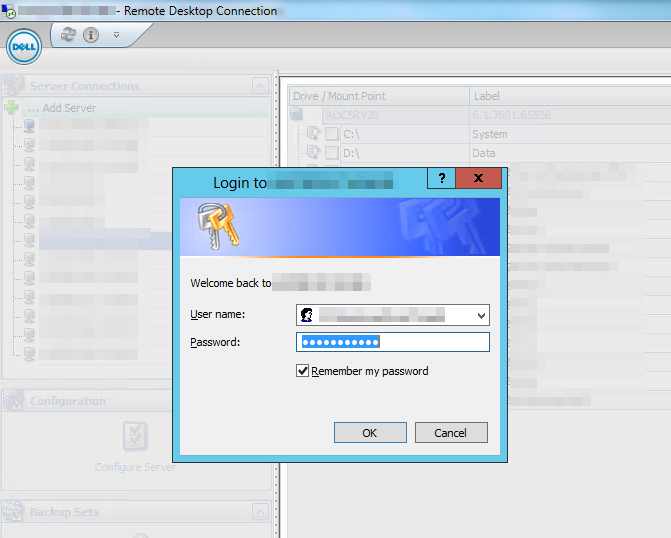
Every time, you access a host for the first time after opening Replay Manager you’ll be prompted for your password, even if you select Remember my password. You don’t need to retype it so that’s fine, but you do need to click it.

In the system log you’ll see the below error logged.image
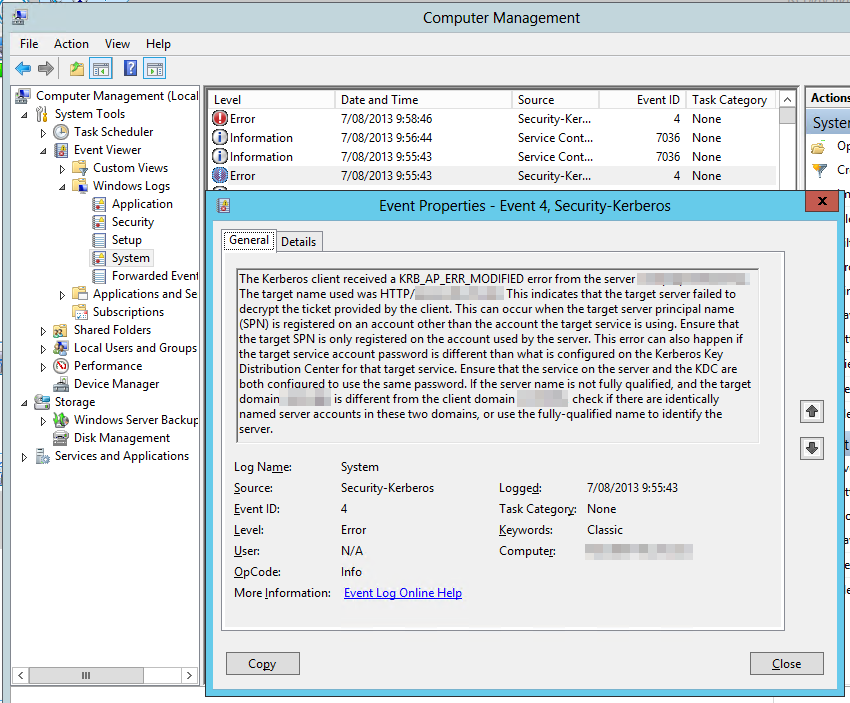
Log Name:      System
Source:        Microsoft-Windows-Security-Kerberos
Date:          7/08/2013 9:55:43
Event ID:      4
Task Category: None
Level:         Error
Keywords:      Classic
User:          N/A
Computer:      replayserver.test.lab
Description:
The Kerberos client received a KRB_AP_ERR_MODIFIED error from the server replaymanagerservice. The target name used was HTTP/myhost.test.lab. This indicates that the target server failed to decrypt the ticket provided by the client. This can occur when the target server principal name (SPN) is registered on an account other than the account the target service is using. Ensure that the target SPN is only registered on the account used by the server. This error can also happen if the target service account password is different than what is configured on the Kerberos Key Distribution Center for that target service. Ensure that the service on the server and the KDC are both configured to use the same password. If the server name is not fully qualified, and the target domain (TEST.LAB) is different from the client domain (TEST.LAB), check if there are identically named server accounts in these two domains, or use the fully-qualified name to identify the server.

Well, this a rather well know issue in the Microsoft world. Take a look here IIS 7+ Kerberos authentication failure: KRB_AP_ERR_MODIFIED. Browse to the possible causes & solutions. You’ll find this situation right in there. So what we do is execute the following command to register the correct SPN for the host or hosts on the Replay Manager service account:

SetSPN -a HTTP/myhost.test.lab TESTreplaymanagerservice

Do note to run this from an elevated command prompt using a account with sufficient AD permissions in AD. You’ll now no longer have to click on the username/password prompt and get rid of that error.

You can verify if the SPB for your hosts exists on your Replay Manager Service account by running:

SetSPN -l  TESTreplaymanagerservice

If this is the biggest issue you’ll ever have with a hardware snapshot service & hardware provider you know you’ve got a good solution.

Virtual Receive Side Scaling (vRSS) In Windows Server 2012 R2 Hyper-V

What is it?

One of the cool new features that takes scalability in Windows Server 2012 R2 Hyper-V to a new level is virtual Receive Side Scaling (vRSS). While since In Windows Server 2012, Receive Side Scaling (RSS) over SR-IOV is supported it’s best suited for some specialized environments that require the best possible speeds at the lowest possible latencies. While SR-IOV is great for performance it’s not as flexible as for example you can’t team them so if you need redundancy you’ll need to do guest NIC Teaming.

vRSS is supported on the VM network path (vNIC, vSwitch, pNIC) and allows VMs to scale better under heavier network loads. The lack of RSS support in the guest means that there is only one logical CPU (core 0) that has to deal with all the network interrupts.  vRSS avoid this bottleneck by spreading network traffic among multiple VM processors. Which is great news for data copy heavy environments.

What do you need?

Nothing special, it works with any NICs that supports VMQ and that’s about all 10Gbps NICs you can buy or posses. So no investment is needed. It’s basically the DVMQ capability on the host NIC that has VMQ capabilities that allows for vRSS to be exposed inside of the VM over the vSwitch. To take advantage of vRSS, VMs must be configured to use multiple cores, and they must support RSS => turn it on in the vNIC configuration in the guest OS and don’t try to use a home PC 1Gbps card Winking smile

image

vRSS is enabled automatically when the VM uses RSS on the VM network path. The other good news is that this works over NIC Teaming. So you don’t have to do in guest NIC Teaming.

What does it look like?

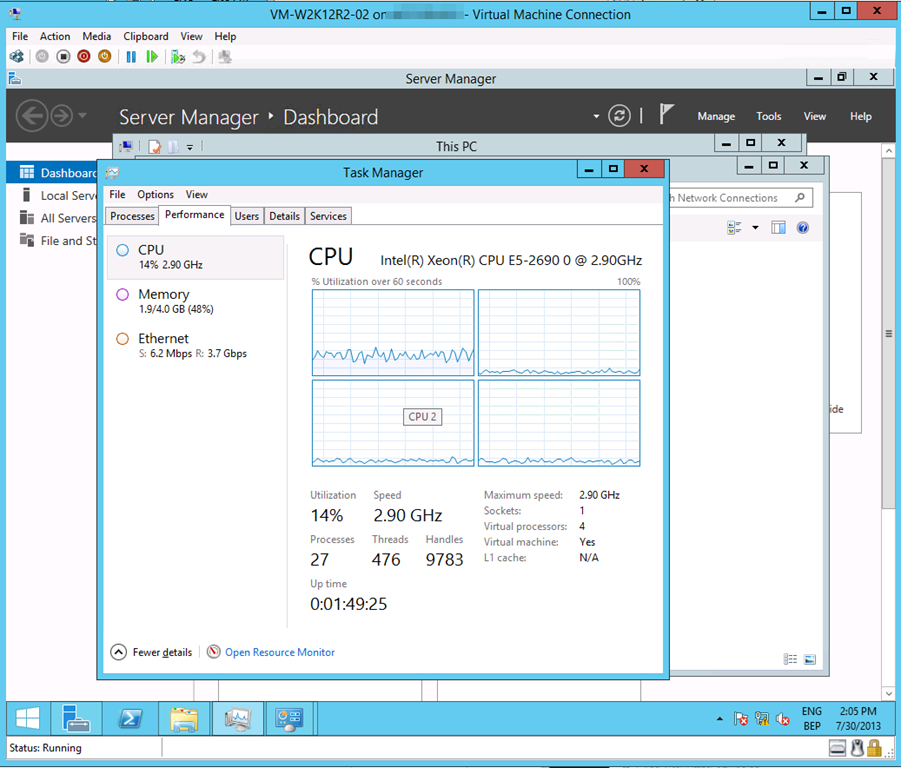
Now without SR-IOV it was a serious challenge to push that 10Gbps vNIC to it’s limit due to all the interrupt handling being dealt with by a single CPU core. Here’s what a VMs processor looks like under a sustained network load without vRSS. Not to shabby, but we want more Smile

image
As you can see the incoming network traffic has the be dealt with by good old vCore 0. While DVMQ allows for multiple processors on the host dealing with the interrupts for the VMs it still means that you have a single core per VM. That one core is possibly a limiting factor (if you can get the network throughput and storage IO, that is). vRSS deals with this limitation. Look at the throughput we got copying  lot of data to the VM below leveraging vRSS. Yeah that’s 8.5Gbps inside of a VM. Sweet Open-mouthed smile. I’m sure I can get to 10Gbps …

image

Some ODX Fun With Windows Server 2012 R2 And A Dell Compellent SAN

I’m playing and examining some of the ODX capabilities of our SANs (Dell, Compellent) at the moment. It all seems pretty impressive in the demo’s. But how does that behave in real live on our gear? How impressive is ODX? Well pretty darn impressive actually. And as all great power it needs to be wielded carefully, with insight and thought.

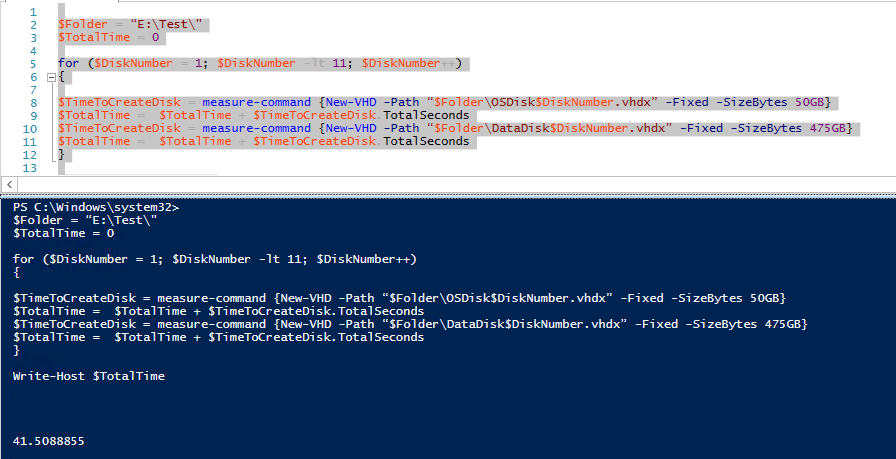
Let’s create some fixed virtual disks. 10 * 50GB vhdx and 10* 475GB vhdx. We run a simple quick PowerShell script:

image

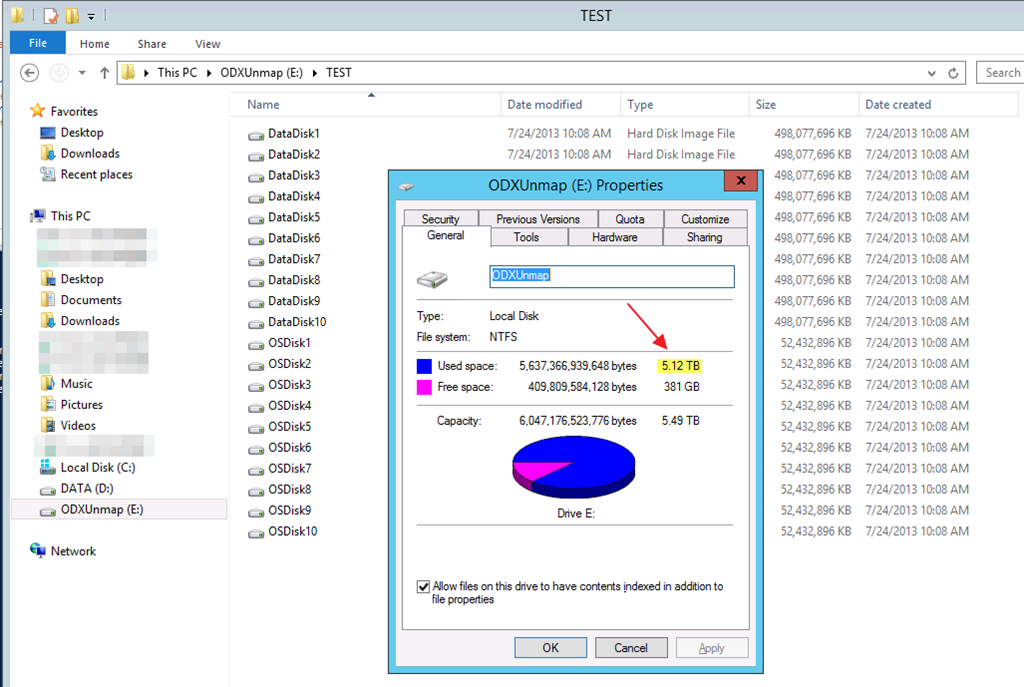
You see this correctly, it’s 41.5088855 seconds. let’s round up to 42 seconds. That’s 20 fixed VHDX files. 10 of 50GB, 10 of 475GB in 42 seconds. That’s a total of 5.12TB of vhdx files.

image

Compared to creating a single 5TB vhdx file this isn’t to shabby as that get done in 26 seconds!

You can only dream of the kind of scenario’s this kind of power enables. Woooot!!!

Live Migration over NIC Team in Switch Independent Mode With Dynamic Load Balancing & Compression in Windows Server 2012 R2

In a previous blog post Live Migration over NIC Team in Switch Independent Mode With Dynamic Load Balancing & TCP/IP in Windows Server 2012 R2 we looked at what Dynamic load balancing mode in NIC teaming can do for us . Especially in a switch independent configuration as until now there was no possibility to leverage the complete bandwidth provided by the NIC team when migrating between only 2 nodes. I that blog we used TCP/IP. Now we’ll configure Compression and see what that does for us.

So we set up a NIC team in switch independent mode with Dynamic load balancing, it’s identical as that one used for the tests with TCP/IP.

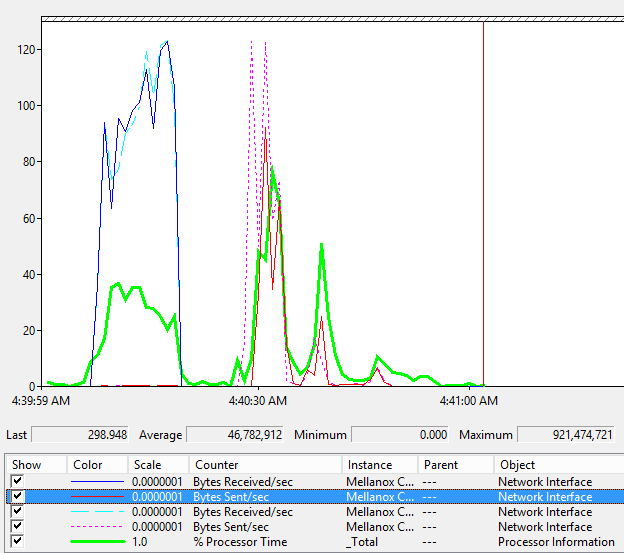
Compression basically slashes the live migration times in half at a cost. CPU cycles.And again with Dynamic load balancing we can now also use all member of a NIC team for live migration even in switch independent mode. The speeds for live migrating 6 VMs  with 9GB of memory simultaneously were 12-14 seconds.

image

Take a look at the screen shot above. You see 6 VMs coming in to the host where these counters are collected and after that you see them being live migrated away from the host. As we have plenty of idle cycles I this test lab they get used, both when being the target and the source of the VMs being live migrated. You can also see that a lot less bandwidth is needed to achieve a faster live migration experience (compared to TCP/IP).

By the looks of it the extra bandwidth will help out when we have less CPU and vice versa. This is both the case for a single NIC or teamed NICs. Do note that you cannot combine compression with Multichannel. That means that the only scenario allowing for multiple NICs to be used with compression is NIC teaming. When you have a bunch  of free 1Gbps NICs in surplus this might get things moving for you!

Interesting stuff. I’m really looking forward to the moment we can run production loads on these configurations …