When using file shares as backup targets you should leverage continuous available SMB 3 file shares

Introduction

When using file shares as backup targets you should leverage Continuous Available SMB 3 file shares. For now, at least. A while back Anton Gostev wrote a very interesting piece in his “The Word from Gostev”. It was about an issue that they saw with people using SMB 3 files shares as backup targets with Veeam Backup & Replication. To some it was a reason to cry wolf. But it’s a probably too little-known issue that can and a such might (will) occur. You need to be aware of it to make good decisions and give good advice.

I’m the business of building rock solid solutions that are highly available to continuous available. This means I’m always looking into the benefits and drawbacks of design choices. By that I mean I study, test and verify them as well. I don’t do “Paper Proof of Concepts”. Those are just border line fraud.

So, what’s going on and what can you do to mitigate the risk or avoid it all together?

Setting the scenario

Your backup software (in our case Veeam Backup & Recovery) running on Windows leverages an SMB 3 file share as a backup target. This could be a Windows Server file share but it doesn’t have to be. It could be a 3rd party appliance or storage array.
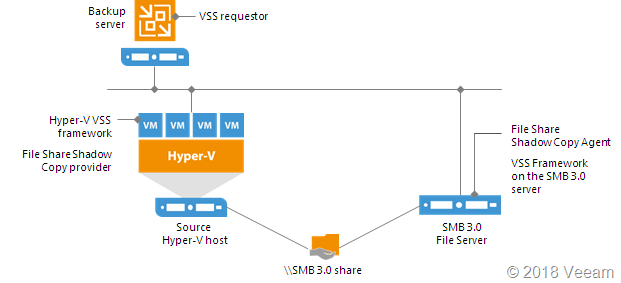
When using file shares as backup targets you should leverage Continuous Available SMB 3 file shares.

The SMB client

The client is the SMB 3 Client Microsoft delivers in the OS (version depends on the OS version). But this client is under control of Microsoft. Let’s face it the source in these scenarios is a Hyper-V host/cluster or a Windows SMB 3 Windows File share, clustered or not.

The SMB server

In regards to the target, i.e. the SMB Server you have a couple of possibilities. Microsoft or 3rd party.

If it’s a third-party SMB 3 implementation on Linux or an appliance. You might not even know what is used under the hood as an OS and 3rd party SMB 3 solution. It could be a storage vendors native SMB 3 implementation on their storage array or simple commodity NAS who bought a 3rd party solution to leverage. It might be high available or in many (most?) cases it is not. It’s hard to know if the 3rd party implements / leverages the full capabilities of the SMB 3 stack as Microsoft does or not. You light not know of there are any bugs in there or not.

You get the picture. If you bank on appliances, find out and test it (trust but verify). But let’s assume its capabilities are on par with what Windows offers and that means the subject being discussed goes for both 3rd party offerings and Windows Server.

When the target is Windows Server we are talking about SMB 3 File Shares that are either Continuous Available or not. For backup targets General Purpose File Shares will do. You could even opt to leverage SOFS (S2D for example). In this case you know what’s implemented in what version and you get bug fixes from MSFT.

When you have continuously available (CA) SMB 3 shares you should be able to sleep sound. SMB 3 has you covered. The risks we are discussing is related to non-CA SMB 3 file shares.

What could go wrong?

Let’s walk through this. When your backup software writes to an SMB 3 share it leverages the SMB 3 client & server in the SMB 3 stack. Unlike when Veeam uses its own data mover, all the cool data persistence stuff is handled by Windows transparently. The backup software literally hands of the job to Windows. Which is why you can also leverage SMB Multichannel and SMB direct with your backups if you so desire. Read Veeam Backup & Replication leverages SMB Multichannel and Veeam Backup & Replication Preferred Subnet & SMB Multichannel for more on this.

If you are writing to a non-CA SMB 3 share your backup software receives the messages the data has been written. Which actually means that the data is cached in the SMB Clients “queue” of data to write but which might not have been written to the storage yet.

For short interruptions this is survivable and for Office and the like this works well and delivers fast performance. If the connection is interrupted or the share is unavailable the queue keeps the data in memory for a while. So, if the connection restores the data can be written. The SMB 3 Client is smart.

However, this has its limits. The data cache in the queue doesn’t exist eternally. If the connectivity loss or file share availability take too long the data in the SMB 3 client cache is lost. But it was not written to storage! To add a little insult to injury the SBM client send back “we’re good” even when the share has been unreachable for a while.

For backups this isn’t optimal. Actually, the alarm bell should start ringing when it is about backups. Your backup software got a message the data has been written and doesn’t know any better. But is not on the backup target. This means the backup software will run into issues with corrupted backups sooner or later (next backup, restores, synthetic full backups, merges, whatever comes first).

Why did they make it this way?

This is OK default behavior. it works just fine for Office files / most knowledge worker client software that have temp files, auto recovery, and all such lovely capabilities and work is mostly individual and interactive. Those applications are resilient to this by nature. Mind you, all my SMB 3 file share deployments are clustered and highly available where appropriate. By “appropriate” I mean when we don’t have off line caching for those shares as a requirement as those too don’t mix well (https://blogs.technet.microsoft.com/filecab/2016/03/15/offline-files-and-continuous-availability-the-monstrous-union-you-should-not-consecrate/). But when you know what your doing it rocks. I can actually failover my file server roles all day long for patching, maintenance & fun when the clients do talk SMB 3. Oh, and it was a joy to move that data to new SANs under the hood. More on that perhaps in another post. But I digress.

You need adequate storage in all uses cases

This is a no brainer. Nothing will save you if the target storage isn’t up to the task. Not the Veeam data move or SMB3 shares with continuous availability. Let’s be very clear about this. Even at the cost-effective side of the equation the storage has to be of sufficient decent quality to prevent data loss. That means decent controllers with battery cached IO as safe guard etc. Whether that’s a SAN or a “simple” raid controller or pass through HBA’s for storage spaces, doesn’t matter. You have to have it. Putting your data on SATA drives without any save guard is sure way of risking data loss. That’s as simple as it gets. You don’t do that, unless you don’t care. And if you care, you would not be reading this!

Can this be fixed?

Well as a non-SMB 3 developer I would say we need an option added that the SMB 3 client can be configured to not report success until that data has been effectively written on the target, or at least has landed somewhere on quality, cache protected storage.

This option does not exist today. I do not work for Microsoft but I know some people there and I’m pretty sure they want to fix it. I’m just not sure how big of a priority it is at the moment. For me it’s important that when a backup application goes to a non-continuous available file share it can request that it will not cache and the SMB Server says “OK” got it, I will behave accordingly. Now the details in the implementation will be different but you get the message?

I would like to make the case that it should be a configurable option. It is not needed for all scenarios and it might (will) have an impact on performance. How big that would be I have no clue. I’m just a blogger who does IT as a job. I’m not a principal PM at Microsoft or so.

If you absolutely want to make sure, use clustered continuous available file shares. Works like a charm. Read this blog Continuous available general purpose file shares & ReFSv3 provide high available backup targets, there is even one of my not so professional videos show casing this.

It’s also important not to panic. Most of you might even never has heard or experienced this. But depending on the use case and the quality of the network and processes you might. In a backup scenario this is not something that makes for a happy day.

The cry wolf crowd

I’ll be blunt. WARNING. Take a hike if you have a smug “Windoze sucks” attitude. If you want to deal dope you shouldn’t be smoking too much of your own stuff, but primarily know it inside out. NFS in all its varied implementations has potential issues as well. So, I’d also do my due diligence with any solution you recommend. Trust but verify, remember?! Actually, an example of one such an issue was given for an appliance with NFS by Veeam. Guess what, every one has issues. Choose your poison, drink it and let other chose theirs. Condescending remarks just make you look bad every time. And guess what that impression tends to last. Now on the positive side, I hear that caching can be disabled on modern NFS client implementations. So, the potential issue is known and is is being addressed there as well.

Conclusion

Don’t panic. I just discussed a potential issue than can occur and that you should be aware off when deciding on a backup target. If you have rock solid networking and great server management processes you can go far without issues, but that’s not 100 % fail proof. As I’m in the business of building the best possible solutions it’s something you need to be aware off.

But know that they can occur, when and why so you can manage the risk optimally. Making Windows Server SMB 3 file shares Continuously Available will protect against this effectively. It does require failover clustering. But at least now you know why I say that when using file shares as backup targets you should leverage continuous available SMB 3 file shares

When you buy appliances or 3rd party SMB 3 solutions, this issue also exists but be extra diligent even with highly available shares. Make sure it works as it should!

I hope Microsoft resolves this issue as soon as possible. I’m sure they want to. They want their products to be the best and fix any possible concerns you might have.
Correcting the permissions on the folder with VHDS files & checkpoints for host level Hyper-V guest cluster backups

Introduction

It’s not a secret that while guest clustering with VHDSets works very well. We’ve had some struggles in regards to host level backups however. Right now I leverage Veeam Agent for Windows (VAW) to do in guest backups. The most recent versions of VAW support Windows Failover Clustering. I’d love to leverage host level backups but I was struggling to make this reliable for quite a while. As it turned out recently there are some virtual machine permission issues involved we need to fix. Both Microsoft and Veeam have published guidance on this in a KB article. We automated correcting the permissions on the folder with VHDS files & checkpoints for host level Hyper-V guest cluster backup

The KB articles

Early August Microsoft published KB article with all the tips when thins fail Errors when backing up VMs that belong to a guest cluster in Windows. Veeam also recapitulated on the needed conditions and setting to leverage guest clustering and performing host level backups. The Veeam article is Backing up Hyper-V guest cluster based on VHD set. Read these articles carefully and make sure all you need to do has been done.

For some reason another prerequisite is not mentioned in these articles. It is however discussed in ConfigStoreRootPath cluster parameter is not defined and here https://docs.microsoft.com/en-us/powershell/module/hyper-v/set-vmhostcluster?view=win10-ps You will need to set this to make proper Hyper-V collections needed for recovery checkpoints on VHD Sets. It is a very unknown setting with very little documentation.

But the big news here is fixing a permissions related issue!

The latest addition in the list of attention points is a permission issue. These permissions are not correct by default for the guest cluster VMs shared files. This leads to the hard to pin point error.

Error Event 19100 Hyper-V-VMMS 19100 ‘BackupVM’ background disk merge failed to complete: General access denied error (0x80070005). To fix this issue, the folder that holds the VHDS files and their snapshot files must be modified to give the VMMS process additional permissions. To do this, follow these steps for correcting the permissions on the folder with VHDS files & checkpoints for host level Hyper-V guest cluster backup.

Determine the GUIDS of all VMs that use the folder. To do this, start PowerShell as administrator, and then run the following command:

get-vm | fl name, id
Output example:
Name : BackupVM
Id : d3599536-222a-4d6e-bb10-a6019c3f2b9b

Name : BackupVM2
Id : a0af7903-94b4-4a2c-b3b3-16050d5f80f

For each VM GUID, assign the VMMS process full control by running the following command:
icacls <Folder with VHDS> /grant “NT VIRTUAL MACHINE\<VM GUID>”:(OI)F

Example:
icacls “c:\ClusterStorage\Volume1\SharedClusterDisk” /grant “NT VIRTUAL MACHINE\a0af7903-94b4-4a2c-b3b3-16050d5f80f2”:(OI)F
icacls “c:\ClusterStorage\Volume1\SharedClusterDisk” /grant “NT VIRTUAL MACHINE\d3599536-222a-4d6e-bb10-a6019c3f2b9b”:(OI)F

My little PowerShell script

As the above is tedious manual labor with a lot of copy pasting. This is time consuming and tedious at best. With larger guest clusters the probability of mistakes increases. To fix this we write a PowerShell script to handle this for us.

#Didier Van Hoye
#Twitter: @WorkingHardInIT 
#Blog: https://blog.Workinghardinit.work
#Correct shared VHD Set disk permissions for all nodes in guests cluster

$GuestCluster = "DemoGuestCluster"
$HostCluster = "LAB-CLUSTER"

$PathToGuestClusterSharedDisks = "C:\ClusterStorage\NTFS-03\GuestClustersSharedDisks"


$GuestClusterNodes = Get-ClusterNode -Cluster $GuestCluster

ForEach ($GuestClusterNode in $GuestClusterNodes)
{

#Passing the cluster name to -computername only works in W2K16 and up.
#As this is about VHDS you need to be running 2016, so no worries here.
$GuestClusterNodeGuid = (Get-VM -Name $GuestClusterNode.Name -ComputerName $HostCluster).id

Write-Host $GuestClusterNodeGuid "belongs to" $GuestClusterNode.Name

$IcalsExecute = """$PathToGuestClusterSharedDisks""" + " /grant " + """NT VIRTUAL MACHINE\"+ $GuestClusterNodeGuid + """:(OI)F"
write-Host "Executing " $IcalsExecute
CMD.EXE /C "icacls $IcalsExecute"

} 

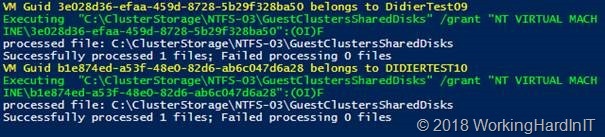
Below is an example of the output of this script. It provides some feedback on what is happening.

Correcting the permissions on the folder with VHDS files & checkpoints for host level Hyper-V guest cluster backup

Correcting the permissions on the folder with VHDS files & checkpoints for host level Hyper-V guest cluster backup

PowerShell for the win. This saves you some searching and typing and potentially making some mistakes along the way. Have fun. More testing is underway to make sure things are now predictable and stable. We’ll share our findings with you.

Collect cluster nodes with HBA WWN info

Introduction

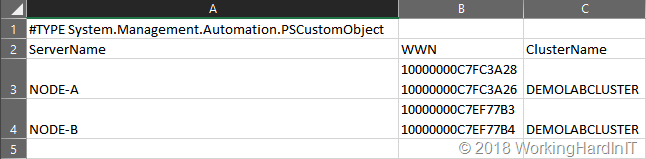
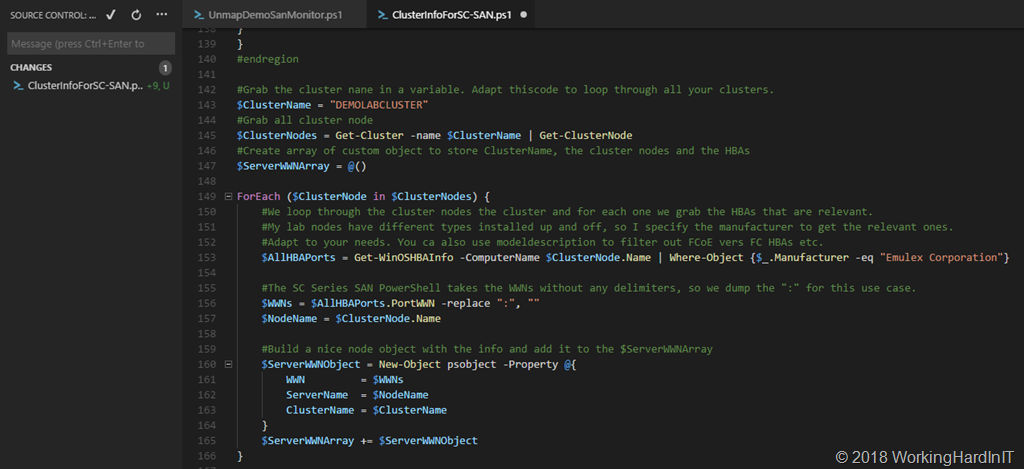
Below is a script that I use to collect cluster nodes with HBA WWN info. It grabs the cluster nodes and their HBA (virtual ports) WWN information form an existing cluster. In this example the nodes have Fibre Channel (FC) HBAs. It works equally well for iSCSI HBA or other cards. You can use the collected info in real time. As an example I also demonstrate writing and reading the info to and from a CSV.

This script comes in handy when you are replacing the storage arrays. You’ll need that info to do the FC zoning for example.  And to create the cluster en server object with the correct HBA on the new storage arrays if it allows for automation. As a Hyper-V cluster admin you can grab all that info from your cluster nodes without the need to have access to the SAN or FC fabrics. You can use it yourself and hand it over to those handling them, who can use if to cross check the info they see on the switch or the old storage arrays.

image

Script to collect cluster nodes with HBA WWN info

The script demos a single cluster but you could use it for many. It collects the cluster name, the cluster nodes and their Emulex HBAs. It writes that information to a CSV files you can read easily in an editor or Excel.

image

The scripts demonstrates reading that CSV file and parsing the info. That info can be used in PowerShell to script the creation of the cluster and server objects on your SAN and add the HBAs to the server objects. I recently used it to move a bunch of Hyper-V and File clusters to a new DELLEMC SC Series storage arrays. That has the DELL Storage PowerShell SDK. You might find it useful as an example and to to adapt for your own needs (iSCSI, brand, model of HBA etc.).

#region Supporting Functions
Function Convert-OutputForCSV {
    <#
        .SYNOPSIS
            Provides a way to expand collections in an object property prior
            to being sent to Export-Csv.

        .DESCRIPTION
            Provides a way to expand collections in an object property prior
            to being sent to Export-Csv. This helps to avoid the object type
            from being shown such as system.object[] in a spreadsheet.

        .PARAMETER InputObject
            The object that will be sent to Export-Csv

        .PARAMETER OutPropertyType
            This determines whether the property that has the collection will be
            shown in the CSV as a comma delimmited string or as a stacked string.

            Possible values:
            Stack
            Comma

            Default value is: Stack

        .NOTES
            Name: Convert-OutputForCSV
            Author: Boe Prox
            Created: 24 Jan 2014
            Version History:
                1.1 - 02 Feb 2014
                    -Removed OutputOrder parameter as it is no longer needed; inputobject order is now respected 
                    in the output object
                1.0 - 24 Jan 2014
                    -Initial Creation

        .EXAMPLE
            $Output = 'PSComputername','IPAddress','DNSServerSearchOrder'

            Get-WMIObject -Class Win32_NetworkAdapterConfiguration -Filter "IPEnabled='True'" |
            Select-Object $Output | Convert-OutputForCSV | 
            Export-Csv -NoTypeInformation -Path NIC.csv    
            
            Description
            -----------
            Using a predefined set of properties to display ($Output), data is collected from the 
            Win32_NetworkAdapterConfiguration class and then passed to the Convert-OutputForCSV
            funtion which expands any property with a collection so it can be read properly prior
            to being sent to Export-Csv. Properties that had a collection will be viewed as a stack
            in the spreadsheet.        
            
    #>
    #Requires -Version 3.0
    [cmdletbinding()]
    Param (
        [parameter(ValueFromPipeline)]
        [psobject]$InputObject,
        [parameter()]
        [ValidateSet('Stack', 'Comma')]
        [string]$OutputPropertyType = 'Stack'
    )
    Begin {
        $PSBoundParameters.GetEnumerator() | ForEach {
            Write-Verbose "$($_)"
        }
        $FirstRun = $True
    }
    Process {
        If ($FirstRun) {
            $OutputOrder = $InputObject.psobject.properties.name
            Write-Verbose "Output Order:`n $($OutputOrder -join ', ' )"
            $FirstRun = $False
            #Get properties to process
            $Properties = Get-Member -InputObject $InputObject -MemberType *Property
            #Get properties that hold a collection
            $Properties_Collection = @(($Properties | Where-Object {
                        $_.Definition -match "Collection|\[\]"
                    }).Name)
            #Get properties that do not hold a collection
            $Properties_NoCollection = @(($Properties | Where-Object {
                        $_.Definition -notmatch "Collection|\[\]"
                    }).Name)
            Write-Verbose "Properties Found that have collections:`n $(($Properties_Collection) -join ', ')"
            Write-Verbose "Properties Found that have no collections:`n $(($Properties_NoCollection) -join ', ')"
        }
 
        $InputObject | ForEach {
            $Line = $_
            $stringBuilder = New-Object Text.StringBuilder
            $Null = $stringBuilder.AppendLine("[pscustomobject] @{")

            $OutputOrder | ForEach {
                If ($OutputPropertyType -eq 'Stack') {
                    $Null = $stringBuilder.AppendLine("`"$($_)`" = `"$(($line.$($_) | Out-String).Trim())`"")
                }
                ElseIf ($OutputPropertyType -eq "Comma") {
                    $Null = $stringBuilder.AppendLine("`"$($_)`" = `"$($line.$($_) -join ', ')`"")                   
                }
            }
            $Null = $stringBuilder.AppendLine("}")
 
            Invoke-Expression $stringBuilder.ToString()
        }
    }
    End {}
}
function Get-WinOSHBAInfo {
<#
Basically add 3 nicely formated properties to the HBA info we get via WMI
These are the NodeWWW, the PortWWN and the FabricName. The raw attributes
from WMI are not readily consumable. WWNs are given with a ":" delimiter.
This can easiliy be replaced or removed depending on the need.
#>

param ($ComputerName = "localhost")
 
# Get HBA Information
$Port = Get-WmiObject -ComputerName $ComputerName -Class MSFC_FibrePortHBAAttributes -Namespace "root\WMI"
$HBAs = Get-WmiObject -ComputerName $ComputerName -Class MSFC_FCAdapterHBAAttributes  -Namespace "root\WMI"
 
$HBAProperties = $HBAs | Get-Member -MemberType Property, AliasProperty | Select -ExpandProperty name | ? {$_ -notlike "__*"}
$HBAs = $HBAs | Select-Object $HBAProperties
$HBAs | % { $_.NodeWWN = ((($_.NodeWWN) | % {"{0:x2}" -f $_}) -join ":").ToUpper() }
 
ForEach ($HBA in $HBAs) {
 
    # Get Port WWN
    $PortWWN = (($Port |? { $_.instancename -eq $HBA.instancename }).attributes).PortWWN
    $PortWWN = (($PortWWN | % {"{0:x2}" -f $_}) -join ":").ToUpper()
    Add-Member -MemberType NoteProperty -InputObject $HBA -Name PortWWN -Value $PortWWN
    # Get Fabric WWN
    $FabricWWN = (($Port |? { $_.instancename -eq $HBA.instancename }).attributes).FabricName
    $FabricWWN = (($FabricWWN | % {"{0:x2}" -f $_}) -join ":").ToUpper()
    Add-Member -MemberType NoteProperty -InputObject $HBA -Name FabricWWN -Value $FabricWWN
 
    # Output
    $HBA
}
}
#endregion 

#Grab the cluster nane in a variable. Adapt thiscode to loop through all your clusters.
$ClusterName = "DEMOLABCLUSTER"
#Grab all cluster node 
$ClusterNodes = Get-Cluster -name $ClusterName | Get-ClusterNode
#Create array of custom object to store ClusterName, the cluster nodes and the HBAs
$ServerWWNArray = @()

ForEach ($ClusterNode in $ClusterNodes) {
    #We loop through the cluster nodes the cluster and for each one we grab the HBAs that are relevant.
    #My lab nodes have different types installed up and off, so I specify the manufacturer to get the relevant ones.
    #Adapt to your needs. You ca also use modeldescription to filter out FCoE vers FC HBAs etc.
    $AllHBAPorts = Get-WinOSHBAInfo -ComputerName $ClusterNode.Name | Where-Object {$_.Manufacturer -eq "Emulex Corporation"} 

    #The SC Series SAN PowerShell takes the WWNs without any delimiters, so we dump the ":" for this use case.
    $WWNs = $AllHBAPorts.PortWWN -replace ":", ""
    $NodeName = $ClusterNode.Name

    #Build a nice node object with the info and add it to the $ServerWWNArray 
    $ServerWWNObject = New-Object psobject -Property @{
        WWN         = $WWNs
        ServerName  = $NodeName 
        ClusterName = $ClusterName         
    }
    $ServerWWNArray += $ServerWWNObject
}

#Show our array
$ServerWWNArray

#just a demo to list what's in the array
ForEach ($ServerNode in $ServerWWNArray) {    
    $Servernode.ServerName
    
    ForEach ($WWN in $Servernode.WWN)
    {$WWN}

}

#Show the results
$Export = $ServerWWNArray | Convert-OutputForCSV
#region write to CSV and read from CSV

#You can dump this in a file
$Export | export-csv -Path "c:\SysAdmin\$ClusterName.csv" -Delimiter ";"

#and get it back from a file
Get-Content -Path "c:\SysAdmin\$ClusterName.csv"
$ClusterInfoFile = Import-CSV -Path "c:\SysAdmin\$ClusterName.csv" -Delimiter ";"
$ClusterInfoFile | Format-List

#just a demo to list what's in the array
$MyClusterName = $ClusterInfoFile.clustername | get-unique
$MyClusterName
ForEach ($ClusterNode in $ClusterInfoFile) {  

    $ClusterNode.ServerName
    
    ForEach ($WWN in $ClusterNode.WWN) {
        $WWN
    }

}

Latency kills

Introduction

I was investigating a very problematic Windows Server 2016 Hyper-V cluster. That cluster was just performing horribly. “Everything” was hanging, stalling, crashing and RHS.exe errors where flying around while WER dumps got created by the dozen. Things were extremely slow up to the points functionality was just failing. The “fun” thing was that the cluster validation wizard while slow gave that cluster a big thumb up and a supported status as all was well.

Prying around

Time to pry around a bit and see if we could find something wrong. We save live migrations stall, fail, last forever in pending or get stuck at a certain percentage, sometimes finally succeeding with ridiculous blackout times. We could not open up virtual machine properties or very slowly. The FCI GUI was highly unresponsive but so was the Hyper-V Manager GUI or even PowerShell. Those were hanging at even loading the virtual machines or enumerating them with Get-VM. Everything was slow to the point it timed out or crashed. Restarting the services (Cluster, Hyper-V) didn’t do anything and restarting VMMS was super slow or just got stuck. It was a depressing sight for which people tended to blame Hyper-V / Microsoft.

As the title gives away it was latency. Not just ordinary high latency. Real bad latency. That kind of latency kills. Extreme latency produces symptoms that are similar to bugs or corrupt components of roles and features. We have a tendency to look at those first in the event logs and then we look at the network and its usual suspects (VMQ, SET, DCB). But nothing pointed to an issue that I could find.

So, storage maybe?Well we did find one Hyper-V host in the cluster with one HBA port producing too many error so we disabled that FC port for testing. No joy the Hyper-V cluster after a clean reboot of all nodes remained problematic. So on to the storage array itself.

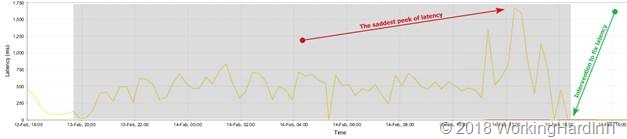
Well holy smoke! On the two volumes for CSV in those cluster we saw latencies that were so bad I could not even believe a single VM would boot. It actually made my appreciation for Hyper-V and clustering grow as it managed to do at least a couple of things. With such latencies I would expect the services to just crash & call it a day.

clip_image002

The horrific latency on one of the CSV LUNs.

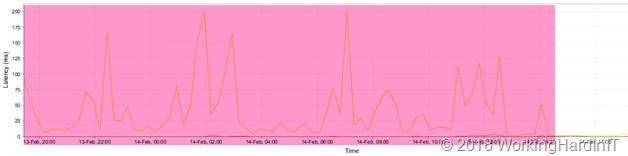
Looking at the logs we saw that the latencies occurred on the FC HBAs of the controllers. Each one above 50ms, peaking to 150-250ms and one huge peak at almost 500ms. We saw this on all four HBA’s.

clip_image004

The latency on one of the 4 FC HBA’s on one of the controllers. Not a good day. All HBAs had high latencies like this.

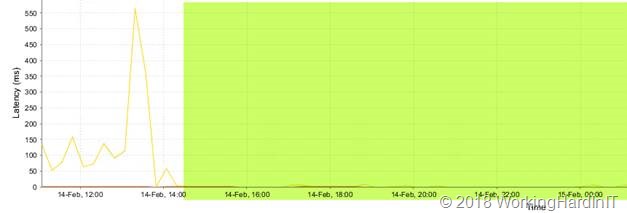
The issues were not at the host level (host HBA’s) or not even at the IOPS/bandwidth level of the storage itself. The latency for some reason was spiking. Further investigation lead to the conclusion that the issue was related to synchronous replication going totally wrong. Moving the replication mode to asynchronous fixed that. We’re now investigating why this happened and how to prevent this from happening again. But that’s another story.

clip_image006

Latency on one of the 4 FC HBAs on one of the controllers after we fixed the issue.

Do not assume anything

So, there you go. Everything depends on everything in some direct or indirect way. It’s all connected and that my friends, is why I’m a proponent of “service resilience engineering” where the responsible team owns the entire stack. That’s is how you can act fast.