Flash Forward To Windows Server 2012 SP1

No, it doesn’t exist yet. But when you muck around in a lab a lot kicking the tires and trying to break stuff just to see how it reacts, doing unsupported stuff you can get a “flash forward” sometimes. image

Look at the picture above, this is what a rolling upgrade from Windows Server 2012 RTM to Windows Server 2012 SP1 might very well look like as this message is the one we all know from the previous versions Smile. Alright, that’s enough time travelling for today. Back to work.

Attending the Dell Tech Summit EMEA

As you read this I’m preparing to get on my way to the DELL Tech Summit in Lisbon, Portugal for a few days. I’ll be discussing the needs we have from them as customers (and their competition actually for that matter) when it comes to hardware in the Microsoft landscape in the era of Windows Server 2012.

image

I’m very happy and eager to tell them what, in my humble opinion, they are doing wrong and what they are doing right and even what they are not doing at all Smile  I believe in giving feedback and interaction with vendors. Not that I have any illusion of self importance as to the impact of my voice on the grand scheme of things but if I don’t speak up nothing changes either. As Intel and Microsoft are there as well,  this makes for a good selection of the partners involved. So here I go:

  1. More information on storage features, specifications and roadmaps
  2. Faster information on storage features, specifications and roadmaps
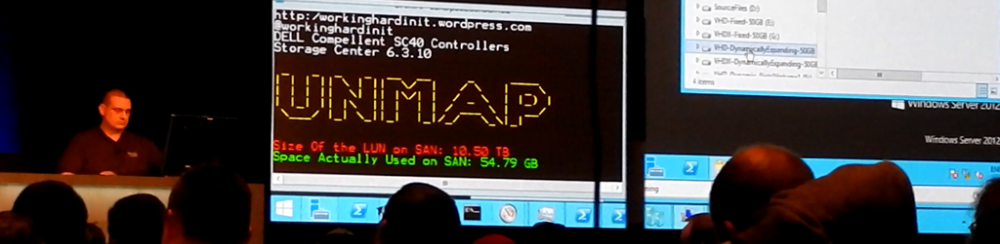
    • Some of these are in regards to Windows Server 2012 & System Center 2012 (Storage Pools & Spaces, SMI-S, ODX, UNMAP, RDMA/SMB3.0 …) and some are more generic like easier & better SAN/Cluster failovers capabilities, ease of use, number of SCSI 3 persistent reservations, etc.
  3. How to address the IOPS lag in the technology evolution. Their views versus my ideas on how to tackle them until we get better solutions.
  4. Plans, if any, for Cluster In a Box (CiB) building blocks for Windows Server 2012 Private Cloud solutions.
  5. When does convergence make sense and when not cost/benefit wise (and at what level). I’d like a bit more insight into what DELLs vision is and how they’ll execute that. What will new storage options mean to that converged network, i.e. SMB 3.0, Multichannel & RDMA capable NICs. Now convergence always seems tied to one tech/protocol (VOIP in the past, FCoE at the moment) and it shouldn’t, plenty of other needs for loads of bandwidth (Live migration, Storage Live Migration, Shared Nothing Live Migration, CSV redirected mode, …).

Now while it’s important to listen to you customers, this is not easy if you want to do it right, far from it. For one we’re all over the place as a group. This is always the case unless you cater to a specialized niche market. But DELL serves both consumers and enterprises form 1 person shops to fortune 500 companies in all fields of human endeavor. That makes for nice cocktail of views and opinions I suspect.

Even more importantly than listening is processing what you hear from your customers. Do you ignore, react, or take it away as more or less valuable information. Information on which to act or not, to use in decision making, and perhaps even in executing those decisions. And let’s face it without execution decisions are pretty academic exercises. In the end management is in control and for all the feedback, advise, research that gathered and done, they are at the steering wheel and they are responsible for the results.

One thing that I do know from my fellow MVPs and the community is that for the past 12 months any vendor who would address those questions with a good plan and communications would be a top favorite while selecting hardware at many customers for a lot of projects.

How To Deploy Windows Server 2012 on DELL UEFI Now–Notes From The field

The most current UEFI OS Deployment on a R810 is a bit finicky when you want to deploy Windows Server 2012 using the normal procedure & selecting “Other OS” as it’s obvious that the entry for Windows Server  2012 is not in there yet. The problem is that the Windows installer doesn’t seem to create the best practice UEFI partitions. It just seems to create a 320MB System Reserved partition and the rest is for your OS installation as Primary partition. In a good (by the book UEFI) install you’d see a layout like this (from Sample: Configure UEFI/GPT-Based Hard Drive Partitions by Using Windows Setup):

image

image

The reason for this seems to be that the firmware is still not 100% up to date for how Windows Server 2012 deals with UEFI installations. This I learned via my very helpful twitter friend Florian Klaffenbach

While an update for the system firmware is in the works and won’t be to long away let me share you how I dealt with this issue. It’s a bit more work but it get’s the job done. At least for me on a R810 with BIOS version 2.7.4.

I’m copying and adapting the step by step from Microsoft Windows Server 2012 Early Adopter Guide – Dell here and adapting it to how I worked around it. It’s “magic” Winking smile.

Installing Using Dell Unified Server Configurator

  1. Connect the keyboard, monitor, mouse, and any additional peripherals to your system
  2. Turn on the system and the attached peripherals.
  3. Press <F10> in the POST to start the System Services. The Initializing UEFI. Please wait… and the Entering System Services…Starting Unified Server Configurator messages are displayed.
  4. In the Unified Server Configurator window, if you want to configure hardware, diagnostics, or set changes, click the appropriate option. If no changes are required, press OS Deployment. => you can opt to start with a cleanly build VDisk. Which is best and should suffice. But is doesn’t. We’ll clean the disk later anyway later on in Step 14.
  5. In the Operating System Deployment window, click Deploy OS. The Configure or Skip RAID window is displayed. If Redundant Array of Independent Disks (RAID) is configured, the window displays the existing RAID configuration details.
  6. Select Go directly to OS Deployment. If RAID is not yet configured, configure it at this time.
  7. Click Next. The Select Operating System window is displayed with a list of compatible operating systems.
  8. Choose Microsoft Windows Server 2012 and click Next.NOTE: If Microsoft Windows Server 2012 is not listed, choose any other operating system
  9. Choose whether you want to deploy the operating system in UEFI or BIOS mode, and click Next => I do not get this choice if UEFI is already on in the BIOS settings
  10. In the Insert OS Media window, insert the Windows Server 2012 media and click Next.
  11. In the Reboot the System screen, follow the instructions on the screen and click Finish. If a Windows operating system is already installed on your system, the following message is displayed: Press any key to boot from the CD/DVD …Press any key to begin the installation. If you used a clean VDisk this is no issue
  12. In the Windows Setup screen, select the appropriate option for Language, Time and Currency Format, and Keyboard or Input Method.
  13. Click Next to continue.
  14. STOP => Select to REPAIR your system and launch a command line. Form there you start diskpart and run following commands on the disk where you want to deploy Windows Server 2012:
    • select disk 0
    • clean
    • convert gpt

      In my case this is Disk 0. This is what the installer should be able to do automatically with a clean disk any way but it doesn’t happen.

      Now DO NOT navigate to the X: root and launch setup again. Shut exit the repair console and shutdown the server.

  15. Start the server
  16. Press <F10> in the POST to start the System Services. The Initializing UEFI. Please wait… and the Entering System Services…Starting Unified Server Configurator messages are displayed. => DO NOT TOUCH ANYTHING ANYMORE. It will take longer than expected but you will boot into the installation of Windows 2012 again.
  17. In the Windows Setup screen, select the appropriate option for Language, Time and Currency Format, and Keyboard or Input Method.
  18. Click Next to continue.
  19. On the next page, click Install Now.
  20. In the Operating System Install screen, select the operating system you want to install. Click Next. The License Terms window is displayed, click Next.
  21. In the Which Type of Installation Do You Want screen, click Custom: Install Windows only (advanced), if it is not selected already.
  22. In the Where do you want to install Windows screen, specify the partition on which you want to install the operating system. To create a partition and begin installation:
    1. Click New
    2. Specify the size of the partition in MB, and click Apply. A Windows might create additional partition for system files message is displayed. => NOW THE UEFI partitions on the GPT disk are created Open-mouthed smile.
    3. Click OK.Select the newly-created operating system partition and click Next.
      The Installing Windows screen is displayed and the installation process begins. After the operating system is installed the system reboots. You must set the administrator password before you can log in for the first time
  23. In the Settings screen, enter the password, confirm the password, and click Finish.
    The operating system installation is complete.

image

Now, while this worked for me on the Dell R810 with BIOS 2.7.4,  I give no guarantees whatsoever. You’ll have to test it yourself or wait for the firmware update that is coming soon. Any way, perhaps it helps some of you out there!

Disk to Disk Backup Solution with Windows Server 2012 – Part I

Backing Up 100 Plus Terabyte of Data Cheaply

When dealing with large amounts of data to backup you’re going to start bleeding money. Sure people will try to sell you great solutions with deduplication, but in a lot of scenarios this is not a very cost effective solution. The cost of dedupe in either backup hardware or software is very expensive and in some scenarios the cost cannot be justified. It’s also not very portable by the way unless in certain scenarios in which you stick with certain vendors. Once you get into backing up  > 100TB you need to forget about overly expensive hard & software. Just build your own solutions. Now depending on your needs you might want to buy backup software anyway but forget about dedupe licenses. Some of the more profitable hosting companies & cloud providers are not buying appliances or dedupe software either. They make real good money but they rather spend it on SUVs and swimming pools.

What Can You Do?

You can build your own solution. Really. You can put together some building blocks that scale up and out. You’ll a dual socket server with two 8 core CPUs and 24GB of ram, perhaps 32GB. Plug in some 6Gbps SAS controllers, hook those up to a bunch of 3.5” disk bays with 12 *2TB or 3TB disks each and you’re good to go. You can scale out to about 8 disk bays if you don’t cluster. Plug in a dual port 10Gbps card. You’ll need that as you be hammering that server. If you need more than this system, than scale out, put in a second, a third, etc. 3.5TB –4TB of backup capacity per hour in total should be achievable..

image

When you buy the components from super micro and some on line retailers you can do this pretty cheap. Spare parts you say? Buy some cold spares. You can have a dozen disk on the shelf, a SAS controller and even a shelf if you want. You could use hardware redundancy (RAID, hot spares) or use storage pools & spaces if you’re going the Windows Server 2012 route and save some extra money. Disk bay failure? Scale out so that even when you loose a node you still have tree others up and running. Spread backups around. Don’t backup the same data only to the same node. I know it’s not perfect for deduplication with Windows 2012 that way but hey, you win some, you lose some. Checks & balances right?  If you need a bit more support get some DELL PowerVaults or the like. It depends on what you’re comfortable with and how deep your pockets are.

You can by more storage than dedupe will ever save you & still come out with money to pay for the electricity. Okay it’s less good for the penguins but trust me, those companies selling those solutions would fry a penguin for breakfast everyday if it would make them money. Now talking about those penguins, the Windows Server 2012 deduplication feature could be providing me with the tools to save them Smile, but that’s for another post. I hope this works. I’d love to see it work. I bet some would hate to see it work. So much perhaps that they might even consider making their backup format non dedupableDevil?

Tip for users: Don’t use really cheap green SATA disks. They’re pretty environment friendly but the performance sucks. My view on “Green IT” is to right size everything, never to over subscribe and let that infrastructure work hard for you. This will minimize the hardware needed  and the performance is way better than all the power saving settings and green hardware. Which will ruin the environment anyway as you’ll end up buying more gear to compensate for lack of performance unless you’ll just suffer the bad performance. Keep the green disks for the home user’s picture, movie & music collection and use 2TB/3TB SAS/NL-SAS. Remember that when you don’t cluster (shared storage) you can make due nicely without the enterprise NL-SAS disks.

Now I’m not saying you should do what I suggest here, but you might find it useful to test this on your own scale for your own purposes. I did it for the money. For the money? Yup for the money. No not for me personally, I don’t have a swimming pool and I don’t even own a car, let alone an SUV. But saving your company a 100.000 or more in cash isn’t going to get you into trouble now is it? Or perhaps this is the only way you’re going to afford to back up that volume of data. People don’t throw away data and they don’t care about budgets you’d better be able to restore their data. Which reminds me, you will also need some backup software solutions that doesn’t cost an arm and a leg. That’s also a challenge as you need one that can handle large amounts of data and has some intelligence when I comes to virtualization, snapshots etc. It also has to be easy to use, as simple as possible as this helps ensure backups are made and are valid.

Are we trying to replace appliances or other solutions? No, we’re trying to provide lots of cheap and “fast enough” storage. Reading the data & providing it to the backup device can be an issue as well. Why fast enough? Pure speed on the target side is not useful if the sources can’t deliver. We need this backup space for when the shits really hits the fan and all else has failed.That doesn’t have to be a SAN crash or a SAN firmware issue ruing all your nice snapshots. It can also be the business detecting a mistake in a large data set a mere 14 months after the facts when all replicas, snapshots etc. have already expired. I’m sure you’ve got quality assurance that is so rock solid that this would never happen to you but hey, welcome to my world Sarcastic smile.