The Zombie ISV®

The Zombie ISV® is the type that should have been extinct based on the current state of technology. Let me give you an idea what that current state of technology means in our neck of the woods. Last week our team started deploying some DELL R720  PowerEdge servers to replace the last W2K8R2 Hyper-V cluster in the company with a Windows Server 2012 one. The older hardware will be recycled. Some will live on as test servers, backup media servers. All running Windows Server 2012 of course. One of them will become our physical (SAN) LUN to VHDX converter server so we can move our large LUNS (2T-15TB) to vhdx. Later this year 10Gbps networking, RDMA Mellanox cards and ODX will provide for fast vhdx movement to their new virtual hosts. Work in progress, but it should give you an idea about what we’re working with.

It may surprise you but even we have 2 Windows Server 2003 physical servers left. One is a DELL NX1950 Storage server that has been serving local workspace to a team that does image parsing (12TB). That one is >6 years old and is slated for retirement. We don’t need this concept anymore. We can build anything we want for such purposes using Windows Server 2012 Storage spaces and if required leverage the in box iSCSI target. To build it we can just draw disk bays, disk, servers from the retired hardware shelf, no sweat. We have plenty of spare parts and it works just fine. If it’s cost efficient and an effective solution, we roll that way.

The other one is a server for the financial software sold by a company (the Zombie ISV®) that does not believe in virtualization. It’s running code that’s over a 12 years old (legacy java run times and even that was a success because it used to be JInitiator until a a few years ago). There is no life cycle planning what so ever and when after 5 years the hardware needed replacing we got nothing but silence form the vendor. After months of asking for a meeting on the what and how (OS upgrade, x64, virtualization) and being ignored we just took a decommissioned server that had two years of warranty left and transplanted the disks. Even if the warranty runs out on that one we have some of the same model in the spare parts cabinet.

The workload itself runs just fine virtualized but they don’t support that. Luckily for the people that have to do it in their environment they run zero change of that Zombie ISV® ever noticing that a server is virtualized anyway. They also don’t get the concept of a dedicated service account in windows. So they end up with the database or BI services running under their remote support credentials that expire and get disabled by the helpdesk. Sigh. They don’t see the need to proactively support operating systems above Windows XP or browsers after IE 6.0. We did a lot of hacks to keep that system working and came to despise the total lack of technological expertise and professionalism of the vendor. Their “consultants” that’s don grasp x64 bit, or they download installers for 4 hours during a paid day of consulting … sickening to the stomach. Meetings with the account managers (they seem to travel in packs) is a lot of vacant bank stares and apathy. They don’t have answers, they don’t look for answers, they simply don’t care. The idea was to replace the package, but it was not to be. But in the end we settled for throwing all responsibility for it so they’ll find a place to host it and our bookkeepers can access over a secure remote connection. At least we have gotten rid of this security risk in our environment.

That people, is the miserable state of some ISVs in the 21st century. But it’s not just them. It’s a testimonial to the degree in which companies get tied up and locked in to mediocre solutions and technology debt. In the infrastructure world (storage, networking, servers, virtualization) people who know what they’re doing do not allow this to happen. As more and more decisions on software and applications are made by business & analyst types we are seeing an increase in technology debt and lack of any life cycle management. So where we have seen infrastructure get more and more bang for the buck we’ve also seen the software & services cost explode and on top of that incur technology debt, expenses and risks on the business. That’s pretty bad. I see a growing divide in a lot of companies between ever more efficient and cost effective infrastructure (combined with cloud solutions) and the slowness of getting custom software into production combined with issues concerning supportability and upgradeability. All this at ever increasing costs and FTEs. That’s not supposed to happen but it is, despite the high investments in * analysts, business consultants, architects, * coaches, project managers, IT managers etc. in the era of the cloud. This is regression.  It all sounds like the result of the feel good EQ approach to business without results but hey, no one feels left behind Confused smile. I believe a mate of mine calls this the race to the bottom. No wonder some companies that I know have done away with all this and just let business units organize themselves organically. They either fail and disappear of thrive and prosper, but a no time to they fall in to the trap of over organized pseudo flat structure (i.e. pass the hot potato and no responsibility) that still manages to create ever more managerial positions (flat?) whilst realizing ever less results. We’ve seen the financial and housing market charades collapse. Guess what’s next? There won’t be a bail out for you or me, beware of that.

vKernel Adds Tools to Free vOPS Server Explorer 6.3

When it comes to gaining insight and understanding of your virtual environment vKernel has some nifty products. They just added two new utilities, Storage Explorer and Change Explorer, to their free vOPS™ Server Explorer that give you more management capabilities with SCOM/SCVMM or vCenter. Sure it’s to get you looking into and considering buying the paid stuff with more functionality and remediation but it does provide you with tools to rapidly asses your virtualization environment for free as is. So what did they add?

Storage Explorer

  • Gain insight into storage performance and capacity via views across data stores and VMs
  • Identifies critical storage issues such as over commitment, low capacity, high latency, VMFS version mismatch
  • Alerts you to critical VM issues such as low disk space,  latency and throughput issues
  • There’s sorting and searching support

Change Explorer

  • You get a listing of the changes to resource pools, hosts, data stores and VMs within the past week. They also indicate a risk associated with hat change
  • You can search & filter to find specific changes
    • There is a graphical mapping of changes over a time line for rapid reporting/assessment.
    • So if you need some free tools to help you get a quick insight into your environment or the need to be informed about changes of performance issues you can try these out. The press release is here http://www.vkernel.com/press-kits/vops-server-explorer-6-3. We have smaller environment at work next to our main production infrastructure where we’d like to test this out. So they need to add support for SCVMM 2012 SP1 a.s.a.p. I think Smile

      In a world were complexity reduction is paramount and the TCO/ROI needs to be good from day one competition is heating up between 3rd party vendors active in this arena providing tools to make that happen. This is especially true when they are adding more and more Hyper-V support. It also doesn’t hurt to push Microsoft or VMware to make their solutions better.

    Remote File Browsing Issue In Windows Server 2012 Hyper-V Leaves Results Pane Empty Workaround

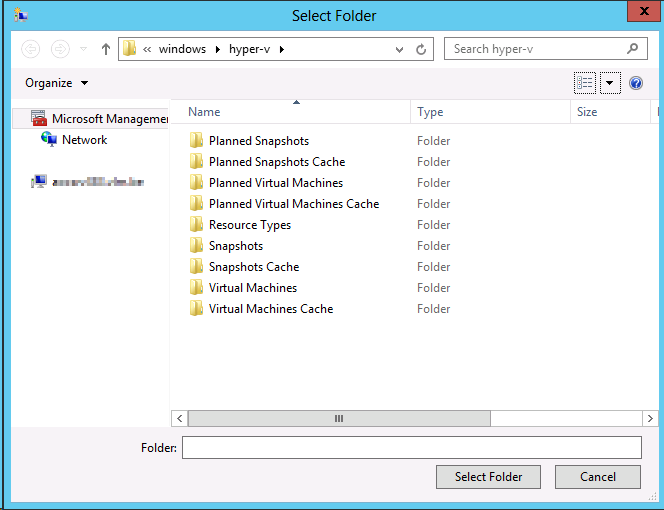
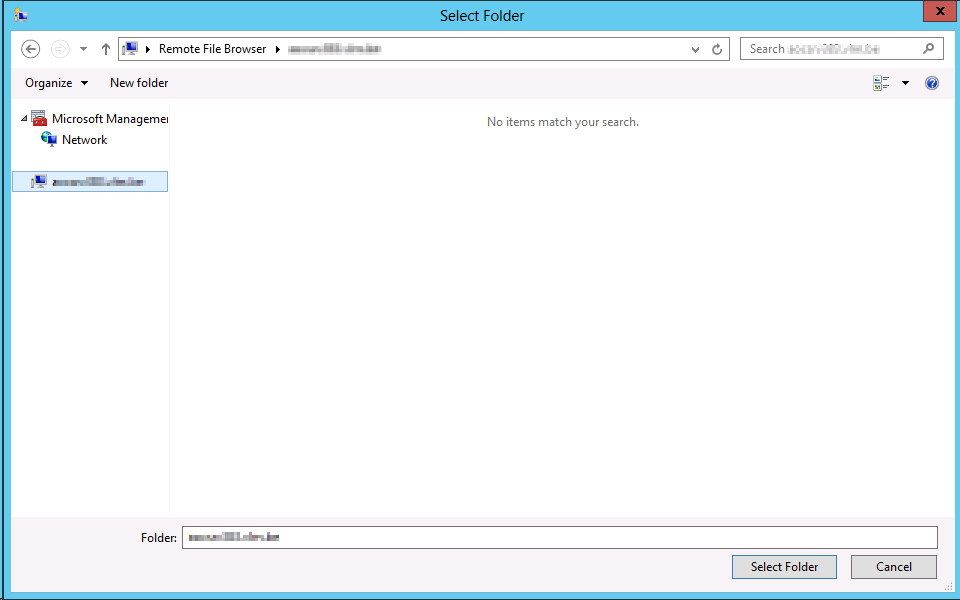
    In Windows Server 2012 the Remote File Browsing functionality for Hyper-V acts ups on some nodes indicating a problem.

    You can read what “Remote File Browsing” is on TechNet here. You use it to browse the file system on a remote Hyper-V server when creating a  new VM there for example.

    Remote File Browsing is a shell namespace extension implemented by Hyper-V, it provides a way to browse the folders/files on remove Hyper-V server without requiring server to open extra shell over the network.

    The path "::{0907616E-F5E6-48D8-9D61-A91C3D28106D}HYPER-V-TEST" is to tell shell (explorer or common file dialog) that it is hosting/pointing to the RemoteFileBrowsing shell namespace extension on the HYPER-V-TEST. The guid is Hyper-V remotefilebrowsing shell namespace extension GUID. However, due to the limitation on common file browser, it is not able to translated into "Hyper-V Remote File Browsing".

    Now in Windows Server 2012 we sometimes see the following when we use it:

    image

    It seems to work but the result pane remains empty. The cluster is healthy, the nodes are healthy, all nodes are identically configured. Some nodes have it, other don’t. We also can’t find any errors logged anywhere.

    If you try to work around it using the UNC path that will fail due to security issues later so don’t even go there Winking smile

    Basically we were a bit baffled (we could not reproduce it in the lab either) until we saw some posts on then forums, indicating we’re not the only one seeing this.

    http://social.technet.microsoft.com/Forums/en-US/winserverhyperv/thread/608d0c3b-0a7b-4ad9-9843-5e5051dcd526

    http://social.technet.microsoft.com/Forums/en-US/winserverhyperv/thread/7a34f5e1-76bc-493a-8a7a-e9f420bf6a79#d7dd4db7-d7bd-419d-aa72-b12e43cd7a5d

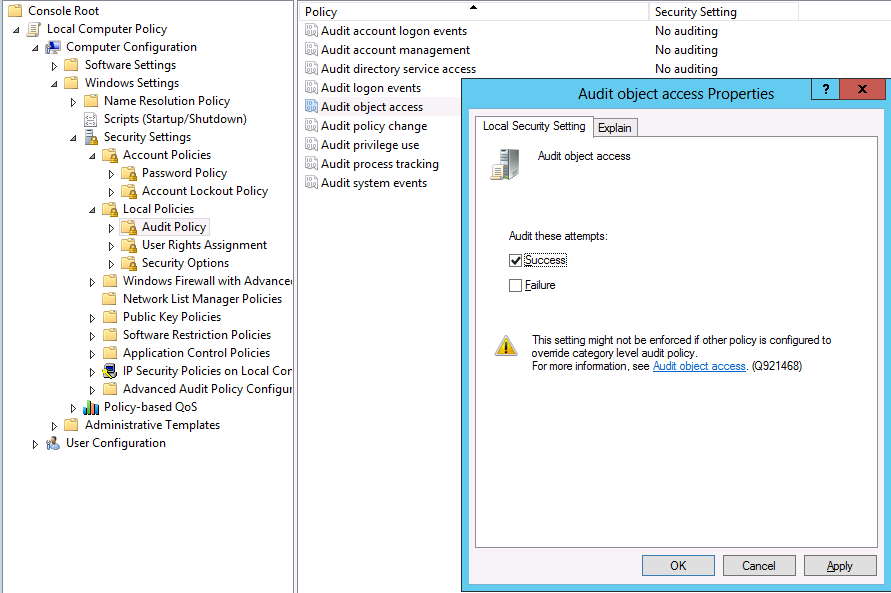
    If you know your cluster is perfectly healthy forget all the security settings stuff and go straight to testing this “fix” or rather workaround: Toggle Audit Object Access on and off.

    In our case I can confirm that these nodes had been under a group policy that audited registry entries during a period that we were trouble shooting network card settings change behavior. We had removed that policy by first reverting the settings to not configured and after some days by removing the GPO. But that didn’t work. Even with no audit policy configured we had to go to all nodes showing this behavior, opening the local Group Policy, toggling our Audit Object Access on for success,applying this and reverting this to No auditing again.

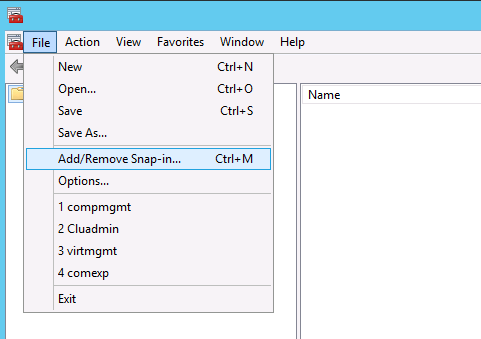
    So fire up an MMC, add a snap-in

    image

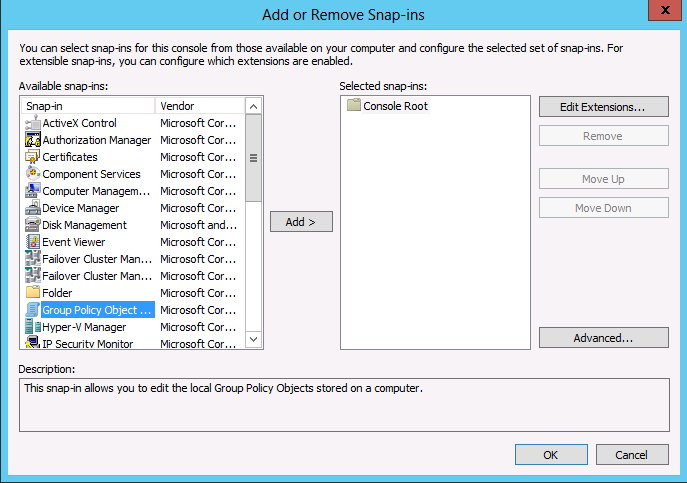
    Select Group Policy Object

    image

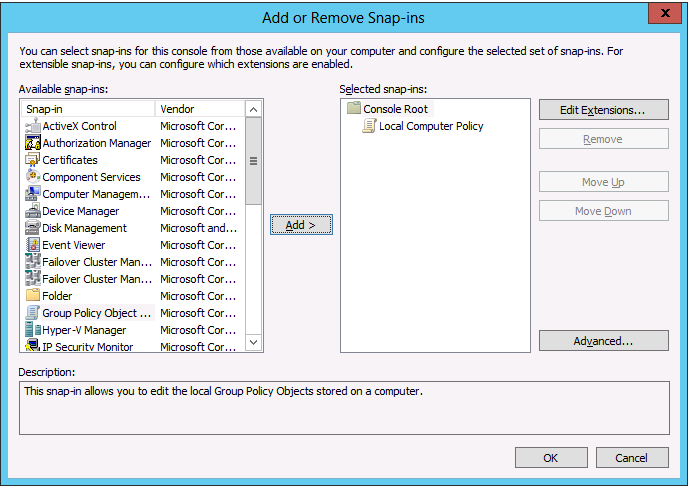
    Accept the defaults

    image

    image

    When don navigate to Computer Configuration -> Windows Settings -> Security Settings -> Local Policy -> Audit Policy -> Audit Object Access

    image

    Now try to use Remote Browser again (close & reopen all wizard windows and start over a new) to see the results:

    image

    Success! All is well again.

    Notes:

    • We only see this on systems remotely connecting to Windows Server 2012 Hyper-V nodes that are running Windows Server 2012 or Windows 8 themselves not on Windows 2008 R2 or Windows 7 with the RSAT for W2K12 installed.
    • This is not related to Windows core alone due to missing GUI components or something.

    Logging Cluster Aware Updating Hotfix Plug-in Installations To A File Share

    As an early adopter of Windows Server 2012 it’s not about being the fist it’s about using the great new features. When you leverage the Cluster Aware Updating (CAU) Plug-in to deploy hardware vendor updates like those from DELL which are called DUPs (Dell Update Packages) you have the option to to log the process via parameter /L

    This looks like this in the config XML file for the CAU (I’ll address this XML file in more details later).

    <Folder name="Optiplex980DUPS" alwaysReboot="false"> 
        <Template path="$update$" parameters="/S /L=\zuluCAULoggingCAULog.log"/>


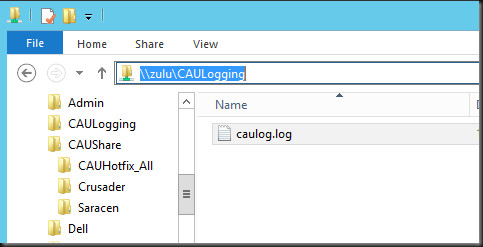
    As you can see I use a file share as I don’t want to log locally because this would mean I’d have to collect the logs on all nodes of a cluster.   Now if you log to  file share you need to do two things that we’ll discuss below.

    1. Set up a share where you can write the log or logs to

    Please note that you cannot and should not use the CAU file share for this. First off all only a few accounts are allows to have write permissions to the CAU file share. This is documented in How CAU Plug-ins Work

    Only certain security principals are permitted (but are not required) to have Write or Modify permission. The allowed principals are the local Administrators group, SYSTEM, CREATOR OWNER, and TrustedInstaller. Other accounts or groups are not permitted to have Write or Modify permission on the hotfix root folder.

    This makes sense. SMB Signing and Encryption are used to protect tampering with the files in transit and to make sure you talk to the one an only real CAU file share. To protect the actual content of that share you need to make sure now one but some trusted accounts and a select group of trusted administrators can add installers to the share. If not you might be installing malicious content to your cluster nodes without you ever realizing. Perhaps some auditing on that folder structure might be a good idea?

    image_thumb61

    This means that you need a separate file share so you can add modify or at least write permissions to the necessary accounts on the folder. Which brings us to the second thing you need to do.

    2. Set up Write or Modify permissions on the log share

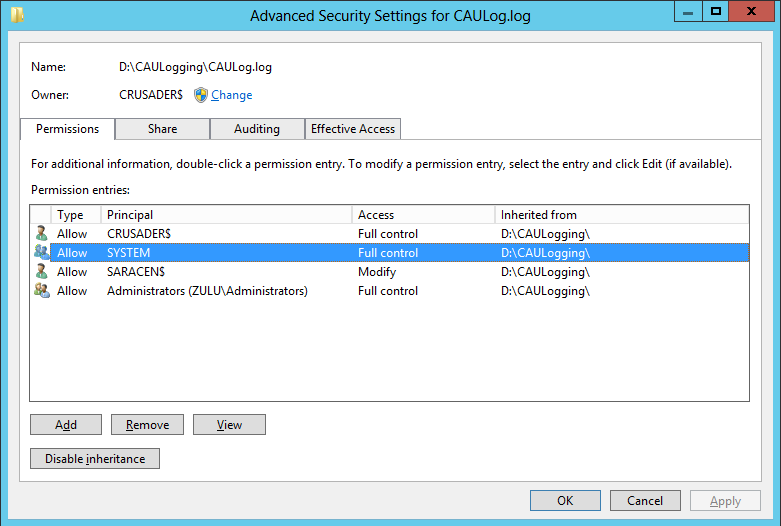
    You’ll need to set up Write or Modify permissions on the log share for all cluster node computer accounts. To make this work more practically with larger clusters please you can add the computer accounts to an AD group, which makes for easier administration).

    image_thumb61

    The two nodes here have permissions to write to the location

    image

    As you can see the first node to create the loge file is the owner:

    image

    Some extra tips

    The log can grow quite large if used a lot. Keep an eye on it so avoid space issues or so it doesn’t get too big to handle and be useful. And for clarities sake you might get a different log per cluster or even folder type. You can customize to your needs.