Veeam FastSCP for Microsoft Azure IAAS went in to Beta

VEEAM is also keeping us on our toes here at Ignite in Chicago. They just publicly announced the beta of a new free tool that looks extremely handy, VEEAM FastSCP. It’s a tool that enables you to copy files in and out of Azure virtual machines without the need for a VPN. People who have been working with IAAS in Azure for labs or production known that sometimes even benign tasks on premises can be a bit convoluted in the cloud without a VPN or Express Route to Azure.
VeeamFastSCPforMicrosoftAzure

Until today our options without a VPN (to leverage file shares / SMB) are to use either RDP which gives us 2 options:

  1. Direct copy/paste (limited to 2GB)
  2. Mapped local drives in your VM

or leverage the portability of a VHD.

So why is VEEAM FastSCP a big deal? Well the virtual hard disk method is painstakingly tedious. Putting data into a VHD and moving that around to get data in and out of a virtual machine is a nice workaround but hardly a great solution. It works and can be automated with PowerShell but you only do it because you have no other choice.

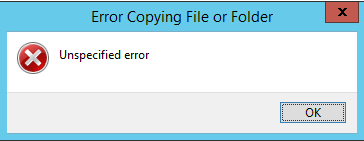
The first RDP method (copy/paste) is fast and easy but it lacks ease of automation and it’s a bit silly to launch an RDP session to copy files. It also has a file size limit of 2GB. Anything bigger will just throw you an error.
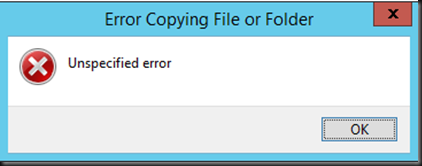
clip_image001

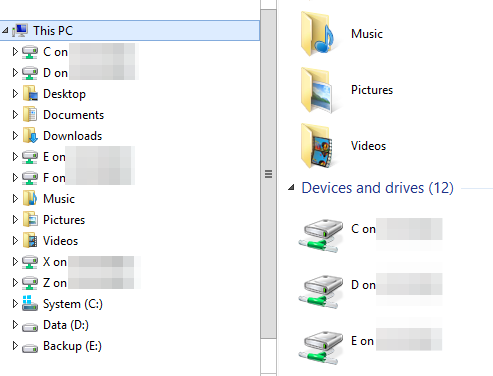
Another option is to leverage your mapped local disks in the VM but that’s not a great option for automation either.
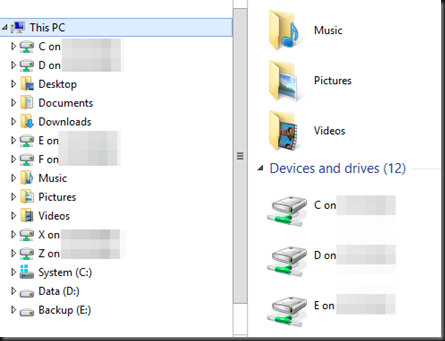
clip_image002

Sure you could start running FTPS or SFTP servers in all your VMs but that’s borderline silly as well.

VEEAM FastSCP for Microsoft Azure

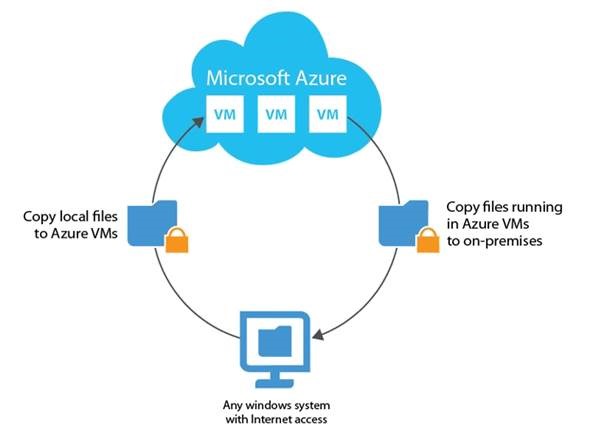
VEEAM is offering this tools as a quick, secure and easy tool to copy files in and out of Azure virtual machines without the need for a VPN or turning your virtual machine into a free target to bad people in the world. Do note this is not meant for blob storage or anything else but an Azure virtual machine. Plenty of tools to go around for blob storage already.
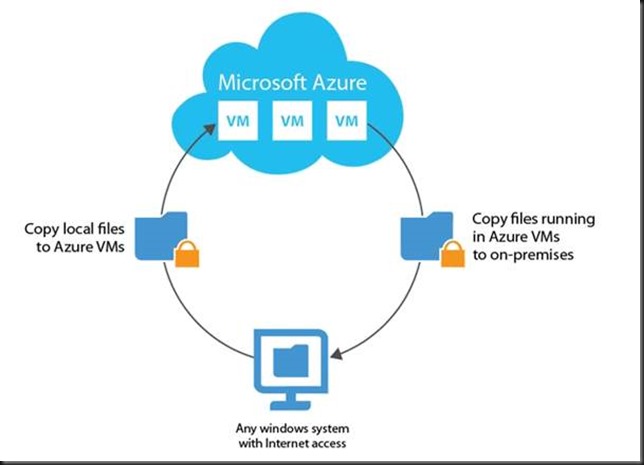
clip_image002

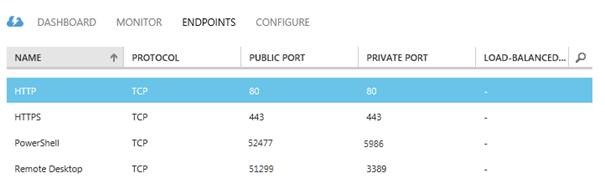
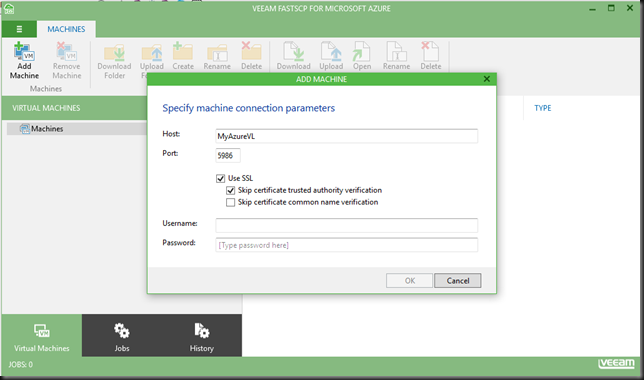
The tool connects to the PowerShell endpoint port of your public IP address. No VPN, 3rd party tool or encryption required, it’s all self-contained. Inside the VM it’s based on winrm.
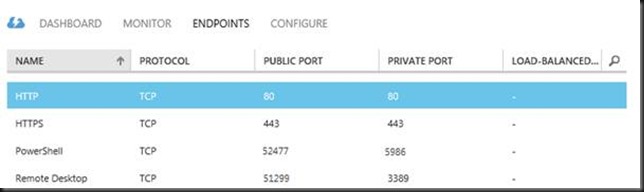
clip_image004

image

This will not interfere with your normal RDP or PowerShell sessions at all, so no worries there. When using this tool there is also no file size limit to worry about like with copy/paste over RDP.

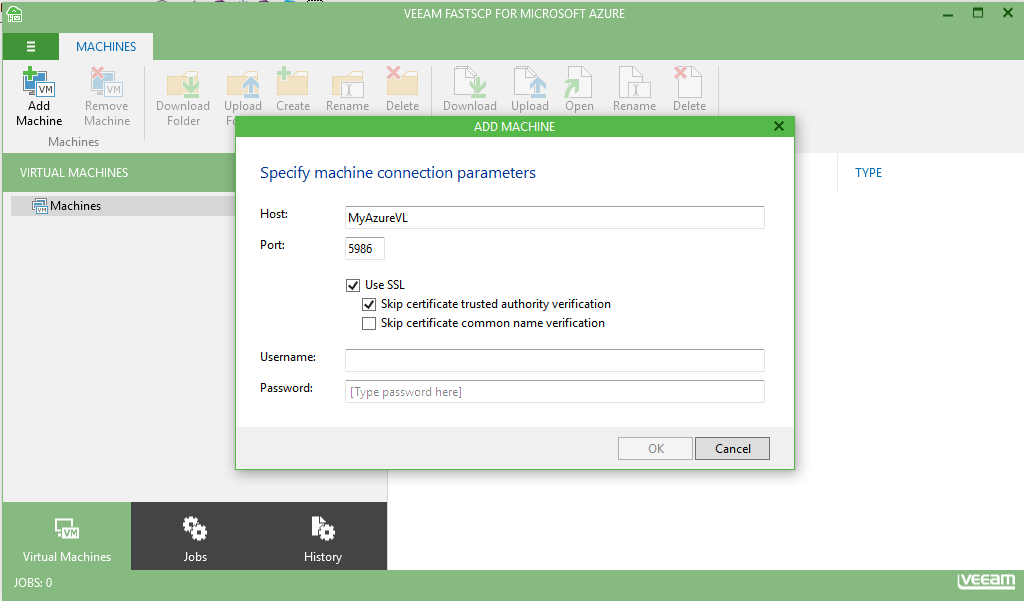
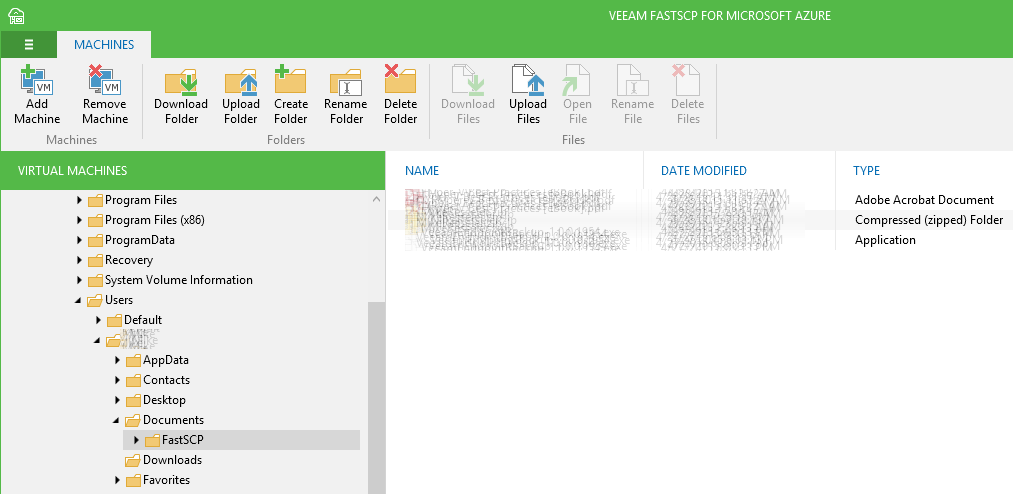
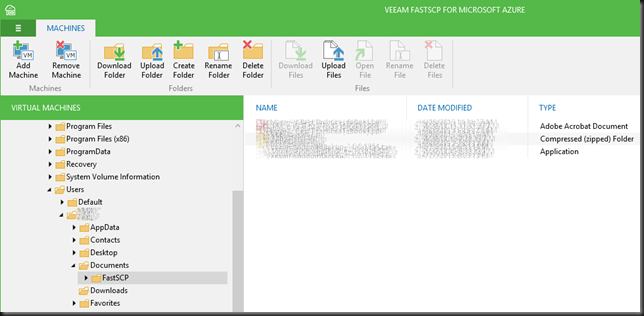
Via the GUI you connect to the Virtual Machine with your credentials. After that you can browse the file system of that VM and copy data in and out. All of this is secured over SSL.
image

A nice thing is that you don’t need to keep the GUI open after you’ve started the copy just close it and things will get done. No babysitting required.

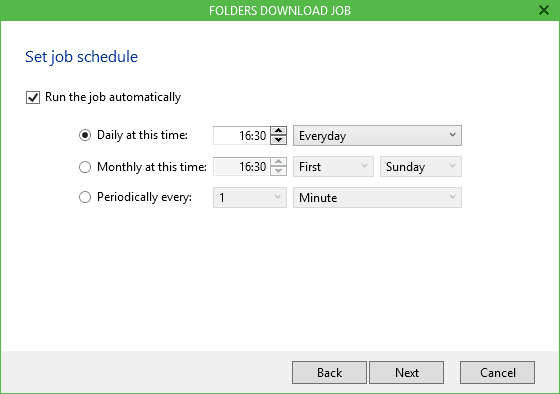
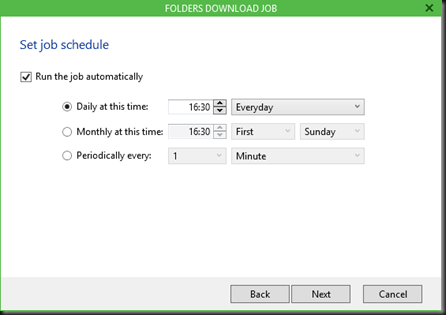
It’s all wizard driven so it’s very easy and to top it all off you can schedule jobs making it a perfect little automation tool bypassing the limitations we’re facing right now.
scheduler

Some use cases

Any one who has an IAAS lab in Azure will appreciate this tool I think. It’s quick and easy to get files in and out of your VMs and you can schedule this.

Backups. I create a backup of my WordPress blog and the MySQL database regularly to file. While these are protected in the cloud themselves I love backup in depth and have extra option incase plan A fails. Using the build in scheduler I can now easily download a copy of those files just in case Azure goes south longer than I care to suffer. Having an off-cloud copy is just another option to have when Murphy comes knocking.

This is another valuable tool in my toolkit courtesy of VEEAM and all I can say is: thank you! To get it you can register here and download the Beta bits.

Microsoft Ignite Here I Come

Ignite is coming closer and I’m to Chicago soon to attend. I’ll be focusing on a couple of things. One of them is vNext, that means Hyper-V and everything that’s related the network and the storage stack.  The other is Azure and anything related to the above mentioned stack as well as identity/security.

That should be sufficient to keep me busy as next to that I’ll be having meetings with the Microsoft product groups and various vendors/partner on their offerings and plans.

The remaining time will be allocated to networking and talking shop with the international community. I’m looking forward to meet up with so many buddies from across the globe and dive into our beloved subjects. I you read my blog, follow me on twitter and you’re there, let me know. We can meet and greet!

Ignite

So let’s ignite the future of technology and prepare for our future as well. Remember, it’s you who needs to invest in yourself and your career. Employee, independent consultant or civil servant, it doesn’t matter, while helping others succeed, keep working on your own life long education and future.

But before I’m in Chicago I need to travel there, so we’ll hop onto one of those nice Boeings for a long haul flight across the big pond.  See you there!

image

DCB ETS Demo with SMB Direct over RoCE (RDMA)

It’s time to demonstrate ETS in action! There is a quick video on ETS on Vimeo to show what it look like.

I’m using Mellanox ConnectX-3 ethernet cards, in 2 node DELL PowerEdge R720 Hyper- cluster lab. We’ve configured the two ports for SMB Direct & set live migration to leverage them both over SMB Direct. For the purpose of this demo we’ll generate non RDMA over RoCE (TCP/IP) traffic over these two 10Gbps ports to simulate a problematic scenario where all bandwidth is already being used and to see how Enhanced Transmission Selection (ETS) will help in this scenario.  I have done this with DELL Force 10, PowerConnect 8100, N4000 series or a mix of both. This particular demo was leveraging PC8132Fs. I use what’s available to me in a lab at the time of writing.

To achieve the network load this we leverage ntttcp.exe to generate the non RDMA TCP/IP traffic. Using the Mellanox QoS counters we visualize this. In blue you see the sending traffic from node A, in red the receiving traffic on Node B. Note that this traffic is tagged with priority 1. We tag SMB Direct traffic with priority 4.

image

You can see that both Mellanox cards are running at full bandwidth, 2* 10Gbps from node A to node B and it’s all none RDMA traffic. Also note that I’m hitting all 16 physical cores (hyper threading is enabled). By doing so I avoid being bottlenecked by a singe core as in contrast to RDMA traffic there’s no huge CPU offload going on here.image

As these are the cards I have assigned to use for live migration (depending on the setup also  CSV or SOFS traffic) over SMB Direct you’ll see that the competition for bandwidth will be fierce if we don’t have a mechanism to guide this to a desired outcome. That’s exactly what we leverage DCB with PFC and ETS for.

So let’s kick off live migration of 4 virtual machines with 10GB of memory each. That should take about 20 seconds on 2 * 10Gbps cards. We first live migrate them form node B to Node A. That’s in the reverse direction of where we are sending TCP/IP traffic. You see 10Gbps being used all over and this is expected.

image

Remember that the network is full duplex. That means that you can send at 10Gbps (TCP/IP from node A to node B, RDMA from node B to A and vice versa) and receive at 10Gbps on a port. Actually if the backplane of the switch is powerful enough you can do so on all ports. So this is normal. Node A is sending TCP/IP traffic to node B at line speed and Node B is sending SMB Direct traffic to node A (the live migration) at line speed.

But what if we live migrate over SMB Direct in the same direction as the TCP/IP traffic is going, from node A to node B? Well have a look. To me this looks awesome.

image

ETS kicks in immediately. We configure the minimum bandwidth for SMB Direct Traffic to be 90%. Anything left after that (10%) is given to other traffic, in this demo the TCP/IP traffic we generated. As priority 4 tagged RoCE traffic is also configured to be lossless with PFC you don’t have to worry about dropping packets under contention. Now think about this and how you can steer your traffic behavior at times when the resources need to be divided amongst competing workloads.

I hope you now have a better idea on why QoS is useful, how it works and that it indeed does work. While I have taken the opportunity to demonstrate this with SMB Direct over RoCE I’d like to stress that QoS is not just about RoCE where it’s  “mandatory” due to the fact it requires at least PFC. It’s a very much a needed tool that’s very beneficial in any converged scenario and that the optional ETS might be a very good idea, depending on your environment.

Again, to get you a better idea, here’s a short, quick video on ETS on Vimeo.

DCB PFC Demo with SMB Direct over RoCE (RDMA)

In this blog post we’ll demo Priority Flow control. We’re using the demo comfit as described in SMB Direct over RoCE Demo – Hosts & Switches Configuration Example

There is also a quick video to illustrate all this on Vimeo. It’s not training course grade I know, but my time to put into these is limited.

I’m using Mellanox ConnectX-3 ethernet cards, in 2 node DELL PowerEdge R720 Hyper- cluster lab. We’ve configured the two ports for SMB Direct & set live migration to leverage them both over SMB Direct. For that purpose we tagged SMB Direct traffic with priority 4 and all other traffic with priority 1. We only made priority lossless as that’s required for RoCE and the other traffic will deal with not being lossless by virtue of being TCP/IP.

Priority Flow Control is about making traffic lossless. Well some traffic. While we’d love to live by Queens lyrics “I want it all, I want it all and I want it now” we are limited. If not so by our budgets, than most certainly by the laws of physics. To make sure we all understand what PFC does here’s a quick reminder: It tells the sending party to stop sending packets, i.e. pause a moment (in our case SMB Direct traffic) to make sure we can handle the traffic without dropping packets. As RoCE is for all practical purposes Infiniband over Ethernet and is not TCP/IP, so you don’t have the benefits of your protocol dealing with dropped packets, retransmission … meaning the fabric has to be lossless*. So no it DOES NOT tell non priority traffic to slow down or stop. If you need to tell other traffic to take a hike, you’re in ETS country 🙂

* If any switch vendor tells you to not bother with DCB and just build (read buy their switches = $$$$$) a lossless fabric (does that exist?) and rely on the brute force quality of their products to have a lossless experience … could be an interesting experiment Smile.

Note: To even be able to start SMB Direct SMB Multichannel must be enabled as this is the mechanism used to identify RDMA capabilities after which a RDMA connection is attempted. If this fails you’ll fall back to SMB Multichannel. So you will have ,network connectivity.

You want RDMA to work and be lossless. To visualize this we can turn to the switch where we leverage the counter statistics to see PFC frames being send or transmitted. A lab example from a DELL PowerConnect 8100/N4000 series below.

image

To verify that RDMA is working as it should we should also leverage the Mellanox Adapter Diagnostic and native Windows RDMA Activity counters. First of all make sure RDMA is working properly. Basically you want the error counters to be zero and stay that way.

Mellanox wise these must remain at zero (or not climb after you got it right):

  • Responder CQE Errors
  • Responder Duplicate Request Received
  • Responder Out-Of-Order Sequence Received
  • … there’s lots of them …

image

Windows RDMA Activity wise these should be zero (or not climb after you got it right):

  • RDMA completion Queue Errors
  • RDMA connection Errors
  • RDMA Failed connection attempts

image

The event logs are also your friend as issues will log entries to look out for like

PowerShell is your friend (adapt severity levels according to your need!)

Get-WinEvent -ListLog “*SMB*” | Get-WinEvent | ? { $_.Level -lt 4 -and $_. Message -like “*RDMA*” } | FL LogName, Id, TimeCreated, Level, Message

Entries like this are clear enough, it ain’t working!

The network connection failed.
Error: The I/O request was canceled.
Connection type: Rdma
Guidance:
This indicates a problem with the underlying network or transport, such as with TCP/IP, and not with SMB. A firewall that blocks port 445 or 5445 can also cause this issue.
 
RDMA interfaces are available but the client failed to connect to the server over RDMA transport.
Guidance:
Both client and server have RDMA (SMB Direct) adaptors but there was a problem with the connection and the client had to fall back to using TCP/IP SMB (non-RDMA).


To view PFC action in Windows we rely on the Mellanox Adapter QoS Counters

image

Below you’ll see the number of  pause frames being sent & received on each port. Click on the image to enlarge.

image

An important note trying to make sense of it all: … pauze and receive frames are sent and received hop to hop. So if you see a pause frame being sent on a server NIC port you should see them being received on the switch port and not on it’s windows target you are live migrating from. The 4 pause frames sent in the screenshot above are received by the switchport as you can see from the PFC Stats for that port.

image

People, if you don’t see errors in the error counters and event viewer that’s good. If you see the PFC Pause frame counters move up a bit that’s (unless excessive) also good and normal, that PFC doing it’s job making sure the traffic is lossless. If they are zero and stay zero for ever you did not buy a lossless fabric that doesn’t need DCB, it’s more likely you DCB/PFC is not working Winking smile and you do not have a lossless fabric at all. The counters are cumulative over time so they don’t reset to zero bar resetting the NIC or a reboot.

image

When testing feel free to generate lots of traffic all over the place on the involved ports & switches this helps with seeing all this in action and verifying RDMA/PFC works as it should. I like to use ntttcp.exe to generate traffic, the most recent version will let you really put a load on 10GBps and higher NICs. Hammer that network as hard as you can Winking smile.

Again a simple video to illustrate this on Vimeo.