In Defense of Switch Independent Teaming With Hyper-V

For many old timers (heck, that includes me) NIC teaming with LACP mode was the best of the best, at least when it comes to teaming options. Other modes often led to passive/active, less than optimal receiving network traffic aggregation. Basically, and perhaps over simplified, I could say the other options were only used if you had no other choice to get things to work. Which we did a lot … I used Intel’s different teaming modes for various reasons in the past (before we had MLAG, VLT, VPC, …). Trying to use LACP where possible was a good approach in the past in physical deployments and early virtualized environments when 1Gbps networking dominated the datacenter realm and Windows did not have native support for LBFO.

But even LACP, even in those days, had some drawbacks. It’s the most demanding form of teaming. For one it required switch stacking. This demands the same brand and type of switches and that means you have no redundancy during firmware upgrades. That’s bad, as the only way to work around that is to move all workload to another rack unit … if you even had the capability to do that! So even in days past we chose different models if teaming out of need or because of the above limitations for high availability. But the superiority of NIC teaming with LACP still stands for many and as modern switches support MLAG, VLT, etc. the drawback of stacking can be avoided. So does that mean LACP for NIC teaming is always the superior choice today?

Some argue it is and now they have found support in the documentation about Microsoft CPS system documentation about Microsoft CPS system. Look, even if Microsoft chose to use LACP in their solutions it’s based on their particular design and the needs of that design I do not concur that this is the best overall. It is however a valid & probably the choice for their specific setup. While I applaud the use of MLAG (when available to you a no or very low cost) to have all bases covered but it does not mean that LACP is the best choice for the majority of use cases with Hyper-V deployments. Microsoft actually agrees with me on this in their Windows Server 2012 R2 NIC Teaming (LBFO) Deployment and Management guide. They state that Switch Independent configuration / Dynamic distribution (or Hyper-V Port if on Hyper-V and if not on W2K12R2)  is the best possible default choice is for teaming in both native and Hyper-V environments. I concur, even if perhaps not that strong for native workloads (it depends). Exceptions to this:

  • Teaming is being performed in a VM (which should be rare),
  • Switch dependent teaming (e.g., LACP) is required by policy, or
  • Operation of a two-member Active/Standby team is required by policy.

In other words in 2 out of 3 cases the reason is a policy, not a technical superior solution …

Note that there are differences between Address Hash, Hyper-V Port mode & the new dynamic distribution modes and the latter has made things better in W2K12R2 in regards to bandwidth but you’ll need the read the white papers. Use dynamic as default, it is the best. Also note that LACP/Switch Dependent doesn’t mean you can send & receive to and from a VM over the aggregated bandwidth of all team members. Life is more complicated than that. So if that’s you’re main reason for switch dependent, and think you’re done => be ware Winking smile.

Switch Independent is also way better for optimization of VMQ. You have more queues available (sum-of-queues) and the IO path is very predictable & optimized.

If you don’t control the switches there’s a lot more cross team communication involved to set up teaming for your hosts. There’s more complexity in these configurations so more possibilities for errors or bugs. Operational ease is also a factor.

The biggest draw back could be that for receiving traffic you cannot get more than the bandwidth a single team member can deliver. That’s true but optimizing receiving traffic has it’s own demands and might not always be that great if the switch configuration isn’t that smart & capable. Do I ever miss the potential ability to aggregate incoming traffic. In real life I do not (yet) but in some configurations it could do a great job to optimize that when needed.

When using 10Gbps or higher you’ll rarely be in a situation where receiving traffic is higher than 10Gbps or higher and if you want to get that amount of traffic you really need to leverage DVMQ. And a as said switch independent teaming with port of dynamic mode gives you the most bang for the buck. as you have more queues available. This drawback is mitigated a bit by the fact that modern NICs have way larger number of queues available than they used to have. But if you have more than one VM that is eating close to 10Gbps in a non lab environment and you planning to have more than 2 of those on a host you need to start thinking about 40Gbps instead of aggregating a fistful of 10Gbps cables. Remember the golden rules a single bigger pipe is always better than a bunch of small pipes.

When using 1Gbps you’ll be at that point sooner and as 1Gbps isn’t a great fit for (Dynamic) VMQ anyway I’d say, sure give LACP a spin to try and get a bit more bandwidth but will it really matter? In native workloads it might but with a vSwith?  Modern CPUs eat 1Gbps NICs for breakfast, so I would not bother with VMQ. But when you’re tied to 1Gbps it’s probably due to budget constraints and you might not even have stackable, MLAG, VLT or other capable switches. But the arguments can be made, it depends (see Don’t tell me “It depends”! But it does!). But in any case I start saving for 10Gbps Smile

Today as the PC8100 series and the N4000 Series (budget 10Gbps switches, yes I know “budget” is relative but in the 10Gbps world, but they offer outstanding value for money), I tend to set up MLAG with two of these per rack. This means we have all options and needs covered at no extra cost and without sacrificing redundancy under any condition. However look at the needs of your VMs and the capability of your NICs before using LACP for teaming by default. The fact that switch independent works with any combination of budget switches to get redundancy doesn’t mean it’s only to be used in such scenarios. That’s a perk for those without more advanced gear, not a consolation price.

My best advise: do not over engineer it. Engineer it for the best possible solution for the environment at hand. When choosing a default it’s not about the best possible redundancy and bandwidth under certain conditions. It’s about the best possible redundancy and bandwidth under most conditions. It’s there that switch independent comes into it’s own, today more than ever!

There is one other very good, but luckily also a very rare case where LACP/Switch dependent will save you and switch independent won’t: dead switch ports, where the port becomes dysfunctional. So while switch independent protects against NIC, Switch, cable failures, here it doesn’t help you as it doesn’t know (it’s about link failures, not logical issues on a port).

For the majority of my Hyper-V deployments I do not use switch dependent / LACP. The situation where I did had to do with Windows NLB in combination with ICMP Multicast.

Note: You can do VLT, MLAG, stacking and still leverage switch independent teaming, LACP or static switch dependent is NOT mandatory even when possible.
Options For A Highly Available Load Balanced RD Gateway Server Farm on Hyper-V

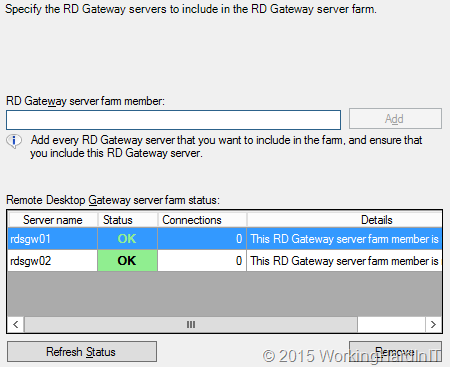
When you need to make the RD Gateway service highly available you have some options. On the RD Gateway side you have capability of configuring a farm with multiple RD Gateway servers.image

When in comes to the actual load balancing of the connections there are some changes in respect load balancing from Windows Server 2008 R2 that you need to de aware of! With Windows 2008 R2 you could do:

  1. Load balancing appliances (KEMP Loadmaster for example, F5, A10, …) or Application Delivery Controllers, which can be hardware, OEM servers, virtual and even cloud based (see Load Balancing In An Ever More Demanding Virtualized & Cloudy World). KEMP has Hyper-V appliances, many others don’t. These support layer 4, layer 7, geo load balancing etc. Each has it’s use cases with benefits and drawback but you have many options for the many situations you might encounter.
  2. Software load balancing. With this they mean Windows NLB. It works but it’s rather limited in regards to intelligence for failure detection & failover. It’s in no way an “Application Delivery Controller” as load balancer are positioned nowadays.
  3. DNS Round Robin load balancing. That sort of works but has the usual drawbacks for problem detection and failover.  Don’t get me wrong for some use cases it’s fine, but for many it isn’t.

I prefer the first but all 3 will do the basic job of load balancing the end-user connections based on the traffic. I have done 2 when it was good enough or the only option but I have never liked 3, bar where it’s all what’s needed, because it just doesn’t fit many of the uses cases I dealt with. It’s just too limited for many apps.

In regards to RD Gateway in Windows Server 2012 (R2), you can no longer use  DNS Round Robin for load balancing with the new HTTP transport. The reason is that it uses two HTTP channels (one for input and one for output) and DNS round robin cannot guarantee that both these connections will be routed trough the same RD Gateways server which is a requirement for it to work. Basically RRDNS will only work for legacy RPC-HTTP. RPC could reroute a channel to make sure all flows over the same node at the cost of performance & scalability. But that won’t work with HTTP which provides scalability & performance. Another thing to note is that while you can work without UDP you don’t want to. The UDP protocol is used  to deliver graphics with a better user experience  over even low quality networks for graphics or high and experiences with RemoteFX. TCP (HTTP) is can be used without it (at the cost of a lesser experience) and is also used to maintain the sessions and actions. Do note that you CANNOT use UDP alone as these connections are established only after the main HTTP connection exists between the remote desktop client and the remote desktop server. See Don’t Forget To Leverage The Benefits of RD Gateway On Hyper-V & RDP 8/8.1 for more information

So you will need a least Windows Network Load Balancing (WNLB) because that supports IP affinity to make sure all channels stick to the same node. UDP & HTTP can be on different nodes by the way. Also please not that when using network virtualization WNLB isn’t a good choice. It’s time to move on.

So the (or at least my) preferred method is via a real “hardware” load balancer.  These support a bunch of persistence options like IP affinity, cookie-based affinity, … just look at the screenshot below (KEMP Loadmaster)

image

But they also support layer 7 functionality for better health checking and failover.  So what’s not to like?

So we need to:

  1. Build a RD Gateway Farm with at least two servers
  2. Load balance HTTP/HTTPS for the RD Gateway farm
  3. Load balance UDP for the RD Gateway farm.

We’ll do this 100% virtualized on Hyper-V and we’ll also make make the load balancer it self highly available. Remember, removing single points of failure are like bottle necks. The moment you take one away you just hit the next one Smile.

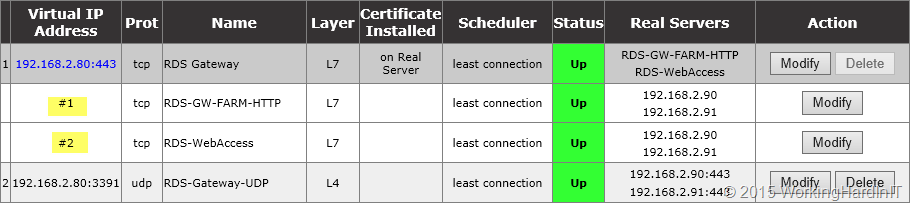
Kemp has a great deployment guide for RDS on how to do this but I should ass that you could leverage SUB Virtual Services (SUBVS) to deal with the other workloads such as RD Web Access if they’re on the same server. They don’t mention this in the white paper but it’s an option when using HTTP/HTTPS as service type for both configurations. #1 & #2 are the SUB Virtual Services where I used this in a lab.

image

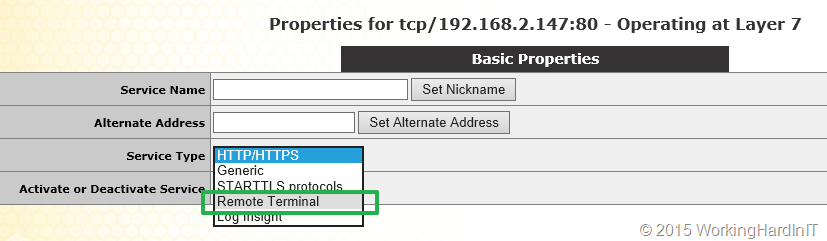
But for RD Gateway you can also leverage the Remote Terminal Service type and in this case you won’t leverage SUBVS as the service type is different between RD Gateway (Remote Terminal) and RD Web Access (HTTP/HTTPS). This is actually used by their RDS template you can download form their support site.

image

Hope this helps some of you out there!

Quick Demo Video Of Site Failover With KEMP Loadmaster Global Balancing

Here’s a quick video that demonstrates how you can achieve site failover with via the KEMP Loadmaster Global Balancing feature. As long as you know what this can do for you and realize that it about site failover and high availability and not continuous availability without a second of service interruption you can deliver nice results with this technology across city campuses or between cities.

In our scenario we normally connect to the primary data center (weighted round robin) and fail over to the DRC when the primary site fails for some reason.

It’s very busy at the moment but I hope to address this topic a bit more in detail in the future. All of this runs virtualized on Hyper-V and performs just fine.

Don’t Forget To Leverage The Benefits of RD Gateway On Hyper-V & RDP 8/8.1

So you upgraded your TS Gateway virtual machine on W2K8(R2) to RDS Gateway on W2K12(R2) too make sure you get the latest and the greatest functionality and cut off any signs of technology debt way in advance. Perhaps you were inspired by my blog series on how to do this, and maybe you jumped through the x86 to x64 bit hoop whilst at it. Well done.

Now when upgrading or migrating from W2K8(R2) a lot of people forget about some of the enhancements in W2K12(R2). This is especially true of you don’t notice much by doing so. That’s why I see people forget about UDP. Why? Well things will keep working as they did before Windows Server 2012 RDS Gateway over HTTP or over RPC-HTTP (legacy clients). I have seen deployments where both the Windows and the perimeter firewall rules to allow UDP over 3391 were missing. Let alone that UDP Transport over port 3391 was enabled in the transport settings.  But then you miss out on the benefits it offers (an improved user experience over less than great network connections and with graphics) as well on those of that ever more capable thingy called RemoteFX, if you use that.

For you that don’t know yet:  HTTP and UDP protocols are both used preferably by RD Gateway and are more efficient than RPC over HTTP which is better for scaling and experience under low bandwidth and bad connectivity conditions. When HTTP transport channels are up (in & outgoing traffic), two UDP side channels are set up that can be used to provide both reliable (RDP-UDP-R) and best-effort (RDP-UDP-L) delivery of data. UDP also leveraged SSL via the RD gateway because is uses Datagram Transport Layer Security (DTLS). For more info RD Gateway Capacity Planning in Windows Server 2012. Further more it proves you have no reason not to virtualize this workload and I concur!

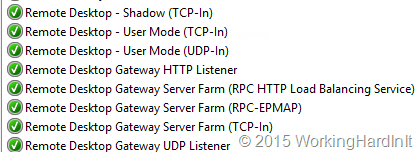
So why not set it up!?  So check you firewall rules on the RD Gateway Server and set the rules accordingly. Do the same for your perimeter firewalls or any other in between your users and your RD Gateway.

image

Under properties of your RS Gateway server you need to make sure UDP is enabled and listening on the needed IP address(es)

image

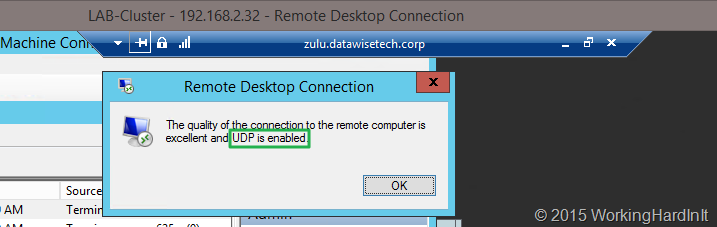
A client who connects over your RDS Gateway server, Windows Server 2012(R2) that is, and checks the network connection properties (click the “wireless NIC” like icon in the connection bar) sees the following: UDP is enabled. imageIf they don’t see UDP as enabled and they aren’t running Windows 8 or 8.1 (or W2K12R2) they can upgrade to RDP 8.1 on windows 7 or Windows Server 2008 R2! When they connect to a Windows 7 SP1 or Windows 2008R2  machine make sure you read this blog post Get the best RDP 8.0 experience when connecting to Windows 7: What you need to know as it contains some great information on what you need to do to enable RDP 8/8.1 when connecting to Windows 7 SP1 or Windows 2008 R2:

  1. “Computer ConfigurationAdministrative TemplatesWindows ComponentsRemote Desktop ServicesRemote Desktop Session HostRemote Session EnvironmentEnable Remote Desktop Protocol 8.0” should be set to “Enabled”
  2. “Computer ConfigurationAdministrative TemplatesWindows ComponentsRemote Desktop ServicesRemote Desktop Session HostConnectionsSelect RDP Transport Protocols” should be set to “Use both UDP and TCP” => Important: After the above 2 policy settings have been configured, restart your computer.
  3. Allow port traffic: If you’re connecting directly to the Windows 7 system, make sure that traffic is allowed on TCP and UDP for port 3389. If you’re connecting via Remote Desktop Gateway, make sure you use RD Gateway in Windows Server 2012 and allow TCP port 443 and UDP port 3391 traffic to the gateway

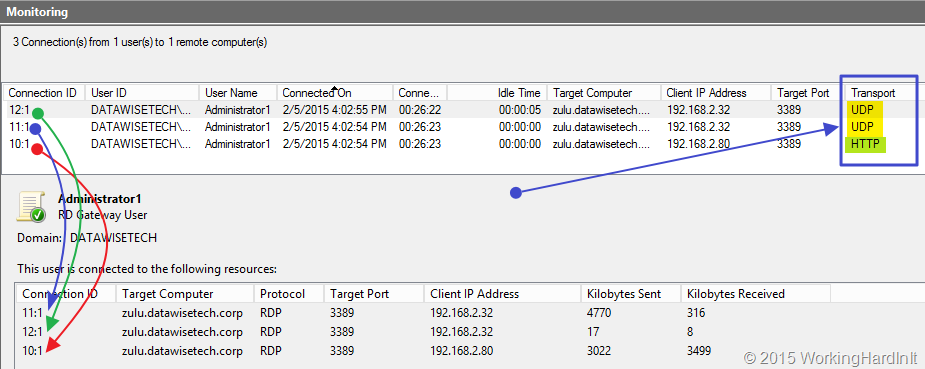
Cool you’ve done it and you verify it works. Under monitoring in the RD Gateway Manager you can see 3 connections per session: one is HTTP and the two others are UDP.

image

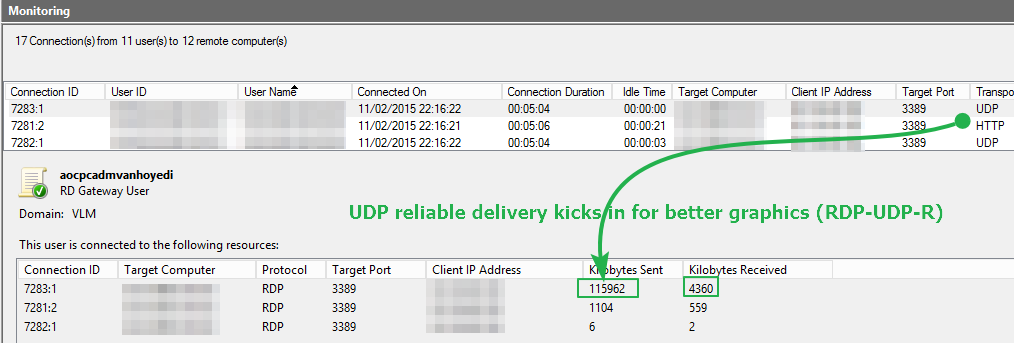
Life is good. But if you want to see the difference really well demonstrated try to connect to Windows 7 SP1 computer with RDP8 & TCP/UDP disabled and play a YouTube video, then to the same with RDP8 & TCP/UDP enabled, the difference is rather impressive. Likewise if you leverage RemoteFX in VM. The difference is very clear in experience, just try it! While you’re doing this look a the UDP “Kilobytes Sent” stats (refresh the monitoring tab, you’ll see UDP being put to work when playing a video on in your RDP session.

image