Veeam FastSCP for Microsoft Azure IAAS went in to Beta

VEEAM is also keeping us on our toes here at Ignite in Chicago. They just publicly announced the beta of a new free tool that looks extremely handy, VEEAM FastSCP. It’s a tool that enables you to copy files in and out of Azure virtual machines without the need for a VPN. People who have been working with IAAS in Azure for labs or production known that sometimes even benign tasks on premises can be a bit convoluted in the cloud without a VPN or Express Route to Azure.
VeeamFastSCPforMicrosoftAzure

Until today our options without a VPN (to leverage file shares / SMB) are to use either RDP which gives us 2 options:

  1. Direct copy/paste (limited to 2GB)
  2. Mapped local drives in your VM

or leverage the portability of a VHD.

So why is VEEAM FastSCP a big deal? Well the virtual hard disk method is painstakingly tedious. Putting data into a VHD and moving that around to get data in and out of a virtual machine is a nice workaround but hardly a great solution. It works and can be automated with PowerShell but you only do it because you have no other choice.

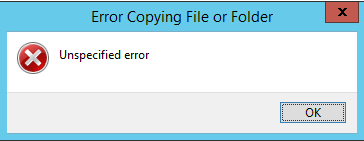
The first RDP method (copy/paste) is fast and easy but it lacks ease of automation and it’s a bit silly to launch an RDP session to copy files. It also has a file size limit of 2GB. Anything bigger will just throw you an error.
clip_image001

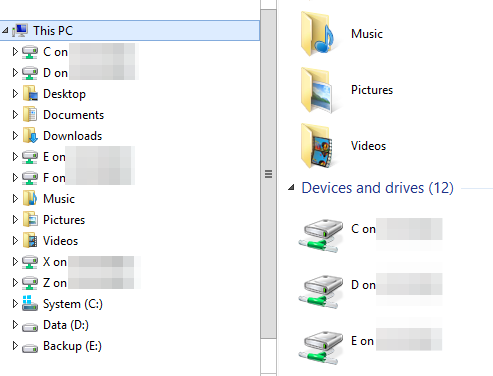
Another option is to leverage your mapped local disks in the VM but that’s not a great option for automation either.
clip_image002

Sure you could start running FTPS or SFTP servers in all your VMs but that’s borderline silly as well.

VEEAM FastSCP for Microsoft Azure

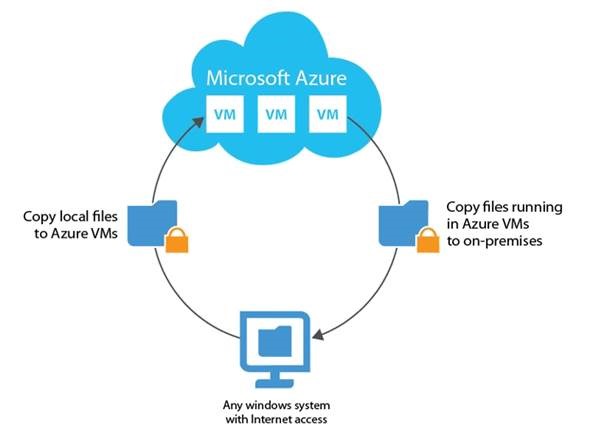
VEEAM is offering this tools as a quick, secure and easy tool to copy files in and out of Azure virtual machines without the need for a VPN or turning your virtual machine into a free target to bad people in the world. Do note this is not meant for blob storage or anything else but an Azure virtual machine. Plenty of tools to go around for blob storage already.
clip_image002

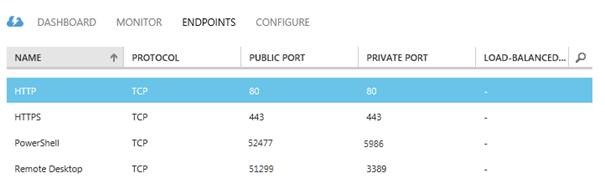
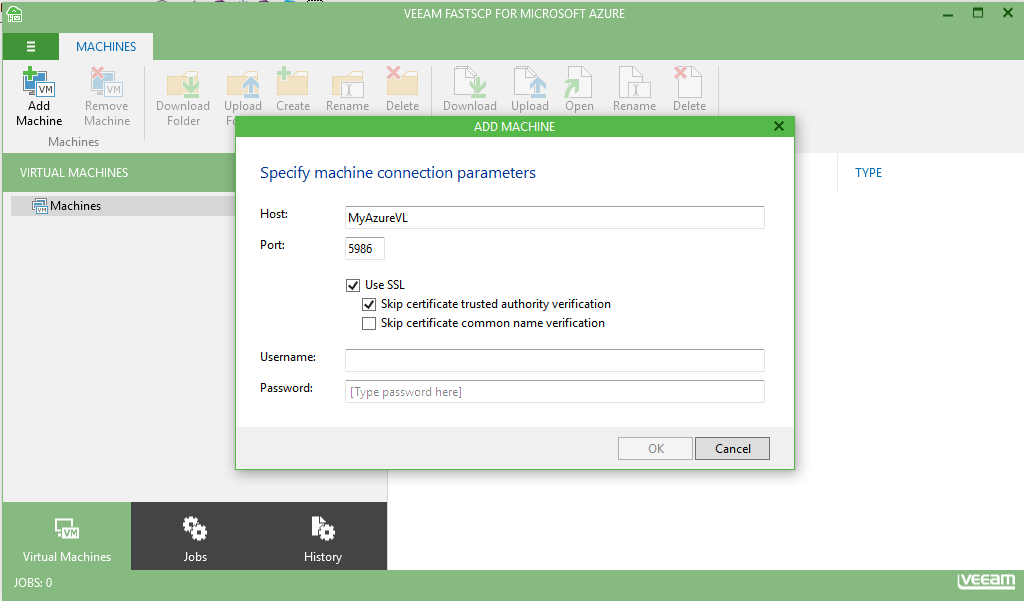
The tool connects to the PowerShell endpoint port of your public IP address. No VPN, 3rd party tool or encryption required, it’s all self-contained. Inside the VM it’s based on winrm.
clip_image004

image

This will not interfere with your normal RDP or PowerShell sessions at all, so no worries there. When using this tool there is also no file size limit to worry about like with copy/paste over RDP.

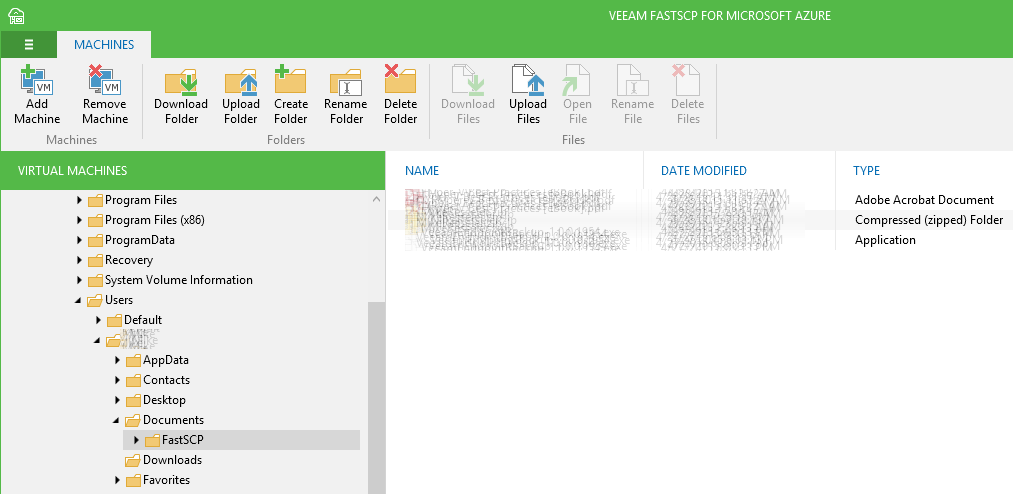
Via the GUI you connect to the Virtual Machine with your credentials. After that you can browse the file system of that VM and copy data in and out. All of this is secured over SSL.
image

A nice thing is that you don’t need to keep the GUI open after you’ve started the copy just close it and things will get done. No babysitting required.

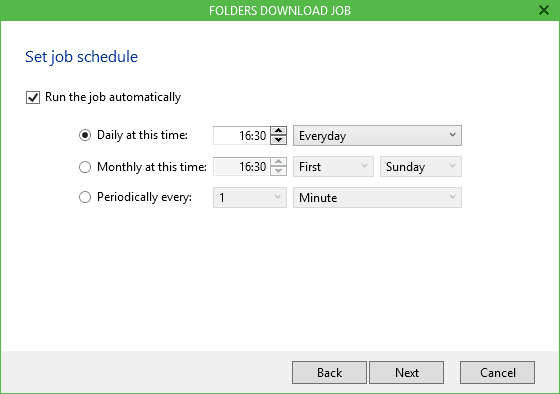
It’s all wizard driven so it’s very easy and to top it all off you can schedule jobs making it a perfect little automation tool bypassing the limitations we’re facing right now.
scheduler

Some use cases

Any one who has an IAAS lab in Azure will appreciate this tool I think. It’s quick and easy to get files in and out of your VMs and you can schedule this.

Backups. I create a backup of my WordPress blog and the MySQL database regularly to file. While these are protected in the cloud themselves I love backup in depth and have extra option incase plan A fails. Using the build in scheduler I can now easily download a copy of those files just in case Azure goes south longer than I care to suffer. Having an off-cloud copy is just another option to have when Murphy comes knocking.

This is another valuable tool in my toolkit courtesy of VEEAM and all I can say is: thank you! To get it you can register here and download the Beta bits.
Free VEEAM Endpoint Backup Goes RTM – First Upgrade Experiences!

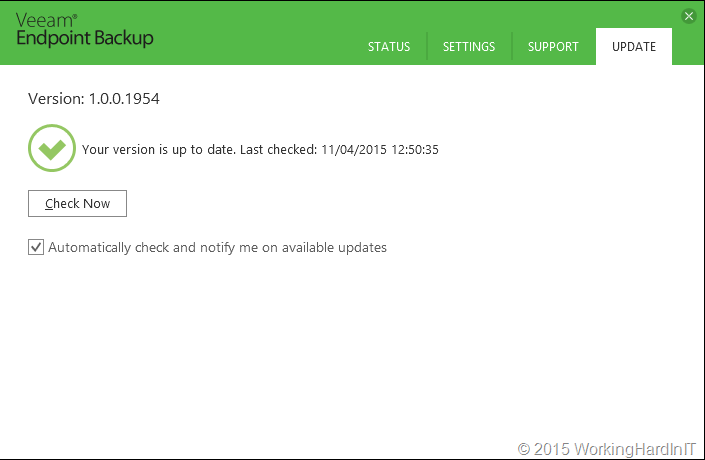
VEEAM Endpoint backup has gone RTM and that’s great news. I’ve been using it since the beta version with great results. I moved to the release candidate when that became available and now I’m running RTM. The version number of the RTM bits is 1.0.0.1954.

image

You can download it here and put it into action straight away!

Quick Tips & Findings

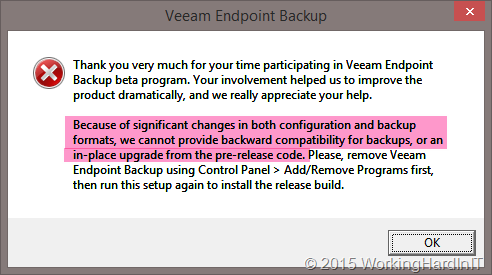
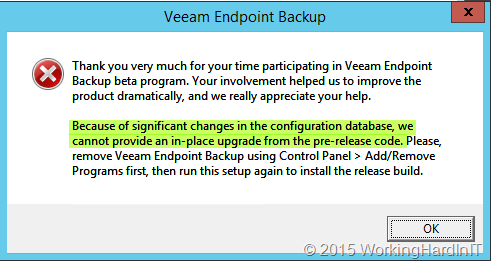
There is no supported upgrade path form the beta release. As a matter of fact the RTM version cannot read the backup files. When trying to upgrade from beta to RTM you’ll be greeted with this message:

image

Now that’s OK. You should have been on the RC already and there things are better Smile. Mind you, there’s no way to do an in place upgrade either but it can read the backups made by the RC version!
image

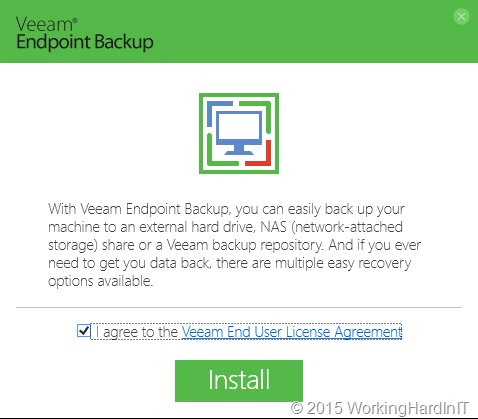
With a clean install (green field or after uninstalling the beta or RC version) the installation will kick off.

image

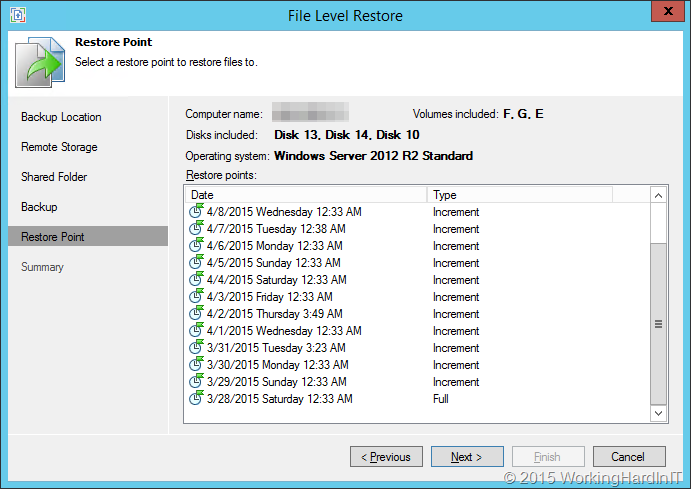
Now in the case of or RC backups we tested 2 things:

  • Can we restore the existing backups? Yes we can!

image

  • How are the backs made by the RTM version handled in regards to the already present ones. We just reconfigured the backups to the same repository and kicked of a backup. A new backup job folder was created and the backup was made there. So our DBA’s great self service SQL Server backup offloading repository made with the RC candidate is still available for restores while RTM backups to it’s own new folder.

image

Well there you go, VEEAM Endpoint Backup just got launched in production. We still have to wait for the production ready update for integration with VEEAM Backup & Replication v8 but that will arrive soon enough. The future looks bright.

FREE WHITE PAPER: Configuring a VEEAM Off Host Backup Proxy Server for backing up a Windows Server 2012 R2 Hyper-V cluster with a DELL Compellent SAN (Fiber Channel)

Whilst I’m attending TechEd North America 2014, being able to learn and network again with the community at large I think this is a good moment to share. So here’s a little contribution to that community: it’s a white paper on How to configure a VEEAM Off Host Backup Proxy server for backing up a Windows Server 2012 R2 Hyper-V cluster with a DELL Compellent SAN (Fiber Channel).

VEEAM Back & Replication is currently under and extensive test before we make the decision. So far it is going (very) well. And no, VEEAM or DELL did not sponsor this. It’s sharing with the community. A prosperous, successful community makes my professional live better to!

I have to applaud VEEAM for allowing such easy access to their software for trials, to their engineers for assistance and to their support forum and resources even without yet being a paying customer. This is how it should be: vendors having faith in their products both in quality and ease of use. It’s a refreshing experience as some vendors don’t want you to get your hands on new versions of their products even as a existing paying customer “because due to its complexity we might get the wrong impression”. It’s even near impossible with some to get a test license for the lab of the version you currently use with some of them. Not so with VEEAM and that’s great.

I hope you enjoy it. As you might realize I don’t have this kind of infrastructure in my home lab so some of the screenshots have been edited / blurred. I’m sure you can live with that. Otherwise feel free to provide me with the gear in a paid for data center.

Dealing With Event ID 10103 “The virtual machine ‘VM001’ cannot be hot backed up since it has no SCSI controllers attached. Please add one or more SCSI controllers to the virtual machine before performing a backup. (Virtual machine ID DCFE14D3-7E08-845F-9CEE-21E0605817DC)” In Windows Server 2012 R2

I was doing backups of a Windows 2012 R2 Hype-V cluster recently and it runs only Windows Server 2012 R2 virtual machines. It’s a small but very modern and up to date cluster Smile.

Using VEEAM as backup software I have high expectations and VEEAM did deliver. All went well except for one virtual machine.

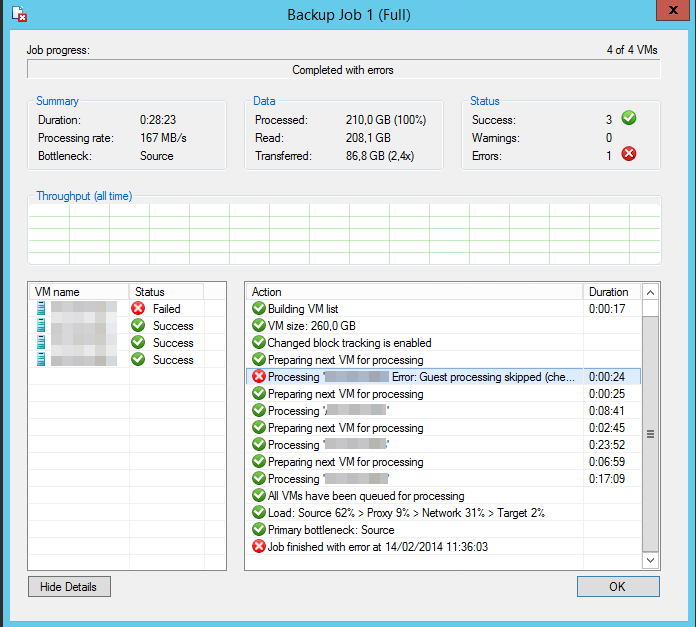
image

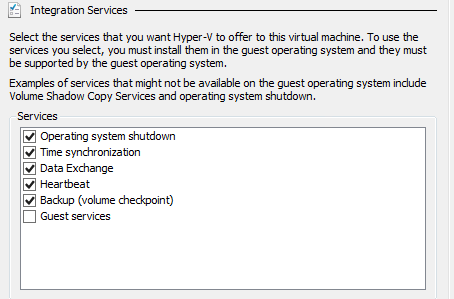
VEEAM states "Processing Error. Guest processing skipped (check guest OS VSS state and integration components version)". Well all  virtual machines  are W2K12R2 as are the cluster host and all IC components are up to date and backup (volume checkpoint) is enabled.

image

I dove into the Hyper-V log and sure enough I found following event:

The virtual machine ‘VM001’ cannot be hot backed up since it has no SCSI controllers attached. Please add one or more SCSI controllers to the virtual machine before performing a backup. (Virtual machine ID DCFE14D3-7E08-845F-9CEE-21E0605817DC).

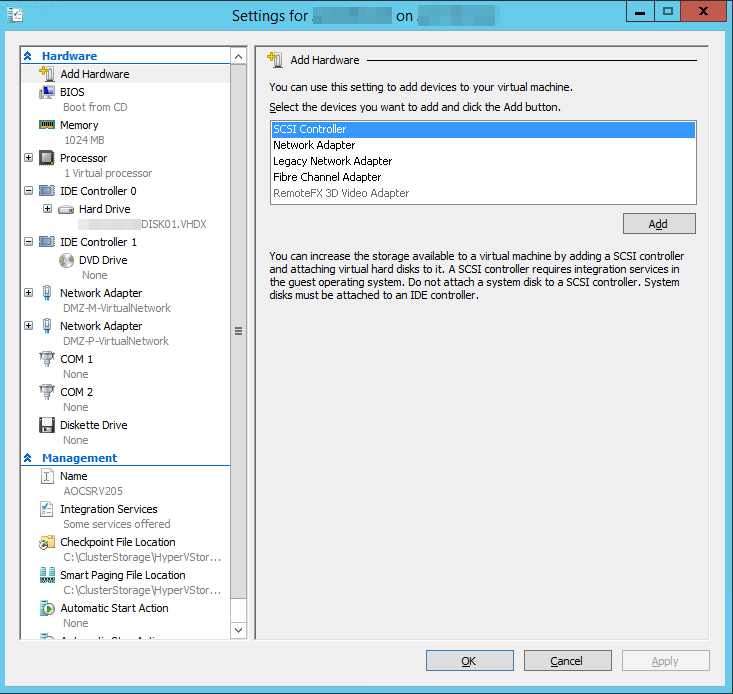
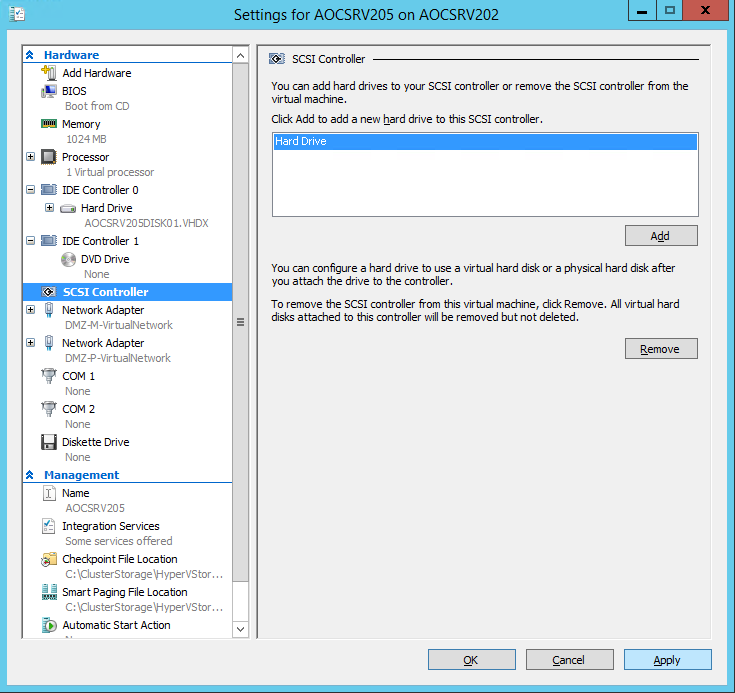
As it turns out in in Windows Server 2012 R2 the VM requires a SCSI controller for the backup to function. It doesn’t need to have any storage attached. It just needs one to be there (default). So the fix is easy, just add one.

image

image

Click “Apply” and “OK”. You can now start the virtual machine and that’s it. Once we fixed that it was a squeaky clean backup run.

But why does it need to be there?

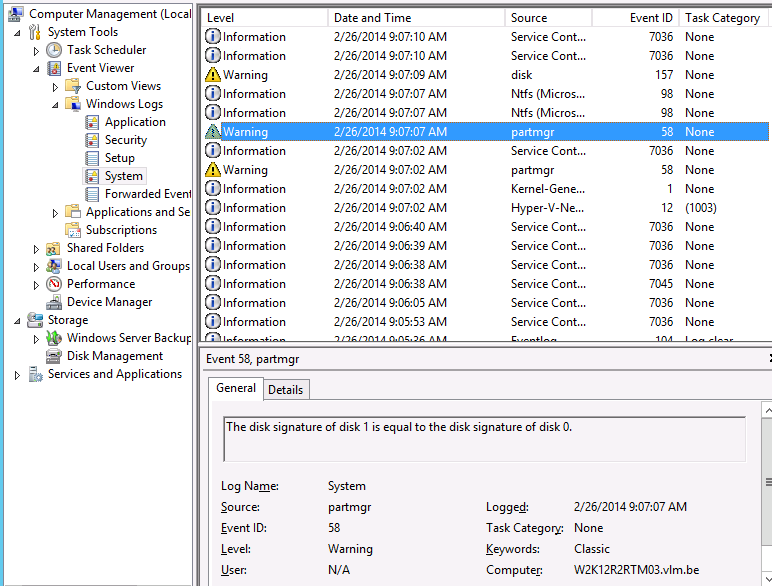
Well when we monitor the event logs inside a virtual machine we are backing up we see that during the backup process, very briefly a VHDX get’s mounted inside the guest.

image

To answer this question we need to dive into how Windows Server 2012 R2 backups work as that is different from how it used to be. You can read about that over here when it’s published.