Integration Services Version Check Via Hyper-V Integration/Admin Event Log

I’ve written before (see "Key Value Pair Exchange WMI Component Property GuestIntrinsicExchangeItems & Assumptions") on the need to & ways with PowerShell to determine the version of the integration services or integration components running in your guests. These need to be in sync with the one running on the hosts. Meaning that all the hosts in a cluster should be running the same version as well as the guests.

During an upgrade with a service pack this get the necessary attention and scripts (PowerShell) are written to check versions and create reports and normally you end up with a pretty consistent cluster. Over time virtual machines are imported, inherited from another cluster of created on a test/developer host and shipped to production. I know, I know, this isn’t something that should happen, but I don’t always have the luxury of working in a perfect world.

Enough said. This means you might end up with guests that are not running the most recent version of the integration tools. Apart from checking manually in the guest (which is tedious, see my blog "Upgrading a Hyper-V R2 Cluster to Windows 2008 R2 SP1" on how to do this) or running previously mentioned script you can also check the Hyper-V event log.

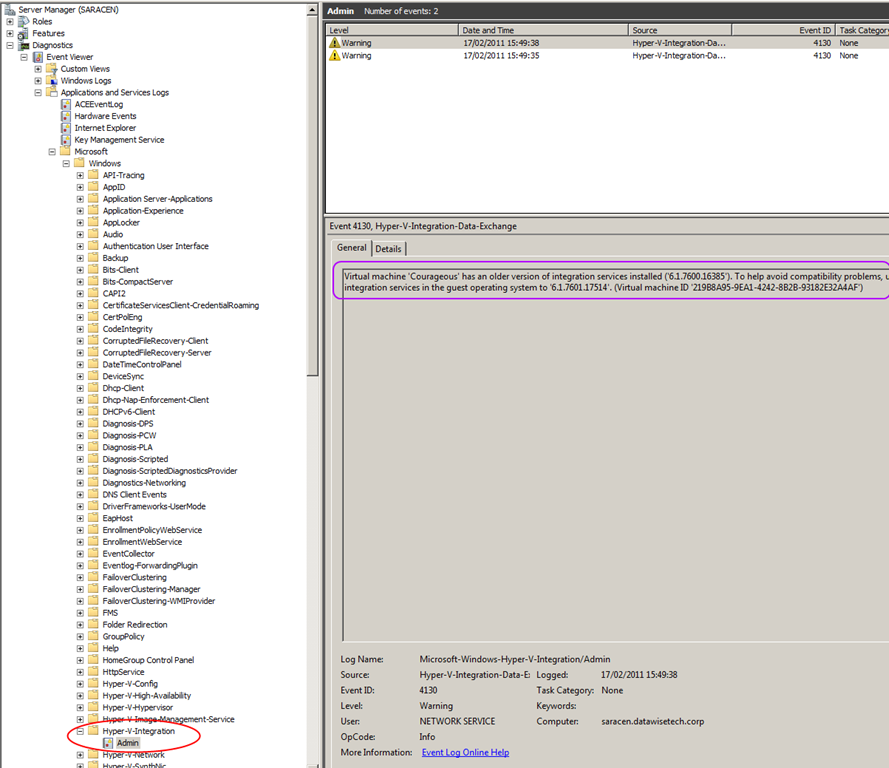
Another way to spot virtual machines that might not have the most recent version of the integration tools is via the Hyper-V logs. In Server Manager you drill down in the “Diagnostics” to, “Event Viewer” and than navigate your way through  "Applications and Services Logs", "Microsoft", "Windows" until you hit “Hyper-V-Integration

image

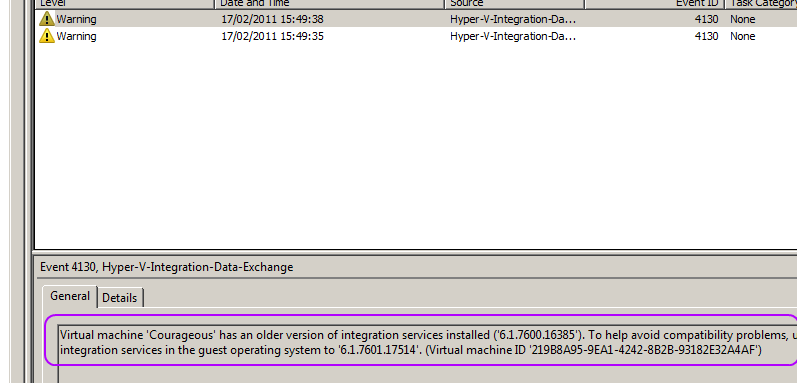
Take a closer look and you’ll see the warning about 2 guests having an older version of the integration tools installed.
image

As you can see it records a warning for every virtual machine whose integration services are older than the host running Hyper-V. This makes it easy to grab a list of guest needing some attention. The down side is that you need to check all hosts, not to bad for a small cluster but not very efficient on the larger ones.

So just remember this as another way to spot virtual machines that might not have the most recent version of the integration tools. It’s not a replacement for some cool PowerShell scripting or the BPA tools, but it is a handy quick way to check the version for all the guests on a host when you’re in a hurry.

It might be nice if integration services version management becomes easier in the future. Meaning a built-in way to report on the versions in the guests and an easier way to deploy these automatically if there not part of a service pack (this is the case when the guest OS and the host OS differ or when you can’t install the SP in the guest for some application compatibility reason). You can do this in bulk using SCVMM and of cause Scripting this with PowerShell comes to the rescue here again, especially when dealing with hundreds of virtual machines in multiple large clusters. Orchestration via System Center Orchestrator can also be used. Integration with WSUS would be another nice option, for those that don’t have Configuration Manager or Orchestrator but that’s not supported as far as I know for now.

On Route To The MVP Summit 2012

So here I go. I’m off the United States of America, Washington State, Seattle, Bellevue/Redmond. I’m travelling there to attend the MVP Summit 2012. I mentioned this already in a previous post I’m Attending The MVP Summit 2012

That means I’ll be rather quiet the next week. For one I’ll be very busy, both during the day as well as at night with all the meet ups and networking opportunities that are planned. On top of that all of the content & such is subject to a Non Disclosure Agreement (NDA). So no blogs, no tweets, nothing. If I see the Space Needle or visit any other interesting venues I might let you know Winking smile.

It’s great to see so many friends & colleagues converging to the Summit. I’ll be happy to meet up again and talk shop. A good number of them I have never met in person before and it will be fun to finally do so.

Right now I’ve parked myself in LHR waiting for my connecting flight to SEA. Sunny, day mild weather and I got a very friendly lift to the airport. Thanks! Time to grab a drink and spend some time looking at the airplanes landing & taking off. We’re an industrious little lot us humans, judged by the amount of travelling we do.

I hope I can grab some sleep on the flight over the big pond & I’m not to weary after that long haul. If not I have some books, music & movies to help pass the time. But it’s all good. I’m very fortunate to be able to attend the MVP Summit and I have every intention to make the most of this opportunity.

DVMQ In Windows 8 Hyper-V

VMQ or VMDq

To discuss Dynamic VMQ (DVMQ) we first need to talk about VMQ or VMDq in Intel speak. VMQ lets the physical NIC create unique virtual network queues for each virtual machine (VM) on the host. These are used to pass network packets directly from the hypervisor to the VM. This reduces a lot of overhead CPU core overhead on the host associated with network traffic as it spreads the load over multiple cores. The same sort of CPU overhead you might see with 10Gbps networking on a server that isn’t using RSS (see my previous blog post Know What Receive Side Scaling (RSS) Is For Better Decisions With Windows 8. Under high network traffic one core will hit 100% while the others are idle. This means you‘ll never get more than 3Gbps to 4Gbps of bandwidth out of your 10Gbps card as the CPU is the bottleneck.

VMQ leverages the NIC hardware for sorting, routing & packet filtering of the network packets from an external virtual machine network directly to virtual machines and enables you to use 8gbps or more of your 10Gbps bandwidth.

Now the number of queues isn’t unlimited and are allocated to virtual machines on a first-come, first-served basis. So don’t enable this for machines without heavy network traffic, you’ll just waste queues. It is advised to use it only on those virtual machines with heavy inbound traffic because VMQ is most effective at improving receive-side performance. So use your queues where they make a difference.

If you want to see what VMQ is all about take a look at this video by Intel.

Intel VMDq Explanation


The video gives you a nice animated explanation of the benefits. You can think of it as providing the same benefits to the host as RSS does. VMQ also prevents one core being overloaded with interrupts due to high network IO and as such becoming the bottle neck blocking performance. This is important as you might end up buying more servers to handle certain loads due to this. Sure with 1Gbps networking the modern CPUs can handle a very big load but with 10Gbps becoming ever more common this issue is a lot more acute again than it used to be. That’s why you see RSS being enabled by default in Windows 2008 R2.

VMQ Coalescing – The Good & The Bad

There is a  little dark side to VMQ. You’ve successfully relieved the bottleneck on the host for network filtering and sorting but you know have a potential bottle neck where you need a CPU interrupt for every queue. The documentation states as follows:

The network adapter delivers interrupts to the Management Operating system for each VMQ on the processor based processor VMQ affinity. If the interrupts are spread across many processors, the number of interrupts delivered can grow substantially, until the overhead of interrupt handling can outweigh the benefit of using VMQ. To reduce the number of interrupts used, Microsoft has encouraged network adapter manufacturers to design for interrupt coalescing, also called shared interrupts. Using shared interrupts, the network adapter processes multiple queues with the same processor affinity in the same interrupt. This reduces the overall number of interrupts. At the time of this publication, all network adapters that support VMQ also support interrupt coalescing.

Now coalescing works but the configuration and the possible headaches it can give you are material for another blog post.  It can be very tedious and you have to manage every action on your NIC and Virtual Switch configuration like a hawk or you’ll get registry values overwritten, value types changes and such. This leads to all kind of issues, ranging from VMQ coalescing not working to your cluster going down the drain  (worse case). The management of VMQ coalescing seems rather tedious and a such error prone. This is not good. Combine that with the sometime problematic NIC teaming and you get a lot of possible and confusing permutations where things can go wrong. Use it when you can handle the complexity or it might bite you.

Dynamic VMQ For A Better Future

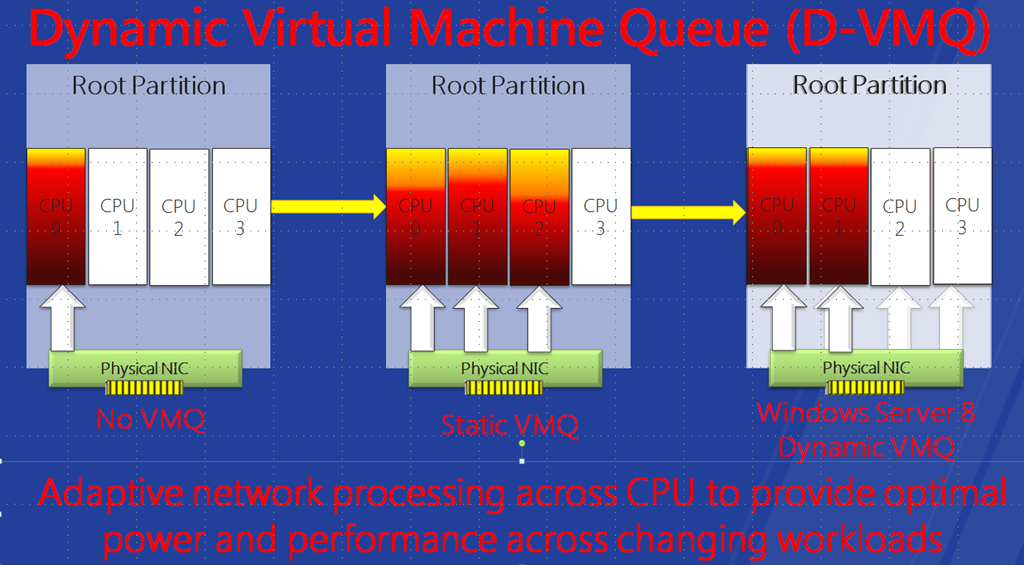
Now bring on Dynamic VMQ (DVMQ). All I know about this is from the Build sessions and I’ll revisit this once I get to test it for real with the beta or release candidate. I really hope this is better documented and doesn’t’ come associated with the issues we’ve had with VMQ Coalescing.  It brings the promise of easy and trouble free VMQ where the load is evenly balanced among the cores and avoids to the burden of to many interrupts. A sort of auto scaling if you like that optimizes queue handling & interrupts.

image

That means it can replace VMQ Coalescing and DVMQ will deal with this potential bottleneck on its own. Due to the issues I’ve had with coalescing I’m looking forward to that one. Take note that you should be able to live migrate virtual machines from host with VMQ capabilities to a host that hasn’t. You do lose the performance benefit but I have no confirmation on this yet and as mentioned I’m waiting for the Beta bits to try it out. It’s like Live Migration between an SR-IOV enabled host and non SR-IOV enabled host, which is confirmed as possible. On that front Microsoft seems to be doing a real good job, better than the competition.

Know What Receive Side Scaling (RSS) Is For Better Decisions With Windows 8

Introduction

As I mentioned in an introduction post Thinking About Windows 8 Server & Hyper-V 3.0 Network Performance there will be a lot of options and design decisions to be made in the networking area, especially with Hyper-V 3.0. When we’ll be discussing DVMQ (see DMVQ In Windows 8 Hyper-V), SR-IOV in Windows 8 (or VMQ/VMDq in Windows 2008 R2) and other network features with their benefits, drawbacks and requirements it helps to know what Receive Side Scaling (RSS) is. Chances are you know it better than the other mentioned optimizations. After all it’s been around longer than VMQ or SR-IOV and it’s beneficial to other workloads than virtualization. So even if you’re a “hardware only for my servers” die hard kind of person you can already be familiar with it. Perhaps you even "dislike” it because when the Scalable Networking Pack came out for Windows  2003 it wasn’t such a trouble free & happy experience. This was due to incompatibilities with a lot of the NIC drivers and it wasn’t fixed very fast. This means the internet is loaded with posts on how to disable RSS & the offload settings on which it depends. This was done to get stability or performance back for application servers like Exchange and others applications or services.

The Case for RSS

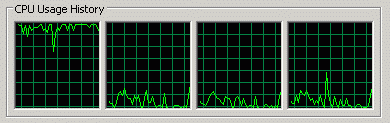
But since Windows 2008 these days are over. RSS is a great technology that gets you a lot better usage of out of your network bandwidth and your server. Not using RSS means that you’ll buy extra servers to handle the same workload. That wastes both energy and money. So how does RSS achieve this? Well without RSS all the interrupt from a NIC go to the same CPU/Core in multicore processors (Core 0).  In Task Manager that looks not unlike the picture below:

image

Now for a while the increase in CPU power kept the negative effects at bay for a lot of us in the 1Gbps era. But now, with 10Gbps becoming more common every day, that’s no longer the case. That core will become the bottle neck as that poor logical CPU will be running at 100%, processing as much network interrupts in can handle, while the other logical CPU only have to deal with the other workloads. You might never see more than 3.5Gbps of bandwidth being used if you don’t use RSS. The CPU core just can’t keep up. When you use RSS the processing of those interrupts is distributed across al cores.

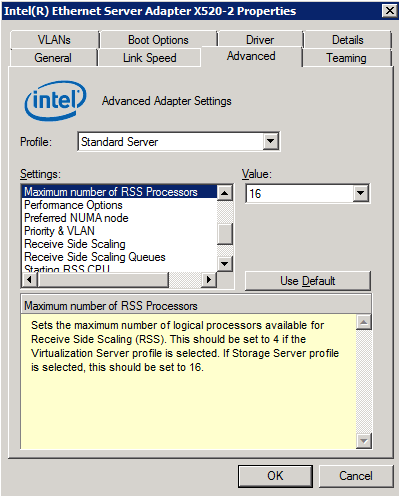
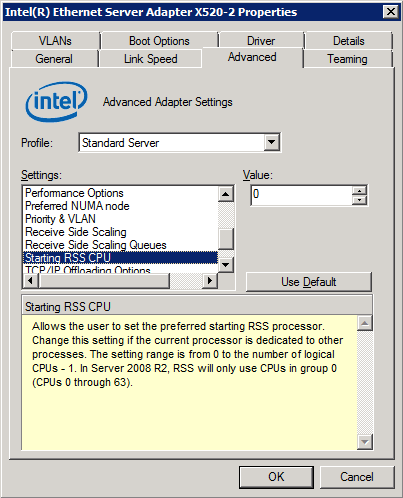
With Windows 2008 and Windows 2008 R2 and Windows 8 RSS is enabled by default in the operating system. Your NIC needs to support it and in that case you’ll be able to disable or enable it. Often you’ll get some advanced features (illustrated below) with the better NICs on the market. You’ll be able to set the base processor, the number of processors to use, the number of queues etc. That way you can divide the cores up amongst multiple NICs and/or tie NICs to specific cores.

image

image

So you can get fancy if needed and tweak the settings if needed for multi NIC systems. You can experiment with the best setting for your needs, follow the vendors defaults (Intel for example has different workload profiles for their NICs) or read up on what particular applications require for best performance.

Information On How To Make It Work

For more information on tweaking RSS you take a look at the following document http://msdn.microsoft.com/en-us/windows/hardware/gg463392. It holds a lot more information than just RSS in various scenarios so it’s a useful document for more than just this.

Another good guide is the "Networking Deployment Guide: Deploying High-Speed Networking Features". Those docs are about Windows 2008 R2 but they do have good information on RSS.

If you notice that RSS is correctly configured but it doesn’t seem to work for you it’ might be time to check up on the other adaptor offloads like TCP Checksum Offload, Large Send Offload etc. These also get turned of a lot when trouble shooting performance or reliability issues but RSS depends on them to work. If turned off, this could be the reason RSS is not working for you..