Changes in RDP over UDP behavior in Windows 10 and Windows 2016

Introduction

With Windows Server 2012 and Windows 8 (and Windows 7 RDP client 8.0) with some updates we got support for RDP to use UDP for data transport. This gave us a great experience over less reliable to even rather bad networks.

Anecdote: I was in an area of the world where there was no internet access available bar a very bad and lousy Wi-Fi connection at the shop/cafeteria. That was just fine, I wasn’t there for the great Wi-Fi access at all. But I needed to check e-mail and that wasn’t succeeding in any way, the network reliability was just too bad. I got the job done by using RDP to connect to a workstation back home (across the ocean on another continent) and check my e-mail there. Not a super great experience but UDP made it possible where nothing else worked. I was impressed.

Changes in RDP over UDP behavior in Windows 10 and Windows 2016

When connecting to Windows Server 2016 or a Windows 10 over a RD Gateway we see 1 HTTP and only one UDP connection being established for a session. We used to see 1 HTTP and 2 UDP connections per session with Windows 8/8.1 and Windows Server 2012(R2)

It doesn’t matter if your client is running RDP 8.0 or RDP 10.0 or whether the RD Gateway itself is running Windows Server 2012 R2 or Windows Server 2016. The only thing that does matter is the target that you are connecting to.

Also, this has nothing to do with a Firewall or so acting up, we’re testing with and without with the same IP etc. Let’s take a quick look at some examples and compare.

When connecting to Windows 10 or Windows Server 2016 we see that 1 UDP connection is established.

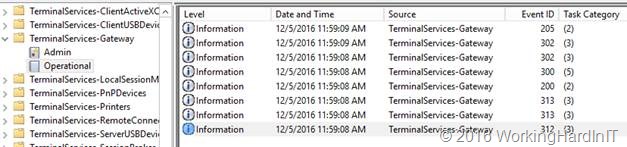
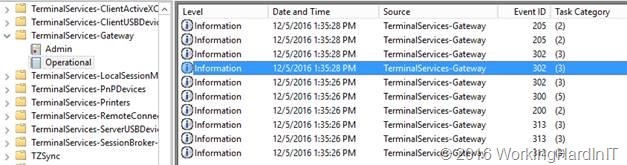
In total, there are 8 events logged for a successful connection over the RDG Gateway.

clip_image002

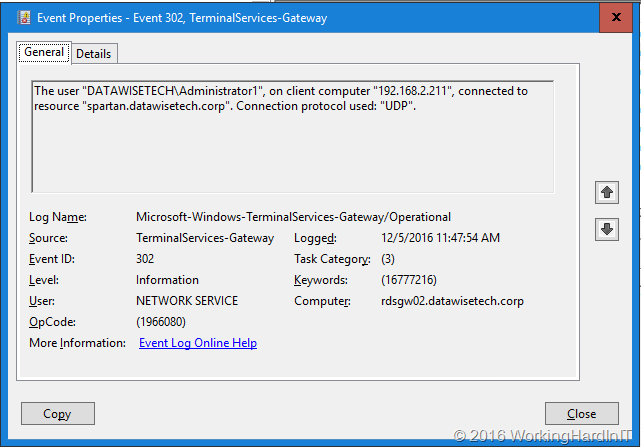
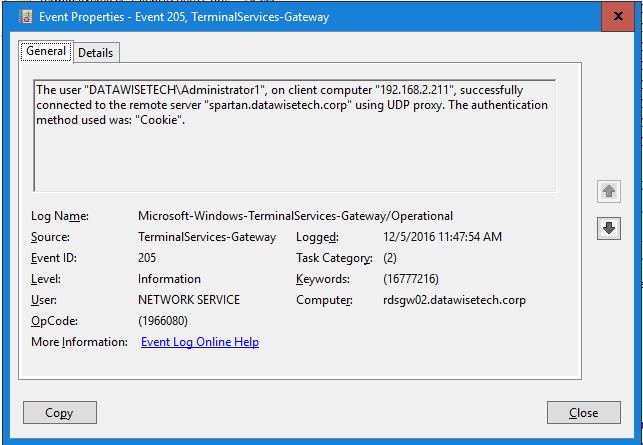
You’ll find 2 event ID 302 events (1 for a HTTP connection and 1 for a UDP connection) as well as 1 Event ID 205 events for the UDP proxy usage.

clip_image003

clip_image004

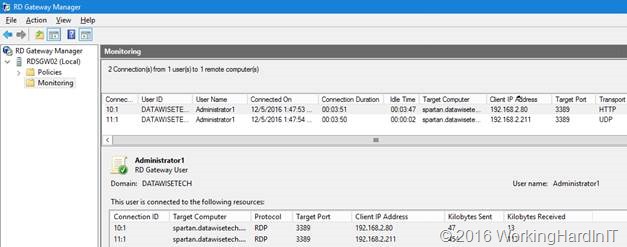
In the RD Gateway manager, monitoring we can see 1 HTTP and the 1 UDP connections for one RDP Session to a Windows 2016 Server.

clip_image006

When connecting to Windows 8/8.1 or Windows Server 2012 (R2) we see that 2 UDP connections are established.

In total, there are 10 events logged for a successful connection over the RDG Gateway:

clip_image008

You’ll find 3 event ID 302 events (1 for a HTTP connection and 2 for a UDP connection) as well as 2 Event ID 205 events for the UDP proxy usage.

In the RD Gateway manager, monitoring we can see 1 HTTP and the 2 UDP connections for one RDP Session to a Windows 2012 R2 Server.

clip_image010

So, RDP wise something seems to have changed. But I do not know the story and why.

In place upgrade of RD Gateway farm nodes to Windows Server 2016 removes the Loopback adapter for UDP load balancing

Here’s a quick heads up to anyone who’s involved in upgrading existing Windows Server 2012 (R2) RD Gateway farms to Windows Server 2016.

In my recent experiences the in place upgrade (VMs) works rather well. Just make sure the netlogon service is set to automatic (a know issue and a fix is coming) after you upgrade and install all updates. Also make sure that you don’t have this issue

Windows Time Service settings are not preserved during an in-place upgrade to Windows Server 2016 or Windows 10 Version 1607

There is however one networks specific issue specific you’ll need to deal with when leveraging UDP with a load balancer via Direct Server Return.

When you have a RD Gateway farm you load balance it with a (preferably high available) load balancer like a Kemp Loadmaster. I have described this in these blogs/videos Load balancing Hyper-V Workloads With High To Continuous Availability With a KEMP Loadmaster and Quick Demo Video Of Site Failover With KEMP Loadmaster Global Balancing

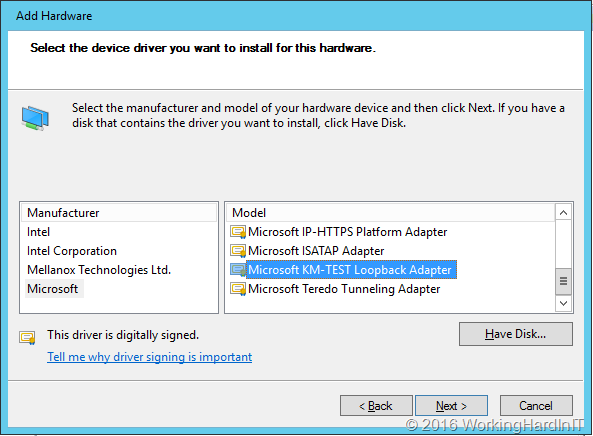
What you also do is load balance both HTTPS (TCP, port 443) and UDP (port 3391). For UDP we use Direct Server Return ((DSR) as described in my blog post Load balancing UDP for a RD Gateway farm with a KEMP Loadmaster. This requires a properly configured loopback adapter.

image

During the in place upgrade to Windows Server 2016 this loopback adapter is removed form the nodes. So you need to add it back just a described in my original blog post. Normally it will find the settings for it in the registry but it’s bets you check it all out as I’ve found that the loopback adapter did have “Register this connection”s address in DNS” enabled as well as NETBIOS over TCP/IP. So, per my blog post, check it all to make sure. Other than that, after installing all the Windows Server 2016 updates all works smoothly after an in place upgrade.

Hope this helps someone out there!

Kick start ADFS when your self- signed certificates have expired already

I recently had to do some lab work on a Windows Server 2012 R2 ADFS farm to prep for a migration to Windows Server 2016.  Due to some storage shortage and some upgrades and migrations (all hardware in the lab runs Windows Server 2016) I had parked my Windows Server 2012 R2 ADFS farm offline.

So when I copied them back to my cluster and imported them I knew I had to make sure the domain was OK. This is easy enough, just run:

Reset-ComputerMachinePassword [-Credential Mydomain\bigadmin -Server MyDC01

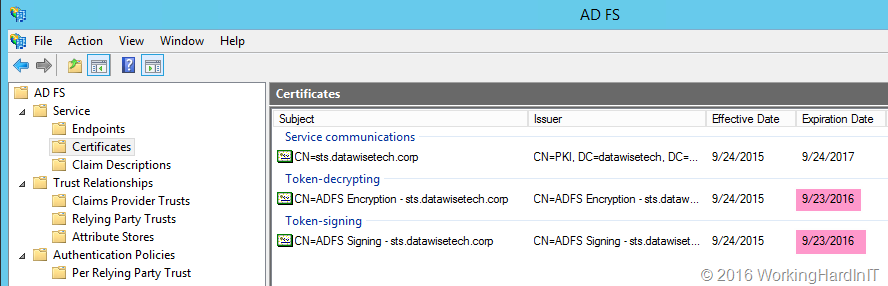
That worked like a charm and soon enough my 2 VMs where up an running happily in the domain. I did have some issues however. My AFDS servers had been of line long enough before the expiration of the token-decrypting and the token-signing certificates to not yet have generate the new certificates for auto renewal and long enough to have them expire already. Darn!

image

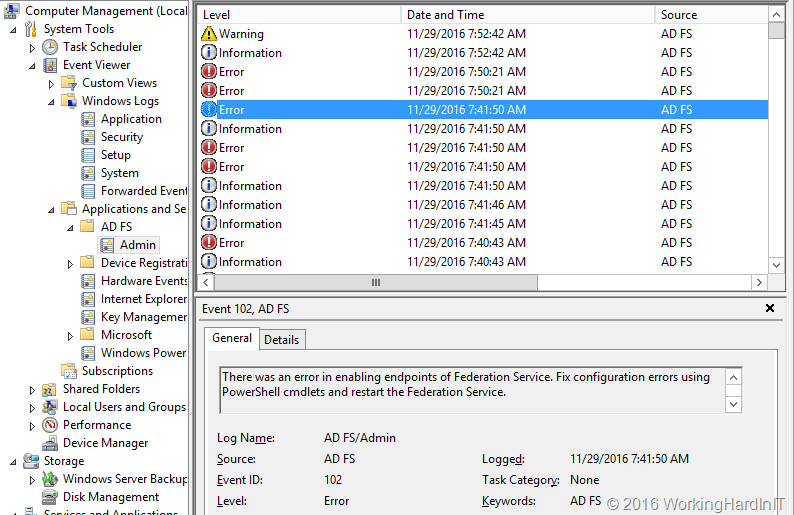
The result was a bunch of errors in the event log as you might expect and appreciate.

image

An error occurred during an attempt to build the certificate chain for configuration certificate identified by thumbprint ’26AFDC4A226D2605955BF6F844F0866C14B1E82B’. Possible causes are that the certificate has been revoked or certificate is not within its validity period.
The following errors occurred while building the certificate chain: 
MSIS2013: A required certificate is not within its validity period when verifying against the current system clock.

But this also raised the question on how to get the ADFS servers back in a working condition. Normally these are generated automatically close to the expiration date of your existing certs (or at the critical threshold you configured). So I disabled / re-enabled auto certificate rollover but does actually does it even kick in if you have already expired? That I don’t know and I really had no time to wait hours or days to see what happens.

Luckily there is a command you can issue to renew the certificates immediately. This is the same command you can use when you have disabled auto rollover and need it re-enabled. That works normally after some patience.

Update-AdfsCertificate -Urgent

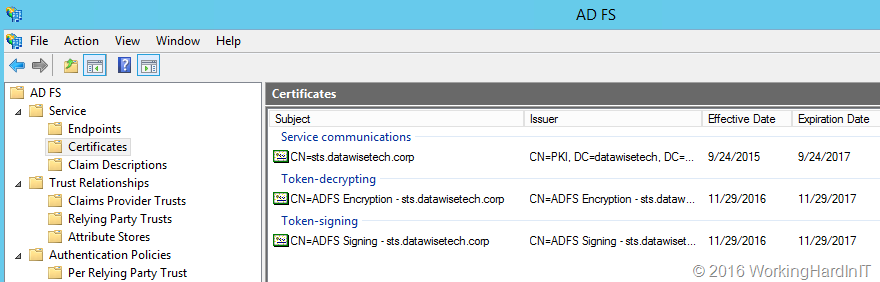
The result was immediate, the self signing certs were renewed.

image

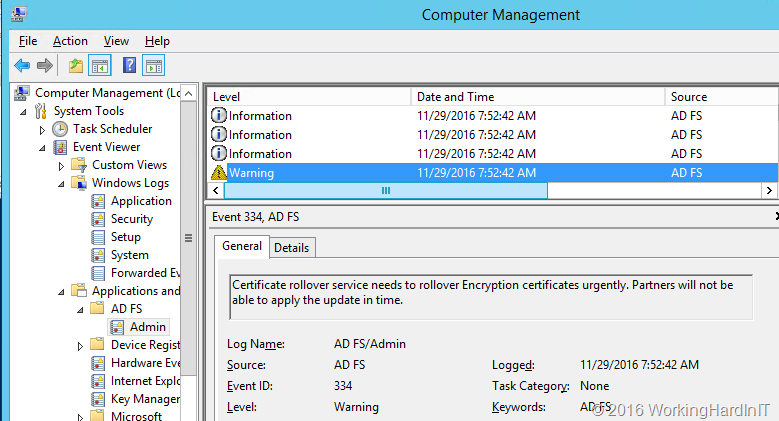
And we can see this in the various entries in the event log

image

Do note that this command will cause a disruption of the service with your partners until they have refreshed the information from your federation metadata – or in the case this isn’t or can’t be leveraged, manually updated. In my case I had a “service down” situation anyway, but in normal conditions you’d plan this and follow the normal procedure you have in place with any partner that need your ADFS Services.

Easily migrating non-AD integrated DNS servers while preserving server names and IP addresses

Introduction

I’ll show you the quickest way to move an existing public advertising DNS deployment on Windows Server 2012R2, generation 1 virtual machines (1 primary DNS server and 1 or more secondary DNS Servers) to Windows 2016 RTM generation 2 VMs. On top of this we will preserve the sever names and the IP addresses. This makes the migration easier and it doesn’t burden anyone with updating IP addresses or FQDN of services pointing to the existing public advertising DNS service. Basically the result is the best possible for everyone involved.

Step by Step

We start by preparing a sysprepped VHDX of Windows 2016 with all the updates installed and any tools that are sysprep compatible and that you want or need on your VMs. This will allow us to make the move fast. As we want our new DNS VMs to be generation 2 VMS, make sure you use a generation 2 VM to create the syprepped OS VHDX.

The process we describe below is the same for each of the involved DNS servers. You start with the secondary VMs and end with the primary VM. This is just a form risk reduction, it’s smart to start with the secondary as it’s less critical than the primary where you make the changes.

Log on to the old, source VM and do the following

  1. Create a Folder to store the migration data and Info, i.e. C:\DNSMigrateServer01
  2. Open an elevated command prompt
  3. Run Ipconfig /all > C:\DNSMigrateServer01\Server01TCPIPinfo.txt this gives you the IP info you need for future reference.
  4. Run reg export HKEY_LOCAL_MACHINE\System\CurrentControlSet\Services\DNS\Parameters C:\DNSMigrateServer01\Dns-Service.REG
  5. Run reg export HKEY_LOCAL_MACHINE\SOFTWARE\Microsoft\Windows NT\CurrentVersion\DNS Server” C:\DNSMigrateServer01\Dns-Software.REG
  6. In some cases, rarely for most deployments, you’ll need to also copy all files under each custom database directory on the old DNS server by manually reading from the registry at the following path: HKEY_LOCAL_MACHINE\SYSTEM\CurrentControlSet\Services\DNS\Parameters\DatabaseDirectory If you have these also copy the directory to C:\DNSMigrateServer01. Normally when you have custom DNS database locations this is not by accident and should be well documented.
  7. Run xcopy %windir%\system32\dns C:\DNSMigrateServer01 /s This copies the content of your DNS folder (normally C:\Windows\System32\dns) to your migration folder. Note that you don’t need to copy the samples sub folder. Even the backup folder is not really needed. Just create a new backup when needed on the news DNS servers.
  8. Copy the C:\DNSMigrateServer01 from your old DNS Server to your desktop or some file share for safe keeping. You’ll need to copy this into the new DNS Server later. Note it contains your IP information, your registry exports and your DNS files.

You now have everything you need form the old DNS Server. So now we’ll decommission it, but before we do so we’ll make sure we have the options to recover it if needed.

  1. Make sure you have a backup or have made on recently (you do trust your ability to restore, right?)
  2. Shut down the VM and for good measure and fast recovery you might want to export the VM for quick import.
  3. Remove the VM from Failover Clustering if it’s clustered.
  4. Now remove the VM from Hyper-V Manager. Note this doesn’t delete the virtual disk files.
  5. Remove the old VHDX (you have an export and a backup) and replace it with your sysprepped W2K16RTM VHDX that has all the updates already. Rename that VHDX to something sensible like server01disk01.vhdx.
  6. Create a new generation 2 VM with the same name as the old one, select the required memory settings, choose to use an existing VHDX and point it to your sysprepped VHDX.
  7. Start the VM
  8. Go through the mini wizard and log in to it.
  9. Configure the NIC with the same setting as your old DNS Server
  10. Rename the VM to the old DNS VM name and join the domain.
  11. Restart the VM
  12. Login to the new DNS VM
  13. Install DNS
  14. Copy the C:\DNSMigrateServer01 you saved from your old DNS Server into the new one
  15. Open an elevated command prompt and run
    • Stop the DNS Server service by running net stop “DNS Server”
    • Double click the Dns-Service.REG and merge them into the registry

clip_image001

    • Double click the Dns-Software.REG files and merge them into the registry.

clip_image002

    • Copy all the files under C:\DNSMigrateServer01 to %windir%\System32\DNS
    • Start the DNS Server service by running net start “DNS Server”

Congratulations, you now have a new generation 2 VM running DNS on Windows Server 2016 with the same name and IP configuration as the old one. You now want to validate it’s working. To do so on the primary DNS server update the serial number in the start of authority (SOA) tab of the zone properties. I normally use YearMonthDayXX.

clip_image003

This will allow you to check whether the zone transfers to your migrated DNS server work. Normally all is just fine. In case things went horribly wrong you can import the VMs you exported or restore the backups. If your VMs are domain members and as you have reused the VM name, you’ll need to reestablish its domain member ship but that’s easily done.

Now repeat the above process for all the reaming secondary DNS Server and finally for the primary DNS server. Until you’ve done them all.

Conclusion

You do this process for every DNS Server and finally for your primary DNS server. That’s it. You’re in business and you have achieved 2 goals. You’re DNS VMs have been move to generation 2 and are running on a clean install of Windows Server 2016. All this without having to reconfigure DNS zone and transfers and while maintaining your DNS server names and IP addresses. Life is good.