Dell EMC Digital Transformation Goals at Dell EMC World

 Dell EMC Digital Transformation Goals at Del EMC World

Introduction

As many of my blog readers will know, I am attending Dell EMC World this week in Las Vegas. Today we got our introduction into how they aim to help customers realize the digital transformation goals they have and, quite frankly that their customers need. It is no secret that I have leveraged DELL hardware very effectively over the years to build highly performant solutions at a great price value. Sometimes to the envy of my peers who saw those results. I’m here because I intend to continue doing so.
image

It is clear that DELL EMC is still very proud to be privately owned and they mentioned this once again. This gives them the freedom and flexibility they need to outperform the competition. DELL EMC files SEC records, so there is nothing to hide. I do note they have a couple of public owned companies in the business now. That model has gone hybrid as well it seems.

Given the vast amount of attention digital transformation gets nowadays it will be no surprise that DELL EMC is focusing its efforts to facilitate this transition for its customers. After all, an unrelenting focus on real customer needs is one of the cornerstones of digital transformation. As such, DELL EMC is drinking its own champagne.

The digital transformation challenge

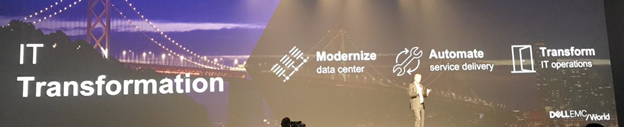
While things are changing fast, this also has the consequence they last less long. That means that the need to move and deliver fast is certainly clear and present. This is because the time spam in which to deliver the ROI gets shorter as well. Together with that comes perhaps a more urgent need and that is to change course fast when needed. However, to ensure digital transformation becomes more than buzz or hype we need more than just agility and speed.

We need a modern service focused “serverless” IT architecture where the cloud model reigns due to its agility and elasticity. When we use cloud as delivery model and not a location we get the ability to leverage our architectures in both public, hybrid and private environments without making any solution or technology the goal instead of the services we deliver to the customer. I call that “Service Resilience Engineering” as this encompasses the need to focus the services we deliver and not infrastructure, architectures or technologies. This avoids being stuck in a location, a technology or vendor. To the extent that is possible, as (public) cloud per definition is perhaps the biggest attempt at vendor lock in at scale we have ever seen. This despite valiant and sometimes successful efforts of many to avoid it. They also mention cost efficiency as a public cloud issue for customers. Cost however is a limited metric; value is a much better one.
image

Dell EMC has its eye set on helping customers do exactly that. This without making the mistake of leaving existing needs behind or failing to cater to more recent and emerging technologies and trends.

Budgets are limited. This means the old and the new IT architecture have to merge and transform where needed. We often do not have the ability and budget to go one hundred % green field in all or most situations.

One of the ways Dell EMC hopes to facilitate this is via a cloud-like pricing model. That means that even in cases where on-premises infrastructure remains needed customers can scale up and scale down. This leverages a pay for use model for components of their datacenter instead of the entire datacenter (Dell Technologies Rolls Out Flexible Consumption Models for IT from the Desktop to the Data Center). Even when, personally, I rather see smaller capex efforts more frequently when possible, this option is often not available. If that is not possible in an OPEX loving world that is very CAPEX shy, this initiative can only help.

Customers must do more than window dressing and avoid mere lip service to digital transformation. No matter what you call it, this will require a deep and broad understanding of user needs combined with an expert level understanding of information technologies, architectures and designs. That means that business will need to accept the technology experts into the C level positions, board roams and at the helm. The need for speed in delivery is too high and specialized to waste time on old school and very flawed models that see technology as a facility. Organizations trying to achieve digital transformation in that way will fail. Technology will lead the effort to deliver what customers require and demand. As DELL EMC puts it: “Every company is an IT company. Technology and your IT capabilities are at the center of driving digital transformation”. Having spoken with some customers here and having seen how farmers back home are digitizing their business despite lack of support from government and traditional IT providers, I agree.
image

There is no one size fits all. Before you getting too excited and think that modernizing the data center will free up vast amounts of money for app development you might be in for a surprise. If you already have a decent datacenter environment. For many well run companies there is not much more money to be saved there. The cost of services and wages in regards to business operations and app development are already a magnitude of their infrastructure costs. Optimizing that further might not deliver that much. The big savings are not for the more up to date companies, those need to leverage their advantage now, not shave of more of ever less. So be ready for some major investments.

Some of the announcements

At Dell EMC World today, we saw announcements on the new generation 14 Power Edge server models that are adding all the tech updates that are available from Intel mid this year (Dell EMC Drives IT Transformation With the New 14th Generation of PowerEdge Servers). Especially when it comes to VDI scalability and local NVMe storage, we will see major improvements. The other areas of improvement are security, ease of automation and manageability in a software-defined world. One excellent improvement is that it is shipping with native 25GbE support! Awesome, 10Gbps becomes the new 1Gbps fast so to speak. 40Gbps is on the way out as 50/100Gbps take over. These improvements should keep us fully powered up until we see PCIe 4 arrive in the next server generation.

Storage wise we see lots of movement in the hyper-converged segment where cloud consumption models become more outspoken (see New Dell EMC Hyper-Converged Infrastructure Advancements and Cloud-Like Consumption Model Ease Adoption). I do note that the do not mention Storage Spaces Direct in their HCI offering while they do in their SDS efforts. The line blur but while S2D is not limited to HCI, it does deliver that as well.

They continue their efforts towards more software defined storage capabilities (see Dell EMC Software-Defined Storage Paves Way for Data Center Modernization). Note that this includes Microsoft Storage Spaces Direct on generation 14 servers available in the second half of this year. That is great news for people not willing to carry the engineering and support effort of building it themselves.

It will be no surprise that there is an ever-stronger move towards all flash solutions which seems to be moving faster and more widely across the industry and customers (Dell EMC Introduces New All-Flash Storage Systems to Help Customers Modernize Their Data Centers and Transform IT).

I am happy to see that they also introduced the SC5020 to the great Compellent series of mid-range storage that punches far above its perceived weight when configured properly. To me the SC series have always been and remains a gem in the traditional SAN offerings. I do still wish a native full featured SMB3 offering was be available in them, but for now we will do what we have been doing, build our own scale out file servers against it where needed.

On the network side, it is clear DELL EMC keeps focusing its efforts on open networking (Dell EMC Powers IT Transformation with New Open Networking Products). Another noticeable fact is that the push towards 25/50 and a 100Gbps truly picks up speed.

Dell EMC intends to remain a player in the data protection arena (Dell EMC Launches Integrated Data Protection Appliance and Expands Cloud Data Protection Portfolio). As this is an area I also focus on by leveraging commodity hardware, cloud and native in box capabilities I’m interested to see if the dedicated appliance vendors can keep up with other players in that field of endeavor when pitched against creative customers.

Conclusion

On top of the above, DELL EMC is highlighting the potential of artificial intelligence and virtual reality in the future.  Then there is security. In a world where work is a thing that you do not a place you go, mobility and security is and remains of paramount importance. Technology has to evolve to make this happen and leave bolted on security solutions behind.

I hope to dive deeper in to some of this as the conference continuous and I get the chance to speak with industry experts, both DELL EMC employees and my peers while here. Next to that, I am attending to provide feedback to DELL EMC on our needs and wants to achieve our goals, which means customers will gladly pay for our services.

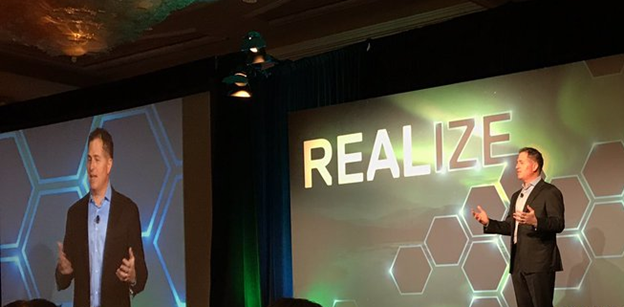
Whether Michael Dell is more right than wrong will be determined by the market as they say. I do notice that if his vision does not materialize it will not be due to his lack of managerial and sales man skills. He can sell a vision and drive a company.

In case you think, DELL EMC tells me what or when to write, that is not the case. As my former account manager stated “I will gladly let Didier provide feedback to management at DELL EMC, but they will have to accept that it will be direct and not always 100% positive. It is honest and that is when they will learn where they can improve”. I always operate on that principle.
PowerShell Script to Load Balance DNS Server Search Order

Load Balance DNS Server Search Order

DNS servers need to be configured correctly, operate perfectly and respond as fast as possible to their clients. For some applications this is critical, but many have a more relaxed attitude. Hence a DNS Server has a full second to respond to a query. That means that even when you have 2 DNS servers configured on the clients the second will only be used when the first is not available or doesn’t respond quickly enough. This has a side effect which is that moving traffic away from an overloaded DNS servers isn’t that easy or optimal. We’ll look at when to use a PowerShell script to Load balance DNS server search order.

DHCP now and then

The trick here is to balance the possible DNS servers search order amongst the clients. We used to do this via split scopes and use different DNS servers search orders in each scope. When we got Windows server 2012(R2) we not only gained policies to take care of this but also DHCP failover with replica. That’s awesome as it relieves us of much of the tedious work of keeping track of maintaining split scopes and different options on all DCHP servers involved. For more information in using the MAC addresses and DCHP policies to load balance the use of your DNS servers read this TechNet article Load balancing DNS servers using DHCP Server Policies.

Fixed IP configurations

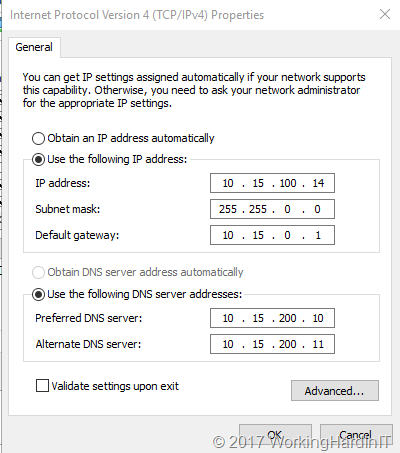
But what about servers with fixed IP addresses? Indeed, the dream world where we’ll see dynamically assigned IP configuration everywhere is a good one but perfection is not of this world. Fixed IP configurations are still very common and often for good reasons. Some turn to DCHP reservations to achieve this but many go for static IP configuration on the servers.

image

When that’s the case, our sys admins are told the DNS servers to use. Most of the time they’ll enter those in the same order over and over again, whether they do this manual or automated. So that means that the first and second DNS server in the search order are the same everywhere. No load balancing to be found. So potentially one DNS server is doing all the work and getting slower at it while the second or third DNS servers in the search order only help out when the first one is down or doesn’t respond quickly enough anymore. Not good. When you consider many (most?) used AD integrated DNS for their MSFT environments that’s even less good.

PowerShell Script to Load Balance DNS Server Search Order

That’s why when replacing DNS Servers or seeing response time issues on AD/DNS servers I balance the DNS server search order list. I do this based on their IP address its last octet. If that’s even, DNS Server A is the first in the search order and if not it’s DNS Server B that goes in first. That mixes them up pseudo random enough.

I use a PowerShell script for that nowadays instead of my age-old VBScript one. But recently I wanted to update it to no longer use WMI calls to get the job done. That’s the script I’m sharing here, or at least the core cons pet part of it, you’ll need to turn it into a module and parameterize if further to suit your needs. The main idea is here offering an alternative to WMI calls. Do note you’ll need PowerShell remoting enabled and configured and have the more recent Windows OS versions (Windows Server 2012 and up).

cls
#The transcipt provides a log to check what was found and what changed.
Start-Transcript -Path C:\SysAdmin\MyDNSUpdateLog.txt #
$VMsOnHost = (Get-VM -ComputerName MyHyperVHostorClusterName).Name

foreach ($VM in $VMsOnHost)
{
    Invoke-Command -ComputerName $VM -ScriptBlock {

    #This function checks if the last octet of an IP address is even or not
    Function IsLastOctetEven ($IPAddress)
        {
             #$FirstIP
             $Octets = $IPAddress.Split(".")
             #$Octets[3] #0 based array, grab 4th octet

             #See if 4th octect is even
             $Boolean = [bool]!($Octets[3]%2)
             if ($Boolean)
             {
                 Return $Boolean
                 #write-host "even"
             }
             else
             {
                 Return $Boolean
                 #write-host "odd"
             }
        }

        $OldDns1 = "10.15.200.10"
        $OldDns2 = "10.15.200.11"
        $NewDns1 = "10.18.50.110"
        $NewDns2 = "10.18.50.120"

        $NicInterfaces = Get-DnsClientServerAddress

        foreach ($NICinterface in $NicInterfaces)
        {
                #Here we filter out all interfaces that are not used for client/server connectivity.
                #Cluster Interfaces, HeartBeats, Loop back adapters, ...
                #We also filter out IPv6 here as this is for a IVp4 environment.
             if($NicInterface.InterfaceAlias -notmatch "isatap" -and $NicInterface.InterfaceAlias -notmatch "Pseudo" `
                -and $NicInterface.InterfaceAlias.Contains("Local Area Connection*") -ne $True `
                -and $NicInterface.InterfaceAlias.Contains("KEMP-DSR-LOOPBACK") -ne $True `
                -and $NicInterface.InterfaceAlias.ToLower().Contains("Heartbeat".Tolower()) -ne $True `
                -and $NicInterface.InterfaceAlias.Contains("NLB-PRIVATE") -ne $True-and $NicInterface.AddressFamily -ne "23")
             {

                $Output = "Hello from  $env:computername" + $NICinterface.InterfaceAlias
                write-Output $Output            
           
                $Output = $NicInterface.InterfaceAlias +": DNS1=" + $NicInterface.ServerAddresses.GetValue(0) + " & DNS2=" +  $NicInterface.ServerAddresses.GetValue(1)
                write-Output $Output

                If (($NicInterface.ServerAddresses.GetValue(0) -like $OldDns1 -or $NicInterface.ServerAddresses.getvalue(0) -like $OldDns2) -and ($NicInterface.ServerAddresses.getvalue(1) -like $oldDns1 -or $NicInterface.ServerAddresses.getvalue(1) -like $OldDns2))
                {
                    #If the IP address is DHCP assignd, leave it alone,
                    #that's handled via DHCP policies on the MAC address
                    $GetNetIPInfo = Get-NetIpAddress -InterfaceIndex  $NicInterface.InterfaceIndex
                     if ($GetNetIPInfo.PrefixOrigin -like "DHCP")
                     {
                        $VM                   
                        write-output "DHCP address - leave it alone"
                     }
                     Else
                     {
                         $IPAddresses = $GetNetIPInfo.IPv4Address
                         $FirstIP = $IPAddresses[1] #1 based array
                 
                         if (IsLastOctetEven($FirstIP)){
                            $VM
                            write-output "EVEN 4th IP octet => so DNS search order becomes $NewDns1 , $NewDns2"
                            Set-DnsClientServerAddress -InterfaceIndex $NicInterface.InterfaceIndex -ServerAddresses ($NewDns1,$NewDns2)
                         }
                         else
                         {   
                            $VM
                            write-Output "ODD 4th IP octet => so DNS search order becomes $NewDns2 , $NewDns1"
                            Set-DnsClientServerAddress -InterfaceIndex $NicInterface.InterfaceIndex -ServerAddresses ($NewDns2, $NewDns1)
                         } 
                         $NicInterface |  Select-Object -ExpandProperty ServerAddresses    
                     }
                }
                else
                {
                    $VM
                    write-Output "Existing DNS values not like expected old values. They are propably already changed"
                }        
            }
        }
    }
}
Stop-Transcript


Continuous available general purpose file shares & ReFSv3 provide high available backup targets

Introduction

In our previous two blog posts on Veeam and SMB 3 we’ve seen how and when Veeam Backup & Replication can leverage SMB Multichannel and SMB Direct. See Veeam Backup & Replication leverages SMB Multichannel and Veeam Backup & Replication Preferred Subnet & SMB Multichannel.The benefits of this are more bandwidth, high availability, better throughput and with RDMA low latency and CPU offload. What’s not to like, right? In a world where the compute and networks need keeps rising due to the storage capabilities (flash storage) pushing the limits this is all very welcome.

We have also seen earlier that Veeam B & R 9.5 leverages ReFSv3 in Windows Server 2016. This provides clear and present benefits in regards to space efficiencies and speed with many backup file related operations. Read Veeam Leads the way by leveraging ReFSv3 capabilities

When it comes to ReFSv3 in Windows Server 2016 most of the focus has gone to solutions based around Storage Spaces Direct (S2D). That’s a great solution and it is the poster child use case of these technologies.

But what other options do you have out there to build efficient and effective high available backup targets creatively except for S2D? What if you would like to repurpose existing hardware to build those? Let’s take a look together at how continuous available general purpose file shares & ReFSv3v3 provide high available backup targets

CSV, S2D, ReFSv3 & Archival Data

In Windows Server 2016, traditional shared storage (iSCSI, FC, Shared SAS, Shared RAID) with CSV are not recommend to be used with ReFSv3. Why isn’t exactly clear. The biggest impact you’ll see is the performance difference when not writing to the owner node of the CSV in this use case. Even with a well configured RDMA network that difference is significant. But that doesn’t mean that the performance is bad. It’s just that many of the super-fast meta data operations are relatively and significantly slower when compared each other, not that any of these two are slow.

clip_image002

Microsoft does state that an S2D with ReFSv3 and SOFS shares can be used for archival data. Storage spaces and ReFSv3 also have the benefit of offering automatic repair of corrupt data from a redundant copy on the fly even when needed. So yes, the best know supported scenario is this one.

Continuous available general purpose file shares and ReFSv3 provide high available backup targets

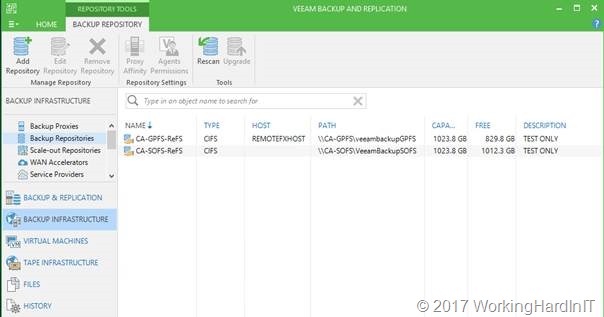
But what if we need a high available backup target and would love to leverage ReFSv3 with Veeam Backup & Replication 9.5? Well, you can have 95% of your cookie and eat it to. All this without ignoring the cautions offered.

We could set up SOFS shares on a Windows Server 2016 Cluster with ReFSv3 with traditional shared storage. Some storage vendors do state this is supported actually.

That only means you don’t have the auto repair functionality ReFSv3 combined with storage spaces offers. But perhaps you want to avoid the risk of using ReFSv3 with CSV in a non S2D scenario all together. What you could do is forgo ReFSv3 and use NTFS. How well this will work for archival data or backup is something you’ll need to test and find out how well this holds up. There is not much info is out there, only other cautions and warnings that might keep you up at night.

There is another scenario however and that is using Windows Server 2016 failover clustering to set up continuously available general purpose file shares that leverage SMB3 transparent failover.

The good news is that general purpose file shares (no CSV) do work consistently with ReFSv3 because such a share/LUN is only exposed on one cluster node at the time, the owner. By having multiple shares and setting preferred owners we can load balance the workload across all cluster nodes.

Thank to continuous availability for general file shares and SMB 3 transparent failover we can still get a high available backup target this way. The failover is fast enough to make this happen and all we see with Veeam Backup & Replication is a short pause in throughput before it resumes after failover. To put the icing on the cake, you can leverage SMB multichannel SMB Direct for both backup and restores.

I would take a sizeable whitepaper to walk through the setup so instead I’ll show you a a quick video of a POC we did in the lab here https://vimeo.com/212886392.

clip_image004

If you want to learn more come to the community & other conferences I’m speaking at and will be around for Ask The Experts time opportunities. I’ll be at the German Hyper-V community meet up, The Cloud & Datacenter Conference in Germany 2017, Dell EMC World 2017 and last but not least VeeamON 2017 (see  May 2017 will be a travelling month). 

Conclusion

What do you lose?

Potentially there is one big loss in regards to the capabilities of ReFSv3 with this solution when you are not using storage spaces. This is that you lose the capability to automatic repair of corrupt data. The ability of ReFSv3 to do so is tied into the redundant copies of Storage Spaces (parity/mirror).

What do you get?

That’s fine, the strength of this design is that you get the speed and space efficiencies of ReFSv3and high available backup targets in way more scenarios than “just” S2D. After all, not everyone is in a position to choose their storage fabric for backup targets green field or at will. But they might be able to leverage existing storage and opt to use SMB 3 for their data transport.

So even if you can’t have it all, you can still build very good solutions. It offers ReFSv3 benefits and high availability for your backup target via transparent failover with SMB transparent failover on continuous available general purpose file shares. This also only requires Windows Server 2016 Standard Edition, which is a cost saving. You get to leverage SMB Multichannel and SMB Direct. All this while not ignoring the cautions of using ReFSv3 in certain scenarios.

On top of that, if you use NTFS with this approach it will also work for Windows Server 2012 (R2) as the OS for the backup target cluster hosts.

Disclaimer

I do not work for or at Microsoft, nor am I perfect or infallible just because I’m an MVP. You’ll have to do your own testing and validation. From our testing and without ReFSv3 bugs ruining the show, to me this is a very valid and cost effective approach.

Veeam Backup & Replication Preferred Subnet & SMB Multichannel

Introduction

In a previous blog post Veeam Backup & Replication leverages SMB Multichannel post we showed that Veeam backup & Replication leverages SMB multichannel when possible.

But what about Veeam Backup & Replication Preferred Subnet & SMB Multichannel, does that work? We mentioned that we wanted to answer the question what happens if we configure a preferred back-up network in Veeam Backup & Replication. Would this affect the operation of SMB multichannel at all? By that I means, would enabling a preferred network in Veeam prevent multichannel from using more than one NIC?

In this blog post we dive in to that question and some scenarios. We actually need to be able to deal with multiple scenarios. When you have equally capable NICs that are on different subnets you might want to make sure it uses only one. Likewise, you want both to be used whether they are or are not on the same subnet even if you set a preferred subnet in Veeam. The good news is that the nature of SMB Multichannel and how Veaam preferred networks work do allow for flexibility to achieve this. But it might not work like you would expect, unless you understand SMB Multichannel.

Veeam Backup & Replication Preferred Subnet & SMB Multichannel

For this blog post we adapt our lab networking a bit so that our non-management 10Gbps rNICs are on different subnets. We have subnet 10.10.110.0/24 for one set of NICs and 10.10.120.0/24 for the second set of NICs. This is shown in the figure below.

image

These networks can live in a separate VLAN or not, that doesn’t really matter. It does matter if to have a tagged VLAN or VLANS if you want to use RDMA because you need it to have the priority set.

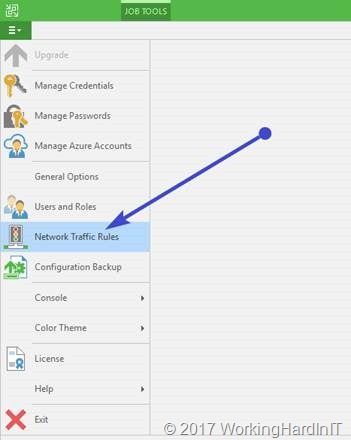
We now need to configure our preferred network in Veeam Backup & Replication. We go to the main menu and select Network Traffic Rules

clip_image004

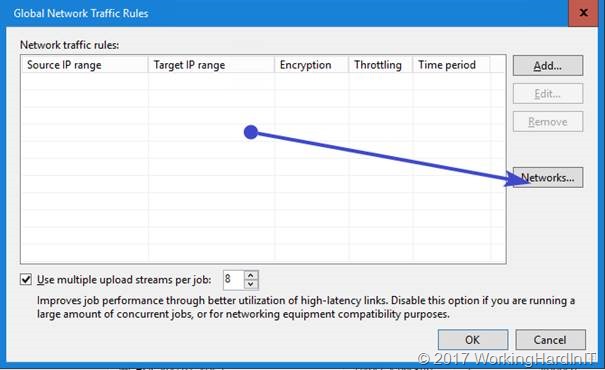
In the Global Network Traffic Rules window, click Networks.

clip_image006

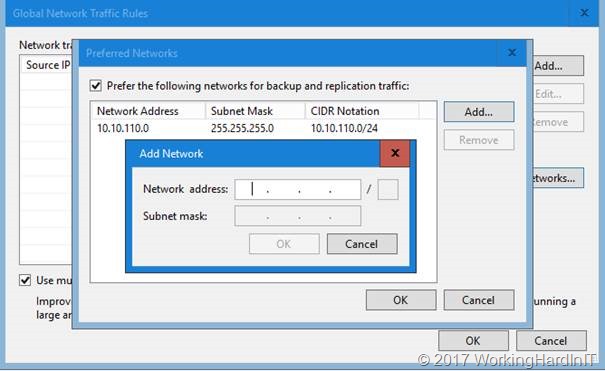
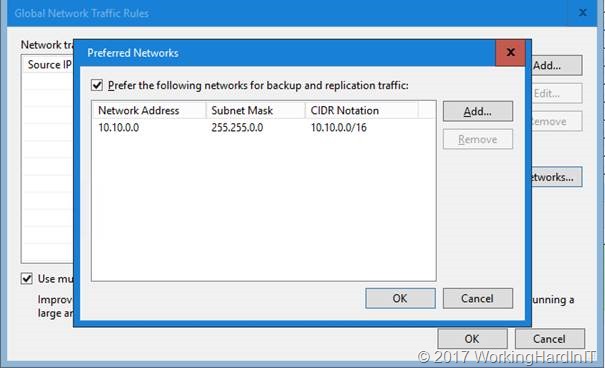
In the Preferred Networks window, select the Prefer the following networks for backup and replication traffic check box.

clip_image008

Click Add. We use the CIDR notation to fill out our preferred network or you can use the network mask and click OK.

To prove a point in regards to how Multichannel works isn’t affected by what you fill out here we add only one of our two subnets here. SMB will see where it can leverage SMB multichannel and it will kick in. Veeam isn’t blocking any of its logic.

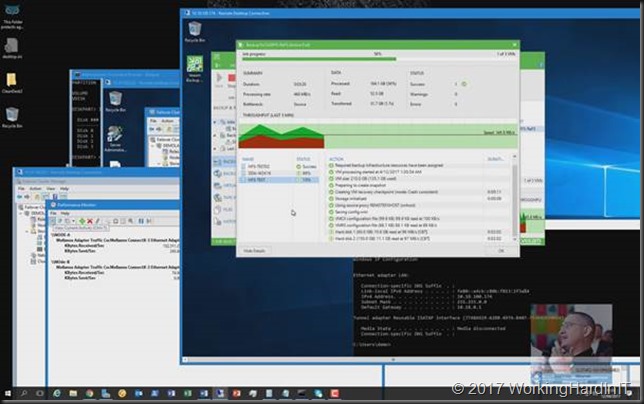
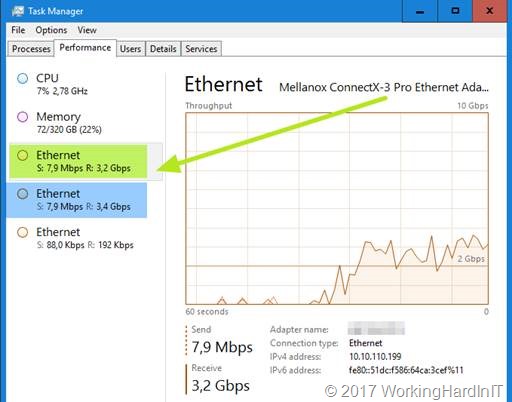
So now we kick of a backup of our Hyper-V host to our SMB hare target backup repository. We can see multichannel work just fine.

clip_image010

Below is a screenshot on the backup target of the backup running over SMB multichannel, leveraging 2 subnets, while having set only one of those as the preferred network in Veeam Backup & Replication

clip_image012

Look at my backup fly … and this is only one host that’s being backup (4 VMs actually). Have I told you how much I love flash storage? And why I’m so interested in getting ReFS hybrid volumes with SSD/SATA disks to work as backup target? I bet you do!

Looking good and it’s easy, right? Well not so fast!

Veeam does not control SMB Multichannel

Before you think you’re golden here and in control via Veeam lets do another demo. In the preferred network, we enter a subnet available to both the source and the target server but that is an LBFO (teamed) NIC with to 1Gbps members (RSS is enabled).

clip_image014

No let’s see what happens when we kick of a backup.

clip_image016

Well SMB multichannel just goes through its rules and decided to take the two best, equally capable NICs. These are still our two 10Gbps rNICs. Whatever you put in the preferred network is ignored.

This is neither good or bad but you need to be aware of this in order to arrange for backups to leverage the network path(s) you had in mind. This is to avoid surprises. The way to do that the same as you plan and design for all SMB multichannel traffic.

As stated in the previous blog post you can control what NICs SMB multichannel will use by designing around the NIC capabilities or if needed disabling or enabling some of these or by disabling SMB multichannel on a NIC. This isn’t always possible or can lead to issues for other workloads so the easiest way to go is using SMB Multichannel Constraints. Do note however that you need to take into consideration what other workloads on your server leverage SMB Multichannel when you go that route to avoid possible issues.

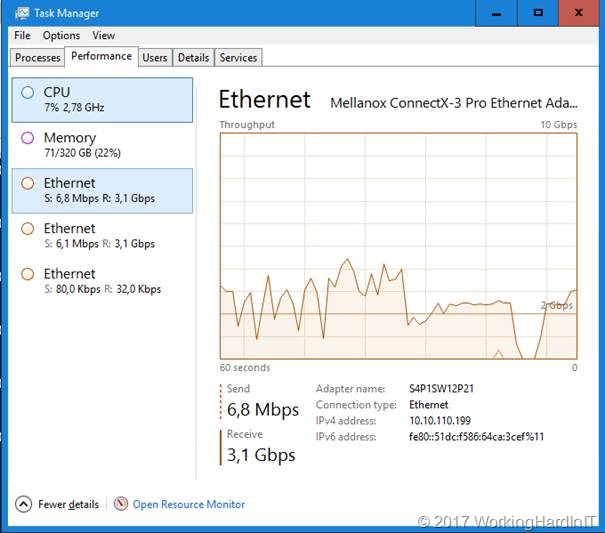
As an example, I disabled multichannel on my hosts. Awful idea but it’s to prove point. And still with our 10.10.0.0/16 subnet set as preferred subnet I ran a backup again.

clip_image018

As you can see the 2*1Gbps LBFO NIC is doing all the lifting on both hosts as it’s switch independent and not LACP load balancing mode we’re limited to 1Gbps.

So how do we control the NICs used with SMB multichannel?

Well SMB Multichannel rules apply. You use your physical design, the capabilities of the NICs and SMB constraints. In reality you’re better off using your design and if needed SMB multichannel constraints to limit SMB to the NICs you want it to use. Do not that disabling SMB Multichannel (client and or server) is a global for the host. Consider this as it affects all NICs on the host, not just the ones you have in mind for your backups. In most cases these NICs will be the same. Messing around with disabling multichannel or NIC capabilities (RSS, RDMA) isn’t a great solution. But it’s good to know the options and behavior.

Some things to note

Realize you don’t even have to set both subnets in the preferred subnets if they are different. SMB kicks of over one, sees it can leverage both and just does so. The only thing you manipulated here SMB multichannel wise is which subnet is used first.

If both of our rNICs would have been on the same subnet you would not even have manipulated this.

Another thing that’s worth pointing out that this doesn’t require your Veeam Backup & Replication VM to have an IP address in any of the SMB multichannel subnets. So as long as the source Hyper-V hosts and the backup target are connected you’re good to go.

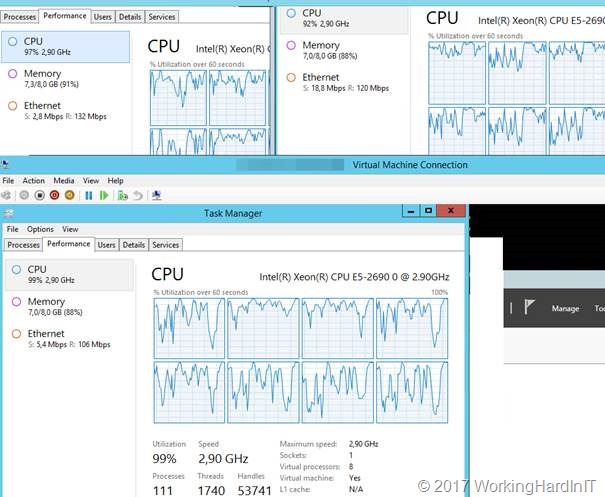
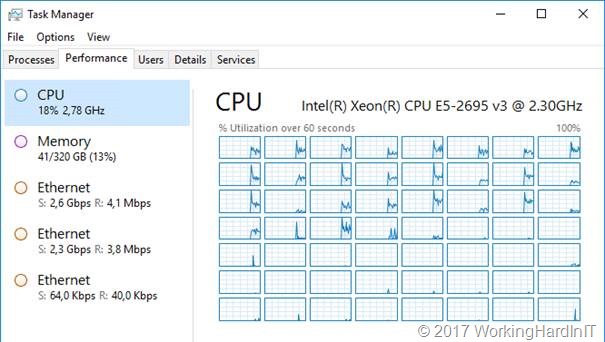
Last but not least, and already mentioned in the previous blog post, this also leverages RDMA capabilities when available to help you get the best throughput, lowest latency and leave those CPU cycles for other needs. Scalability baby! No I realize that you might think that the CPU offload benefit is not a huge deal on your Hyper-V host but consider the backup target being hammered by several simultaneous backups. And also consider that some people their virtual machines look like below in regards to CPU usage, in ever more need of more vCPU and CPU time slices.

clip_image020

And that’s what the Hyper-V host looks like during a backup without SMB Direct (with idle VMs mind you).

clip_image022

All I’m saying here is don’t dismiss RDMA too fast, everything you can leverage to help out and that is available for free in the box is worth considering.

Note: I have gotten the feedback that Veeam doesn’t support SMB Direct and that this was confirmed by Veeam Support. Well, Veeam Backup & Replication leverages SMB 3 but that’s an OS feature. Veeam Backup & Replication will work with SMB Multichannel, Direct, Signing, Transparent Failover … It’s out of the Veeam Backup & Replication scope of responsibilities as we have seen here. You feel free to leverage SMB Direct whether that is using iWarp/Roce or Infiniband. This information was confirmed by Veeam and bears the “Anton Gostev seal of approval”. So if SMB Direct cause issues you have a configuration problem with that feature, it’s not Veeam not being able to support it, it doesn’t know or care actually.

Conclusion

The elegance and simplicity of the Veeam Backup & Replication GUI are deceiving. Veeam is extremely powerful and is surprisingly flexible in how you can leverage and configure it. I hope both my previous blog post and this one have given you some food for thought and ideas. There’s more Veeam goodness to come in the coming months when times allows. Many years ago, when SMB 3 was introduced I demonstrated the high availability capabilities this offered for Veeam backups. I’ll be writing about that in another blog post.