Exploring Hyper-V Virtual Switch Port Mirroring

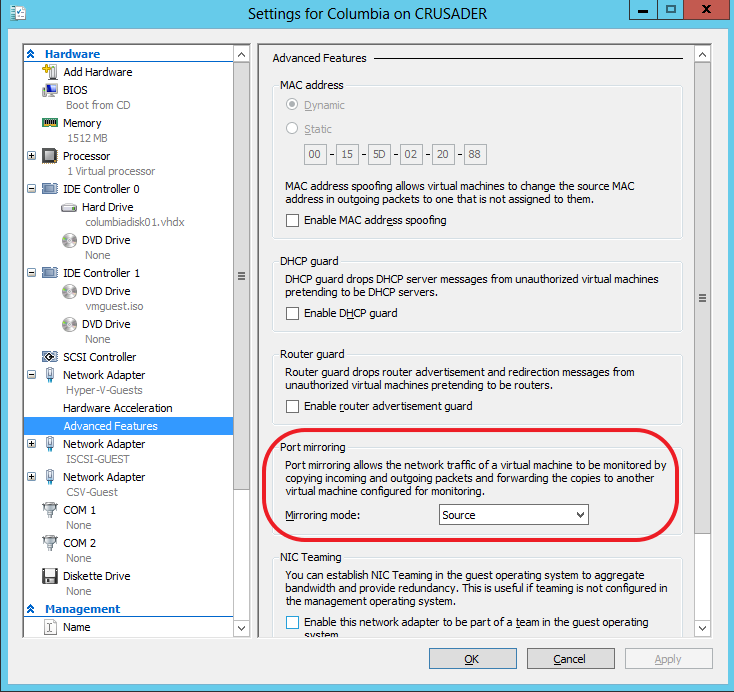
Windows Server 2012 brings us many new capabilities and one of those is port mirroring. You can now configure a virtual machine NIC (vNIC) who’s traffic you want to monitor as the source in the Advanced Features of the Network Adapter settings. The vNIC of the virtual machine where you’ll run a network sniffer, like Network Monitor or WireShark, against is set to “Destination”. It’s pretty much that simple to set up. Easy enough.

On the vNIC you want to monitor the traffic to and from the VM, under Settings, Network Adapter (choose the correct one), under Advanced Features you select “Source” as Mirroring mode. In this example we’re going to monitor data traffic to and from the guest Columbia.image
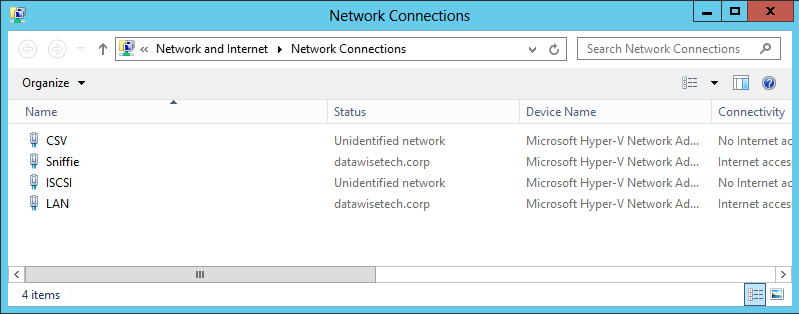
On the destination VM we have a dedicated vNIC set up called “Sniffie”image
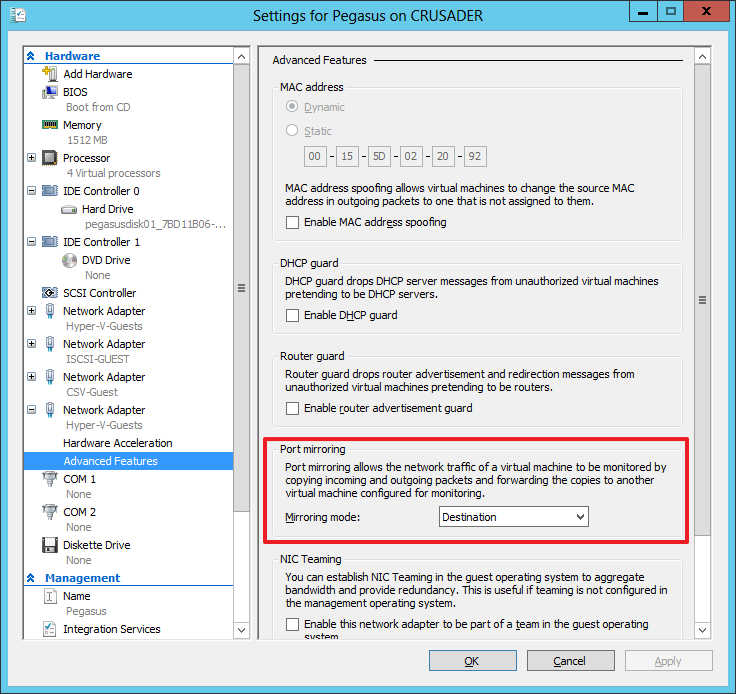
On the guest VM Pegasus, where we’ll capture the network traffic via a dedicated vNIC (“Sniffie”), we set that vNIC (virtual port) to “Destination” as Mirroring node:image
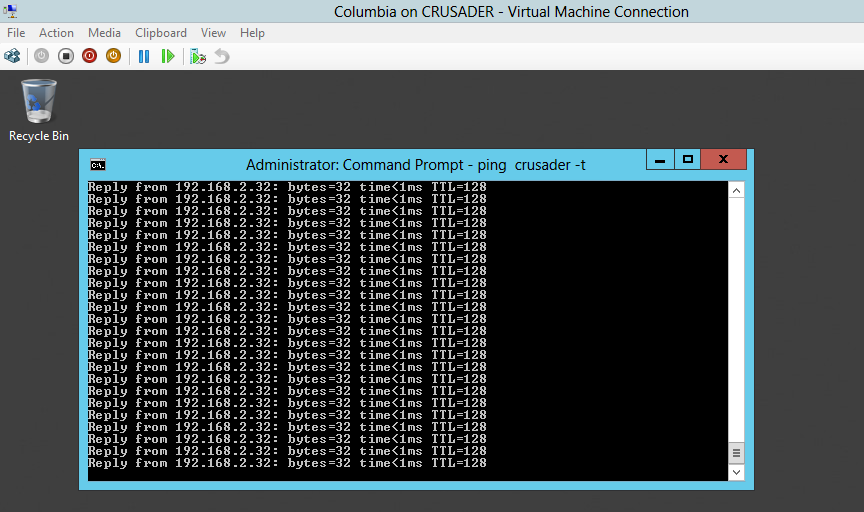
So now let’s start pinging a host (ping –t crusader)  on our Source VM  Columbiaimage
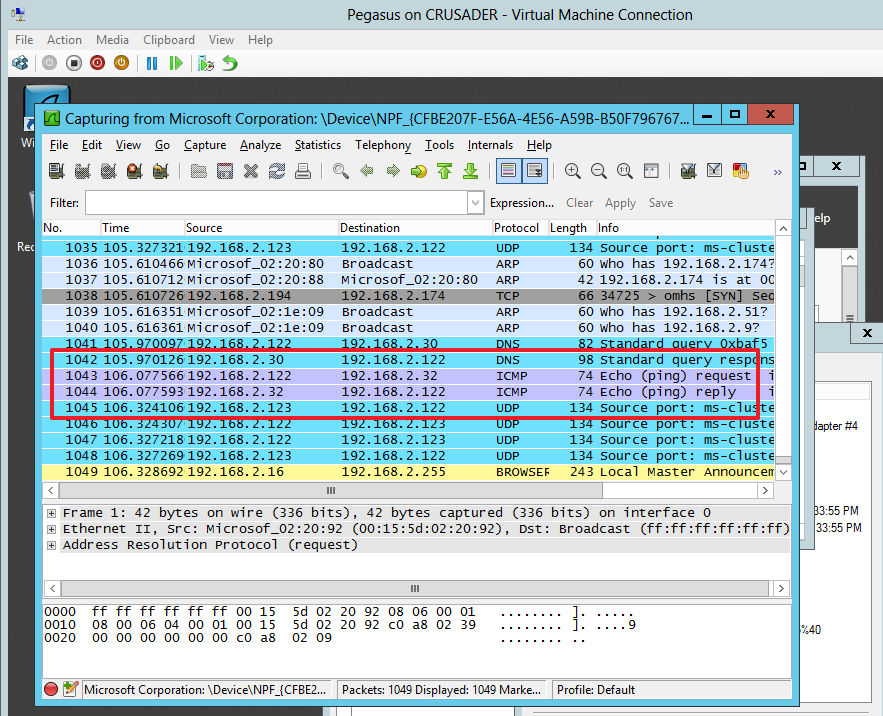
And take a look on the Destination vNIC on virtual machine Pegasus where we’re capturing the traffic. The “Sniffie” NIC there is set to destination as Mirror Mode. Look at the ICMP echo reply from form 192.168.2.32 (Crusader host). Columbia is at 192.168.2.122 sending out the ICMP echo request.image
Pretty cool!

Some Technicalities

So deep down under the hood, it’s the switch extension capabilities  of the Hyper-V virtual switch that are being leveraged to achieve port sniffing. This is just one of the many functionalities that the Hyper-V extensible switch enables. The Hyper-V extensible switch itself uses port ACLs to set a rule that forwards traffic from one  virtual port to another virtual port. For practical reasons translate virtual port to vNIC in a VM and this translates into what we shown above. While it’s good to know that port ACLs are what is used by the extensible switch to do enable all kinds of advances features like port mirroring but you don’t need to worry about the details to use it.

Things to note

Initially many of us made the assumption that we’d be able to sniff the traffic form a virtual port to a port on their physical switch. This is not the case. Basically, in box, it’s a source VM that mirrors it’s network traffic form one or more virtual ports (vNICs) to a destination VM’s one or more virtual ports (vNIC).

You can send many sources to one destination. That’s fine. You could also define more destinations on the same host but that’s not really wise and practical as far as I can see. All in all, you set it up on  when needed on the source VM and you keep a destination VM with a sniffer around for the sniffing.

Also keep in mind that all this works within the boundaries of the same host. Which means that if you want to monitor a VMs network traffic when it moves across nodes in a cluster you’ll have to have "destination” virtual machine on each host. This means that when a source VM is live migrated it will mirror the traffic to that local destination VM. That works.

You could try and live migrate source & destination VMs to the same host but this is not feasible in real life. For one the capture doesn’t survive after a life migration as your sniffer loses connectivity to virtual Port / vNIC.image
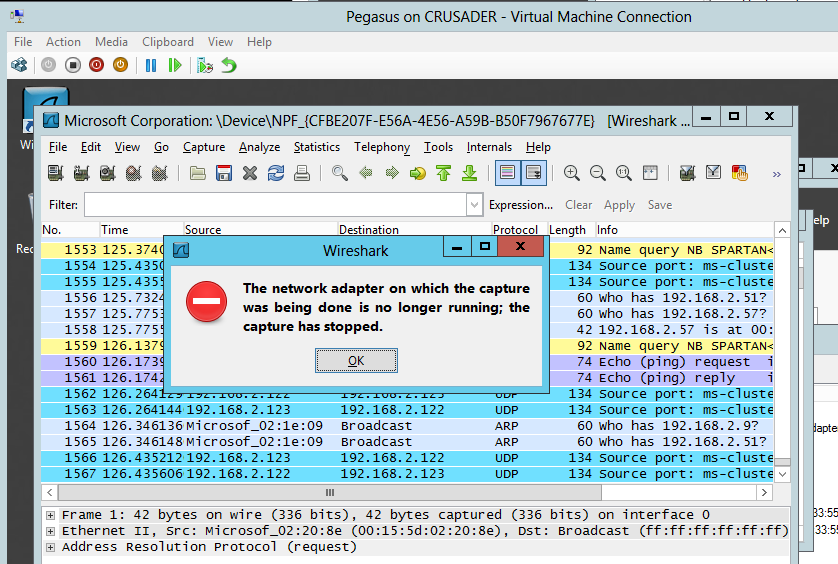
Don’t be too disappointed about this. Port mirroring is not meant to be a permanent situation that you need to keep highly available anyway, bar some special environments/needs.

Whilst is it true that out of the box you can’t do stuff like sending the mirrored traffic form a guests vNIC/virtual port to a physical switch port where you attach your network sniffer laptop or so. If you throw on the CISCO Nexus 1000V it replaces the Microsoft in box “Forwarding Extensions” and than it’s up to CISCO’s implementation to determine what you can or can’t do. As this stuff is right up their sleeve they allow the Cisco Nexus 1000V mirrors traffic sent between virtual machines by sending ERSPAN to an external Cisco Catalyst switch. I have not had the pleasure of playing working with this.

Anyway, I hope this help to explain things a little. Happy sniffing and don’t get yourself into trouble, follow the rules.

Attending The Converged Infrastructure Think Tank At Dell Technology Camp 2013

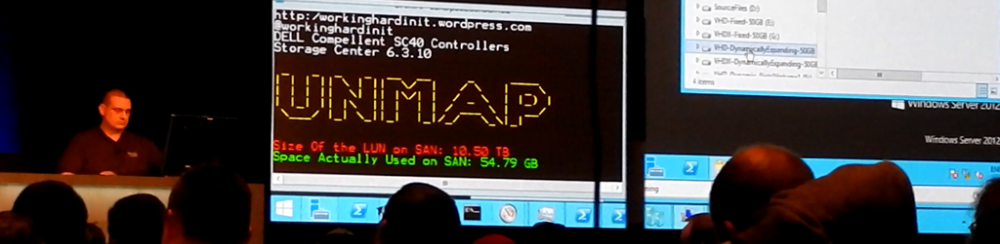
I’m travelling to Amsterdam tomorrow to contribute in a “Think Thank on Converged Infrastructure” during the Dell Technology Camp 2013. The topic of this technology camp is the Evolution of the Data Center, hence the think tank on the converged infrastructure.

image

If you have any views on this subject, questions, or perhaps even “angsts” share them via twitter and we’ll see if we can discuss these. Don’t be shy! I’m pretty much a practical guys and for me any technology, no matter how much fun I have with them, is a means to an end. That means I think that a converged infrastructure can work for both the SMB/SME & large Enterprises if you do it right and at a good & affordable price level. Right sizing without getting stuck in that size, whilst not overpaying for future proofing is important. Long term in IT is a crap shoot Smile.

The biggest risks here is that the vendors don’t get what doing it right means & what is affordable. From the Microsoft community we’ve been discussing concepts like a Cluster in Box as a building block and other features that Windows Server 2012 enables for us. So far we’ve seen very low interest from the big vendors. From SMB to SME, we sometimes feel that OEMs look more at each other than at their customers needs and pursue agendas that fit only the bigger environments & pockets. Some partners look way to hard at their bottom line to be considered trusted advisors; They’ve lost the “VA” in Value Added Reseller. Serve your customers needs and you’ll have a business. Ignore us and you’ won’t ever have to deal with or worry about us again Winking smile.

On the other side I see the bigger players struggle with processes, methodologies and separation of roles that only hinder progress and prevent agile and dynamic IT.

We’ll see what the other attendees have to say, as I’m very interested in that. Looking at what other industries & roles think and do – and why – can be very educational. Vendors & Partners have a very different view on the matters than end customers have and the good ones know how to match both worlds to everyone’s benefit & satisfaction.

Follow the action on twitter via  #DellTechCamp, via live streams on http://www.fittotweet.com/events/techcamplive/ or https://www.etouches.com/ehome/index.php?eventid=53104&.

KB2803748 Failover Cluster Management snap-in crashes after you install update 2750149 on a Windows Server 2012-based failover cluster

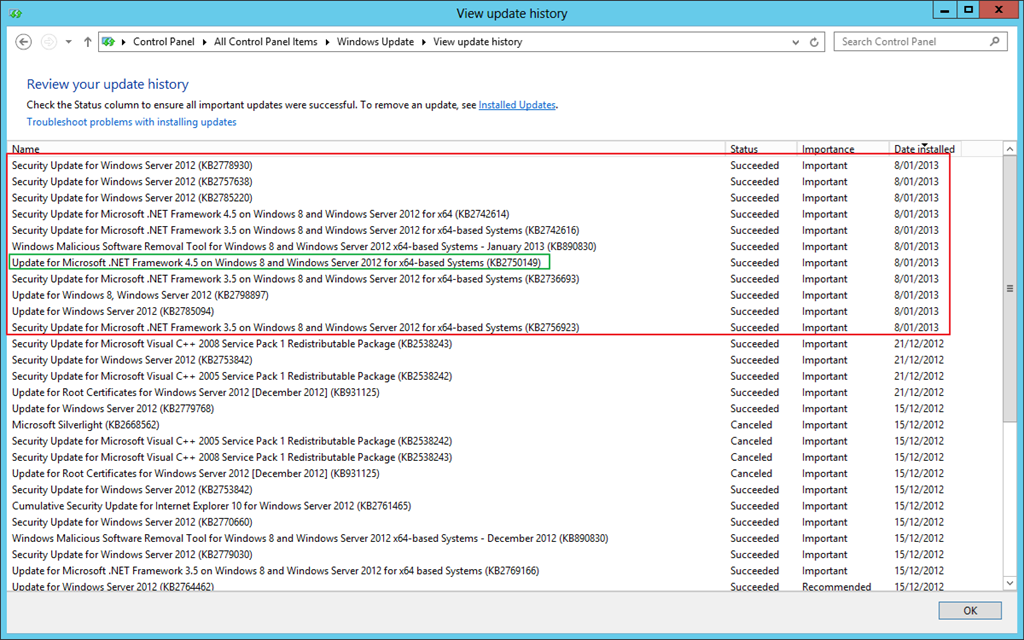
When you install KB2750149 (An update is available for the .NET Framework 4.5 in Windows 8, Windows RT and Windows Server 2012) you’ll have an issue with the Cluster GUI.image

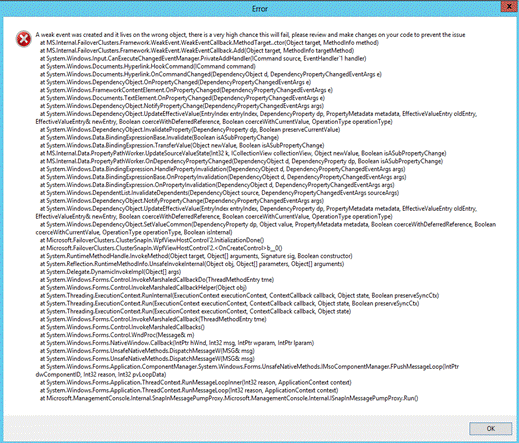
Basically it shows an error message. The issue caused by installing the above update 2750149 on a Windows Server 2012-based failover cluster or a management station running the Failover Cluster Management snap-in. In this situation, the Failover Cluster Management snap-in crashes. Do NOT worry, the entire cluster is fine, this is just a GUI bug that will leave your GUI work/results pane blank after closing the error screen and basically unusable.

clip_image002

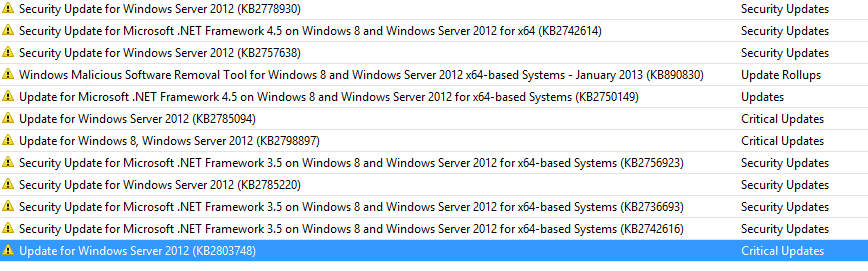
The only known workaround was to uninstall the hotfix or not install it at all on any node where you need to use the Cluster GUI (Windows 8 with RSAT for example). But now there is a fix released with KB2803748.

The update requires no reboot unless you have the Cluster GUI running as that it locks the file that need replacing. So keep them closed and you’re good to go. Also, it’s also great opportunity to use Cluster Aware Updating (CAU) with the hotfix plug-in to install the hotfix in an orchestrated fashion.

UPDATE: This update is also available now via WSUS. So updating is possible via the CAU windows update plug-in Smile

image

Remote File Browsing Issue In Windows Server 2012 Hyper-V Leaves Results Pane Empty Workaround

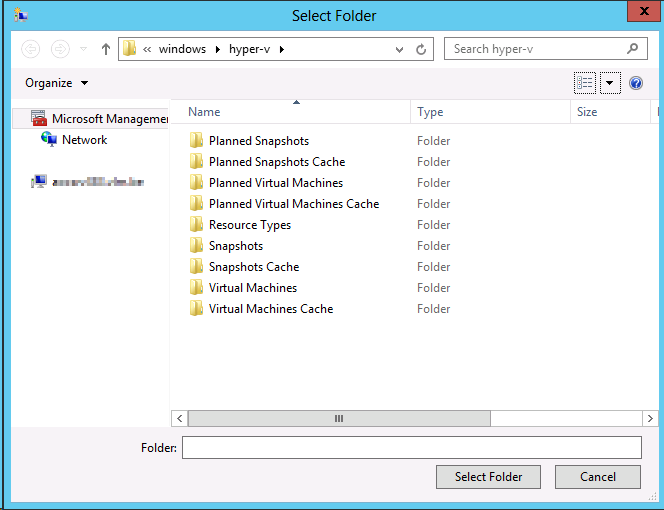
In Windows Server 2012 the Remote File Browsing functionality for Hyper-V acts ups on some nodes indicating a problem.

You can read what “Remote File Browsing” is on TechNet here. You use it to browse the file system on a remote Hyper-V server when creating a  new VM there for example.

Remote File Browsing is a shell namespace extension implemented by Hyper-V, it provides a way to browse the folders/files on remove Hyper-V server without requiring server to open extra shell over the network.

The path "::{0907616E-F5E6-48D8-9D61-A91C3D28106D}HYPER-V-TEST" is to tell shell (explorer or common file dialog) that it is hosting/pointing to the RemoteFileBrowsing shell namespace extension on the HYPER-V-TEST. The guid is Hyper-V remotefilebrowsing shell namespace extension GUID. However, due to the limitation on common file browser, it is not able to translated into "Hyper-V Remote File Browsing".

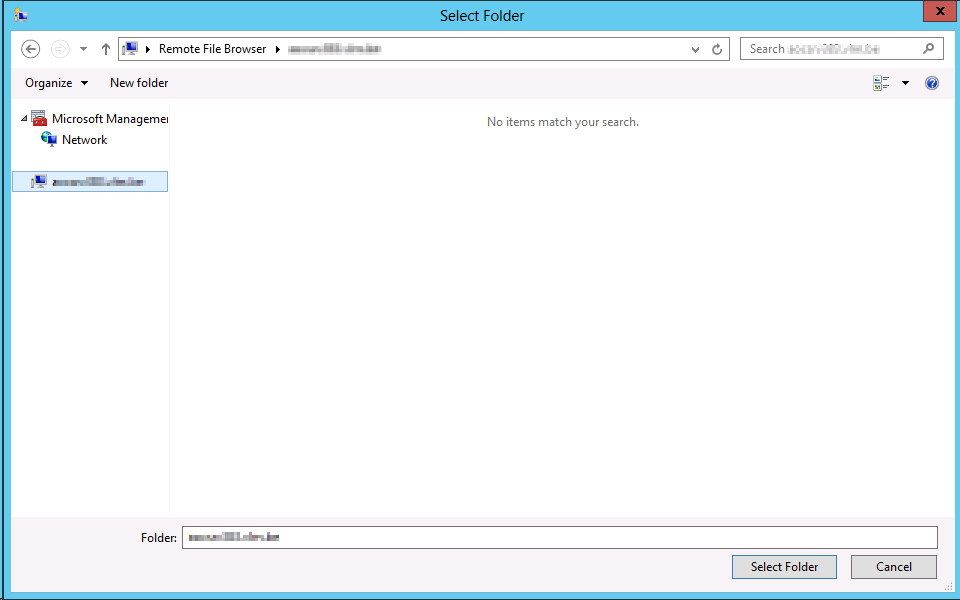
Now in Windows Server 2012 we sometimes see the following when we use it:

image

It seems to work but the result pane remains empty. The cluster is healthy, the nodes are healthy, all nodes are identically configured. Some nodes have it, other don’t. We also can’t find any errors logged anywhere.

If you try to work around it using the UNC path that will fail due to security issues later so don’t even go there Winking smile

Basically we were a bit baffled (we could not reproduce it in the lab either) until we saw some posts on then forums, indicating we’re not the only one seeing this.

http://social.technet.microsoft.com/Forums/en-US/winserverhyperv/thread/608d0c3b-0a7b-4ad9-9843-5e5051dcd526

http://social.technet.microsoft.com/Forums/en-US/winserverhyperv/thread/7a34f5e1-76bc-493a-8a7a-e9f420bf6a79#d7dd4db7-d7bd-419d-aa72-b12e43cd7a5d

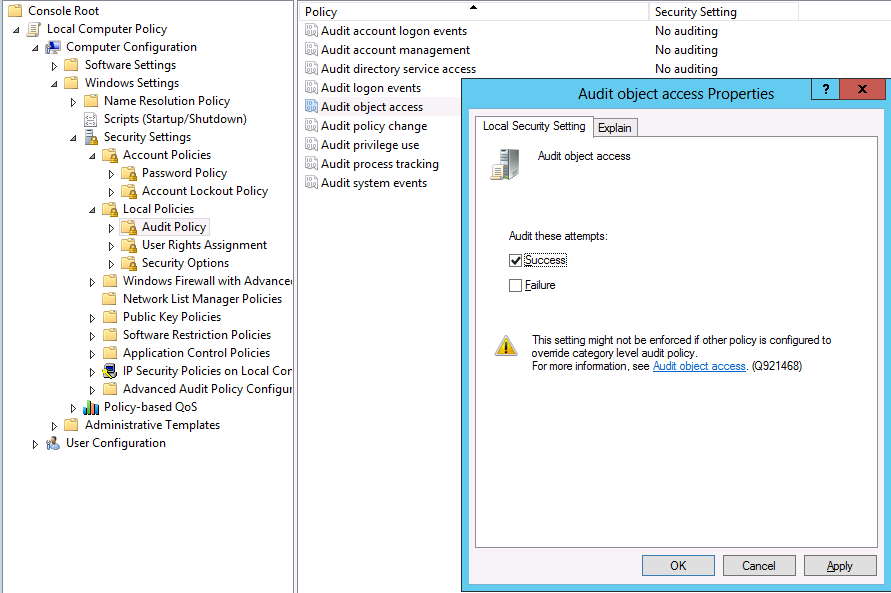
If you know your cluster is perfectly healthy forget all the security settings stuff and go straight to testing this “fix” or rather workaround: Toggle Audit Object Access on and off.

In our case I can confirm that these nodes had been under a group policy that audited registry entries during a period that we were trouble shooting network card settings change behavior. We had removed that policy by first reverting the settings to not configured and after some days by removing the GPO. But that didn’t work. Even with no audit policy configured we had to go to all nodes showing this behavior, opening the local Group Policy, toggling our Audit Object Access on for success,applying this and reverting this to No auditing again.

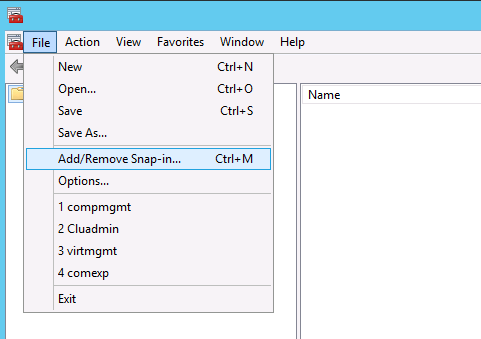
So fire up an MMC, add a snap-in

image

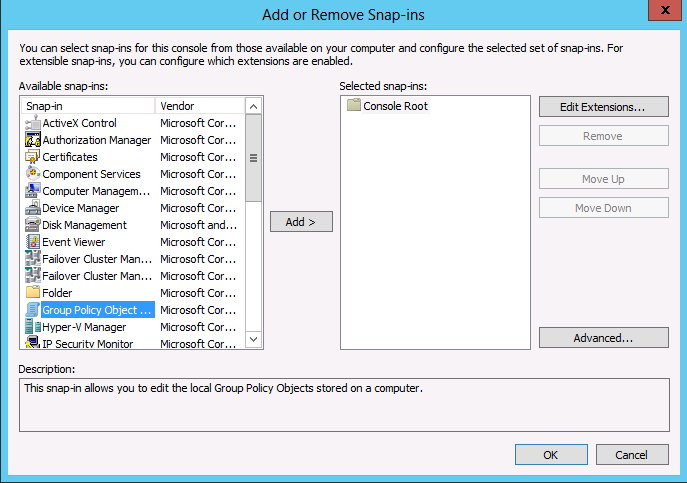
Select Group Policy Object

image

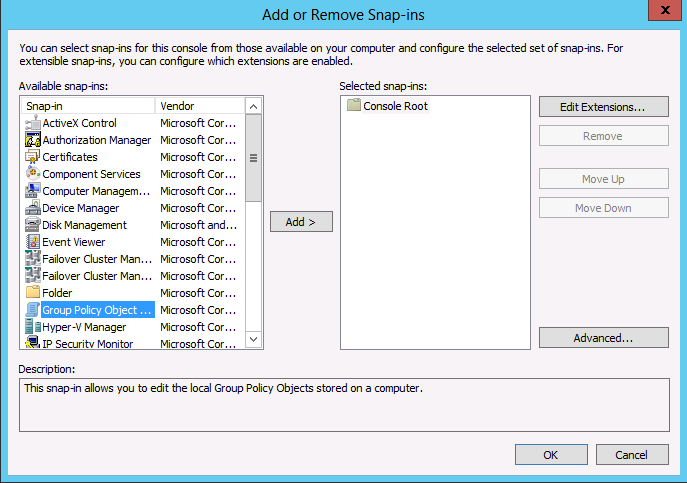
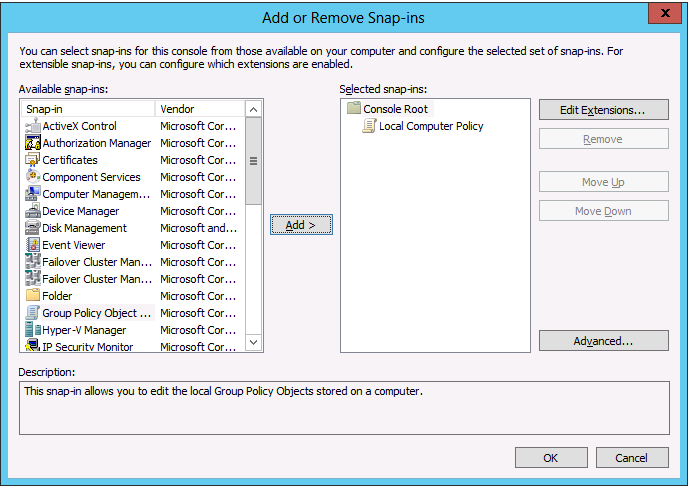
Accept the defaults

image

image

When don navigate to Computer Configuration -> Windows Settings -> Security Settings -> Local Policy -> Audit Policy -> Audit Object Access

image

Now try to use Remote Browser again (close & reopen all wizard windows and start over a new) to see the results:

image

Success! All is well again.

Notes:

  • We only see this on systems remotely connecting to Windows Server 2012 Hyper-V nodes that are running Windows Server 2012 or Windows 8 themselves not on Windows 2008 R2 or Windows 7 with the RSAT for W2K12 installed.
  • This is not related to Windows core alone due to missing GUI components or something.