Windows Server 2012 R2 & Windows 8.1 KMS Service Activation

As with all new versions of Windows since 2008 / Vista we need to set up the KMS (Key Management Service) to support the newest versions. Our KMS servers are running on Windows Server 2012 now. But perhaps yours are still running on a Windows Server 2008, 2008 R2 or even a Windows 7 or Windows 8 host That’s not a problem.

Microsoft just released KB 2885698 Update adds support for Windows 8.1 and Windows Server 2012 R2 clients to Windows Server 2008, Windows 7, Windows Server 2008 R2, Windows 8, and Windows Server 2012 KMS hosts

This update extends the Key Management Service (KMS) for Windows Vista, Windows Server 2008, Windows 7, Windows Server 2008 R2, Windows 8, and Windows Server 2012 to enable the enterprise licensing of Windows 8.1 and Windows Server 2012 R2.
KMS provides support for the following KMS client activations:

  • Windows Vista
  • Windows Server 2008
  • Windows 7
  • Windows Server 2008 R2
  • Windows 8
  • Windows Server 2012
  • Windows 8.1
  • Windows Server 2012 R2

KMS uses a KMS host key to activate itself on a KMS host and to establish a local activation service in your environment. This update extends support for KMS to provide activation for Windows 8.1 and for Windows Server 2012 R2.

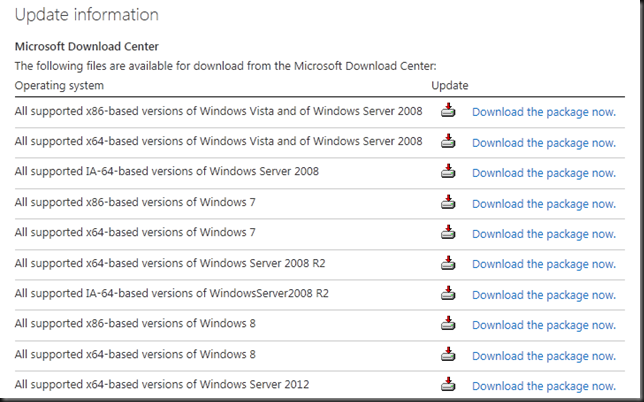
Just grab the package you need via the links in this KB article.
image

Install it before you update the KMS key to avoid any error thrown at you. When our KMS keys are available I’ll be doing an upgrade and will blog about it. For now you can read how this went for us with Windows Server 2012 here.

UPDATE: Well Windows Server 2012 R2 has gone GA on October 17th 2013 and you can read about updating the KMS Service key for that and Windows 8.1 right here.

KMS Client Setup Keys For Windows Server 2012 R2 & Windows 8.1

For those of you looking for the client setup keys; you can find them here:
http://technet.microsoft.com/en-us/library/jj612867.aspx as they have already been added to our trusted Appendix A: KMS Client Setup Keys in the Volume Activation documentation on TechNet.

Automatic Virtual Machine Activation With Windows Server 2012 R2 Datacenter

One more thing. If you’re doing lots of virtualization in various scenarios please take note of Automatic Virtual Machine Activation. Basically this means that your VMs will automatically activate if you’ have the hosts activated properly. Just one more improvement that will make live a bit easier for legal use in certain scenarios. I support that 100%. I just don’t like it when I, the paying customer, have to jump through hoops. I like it when I get great service, easily accessible. Compare it to shopping in  a supermarket. Make it to hard for the paying customers to fend of theft and you’ll see them leave for place where there are more welcome and have a better experience.
ODX Speed Up VHDX Creation Times On Windows Server 2012 (R2)

Some technlogies you just need to see in action instead of reading about it. I have posted a video on Vimeo that shows ODX in action on Windows Server 2012 R2 and a DELL Compellent SAN running Storage Center 6.3.10 firmware that supports UNMAP & ODX. Watch the video here or on Vimeo itself for a better experience. It’s a rerun of the demo scripts used in my TechNet Belux Live Meeting of this week.

We demonstrate the amazing speeds at which we can create VHDX files on both a traditional clustered disk and a Cluster Shared Volume. If you have ever tried to create a lot of fixed VHD/VHDX files, especially larger one, then you really need to check out ODX and its potential. If you have a SAN or think about acquiring one make sure you get this feature and be sure that it works as advertised.

I hope you enjoy it and inspires you to look where you can leverage this technology in your own environments.

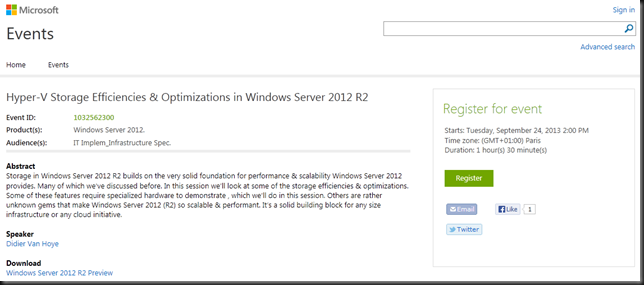
Join me for aTechNet Live Meeting: Hyper-V Storage Efficiencies & Optimizations in Windows Server 2012 R2

So you have been  playing with or down right seriously testing Windows Server 2012 and perhaps even Windows Server 2012 R2. That’s great. Many of you might have it running in production or are working on that. That’s even better.

Windows Server 2012 has brought us unseen capabilities & performance enhancements that make it a future proof fundament for many versions to come and it is ready for the ever accelerating pace of hardware improvements. R2 has fine tuned some points and added improvements that are stepping stones to better today and even greater in vNext. I’d like to invite you to a free TechNet Live Meeting on Hyper-V Storage Efficiencies & Optimizations in Windows Server 2012 R2 and look at some of these capabilities with me.

image

As a virtualization guy two subjects are very dear to me and that is networking & storage, and this event is about a subset of the storage improvements. You might have heard about ODX and UNMAP but you have not had the change to play with it. You have read about the tremendous scalability of the IOPS in a VM and about large sector support for the next generation of hard disks drives. Well some of these we’ll demonstrate (ODX, UNMAP, Dynamically expanding VHDX performance) if the demo gods are with us. Others we’ll discuss so you’ll know where this comes into play and how you’ll benefit from them even without realizing you do. So without further delay register for the free TechNet Live Event here.

Preventing Live Migration Over SMB Starving CSV Traffic in Windows Server 2012 R2 with Set-SmbBandwidthLimit

One of the big changes in Windows Server 2012 R2 is that all types of Live Migration can now leverage SMB 3.0 if the right conditions are met. That means that Multichannel & SMB Direct (RDMA) come in to play more often and simultaneously. Shared Nothing Live Migration & certain forms of Storage Live Migration are often a lot more planned due to their nature. So one can mitigate the risk by planning.  Good old standard Live Migration of virtual machines however is often less planned. It can be done via Cluster Aware Updating, to evacuate a host for hardware maintenance, via Dynamic optimization. This means it’s often automated as well. As we have demonstrated many times Live Migration can (easily) fill 20Gbps of bandwidth. If you are sharing 2*10Gbps NICs for multiple purposes like CSV, LM, etc. Quality of Service (QoS) comes in to play. There are many ways to achieve this but in our example here I’ll be using DCB  for SMB Direct with RoCE.

New-NetQosPolicy “CSV” –NetDirectPortMatchCondition 445 -PriorityValue8021Action 4
Enable-NetQosFlowControl –Priority 4
New-NetQoSTrafficClass "CSV" -Priority 4 -Algorithm ETS -Bandwidth 40
Enable-NetAdapterQos –InterfaceAlias SLOT41-CSV1+LM2
Enable-NetAdapterQos –InterfaceAlias SLOT42-LM1+CSV2
Set-NetQosDcbxSetting –willing $False

Now as you can see I leverage 2*10Gbps NIC, non teamed as I want RDMA. I have Failover/redundancy/bandwidth aggregation thanks to SMB 3.0. This works like a charm. But when leveraging Live Migration over SMB in Windows Server 2012 R2 we note that the LM traffic also goes over port 445 and as such is dealt with by the same QoS policy on the server & in the switches (DCB/PFC/ETS). So when both CSV & LM are going one how does one prevent LM form starving CSV traffic for example? Especially in Scale Out File Server Scenario’s this could be a real issue.

The Solution

To prevent LM traffic & CSV traffic from hogging all the SMB bandwidth ruining the SOFS party in R2 Microsoft introduced some new capabilities in Windows Server 2012 R2. In the SMBShare module you’ll find:

  • Set-SmbBandwidthLimit
  • Get-SmbBandwidthLimit
  • Remove-SmbBandwidthLimit

image

To use this you’ll need to install the Feature called SMB Bandwidth Limit via Server Manager or using PowerShell:  Add-WindowsFeature FS-SMBBW

You can limit SMB bandwidth for Virtual machine (Storage IO to a SOFS), Live Migration & Default (all the rest).  In the below example we set it to 8Gbps maximum.

Set-SmbBandwidthLimit -Category LiveMigration -BytesPerSecond 1000MB

So there you go, we can prevent Live Migration from hogging all the bandwidth. Jose Baretto mentions this capability on his recent blog post on Windows Server 2012 R2 Storage: Step-by-step with Storage Spaces, SMB Scale-Out and Shared VHDX (Virtual). But what about Fibre Channel or iSCSI environments?  It might not be the total killer there as in SOFS scenario but still. As it turns out the Set-SmbBandwidthLimit also works in those scenarios. I was put on the wrong track by thinking it was only for SOFS scenarios but my fellow MVP Carsten Rachfahl kindly reminded me of my own mantra “Trust but verify” and as a result, I can confirm it even works to cap off Live Migration traffic over SMB that leverages RDMA (RoCE). So don’t let the PowerShell module name (SMBShare) fool you, it’s about all SMB traffic within the categories.

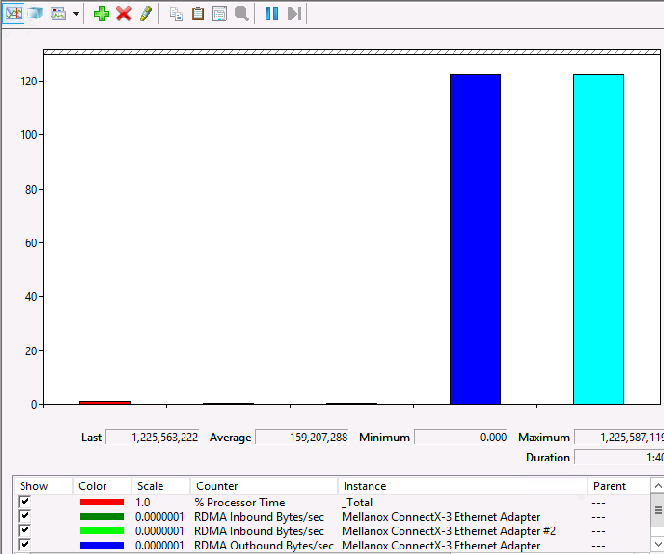
So without limit LM can use all bandwidth (2*10Gbps)

image

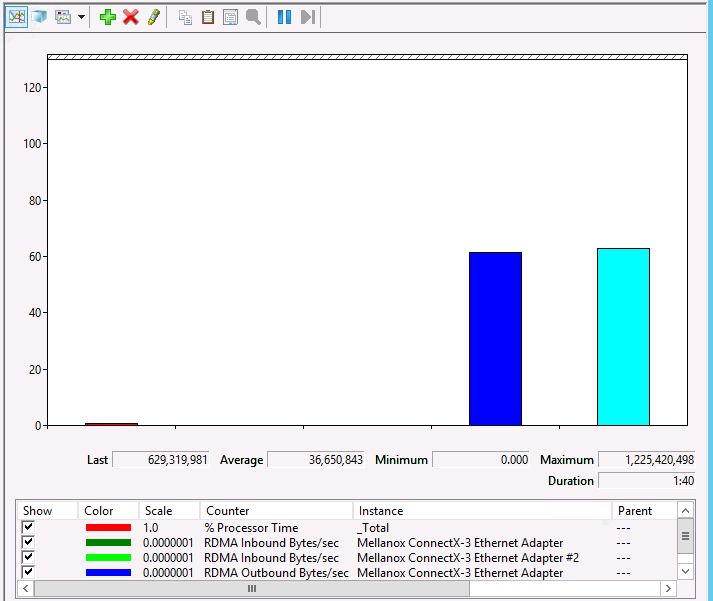
With Set-SmbBandwidthLimit -Category LiveMigration -BytesPerSecond 1250MB you can see we max out at 10Gbps (2*5Gbps).
image

Some Remarks

I’d love to see a minimum bandwidth implementation of this (that could include safety buffer for spikes in CSV traffic with SOFS). The hard cap limit might lead to some wasted bandwidth. In other scenarios you could still get into trouble. What if you have 2*10Gbps available but one of those dies on you and you capped Live Migration Traffic at 16Gbps. With one NIC gone you’re potentially in trouble until the NIC has been replaced. OK, this is not a daily occurrence & depending on you environment & setup this is less or more of a potential issue.