DELL Server DRAC Card Soft Reset With Racadmin

Sometimes a DRAC goes BOINK

Sometimes a DRAC (Dell Remote Access Card) can give you issues. Sometimes it’s some lingering process or another hiccup that causes this. You can try a reboot but that doesn’t always fix the issue. You can go into the BIOS and cancel any running System Services. A “confused” DRAC card can also be fixed by shutting down the server and cutting power for 5 to 10 minutes. That’s good to know as a last resort but not very feasible a lot of times, bar a maintenance window when you’re on premise.

You can also try to do a local or a remote reset of the DRAC card via OpenManage  (OMSA), racadmin. See RACADM Command Line Interface for DRAC for more information on how and when to use this tool. The racadmin can be used for a lot of remote configuration and administration and one of those is a “soft reset” or basically a powercycle, aka reboot, of the drac card itself. Don’t worry your server stays up Smile.

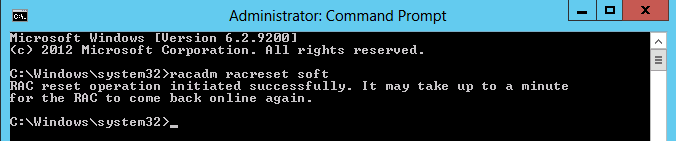
Local: racadmin racreset soft

Remote: racadm -r <ip address> -u <username> -p <password> racreset soft

Real life example

I was doing routine maintenance on 4 Hyper-V clusters and as part of that DUPs (Dell update packages) were being deployed to upgrade some firmware. This can be automated nicely via Cluster Aware Updating and the logging option will help you pin point the issue. See https://blog.workinghardinit.work/2013/01/09/logging-cluster-aware-updating-hotfix-plug-in-installations-to-a-file-share/ for more information on this.

Just like we found that the DRAC upgrade was not succeeding on two nodes.

One it was due to the DUP not being able to access the Virtual USB Device

Software application name: iDRAC6
   Package version: 1.95
   Installed version: 1.92

Executing update…

Device does not impact TPM measurements.

Device: iDRAC6, Application: iDRAC6
  Failed to access Virtual USB Device

==================> Update Result <==================

Update was not applied

================================================

Exit code = 1 (Failure)

and the other was because there was some other lingering DRAC process.

 iDRAC is currently unable to process this request because of another task.
  Please attempt one or more of the following steps to cancel the pending iDRAC task:
  1) Wait 30 minutes and retry your request.
  2) Reboot the system; Press F10; select ‘Exit and Reboot’ from Unified Server Configurator, and retry your request.
  3) Reboot the system; Press Ctrl-E; select ‘System Services’. Then change ‘Cancel System Services’ to YES, which will close the pending task;
      Then press Enter at the warning message. Press ESC twice and select ‘Save Changes and Exit’ and retry your request.

==================> Update Result<==================

Update was not applied

================================================
Exit code = 1 (Failure)

They give some nice suggestions but the racreset is another nice one to have I your toolkit. It’s fast and effective.

Run racadmin racreset soft
image

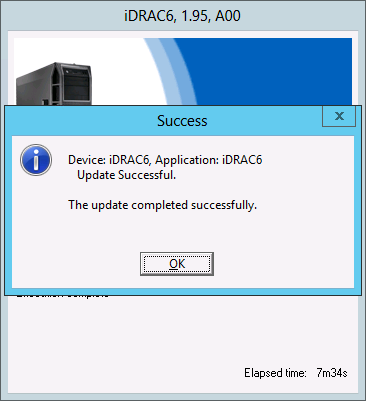
Wait for a couple of minutes and then run the DUP or the items in SUU that failed. With some luck this will succeed now.

image

Attending The Global MVP Summit 2013 (November 18-21)

We have Windows 8.1 running on our desktops & laptops and meanwhile Windows Server 2012 R2 is crunching numbers in our (virtualized) data centers. So it’s time to grab one of those magnificent British Airways Boeing 747 aircraft seats once again and make my way to SEATAC. No rest for the wicked. BAS7400066

Yup, but for now I’ve parked myself in LHR whilst waiting for my flight. Soon I’ll be in the air again for the long haul to the USA. I’m off to Washington State, Seattle to be exact, and from there to Bellevue/Redmond. You might have guessed where I am going already, indeed to the Microsoft campus. I’m attending the Global MVP Summit 2013, November Edition. image

Apart from that magnificent educational & networking opportunity I will spend a lot of the “free” time discussing technology, visions & strategies with my peers and Microsoft employees. I’d like to thank the latter for their patience with me when bugging them with questions Smile. To my buddies, acquaintances & connections, I’ll see you soon. We have a lot to learn & discuss. That’s one of the reasons I’m off a bit earlier. It helps with the jet lag but it also gives me time to meet up with friends and acquaintances I’ve made in the Puget Sound area and talk shop. This helps to keep in touch with what’s happening over the world and to understand where their priorities are, what’s keeping them occupied. While I’m a firm believer in remote and teleworking there is value in getting your boots on the ground every now and then. It prevents tunnel vision and helps avoiding  teleology in our views while enhancing early detection of small trend changes to whole sale tectonic shifts. This is not to be confused with thinking you have a crystal ball or anything.

To my readers & community members I’d like to extend the invitation to pass along feedback to Microsoft. They do listen. So leave a comment, send me a mail (contact via Blog) or ping me on Twitter.

In case you don’t know, everything discussed at the MVP Summit is under NDA, even for MVPs of another expertise. So basically bar some tweets to find our where other MVPs I’ll be going dark.

How To Save A Company From Death By Meetings

I had a very interesting discussion with a fellow virtualization expert & strategic advisor at E2EVC Rome 2013. We discussed many issues and the topic came up that we see way too many potentially strong organizations sub come to “death by meetings”.  Instead of fixing this they are treating the symptoms and are declaring the symptoms to be “illegal”. It’s almost pandemic. You really need to opt out of this this madness for the sake of the company and getting work done.

I think we need to take this further. Bar reverting to the tactics of a UK manager who locked all meeting rooms and took the keys away whilst telling his staff to stop meeting and start working, we should implement these rules:

  1. There is an absolute maximum of 5 hours meeting per 8 hour workday. Work less than full time? Adjust accordingly. This is non negotiable for anyone. You must decline any meeting that violates this rule. You must not strive for this maximum.
  2. You must decline any meeting that has no agenda.
  3. No meeting can have more than 5 attendees unless a very valid reason and need is motivated in the agenda. If not, you have to decline the meeting.
  4. Meetings have to be planned in advance & cannot be made permanent. That is reserved for councils or meetings of the board.
  5. Everyone, from the lowest pay grade to the top manager hast to abide by these rules
  6. Teleconferencing is a perfectly valid way of meeting and is included in these 5 hours.

meetingsdemotivator[1]

People, really, stop meeting for 8 hours a day. It’s scary so many companies can’t get a grip on this. Your thoughts?

Enabling Jumbo Frames Inside Virtual Machines Enhances Throughput & Reduces CPU Load

Let’s play a bit with a Windows Server 2012 R2 Hyper-V cluster with 2*10Gbps Intel X520 teamed switch independent and in dynamic mode, which is optimal for DVMQ. On these NICs we enabled Jumbo frames (and on the switches of course). That team is used to create a virtual switch for consumption by the virtual machines. The switches used are 2*DELL PowerConnect 8132F. So we have full fault tolerance. But the important thing to note is that this is commodity, quality hardware that we can leverage for great results.

Now we’ll compare 2 scenarios. In both test a sending VM will try to saturate a receiving VMs network bandwidth. Due to how this NIC teaming setup works, that’s about 10Gbps in a two member 2*10Gbps team. We work around this by leaving both VMs on the same host, so the traffic doesn’t need to pass across the wire. The VMs have VMQ & vRSS enabled with the host team members having VMQ enabled.

Jumbo frames disabled inside the VM (Both VMs on same host)

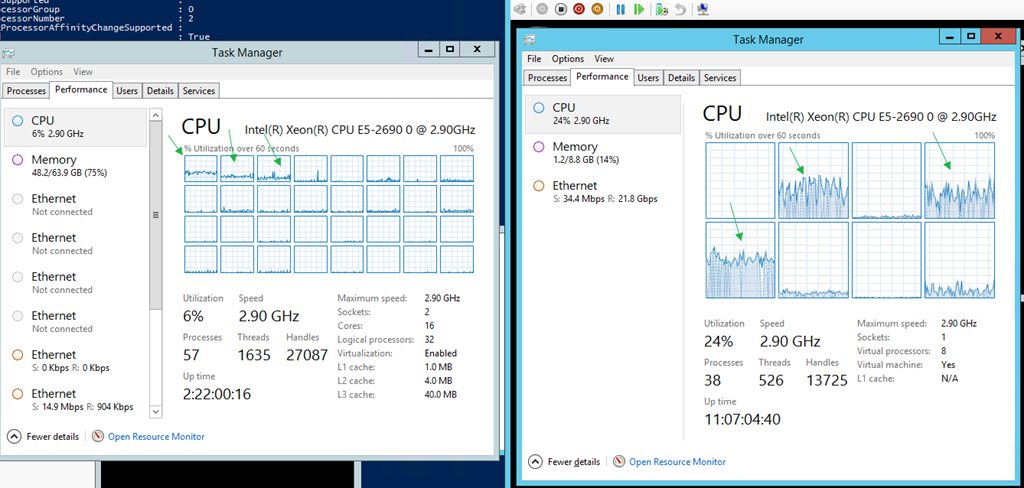
Without Jumbo Frames enabled in the Guest VM and all other things being equal the very best we can achieve non-sustained is 21Gbps (average +/- 17Gbps)  receiving traffic in a VM. Not bad, not bad at all.

image

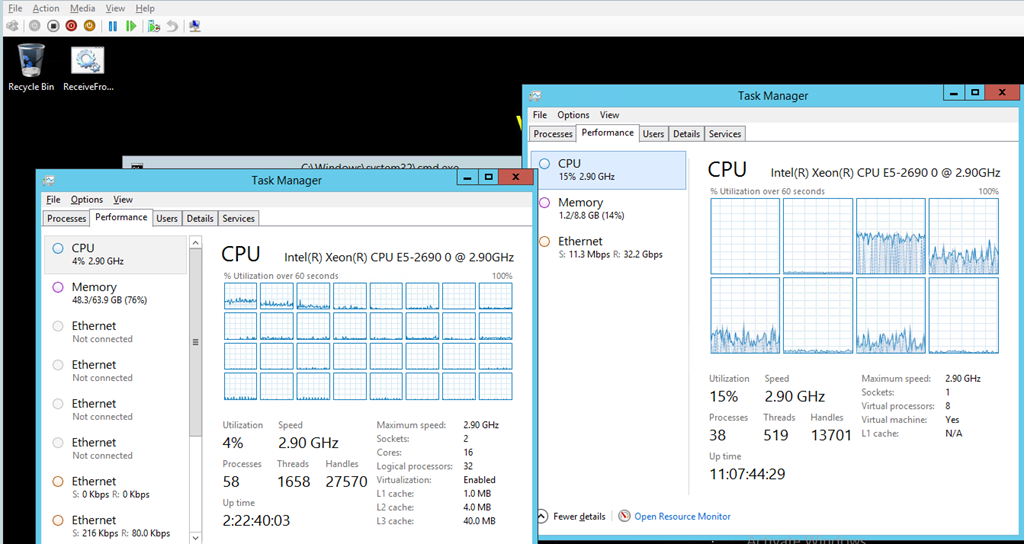
In the picture you can see the host with DVMQ doing it’s job at the left while vRSS is at work in the VM. Pretty clear.

Jumbo frames enabled inside the VM

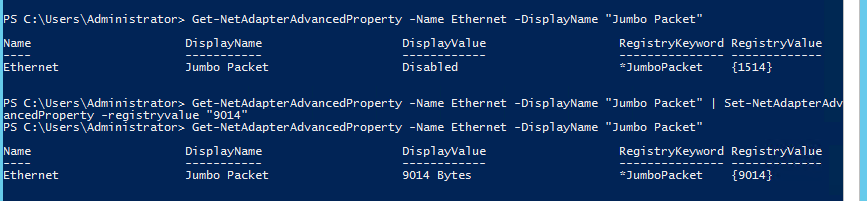
Now, let’s enable Jumbo frames in the VM.  Fire up PowerShell or use the GUI.

image

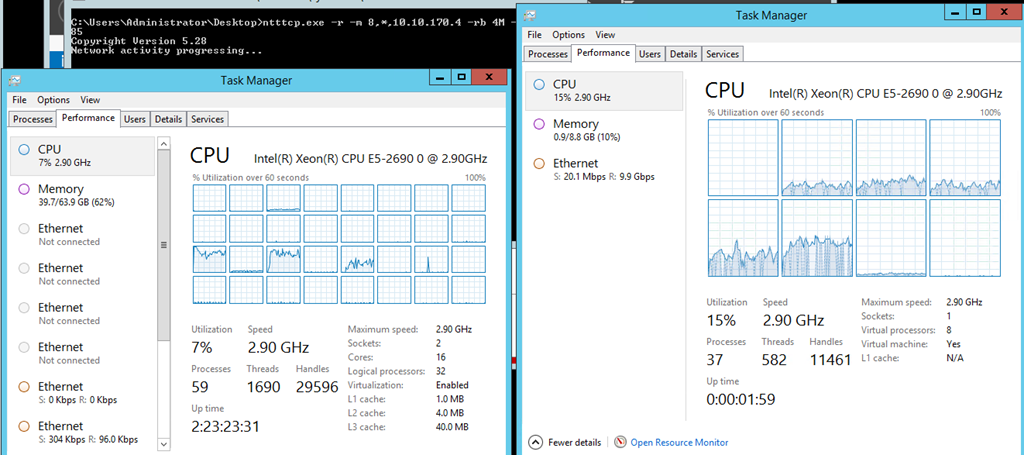
Don’t forget to do this on both the sending and the receiving VM Smile. Here we get +/- 30Gbps receiving traffic inside of the VM. A nice improvement isn’t it? Not just that but we consume less CPU resources as well! Sweet Smile
image

Useful Power at your finger tips or just showing off?

vRSS & DVMQ is one of may scalability & performance improvements in Windows 2012 R2. And yes, Jumbo Frames inside the VM do make a difference but in a 10Gbps environment it’s not  “in your face” that visible. The 10Gbps limit of a single NIC team member makes this your bottle neck. But it DOES help to reduce CPU cycles in that case. Just look at the two screen shots below.

No Jumbo frames in VM (sending & receiving VMs on different hosts)

image

We’re consuming 7% CPU resources on the host and 15% in the VM.

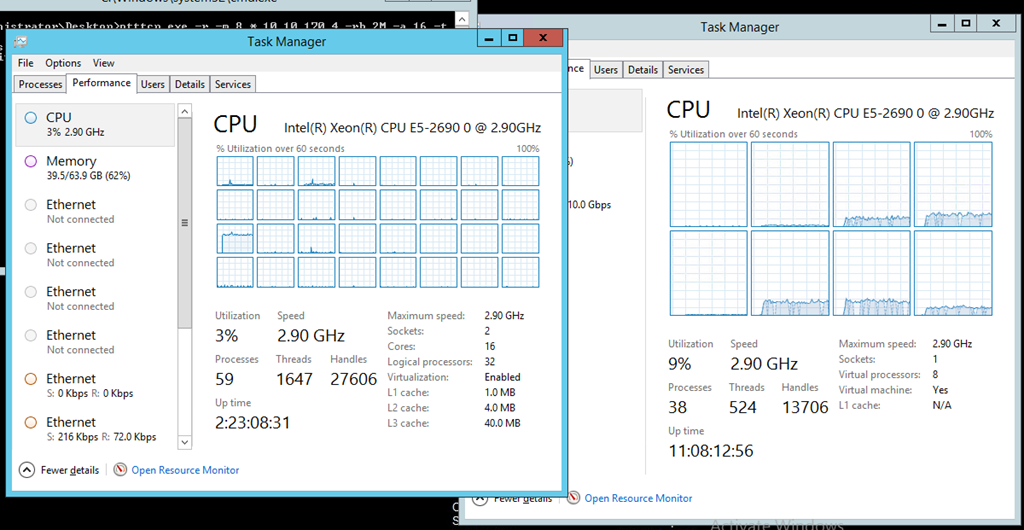
Jumbo Frames in VM (sending & receiving VMs on different hosts)

image

We’ve dropped down to 3% on the host and to 9% inside the VM. All bits help I say!

How far can we push this?

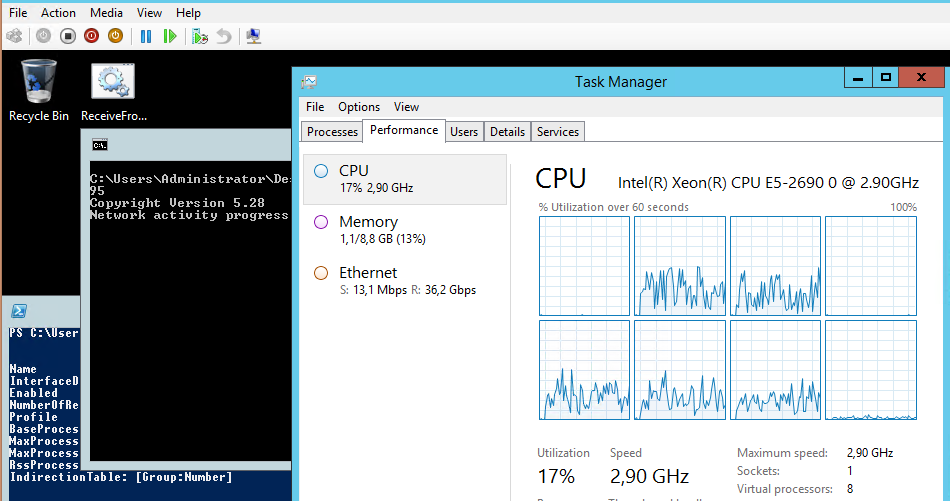
Again if you take the NIC Team bottleneck out of the way you can see some serious differences. Take a look at the screenshot below, that’s 36,2Gbps inside of a VM courtesy of vRSS during some other experiments. Tallyho!

image

So let’s face it, I guess we’ll need some faster memory (DDR4) and multiple 40Gbps/100Gbps Cards to see what the limits of Windows Server 2012 R2 are or to find out if we reached it. Right now the operating system is giving hardware people a run for their money.

Also note that if you have a number of VMs doing a lot of network IO you’ll be using quite a number of CPU cycles. While vRSS & DVMQ make this scale you might want to consider leveraging SMB Direct for the various tastes of live migration as this will definitely help you out on that front as the NIC will do the heavy lifting.

Reality Check

But perhaps we also need little reality check. While 100Gbps and DDR4 is very nice you might not need it for your current needs. When the environment is built right you’ll find that your apps are usually your limiting factor before the hardware, let alone Windows Server 2012 R2.  So why is knowing this important? Well I verify Microsoft claims so I can talk from experience and not just from what I read in a Microsoft presentation. Secondly you can trust that your investment in Windows Server 2012 R2 is going to carry you long and far. It’s future proofed and that’s god for you. Both when your when needs grow exponential and for the longevity of your environment. Third, we can leverage this to virtualize high through put environments and get the best possible results and ROI.

Also, please, please test & find out, verify what settings suit your environment best and just just blindly enable stuff. Good luck!