Microsoft iSCSI Software Target 3.3 for Windows Server 2008 R2 available for public download

As TechNet subscribers, we had access to Windows Storage Server 2008 with Microsoft iSCSI Software Target 3.2  (also see Jose Barreto’s blog on this here). That was sweet but for one little issue. This SKU cannot be a Hyper-V Host. In order not to lose a physical host in the lab you could edit the MSI installer from the Windows Storage Server 2008 install media where you would delete the SKU check. Problem solved but not very legal so nobody ever did that.  You can install Windows Storage Server in a VM for the lab I know but that becoming very SkyNet like … Virtual servers providing virtual storage for virtual servers … and while a good option to have I like to have a hardware host.

Bring Windows Storage Server 2008 R2 along and Microsoft decided that we could have the iSCSI Software Target 3.3 software without constraints, except that you needed a TechNet/MSDN subscription, to install on W2K8R2. This is the one I’m running in my labs at the moment installed on a Physical Windows Server 2008 R2 Enterprise edition that also is a Hyper-V host. This provides all my iSCSI storage to both physical and virtual clusters. I used it to test MelioFS with FileScaler recently with a 2 node virtual cluster.

Today, Jose Barreto blogged about the public release of iSCSI Software Target 3.3 for Windows Server 2008 R2. This is very good news as now everyone has access to an iSCSI target for labs, testing, POCs, and even production. Thank you, Microsoft. Now with some luck, we could get some SMI-S support for it with SCVMM2012? Please?

If you need some help, Jose Barreto has a bunch of blog posts on configuring the iSCSI target, so I suggest you check out his site. As an added benefit, Microsoft iSCSI Software Target 3.3 setup & configuration is scriptable using PowerShell.

KB2230887 Hotfix for Dynamic Memory with Windows 2008 Standard & Web edition does not apply to without Hyper-V editions?

As my readers all know by now, since I blogged about this here, you need to install an update/hotfix for Hyper-v Dynamic Memory to work with Windows 2008 Standard & Web edition. You can find more information here:  Hyper-V Dynamic Memory does not work on a Windows Server 2008 Standard Edition or Windows Web Server 2008 virtual machine (VM)

UPDATE 2011/06/23: Microsoft released the hotfix based on end-user feedback and you can download version 2 that works on all SKUs now http://support.microsoft.com/kb/2230887 (v2).

The cause is that on these versions of the operating systems the the required memory enlightenment is supported. After installing the hotfix (or SP1 in the case of Windows 2008 R2) memory addition enlightenment is available on these SKU and your good to go.

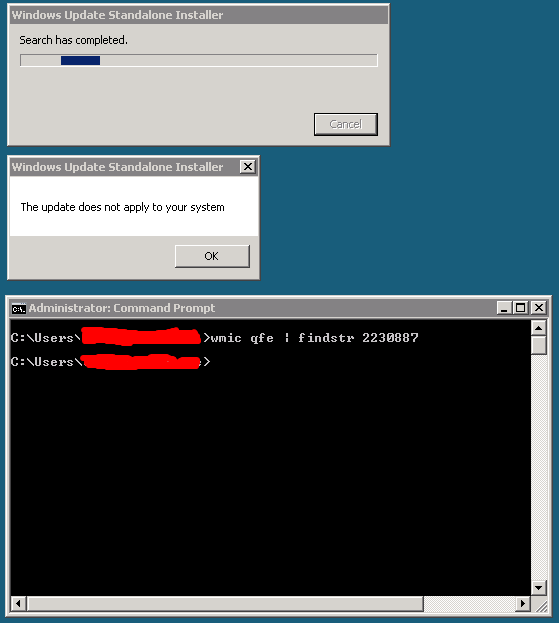
But recently I ran into an issue. One virtual machine guest on a Windows 2008 R2 SP1 cluster that is running the Windows 2008 Standard edition without Hyper-V SKU, x86 the standalone installer for Windows6.0-KB2230887-x86 throws following warning:


Windows Update Standalone Installer


The update does not apply to your system


OK


That’s a bit strange. As you can see the hotfix has not been installed. And why would I need the with Hyper-V SKU to use dynamic memory with this guest?

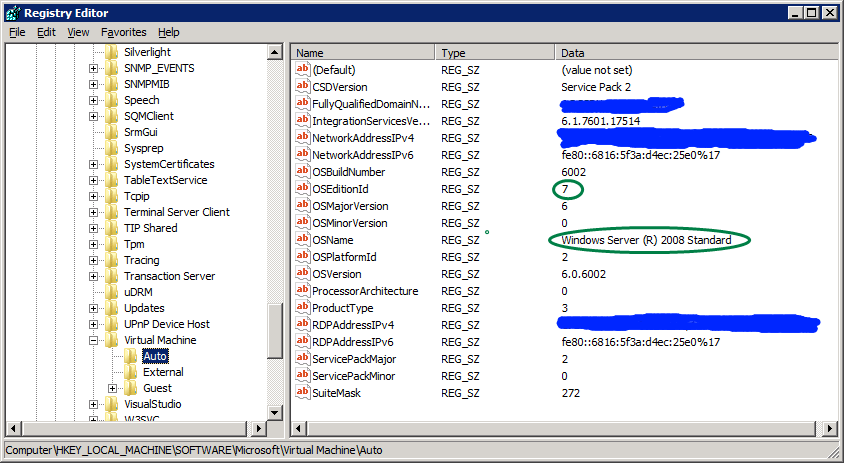
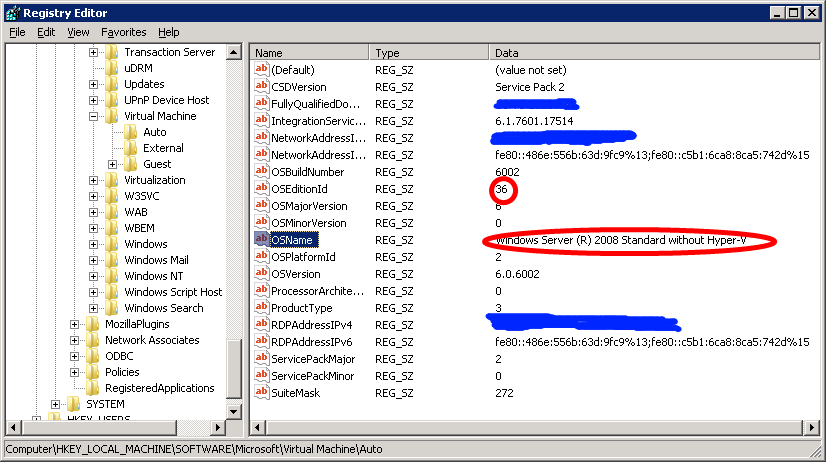
I installed the same hotfix without any issue on several Windows 2008 Standard Edition (the SKU with Hyper-V)  guests. So what is going on here? What exactly is different about the without Hyper-V SKU?  Note that Windows 2008 R2 no longer has such a SKU.  Microsoft states that it is an SKU for people who don’t need virtualization. Well as they installed it as a guest virtual machine they chose this version and now what? No hotfix for dynamic memory as a guest?

There is a TechNet forum discussion going on here where they have this issue and I asked them to check what SKU it was happening on. Bingo! It’s on the Windows 2008 Standard without Hyper-V version!

I don’t expect any Hyper-V functionality or management tools but I do expect to get the hotfix to enable Dynamic Memory in guests with this SKU, just like we get any other update that is relevant to Hyper-V, for example, upgraded Integration Services. I’m going to ping a Microsoft contact on this one and see if they can help with this. And in case you’re wondering SKU = Stock Keeping Unit.

System Center Virtual Machine Manager 2008 R2 SP1 Upgrade Walkthrough

Some people downloading the System Center Virtual Machine Manager 2008 R2 SP1 seem to be confused that it is the entire product ISO. It’s a big download but the upgrade itself, when you have a healthy environment is fast and easy. To my knowledge there is no SP1 upgrade file only, you get one package for all needs.  I’ve provided a screenshot walkthrough of the process below and it really only takes a couple of minutes on the servers deployed it on. There is both an evaluation version available or a licensed version via the licensing site or the TechNet subscribers downloads.

Do note that the below process is for those who are upgrading from  System Center Virtual Machine Manager 2008 R2  to System Center Virtual Machine Manager 2008 R2 SP1. If you have the RC installed take a look at the following blog post by  Maarten Wijsman to see how to upgrade the SQL database used by SCVMM2008R2 SP1 Release Candidate with the UpgradeVMMR2SP1RC.exe tool. The download is here at the Microsoft Connect site  (Live ID).

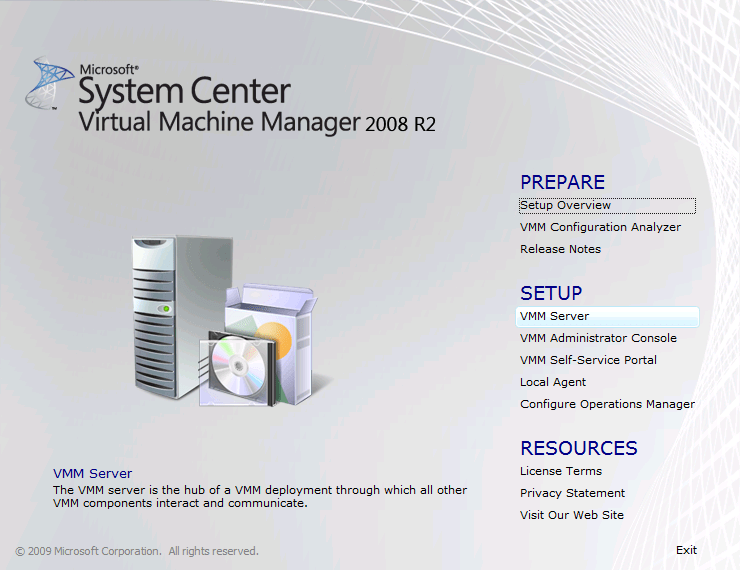
Run the setup.exe and click setup VMM Server or any other component you need to upgrade. If you click VMM server it will detect other components as well.

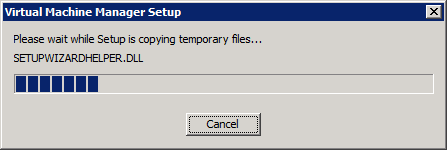
The installation files are extracted …

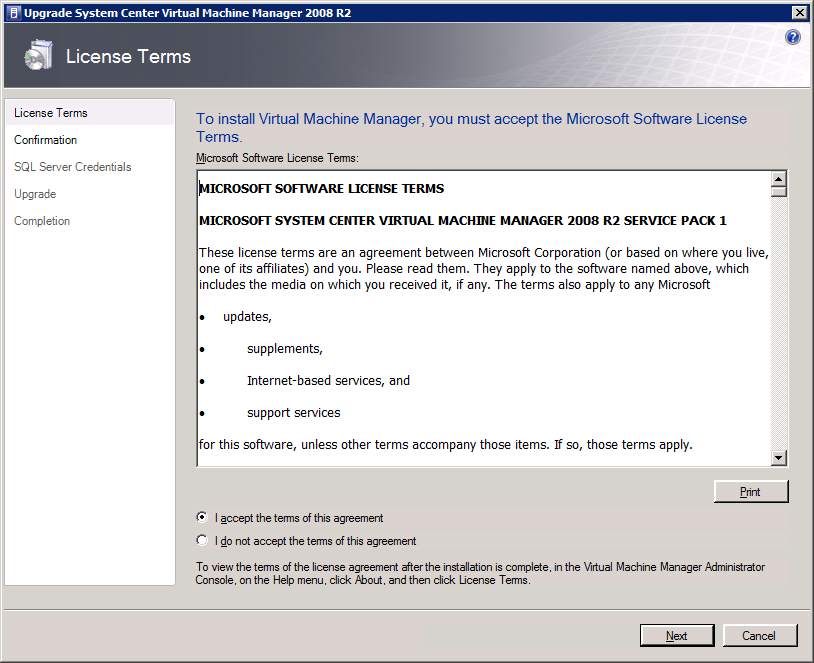
Accept the license agreement and click next

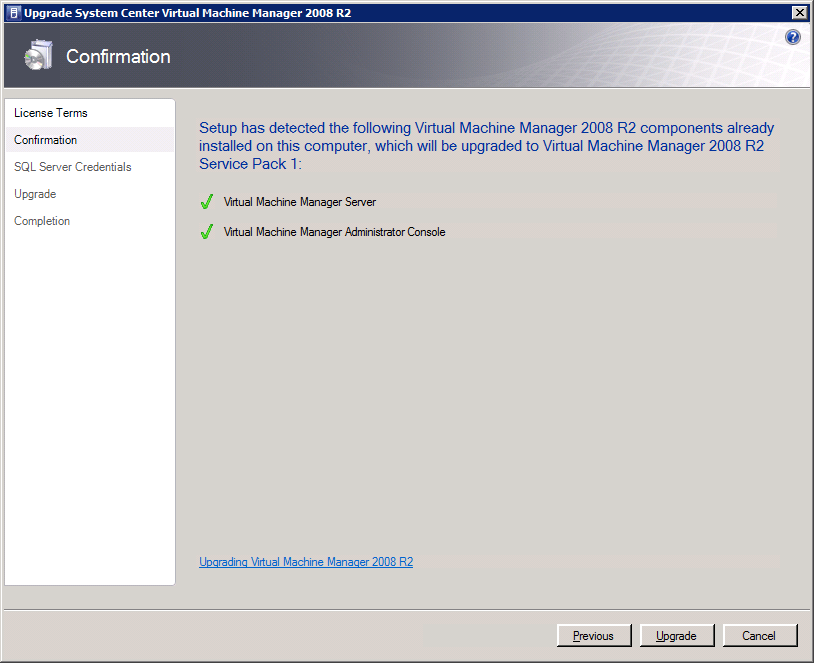
As you can see it detected that I’m also running the Virtual Machine Manager Administration Console. Click on ‘Upgrade” to continue.

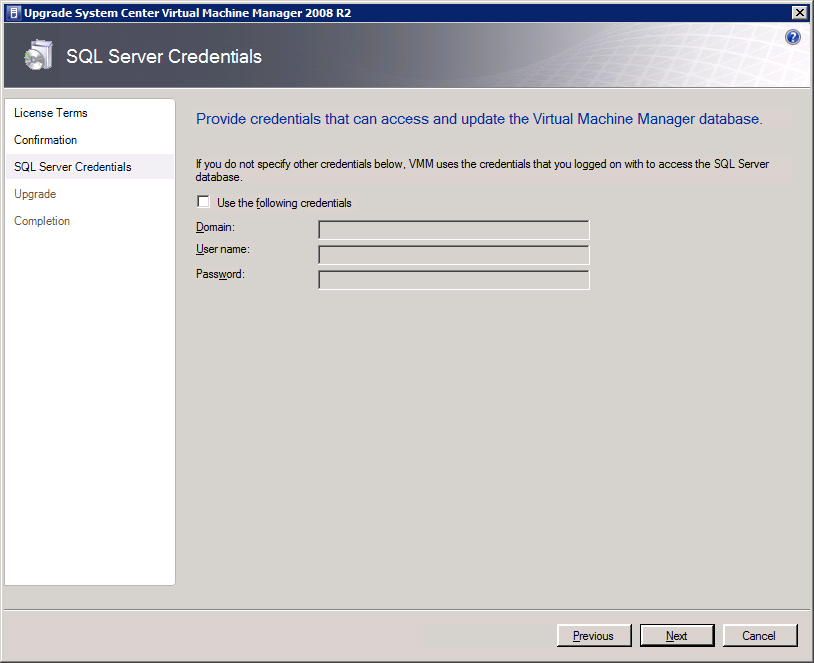
If the account you’re using doesn’t have the needed SQL Server permissions you can provide alternate credentials that do have those. Click “Next” to continue.

It will then upgrade all detected components one by one ….

… until you reach the Completion form. That’s it you’re done.

You have to go through this process for all servers where you have Virtual Machine Manager components installed to complete the entire upgrade. When you have you can now configure Dynamic Memory from your SCVNN administrator Console.  Nice

My First Hands On Experience With The System Center Virtual Machine Manager 2012 Beta

Today I made some time to take System Center Virtual Machine Manager 2012 (SCVMM2012) Beta for a little test drive. Nothing fancy yet. Just some first impressions and experiences. Is already had to VMs standing by. One running SQL Server 2008 R2 to take care of the database needs and one for installing SCVMM2012 on to. Normally, in further testing, I will install the self-service Portal on a separate machine for more flexibility but for now, it’s one host deal with a separate database server.

The documentation is already available on TechNet. I’m pretty sure this will grow a lot but the Installation guidelines are already pretty good. But as this is a test drive and I want to see how it behaves I didn’t get all the prerequisites ready from the start just to get a feel how the install behaves.

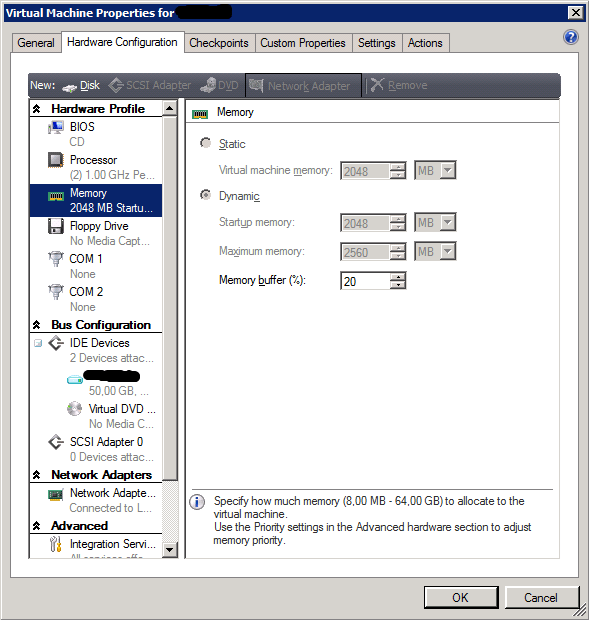
From the start we run into a symptom you need to take into consideration when using Dynamic Memory in a VM guest that was already discussed by Aidan Finn in Software Setup Does Not Meet Memory Requirements with Dynamic Memory Enabled. Just make sure you have plenty of memory during install time and afterward you can tweak it a bit to get some more breathing room on for the lab hosts.

The VMM 2012 setup wizard adds one prerequisite automatically for you if it isn’t installed and that’s the .NET Framework 3.5.1 feature is not installed (it is not installed by default).

Ok people, this is a bit rough and way pack with screenshots but here we go!

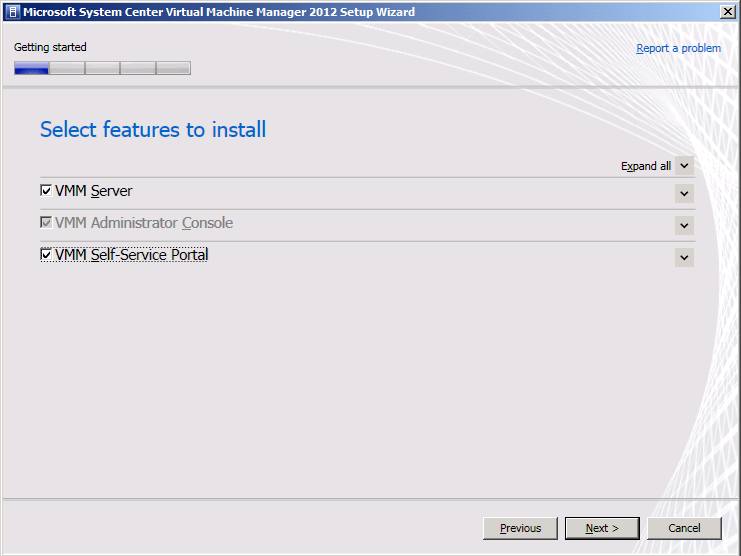
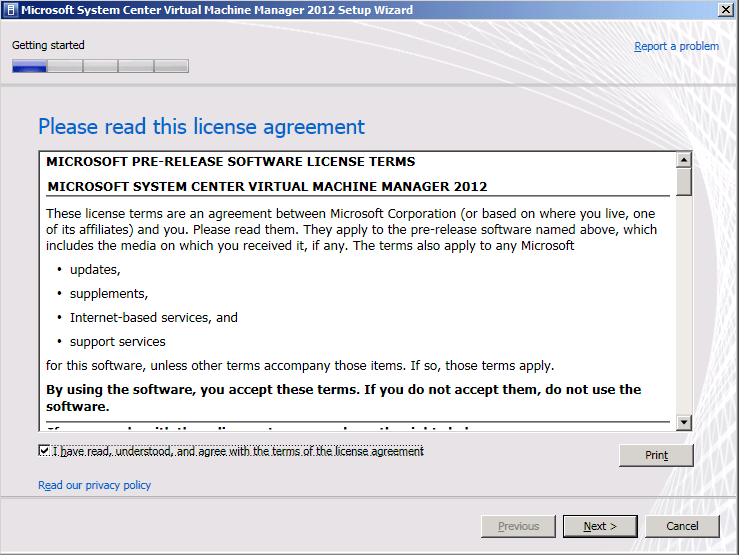
Start the setup and accept the License Agreement.
I opt to install on the roles on a single host
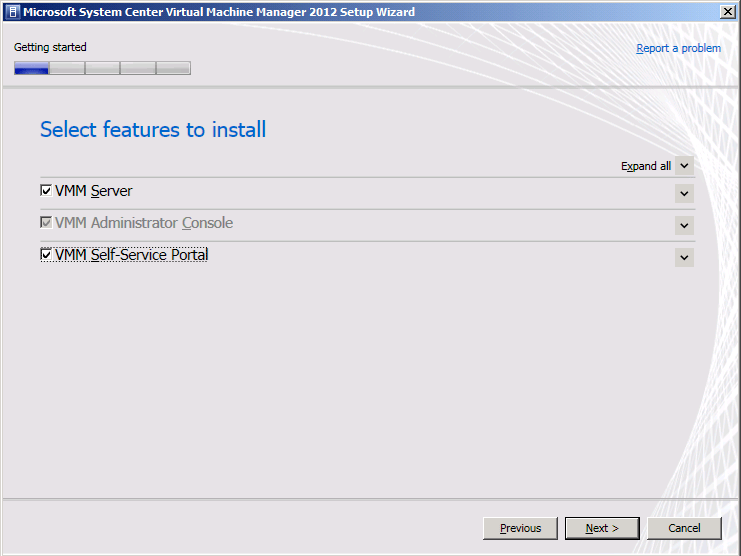
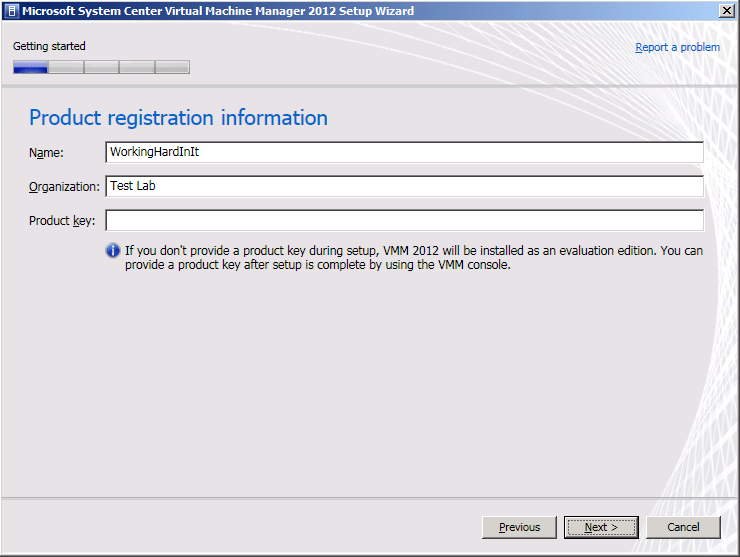
I provide the needed information, the key can wait, don’t worry about that here.
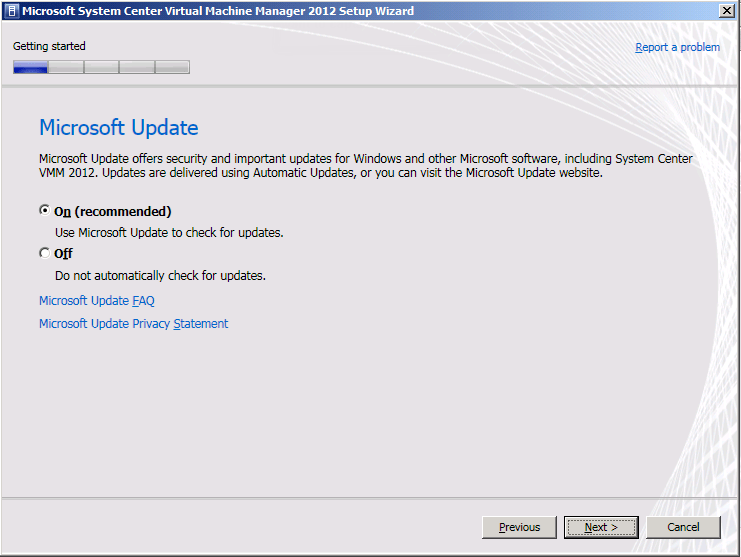
I’m opting into the Microsoft Update to keep my lab server running healthy & protected
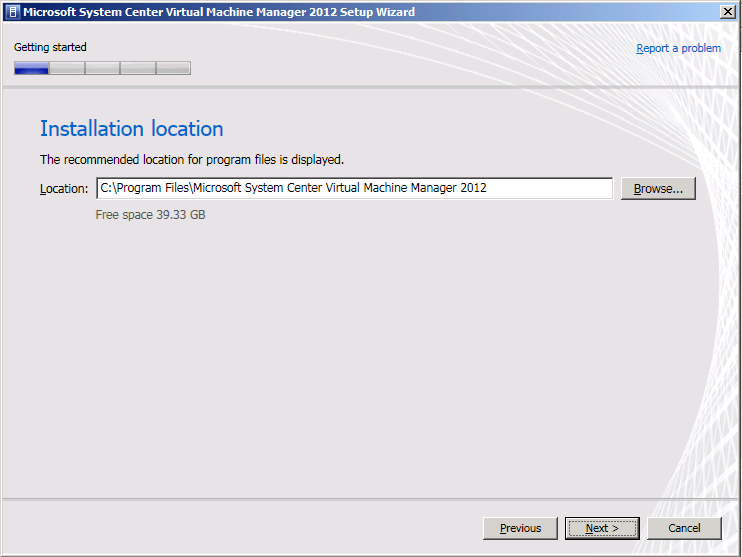
I’m happy with the default installation location
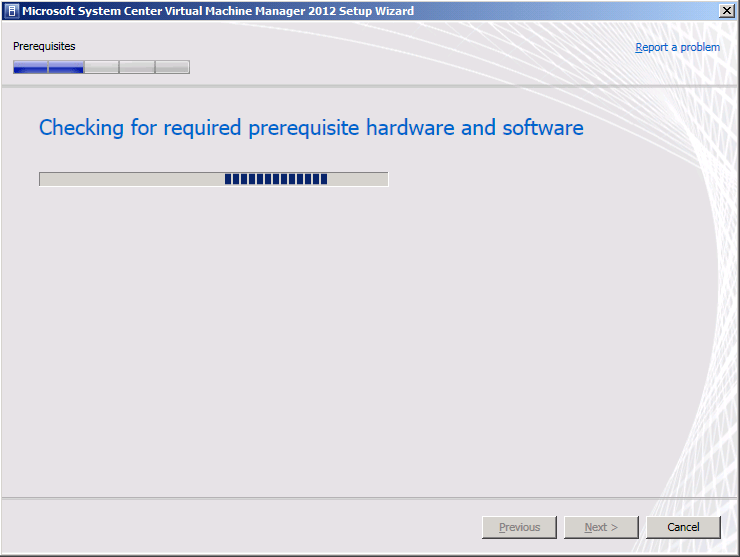
It’s checking the prerequisites
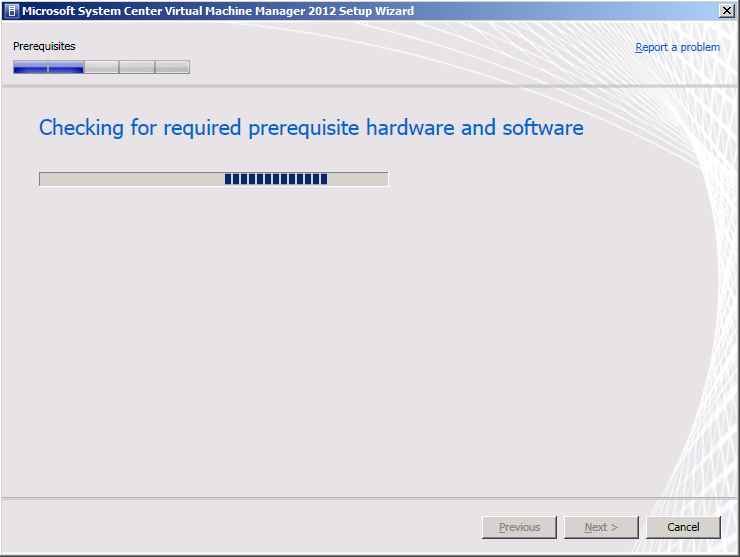
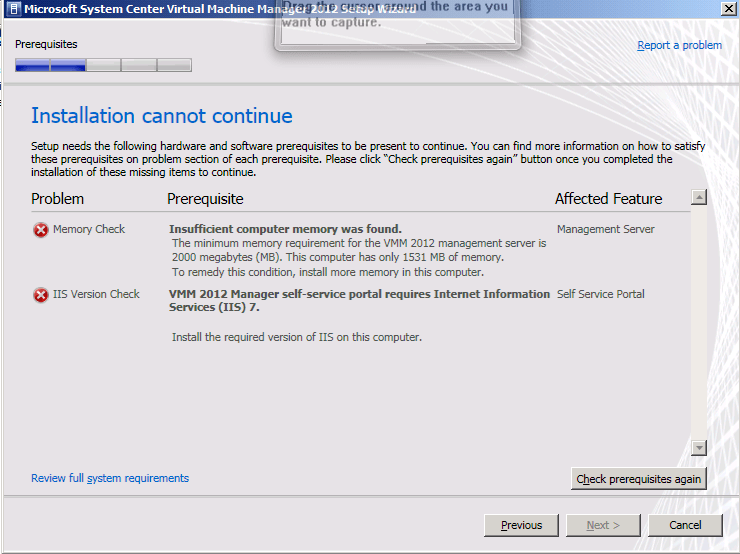
And it complains. I’ve been too cheap on memory and the Dynamic Memory settings are not bailing me out as already indicated above.
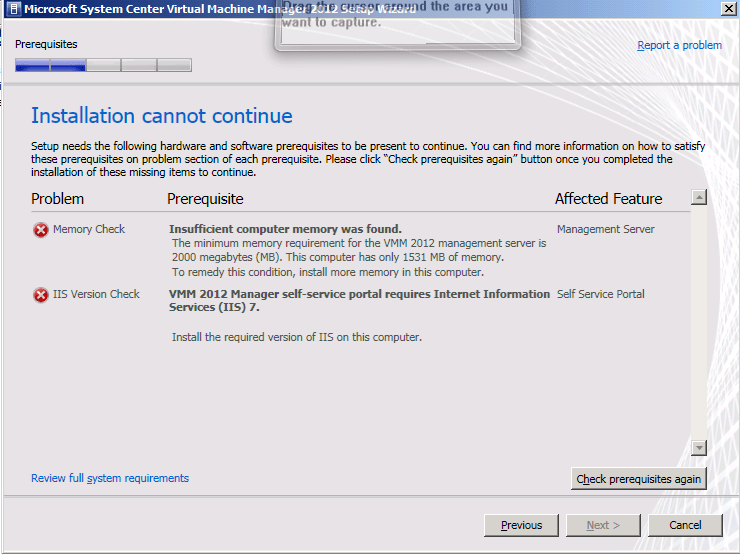
So I fix both issues by installing more memory and installing IIS. Make sure you read the TechNet documentation for all the IIS components you need.

  • .NET Extensibility
  • ASP.NET
  • Default Document
  • Directory Browsing
  • HTTP Errors
  • IIS 6 Metabase Compatibility
  • IIS 6 WMI Compatibility
  • ISAPI Extensions
  • ISAPI Filters
  • Request Filtering
  • Static Content

Then we rerun the prerequisites checks and we get another issue. We need the WAIK. You can avoid all these warnings or errors by reading the docs and preparing the server but as stated I wanted to get a look at how the process behaves. So we get the WAIK downloaded en install it.

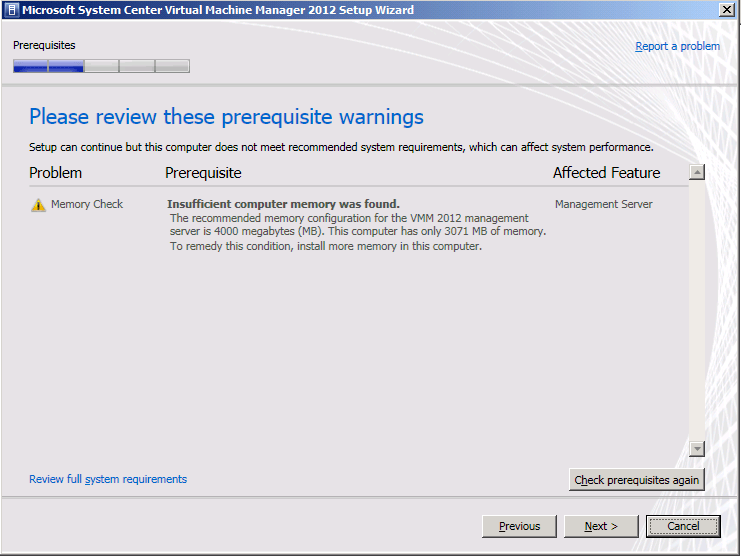
The installer still thinks I’m too cheap. But it’s only a warning now. I did end up giving the VM 4GB with a limit of 5 GB of RAM.
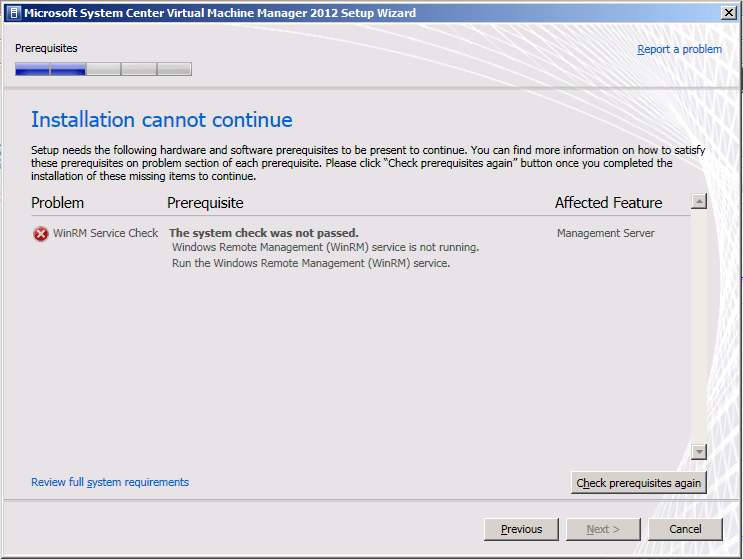
The next error is just because I was to fast to launch the setup, we need to give the winRM service some time to start. It’s a service that as a delayed start
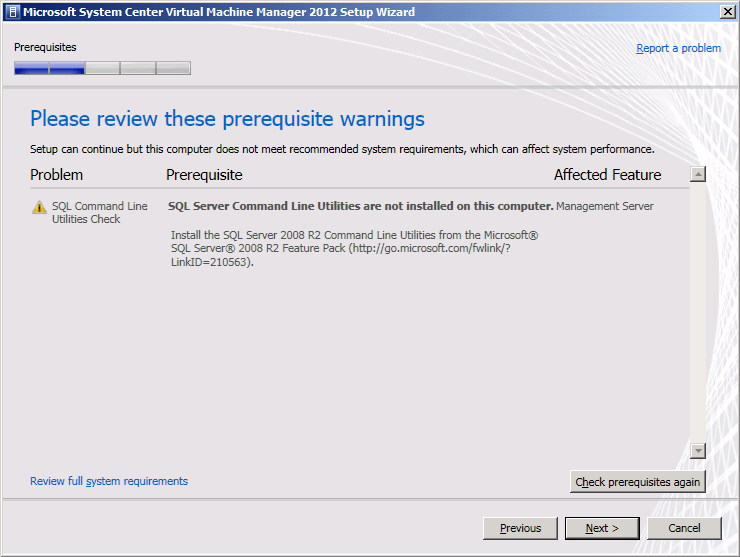
We didn’t do our prerequisites homework so we get nagged about the SQL Command Line Utilities. We can continue without them but when you do install these you’ll need to get the SQL Native Client installed on which the SQL Command Line Utilities depend.
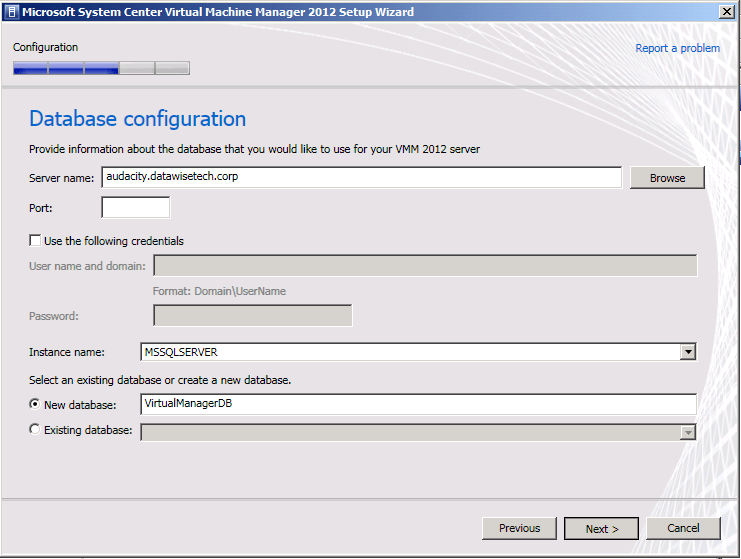
I have my database already up and running so I have no worries there. The account here needs to have permissions to install and configure the database. It ‘s used for that purpose only. As you can see I use the default instance and create a new database. Make sure your SQL Server is set up right for remote access, the firewall is configured, etc.
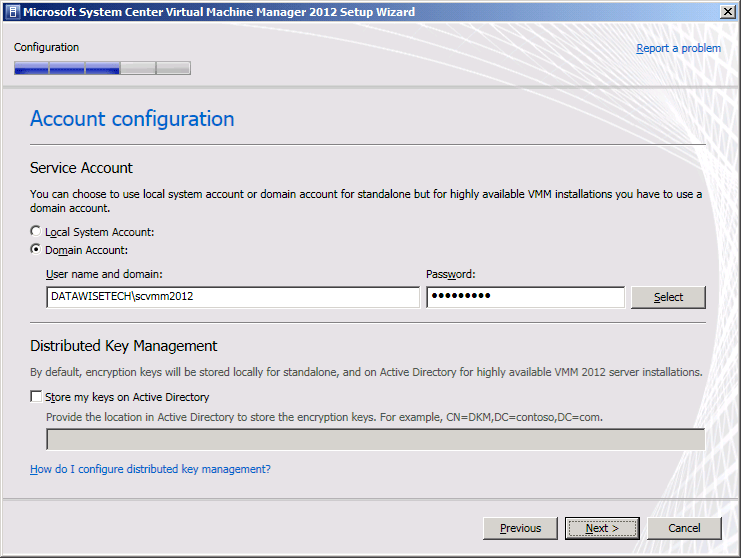
I’ve prepared a nice and shiny new domain account for the SCVMM2012 service to run under. I don’t use a manage service account because I’m not sure whether I might use this account on multiple machines in more elaborate fault-tolerant installations.
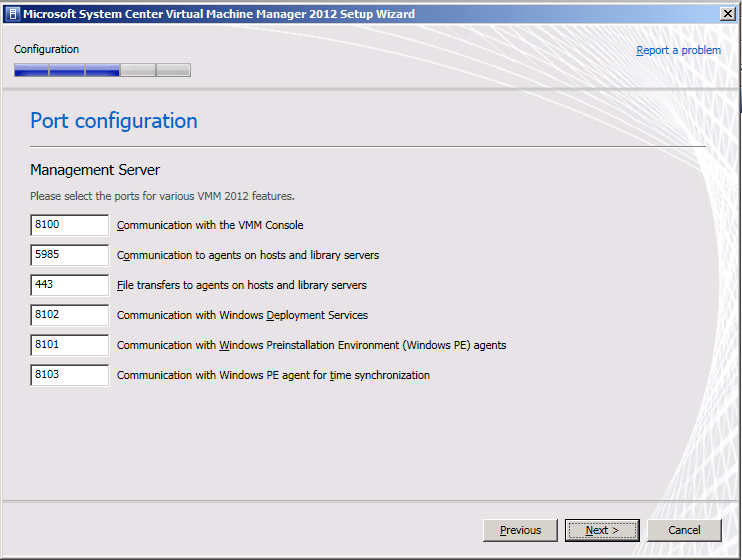
As I’m not very creative and don’t want to use non=default ports I’ll forget is elect to keep all the default ports.
I also leave the default settings for the self-service portal.
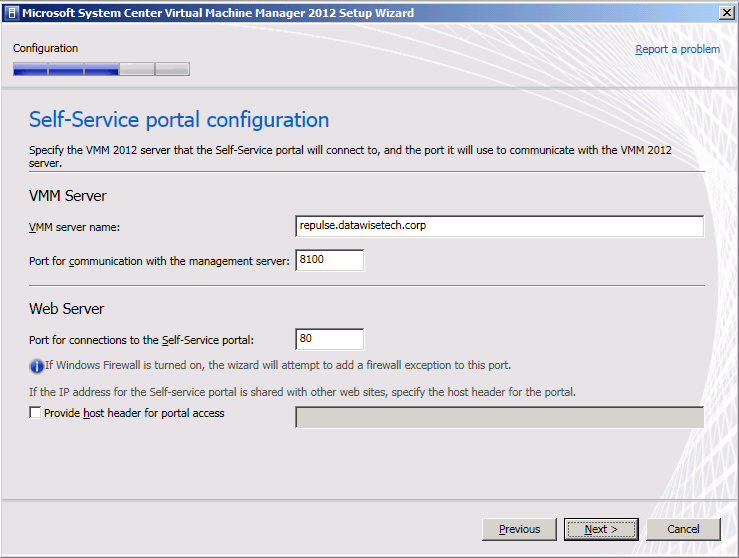
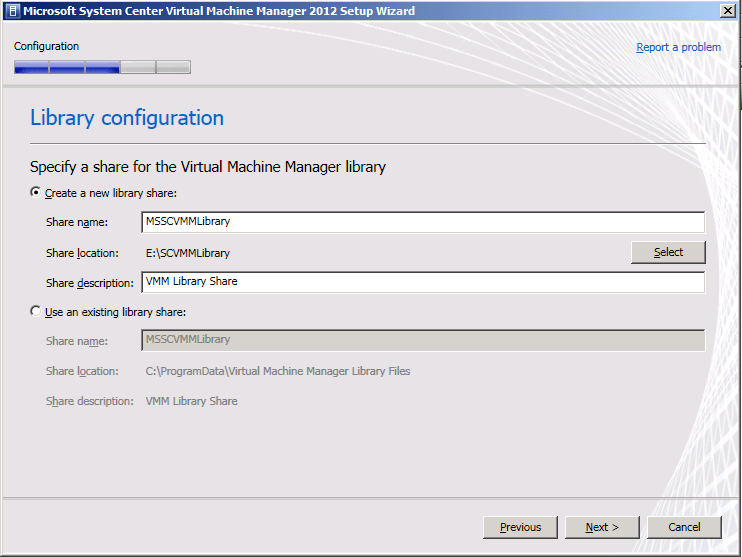
But I do change the location of the library share to a separate large disk Smile

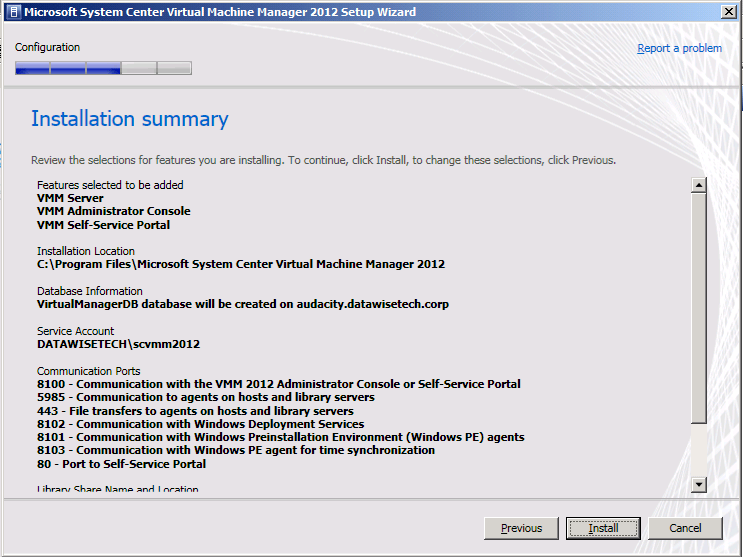
OK the installer is ready to rock.

The install goes very fast by the way. Went to get some coffee, called a colleague and voila …
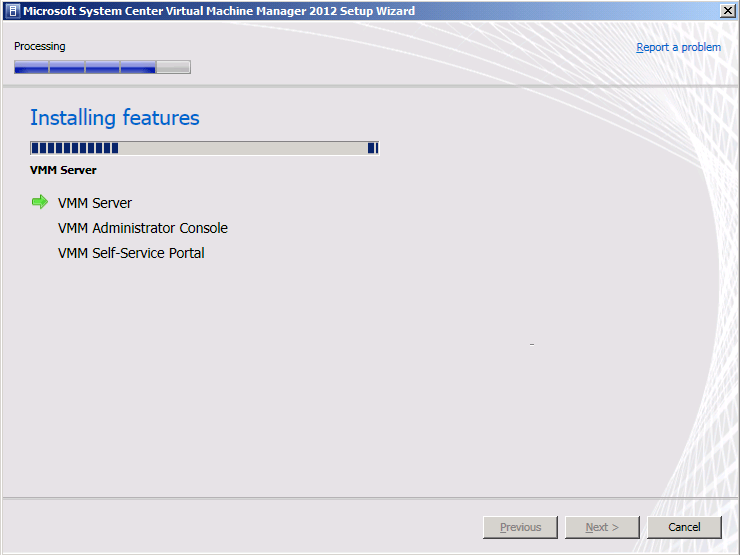
In my environment, it took about 6 minutes
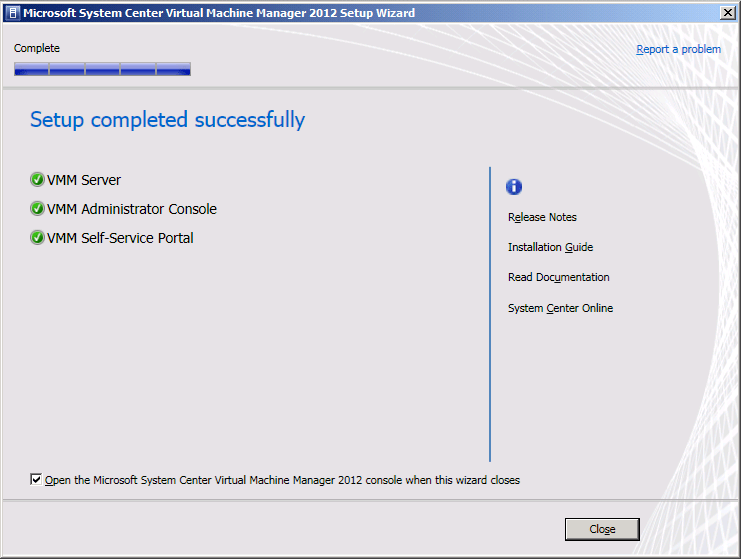
And after all that I got my reward SCVLL 2012 up and running
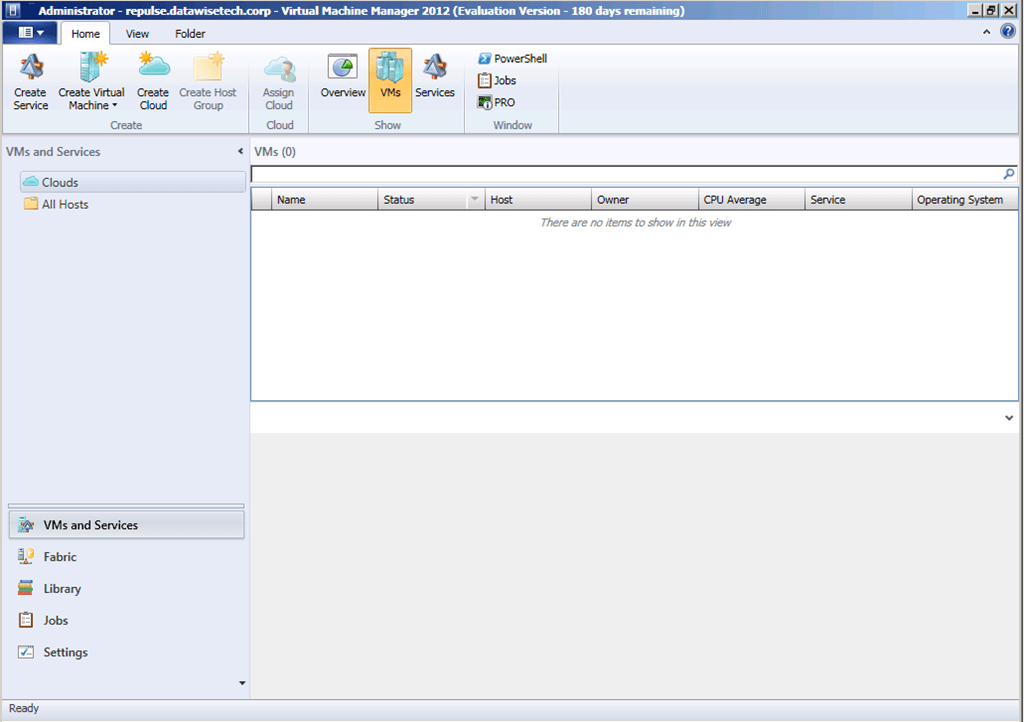
To which I add my test cluster
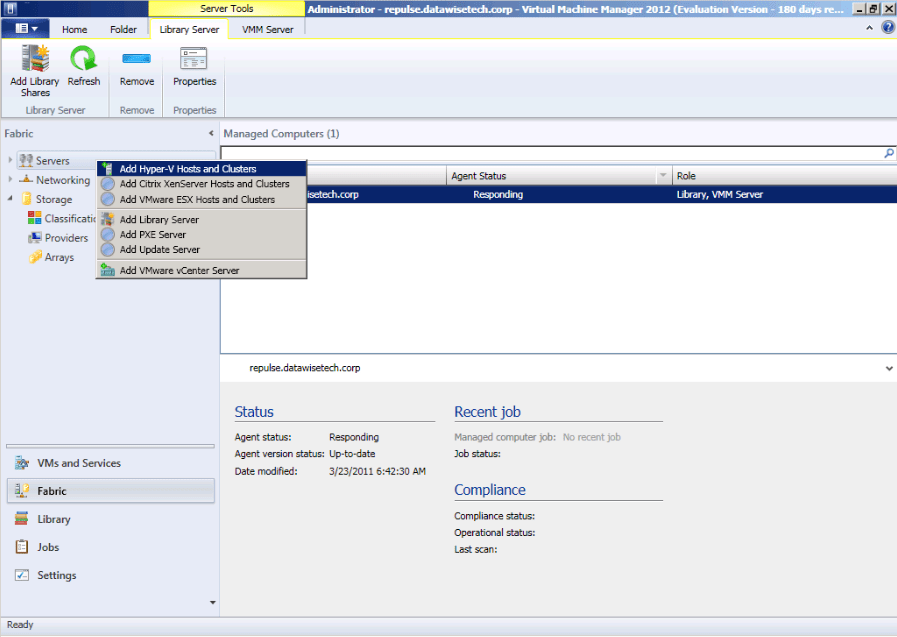
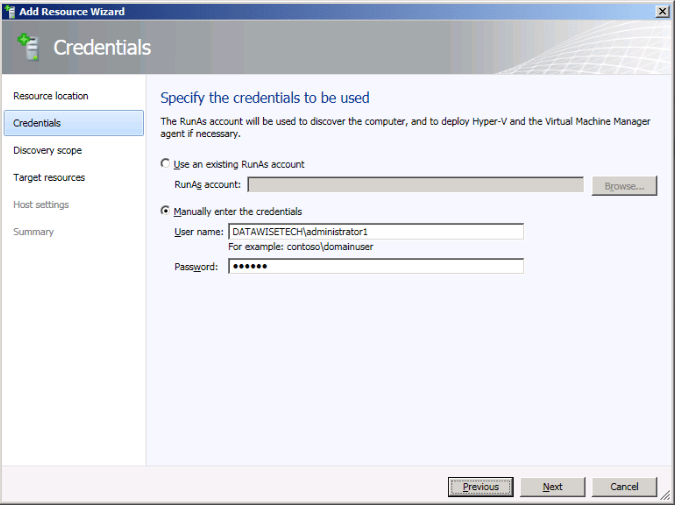
I need to provide some credentials that can discover the hosts and install the agents
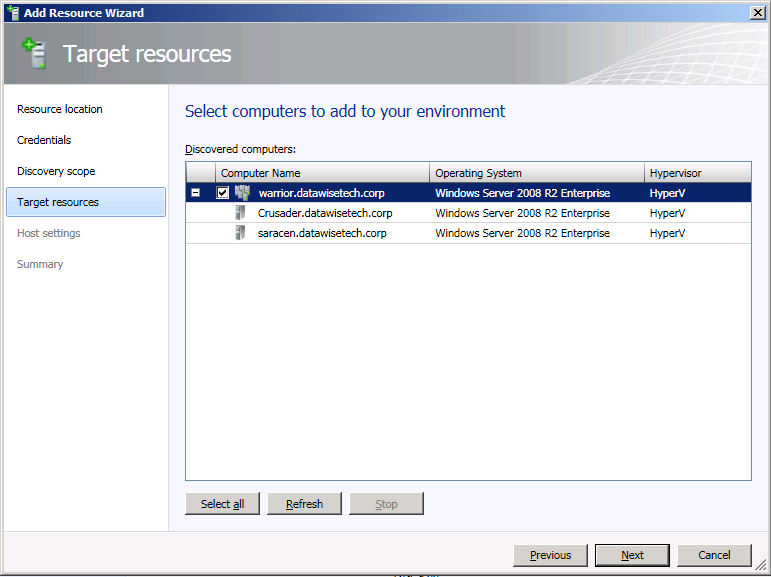
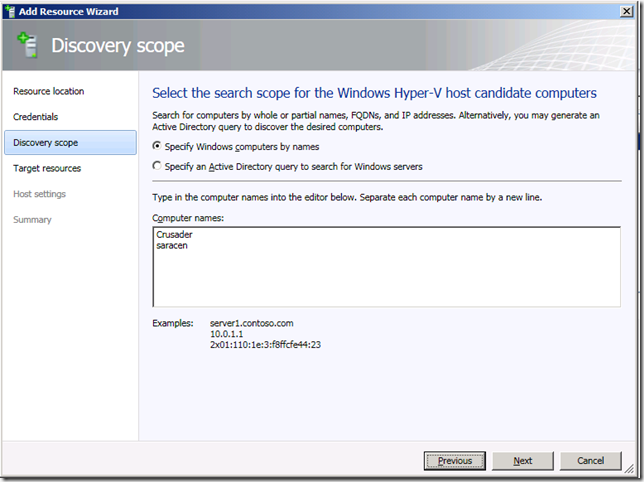
I add some cluster hosts
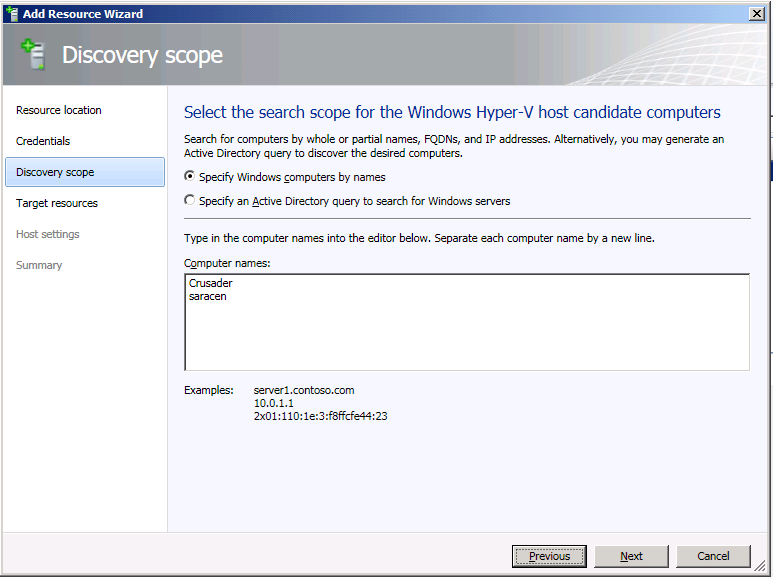
image

SCVMM2012 picks up that it’s a cluster
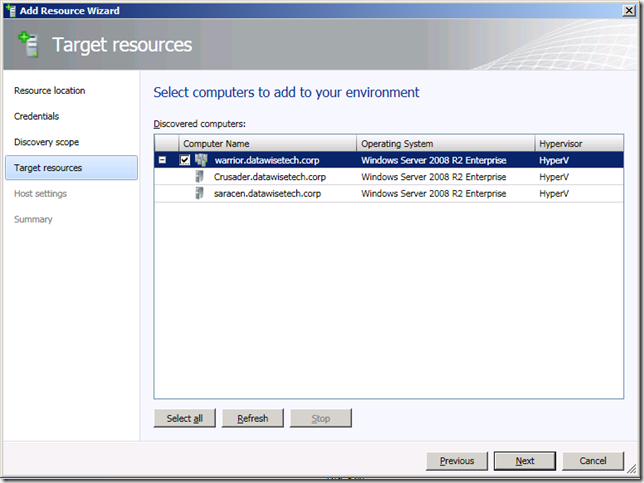
image

And I add it to All hosts group I created. neatly organizing already (neurotic behavior is widespread in the IT world)
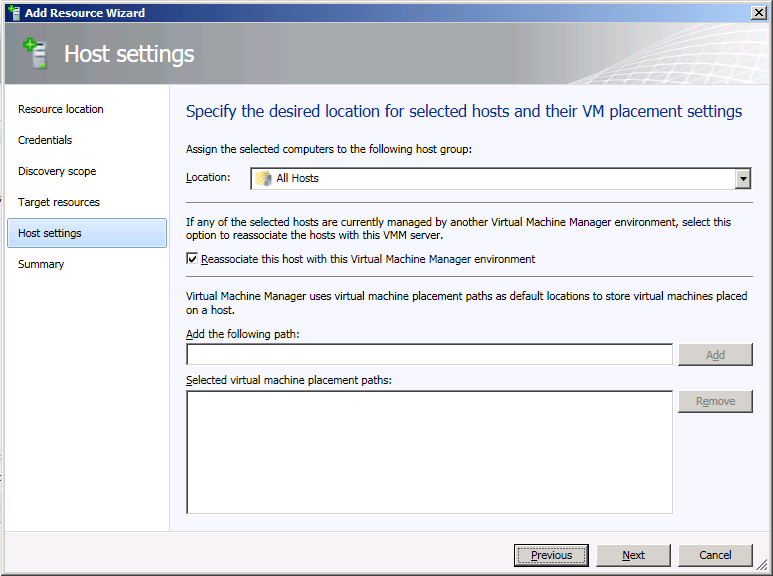
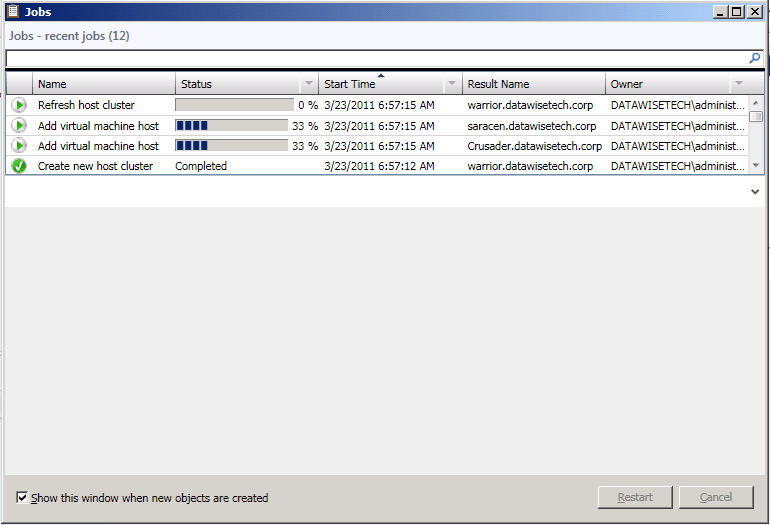
The cluster and hosts are added to SCVMM 2012
For fun, I put a host into maintenance mode.  It offers to use live migration as that is available
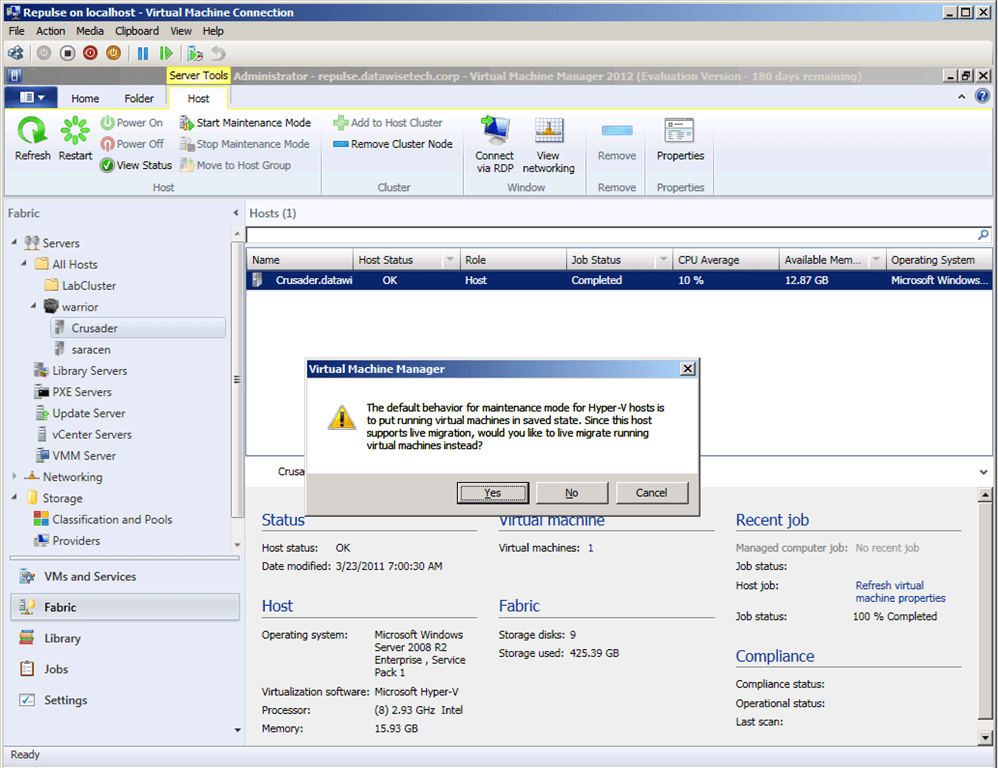
And that went just fine.
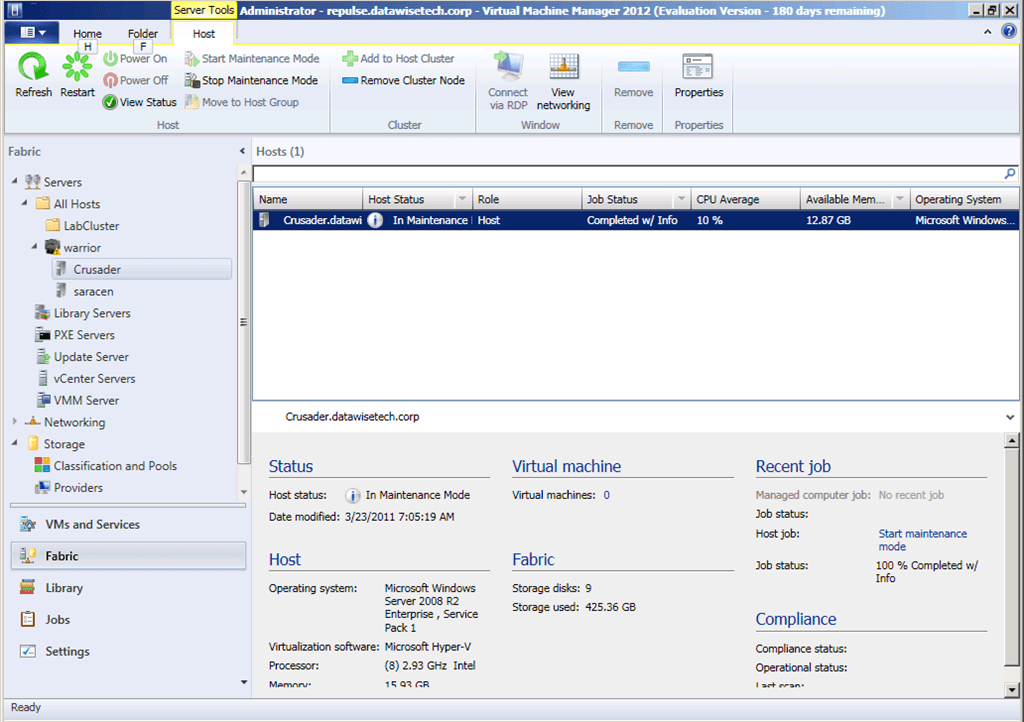
Well there you have it, a first rough hands-on experience with SCVMM2012 Beta.  We’re off to a very good start with this. More to follow later without any doubt.