High performance live migration done right means using SMB Direct

I  saw people team two 10GBps NICs for live migration and use TCP/IP. They leveraged LACP for this as per my blog Teamed NIC Live Migrations Between Two Hosts In Windows Server 2012 Do Use All Members . That was a nice post but not a commercial to use it. It was to prove a point that LACP/Static switch dependent teaming did allow for multiple VMs to be live migrated in the same direction between two node. But for speed, max throughput & low CPU usage teaming is not the way to go. This is not needed as you can achieve bandwidth aggregation and redundancy with SMB via Multichannel. This doesn’t require any LACP configuration at all and allows for switch independent aggregation and redundancy. Which is great, as it avoids stacking with switches that don’t do  VLT, MLAG,  …

Even when your team your NICs your better off using SMB. The bandwidth aggregation is often better. But again, you can have that without LACP NIC teaming so why bother? Perhaps one reason, with LACP failover is faster, but that’s of no big concern with live migration.

We’ll do some simple examples to show you why these choices matter. We’ll also demonstrate the importance of an optimize RSS configuration. Do not that the configuration we use here is not a production environment, it’s just a demo to show case results.

But there is yet another benefit to SMB.  SMB Direct.  That provides for maximum throughput, low latency and low CPU usage.

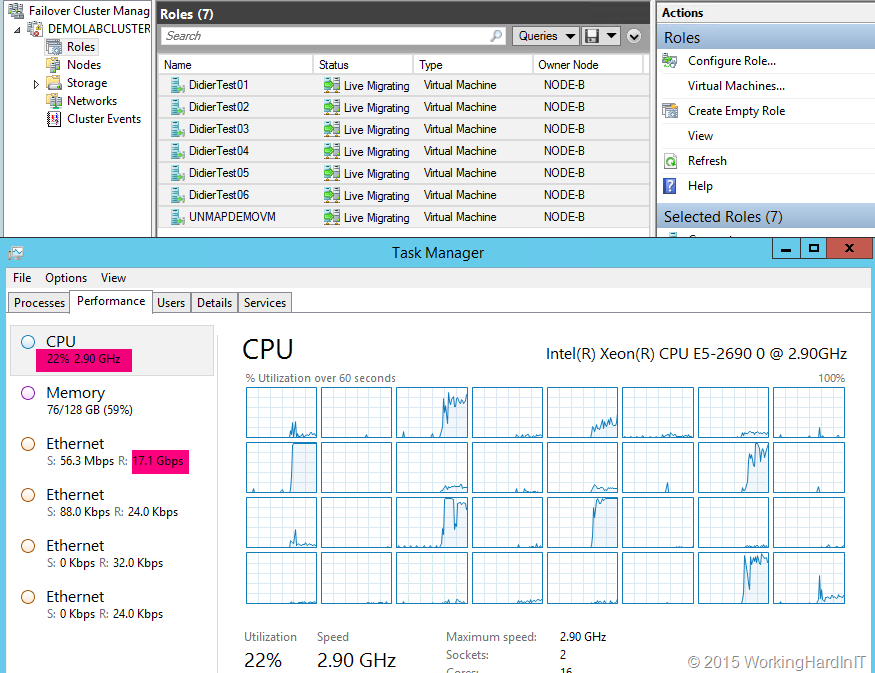
LACP NIC TEAM with 2*10Gbps with TCP

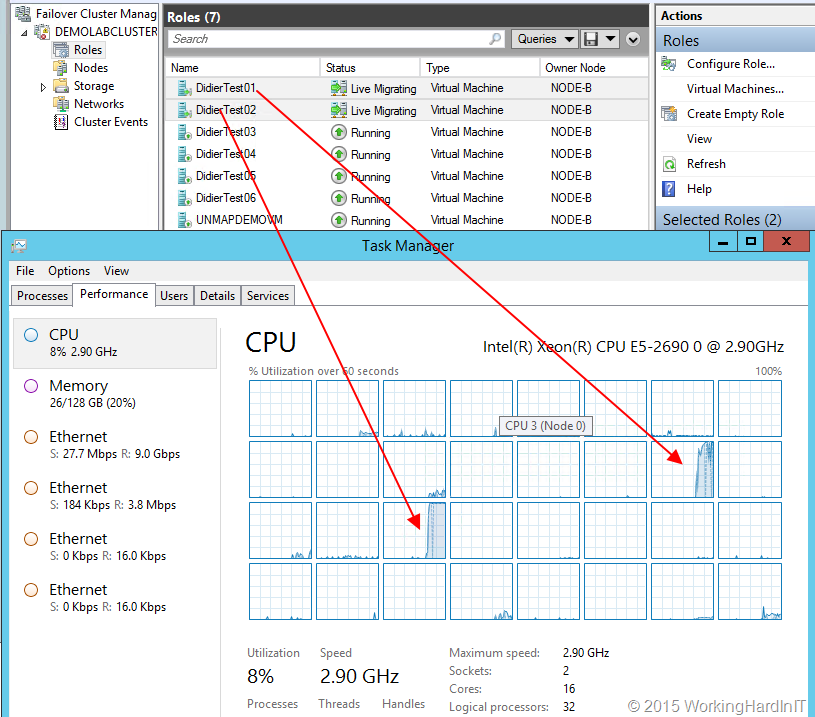
With RSS setting on the inbox default we have problems reaching the best possible throughput (17Gbps). But that’s not all. Look at the CPU at the time of live migration. As you can see it’s pretty taxing on the system at 22%.

image

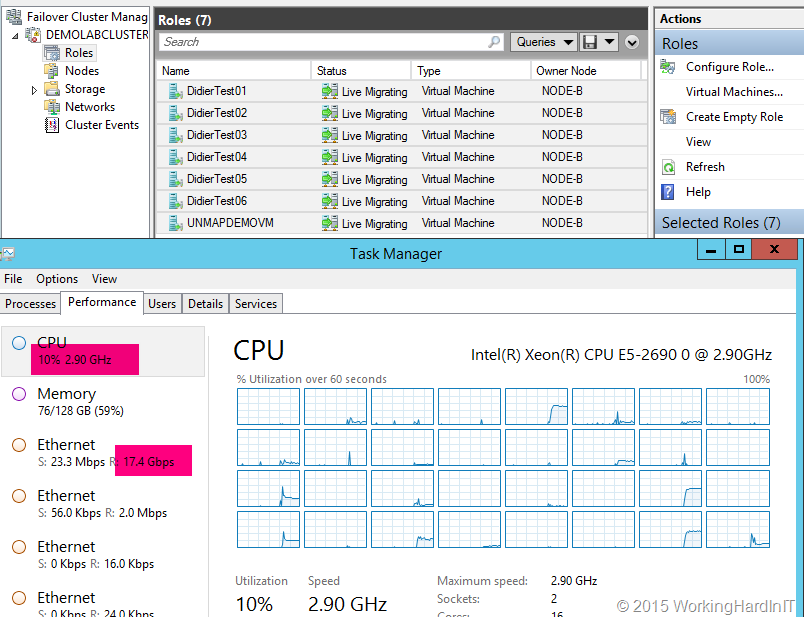
If we optimize RSS with 8 RSS queues assigned to 8 physical cores per NIC on a different CPU (dual socket, 8 core system) we sometimes get better CPU overhead at +/- 12% but the throughput does not improve much and it’s not very consistent. It can get worse and look more like the above.

image

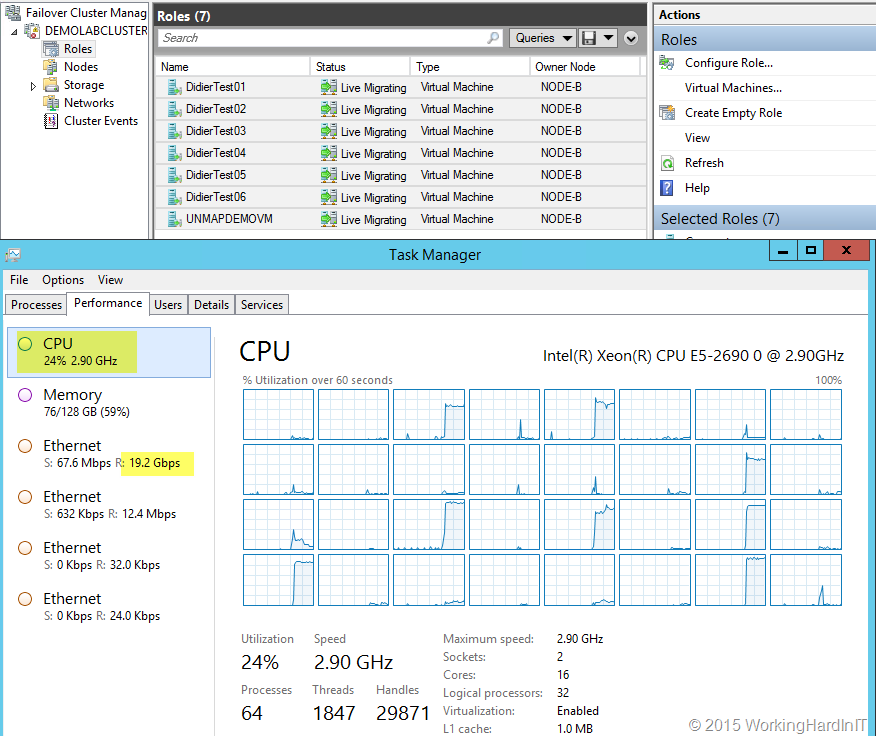
LACP NIC TEAM with 2*10Gbps with SMB (Multichannel)

With the default RSS Settings we still have problems reaching the best possible throughput but it’s better (19Gbps). CPU wise, it’s pretty taxing on the system at 24%.

image

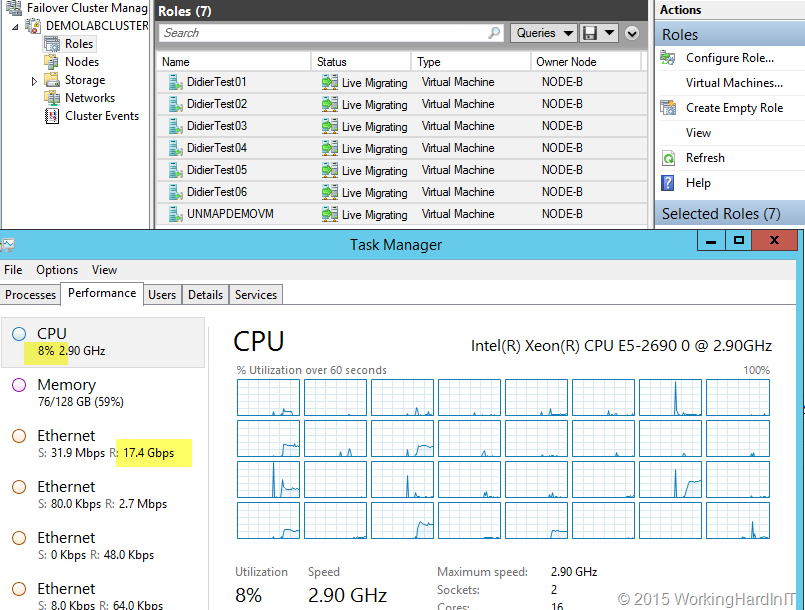
If we optimize RSS with 8 RSS queues assigned to 8 physical cores per NIC on a different CPU (dual socket, 8 core system) we get better over CPU overhead at +/- 8% but the throughput actually declined (17.5 %). When we run the test again we were back to the results we saw with default RSS settings.

image

Is there any value in using SMB over TCP with LACP for live migration?

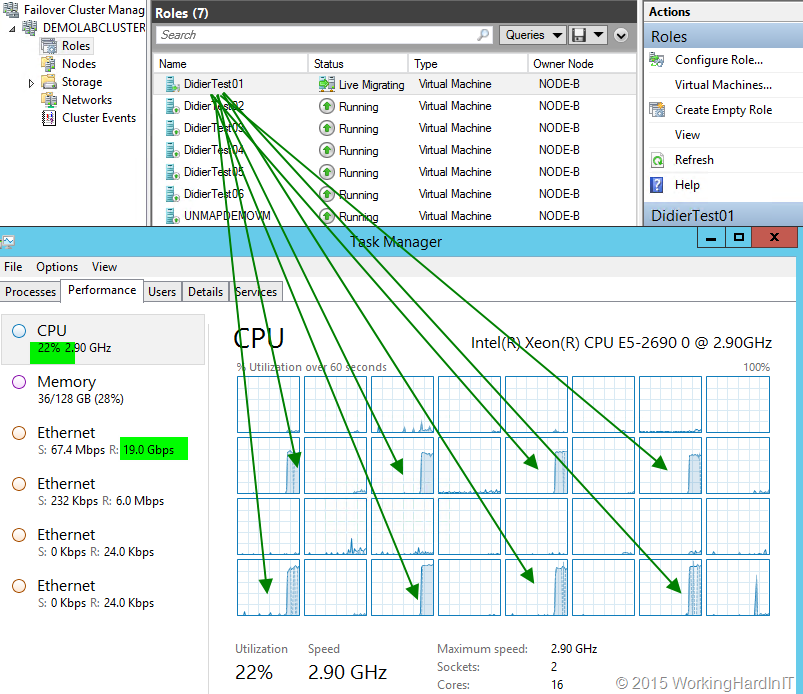
Yes there is. Below you see two VMs live migrate, RSS is optimized. One core per VM is used and the throughput isn’t great, is it. Depending on the speed of your CPU you get at best 4.5 to 5Gbps throughput per VM as that 1 core per VM is the limiting factor. Hence see about 9Gbps here, as there’s 2 VMs, each leveraging 1 core.

image

Now look at only one VM with RSS is optimized with SMB over an LACP NIC team. Even 1 large memory VM leverages 8 cores and achieves 19Gbps.

image

What about Switch Independent Teaming?

Ah well that consumes a lot less CPU cycles but it comes at the price of speed. It has less CPU overhead to deal with in regards to LACP. It can only receive on one team member. The good news is that even a single VM can achieve 10Gbps (better than LACP) at lower CPU overhead. With SMB you get better CPU distribution results but as the one member is a bottle neck, not faster. But … why bother when we have …better options!? Read on Smile!

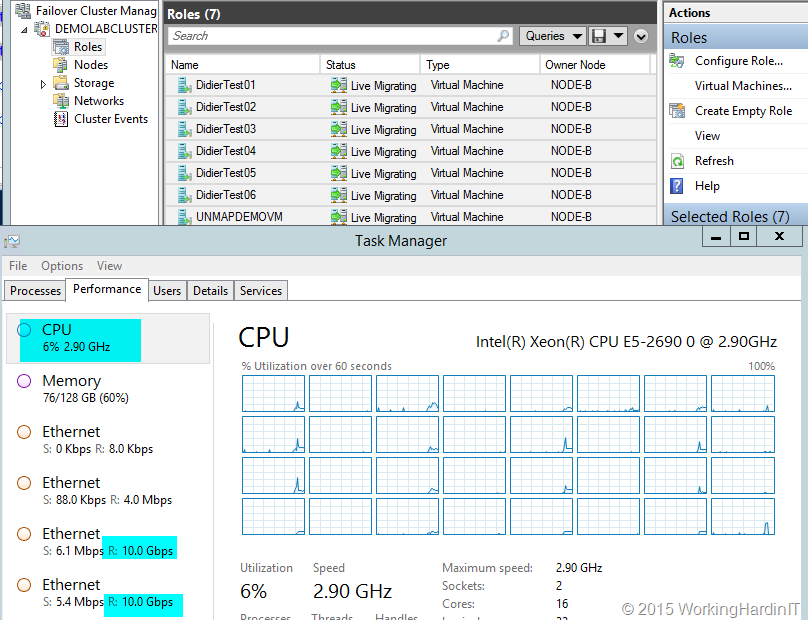
No Teaming – 2*10Gbps with SMB Multichannel, RSS Optimized

We are reaching very good throughput but it’s better (20Gbps) with 8 RSS queues assigned to 8 physical cores. The CPU at the time of live migration is pretty good at 6%-7%.

image

Important: This is what you want to use if you don’t have 10Gbps but you do have 4* 1Gbps NICs for live migration. You can test with compression and LACP teaming if you want/can to see if you get better results. Your mirage may vary Smile. If you have only one 1Gbps NIC => Compression is your sole & only savior.

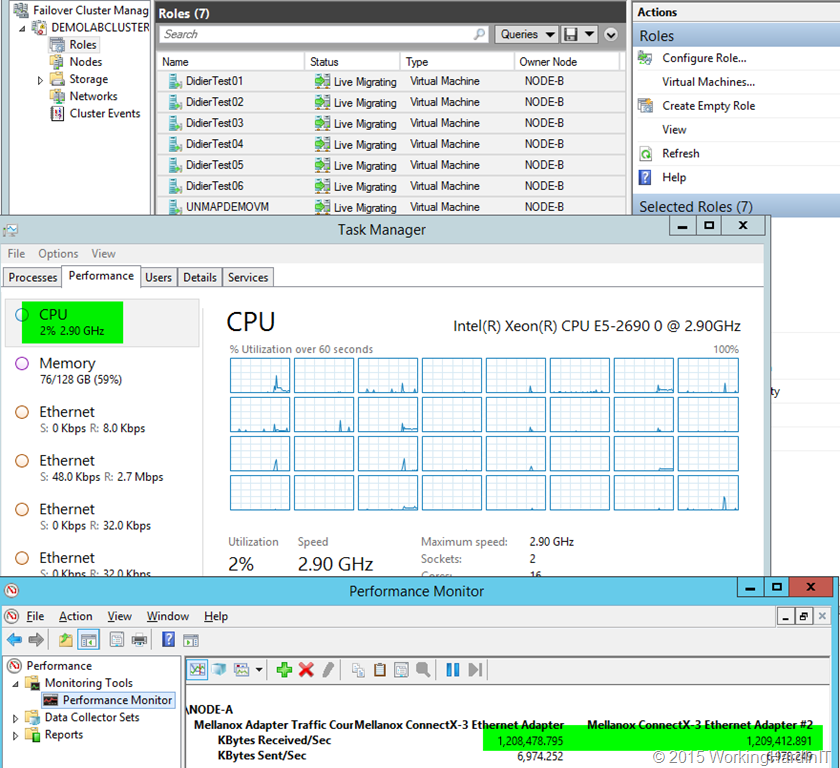
2*10Gbps with SMB Direct

We’re using perfmon here to see the used bandwidth as RDMA traffic does not show up in Task Manager.

image

We have no problems reaching the best possible throughput but it’s better (20Gbps, line speed). But now look at the CPU during live migration. How do you like them numbers?

Do not buy non RDMA capable NICs or Switches without DCB support!

These are real numbers, the only thing is that the type and quality of the NICs, firmware and drivers used also play a role an can skew the results a bit. The onboard LOM run of the mill NICs aren’t always the best choice. Do note that configuration matters as you have seen. But SMB Direct eats them all for breakfast, no matter what.

Convinced yet? People, one of my core highly valuable skillsets is getting commodity hardware to perform and I tend to give solid advice. You can read all my tips for fast live migrations here in Live Migration Speed Check List – Take It Easy To Speed It Up

Does all of this matter to you? I say yes , it does. It depends on your environment and usage patterns. Maybe you’re totally over provisioned and run only very small workloads in your virtual machines. But it’s save to say that if you want to use your hardware to its full potential under most circumstances you really want to leverage SMB Direct for live migrations. What about that Hyper-V cluster with compute and storage heavy applications, what about SQL Server virtualization? Would you not like to see this picture with SMB RDMA? The Mellanox  RDMA cards are very good value for money. Great 10Gbps switches that support DCB (for PFC/ETS) can be bought a decent prices. You’re missing out and potentially making a huge mistake not leveraging SMB Direct for live migrations and many other workloads. Invest and design your solutions wisely!

Trouble Shooting Intermittent Virtual Machine Network Connectivity

I was asked to take a look at an issue with virtual machines losing network connectivity. The problems were described as follows:

Sometimes some VMs had connectivity, some times they didn’t. It was not tied to specific virtual machines. Sometimes the problem was not there, than it showed up again. It was, not an issue of a wrong subnet mask or gateway.

They suspected firmware or driver issues. Maybe it was a Windows NIC teaming bug or problems with DVMQ or NIC offload settings. There’s a lot of potential reasons, just Google Intermittent VM connectivity Issues Hyper-V and you’ll get a truckload of options.

So a round of wishful firmware, driver upgrading started. Followed by a round of wishful disabling network features. That’s one way to do it. But why not sit back an look at the issue.

Based on what they said I looked at the environment and asked it was tied to specific host as only VMs on one of the hosts had the issue.  Could it be be after a live migration or a VM restart. They didn’t really know but it could. So we started looking at the hosts. All teams for the vSwitch were correctly configured on all host. No tagged VLAN on the member NIC. No extra team interfaces that would violate the rule that there can be only one if the team is used by a Hyper-V switch. They used the switch independent teaming mode with the load balancing mode set to Dynamic, all member active. Perfect.

I asked it they used tagged VLAN on the VMs some times. They said yes. Which gave me a clue they had trunking or general mode configured on the ports. So I looked at the switches to see what the port configuration was like?  Guess what. All ports on both switches were correctly configured bar the ports of the vSwitch team members on one Hyper-V host. The one with problematic VMs. The two ports were in general mode but the port on the top switch had PVID* 100 and the one on the bottom switch had PVID 200. That was the issue. If the VM “landed” on the team member with PVID 200 it has no network connectivity.

HyperV-vSwitchTeam-WronNativeVLAN


* PVID (switchport general pvid 200) is the default VLAN of the port, in CISCO speak that would translate into “”native VLAN as in switchport trunk native vlan 200

Yes NIC firmware and drivers have issues. There are bugs or problems with advanced features once in a while. But you really do need to check that the configuration is correct and the design or setup makes sense. Do yourself a favor by not assuming anything. Trust but verify.

DELL Microsoft Storage Spaces Offerings

Dell was the 1st OEM to actively support and deliver Microsoft Storage Spaces solutions to its customers.

image

They recognized the changing landscape of storage and saw that this was one of the option customers are interested in. When DELL adds their logistical prowess and support infrastructure into the equation it helps deliver Storage Spaces to more customers. It removes barriers.

In June 2015 DELL launched their newest offering based on generation 13 hardware.

image

Recently DELL has published it’s docs and manuals for Storage Spaces with the MD1420 JBOD Storage Spaces with the MD1420 JBOD

You can find some more information on DELL storage spaces here and here.

I’m looking forward to what they’ll offer in 2016 in regards to Storage Spaces Direct (S2D) and networking (10/25/40/50/100Gbps). I’m expecting that to be a results of some years experience combined with the most recent networking stack and storage components. 12gbps SAS controller, NVMe options in Storage Spaces Direct. Dell has the economies of scale & knowledge to be one of the best an major players in this area. Let’s hope they leverage this to all our advantage. They could (and should) be the first to market with the most recent & most modern hardware to make these solutions shine when Windows Server 2016 RTM somewhere next year.

Hyper-V Storage QoS in Windows Server 2016 Works on SOFS and on LUNs/CSVs

Introduction

I addressed storage QoS in Windows Server 2012 R2 at length in a coupe of blog posts quite a while ago:

I love the capability and I use it in real life. I also discussed where we were still lacking features and capabilities. I address the fact that there is no multiple host QoS, there is no cluster wide QoS and there is no storage wide QoS in Windows. On top of that, if there is QoS in the storage array (not many have that) most of the time this has no knowledge of Hyper-V, the cluster and the virtual machines. There is one well know exception and that GridStore, possible the only storage vendor that doesn’t treat Hyper-V as a second class citizen.

Any decent storage QoS that not only provides maximums but also minimums, does this via policies and is cluster and hypervisor even virtual machine aware. It needs to be easy to implement and mange. This is not a very common feature. And if it’s exists it’s is tied to the storage vendor, most of the time a startup or challenger.

Windows Server 2016

In Windows Server 2016 they are taking a giant step for all mankind in addressing these issues. At least in my humble opinion. You can read more here:

Basically  Microsoft enables us to define IOPs management policies for virtual machines based on virtual hard disks and  IOPs reserves and limits. These are shared by a group of virtual machines / virtual hard disks.  We can have better resource allocation between VMs, or groups of VMs. These could be high priority VMs or VMs belonging to an platinum customer /tenant. Storage QoS enhances what we already have since Windows Server 2012 R2.  It enables us to monitor and enforce performance thresholds via policies on groups of VMs or individual VMs.

Great for SLA’s but also to make sure a run away VM that’s doing way to much IO doesn’t negatively impact the other VMs and customers on the cluster. They did this via via a Centralized Policy Controller. Microsoft Research really delivered here I would dare say. A a public cloud provider they must have invested a lot in this capability.

At Ignite 2015 there was a great session by Senthil Rajaram and Jose Barreto on this subject. Watch it for some more details.

What caught my eye after  attending and watching sessions, talking to MSFT at the boot was the following marked in red.

image

So not enabled by default on non SOFS storage but can you enable it on your block level CSV Hyper-V cluster? There is a lot of focus on Microsoft providing Storage QoS for SOFS. Which ties into the “common knowledge” that virtualization and LUNs are a bad idea, you need file share and insights into the files of the virtual machines to put intelligence into the hypervisor or storage system right? Well perhaps no! I Windows Server 2016 there is now also the ability to provide it to any block level storage you use for Hyper-V. Yes your low end iSCSI SAN or your high End 16Gbps FC SAN … as long as it’s leveraging CVS (and you should!). Yes, this is what they state in an awesome interview with my Fellow Hyper-V MVP Carsten Rachfahl at Ignite 2015.

Videointerview with Jose and Senthil Storage QoS Thumb2

Senthil and Jose look happy and proud. They should be.  I’m happy and proud of them actually as to me this is huge. This information is also in the TechNet guide Storage Quality of Service in Windows Server Technical Preview

Storage QoS supports two deployment scenarios:

Hyper-V using a Scale-Out File Server This scenario requires both of the following:

  • Storage cluster that is a Scale-Out File Server clusterCompute cluster that has least one server with the Hyper-V role enabled.
  • For Storage QoS, the Failover Cluster is required on Storage, but optional on Compute. All servers (used for both Storage and Compute) must be running Windows Server Technical Preview.

Hyper-V using Cluster Shared Volumes. This scenario requires both of the following:

  • Compute cluster with the Hyper-V role enabled
  • Hyper-V using Cluster Shared Volumes (CSV) for storage

Failover Cluster is required. All servers must be running Windows Server Technical Preview.

So let’s have a quick go following the TechNet guide on a lab cluster leveraging CSV over FC with a Dell Compellent.image

Which give me running Storage QoS Resource

image

And I can play with my new PoSh Commands … Get-StorageFlowQos, Get-StorageQosPolicy and Get-StorageQosVolume …

image

The guide is full of commands, examples and tips. Go play with it. It’s great stuff Smile. I’ll blog more as I experiment.

Here’s my test VMs doing absolutely nothing, bar one on which I’m generating traffic. Even without a policy set it shows the IOPS the VM is responsible for on the storage node.image

Yu can dive into this command and get details about what virtual disk on what volume are contributing to the this per storage node.

image

More later no doubt but here I just wanted to share this as to me this is very important! You can have the cookie of your choice and eat it to! So the storage can be:

  1. SOFS provided (with PCI RAID, Shared SAS, FC, FCoE, ISCI storage as backend storage) that doesn’t matter. In this case Hyper-V nodes can be clustered or stand alone
  2. The storage can be any other block level storage: iSCSI/FC/FCoE it doesn’t matter as long as you use CSVs. So yes this is clustered only. That Storage QoS Resource has to run somewhere.

You know that saying that you can’t do storage QoS on a LUN as they can’t be tweaked to the individual VM and virtual hard disks? Well, that’s been busted as myth it seems.

What’s left? Well if you have SOFS against a SAN or block level storage you cannot know if the storage is being used for other workloads that are not Hyper-V, policies are not cross cluster and stand alone hosts are a no go without SOFS. The cluster is a requirement for this to work with non SOFS Hyper-V deployments.  Also this has no deep knowledge or what’s happening inside of your storage array. So it knows how much IOPS you get, but it’s actually unaware of the total IOPS capability of the entire storage system or controller congestion etc. Is that a big show stopper? No. The focus here is on QoS for virtualization. The storage arrays storage behavior is always in flux anyway. It’s unpredictable by nature. Storage QoS is dynamic and it looks pretty darn promising to me! People this is just great. Really great and it’s very unique as far as I can say. Microsoft, you guys rock.