Activating Windows Server 2016

Activating Windows Server 2016

So it’s time to make sure we start thinking about activating Windows Server 2016 in our environments.

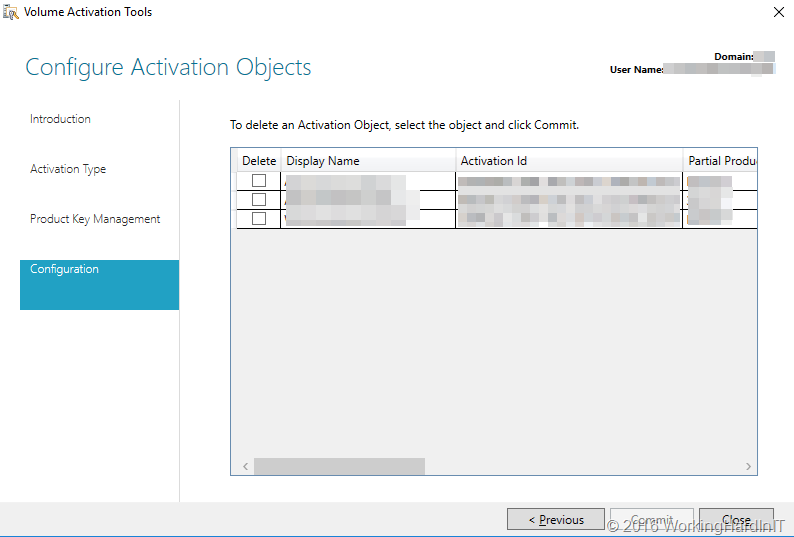
If you manage on premises environments with one or more AD domains or even forests you might be in a situation where Active Directory Based Activation (ADBA) is the easiest solution. If you set this up you’ll enjoy automatic activation of the OS after joining domain configured with ADBA.  This is what I use for the Office and Windows editions that support it. It’s fast and easy to set up.
image

Now when you’re hosting IAAS services this might not be your best approach as that means it will need to be set up in the AD of your tenants. Something your most often don’t manage or control if an AD is even present. You also need the right versions of both AD and client software and operating systems to use this. That can also be an issue on premises. But don’t worry. Both Key Management Service (KMS) and Automatic Virtual Machine Activation (AVMA) will work for IAAS and for on premises in these situations.

I actually support 2 on premises environments where ADBA is being used for the recent OS  and Office versions while KMS is still around for the older OS versions. That way as the old OS versions are phased out the KMS infrastructure can be retired as well.

KMS Server  activation

You can use a Windows Server 2012 R2 or 2016  server as a KMS server. I just made sure my KMS server was fully patched before I attempted to install and activate the Windows Server 2016KMS key. That means that on Windows Server 2012 R2 you want KB3172614 installed as this enable support for Windows Server 2012 R2 as a KMS server host to activate Windows Server 2016. See https://support.microsoft.com/en-us/help/24717/windows-8-1-windows-server-2012-r2-update-history. For Windows Server 2016 this means don’t do anything unless you have all the zero day patches installed.

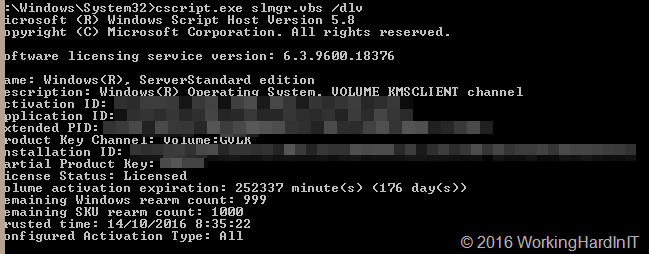
First we take a look at the current situation by running slmgr.vbs /dlv
image

Uninstall the current KMS key using slmgr.vbs /upk, please use an elevated command prompt Winking smile

image

Now you can install the new Windows 2016 KMS key on your KMS server. If you run in to any issues here, restarting the KMS Service can help ((“net stop sppsvc” and “net start sppsvc“) . Try that first.

slmgr.vbs /ipk JOINT-THENA-VYBOY-SNOCR-ACKS!

image

The key listed here is for all you wannabe pirates out there, sorry, this is the navy. If you’re, looking for illegal keys, cracks, keygens, activators or dodgy KMS virtual machine for Windows activations and such this is not the place Winking smile.

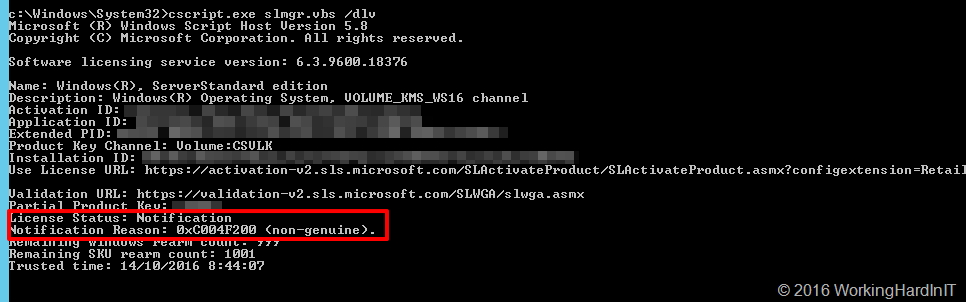
If you now run slmgr.vbs /dlv you’ll see that the license status is “notification” as the server hasn’t been activated yet.
image

You now need to activate your server with the KMS key first by running slmgr.vbs /ato

image

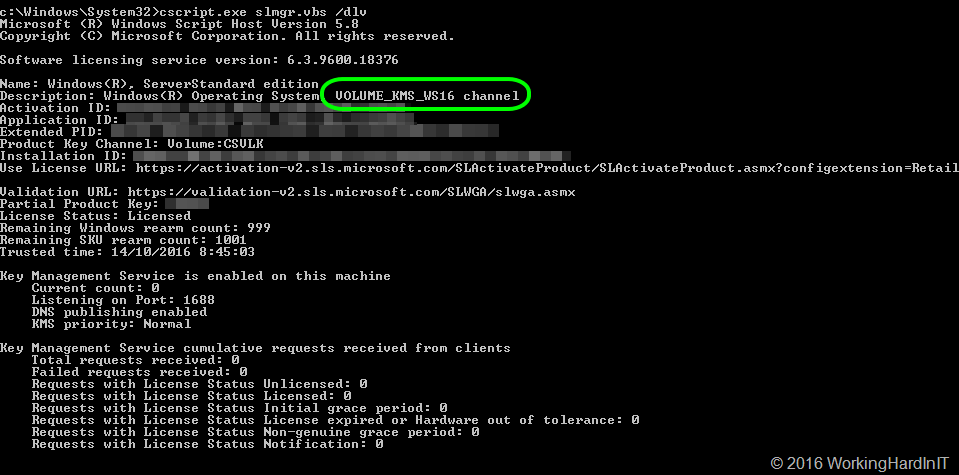
We can now look at what’s installed now by running slmgr.vbs /dlv again. As you can see we’re in business to activate all our Windows Server 2016 and any OS version below that if t supports KMS activation.
image

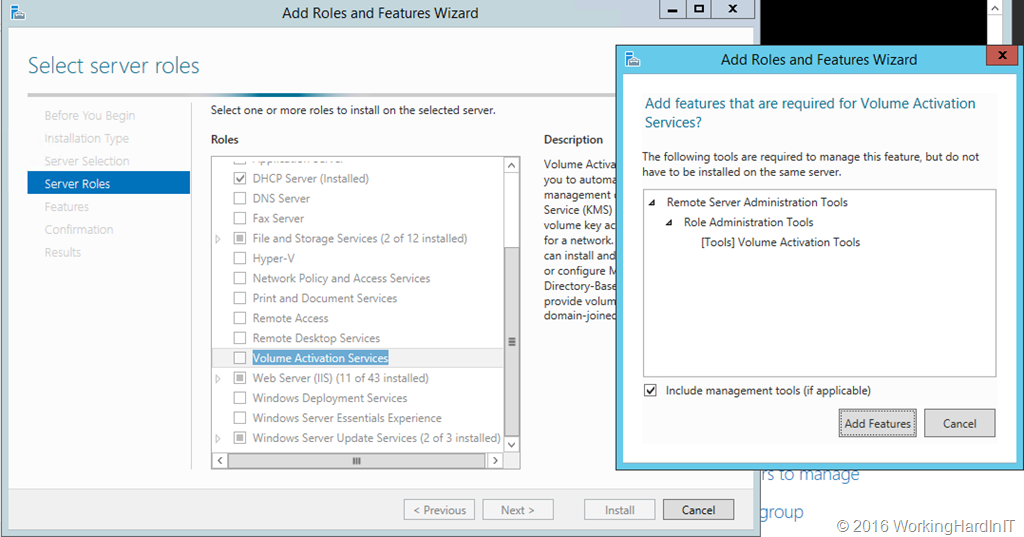
Now in Windows 2012 R2 and later we also have the Volume Activation Tools feature you can install and use to do this, just like you use this for the ADBA setup.
image


Activate guest VMs on Hyper-V hosts

Configure Guest VMs activation with AVMA

If you’d like to leverage AVMA, which is especially handy as a IAAS hoster, you’ll need to use Windows Server 2016 or 2012 R2 Datacenter on your Hyper-V hosts and activate them by your chosen method (MAK, KMS, ADBA). You also need to use Windows Server 2016 or 2012 R2 Standard/Datacenter in the guest VMs. As long as your Hyper-V hosts is activated, every new guest deployed on them will be activated automatically. That’s it. There’s no need for a KMS or ADBA configuration for the guest (tenant VMs) or even an internet connection. The later is great for more secured environments. Easy peasy.

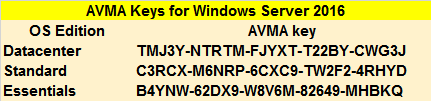
The only thing you need to do is use the AVMA client key in the slmgr /ipk. These are public ones actually just like the KMS clients keys.
image

There are two things to note: The first,a s you can read in the link to the AVMA documenation above:

“AVMA requires a Microsoft Virtualization Server running Windows Server 2012 R2 Datacenter or Windows Server 2016 Datacenter. A Windows Server 2016 AVMA host can activate guests that run the Datacenter, Standard or Essentials editions of Windows Server 2016 and Windows Server 2012 R2. A Windows Server 2012 R2 AVMA host can activate guests that run the Datacenter, Standard or Essentials editions of Windows Server 2012 R2.”

This means a Windows Server 2012 R2 Host cannot activate Windows server 2016 VMs. You can upgrade “cheaply” that way, let’s put it like that.

Secondly make sure the VM has Data Exchange turned ON in Integration Services. That’s the mechanism leveraged to make AVMA work. You should have that on anyway, really, I mean it 🙂

Configure Guest VMs activation with KMS

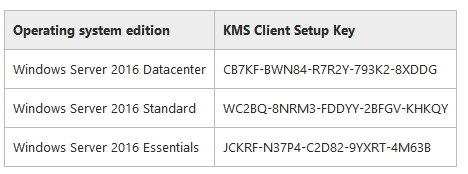
The public client KMS keys for VLK media can be found here: Appendix A: KMS Client Setup Keys I’ve only included a screnshot of the Windows Server KMS client keys here. More info is in the TechNet page.
image

To make sure a Windows Server 2016 Datacenter VM can activate via a KMS serer install use the below commands to replace a MAK key for example:

slmgr.vbs /ipk CB7KF-BWN84-R7R2Y-793K2-8XDDG
slmgr.vbs /ato

NOTE: all these keys can be used within a template or via unattented installation config files.
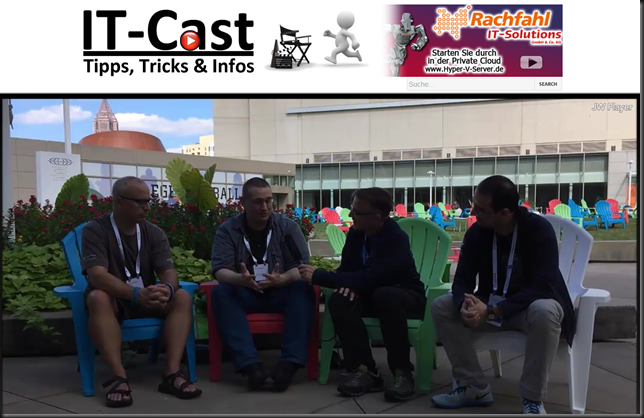
Four MVPs have a chat after MS Ignite 2016

On Friday September the 30th 2016, in the afternoon, after Microsoft Ignite had come to an end Carsten Rachfahl assembled some of us, all MVPs attending Ignite for chat. Click on the picture below or here to follow the link.

image

Left to right you see Philip Elder aka @MPECSInc, Didier Van Hoye aka @WorkingHardInIT,  Carsten Rachfahl aka @hypervserver and Charbel Nemnom aka  @CHARBELNEMNOM

We discussed some of the features we like and look forward to in Windows Server 2016.

After this video, the post Ignite interactions with peers were not done yet. That night, over dinner, we spent many hours talking shop. Some of the dinner companions were quite the industry heavy weights in storage, virtualization networking and cloud. Too much of this was NDA to talk about here but it helped tremendously to put some things into perspective.

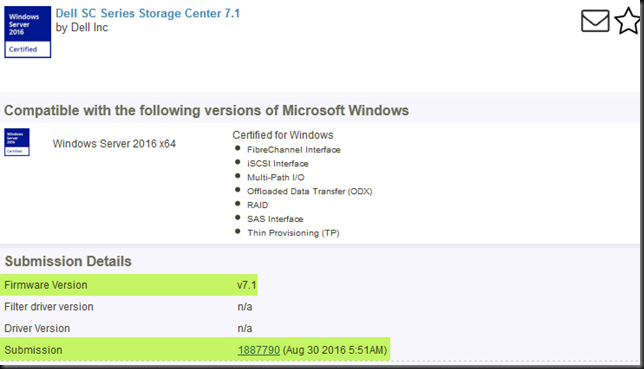
DELL Compellent Storage Center 7.1 Certified for Windows Server 2016

When it comes to selecting storage, especially when it comes to a “traditional” SAN, you all know that price performance wise I’ve been using the DELL Compellent series with great success for many years now. It’s a very capable solution that also has some other benefits when it comes to Windows Server and Hyper-V. It has one of the better hardware VSS providers, way better than average support for ODX  and UNMAP etc. but it’s also very good at delivering fast support for new versions of Windows Server. This has allowed us to move from Windows Server 2008 R2 to 2012 and from there to Windows Server 2012 R2 very fast.

In that regards I’m very happy to see that Storage Center 7.1 is already in the catalog as certified for Windows Server 2016.

image

Customers that have up to date hardware and want to move fast to benefit from and leverage the new and improved capabilities in Windows Server 2016 Hyper-V, Clustering, Networking, …are ready to do so. Nice Smile.

Disk2VHD on a Generation 2 VM results in an unbootable VHDX

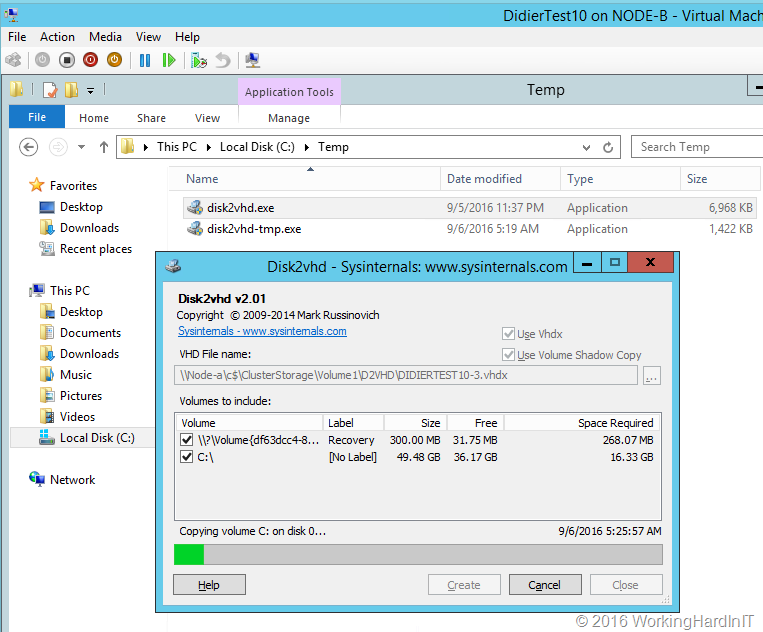
Most people who have been in IT for a while will know the Windows  Sysinternals tools and most certainly the small but brilliant Disk2VHD tool we can use for Physical To Virtual (P2V) and Virtual to Virtual (V2V) conversions. It’s free, it’s good and it’s trustworthy as it’s made available by Microsoft.

For legacy systems, whether they are physical  with IDE/SATA/SAS controllers or virtual with an IDE generation 1 VMS thing normally go smooth.

image

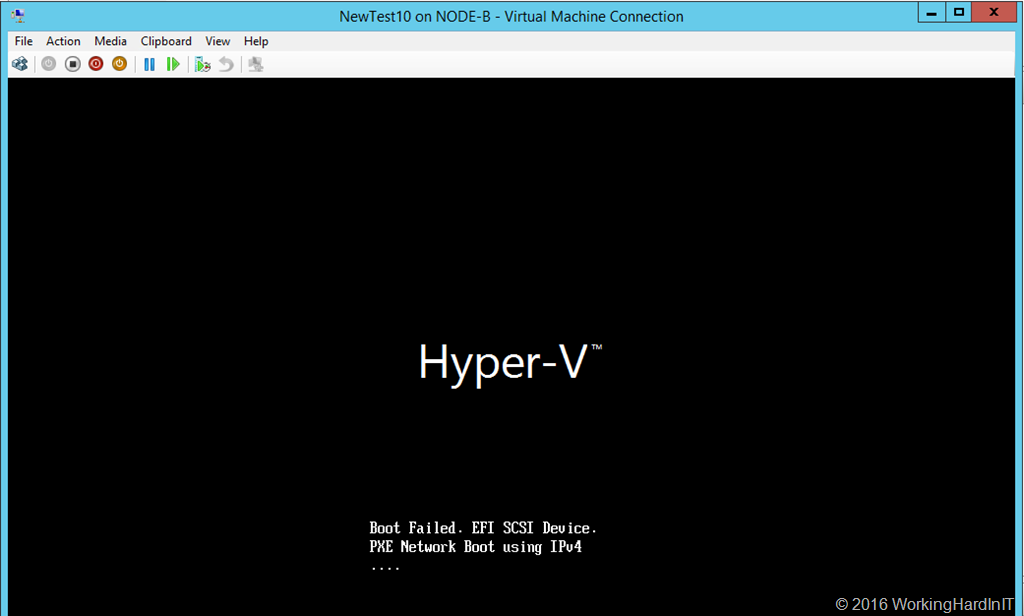
But sometimes you have hiccups. One of those is when you do a V2V of a generation 2 virtual machine using Disk2VHD. It’s a small issue, when you create a new generation 2 VM and point it to the OS vhdx it just won’t boot. That’s pretty annoying.

image

Why do a V2V in such a case you might ask. Well, sometimes is the only or fasted way to get out of pickle with a ton of phantom, non-removable checkpoints you’ve gotten yourself into.

But back to the real subject, how to fix this. What we need to do is repair the boot partition. Well recreate it actually as when you look at it after the conversion you’ll notice is RAW. That’s no good. So let’s walk through how to fix a vdhx that your created from a source generation 2 Hyper-V vm via Disk2VHD.

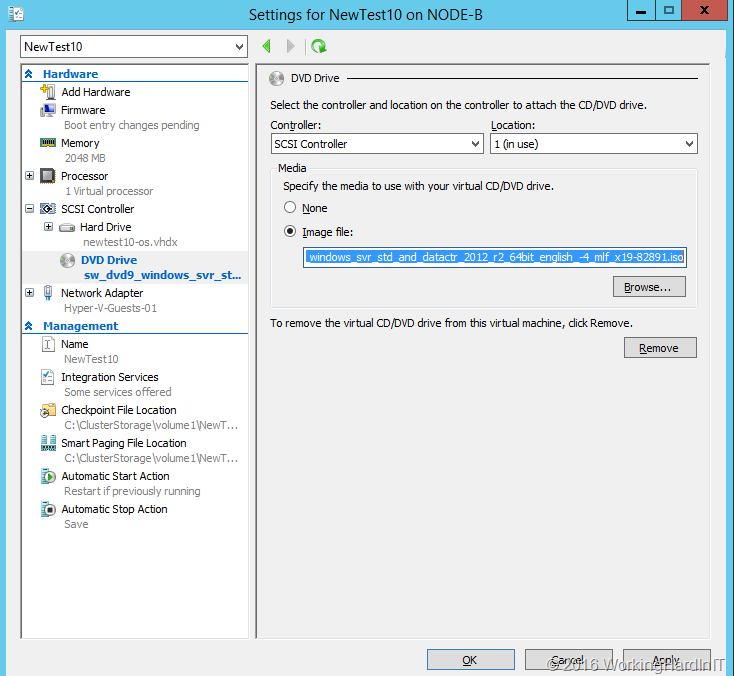
First of all create a new generation 2 VM that we’ll use with our new VHDX we created using Disk2VHD. Don’t create a new vdhx but select to use an existing one and point it to the one we just created with Disk2VHD. Rename it if needed to something more suitable.

Don’t boot the VM but add a DVD and attach the Windows Server ISO of the version your vhdx contains to the DVD.

image

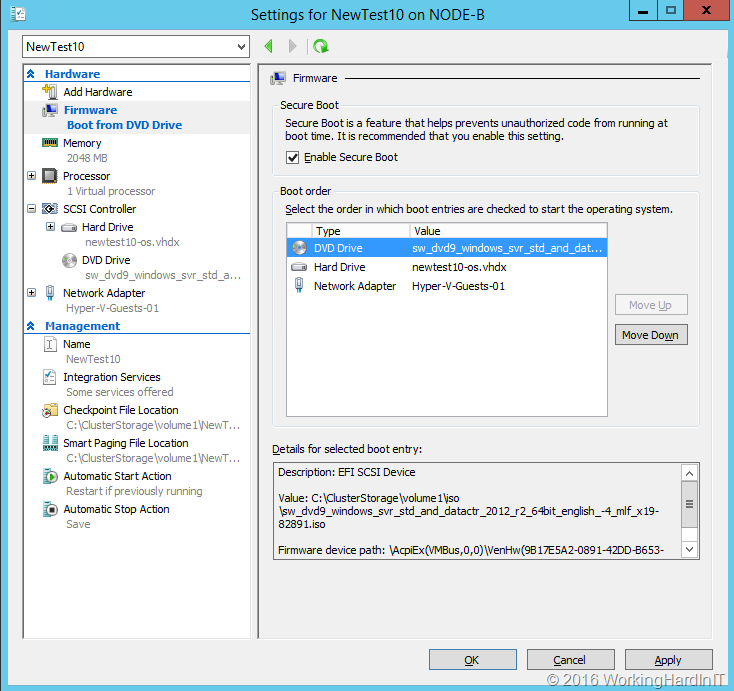
Move the DVD to the top of the boot order I firmware.

image

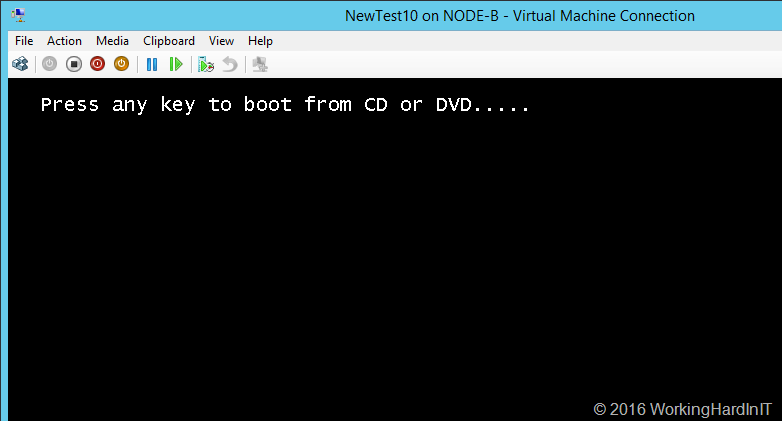
The VM will boot to the DVD when you hit a key.

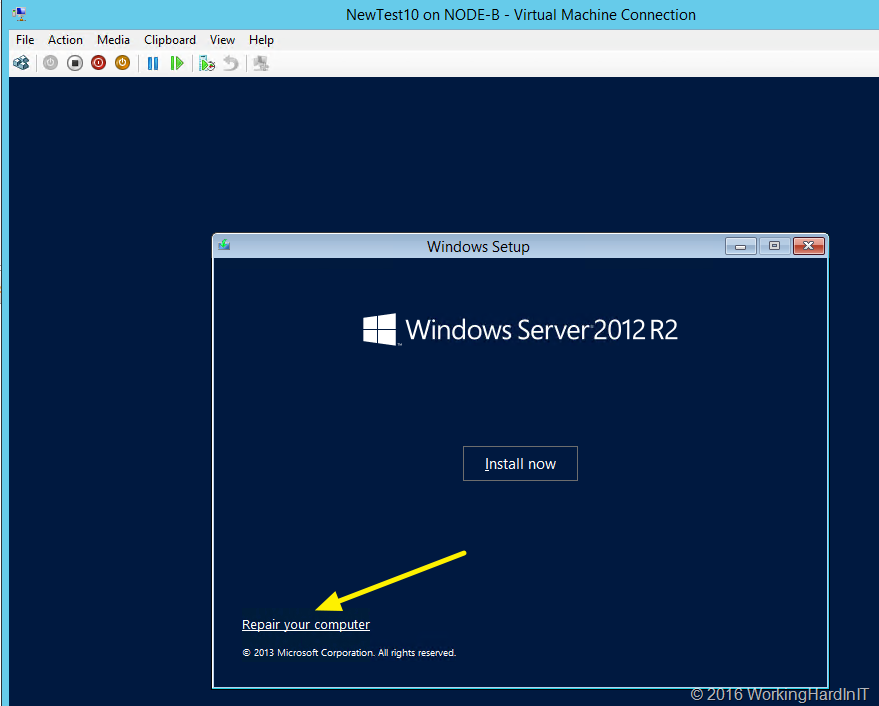
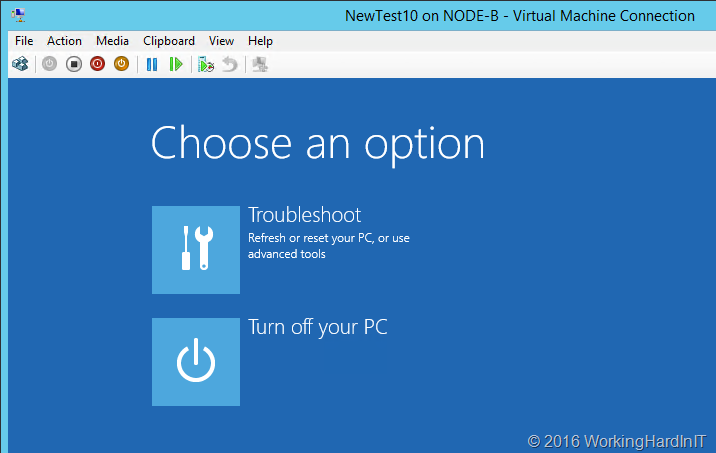
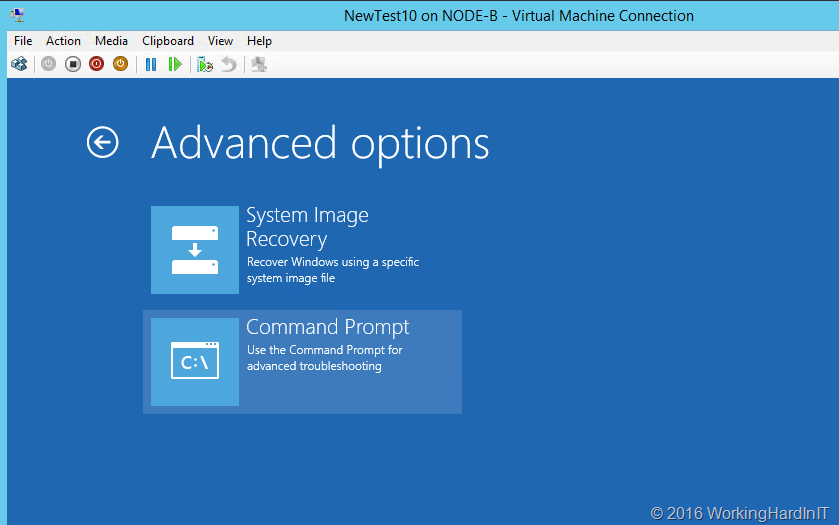
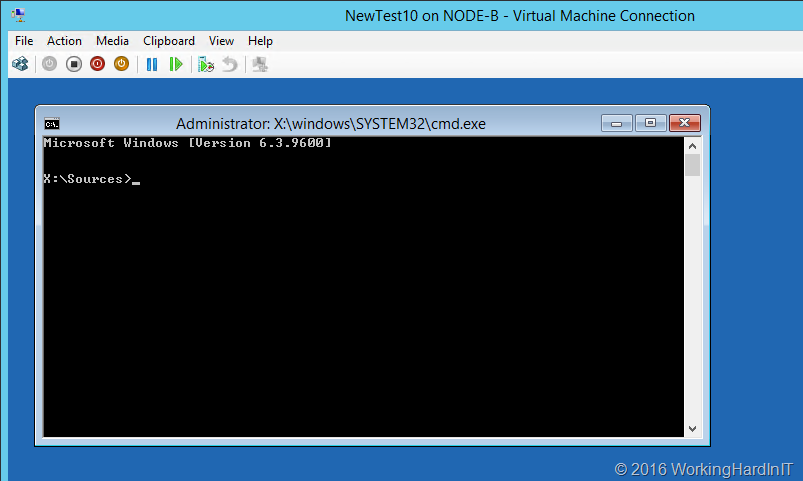
Select your language and keyboard layoout when asked and the don’t install or upgrade the OS but boot

image

image


image


image


image

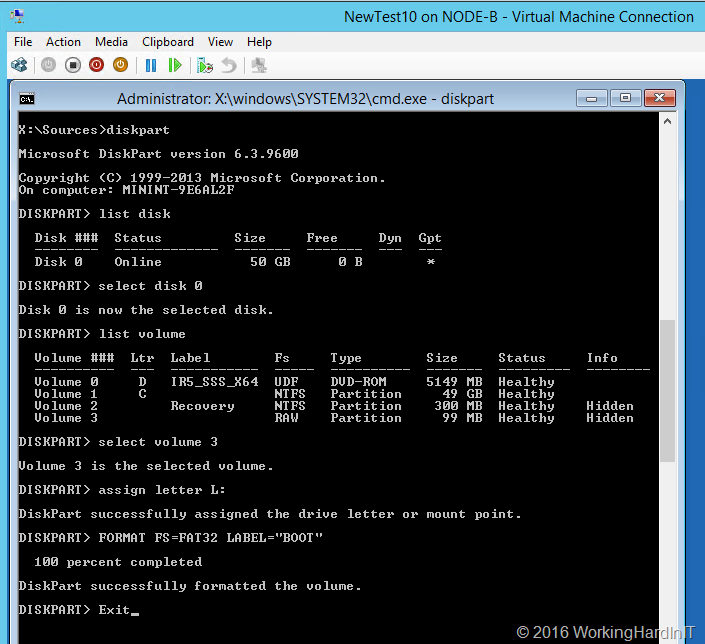
Type diskpart and  list the disks. Select the disk we need (the OS disk, the only one here) and list the volumes. You can see that volume 3 off 99MB is RAW. That’s not supposed to be that way. So let’s fix this by creating boot loader directory structure, repair the boot record by creating the boot sector & copy the needed boot files into it.

Type:

select volume 3

assign drive letter L:

FORMAT FS=FAT32 LABEL=”BOOT”

That’s it we can now us that 99MB volume to make our disk bootable to windows again.  Type Exit to leave diskpart.

image

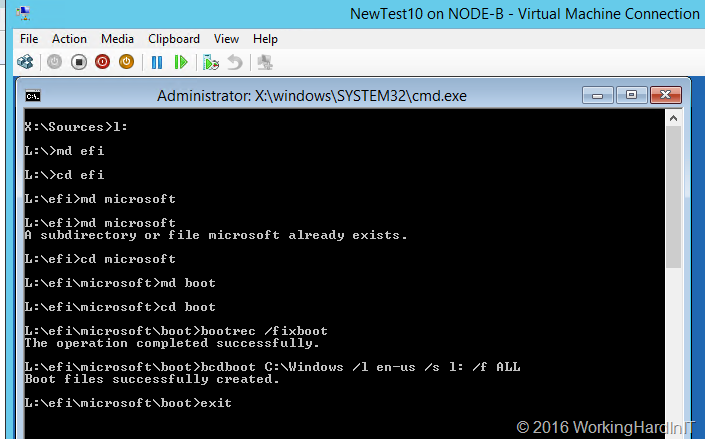
So now we have a formatted boot partition we can create the need folder structure and fix the boot record and configure our UEFI bootloader

Switch to the L: volume

create efi\microsoft\boot folder structure for the bootloader as show below with the md command(make directory)

Type: bootrec /fixboot to create the bootrecord

Type: bcdboot C:\Windows  /l en-us /s l: /f ALL

This creates the BCD store & copies the boot files from the windows system directory

 image

Just click Continue to exit and continue to Windows Server 2012R2

image

.. and voila, your new VM has now booted.

image

Now it’s a matter of cleaning up the remnants of the original VMs hardware such as the NIC and maybe some other devices. The NIC is very important as it will have any static TCP/IP configuration you might want to assign tied to it which mean you can’t reuse it for your new VM. So, the 1st thing to do is uninstall the old network adapters from device managers, you’ll see them when you select “show hidden devices” in the view menu.

Good luck!