Introduction
At one place I provide Infrastructure consulting & services the supportable life of some servers running Active Directory, DNS, WINS and DHCP has come and gone (+5 years old DELL PE1850) so I was asked to renew them. These are in fact the servers that where upgraded to Windows 2008 R2 some 16 months ago right after Windows 2008 R2 went RTM. See this blog post about that: https://blog.workinghardinit.work/2010/01/22/dell-pe1850-domain-controller-upgrade-to-windows-2008-r2/.
For several reasons not all domain controllers or core infrastructure servers should be virtualized so this was not just a matter or doing a P2V migration and be done with it. That would have made it very easy as not only are they already running on the latest Windows version but they had some extra requirements. They wanted to preserve the server names and IP addresses for these servers. Normally DHCP takes care of the DNS servers for clients. Servers that have static IP addresses without using DHCP reservations can be dealt with via scripting. But al lots of devices that need a DNS Server are a pain to deal with. There are devices that do not accept FQDNs, can’t be DCHP clients. Often a management solution for settings the IP configurations on hardware devices is not in place even when does tools exists (i.e. for network switches). Even if such software is in place more likely than not it doesn’t cover all devices (printers, copiers, scanners, load balancers, …) You’re lucky if they know and have a list of all devices that need their DNS entries changed, sometimes you don’t even have that. So I understand the reasons behind their request. In a perfect world this might not be needed but I’ve seldom see that in reality.
So the names and IP addresses needed to be preserved. That is can be done with some preparation and planning. There is the approach of restoring the server to new hardware using a Windows backup but that’s not without its own issues. You could use one of the (paying) P2P migration tools that comes with various backup solutions or dedicated disaster recovery tools. To do it for free and in the cleanest possible manner I chose to go with the approach you’ll find below. There are multiple domain controllers with DNS, WISN and DHCP set up for redundancy. This means we can take these out of production one by one to recuperate the names and IP addresses. If you didn’t have that you could even introduce a temporary one (virtualized) to give you that option.
Imagine you have to servers named bert.big.corp (192.168.2.10/24) and ernie.big.corp (192.168.2.20) with Active Directory, DNS, WINS and DHCP running on them. These will be replaced with new hardware whilst maintaining the name and IP address. Basically you stage the new servers with Windows 2008 R2 and get everything installed what you need (Server management software from the hardware vendor, the UPS Software) and that doesn’t depend on computer name, IP address and domain membership. That way they are ready to go. You’ll need to wait to rename the servers and add them to the domain one by one until you’ve demoted the current servers one by one that use that name and IP address. So first you replace Bert and only after that has been completed successfully and has been verified you can replace server Ernie. That way you can recuperate the name and IP address without losing those services at any given time. The end result is two new servers with the name Bert (192.168.2.10) and Ernie (1692.168.2.20) and none of your network devices will need any DNS FQDNs or IP addresses changed. Do note that some devices only allow for one IP address or FQDN so they might lose DNS name resolution for the period in which the old server is taken out of service and the new server is brought into service. This is not the only way to do it. I do not like to rename domain controllers and I have other roles to migrate such as WINS and DHCP. So the DNS & Active Directory migration I do is not like the one described in http://technet.microsoft.com/cs-cz/library/dd379526(WS.10).aspx. Perhaps Microsoft can comment on the best practice of this all, but this is how I approached it. This is the first time I did this for Windows 2008 R2 in production as that hasn’t been out in the wild that long yet.
We’ll run through the process step by step for Bert. This needs to be done for every server that is being replaced. Check your Active Directory, DNS and replication is healthy. If not, fix this first. Also check out DHCP and WINS health. As always you have a good backup of the server and it roles before you attempt any of this.
Mind you can play the order of things to do according to you needs & environment but when using some option in the Server Migration Tools like –Users and –Groups you should pay attention unless you want to wind up with a truckload of users/groups from a DC created as local users and groups on a member server. Oh yeah, I’ve done that. When that happens you’ll love the fact that you know some scripting . So if you do the DHCP migration, do both export and import from a domain controller or from a member server (i.e. after demoting the domain controller). In the former case you’ll just get a bunch of warnings during the import that the users/groups already exist and are therefore skipped.
Decommissioning The Old Server
Demote the domain controller
Move all FSMO roles to another domain controller. Make sure you also move the time server to the domain controller with the PDC role.
- If you’ve manually altered the Active Directory replication topology, make sure you take care of that as well. If you let the KCC handle this, you’re good to go as it will do this for you. But once you intervene manually it’s your responsibility.
- We demote the domain controller
- Reboot and check all went well.
- We wait for AD replication or we induce it ourselves.
- Check AD, DNS & replication, if all is well continue.
DHCP Decommission On The Old Server
There is a great tool to do this. Check out TechNet http://technet.microsoft.com/nl-be/library/dd379545(WS.10).aspx. The benefit of using the Server Migration Tools is that we can also migrate the IP configuration from the old server to the new one in one step! Pretty cool  ! The details differ depending what version of Windows you’re running. I’m at Windows 2008 R2 so I can install these tools via an elevated PowerShell prompt using
- Import-Module ServerManager
- Add-WindowsFeature Migration (to install the Server Migration Tools)
- We then take a DHCP backup (GUI or via an elevated command prompt using Netsh DHCP server backup “c:DHCPBackup”). Make sure the folder structure exists and is empty. Copy the folder structure of to a file share for safe keeping. Remember you want to give yourself options.
- Export the DCHP configuration and content using an elevated powershell prompt:
- Get-Service DHCPServer (running)
- Stop-Service DHCPserver
- Get-Service DHCPServer (stopped)
- Add-PSSnapin Microsoft.Windows.ServerManager.Migration (load the Server Migration commandlets)
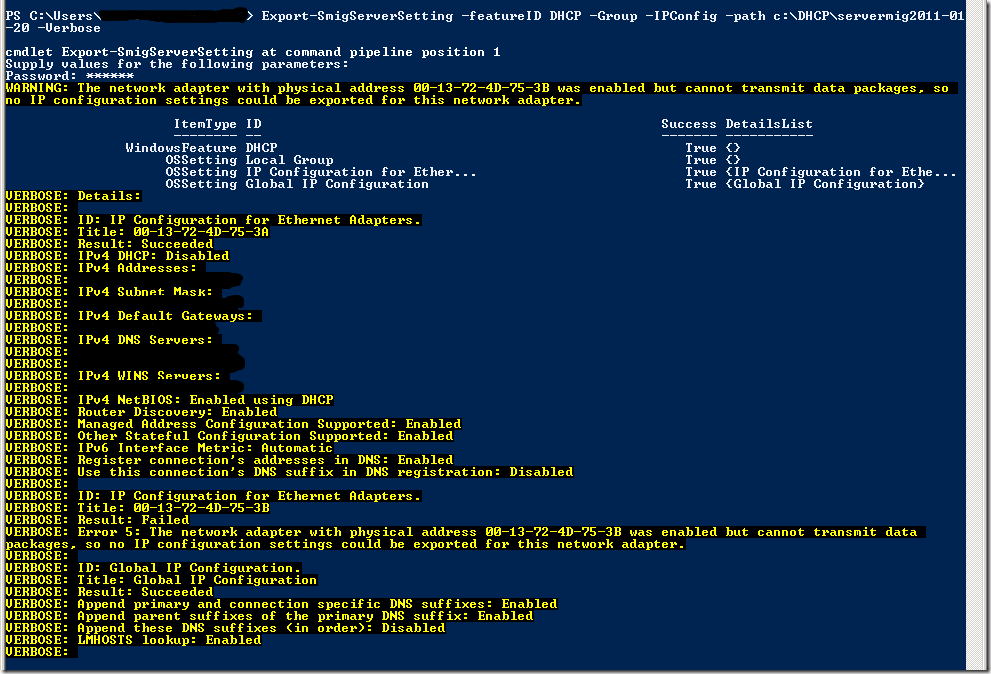
- Export-SmigServerSetting -featureID DHCP -Group -IPConfig -path C:DHCPservermig -Verbose (not we are working on a DC so we have no local users and hence no use for the –user switch, see TechNet http://technet.microsoft.com/cs-cz/library/dd379483(WS.10).aspx) and copy the folder structure to a file share for safe keeping. You’ll be asked to provide a password for the exported files. You’ll get feedback due to the –verbose switch about the results. Review these and act accordingly. The below screenshot is an illustration of the output.
- Unauthorize the DHCP Server using an elevated command prompt: Netsh DHCP delete server bert.big.corp 192.168.2.10
- If you want you can also uninstall the DHCP server role.
WINS Decommission On The Old Server
We won’t be migrating WINS. We’ll just replicate from the other WINS server(s). But we’re a careful bunch and you have to give yourself multiple options to get out of bad situations, as the saying goes: “one is none, two is one”. Do make sure that you adjust the WINS replication topology if you have more than 2 servers so that all of them get the required registration changes. And just in case you ask, yes I know about the Windows 2008 R2 option to dump WINS and use DNS, but they did not need/want this.
- Take a WINS backup (GUI) and copy the folder structure of to a file share for safe keeping.
- Stop the WINS service, disable it and copy the WINS database (mdb) over to a file share for safe keeping as well, just in case.
- Remove the server as WINS replication partner where it was added. It remains in there when you uninstall WINS (old technology). You can actually leave it in there in this case, as a server with that name will be back.
- If you want you can already uninstall the WINS feature. This requires a reboot.
That’s it we have now successfully stripped the old server Bert from all its previous roles. We can now change the IP address of the old server to 192.168.2.110 and rename the server to BertOld. I give it a restart and check to see if the DNS record is updated. if not a swift restart of the netlogon service might help. It is now a plain member server in the domain that can be taken out of service at later. This means we are ready to bring the new server Bert to life.
Commissioning The New Server
Commissioning DHCP on the new server
- Rename the new server to Bert.
- Restart the server.
- Make Bert a member of the domain.
- Restart the server.
- We now have a plain member server in the domain, named Bert on which we also install the Windows Migration Tools using an elevated PowerShell prompt:
- Import-Module ServerManager
- Add-WindowsFeature Migration
- We copy the folder structure from the file share where we earlier copied the exported older DHCP settings and data, back to server Bert, i.e. C:DHCPservermig
- We import the IP configuration plus the DCHP configuration & database using the following commandlet: Import-SmigServerSetting -featureid DHCP -Group -IPConfig NIC -SourcePhysicalAddress 00-14-72-7D-B3-C3 -TargetPhysicalAddress 44-2C-2B-AF-67-D2 -Force -path C:DHCPservermig –Verbose
- Start-Service DHCPServer
- Via an elevated command prompt we authorize Bert as a DHCP server using “netsh DHCP add server bert.big.corp 192.168.2.10”
Voila, we have Bert running as a DHCP server already!
Commissioning Wins on the new server
We Install WINS and just add the desired replication partners and configure the WINS replication schedule and option to your liking. This is the “cleanest” way. A backup restore is also an option but it could transplant old issues.
Manual trigger Replication and check if you are getting the entries you need (netstat –RR, or via the WINS GUI)
Please note that the browser service is not running by default on Windows 2008(R2) so if you need this for you clients you should set the service to automatic and start it.
Commissioning Active Directory and DNS on the new server
- Make sure you can contact an existing domain controller before promote Bert to become a domain controller, this can be assured by having the first DNS server in your IP Configuration point to an operational DNS Server in the domain.
- Promote Bert to a domain controller. By default the DNS option is enabled. Take a look at http://technet.microsoft.com/cs-cz/library/dd379526(WS.10).aspx that will walk you through the wizard.
- Check the health of you Active Directory, replication and name resolution once more and keep a close eye on it the following days. You should be good to go.
Conclusion
Voila, a new Bert server is born. Not too bad and a happy customer. Rinse and repeat for every domain controller you want to replace. Do make sure you check out the documentation on the Server Migration Tool and its options. Also, if you are running Windows 2008(R2) and got there by upgrading from Windows 2000/2003 consider moving from FRS to DFRS for SYSVOL replication. As mentioned is a previous blog post of mine (https://blog.workinghardinit.work/2011/01/06/dcdiag-exe-problem-on-windows-2008r2-verifyenterprisereferences-indicates-problem-missing-expected-value-points-to-knowledge-base-article-q312862/) there is an absolute brilliant step by step guide to get the move from FRS to DFRS completed without a problem in a series by the storage team at Microsoft . You can find the first of a 5 part blog series over here http://blogs.technet.com/b/filecab/archive/2008/02/08/sysvol-migration-series-part-1-introduction-to-the-sysvol-migration-process.aspx. I prefer to have this done before I introduce the new domain controllers. This helps me with my neurotic urge to have a SYSVOL folder named SYVOL and not SYSVOL-DFRS ![clip_image002[1]](https://blog.workinghardinit.work/wp-content/uploads/2011/02/clip_image0021.png "clip_image002[1]")