Upgrading Hyper-V Cluster Nodes to Windows Server 2012 (Beta) – Part 3

This is a multipart series based on some lab test & work I did.

  1. Part 1 Upgrading Hyper-V Cluster Nodes to Windows Server 2012 (Beta) – Part 1
  2. Part 2 Upgrading Hyper-V Cluster Nodes to Windows Server 2012 (Beta) – Part 2
  3. Part 3 Upgrading Hyper-V Cluster Nodes to Windows Server 2012 (Beta) – Part 3

And we have arrived at part three of my adventures while “transitioning” my Hyper-V cluster nodes to Windows Server 2012. I prefer the term transition as is more correct. We can still not do a rolling upgrade a cluster cluster. We still need to create a new cluster and recuperate the evicted nodes.

I’ll repeat myself here (again) by stating I did not reinstall the evicted nodes but upgraded them. Why, because I can and I wanted to try it out and see what happens. For production purposes I do advise you to rebuild nodes from scratch using a well defined and automated plan if possible. I already mentioned this in Upgrading Hyper-V Cluster Nodes to Windows Server 2012 (Beta) – Part 1

Moving the Storage & Hyper-V Guests

So we stopped Part 2 at a newly created cluster without any storage. That’s what we’ll be taking care of in this part.  Let’s recap what we already mentioned at the end of Part 2.

We have several options for storage here. We could assign new storage but we cannot do a Quick Storage Migration between cluster using SCVMM2008R2 but that doesn’t fly as SCVMM2008R2 can’t manage Windows 2012 clusters and I don’t know if it ever will. We can do a good old manual or scripted export to and import from the new storage of the VMs what takes a considerable amount of time. You also need to have the extra storage available.

We can also recuperate the old storage with the VMs still on there. This could get tricky as no two cluster should be able to see & use the storage at the same time. The benefit could be that we can just use the import type in Windows Server 2012 “Register the virtual machine in-place” (use the existing unique ID) and be done with it. We’ll try that one. We’ll still have some down time but it should be pretty fast. It’s only from Windows Server 2012 on that we’ll be able to do Shared Nothing Live Migrations between clusters Smile and live will be good. If you have a SAN you could also use clones to get this job done without less risk. You work on cloned data and keep the original around instead of using that for the process described below.

So how do we approach this?

Since Windows Server 2008 storage & clustering isn’t the pain it could be in earlier version. It’s the disk manager handling all that and it makes live a lot easier. All disks presented to a cluster node are off line to the operating system until you bring it online. Even if it contains data or is presented to another host, whether that is a member of another cluster or a stand alone host. Pretty cool. It also means you can have all your nodes on line during the process. The process of bringing the disk online and, if needed formatting it with NTFS and then adding it to the cluster as storage can be done on just one of the nodes.

As you recall I unplugged the evicted node from the iSCSI storage (you could also disable the ports) before I upgraded it. The entire iSCSI configuration got upgraded perfectly so all I needed to do was plug the iSCSI cables in and the storage appeared offline. My old cluster node was up and running still accessing it. Pretty slick! And great as a demo but you can play it safer. That was fun Smile but perhaps we won’t be that brave in a production environment.

Options

You could decide to bring all LUNS over at once or one at the time. The process is the same. If you do it one by one you’ll have to rely on the above behavior to protect the LUNs against corruption or you can un-present the LUNS remaining on the old cluster from the new cluster so you’ll never have an issue. We’ve done both and it works out rather fine in testing. Windows clustering is really doing it’s best to prevent you from shooting yourself in the foot Smile

Let’s say I go LUN by LUN. Now I can just remove the VMs from the old cluster using the Failover cluster GUI so they are no longer highly available on that node. When I have no more clustered VMs on a CSV LUN I can shut down all the guests in Hyper-V Manager and stop right there.

On the old cluster I remove that LUN from the CSV storage and from the cluster storage. At that moment that LUN is already taken offline for you!

image

Pardon the silly size but I didn’t have space left to make a realistic screenshot Smile

Great, Windows is protecting us against any possible data corruption! So now I can than un-present the LUN form the old cluster nodes. The next step is to enable the ISCI ports, present that LUN to the new cluster node or nodes (depends on where in the x number of node process you are) or just plug in the cable .

You’ll see the new LUN off line than on the new cluster. We can than make the LUN on line so it will be available to add to the cluster. Just right click that disk and select “Online”.

image

image


Right click on storage

image


Select an disk that’s available to add to the cluster.

02


Things has gotten a lot simpler with CSV in Windows Server 2012. No more enabling it with a funky warning message that’s well meant but is rather confusing an annoying. You just right click the disk and choose “Add to Cluster Shared Volumes” and that’s it.

image


And there it is. That disk in our new cluster is ready to use as a CSV.

image


So we can now us a nifty new capability in Windows Server 2012 Hyper-V: “Register the virtual machine in-place” (use the existing unique ID)

05


The wizard starts.

06


Select the folder where your VM or VMs live. yes you can do multiple given that your folder structure allows for this.

07


It’s found one VM in our folder

08


We click Next

10


We select “Register the virtual machine in-place” (use the existing unique ID) and click next.

11

If something is not right like some forgotten “saved” states you’ll get a change to dump those or cancel the process to deal with it properly before trying it again.

12


If virtual network names do not match you’ll get the opportunity to set correct that by specifying what virtual switch to use.

13


If all was well in the first place or after you’ve fixed any issues like the ones demonstrated above you’re good to go. Click finish and enjoy your Windows Server 2012 Hyper-V Guest.

18


At this point you can already start your VMs. I know that the next step is to make all these VMs highly available but here we have some good news as well. You can now make running VMs highly available. Yeah! They no longer need to be shut down. All this is done via the well know process so I’m not going to walk trough the entire process here. But the screen shot of a making a running VM highly available is worth posting Smile

addrunningvm

My Best of MMS 2012 Series: Private Cloud 2012 Lessons Learned from Our Early Adopters

An open discussion on people who have built private clouds at customers.

Elasticity

In real live things don’t shrink that often.  Smile Free or real cheap back charge rates are not doing anything to help.

My take on this is that you should look at elasticity as a flexibility feature. Even if a cloud is no that elastic in both ways. You can shrink a cloud v1 to zero as you migrate the VMs to private cloud v2. Than dump the resources back into another pool, step by step or in one go. I’ll use whatever works to make my live easier.

Standardizing & Customer Centric Operations = Planning is Key!

These two can be hard to combine. It takes serious planning and as such an upfront investment.

Than you need to build it to optimize operations (cost & excellent service). This sounds nice but how good are we at this and what is the shelf life of a solution versus the investment?

There is a lot of preparation to do. There is a lot of things to consider. Databases, Storage, the network, security boundaries, disaster recovery planning. They advise not to do it cross domain. Hmmm … we need to address this. Seriously..

Testing => build decent scripts with variables & config files. This will help to deploy in test, acceptance & production without to many changes/work.

Make sure you define all service accounts, groups and permissions you need.

It’s all about planning and what’s being told are best practices that exist already, private cloud or not.

Self Service

  • Service Catalog is a prerequisite.
  • Self Service is key to the private cloud.
  • If people can they will do things differently. You’ll have to learn to deal with this.
  • Billing for services should be clear. Not to much detail. VMs & Storage are two good ones. Keep it simple and don’t go into memory & vCPU. Just set boundaries.

Demos

We dive into the System Center products and look at it from both the IT Pro and the consumer side of things.

Requests => Approval & Deployment

Approval process should be dynamic based on what is requested & who’s making is. You’ll also need SLAs & chargeback on these. Be careful not over complicating it or you encourage rogue IT.

RANT: IT should make things as easy as possible. And in this discussion I’m not won over for charge back. It often turns into an excel exercise. Internal IT becomes more and more like an external service provider or integrator in this model. The inherent strength of being part of the business and being in the best position to help that business move ahead is lost. Is this a complot of the integrators? It fits their model but basically a lot of that is broken very badly. The last thing internal IT should do is become like them. That will do nothing for “Business-IT alignment”. We need to leverage the possibilities of the private cloud for our business or we have no unique selling point. Not that the service providers do a better job, but at least they are not on the pay roll so the bean counters like that. And as long as they can use public cloud to get their needs served hey couldn’t care less about who does the private cloud thingy for them. So a functional IT is first and foremost what we need. That is customer centered. Alignment of business & IT is worthless without that. The latter happens ay to much.

Management

Well yes this is important. We need reports, reviews, Service Improvement Plans, look for opportunities for automation.

I’m off to Attend MMS 2012 In Las Vegas

image

Life is good people. I have to good fortune to work in an interesting industry, doing great projects with modern technologies. On top of that my employer allows me to fully develop my skills . In that respect it makes a serious difference to have a good boss & management that understands the benefits of ongoing education. They look a both the short & long term value of people educating & developing themselves a lot more than at that nagging Excel sheet on the screen. Professional development is not just a cookie cutter 4 day training course once or twice a year but real opportunities to become a better professional if and when you’re willing to put in the effort. They’ve figured out that you cannot just use utmost cost reduction to catapult both your business and employees in to prosperity & wellbeing. You need to keep learning, evolving, networking, … The contacts I make and the education I get by working with and learning along very smart & motived people are priceless. Sure it costs money and effort form everyone involved but it beats doing nothing and saving a few € as a long term strategy for growth & success. On top of that I feel appreciated & valued for my contributions and the efforts I put in.So to the tunes of some eighties rockers I’m off again.

Here I go again on my own, goin’ down the only road I’ve ever known.
Like a drifter I was born to walk alone. An’ I’ve made up my mind, I ain’t wasting no more time. I’m attending MMS 2012

Alone, heck no, many thousands of us will be descending on Las Vegas (Nevada, USA) to attend the summit. This event sells out fast each year. A friend told me to register a.s.a.p. or miss out, so I did as soon as I got the go ahead to attend, securing my spot. So now I’m travelling over LHR to LAS following my buddies & other attendees journey from their respective countries to Las Vegas on line, mostly via Twitter.

If you can’t come, whatever the reason, you can always enjoy a good number of sessions here MMS 2012 goes digital: LIVE streaming and On-Demand for attendees AND non-attendees! 48 hours after the live presentation.

I don’t have to tell you what System Center 2012 means to the IT Pro in the Microsoft ecosystem. Combine that with the RTM of Windows 8 later this year and I just had to go and attend the Microsoft management Summit 2012 in Las Vegas.  It’s more than training. It’s networking and an education.

Apart from the formal agenda & sessions I already a have some meetings lined up with vendors, colleagues from around the globe. We’re making the most of this opportunity to meet face to face with people we other wise only get to talk to on line and often with huge time zone difference.

MMS2012_Server

I’ve you’re going and you read my blog or follow me on twitter. Give us a shout out and perhaps we can have a meet & greet.

To all my geek & nerd friends, colleagues, MEET members, business partners, Microsoft employees & MVPs in route to Vegas & the Summit at The Venetian, I’m looking forward to seeing you all again! But first I have some traveling to do in the next 24 hours, to make my way over there.

Upgrading Hyper-V Cluster Nodes to Windows Server 2012 (Beta) – Part 1

This is a multipart series based on some lab test & work I did.

  1. Part 1 Upgrading Hyper-V Cluster Nodes to Windows Server 2012 (Beta) – Part 1
  2. Part 2 Upgrading Hyper-V Cluster Nodes to Windows Server 2012 (Beta) – Part 2
  3. Part 3 Upgrading Hyper-V Cluster Nodes to Windows 8 (Beta) – Part 3

After I got back from the MVP Summit 2012 in Bellevue/Redmond I could wait to start playing with a Windows 8 Hyper-V cluster so I decided to upgrade my Windows 2008 R2 cluster nodes to Windows 8. That means evicting them on by one, upgrading them and adding them to a new Windows 8 cluster. As we can build a one node cluster this can be done a node at the time. This isn’t a fail proof definite “How To”, I’m just sharing what I did.

Evicting a node

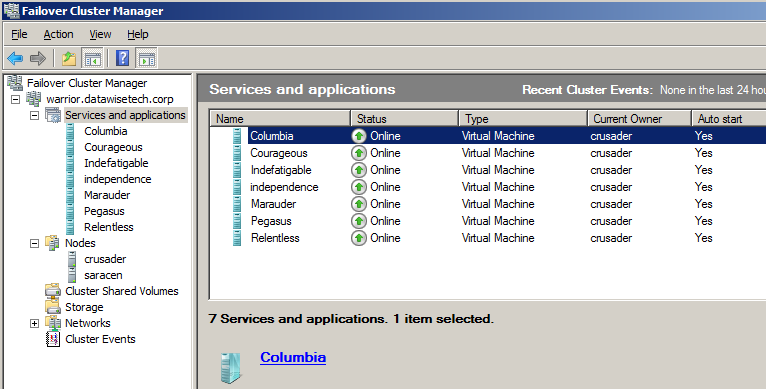
Before evicting a node make sure all virtual machines are running on the other node(s). As you can see the cluster warrior has 2 nodes, crusader & saracen (I was listening to some Saxon heavy metal at the time I built that lab setup). We evacuated node saracen prior to evicting it.

image

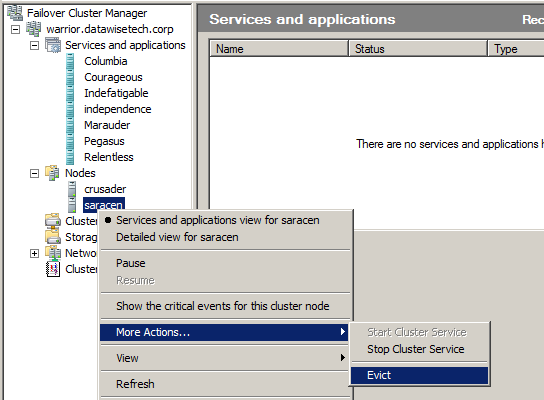
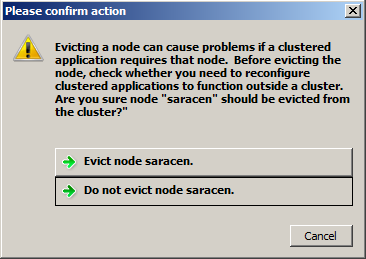
Evict the node & confirm when asked.

image

image

When this is done all storage is off line to the node evicted from the cluster. No need to worry about that.

Upgrade that node to Windows 8

To anyone having installed/upgraded to Windows 2008 R2 this should all be a very recognizable experience. Being lazy, I left the iSCSI initiator configuration in there with the Hyper-V & failover cluster roles installed during the upgrade. Now for production environments I like to build my nodes from scratch to have an exactly known, new and clean installation base. But for my test lab at home I wanted to get it done as fast as possible. If only the days had more hours …For extra safety you can pull the plug (or disable the switch ports) on your iSCSI or FC connections and make sure no storage is presented to the node during the upgrade process. Now please do mind is use Intel server grade NIC adaptors for which Windows 8 beta has drivers. Your situation may vary so I can’t guarantee the 7 year old FC HBA in your lab server will just work, OK!?

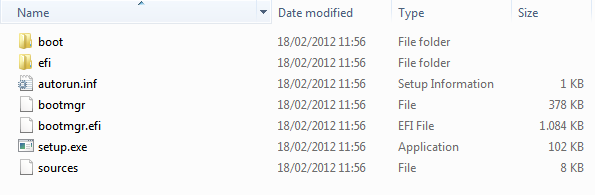
So run setup.exe from the Windows 8 (Beta) ISO you extracted to a folder on the server or  from the (bootable) USB you created with the downloaded ISO.

image


The Windows Setup installer will start.

04 run setup


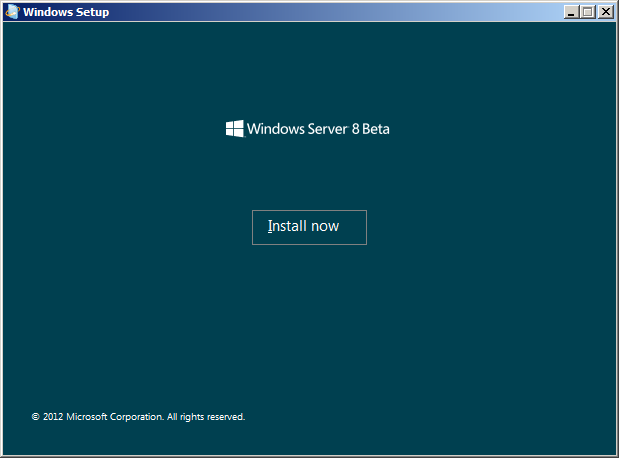
Click on “Install now” to proceed and start the setup process.

image


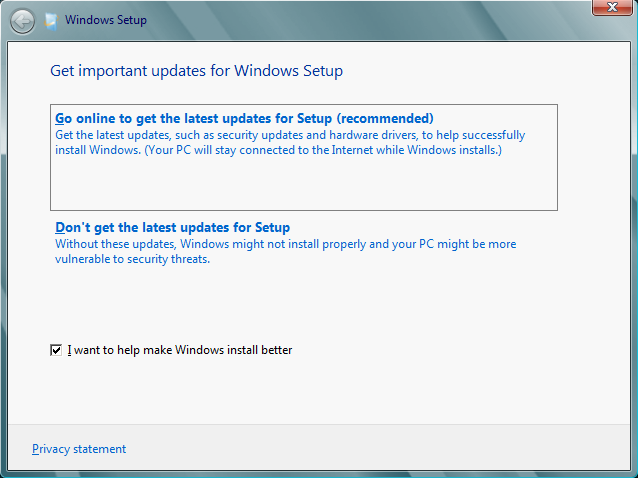
Select to “Go online to get the latest updates for Setup (Recommended)”

image


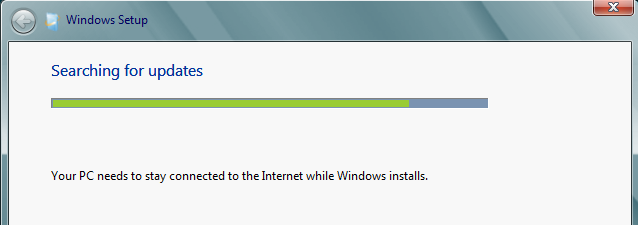
So it looks for updates on line.

image


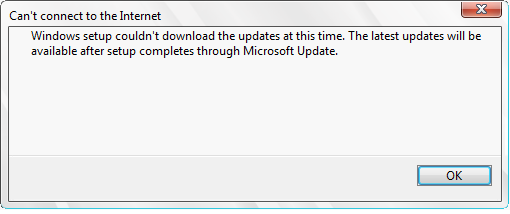
It didn’t find any but that’s OK.

image


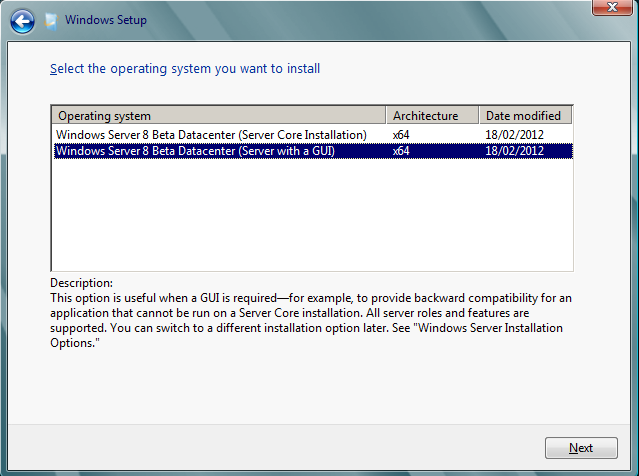
Select the installation you want. I went with for Server with a GUI as I want screen shots. But as I wrote in the blog post Windows 8 Server With GUI, Minimal Server Interface & Server Core Lesson with the Desktop Experience Feature you can turn it into a Server Core Installation and back again now. So no regrets with any choice you make here, which is a nice improvement that can save us a lot of time.

image

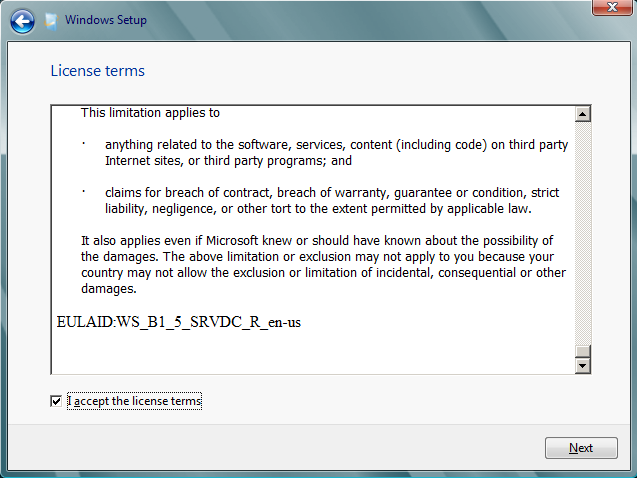
Accept the EULA

image


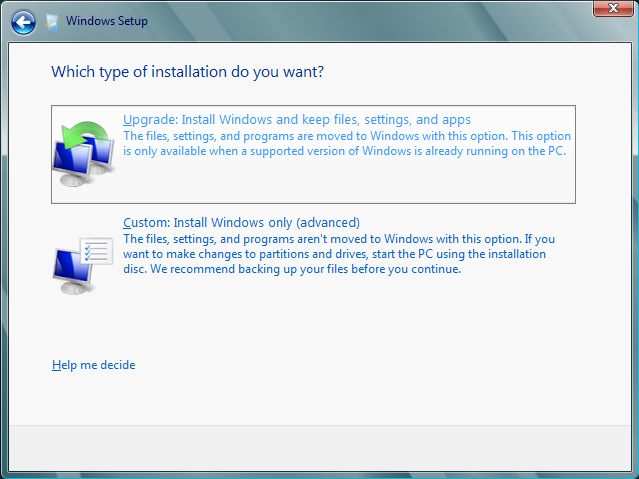
We opt to upgrade (in production I go for a clean install)

image


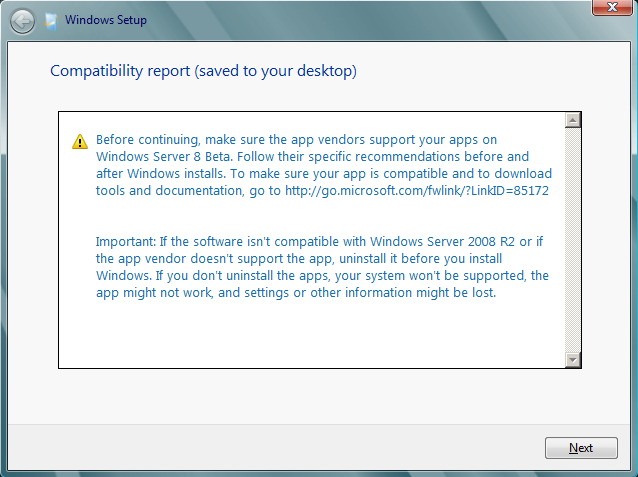
I get notified that I have to remove PerfectDisk. I had an evaluation copy of Raxco PerfectDisk installed I used to do some testing with redirected CSV traffic and defragmentation (see Some Feedback On How to defrag a Hyper-V R2 Cluster Shared Volume).

image


So the upgrade was cancelled.

image


I uninstalled PerfectDisk but still it was a no go. I  had to remove all traces of it in the registry & files systems that the uninstall left or the upgrade just wouldn’t start. But after that it worked.

image


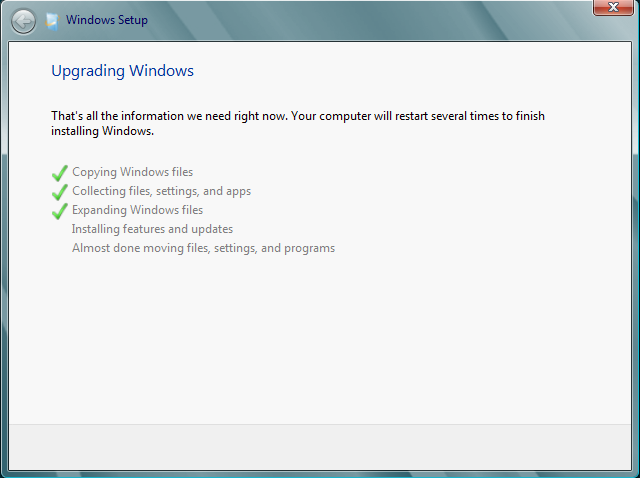
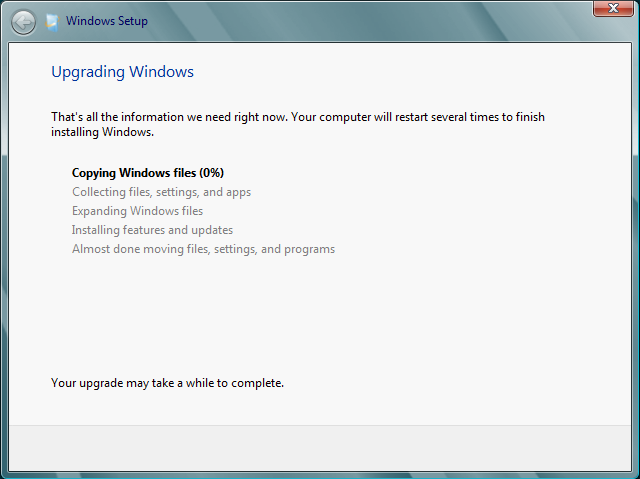
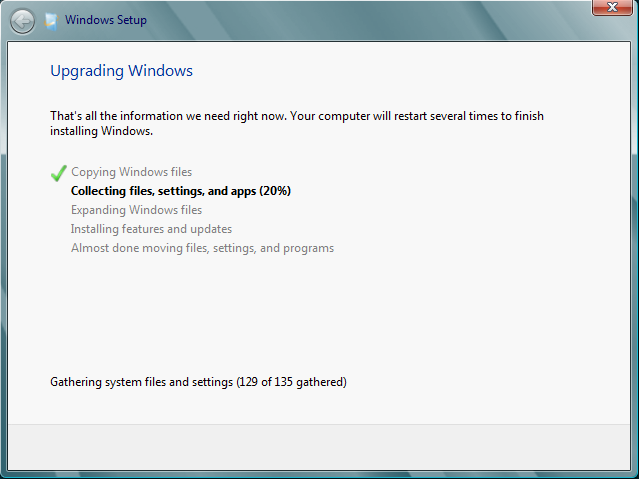
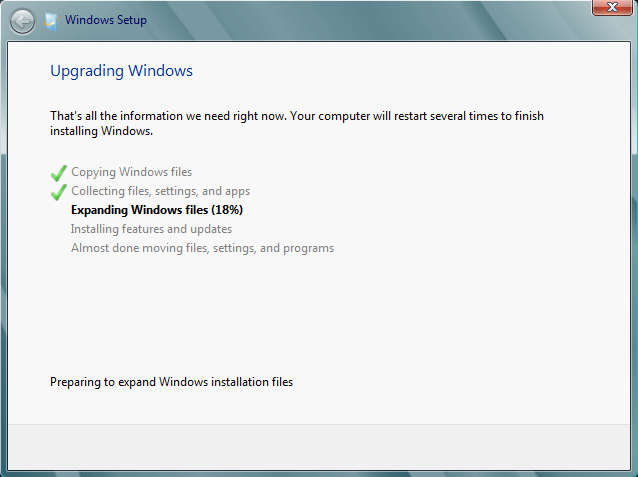
That means we can kick of the upgrade! It all looks very familiar Smile It takes a couple of reboots and some patience. But all in all it’s a fast process.
image

image

image

image

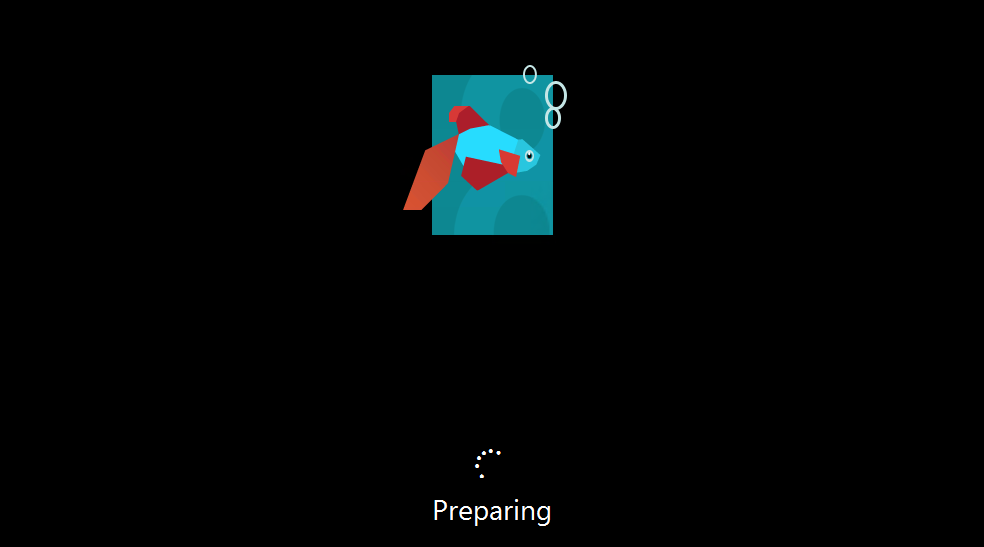
After this step it takes a couple of reboots and some patience. But all in all it’s a fast process. After some reboots and a screen that goes dark in between those …we get our restyled beta fish.
image

image

image

And voila we’re where we need to be … Smile

image


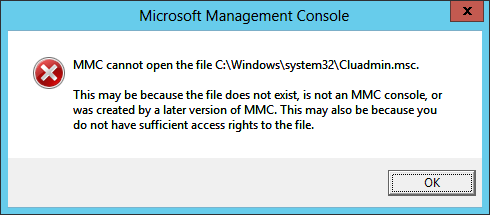
After the upgrade process I ran into one error. The GUI for Failover Clustering would not start. The solution if found for that was simply to remove that role and add it again. That did the trick.

ClusGUI


So this was a description of the first steps to transition a  Windows 2008 R2 SP1 cluster to a  Windows 8 (Beta) Cluster. As seen we evict the nodes one by one to upgrade them or do a clean install. In the latter case you’ll need to do the iSCSI initiator configuration again,  install the Failover Cluster role and in the case of a Hyper-V cluster the Hyper-V role. The nodes can than be added to a new Windows 8 cluster, starting out with a one node cluster. More on that in the second part of this blog post.