Some Insights Into How Windows 2012 R2 Hyper-V Backups Work

How Windows Server 2012 R2 backups differ from Windows Server 2012 and earlier

You’ll remember our previous blog about an error when backing up a virtual machine on Windows Server 2012 R2, throwing this error:

Dealing With Event ID 10103 “The virtual machine ‘VM001’ cannot be hot backed up since it has no SCSI controllers attached. Please add one or more SCSI controllers to the virtual machine before performing a backup. (Virtual machine ID DCFE14D3-7E08-845F-9CEE-21E0605817DC)” In Windows Server 2012 R2

The fix was easy enough, adding a virtual SCSI controller to the virtual machine. But why does it need that now?

Well, this all has to do with the changed way Windows Server 2012 R2 backups work. Before Windows Server 20012 R2 the VSS provider created a VSS snapshot inside the guest virtual machine. That snapshot was exposed to the host, to create a volume snapshot for backup purposes. Right after the volume snapshot has been taken this VSS snapshot inside the guest virtual machine needed to be reverted. The backups then run against that volume snapshot and is consistent thanks to both host & guest VSS capabilities.

For an overview of VSS based backup process in general take a peak at Overview of Processing a Backup Under VSS

Now it is the “Hyper-V Integration Services Shadow Copy Provider” that is being used. When the the host initiates a volume snapshot (Microsoft or hardware VSS provider) the host VSS writer goes in to freeze. This process leverages the Hyper-V Integration Services Shadow Copy Provider  to create the virtual machine checkpoint. After that the volume/LUN/CSV snapshot is taken. When that is done the host VSS writes goes into thaw and the virtual machine checkpoint is deleted. After that the backup runs against the Volume snapshot and at the end that is also deleted. You can follow this process quite nicely in the GUI of your Hyper-V host, you SAN (if you use a Hardware VSS provider).

Dear storage vendors: a great, reliable, fast VSS Hardware Provider is paramount to success in a Microsoft environment. You need to get this absolutely right and out of the door before spending any more time and money on achieving yet more IOPS. Keep scalability in mind when doing this.

Dear backup software vendors: think about the scalability when designing your products. If we have 200 or 500 or a thousand VMs … can we leverage CSV based backups to protect every VM on the LUN or do we need to snap the LUN for every VM backed up? Choice there is good for both data protection schemes and scalability.

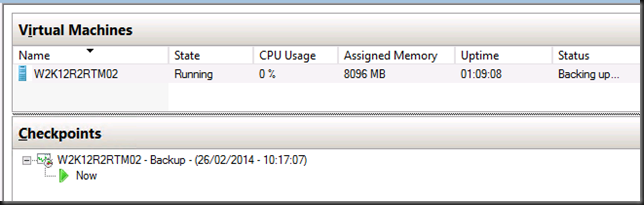
At this stage the hardware VSS snapshot is being taken …
image_thumb3

Contrary to common belief this means that the backup will indeed application consistent to the time of the checkpoint as the CSV snapshot being taken is of a consistent checkpoint. It’s the delta in the active avhdx that is only crash consistent, like any running VM by the way. Now pay attention to the screenshot below. The two red arrows are indicating to ntfs source events, two volumes seem to be exposed to the next free drive letters. E: and F: here as C: is the virtual machine OS and D: the DVD.

image_thumb5

Look at the detail. Indeed two. Well it the previous screenshot we only saw one in the CSV path but there are two avhdx files indeed.

image_thumb[1]

Exposing a snapshot on the SAN to a server actually shows us this much better … look here at the avhdx with the GUID and one with “AutoRecovery” in the name. So that makes for two nfts events … and as the backup needs to do this life it requires a vSCSI controller to be present in the virtual machine … and vIDE controller can’t do this.

image_thumb[3]

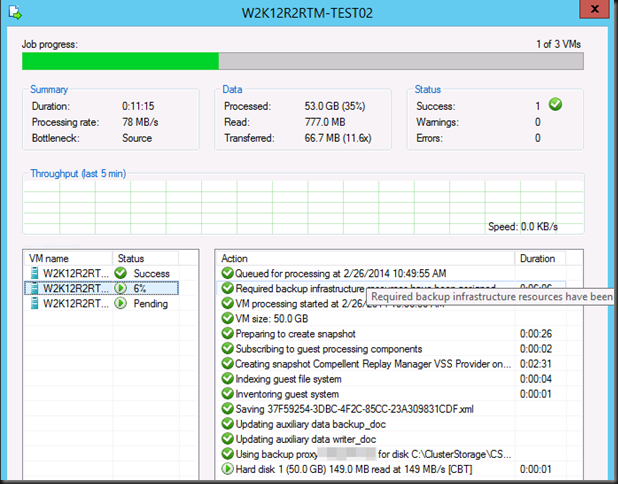
Anyway, enough under the hood detective work for now, In VEEAM that stage looks like this:

image_thumb7

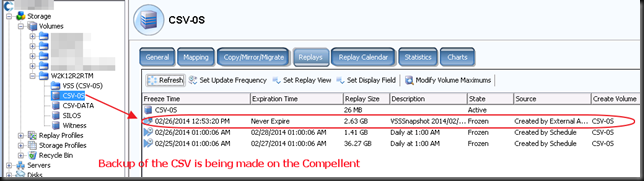
And on the Compellent it looks like this. The screenshots are from different backups at different times so don’t get confused about the time stamps here. It’s just as illustration of what you can expect to see.
image_thumb12

Now when the CSV snapshot has been taken the virtual machine checkpoint is removed. At that time the backup runs against the CSV snapshot. In our case (hardware VSS provider) this is a snapshot on the SAN that gets exposed in a view and mapped to the off host backup proxy VEEAM server. On the DELL Compellent it looks like this.

image_thumb16

This takes a while to o…but after a while the backup will kick off. Do not that the checkpoint has merged and is no longer visible at this time.
image_thumb18

Once the backup is complete, the mapping is removed, the view deleted and the snapshot expired. So your SAN is left as the backup found it.

There you go. I hope this helped clarify certain things on how Hyper-V guest backups work in Windows 2012 R2. So your backups are still application consistent, just not when you’re running Linux or DOS or NT4.0 as there is no support / VSS for that. However they are based on a  consistent virtual machine snapshot which explains why Hyper-V backups can protect Linux guests very adequately!

Dealing With Event ID 10103 “The virtual machine ‘VM001’ cannot be hot backed up since it has no SCSI controllers attached. Please add one or more SCSI controllers to the virtual machine before performing a backup. (Virtual machine ID DCFE14D3-7E08-845F-9CEE-21E0605817DC)” In Windows Server 2012 R2

I was doing backups of a Windows 2012 R2 Hype-V cluster recently and it runs only Windows Server 2012 R2 virtual machines. It’s a small but very modern and up to date cluster Smile.

Using VEEAM as backup software I have high expectations and VEEAM did deliver. All went well except for one virtual machine.

image

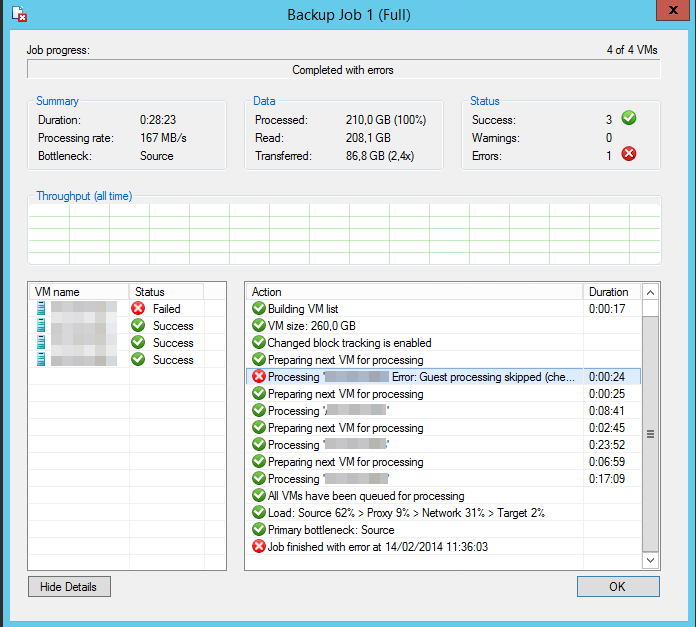
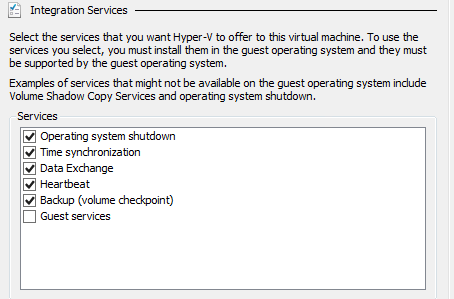
VEEAM states "Processing Error. Guest processing skipped (check guest OS VSS state and integration components version)". Well all  virtual machines  are W2K12R2 as are the cluster host and all IC components are up to date and backup (volume checkpoint) is enabled.

image

I dove into the Hyper-V log and sure enough I found following event:

The virtual machine ‘VM001’ cannot be hot backed up since it has no SCSI controllers attached. Please add one or more SCSI controllers to the virtual machine before performing a backup. (Virtual machine ID DCFE14D3-7E08-845F-9CEE-21E0605817DC).

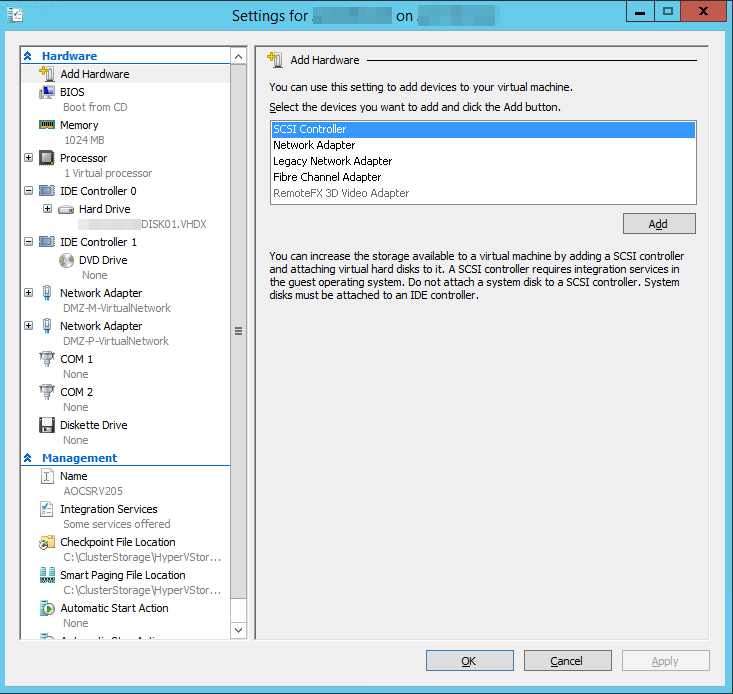
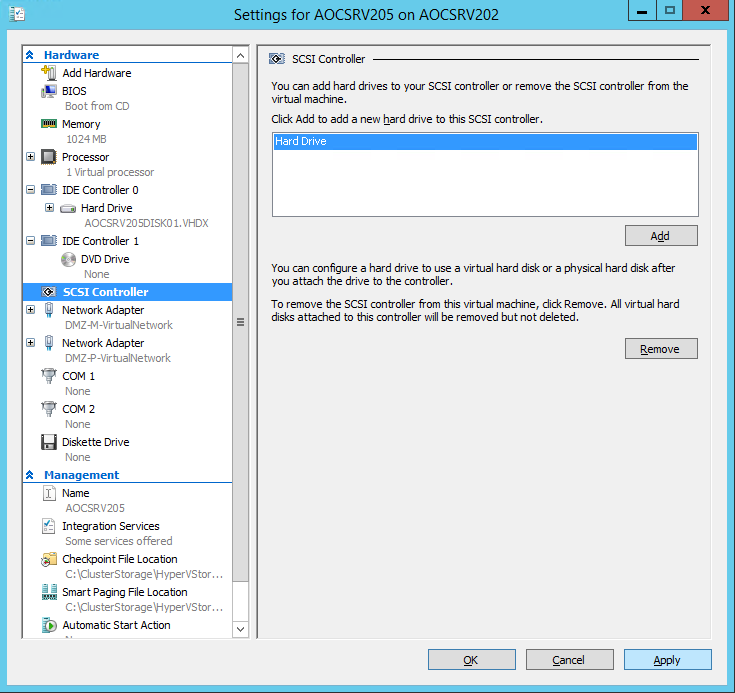
As it turns out in in Windows Server 2012 R2 the VM requires a SCSI controller for the backup to function. It doesn’t need to have any storage attached. It just needs one to be there (default). So the fix is easy, just add one.

image

image

Click “Apply” and “OK”. You can now start the virtual machine and that’s it. Once we fixed that it was a squeaky clean backup run.

But why does it need to be there?

Well when we monitor the event logs inside a virtual machine we are backing up we see that during the backup process, very briefly a VHDX get’s mounted inside the guest.

image

To answer this question we need to dive into how Windows Server 2012 R2 backups work as that is different from how it used to be. You can read about that over here when it’s published.

Hyper V Amigos Showcast Episode 1: who we are

The very first episode of the Hyper-V Amigos Showcast has gone live. We’ll try to discuss & showcase Hyper-V and related technologies for benefit of all mankind.

In this first episode we introduce ourselves and talk a bit about on the state of our industry and how that relates to our jobs.

Carsten Rachfahl & Didier Van Hoye introduce themselves

Enjoy!

Migrating A Windows Server 2008 R2 Hyper-V Cluster To Windows Server 2012 R2 Hyper-V Cluster In Another Active Directory Domain – PART 1

Introduction

In this blog we’ll walk you through the process of migrating a Windows Server 2008 R2 Hyper-V Cluster to a Windows Server 2012 R2 Hyper-V Cluster in another Active Directory domain. You are reading part 1.

  1. Migrating A Windows Server 2008 R2 Hyper-V Cluster To Windows Server 2012 R2 Hyper-V Cluster In Another Active Directory Domain – PART 1
  2. Migrating A Windows Server 2008 R2 Hyper-V Cluster To Windows Server 2012 R2 Hyper-V Cluster In Another Active Directory Domain – PART 2

The source W2K8R2 Hyper-V cluster is a production environment. To test the procedure for the migration we created a new CSV on the source cluster with some highly available test virtual machines with production like network configurations (multi homed virtual machined). This allows us to demonstrate the soundness of the process on one CSV before we tackle the 4 production CSVs. Do note that in this case the two clusters do share the same SAN. If not we can move the storage, copy the data, replicate between SANs or use VEEAM Replica (see part 2 for more info).

Preparing the source W2K8R2 Hyper-V Cluster virtual machines & Cluster

Before we begin, I always make sure I have no Hyper-V snapshots  anymore on virtual machines I migrate. It prevents any issues on that front an while Windows Server 2012 R2 is better than before dealing with snapshots I prefer to have a little possible points of concern before I start such an operation.

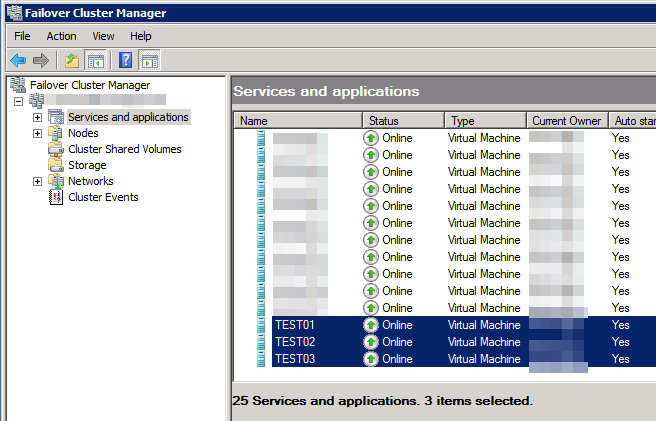
Go to Failover Cluster Manager

image

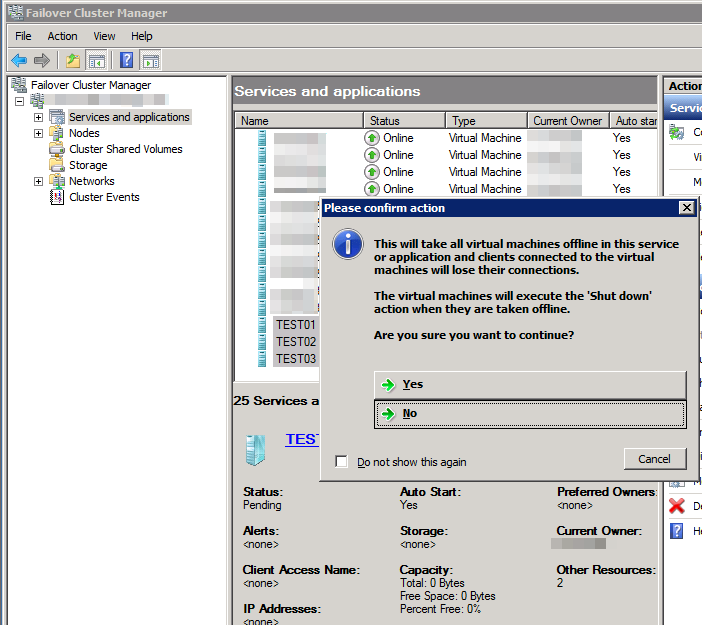
and shut down the virtual machines on the CSV you want to migrate.

image

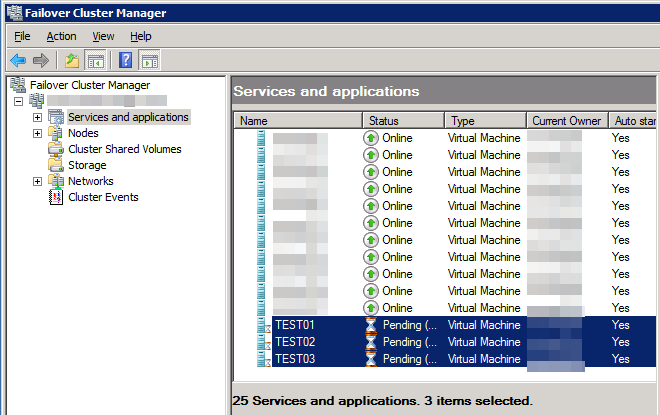
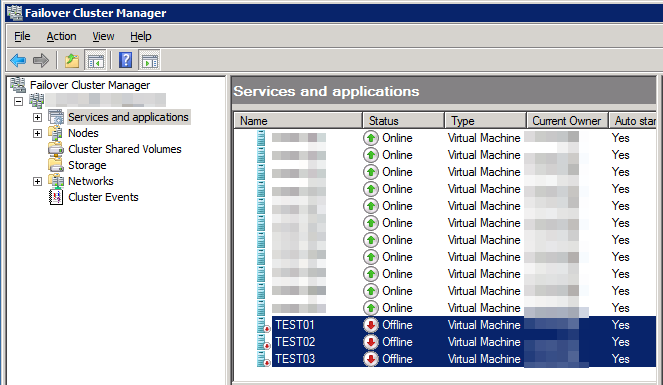
You’ll see them pending whilst they are shutting down …

image

And when they are fully stopped we’ll removed the form the cluster.

image

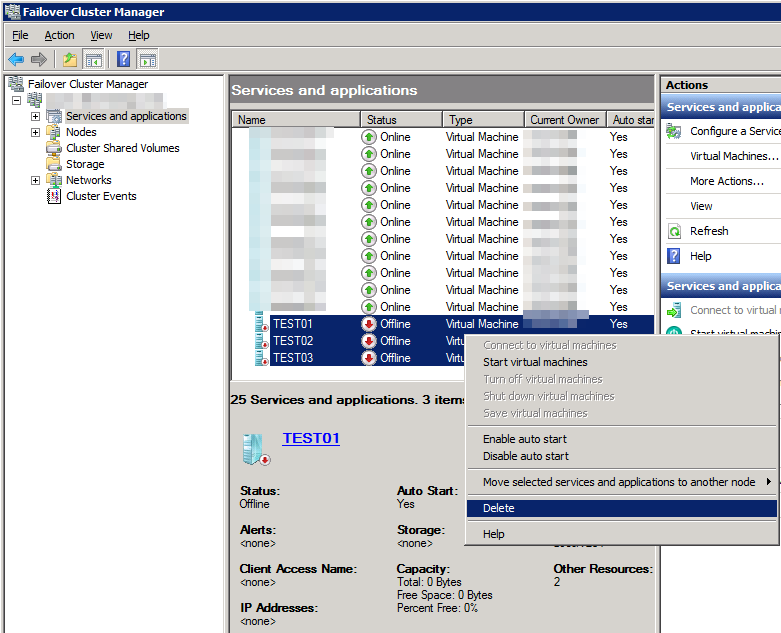
To do so, delete (scary word) the virtual machines on our CSV that’s going to be migrated from the cluster, which makes them no longer high available

image

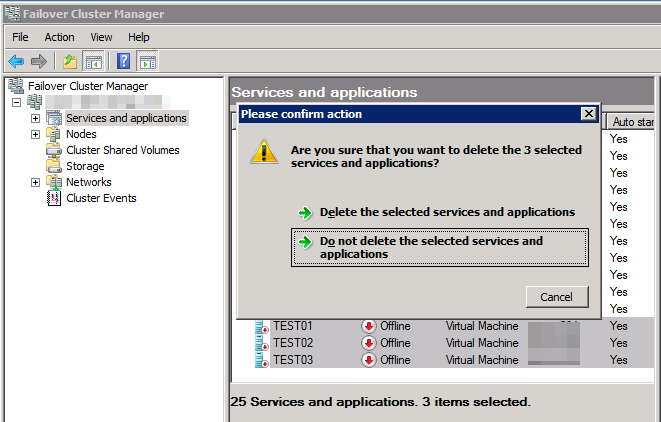
To do so you’ll need to confirm that this is what you want to do.

image

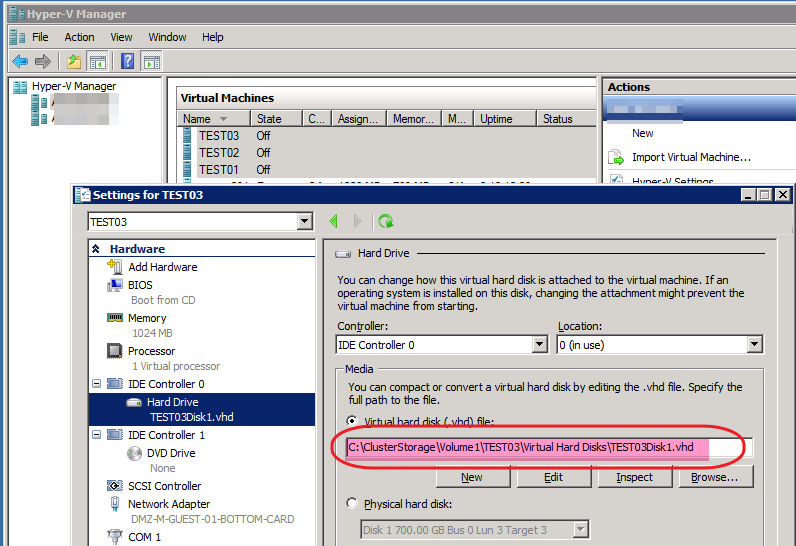
In Hyper-V Manager we see that the virtual machines are indeed of line. As the virtual machines reside on cluster / CSV the path to the hard disk, config files etc is indeed under C:ClusterStorage.

image

We just close the Hyper-V Manager GUI. We will NOT export the VMs to import them on the new cluster. Why?

  1. This is not necessary as since Windows Server 2012 and as such also in R2 we can import them with the option to register them in place. No export is needed for this.
  2. Due to the fact the the is no longer there you cannot import virtual machines that have been exported from Windows 2008 R2 directly into Windows Server 2012 R2. This is due to the fact that the WMI v1 namespace was deprecated in Windows Server 2012, and then removed in Windows Server 2012 R2.  When exporting a VM from Windows 2008 R2, the WMI v1 namespace was used that resulted in an .exp file to represent the exported virtual machine. In Windows Server 2012 (R2) a new WMI namespace (version 2 or rootvirtualizationv2) leverages an improved import/export model. This allows for registering the VMs in place as said in point 1. In Windows Server 2012 the version 1 WMI namespace was still there which allowed for importing of Windows Server 2008/R2 VM’s. In Windows Server 2012 R2 the version 1 namespace has been removed. So YOU CANNOT import virtual machines that where exported from Windows Server 2008/R2 into Windows Server 2012 R2. The workarounds are described here: http://blogs.technet.com/b/rmilne/archive/2013/10/22/windows-hyper-v-2012-amp-8-1-hyper-v-did-not-find-virtual-machine-to-import.aspx.

Now the combination of point 1 and 2 is what is used by the Copy cluster roles wizard in Windows Server 2012 R2. That works within a domain but not across separate AD Domains as in our case. But don’t worry. All this means is that we need to do some work manually and that’s it. That’s what we’ll describe in part 2 of this blog. Do realize you want to do this in one go as that ensures you have the least possible down time. In production don’t do part 1 of the blog on Monday and part 2 on Thursday or so Winking smile.

Read on here Migrating A Windows Server 2008 R2 Hyper-V Cluster To Windows Server 2012 R2 Hyper-V Cluster In Another Active Directory Domain – PART 2