Load Balancing In An Ever More Demanding Virtualized & Cloudy World

We’ve been using the Kemp Loadmasters for many years now and they have served us very well. You might know that Microsoft Azure has a partnership with Kemp technologies to provide full featured load balancing in your public & hybrid cloud solutions. I pretty happy with that as when talk about load balancing with Microsoft we always end up discussing the need for more features and layer 7 support. I sometimes jokingly tease them that this is due to their Windows NLB legacy. While I have done some magic with that, it is way too limited for today’s (and yesterdays) demands and needs. Also the hacks they use to get it to work can’t be used in network virtualization. In the cloud Microsoft has the Azure Load Balancer. Whilst nice when combined with availability sets many of the current workloads need more. That’s exactly what the KEMP Virtual LoadMaster for Azure delivers in their partnership with Microsoft:

  • Layer 4, Layer 7 Load Balancing
  • Layer 7 (or Cookie) Persistence
  • SSL Offload/SSL Acceleration
  • Application Health Checking
  • Adaptive (Server Resource) Load Balancing
  • Layer 7 Content Switching
  • Application Acceleration: HTTP Caching, Compression & IPS

To me (and many other IT Pros) Kemp is the company that opened load balancing up to everyone on this planet with budget friendly but high value solutions. They took away the barrier to better & more capable load balancing for the masses. Furthermore they keep improving and I have seen many existing customers, including me get ever more benefits with the newer firmware releases, even on their entry level, older models like the LM2200 that are not for sale anymore. So you can keep using them or move them to the lab. They have great support and respond very quickly to vulnerabilities like Heartbleed, Shellshock and Poodle.

image 

Another benefit of this partnership is that we can use the load balancing solution we know and trust in all our environments: on premises (physical or virtual appliance), in the cloud & at our hosting companies. Partner ships with OEMs ensure that you can use the hardware you prefer (the DELL R320 is a nice example) and their Virtual Load Master now even extends into the cloud. So our options are to …

… deploy an appliance …

image

…  virtualize the LoadMasters …

image

… leverage Kemp in the cloud

image

…. or select your own preferred OEM …

image

They cover all our bases with that line up and it helps with operational ease & efficiencies.

As I’m investigating some scenarios with KEMP LoadMasters in a Hyper-V environment (on premises, multi sites, Azure IAAS & Multifactor Authentication you can expect to see some blog posts on this. Some of these will leverage technologies available in Windows Server vNext (Technical Preview). Lot’s of very interesting ideas to support high availability & flexibility that are affordable and not just point solutions.

Ah the joy of being in virtualization is that one gets great exposure to storage, networking, cloud solutions and on premises. The experience & knowledge of the entire stack isn’t just fun (yes working can be fun) but it is also what allows to build great solutions.

Windows Server Technical Preview delivers integration services updates through Windows Update

Benefits of delivering updates to the integration services via Windows Updates

In Windows Server  vNext aka the Technical Preview the integration services are being delivered through Windows Update (and as such the well know tools such a s WSUS, …). This is significant in reducing the operational burden to make sure they are up to date. Many of us turned to PowerShell scripting to handle this task. So did I and I still find myself tweaking the scripts once in a while for a condition I had not dealt with before or just to get better feedback or reporting. Did I ever tell you that story about the cluster where a 100VMs did not have a virtual DVD drive (they removed them to improve performance) … that was yet another improvement to my script => detect the absence of a virtual DVD drive. In this day and age, virtualization has both scaled up and out with ever more virtual machines per host and in total. The process of having to load an ISO in a virtual DVD drive inside a virtual machine to install upgrades to integration services seems arcane and it’s very timely that it has been replaced by an operation process more befitting a Cloud OS Winking smile.

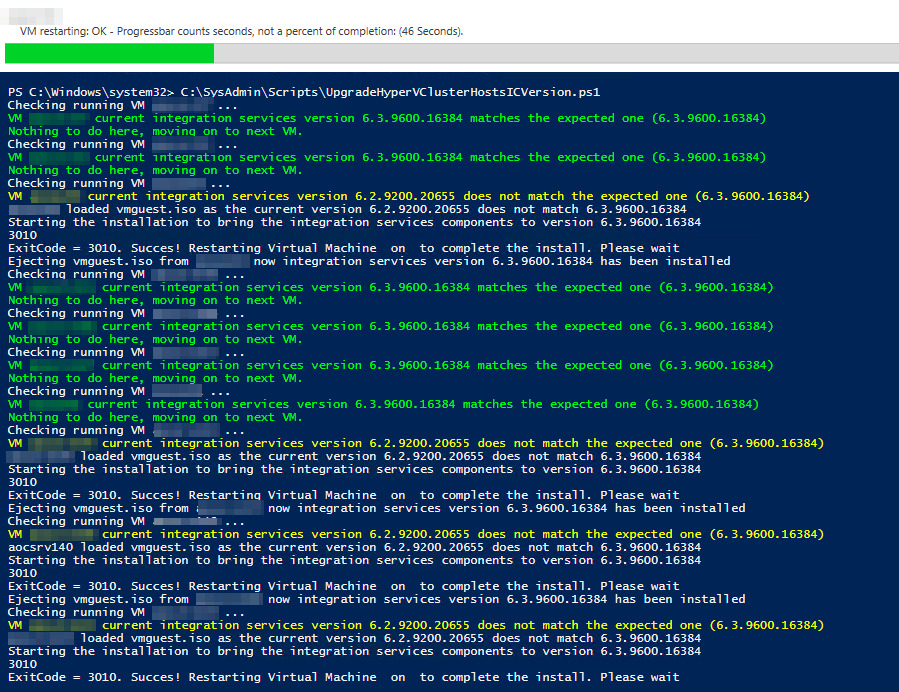
I have optimized this process with some PowerShell scripting and it wasn’t to painful anymore. The script upgrades all the VMs on the hosts and even puts them back in the state if found them in (Stopped, Saved, Running). A screenshot of the script in action below.

image

I’m glad that it’s now integrated through Windows Update and part of other routine maintenance that’s done on the guests anyway.

But is not only good news for us “on premises” system administrators and integrators. It’s also important for service/cloud providers and (hosted) private cloud hosters. This change means that the tenants  have control of updates to the integration services of their virtual machines. They update their Windows virtual machines with all updates during their normal patch cycles and now this includes the integration services. This provides operation ease (single method) and avoids some of the discussions about when to upgrade the integration services.

Legacy Operating Systems

Shortly after the release of the Windows Server Technical Preview, updates to integration services for Windows guests began being distributed through Windows Update. This means that on that version the vmguest.iso is no longer needed and as such it’s no longer included with Hyper-V.  This means that if you run an unsupported (most often legacy) version of Windows you’ll need to grab the latest possible vmguest.iso from an W2K12R2 Hyper-V host and try to install that and see if it works.

What about Linux and FreeBSD?

Well nothing has changed and how that’s taken care of you can read here: Linux and FreeBSD Virtual Machines on Hyper-V

Hyper-V Technical Preview Live Migration & Changing Static Memory Size

I have played with  Hot Add & Remove Static Memory in a Hyper-V vNext Virtual Machine before and I love it. As I’m currently testing (actually sometimes abusing) the Technical Preview a bit to see what breaks I’m sometimes testing silly things. This is one of them.

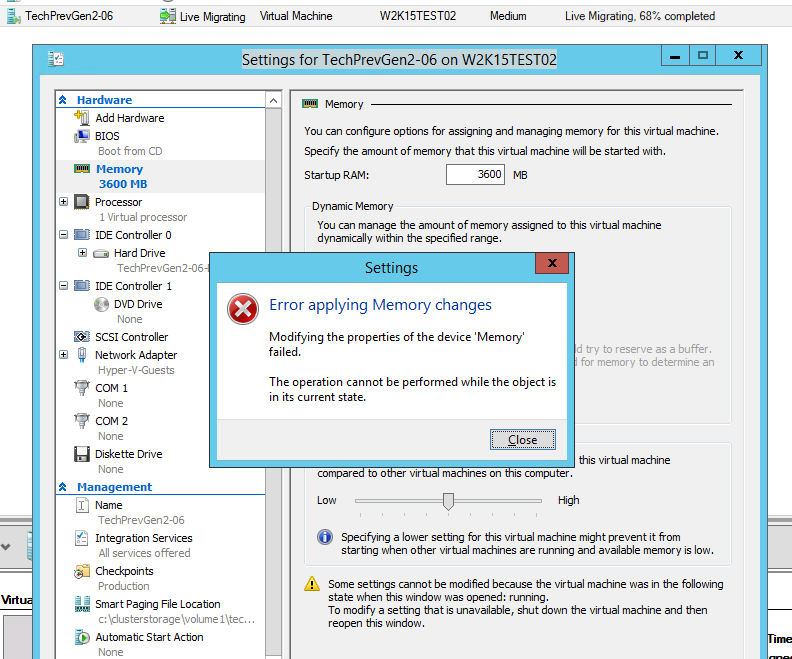
I took a Technical Preview VM with 45GB of memory, running in a Technical Preview Hyper-V cluster and live migrate it.  I then tried to change the memory size up and down during live migration to see what happens, or at least nothing goes “BOINK”. Well, not much, we get a notification that we’re being silly. So no failed migrations, crashed or messed up VMs or, even worse hosts.

image

It’s early days yet but we’re getting a head start as there is a lot to test and that will only increase. The aim is to get a good understanding of the features, the capabilities and the behavior to make sure we can leverage our existing infrastructures and software assurance benefits as fast a possible. Rolling cluster upgrades should certainly help us do that faster, with more ease and less risk. What are your plans for vNext? Are you getting a feeling for it yet or waiting for a more recent test version?