Windows Server 2016 Technical Preview Version 3 Cluster Upgrades

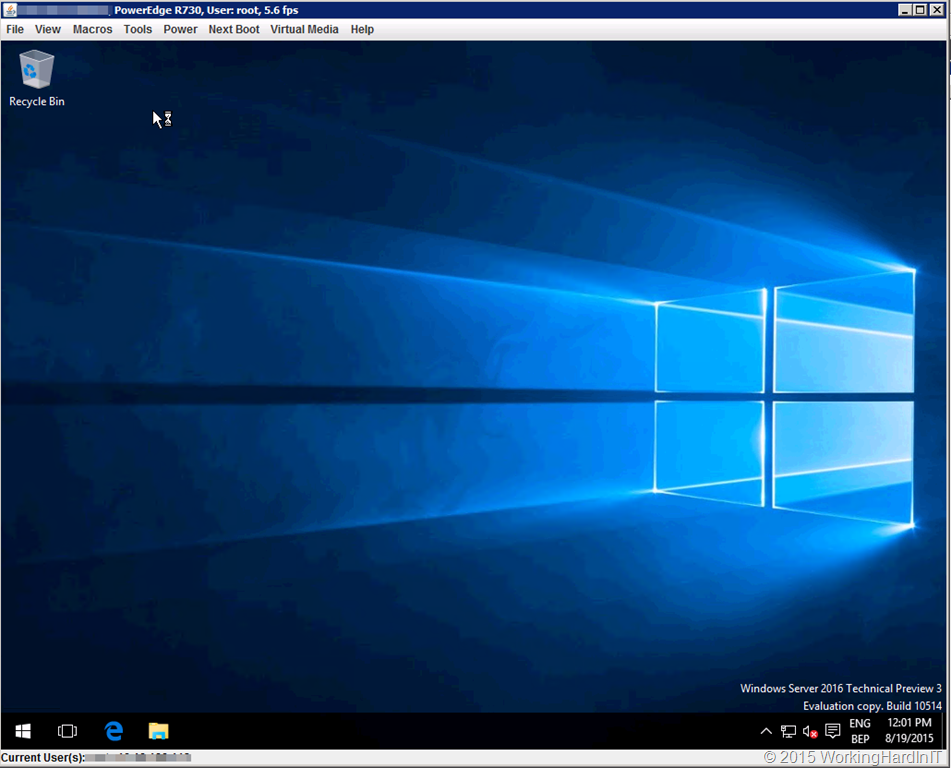
I was eagerly awaiting the release of Windows Server 2016 Technical Preview 3 for further experimenting and testing and August 19th 2015was the big day with a truck load of announcements and press releases including the arrival of TPv3 which also made containers publicly available for testing to all of us.

image

After a swift download II set out upgrading the labs, both PC hardware based and enterprise grade server hardware. I always test out the less wise things as well just to kick the tires and test behavior left and right.

As always I tested some in place upgrades just to see how well that goes before doing clean installs . Not recommend in production but hey,Testing is good. At first all networking seem to be OK but it wasn’t. So I ended up with doing clean installs which are advisable, even more so with non production versions of the OS. The product is not finished yet! This is also the supported way of doing a new cluster build. imageThe end result is a lab at home on PC hardware and an enterprise grade lab to work with in the datacenter. Busy times ahead.

For help on what’s new in this build go here What’s New in Windows Server 2016 Technical Preview 3 and good luck on your Windows Server 2016 Technical Preview Version 3 cluster upgrades!

Happy testing!

Get-ClusterLog Got Better In Windows Server 2016

When the going get’s tough the tough get going. But that doesn’t mean we don’t like and edge or won’t take advantage of tools and features that make our job easier.

In Windows Server 2016 Failover clustering Microsoft added some features to do just that when it comes to troubleshooting.

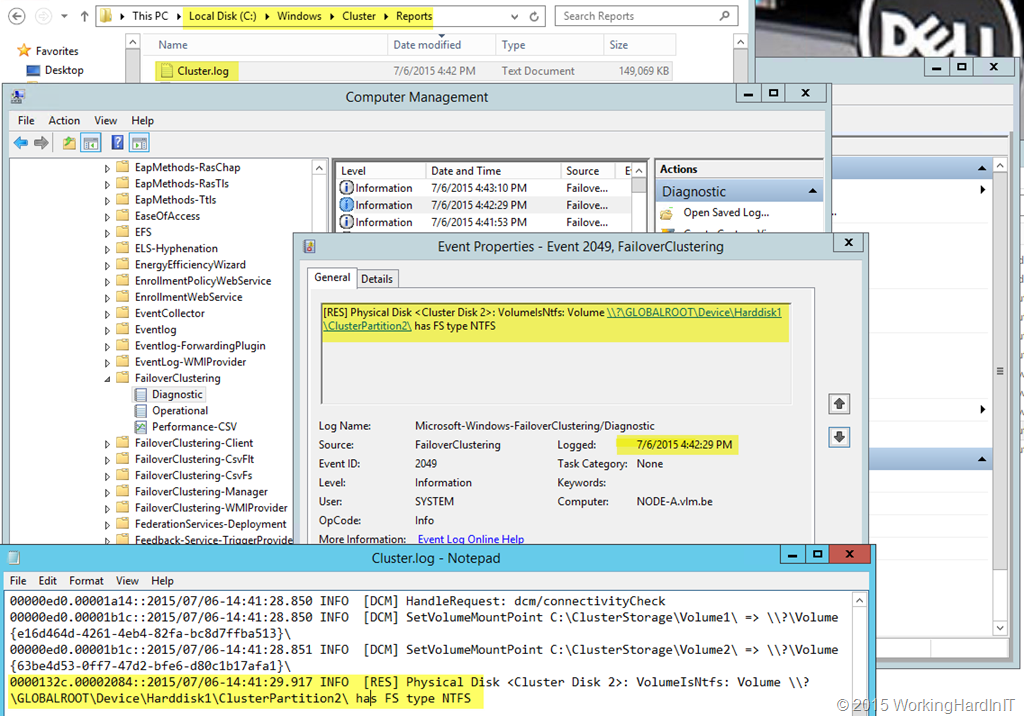
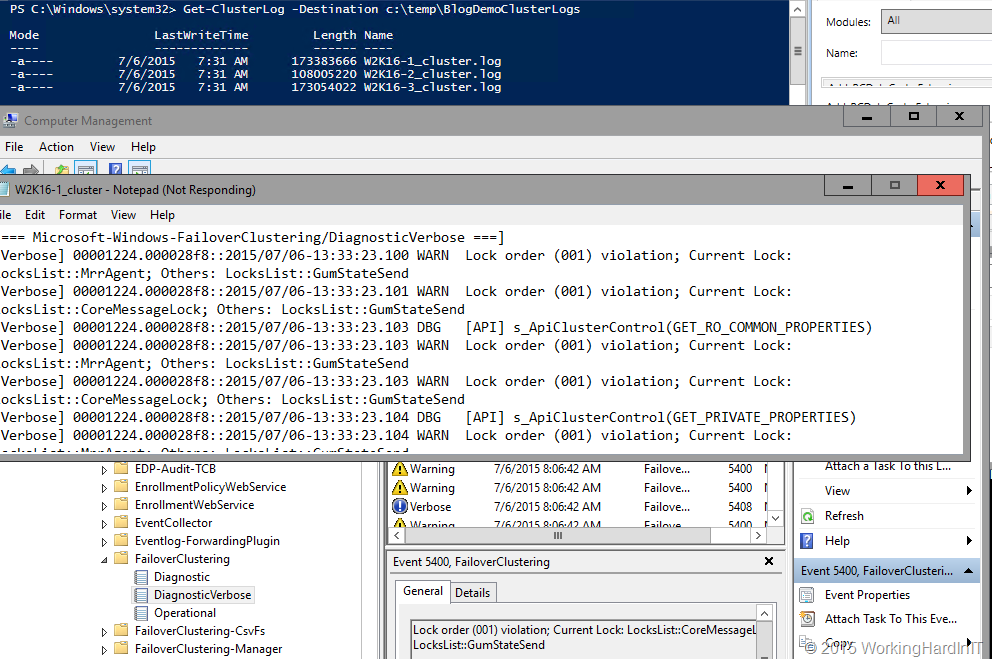
This is what Get-CusterLog does for you: it writes the FailoverClustering/Diagnostics events to a cluster.log file on every member node of that cluster. Collecting them all form there is tedious so they gave us the –destination parameter to set a common target folder on the host where we run the command.

image

So unless you get paid by the hour you’d normally you’d run Get-ClusterLog with the –Destination parameter so all the cluster logs from all cluster members are dumped into the destination folder for your.  But in Windows Server 2016 they went the extra mile.  More often than not other event logs are asked and needed. So a great improvement here is that this command now dumps all the relevant other channels into the cluster.log files generated and separates them out via a “header” [===LOGINQUESTION ===]

We now find following logs included:
[=== Microsoft-Windows-ClusterAwareUpdating-Management/Admin logs ===]
[=== Microsoft-Windows-ClusterAwareUpdating/Admin logs ===]
[=== Microsoft-Windows-FailoverClustering/DiagnosticVerbose ===]
[=== System ===]

image

This saves a lot of time as more often than not those are asked for and needed to troubleshoot. Note the DiagnosticVerbose log. This is a permanent parallel event channel that logs the verbose information. This avoids the overhead of having to set the logging level of the normal Diagnostic log to verbose and trying to reproduce the issue. Pretty cool, the info is there and it doesn’t cause the standard logging to roll over faster as that logs at the default level.

We also get the cluster objects listed in the log now to help with diagnosing issues.

[=== Resources ===]
[=== Groups ===]
[=== Resource Types ===]
[=== Nodes ===]
[=== Networks ===]
[=== Network Interfaces ===]
[=== Volume ===]
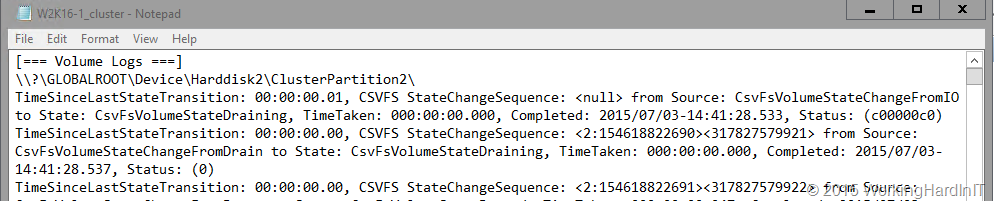
[=== Volume Logs ===]

image

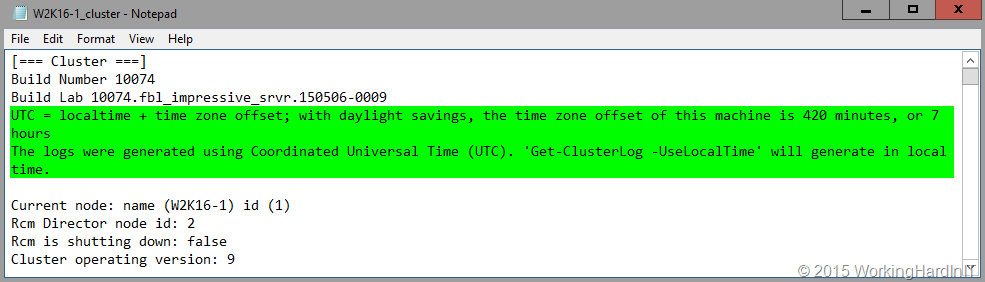
Another improvement is that the log now indicates the offset against UTC or allows you to specify the –UseLocalTime parameter to get you the log in the time settings of the server. Both these options can be handy correlating events.

image

I’m happy with these efforts to gather the information needed to diagnose an issue easier and faster. It’s not about perfection but making progress and that what’s happening.

Find and Update Your KMS Service Host Key To Activate Windows 10

I have done a series of blog post on preparing your KMS environment for Windows 10 activation. You should be set to go but the final step you need to take is update the KMS Service Host Key.  That means that in a corporate environment you’ll need to get your KMS Service updated so you can active the Windows 10 clients.

This one has tripped up some people when it comes to finding it. So we’ll address that here is as well.

Please note that only Windows Server 2012 (R2) or Windows 8, 8.1 or 10 can act as KMS Service Hosts.

Preparations

On the Volume License Servicing Center you cannot only get the bits but also the MAK and KMS keys. Normally you’d go directly to Downloads and Keys, filter down to what you’re looking for and find your KMS host key over there.That works for the Windows clients as before. But you cannot find and updated KMS Service key right now for Windows Server, that will probably work again when Windows Server 2016 goes RTM.

image

But for now you need to get the key by using a bit of a different path than you’re used to. Got to Licenses and select Relationship Summary

image

Navigate to the correct license id and click it to open the details of your license. There you select Product Keys

image

In the list of keys under that license you’ll find the KMS keey you need under product key for the product Windows Srv 2012R2 DataCtr/Std KMS for Windows 10

image

The Windows 10 KMS client keys are listed publicly by Microsoft. They are the keys of clients that activate against a KMS server. If you have you volume licensing media that’s normally the one in box with the client. You can read more in my blog Windows 10 KMS Client Setup Keys. If you don’t want or cannot use a KM you’ll need to use MAK keys on the clients. These are found on the Volume License Servicing Center as well when you have a valid license.

You also need to have installed an update on your KMS Service hosts. You can read all about that in my blog post KB3058168: Update that enables Windows 8.1 and Windows 8 KMS hosts to activate Windows 10  If you don’t install this update registering a Windows 10 KMS key will throw an error:

0xc004f015: The Software Licensing Service reported that the license is not installed.
SL_E_PRODUCT_SKU_NOT_INSTALLED

So grab the hotfix if it isn’t installed via Windows Update, WSUS etc. and install it from an elevated command prompt. Just follow the instructions and you’ll be fine Smile

Upgrading the KMS Service Host Key

It goes without saying that we’ll need to update the KMS Service Host key or we’ll see error 0xC004F015:

0xc004f042 – SL_E_VL_KEY_MANAGEMENT_SERVICE_ID_MISMATCH
he Software Licensing Service determined that the specified Key Management Service (KMS) cannot be used
.

This is also described in KB 3086418 Error 0xC004F015 while activating Windows 10 Enterprise using Windows Server 2012 R2 KMS Host

We take a look at our current situation by running slmgr.vbs /dlv which show us a Wk212R2 KMS Service host which can activate all servers & clients up to Windows 8.1/ Windows Server 2012 R2.

image

Uninstall the current  please use an elevated command prompt Winking smile

image

Now you can install the new Windows Srv 2012R2 DataCtr/Std KMS for Windows 10 key. If you run in to any issues here, restarting the KMS Service can help ((“net stop sppsvc” and “net start sppsvc“) . Try that first.

slmgr.vbs /ipk PIRAT-ESARE-NOTGE-TTING-AKEY!

Be patient, it’s not instantaneous.

image

Fall you wannabe pirates out there, that’s not a real key. As far as you are concerned this is the Navy Winking smile. If you’re, looking for illegal keys, cracks, keygens, activators or dodgy KMS virtual machines and such this is not the place!

Show what’s up and running now by running slmgr.vbs /dlv again and as you can see we’re in business to activate all our Windows Server 2012 R2 and Windows 10 machines as well as all lower versions down to Windows Server 2008 an Windows Vista.image

So we’re ready to roll out Windows 10 now via MDT and have our KMS server activate them.

I’m a Veeam Vanguard 2015

Veeam has announced it’s Veeam Vanguard program last month while I was on vacation. I am honored to have been nominated as 1 of 31 professionals world wide. Veeam states the following, which I consider to be a great compliment:

These individuals have been nominated as Veeam Vanguards for 2015. A Veeam Vanguard represents our brand to the highest level in many of the different technology communities in which we engage. These individuals are chosen for their acumen, engagement and style in their activities on and offline.

veeam_vanguard

Rick Vanover is spearheading this program together with the Veeam Product Strategy Team and the entire company is behind this initiative as you can read here What is the Veeam Vanguard Program?

Veeam now has a program like the VMware vExpert, Cisco Champion and Microsoft MVP programs. I’m honored to be nominated and I’m sure Veeam will execute this well as I have one very consistent experience with both Veeam employees and products: quality and dedication to deliver the best possible solutions for their customers. The fact that I’ve been nominated makes me feel appreciated by people whom I respect for their professionalism and skills. As I’m confortable acting as the tip of the spear implementing technologies at the organizations I support I kind of feel that being a Veeam Vanguard is a great fit Smile

I have shared insights, ideas and feedback with VEEAM before and I’m sure we’ll get plenty of opportunities to do even more of that in the future.