How to open a root shell on the Veeam Software or Infrastructure Appliance

Introduction

Veeam’s Software Appliance (VSA) and Infrastructure Appliance are hardened by design out of the box. They’re secured, protected, consistent, and predictable, but they’re also unapologetically locked down. There is no SSH, no shell, no root, no sudo. Everything is protected via requests and explicit approvals.

That’s good for security. But it also means you need to understand the actual workflow for getting shell access, especially root access, when you might need it.

This post walks through the real‑world process, the UI flow, the approval logic, and the operational pitfalls. We’ll even cover the “I disabled the web console and need to fix that” scenario.

There are two ways to get SSH access. First, there is the Veeam Host Management console locally on the machine, the one that is available at first boot. After configuration, you will also have access via the web host management console over port 10443.

How to get root access?

Root access can be obtained through 3 pathways that are essentially the same. The first two are again the Veeam Host Management console, locally on the machine, and the web host management console on port 10443. Once you have SSH access, you can request root access via the Veeam Host management console over SSH as well. You can also restrict access via these interfaces.

Note

I also enable the security officer option in the lab. That can indeed be annoying during testing, but I like to train with the tools I will use when it’s for real. You learn and operate under the same restrictions as in production and, yes, suffer the same frustrations at times. That is the price of security.

The local Veeam Host Management console

At your appliance console, select Sign In.
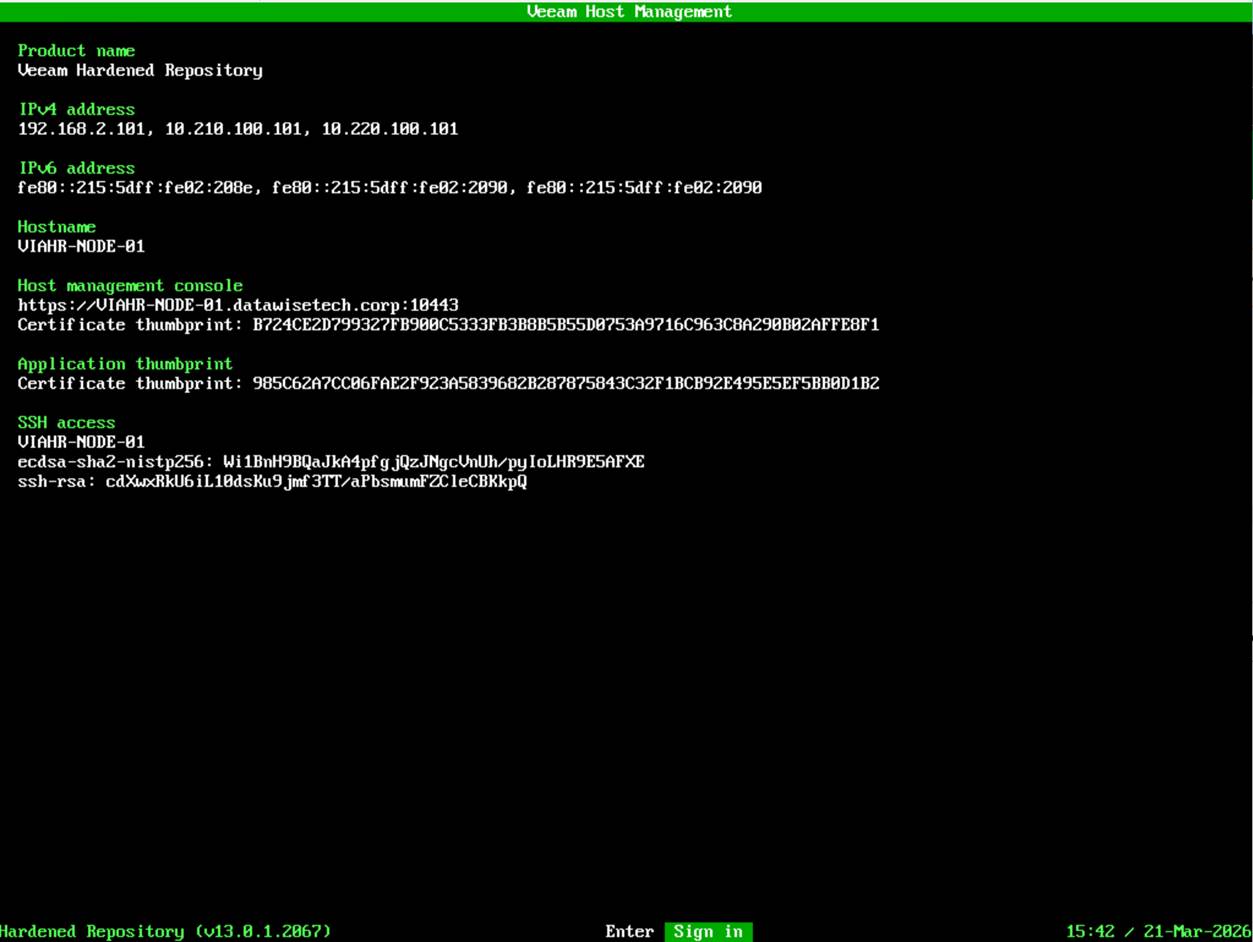
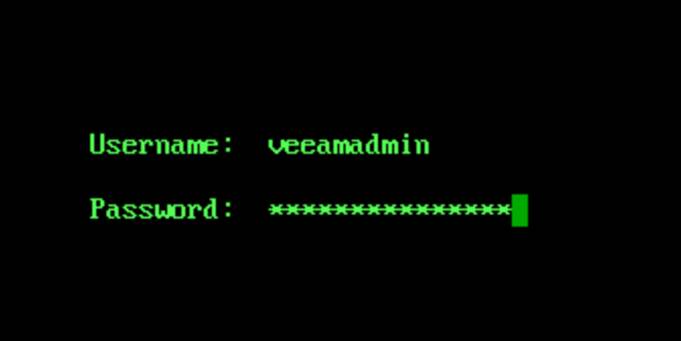
Enter your username and password and hit ENTER.
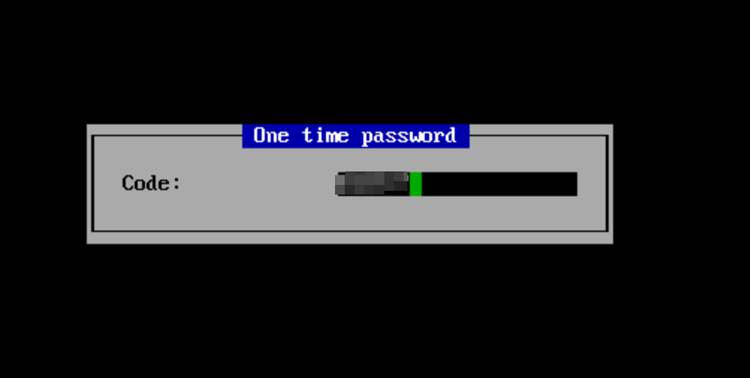
When prompted, enter your OTP to login.
From that point on, everything you need lives under the Remote Access configuration.
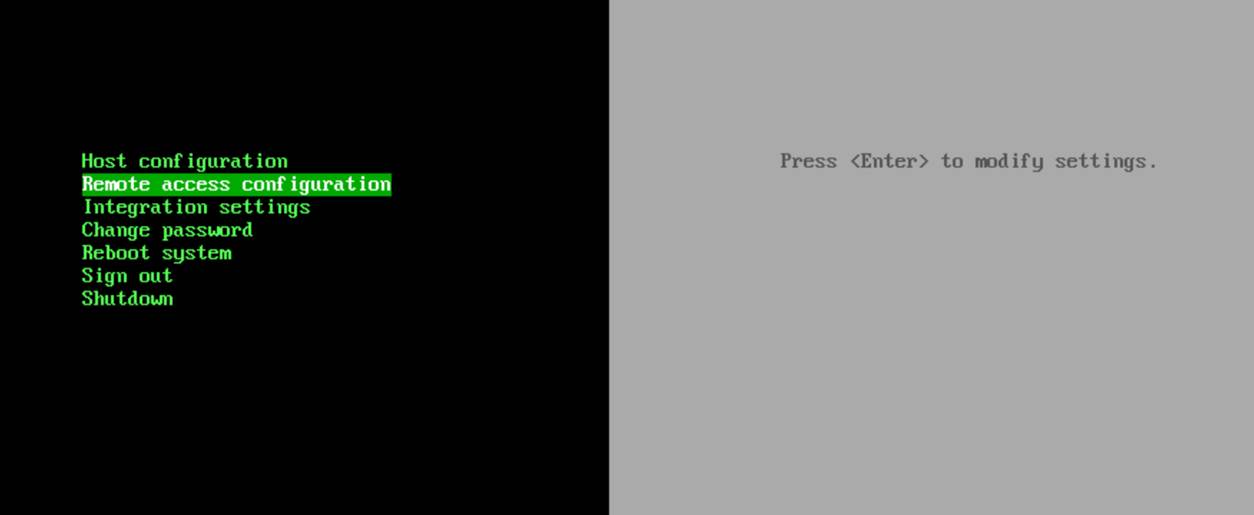
To request shell access, you choose Enter shell.
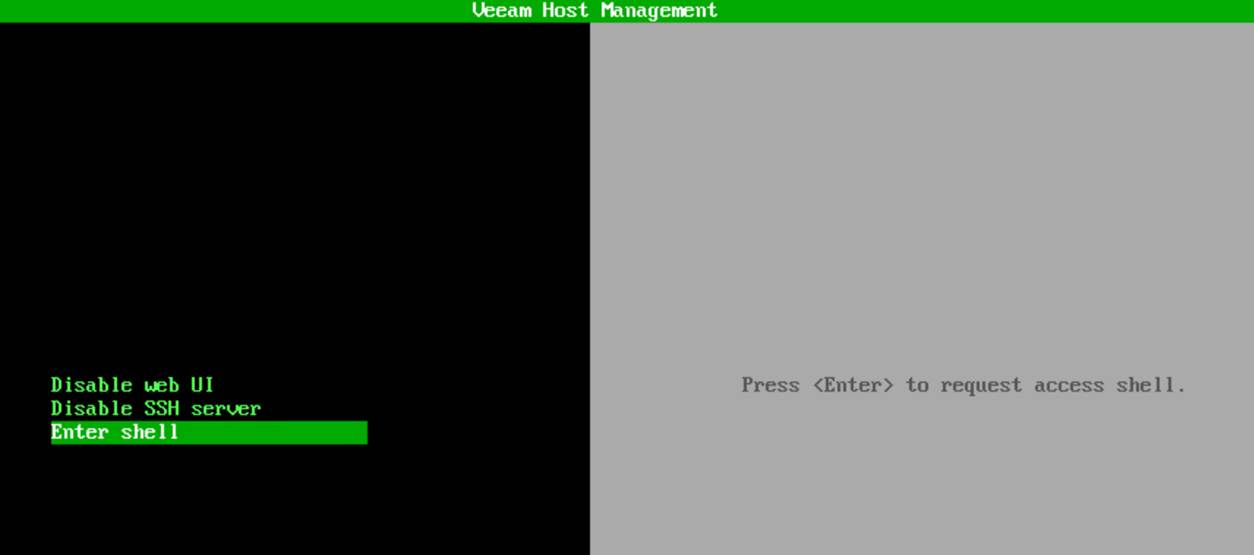
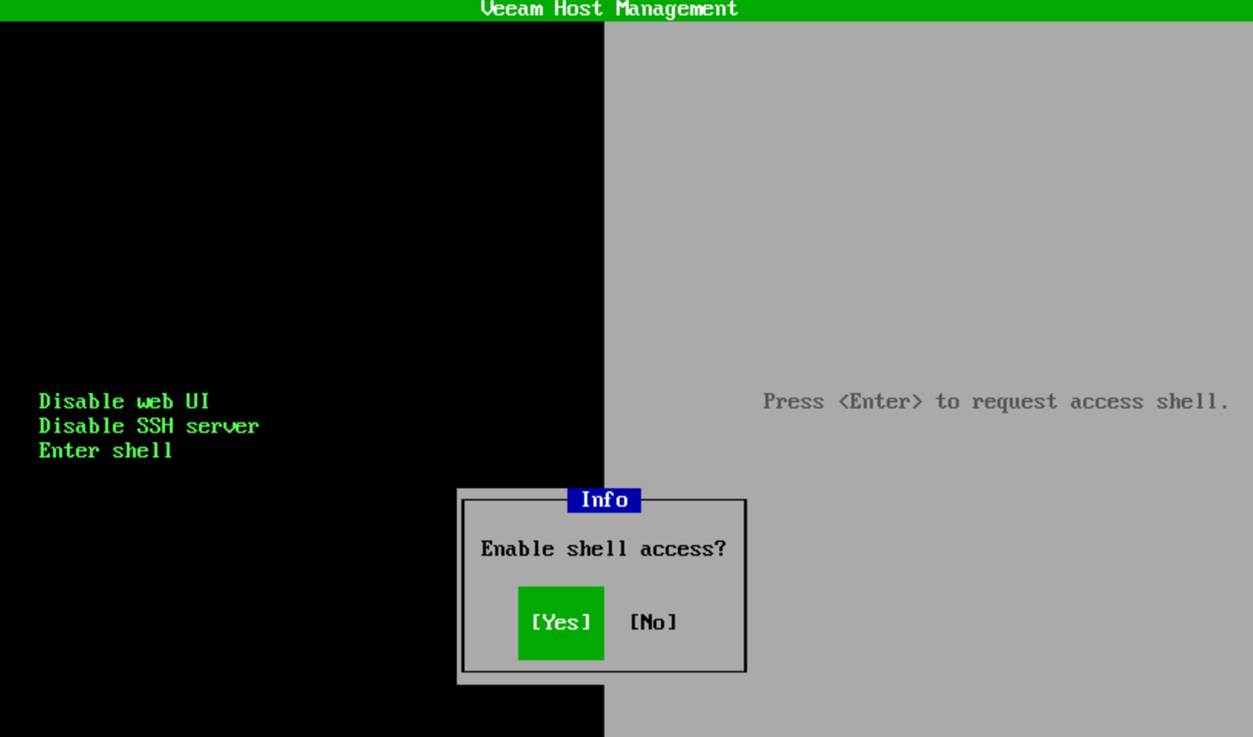
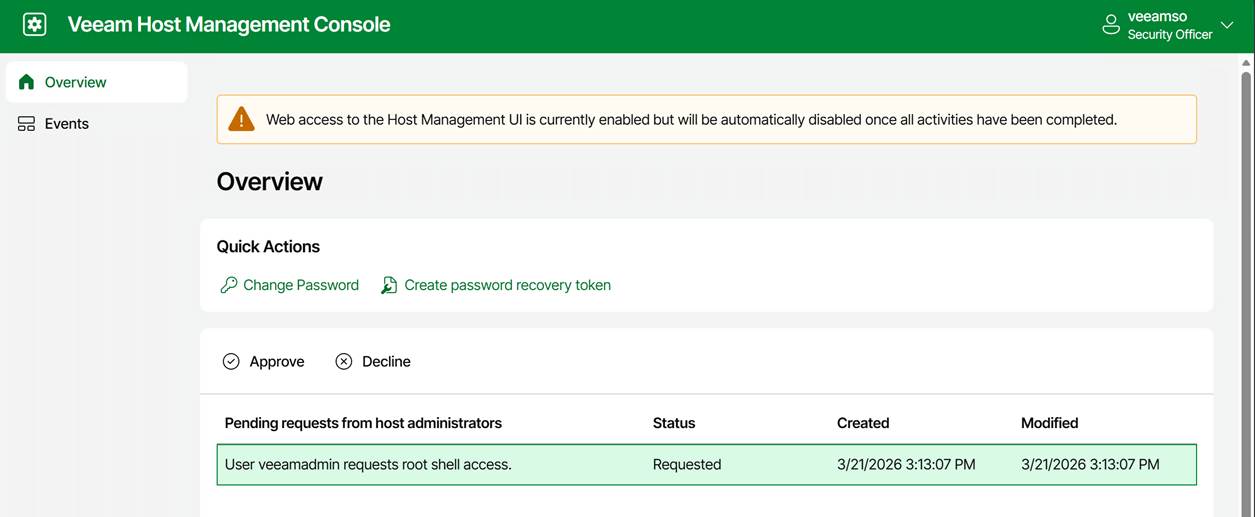
As mentioned, we have a security officer, so approval must be granted by that person.
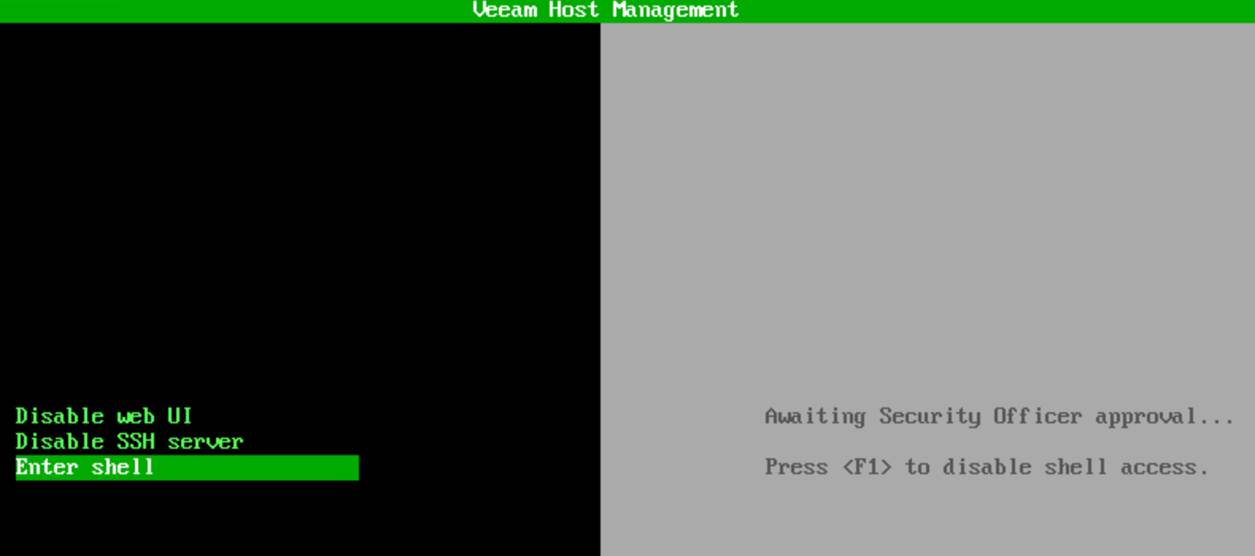
The security officer can now approve or decline your request.
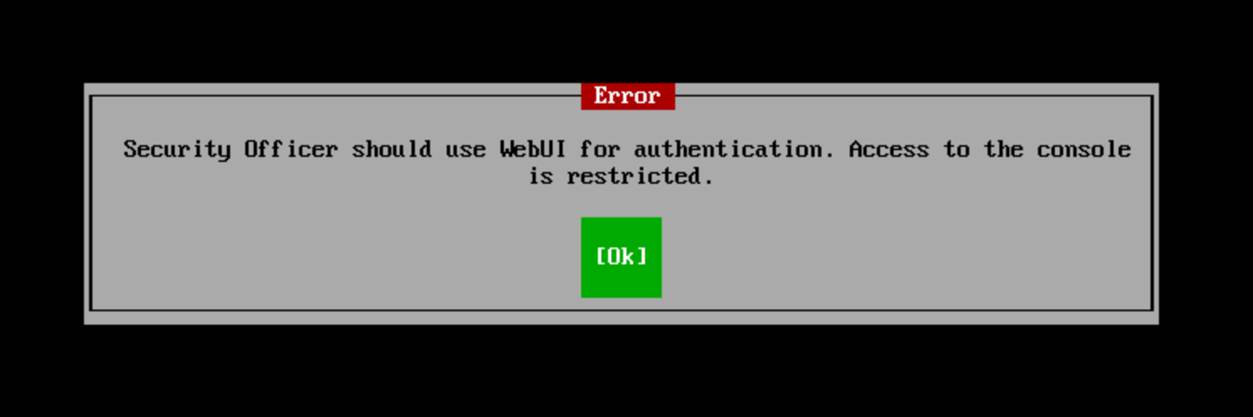
FYI: the security officer sign-in is only available via the web console!
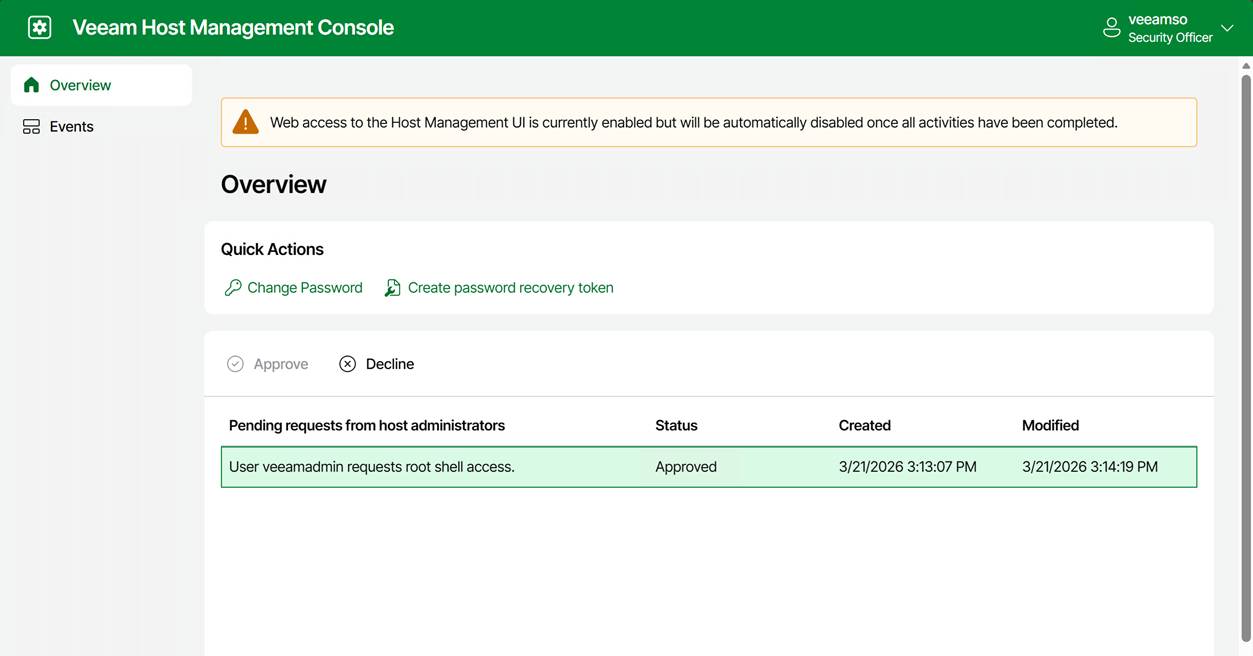
Note that the entry for the approved request does not disappear. The security officer can decline it at any moment. For example, when you notify the security officer that you have completed your work. If not, it will expire after 8 hours.
Anyway, the console message changed to “Press <Enter> to access shell” and “Press <F1> to disable shell access.”
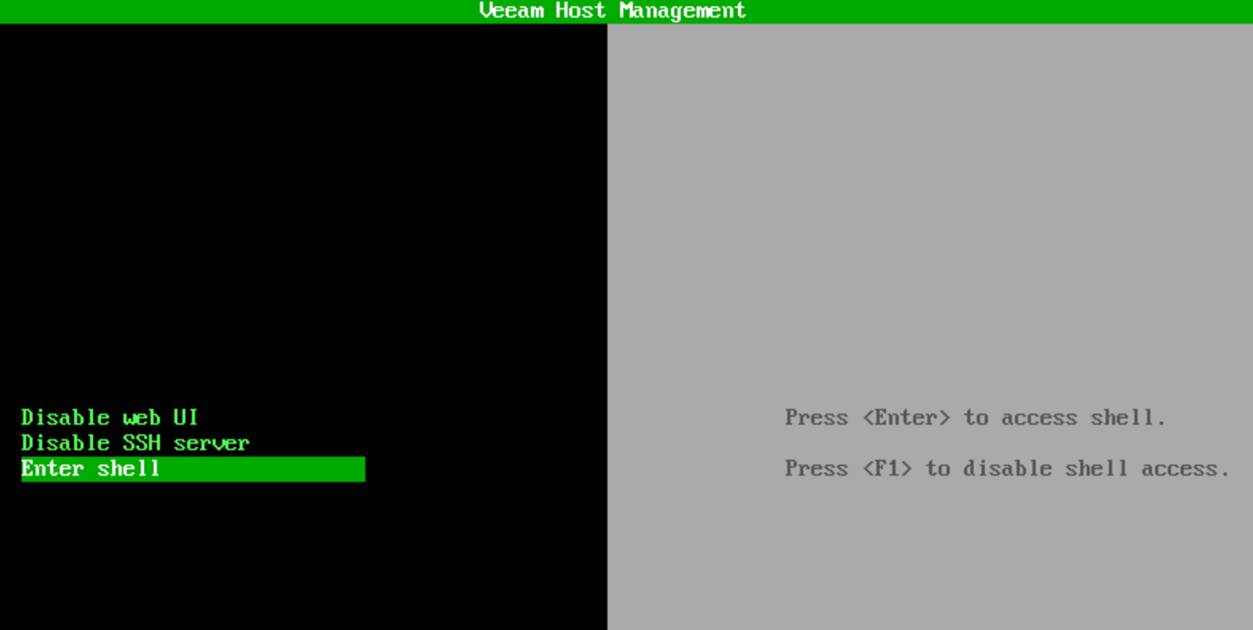
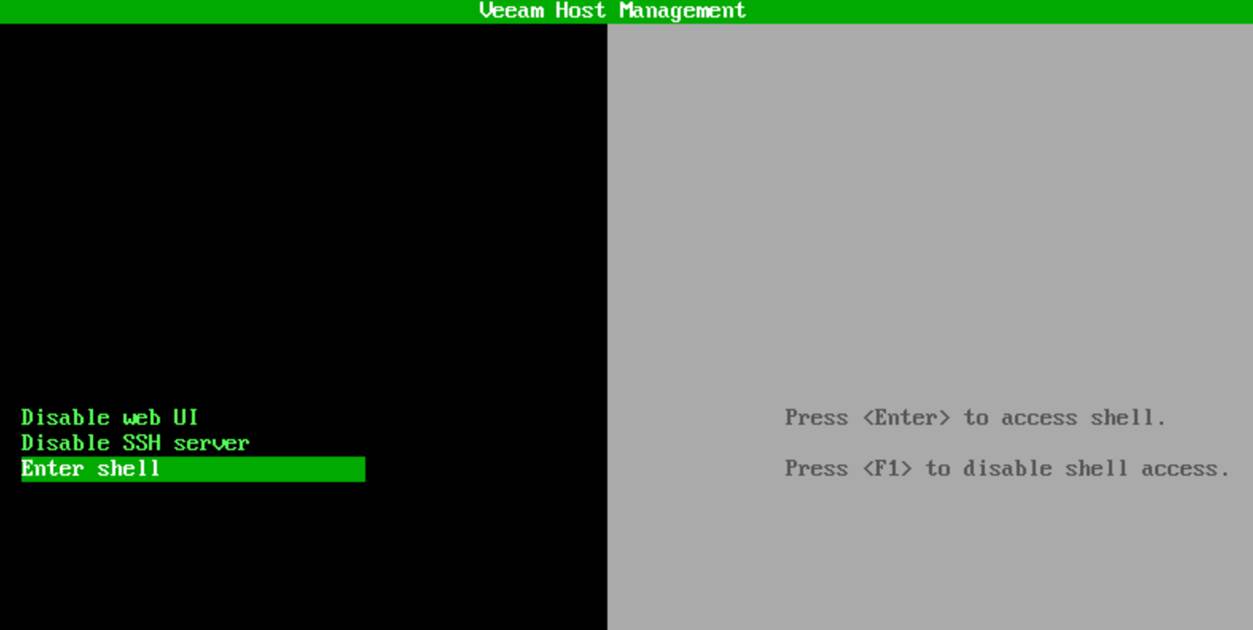
Hit ENTER, and you have shell access with root privileges.
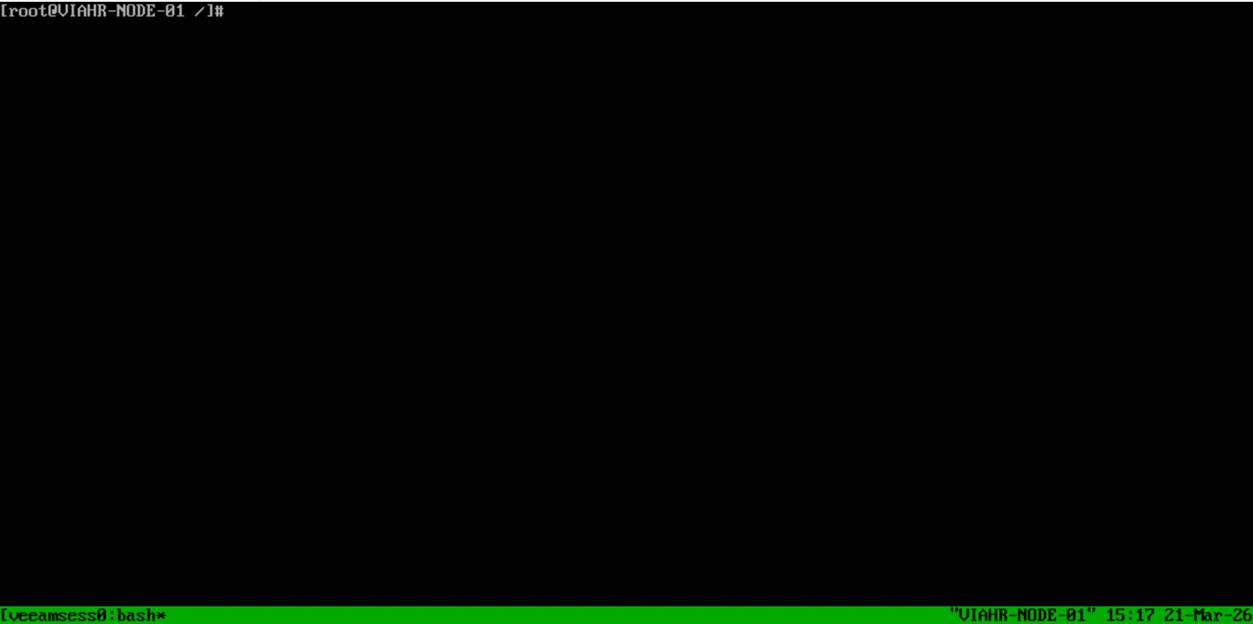
Note that this root shell access is:

  • Time‑limited / non‑persistent
  • Audited
  • The only supported escalation path

Enabling root shell access via the web host management UI

Navigate to the IP address or the FQDN of your appliance over port 10443 and log in.
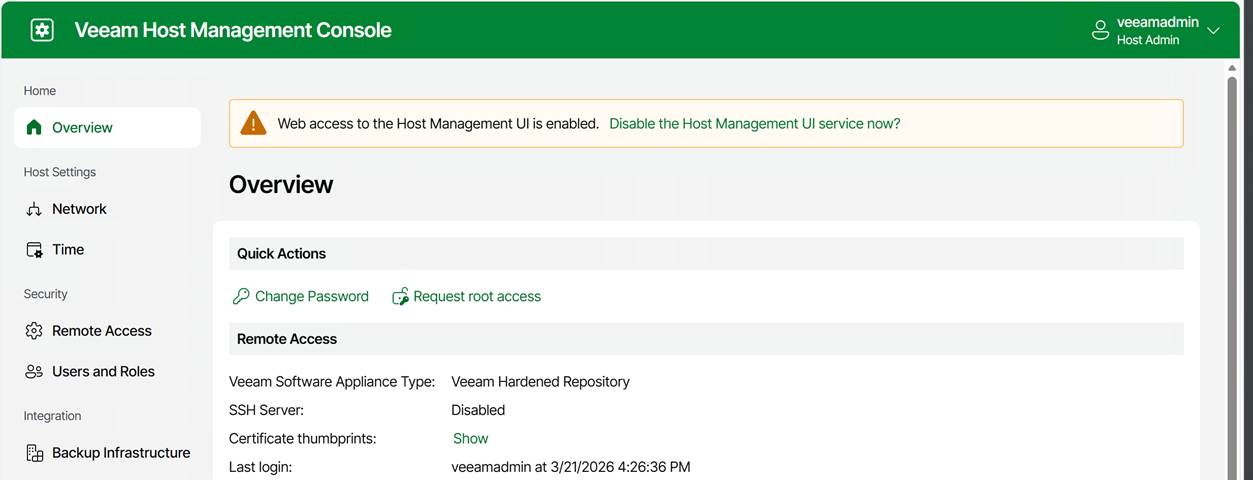
Under Overview, you can request root access. Again, this triggers the security officer approval workflow.
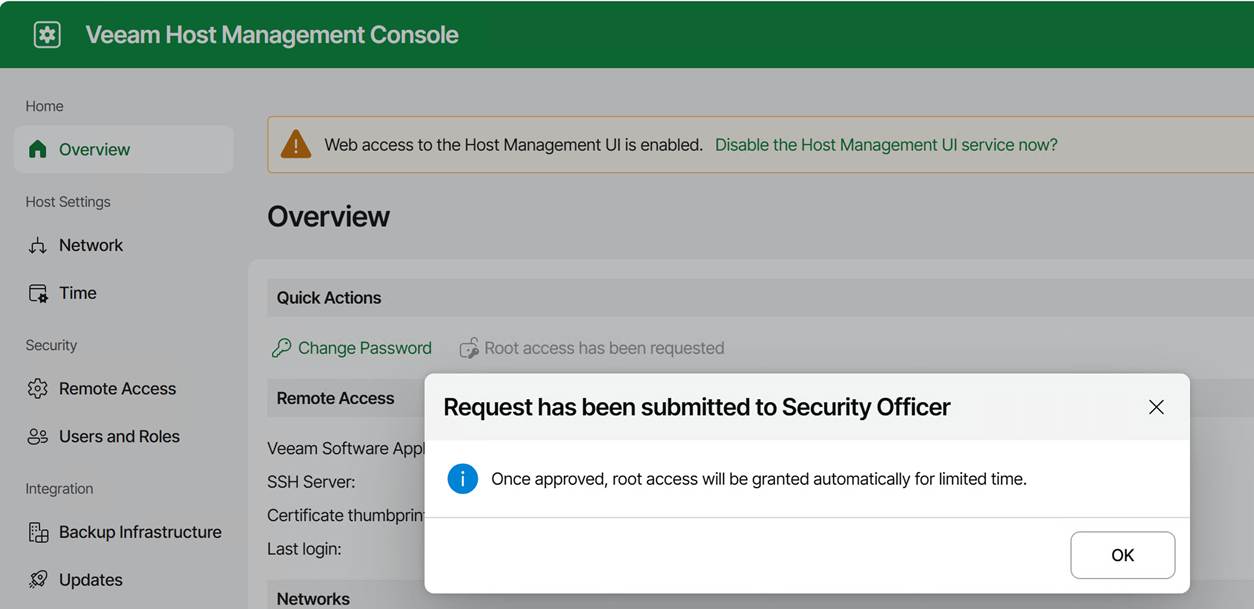
Once approved, a warning is displayed indicating that access privileges have been elevated to root. Note that you can revoke these yourself at any time.
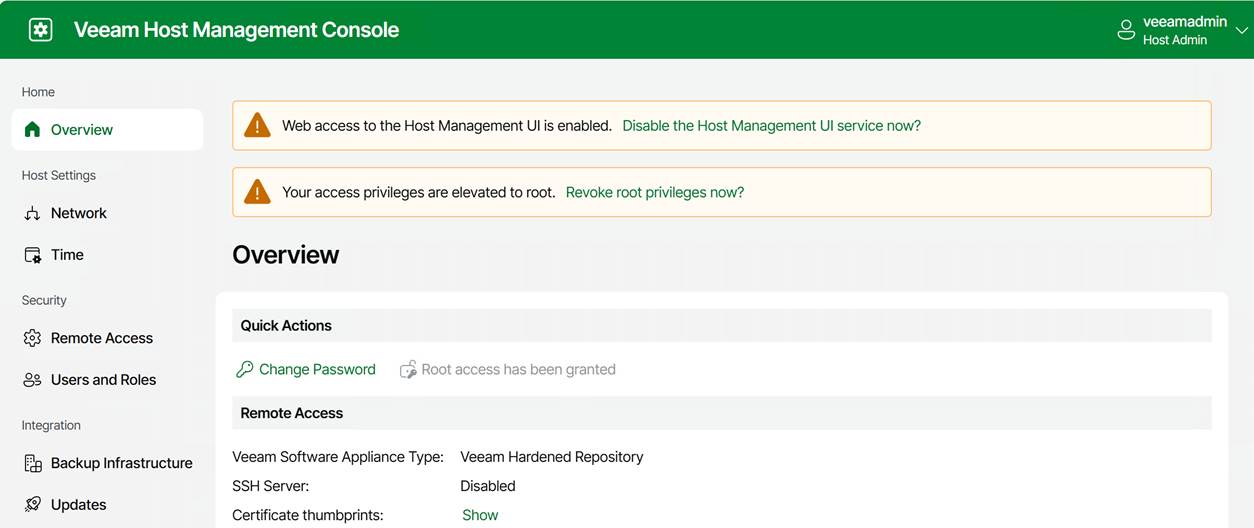
Once approved, the TUI will allow you to open a temporary, audited root shell.

Once shell access is approved, you can:

  • Choose Enter shell in the TUI on the physical or virtual console
  • or enable SSH and log in remotely

Note that you always authenticate as the Host Administrator, not root. Dropping into the shell is always as root. When logged in via SSH, you do not use sudo or su to become root. You have to launch the TUI manually. Just run:

/opt/veeam/hostmanager/veeamhostmanagertui
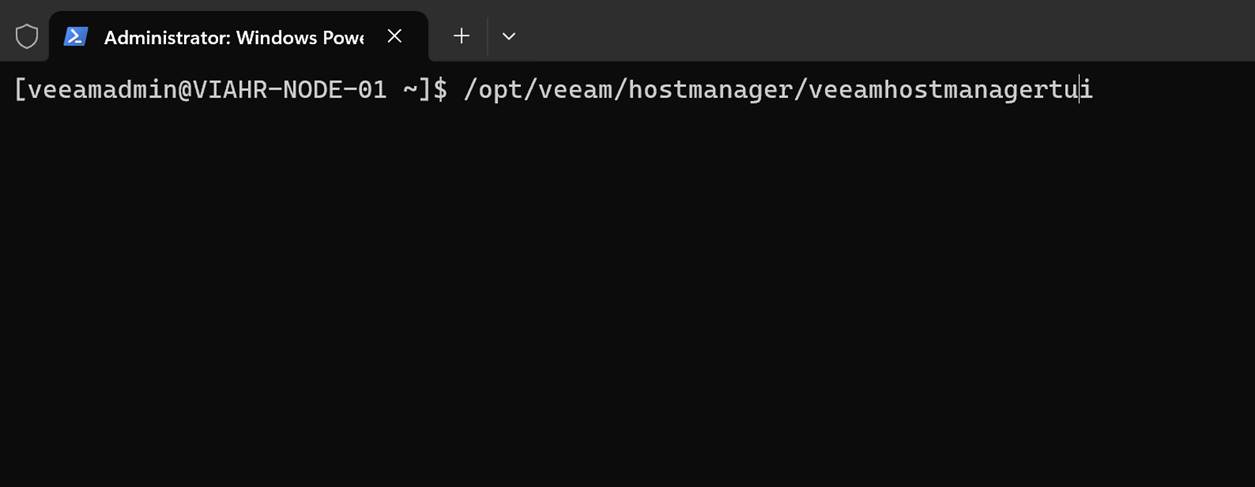
That is useful when you want to activate an already-approved root shell without returning to the physical or virtual console.
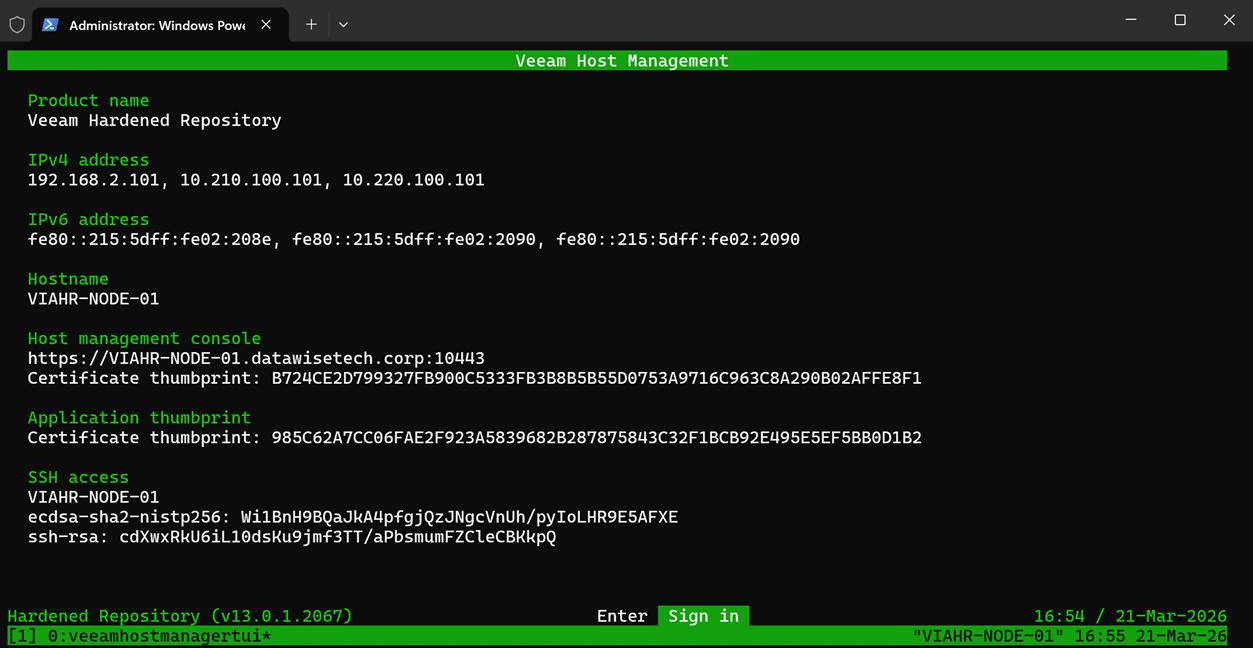
As you can see, you have the same interface and have to sign in again. You can then enter the shell only if approval has already been granted; otherwise, you’ll have to wait for your security officer to approve your request. For people without access to the physical or virtual console, requesting SSH access in combination with root shell access is the only option. SSH alone will never get you to root. Remember that. Because:

  • root login is disabled
  • SSH root login is disabled
  • sudo is restricted
  • No direct escalation paths exist outside the TUI, making it the only supported privilege‑escalation mechanism.

Turning off the host management web UI

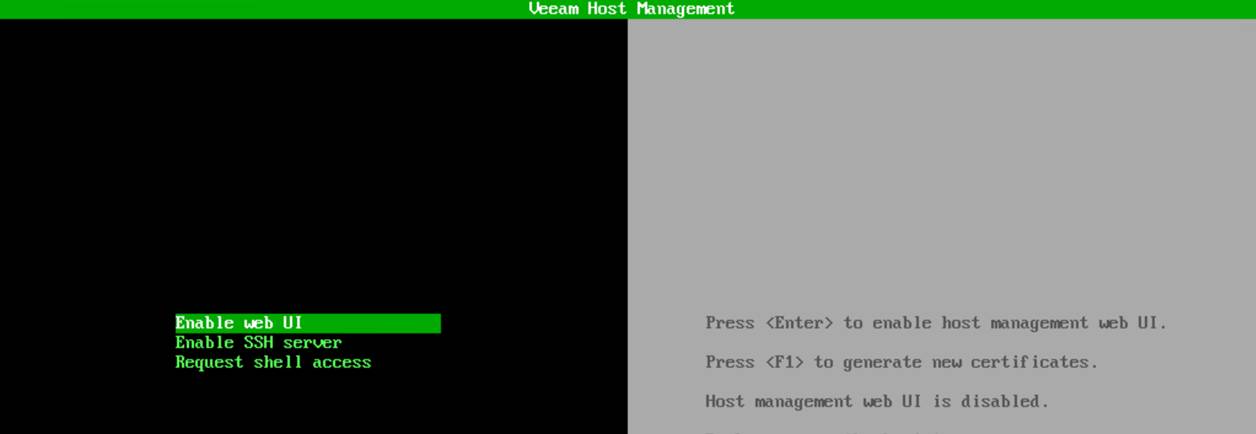
The appliance also lets you turn off the host management web UI. Sure, it might sound great for even further hardening, but it comes with an ⚠️ Important catch: turning off the host management web UI can Lock You Out (unless you have physical or virtual console access).
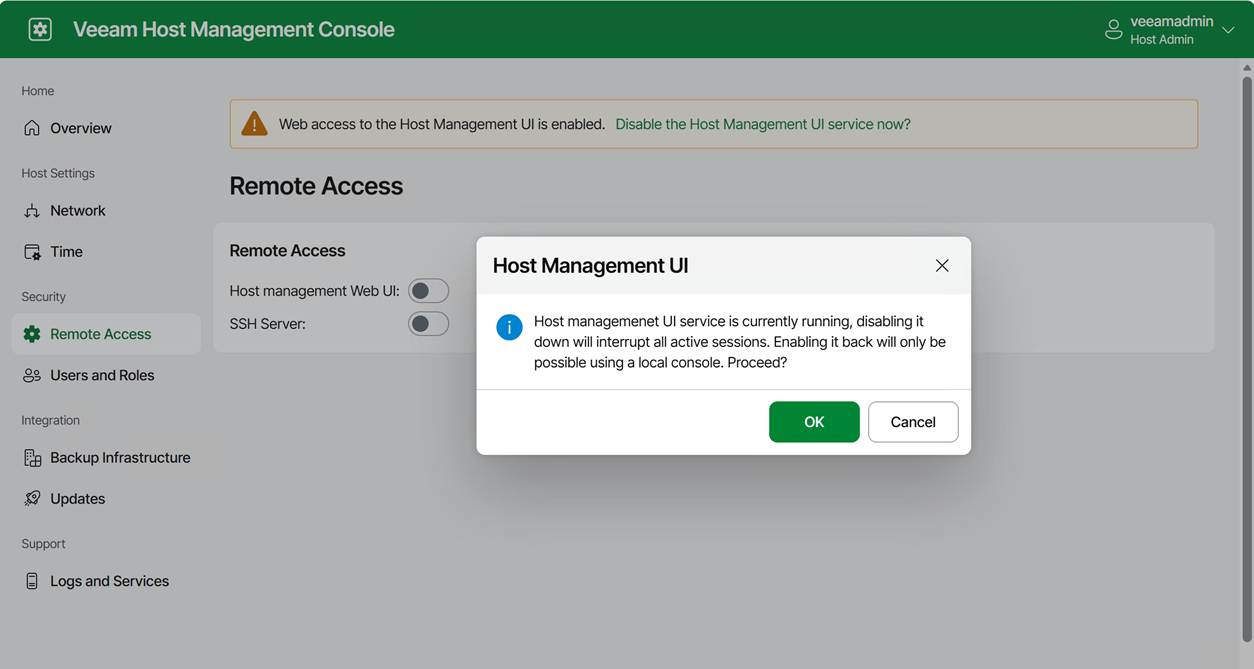
If you disable the web console and you do not have shell access or SSH enabled, the only way back in is through the hypervisor VM console. The physical or virtual console is your last‑resort access path. If you lose that, you have basically lost the appliance if all other options are disabled.
Some operational tips

Use root access with care and only when needed

I hope this is self-explanatory.

Use the web host management console & enable SSH on demand

We handle normal operations via the web consoles and the full console. When SSH is needed, request it.

Never turn off the web console unless you have guaranteed VM console access

If your hypervisor is managed by someone else, for example, think twice. Silos and multiple layers of communication and responsibilities are productivity, efficiency, and support-killing factors in way too many “enterprise”- grade environments. For real people, “enterprise IT” is not the badge of quality and efficiency many think it is; quite the contrary.

The Security Officer must be on call

When you tie actions to a security officer, ensure they are on call and kept informed. Make sure these are people with a clue, not just someone who approves anything without knowing what or why. Also, make sure they are very well aware of what normal backup and recovery operations require and what constitutes an exceptional but valid request. Otherwise, you can’t approve shell or root requests when you need them, or everything gets approved. The technology is only as good as the people and the processes.

Conclusion

While root shell access may be needed in a real-world environment, it should be used only when necessary and with great care. That is why I advise you to enable the security officer in production. And if you are like me, use the security officer feature in labs to make sure you learn and know the processes where this approval is required. How to Open a Root Shell on the Veeam Software or Infrastructure Appliance is also documented on Veeam Backup Enterprise Manager Guide
Configure custom settings on the Veeam Software Appliance like you used to do in the Windows Registry

Introduction

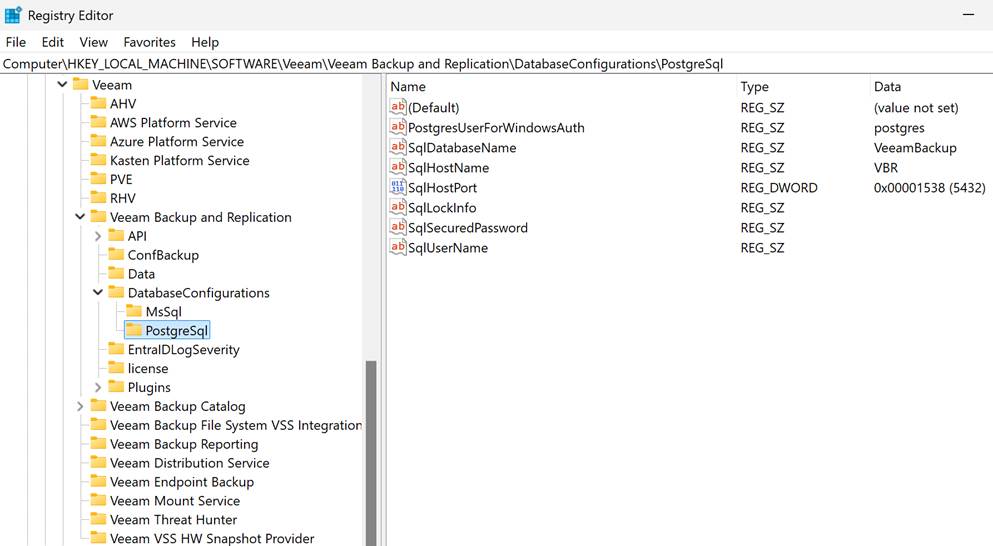
In previous versions of the Veeam Backup & Replication server (before version 13), we did not have a Rocky Linux-based Veeam Software appliance. We can configure a multitude of settings in the Windows Registry to fine-tune and perfect the VBR server to our needs and environment. But as we all know, there is no such thing as a registry on Linux. However, as the saying goes, everything on Linux is a file, and that applies to the Veeam Appliance as well.

In this article, I will demonstrate with a simple example how to edit these configuration files to achieve the same functionality. As some settings are Windows-specific and are not needed on the appliance, nor would they do anything useful.

How to apply custom settings to Veeam Software Appliance

On the Veeam Software Appliance, you will find configuration files that allow you to configure custom settings, just as you can in the registry of a Windows host running in Veeam Backup & Replication.

You manage these configuration files via the Veeam Host Management Console. Also see https://helpcenter.veeam.com/docs/vbr/userguide/hmc_perform_maintenance_tasks.html?ver=13#managing-configuration-files for more inf0

  1. Access the Veeam Host Management Console Web UI (username/password + MFA)
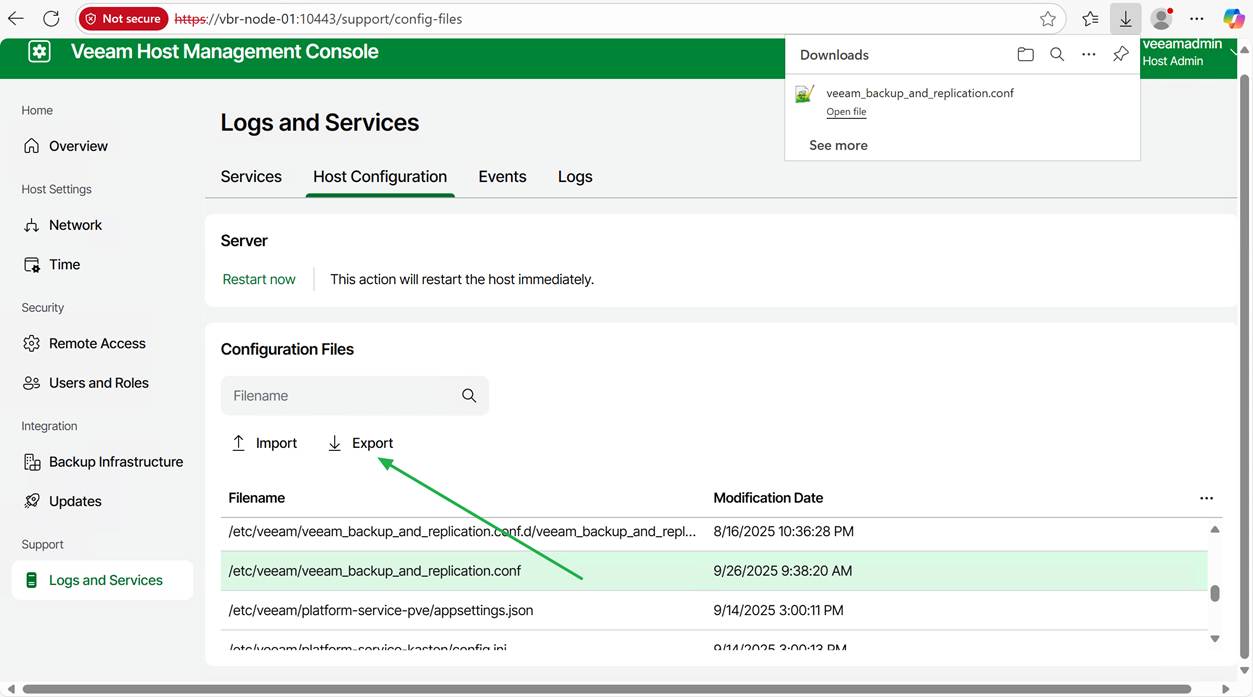
  2. Select Logs and Services in the left-side Navigation panel.
  3. Select Host Configuration within the Logs and Services view.
  4. From here, you can search for a specific configuration file.

The config files can be exported and imported via the Web GUI. Import required Veeam security officer approval if that is configured.

Below, you will find a selection of registry paths and their corresponding configuration files on the Veeam Software Appliance.

Registry KeyVSA Config File
HKLM\SOFTWARE\Veeam\Veeam Mount Service/etc/veeam/veeam_mount_service.conf
HKLM\SOFTWARE\Veeam\Veeam Backup Catalog/etc/veeam/veeam_backup_catalog.conf
HKLM\SOFTWARE\Veeam\Veeam Backup and Replication/etc/veeam/veeam_backup_and_replication.conf
HKLM\SOFTWARE\Veeam\Veeam Threat Hunter/etc/veeam/veeam_threat_hunter.conf

The names of the settings remain the same as before, making it easy for those already familiar with the customization settings from previous deployments. If anything, it is a bit more forgiving, as you cannot select an incorrect value type for the value, unlike in the registry.

Configuration File Sections

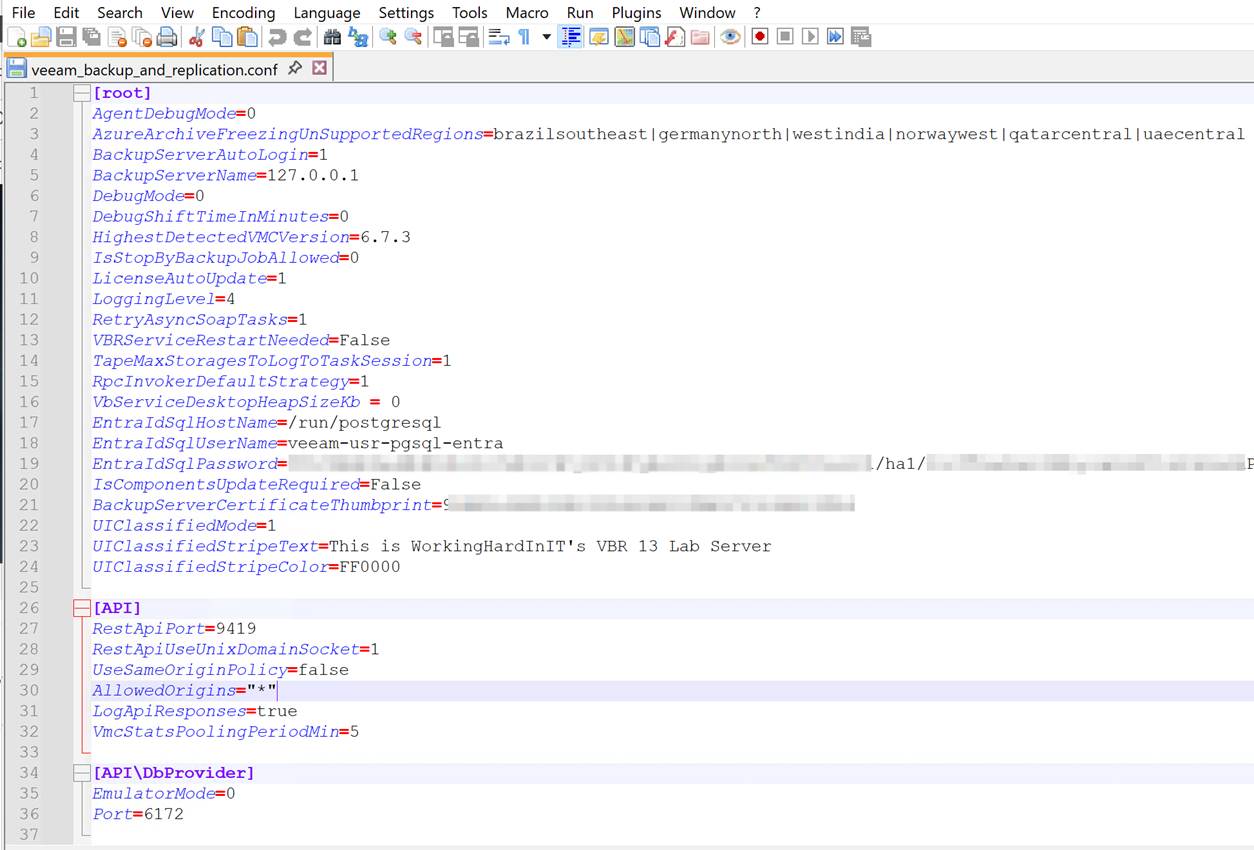
The configuration files consist of different sections in square brackets (e.g., [root]). Where [root] is the equivalent of the root of the listed key. Below, I list some examples that you will find in the /etc/veeam/veeam_backup_and_replication.conf file.

  • [root] = HKLM\SOFTWARE\Veeam\Veeam Backup and Replication\
  • [API] = HKLM\SOFTWARE\Veeam\Veeam Backup and Replication\API\
  • [API\DbProvider] = HKLM\SOFTWARE\Veeam\Veeam Backup and Replication\API\DbProvider\
  • [DatabaseConfigurations\PostgreSql] = HKLM\SOFTWARE\Veeam\Veeam Backup and Replication\DatabaseConfigurations\PostgreSql\

As you can see, these represent the registry key paths that can be found on a Windows-based Veeam Backup & Replication installation.

Step-by-step walkthrough

Export and import the files via the Web GUI. There is no need to start SSH and access the appliance. The web GUI has everything you need.

Existing files can be exported for editing and then saved and uploaded to the Veeam Software Appliance.

You can also create new files if needed and upload those. For these to be functional, they must adhere to the conventions of the config files in terms of headers and values.

Be careful editing or creating a configuration file on Windows. Some text editors can mess up the file’s line endings and other settings. Windows has typically CRLF line endings, while Unix/Linux/macOS uses LF. Just make sure whatever text editor you use doesn’t change the line ending type, or things will break. Notepad++ will serve you well.

When the Security Officer role is enabled, importing an updated or new configuration file requires approval from a Security Officer.

I will demonstrate this with a handy but benign setting (in case you make a mistake). We will display a banner in the console GUI. Veeam introduced this years ago, but it makes for a nice, GUI-visible lab demonstration.

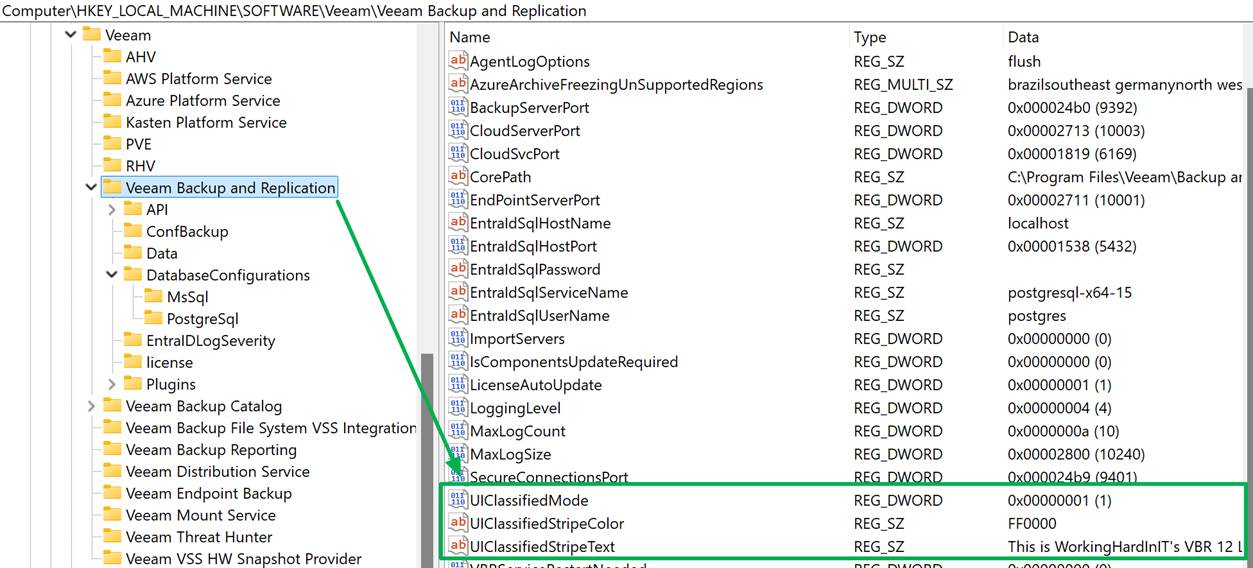
In the Windows registry, you configure this as follows:

Registry PathHKLM\SOFTWARE\Veeam\Veeam Backup and Replication
UIClassifiedModeDWORD = 1 to enable the banner
UIClassifiedStripeTextREG_SZ = Your custom message
UIClassifiedStripeColor (optional)REG_SZ = Hex color code (e.g., #FF0000 for red)

We will configure the same on the Veeam Software Appliance.

Select the correct file and click “Export”

Open the downloaded file in Notepad++ and add these three lines under [root, which is the correct path/location for these settings.

UIClassifiedMode=1

UIClassifiedStripeText=This is WorkingHardInIT’s VBR 13 Lab Server

UIClassifiedStripeColor=FF0000

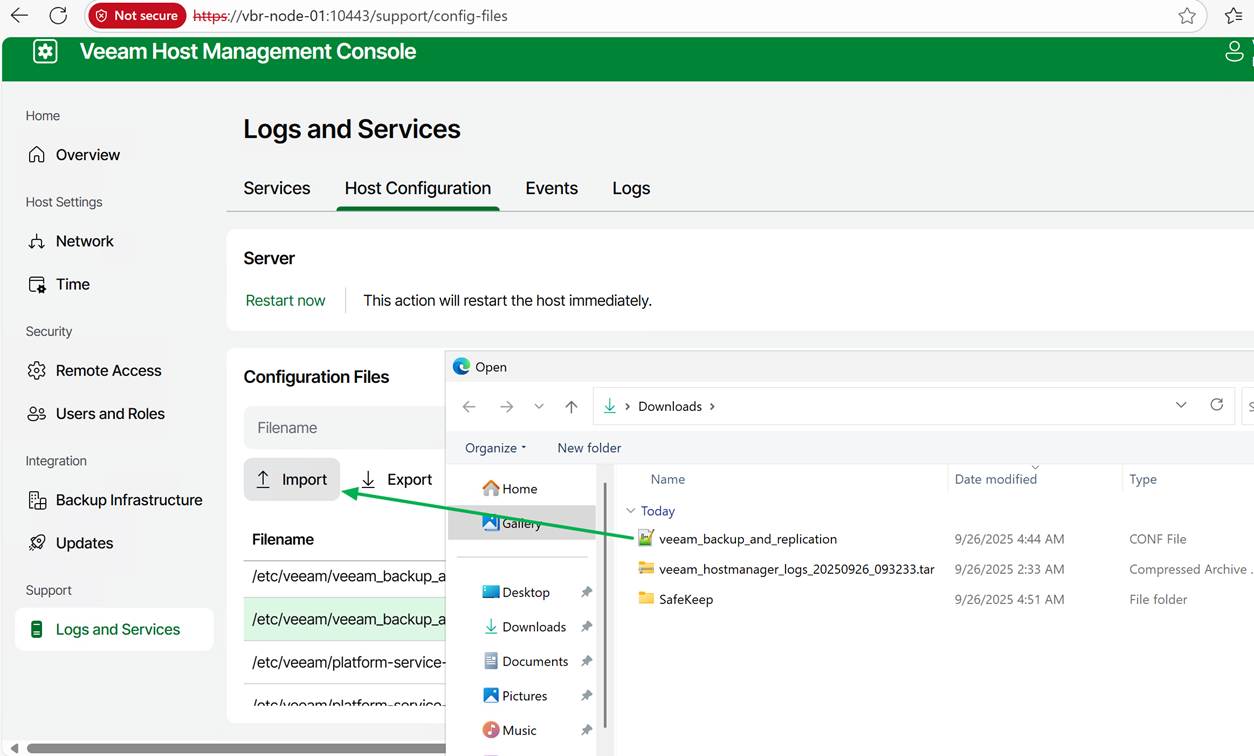
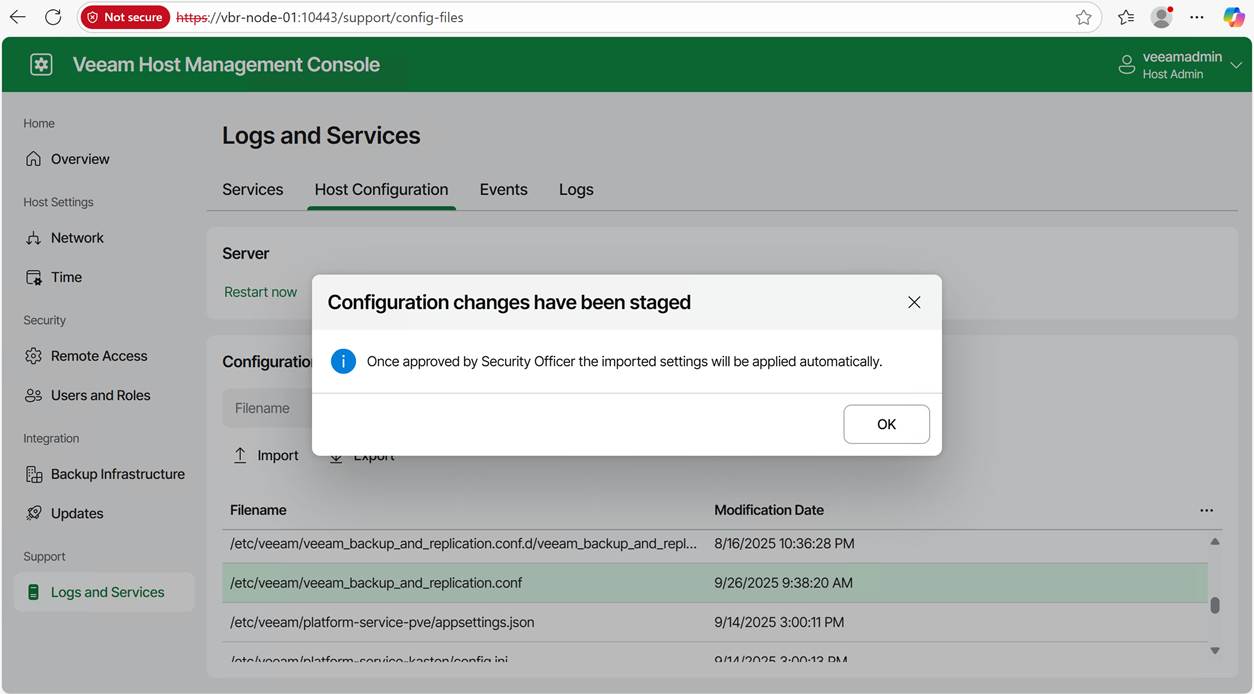
Save your changes. Now, import the edited file into the Veeam Software Appliance.

As I have set up the Veeam security officer, I will need approval for this. For lab setups, you can choose not to leverage the security officer capability, but I prefer my labs to mimic real-life scenarios. It helps to evaluate the product more honestly.

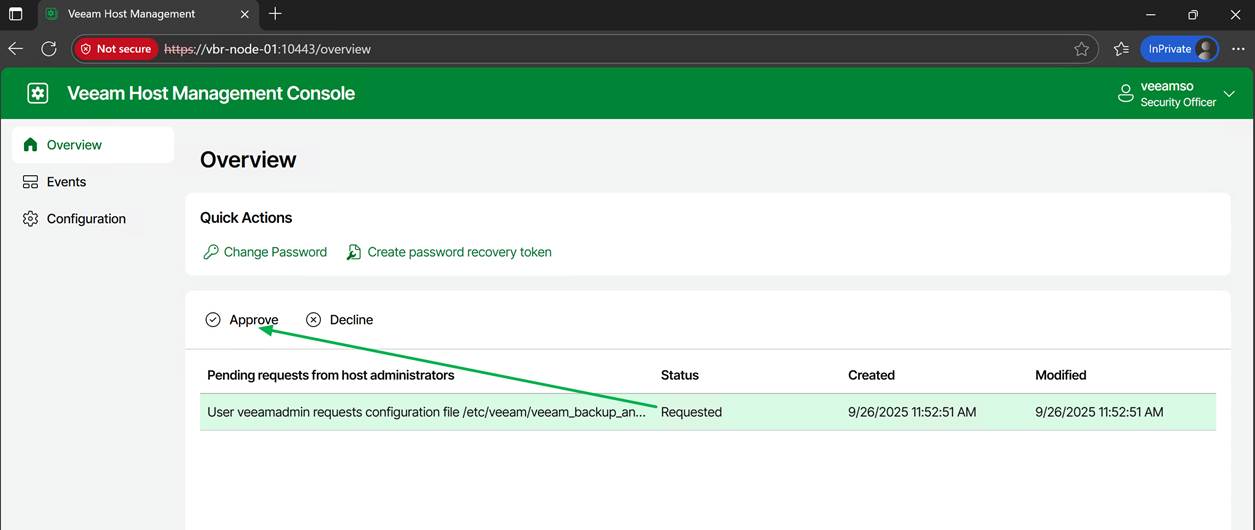
Now the Veeam security officer has to log on to the appliance web console and approve my request

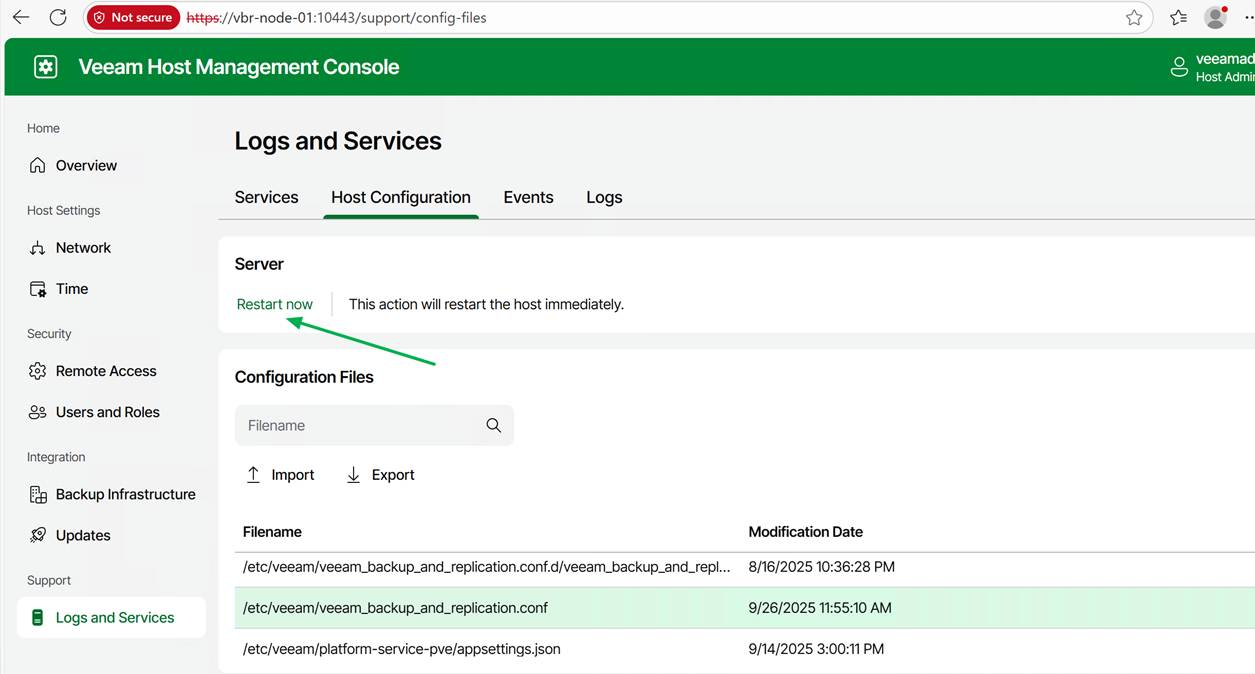
Some settings will require a restart of the Veeam services; others do not. However, if needed, you can perform this action from the web GUI.

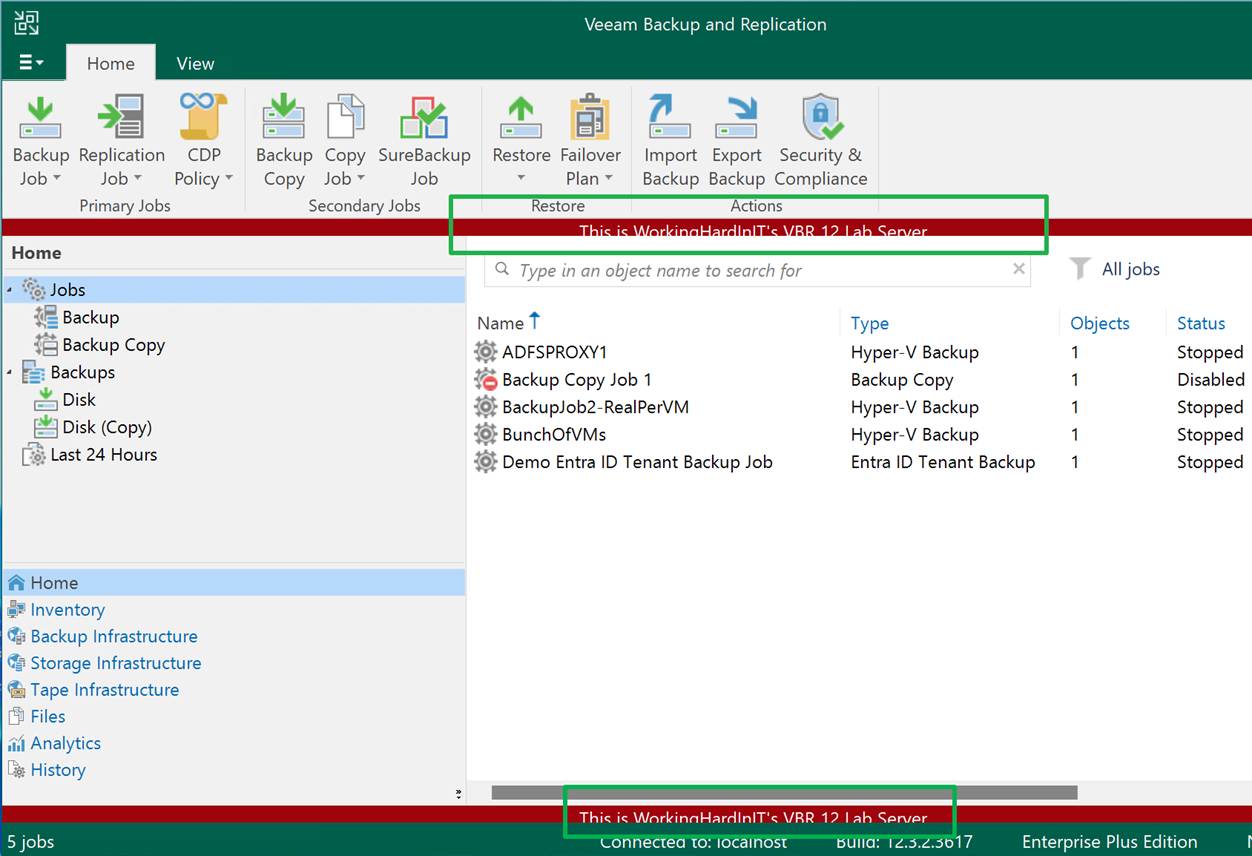
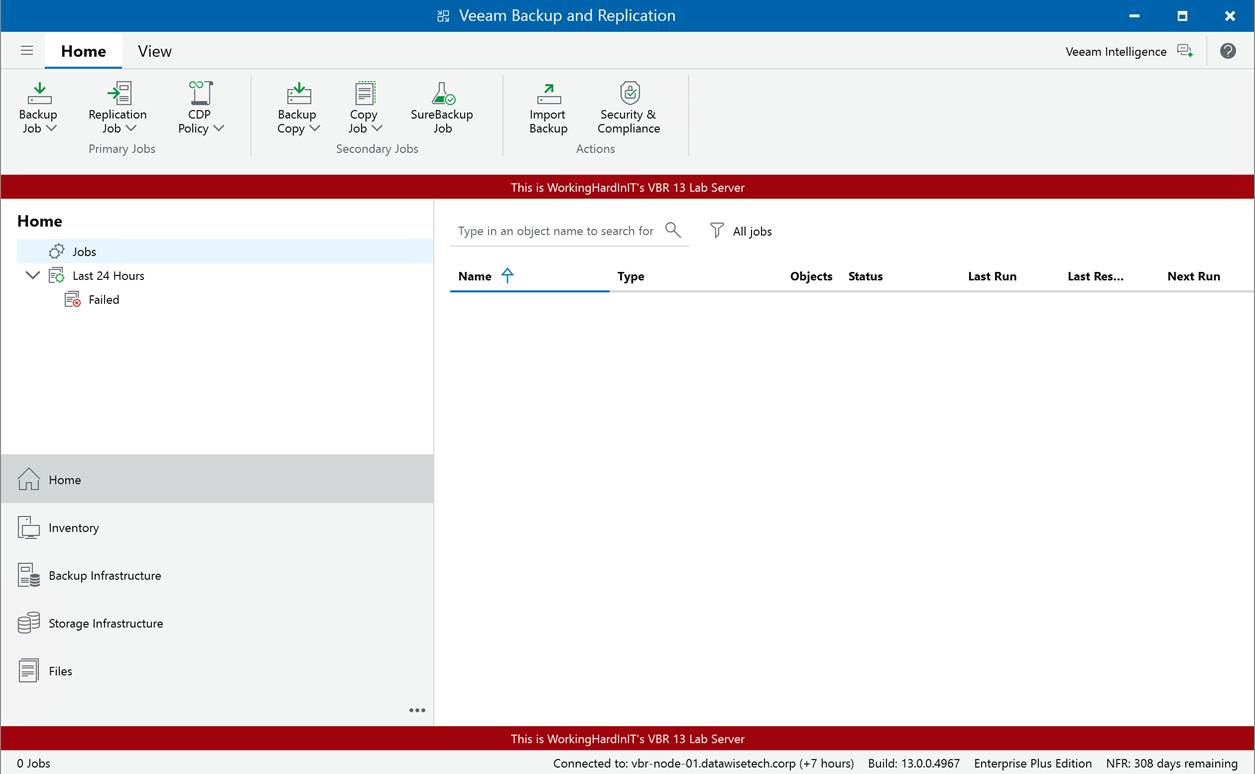
When the Veeam Backup & Replication services have restarted and you log on to the console again, you will see the banner displayed just like on Windows.

Armed with this knowledge, you can now fine-tune your configuration settings to perfection for your Veeam Backup fabric environment when leveraging the Veeam Software Appliance.

References

See https://www.veeam.com/kb4779

Conclusion

There you have it. I have shown you how to configure custom settings on the Veeam Software Appliance, just as you would in the Windows Registry. I was wondering about this myself, as I knew Veeam would not leave us with a lesser product or, at the very least, fewer configuration options than on a self-hosted server installation.

The one thing that hits home is that zero trust impacts the comfort and speed of the honest, hardworking IT professional, who, apart from dealing with all the external threats, also has to guard against insider threats, i.e., himself. If you think about it, the level of security small and medium-sized businesses now have to deal with is mind-blowing compared to what it was in the past.

Happy testing, and may your production deployments and operations go smoothly!