Teamed NIC Live Migrations Between Two Hosts In Windows Server 2012 Do Use All Members

Introduction

Between this blog NIC Teaming in Windows Server 2012 Brings Simple, Affordable Traffic Reliability and Load Balancing to your Cloud Workloads which states TCP/IP can recover from missing or out-of-order packets. However, out-of-order packets seriously impact the throughput of the connection. Therefore, teaming solutions make every effort to keep all the packets associated with a single TCP stream on a single NIC so as to minimize the possibility of out-of-order packet delivery. So, if your traffic load comprises of a single TCP stream (such as a Hyper-V live migration), then having four 1Gb/s NICs in an LACP team will still only deliver 1 Gb/s of bandwidth since all the traffic from that live migration will use one NIC in the team. However, if you do several simultaneous live migrations to multiple destinations, resulting in multiple TCP streams, then the streams will be distributed amongst the teamed NICsand other information out their such as support forum replies it is dictated that when you live migrate between two nodes in a cluster only one stream is active and you will never exceed the bandwidth of a single team member. When running some simple tests with a 10Gbps NIC team this seems true. We also know that you can consume near to all of the aggregated bandwidth of the members in a NIC Team for live migration if you these conditions are met:

1. The Live Migrations must not all be destined for the same remote machine. Live migration will only use one TCP stream between any pair of hosts. Since both Windows NIC Teaming and the adjacent switch will not spread traffic from a single stream across multiple interfaces live migration between host A and host B, no matter how many VMs you’re migrating, will only use one NIC’s bandwidth.

2. You must use Address Hash (TCP ports) for the NIC Teaming. Hyper-V Port mode will put all the outbound traffic, in this case, on a single NIC.

When we look at these conditions and compare them to the behavior we expect from the various forms of NIC teaming in Windows 2012 this is a bit surprising as one might expect all member to be involved. So let’s take a look at some of the different NIC Teaming setups.

Any form of NIC teaming with Hyper-V Port Mode

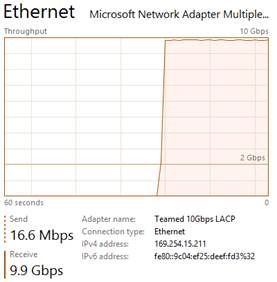
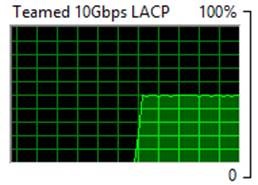
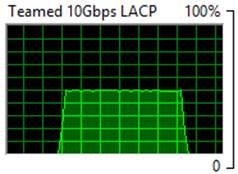
This one is easy as condition 2 above is very much true. In all my testing with any NIC team configuration in the Hyper-V Port mode traffic distribution algorithms I have not been able to exceed 10Gbps. I have seen no difference between dependent static of LACP mode or switch independent (active-active) for this condition. As you can see in the screenshot below, the traffic maxes out at 10Gbps.

clip_image002

clip_image004

This is also demonstrated in the following screenshots taking with the resource manager where you can see only half of the bandwidth of the Team is being used.

clip_image006

clip_image008

Exceeding a single NIC team member’s bandwidth when migrating between 2 nodes

The first condition of the previous heading doesn’t seem true. In some easy testing with a low number of virtual machines and not too much memory assigned you never exceed the bandwidth of one 10Gbps NIC team member. So on the surface, with some quick testing it might seem that way.

But during testing on a 2 node cluster with dual port 10Gbps cards and I have found the following

Switch Dependent LACP and Static

  1. Take a sufficient number of large memory virtual machines to exceed the capacity of a single 10Gbps pipe for a longer time (that way you’ll see it in the GUI).
  2. Live migrate them all from host A to host B (“Pause” with “Drain Roles” or “select all” + “Move”)
  3. Note that with a 2 node cluster there is no possibility to Live Migrate to multiple nodes simultaneous. It’s A to or B or B to A or both at the same time.

Basically it didn’t take long to see well over 10Gbpsbeing used. So the information out there seems to be wrong. Yes we can leverage the aggregated bandwidth when we migrate from host A to host B as long as we have enough memory assigned to the VMs and we migrate a sufficient number of them. Switch dependent teaming, whether it is static or LACP does its job as you would expect.

Let’s think about this. The number of VMs you need to lie migrate to see > 10Gbpss used is not fixed in stone. Could it be that there is some intelligence in the Live Migration algorithm where it decides to set up multiple streams when a certain number of virtual machines with sufficient memory are migrated as the sorting is mitigated by the amount of bandwidth that can leveraged? Perhaps he VMMS.EXE kicks off more streams when needed/beneficial? Further experimenting indicates that this is not the case. All you need is > 1 VM being live migrated. When looking at this in task manager you do need them to be of sufficient memory size and/or migrate enough of them to make it visible. I have also tried playing with the number of allowed simultaneous live migrations to see if this has an effect but I did not find one (i.e. 4, 6 or 12).

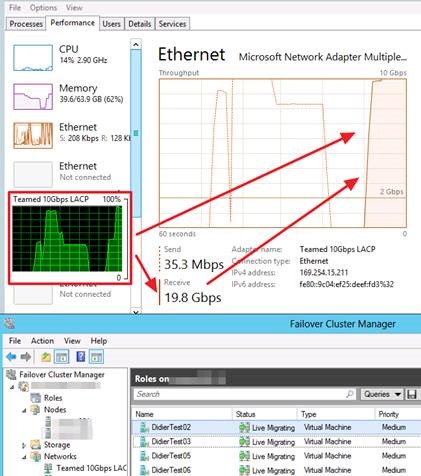
It looks like it is more like one TCP/IP connection per Live Migration that is indeed tied to one NIC member. So when you live migrate VMS between two hosts you see one VM live migration go over 1 member and the other the other as static/LACP switch dependent teaming did does its job. When you do enough live migrations of large VMs simultaneously you see this in Task Manager as shown below. In this case as each VM live migration stream sticks to a NIC team member you do not need to worry about out of order packets impacting performance.

clip_image010

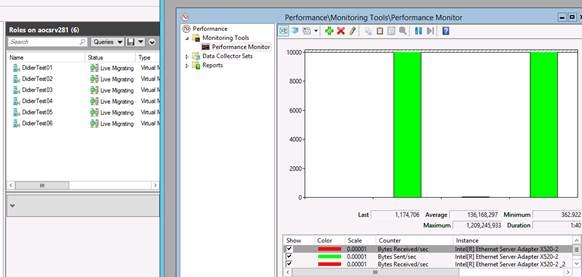
But to make sure and to prevent falling victim to the fall victim to the limits of the task manger GUI during testing this behavior we also used performance monitor to see what’s going on. This confirms we are indeed using both 10Gbps NIC team member on both the target and the source host server. This is even the case with 2 virtual machines Live Migration. As long as it’s more than one and the memory assigned is enough to make the live migration last long enough you can see it in Task Manager; otherwise it might miss it. Performance Monitor however does not..clip_image012

clip_image002[4]

clip_image004[4]

This is interesting and frankly a bit unexpected as the documentation on this subject is not reflecting this. However it IS in agreement with the NIC teaming documented behavior for other tan Live Migration traffic. We took a closer look however and can reproduce this over and over again. Again we tested both switch dependent static and LACP modes and we found the behavior to be the same.

Switch Independent with Address Hash

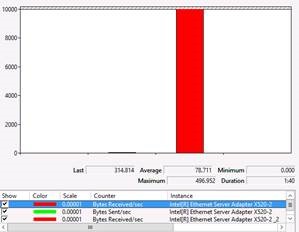
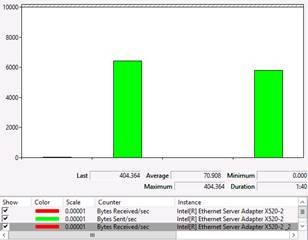
Let’s test Live Migration over switch independent teaming with Address Hash. Here we see that the source server sends on the two member of the NIC team but that the target server receives on only one. This is normal behavior for switch independent teaming. But from the documentation we expect that one member on the source server would send and one member on the target server would receive. Not so.

Basically with Windows Server 2012 this doesn’t give you any benefit for throughput. You are limited to the bandwidth of one member, i.e. 10Gbps.

clip_image018

clip_image020

Red is Total Bytes received on the target host. It’s clear only one member is being used. Green is Bytes Sent/Sec on the source server. As you can see both team members are involved. In a switch independent scenario the receiving side limits the throughput. This is in agreement the documented behavior of switch independent NIC teaming with Address hash.

Helpful documentation on this is Windows Server 2012 NIC Teaming (LBFO) Deployment and Management (A Guide to Windows Server 2012 NIC Teaming for the novice and the expert).

Hope this helps sort out some of the confusion.

Verifying SMB 3.0 Multichannel/RDMA Is Working In Windows Server 2012 (R2)

So you have spend some money on RDMA cards (RoCE in this example), spent even more money on 10Gbps Switches with DCB capabilities and last but not least you have struggled for many hours to get PFC, ETS, … configured. So now you’d like to see that your hard work has paid of, you want to see that RDMA power that SMB 3.0 leverages in action. How?

You could just copy files and look at the speed but when you have sufficient bandwidth and the limiting factor is in disk IO for example how would you know? Well let’s have a look below.

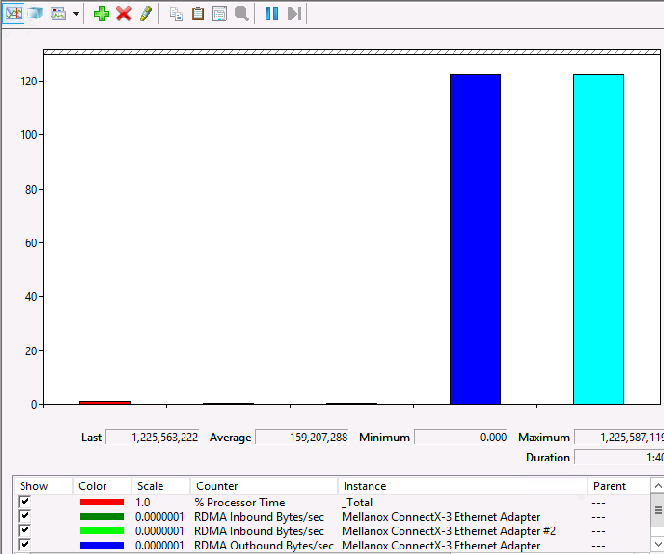
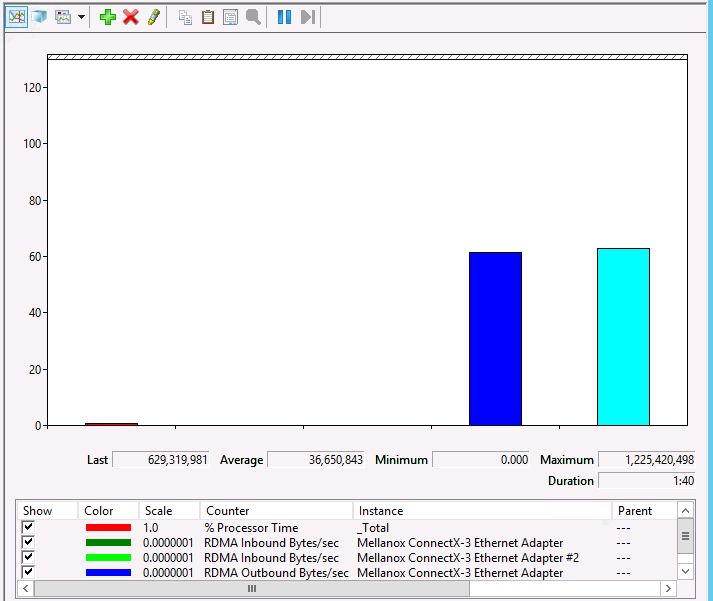
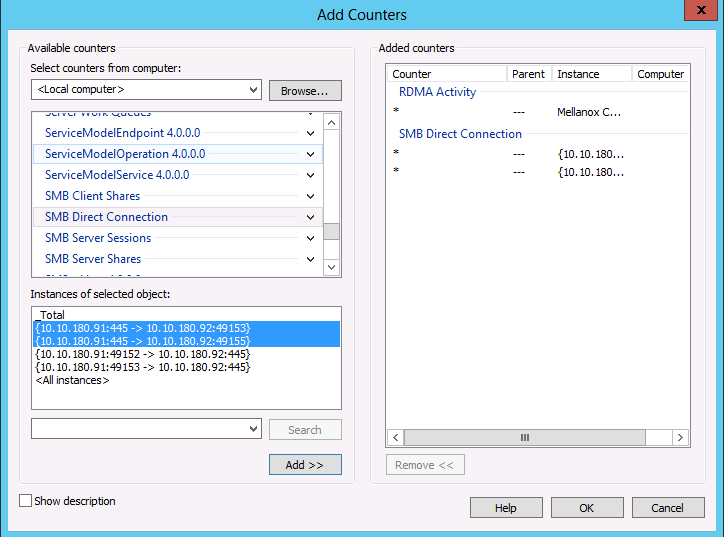
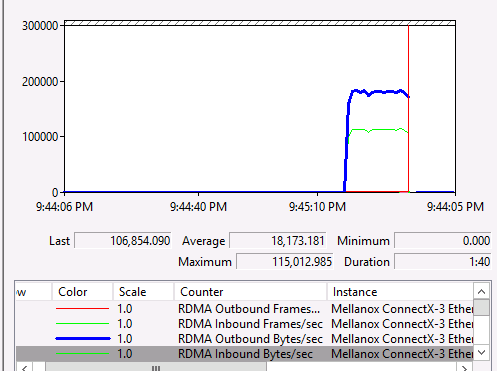
You can take a look at performance monitor for RDMA specific counters like “RDMA Activity” and “SMB Direct Connection”.image

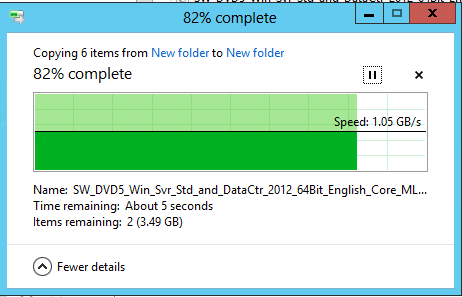
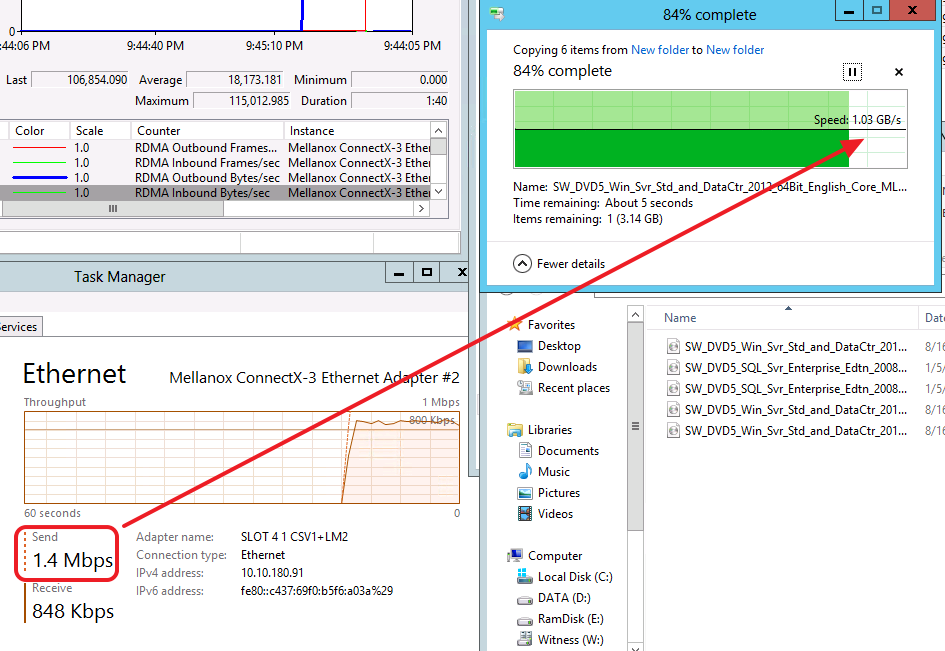
Whilst copying six 3.4GB ISO files over the RDMA connection we see a speed of 1.05 GB/s. Not to shabby.  But hay nothing a good 10Gbps with TCP/IP can handle under the right conditions.image

It’s the RDMA counters in Performance Monitor that show us the traffic that going via SMB Direct.image

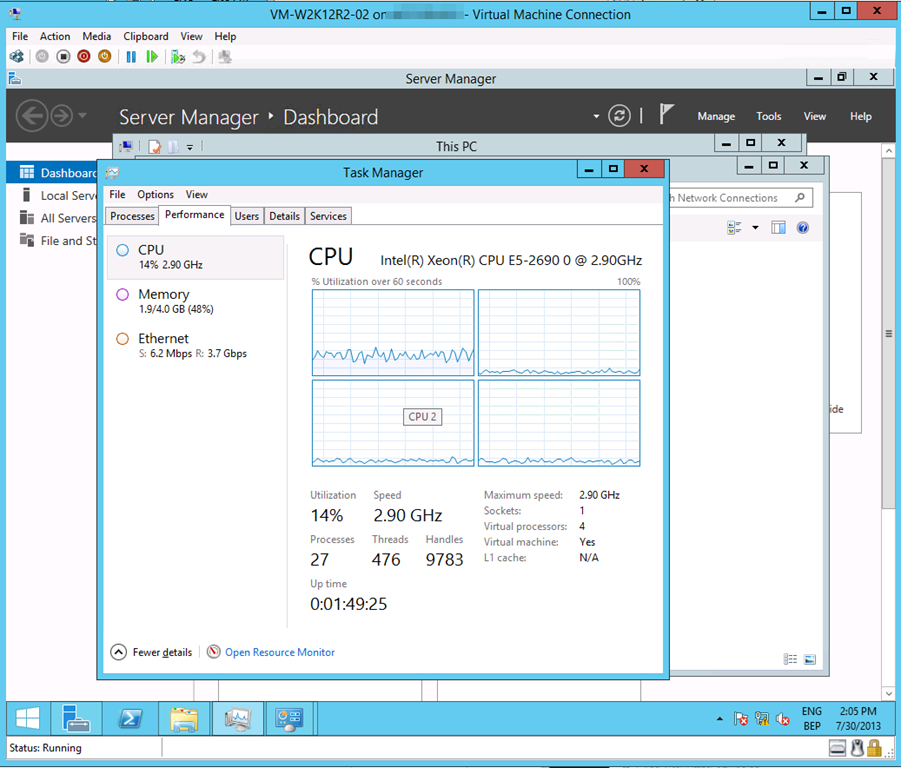
Another give away that RDMA is in play comes from Task Manager, Performance counters for the RDMA NIC => 1.3Mbps send traffic can’t possibly give us 1.05GB/s in copy speed magically Smile

image

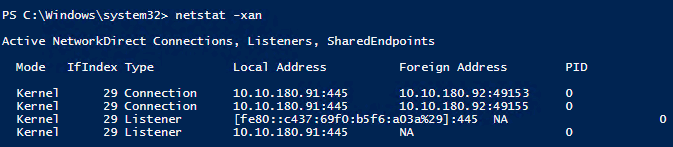
When you run netstat –xan (instead of the usual –an) you get to see the RDMA connection. The mode is “Kernel” instead of the usual “TCP” or “UDP” with –an showing the TCP/IP connections/Listerners.

 image

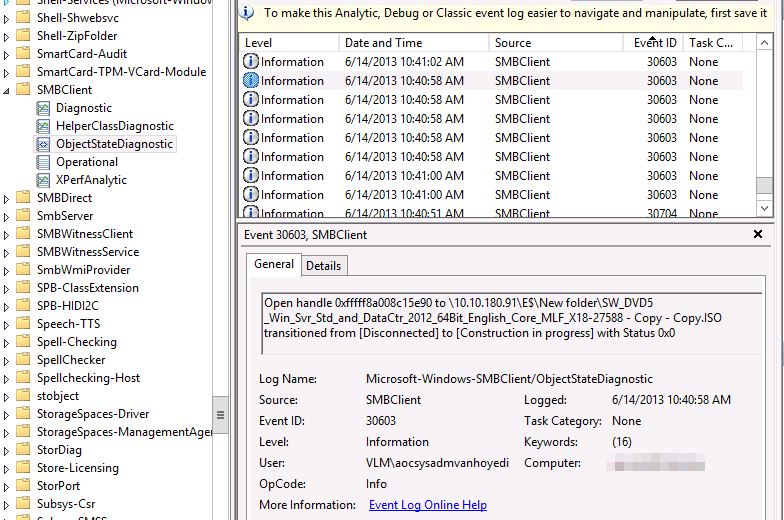
If you want to go all geeky there is an event log where you look at RDMA events amongst others. Jose Baretto discusses this in Deploying Windows Server 2012 with SMB Direct (SMB over RDMA) and the Mellanox ConnectX-3 using 10GbE/40GbE RoCE – Step by Step with instructions how to use it. You’ll need to go to Event Viewer.On the menu, select “View” then “Show Analytic and Debug Logs”
Expand the tree on the left: Applications and Services Log, Microsoft, Windows, SMB Client, ObjectStateDiagnostic. On the “Actions” pane on the right, select “Enable Log”
You then run your RDMA work. And then disable the log to view the events. Some filtering & PowerShell might come in handy to comb through them.image

Still Need To Optimizing Power Settings On DELL 12th Generation Servers For Lightning Fast Hyper-V Live Migrations?

Do you remember my blog from 2011 on optimizing some system settings to get way better Live Migration performance with 10Gbps NICs?  It’s over here Optimizing Live Migrations with a 10Gbps Network in a Hyper-V Cluster. This advice still holds true, but the power optimization settings & interaction between DELL Generation 12 Server and with Windows Server 2012 has improved significantly. Where with Windows Server 2008 R2 we could hardly get above 16% bandwidth consumption out of the box with Live Migration over a 10Gbps NIC today this just works fine.

Don’t believe me?image You do now? A cool Winking smile

For overall peak system performance you might want to adjust your Windows configuration settings to run the High Performance preferred power plan, if that’s needed.image

You might do no longer need to dive into the BIOS. Of cause if you have issues because your hardware isn’t that intelligent and/or are still running Windows 2008 R2 you do want to there. As when it comes to speed we want it all and we want it now Smile and than you still want to dive into the BIOS and tweak it even on the DELL 12th Generation hardware. Test & confirm I’d say but you should notice a difference, all be it smaller than with Windows Server 2008 R2.

Well let’s revisit this again as we are now no longer working with Generation 10 or 11 servers with an “aged” BIOS. Now we have decommissioned the Generation 10 server,  upgrade the BIOS of our Generation 11 Servers and acquired Generation 12 servers. We also no use UEFI for our Hyper-V host installations. The time has come to become familiar with those and the benefits they bring. It also future proofs our host installations.

So where and how do I change the power configuration settings now? Let’s walk through one together. Reboot your server and during the boot cycle hit F2 to enter System Setup.image

Select System BIOSimage

Click on System Profile Settingsimage

The settings you want to adapt are:

  • CPU Power Management should be on Maximum Performance
  • Setting Memory Frequency to “Maximum Performance”
  • C1E states should be disabled
  • C states should be disabled

image

That’s it. The below configuration has optimized your power settings on a DELL Generation 12 server like the R720.image

When don, click “Back” and than Finish. A warning will pop up and you need to confirm you want to safe your changes. Click “Yes” if you indeed want to do this.image

You’ll get a nice confirmation that your settings have been saved. Click “OK” and then click Finish.image

Confirm that you want to exit and reboot by clicking yes and voila, when the server comes back on it will be running a full speed at the cost of more power consumption, extra generated heat and cooling.image

Remember, if you don’t need to run at full power, don’t. And if you consider using  Dynamic Optimization and Power Optimization in System Center Virtual Machine Manager 2012. Save a penguin!

SMB Direct RoCE Does Not Work Without DCB/PFC

Introduction

SMB Direct RoCE Does Not Work Without DCB/PFC. “Yes”, you say, “we know, this is well documented. Thank you.” but before you sign of hear me out.

Recently I plugged to RoCE cards into some test servers and linked them to a couple of 10Gbps switches. I did some quick large file copy testing and to my big surprise RDMA kicked in with stellar performance even before I had installed the DCB feature, let alone configure it. So what’s the deal here. Does it work without DCB? Does the card fail back to iWarp? Highly unlikely. I was expecting it to fall back to plain vanilla 10Gbps and not being used at all but it was. A short shout out to Jose Barreto to discuss this helped clarify this.

DCB/PFC is a requirement RoCE

The more busy the network gets the faster the performance will drop. Now in our test scenario we had two servers  for a total of 4 RoCE ports on the network consisting of a beefy 48 port 10Gbps switches. So we didn’t see the negative results of this here.

DCB (Data Center Bridging) and Priority Flow Control are considered a requirement for any kind of RoCE deployment. RDMA with RoCE operates at the Ethernet layer. That means there is no overhead from TCP/IP, which is great for performance. This is the reason you want to use RDMA actually. It also means it’s left on it’s own to deal with Ethernet-level collisions and errors. For that it needs DCB/PFC other wise you’ll run into performance issues due to a ton of retries at the higher network layers.

The reason that iWarp doesn’t require DCB/PCF is that it works at the TCP/IP level also offloaded by using a TCP/IP stack on the NIC instead of the OS. So errors are handled by TCP/IP at a cost: iWarp results in the same benefits as RoCE but it doesn’t scale that well. Not that iWarp performance is lousy, far form! Mind you, for bandwidth management reasons,you’d be better of using DCB or some form of QoS as well.

Conclusion

So no, not configuring  DCB on your servers and the switches isn’t an option, but apparently it isn’t blocked either so beware of this. It might appear to be working fine but it’s a bad idea. Also don’t think it defaults back to iWarp mode, it doesn’t, as one card does one thing not both. There is no shortcut. RoCE RDMA does not work error free out of the box so you do have the install the DCB feature and configure it together with the switches.