Windows Server Backup Benefits from Improvements in Windows Server 2012

Introduction

In certain environments we backup VMs and any remaining physical hosts using Windows Backup. Before you all think this is ridiculous, I advise you to think again. With some automation you can build a very reliable agentless backup solution with the built in functionality. Windows Server 2012 brings good news for the smaller & perhaps low budget environments. Windows Server Backup is now capable of doing host level backups of the Hyper-V guest stored on Clustered Shared Volumes. This was not the case in Windows 2008 R2 and it is a vast improvement.This change is due to the fact that CSV has been changed not to require specialized API capable of dealing with it’s intricacies. All backup products now can backup CSVs without specialized APIs.

This is, linked to huge improvements in how a CSV behaves during a backup. In the past, when you started a backup, the CSV ownership would be moved to the node that runs the backup and all access by other nodes was in redirected mode for the duration of the backup. Unless you used a hardware VSS provider, which were not trouble free either. If your backup software did not understand CSVs and use the CSV APIs you were out of luck. From Windows Server 2012 on you are only in redirected I/O mode for the time it takes to create the VSS snapshot. The rest of the backup duration your nodes access the CDV disk in direct mode. So back to Windows Server Backup. You cannot up the CSV as disk volume but you can select Hyper-V from the items to include in the backup.

image

That will show all VMs running on that host, meaning you cannot backup VMs running on another host. Compared to Windows Server 2008 R2 where using the native Windows backups  with VMs on a CSV LUN meant using in guest backups this a major improvement.

Some Approaches to Using Windows Server Backup

Sometime we run the backups to local disk and regularly copy those off to a file share. This has the benefit of providing the backup versioning you can from using a local disk. The draw back is that the backups can be rather big.

In VMs, that is with backups in the guest, we run those backups to a file share over a 1Gbps management network. Performance is good, but it leaves us with the issue that there is no versioning.

For that reason our backup script copies the entire backup folder for a server to an archive folder on that same JBOD. Depending on how much space you have and need you can can configure the retention time of these older backups. This way you can keep a large number of backups over time.  A script runs every day that deletes the older backups based on the chosen retention time so you don’t run out of space.

There is one way around the lack of versioning when writing backups to a share and that is to mount a VHD on a file share locally to the host where you are running a backup or use pass through disk inside the VM. While you can get away with this becomes rather messy due to management & flexibility drawbacks of pass through disks. Mounting a VHD on a file share inside a VM is also a performance issue. So while possible and viable in certain scenarios I don’t use this for more than a few hosts and those are physical ones.

We had hoped that Windows Server 2012 with its support for VSS snapshots on SMB 3.0 shares would have enabled backup versioning in Windows Backup, just like it can do for backups to local disk. Unfortunately this is not the case. You’ll still get the same warning when backing up from a Windows Server 2012 host to an SMB 3.0 share as you used to get with previous versions:

image

How fast are backups and restores?

The largest environment is a couple of Physical servers, a two node Hyper-V cluster and about 22 virtual machines. That includes some with a larger amount of data. The biggest being 400 GB. Full backups are run weekly at night on all servers over 1Gbps and this works just fine.

We can backup a VM of with a 50GB VHD (about 50% to 75% in use) and copy that backup to the archive folder in 20 minutes. We backup AND copy to archive a VM’s C: Drive (20GB of data) and a D: Drive (190GB of data), 2 separate VHD  in 2.5 hours.

For some statistics. A bare metal restore of a VM or physical host over 1Gbps with a single VHD or volume with the OS, applications and some data takes us 30 tot 35 minutes in real life due to the overhead of setting a new VM up. I you just want to restore individual data you can do that as well. You can even mount the backup VHD and recover them via the Windows Explorer.

This is what a the logging we do and e-mail to the sys admins looks like:

image

Where else do the Windows Server 2012 improvements help?

Data Deduplication

Now there is some good news. We ran ddpeval.exe against the JBOD LUNS where we store these archived backups and got some great results. We also copied such an archive folder to a Windows Server 2012 Host and ran data deduplication against it. In that test we achieved a 84%-85% deduplication rate depending on how many versions of the backups we archive and what the delta is during that time frame.  The latter is important. If we run dedupe only against domain controller backup archives we get up to 94%. Deduplication should not not impact restore performance to much because in 99% of the cases you revert to the last backup which sits in the WindowsBackup Folder. Only if you need older backups you will work against the deduped files, unless the archive folder is on the same LUN as the original backups. I’ don’t have real life info about restores yet. Just a small lab test.

SMB 3.0 & Multichannel

In Windows Server 2012 you also get all benefits of SMB 3.0 and MultiChannel for your backup traffic.

Not your grandfathers ChkDsk

The vastly improved ChkDsk is a comfort for worried minds when it comes to fixing potential corruption on a large LUN. Last but not least, the FLUSH command in NTFS makes using cheaper data disks safer.

VHDX

The VHDX format allows for 64TB. That means your Windows Server backup can now handle more than 2TB LUNs. This should be adequate Smile

Conclusion

With some creativity and automation via scripting you can leverage the Windows Backup to be a nice and flexible solution. Although I feel that providing backup versioning to a file share is an improvement that is missing  the new features help out a lot and all in all, it’s not bad at all! So you see, even smaller organizations can benefits seriously from Windows Server 2012 and get more bang for their bucks.

Migration LUNs to your Compellent SAN

A Hidden Gem in Compellent

As you might well know I’m in the process of doing a multi site SAN replacement project to modernize the infrastructure at a non disclosed organization. The purpose is to have a modern, feature reach, reliable and affordable storage solution that can provide the Windows Server 2012 roll out with modern features (ODX, SMI-S, …).

One of the nifty things you can do with a Compellent SAN is migrations from LUNs of the old SAN to the Compellent SAN with absolute minimal downtime. For us this has proven a real good way of migrating away from 2 HP EVA 8000 SANs to our new DELL Compellent environment. We use it to migrate file servers, Exchange 2010 DAG Member servers (zero downtime),  Hyper-V clusters, SQL Servers, etc. It’s nothing less than a hidden gem not enough people are aware off and it comes with the SAN. I was told that it was hard & not worth the effort by some … well clearly they never used and as such don’t know it. Or they work for competitors and want to keep this hidden Winking smile.

The Process

You have to set up the zoning on all SANs involved to all fabrics. This needs to be done right of course but I won’t be discussing this here. I want to focus on the process of what you can do. This is not a comprehensive how to. It depends on your environment and I can’t write you a migration manual without digging into that. And I can’t do that for free anyway. I need to eat & pay bills as well Winking smile

Basically you add your target Compellent SAN as a host to your legacy SAN (in our case HP EVA 8000) with an operating system type of “Unknown”. This will provide us with a path to expose EVA LUNs to our Compellent SAN.

image

Depending on what server LUNs you are migrating this is when you might have some short downtime for that LUN. If you have shared nothing storage like in an Exchange 2010 or a SQL Server 2012 DAG you can do this without any downtime at all.

Stop any IO to the LUN if you can (suspend copies, shut down data bases, virtual machines) and take CSVs or disks offline. Do what is needed to prevent any application and data issue, this varies.

What we then do is we unpresent the LUN of a server on the legacy SAN.

image

After a rescan of the disks on the server you’ll see that disk/LUN disappear.

This same LUN we then present to the Compellent host we added above.

image


We then “Scan for Disks” in the Compellent Controller GUI. This will detect the LUN as an unassigned disk. That unassigned disk can be mapped to an “External Device” which we name after the LUN to keep things clear (“Classify Disk as External Device” in the picture below).

image


Then we right click that External Device and choose to “Restore Volume from External Device”.

image

This kicks off replication from the EVA LUN mapped to the Compellent target LUN. We can now map that replica to the host as you can see in this picture.

image

After this rescan the disks on the server and voila, the server sees the LUN again. Bring the disk/CSV back online and you’re good to go.

image

All the downtime you’ll have is at a well defined moment in time that you choose. You can do this one LUN at the time or multiple LUNs at once. Just don’t over do it with the number of concurrent migrations. Keep an eye on the CPU usage of your controllers.

After the replication has completed the Compellent SAN will transparently map the destination LUN to the server and remove the mapping for the replica.

image


The next step is that the mirror is reversed. That means that while this replica exists the data written to the Compellent LUN is also mirrored to the old SAN LUN until you break the mirror.

image


Once you decide you’re done replicating and don’t want to keep both LUNs in sync anymore, you break the mirror.

image


You delete the remaining replica disk and you release the external disk.

image


Now you unpresent the LUN from the Compellent host on your old SAN.

image


After a rescan your disks will be shown as down in unassigned disks and you can delete them there. This completes the clean up after a LUN migration.

image


Conclusion

When set up properly it works very well. Sure it takes some experimenting to deal with some intricacies, but once you figure all that out you’re good to go and are ready to deal with any hiccups that might occur. The main take away is that this provides for minimal downtime at a moment that you choose. You get this out of the box with your Compellent. That’s a pretty good deal I say!

So as you can see this particular environment will be ready for Windows Server 2012 & Hyper-V. Life is good!

Windows Server 2012 with Hyper-V & The New VHDX Format Leads The Way

Introduction

Whether you realize this or not but our trusted old VHD format is getting a bit old in the tooth. As a matter of fact it has been around since the last century. It has served us well but now it needs a major overhaul to better serve us at present and to prepare us for the decades to come. We (at least in the environments I support) see a continuing demand for bigger virtual disks & ever better performance. This should be no surprise. Not only does the amount of data produced keep going up year after year but we’re virtualizing more very resource intensive workloads than ever. Think image intensive data that has to be processed by number crunching virtual machines or large databases like SQL Servers. Sure 64 vCPUs and 1TB of memory are great and impressive but we also need loads of fast and ever more reliable storage. Trying to serve and support these needs with combined 2TB disks is very cumbersome (to be polite) and pass trough disks take a way a lot of the flexibility & options the VHD format gives us. So here comes the new VHDX format.  There is no back porting here, the only OS at the moment that supports VHDX is Windows Server 2012. The good news here is that we have in box tools to convert between VHD & VHDX.

Bigger, Better & Faster

Size

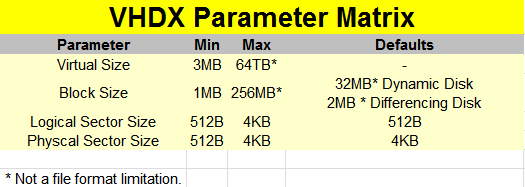
The VHDX format supports up to 64TB now. Yes that is 32 times more than the current VHD. As a matter of fact al lot of SANs still in use today won’t give you that size of LUN. Is there a need for this?  Well, I circle in some places with huge files in massive amounts so I can use big LUNs and large data VHDX files. Concatenating disks is something I do no like to do. Come upgrade/maintenance/renewal time that one bites too much for comfort.

There are also some other virtual disk formats that need to wake up and break that 2TB size boundary . Especially when Microsoft states that this is not a File format hard limitation. By that they mean they have room to increase it. Wow!

Protection Against Disk Corruption

The VHDX format also provides corruption protection during power failures for the VHDX files. This is done by a logging mechanism for the updates of the VHDX metadata structures. The logging mechanism is contained within the VHDX file so no worries, you won’t have to worry about managing log files. The overhead is minimal, as they only log metadata such as block allocations, block state updates and NOT the actual data stored. So no, it has not become a database Smile you need to manage, don’t worry. The protection works only for the VHDX file and not the data that is written to it. That job falls to NTFS or ReFS. What we discussed here was protection against VHDX file corruption.
The Need For Speed

With VHDX we also get larger block sizes up to 256MB for dynamic & differencing disks, meaning they perform better with workloads that allocate in larger chunks.

Modern Large Sector Disks

We get support to run VHDX on large sector disks without loosing performance.

I refer you to KB articles Using Hyper-V with large sector drives on Windows Server 2008 and Windows Server 2008 R2 and Information about Microsoft support policy for large-sector drives in Windows.

As you can read there the performance hit for both non fixed VHDs and applications is pretty bad. The 512e (4K physical and 512-byte logical sector size) approach is bad due to the Read-Modify-Write (RMW) process overhead in dynamic & differencing disks. 4K native (4K logical sector size) just isn’t supported by Hyper-V before Windows Server 2012. The maximum logical & physical sector size is now 4KB and that means that we get a lot better performance when running applications that are designed to use 4KB workloads in Hyper-V 3.0. VHDX structures are aligned on MB boundaries, so the need for the RMW from the disk is eliminated if the physical sector size of the virtual disk is set to 4K.

image

Storing Custom Metadata

We also get the ability to store custom metadata in the VHDX  file for information we find relevant. This could be about what’s on there, OS version or patches applied.
ODX Support. This custom data is stored using key/value pairs that support up to 1024 entries of 1MB. That should be adequate for a while Winking smile.

VHDX Leverages Offline Data Transfer (ODX)

The virtual stack allows ODX requests from the guest to flow down all the way to the hardware and as such VHDX operations benefit from this as well. Examples of this are:

  • Creating VHDX files, even such large ones has gotten an whole lot faster. Especially if you can offload this to the SAN. If your storage vendor supports ODX then you’re in VHDX creation speed heaven! As a bonus  even VHD files created in Windows Server 2012 benefit from this technology.
  • On top of that Merge & Mirror operation are also offloaded to the hardware which is great for merging snapshots or live storage migration.
  • In the future the virtual machines themselves might/will be able to pass through offload operations. This is hard core stuff  and due to the file layout far from trivial.

Please note that this only works with SCSI attached VHDX files. IDE devices have no ODX support capabilities.

TRIM/UNMAP Support

With Windows Server 2012 / VHDX we get what is described in the documentation “’Efficiency in representing data (also known as “trim”), which results in smaller file size and allows the underlying physical storage device to reclaim unused space. (Trim requires physical disks directly attached to a virtual machine or SCSI disks in the VM, and trim-compatible hardware.) It also requires Windows Server 2012 on hosts & guests.

It’s a major benefit in the “Stay Thin” philosophy associated with thin provisioning. No more running “sdelete” in your windows VMs (tedious, slow, resource intensive) or installing an agent (less tedious) to support reclaiming space. This is important to many of us and this level of support and integration makes our lives a lot easier & speeds things up. So choose you storage wisely.

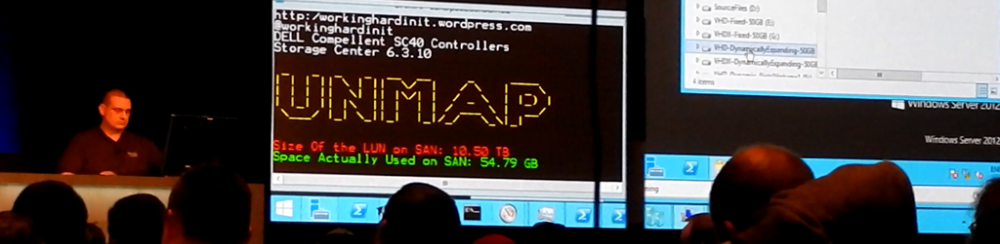
TRIM is the specification for this functionality by Technical Committee T13, that handles all standards for ATA interfaces. UNMAP is the Technical Committee T10 specification for this and is the full equivalent of TRIM but for SCSI disks. UNMAP is used to remove physical blocks from the storage allocation in thinly provisioned Storage Area Networks. My understanding is that is what is used on the physical storage depends on what storage it is (SSD/SAS/SATA/NL-SAS or SAN with one or all or the above).

Basically VHDX disks report themselves as thin provision capable. That means that any deletes as well as defrag operation in the guests will send down “unmaps” to the VHDX file, which will be used to ensure that block allocations within the VHDX file is freed up for subsequent allocations as well as the same requests are forwarded to the physical hardware which can reuse it for it’s thin provisioning purpose. This means that an VHDX will only consume storage for really stored data & not for the entire size of the VHDX, even when it is a fixed one. You can see that not t just the operating system but also the application/hypervisor that owns the file systems on which the VHDX lives needs to be TRIM/UNMAP aware to pull this off. It is worth nothing this mean that it only works on the SCSI attached storage in the virtual machine, not on IDE connected VHDX disks.

Closing Thoughts On The Future Proof VHDX Format

For anyone interested in developing against the VHDX formats the specifications will be published. So that’s good news for ISVs, big and small. For all the reasons mentioned above I’m a fan of the VHDX format Open-mouthed smile and it’s yet one more reason to go full speed ahead with testing Windows 2012 so we can move forward fast and reap the benefits of reliability & scalability without sacrificing performance.

Shared Nothing Live Migration White Board Time – Scenario I

The Problem

Let’s say you are very happy with your SAN. You just love the snapshots, the thin provisioning, deduplication, automatic storage tiering, replication, ODX and the SMI-S support. Live is good! But you have one annoying issue. For example; to get the really crazy IOPS for your SQL Server 2012 DAG nodes you would have to buy 72 SSDs to add to you tier 1 storage in that SAN. That’s a lot of money I you know the price range of those. But perhaps you don’t even have SSDs in your SAN.To get the required amount of IOPS from your SAN with SAS or NL-SAS disks in second and respectively third level storage tier you would need to buy a ridiculous amount of disks and, let’s face it, waste that capacity. Per IOPS that becomes a very expensive and unrealistic option.

Some SSD only SAN vendors will happily sell you a SAN that address the high IOPS need to help out with that problem. After all that is their niche, their unique selling point, fixing IOPS bottle necks of the big storage vendors where and when needed. This is cheaper solution per IOPS than you standard SAN can deliver but it’s still a lot of money, especially if you need more than a couple of terabytes of storage. Granted they might give you some extra SAN functionality you are used to, but you might not need that.

Yes I know there are people who say that when you have such needs you also have the matching budgets. Maybe, but what if you don’t? Or what if you do but you can put 500.000 € towards another need or goal? Your competitive advantage for pricing your products and winning customers might come form that budget Winking smile

Creative Thinking or Nuts?

Let’s see if we can come up with a home grown solution bases on Windows Server 2012 Hyper-V. If we can this might solve your business need, save a ton of money and extend  (or even save) the usefulness of you SAN in your environment. The latter is possible because you successfully eliminated the biggest disk IO from you SAN.

The Solution Scenario

So let’s build 3 Hyper-V hosts, non-clustered, each with its own local SAS based storage with commodity SSD drives. You can use either storage pools/spaces with a non-raid SAS HBA or use a RAID SAS HBA with controller based virtual disks for this. If you’ve seen what Microsoft achieved with this during demos you know you can easily get to hundreds of thousands of IOPS. Let’s say you achieve half of what MSFT did in both IOPS and latency. Let’s just put a number on it => that’s about 500.000 IOPS and 5GB/s. Now reduce that for overhead of virtualization, the position of the moon and the fact things turn out a bit less than expected. So let’s settle for 250.000 IOPS and 2.5GB/s. Anybody here who knows what this kind of numbers would cost you with the big storage vendors their SANs? Right, case closed. Don’t just look at the cost, put it into context and look at the value here. What does and can your SAN do and at what cost?

OK we lose some performance due to the virtualization overhead. But let’s face it. We can use SR-IOB to get the very best network performance. We have hundreds of thousands of IOPS. All the cores on the hosts are dedicated to a single virtual machine running a SQL Server DAG node and bar 4Gb of RAM for the OS we can give all the RAM in the hosts to the VM. This one VM to one host mapping delivers a tremendous amount of CPU, Memory, Network and Storage capabilities to your SQL Server. This is because it gets exclusive use of the resources on the host, bar those that the host requires to function properly.

In this scenario it is the DAG that provides high availability to the SQL Server database. So we do not mind loosing shared storage here.

image

Because we have virtualized the SQL server you can leverage Shared Nothing Live Migration to move the virtual machines with SQL server to the central storage of the SAN without down time if the horsepower is no longer needed. That means that you might migrate another application to those standalone Hyper-V hosts That could be high disk IO intensive application, that is perhaps load balanced in some way so you can have multiple virtual machines mapped to the hosts (1 to 1, many to one). You could even automate this all and use the “Beast” as a dynamic resource based on temporal demands.

In the case of the SQL Server DAG you might opt to keep one DAG member on the SAN so it can be replicated and backed up via snapshot or whatever technology you are leveraging on that storage.

Extend to Other Use Cases

More scenarios are possible. You could build such a beast to be a Scale Out File Server or PCI RAID/Shared SAS if you need shared storage to build a Hyper-V cluster when your apps require it for high availability.

image

The latter looks a lot like a cluster in a box actually. I don’t think we’ll see a lot iSCSI in cluster in a box scenarios, SAS might be the big winner here up to 4 nodes (without a “SAS switch”, which brings even “bigger” scenarios to live with zoning,  high availability, active cables and up to 24Gbps of bandwidth per port).

Using a SOFS means that if you also use SMB 3.0 support with your central SAN you can leverage RDMA for shared nothing live migration, which could help out with potentially very large VHDs of your virtual SQL Servers.

Please note that the big game changer here compared to previous versions of windows is Shared Nothing Live Migration. This means that now you have virtual machine mobility. High performance storage and the right connectivity (10Gbps, Teaming, possibly RDMA if using SMB 3.0 as source and target storage) means we no longer mind that much to have separate storage silos. This opens up new possibilities for alleviating IOPS issues. Just size this example to your scenarios & needs to think about what it can do for you.

Disclaimer: This is white board thinking & design, not a formal solution. But I’d cannot ignore the potential and possibilities. And for the critics. No this doesn’t mean that I’m saying modern SANs don’t have a place anymore. Far from it, they solve a lot of needs in a lot of scenarios, but they do have some (very expensive) pain points.