A VDI Reality Check @ BriForum 2011 For Resource Hungry Desktops In A Demanding Environment

So what did we notice? VDI generates enough interest from various angles that is for sure. Both on the demand side as on the (re)seller & integrator side. Most storage vendors are bullish enough to claim that they can handle whatever IOPS required to get the most bang for the buck but only the smaller or newest players were present and engaged in interaction with the attendees. One thing is for sure VDI has some serious potential but it has to be prepared well and implemented thoroughly. Don’t do it over the weekend and see if it works out for all your users.

The amount of tools & tactics for VDI on both the storage side and the configuration/management side is both more complex and diverse than with server virtualization.  The possible variations on how to tackle a VDI project are almost automatically more numerous as well. This is due to the fact that desktops are often a lot more complex and heterogenic in nature than server-side apps. On top of that, the IO on a desktop can be quite high. Some of it can be blamed on the client OS but lots of that has to do with the applications and utilities used on desktops.  I think that developers had so many resources at their disposal that there wasn’t to much pressure on optimization there. The age of multi-cores and x64 bit will help in thinking more about how and application uses CPY cycles but virtualization might very well help in abstracting that away. When a PC has one vCPU and the host has 4*8 cores, how good is that hypervisor at using all that pCPU power to address the needs of that one vCPU?  But I digress. All in all, it takes more effort and complexity to do VDI than server virtualization. So there is a higher cost or at least the APEX isn’t such a convincing clear cut story as it is with server virtualization. If you’re not doing the latter today when and where you can you are missing out of a major number of benefits that are just to good to ignore. I wouldn’t dare say that for VDI. Treating VDI just like server virtualization is said to be one of the main reasons for VDI failing or being put on hold or being limited to a smaller segment of the desktop population.

My experience with server virtualization is also with rather heterogenic environments where we have VMs with anything between 1 and 4 virtual CPUs, 2 to 12 GB of RAM. And yet I have to admit it has been a great success. Never the less I can’t say that helped me much in my confidence that a large part of our desktop environment can be virtualized successfully and cost-effectively as I think that our desktops are such vicious resource hogs they need another step forward in raw power and functionality versus cost. Let briefly describe the environment. 85% of the workforce at my current gig has dual 24” wide screens, with anything between 4GB to 8 GB of RAM, Quad-Core CPUs and SCSI / SATA 10.000 RPM disks with anything between 250 GB to 1TB local storage in combination with very decent GPUs. Now the employees run Visual Studio, SQL Server, multiple CAD & GIS packages, and various specialized image processing software that gauges image and other files that can be 2GB or even higher. If they aren’t that large than they are still very numerous. On top of that 1Gbps network to the desktop is the only thing we offer anymore. So this is not a common office suite plus a couple of LOB applications order, this is a large and rich menu for a very hard to please audiences. That means that if you ask them what they want, they only answer more, more, more … And I won’t even mention 3D screens & goggles.

Now I know that X amount of time the machines are idle or doing a lot less but in the end that’s just a very nice statistic. When a couple of dozen users start playing around with those tools and throw that data around you still need them and their colleagues to be happy customers. Frankly even with the physical hardware that they have now that can be a challenge. And please don’t start about better, less resource wasting applications and such. You can’t just f* the business and tell them to get or wait for better apps. That flies in the face of reality. You have to be able to deliver the power where and when needed with the software they use. You just can’t control the entire universe.

I heard about integrators achieving 40-60 VMs per host in a VDI project. Some customers can make due with Windows 7 and 1GB of RAM. I’m not one of those. I think the guys & gals of the service desk would need armed escorts if we rolled that out to the employees they care for. One of the things I notice is that a lot of people choose to implement storage just for VDI. I’m not surprised. But until now I’ve not needed to do it. Not even for databases and other resource hogs. Separate clusters, yes, as the pCPU/vCPU ratio and Memory requirements differ a lot from the other servers. The fact that the separate cluster uses other HBA’s en LUNS also helps.

Next to SANs local storage for VDI is another option for both performance and cost. But for recovery, this isn’t quite that good a solution. The idea of having non-persistent disks (in a pool) or a combination of that with persistent disks is not something I can see fly with our users. And frankly, a show of hands at BriForum seems to indicate that this isn’t very widespread. VDI takes really high-performance storage, isolated from your server virtualization to make it a success. On top of that if you need control, rapid provisioning, user virtualization &  workspace management in a layered/abstracted way. Lost of interest there but again, yet more tools to get it done. Then there is also application virtualization, terminal service-based solutions etc. So we get a more involved, divers, and expensive solution compared to server virtualization. Now to offset these costs we need to look at what we can gain. So where do the benefits to be found?

With non-persistent disk you have rapid provisioning of know good machines in a pool but your environment must accept this and I don’ see this flying well in face of the reality of consumerization of ICT. De-duplication and thin provisioning help to get the storage needs under control but the bigger the client-side storage needs and the more diverse these are the fewer gains can be found there. Better control, provisioning, resource sharing, manageability, disaster recovery, it is all possible but it is all so very specific to the environment compared to server virtualization and some solutions contradict gains that might have been secured with other approaches (disaster recovery, business continuity with SAN versus local storage). One of the most interesting possibilities for the environment I described was perhaps doing virtualization on the client. I look at it as booting from VHD in the Windows 7 era but on steroids. If you can save guard the images/disks on a SAN  with de-duplication & thin provisioning you can have high availability & business continuity as losing the desktops is a matter of pushing to VM to other hardware which due to abstraction by virtualization should be a problem. It also deals with the network issues of VDI, a hidden bottleneck as most people focus on the storage. Truth be told, the bandwidth we consume is that big, it could be that VDI might have it best improvements for us on that front.

Somewhat surprising was that Microsoft, whilst being really present at PubForum in Dublin, was nowhere to be seen at BriForum. Citrix was saving it’s best for its own conference (Synergy) I think. Too bad, I mean when talking about VDI in 2011 we’re talking about Windows 7 for the absolute majority of implementations and Citrix has a strong position in VDI really giving VMware a run for their money. Why miss the opportunity? And yesterday at TechEd USA we heard about the HSBC story of a 100.000 seat VDI solution on Hyper-V http://www.microsoft.com/Presspass/press/2011/may11/05-16TechEd11PR.mspx.

On a side note, I wish I would/could have gone to PubForum as well. Should have done that. Now, these musings are based upon what I see at my current place of endeavor. VDI has a time and place where it can provide significant operational and usage advantages to make the business case for VDI. Today, I’m not convinced this is the case for our needs at this moment in time. looking at our refresh schedule we’ll probably pass on a VDI solution for the coming one. But booting from VHD as a standard in the future… I’m going to look into that, it will be a step towards the future I think.

To conclude BriForum 2011 was a good experience and the smaller scale of it makes for good and plenty of opportunities for interaction and discussion. A very positive note is that most vendors & companies present were discussing real issues we all face. So it was more than just sales demos. Brian, nice job.
Exchange 2010 SP1 DAG & Unified Messaging Now Supports Host Based High Availability & Live Migration!

Well due to rather nice virtualization support for Lync and the fact that Denali (SQL Server vNext) does support DAG like functionality with Live Migration and host based clustering, it was about time for Exchange 2010 to catch up. And when we read the white paper  Best Practices for Virtualizing Exchange Server 2010 with Windows Server® 2008 R2 Hyper V™ that moment has finally arrived. I have to thank Michel de Rooij at  for bringing this to our attention http://eightwone.com/2011/05/14/exchange-2010-sp1-live-migration-supported/. So now we have the best features in virtualization at our disposal and that simply rocks. We read:

“Exchange server virtual machines, including Exchange Mailbox virtual machines that are part of a Database Availability Group (DAG), can be combined with host-based failover clustering and migration technology as long as the virtual machines are configured such that they will not save and restore state on disk when moved or taken offline. All failover activity must result in a cold start when the virtual machine is activated on the target node. All planned migration must either result in shut down and a cold start or an online migration that utilizes a technology such as Hyper-V live migration.”

“Microsoft Exchange Server 2010 SP1 supports virtualization of the Unified Messaging role when it is installed on the 64-bit edition of Windows Server 2008 R2. Unified Messaging must be the only Exchange role in the virtual machine. Other Exchange roles (Client Access, Edge Transport, Hub Transport, Mailbox) are not supported on the same virtual machine as Unified Messaging. The virtualized machine configuration running Unified Messaging must have at least 4 CPU cores, and at least 16 GB of memory.”

And it is NOT ONLY for Hyper-V, look at the Exchange Team blog here “The updated support guidance applies to any hardware virtualization vendor participating in the Windows Server Virtualization Validation Program (SVVP).’” Nice!

Anyone who’s at TechEd USA 2011 in Atlanta should attend EXL306 for more details. Huge requirements yes, but the same goes for physical servers. That’s how they get the performance gains needed, it’s done by lowering IO by using large amounts of RAM.

Think about the above statement, we now have support for host clustering with live migration, possibly together with technology like for example Melio (SanBolic) on the software side or Live Volume (Compellent) on the storage side to protect against SAN Failure (local or remote) and combined with DAG high availability for the databases in Exchange 2010 (which can be multi site) this becomes a very resilient package. So to come back to my other post on a brighter future for public folders, if they can sort out this red headed stepchild of the Exchange portfolio they have covered all their bases and have a great platform with the option of making it better, easier and cheaper to implement, operate & use. No one will argue with that.

I know some people will say all this is overkill, to complex, to much or to expensive. I call it having options. When the S* hits the fan and you’re “in the fight of your life” wading your way through one or multiple IT disasters to keep that mail flow up an running it is good to have multiple options. Options mean you can get the job done using creativity and tools. If you have only one tool and one option Murphy will catch up with you. Actually this is one of my most heard shout outs to the team “give me options” when problems arise. But at what cost do these options come? That is up for the business and you to decide. We’re getting very robust options in Exchange that can be leveraged with other technologies for high availability that have become more and more main stream. This means none of all this needs to be bought and implemented just for Exchange. They are already in place. Unless your IT “strategy” the last 10 years was run Windows 2000 & Exchange 2000 until the servers fall apart and we don’t have any more spares available on e-bay before we consider moving along.

System Center Virtual Machine Manager 2012 Using WSUS To Update Hyper-V Cluster Hosts & Other Fabric Servers

One very neat feature in System Center Virtual Machine Manager 2012 (SCVMM2012), which is currently in Béta, is the integration with WSUS to automate the patching of Hyper-V cluster hosts (+ the Library servers, SCVMM servers and the update servers, i.e the fabric). The fact that SCVMM 2012 will give you the complete toolset to take care of this is yet a great addition to the functionality available in Virtual Machine Manager 2012. More and more I’m looking forward to using it in production as it has so many improvements and new features. Combine that with what’s being delivered in System Center Operations Manager (SCOM2012) and the other member of the System Center family and I’m quite happy with what is coming.

But let’s get back to the main subject of this blog. Using WSUS and SCVMM2012 to auto-update the Hyper-V cluster hosts without interruption to the virtual machines that are running on it. Up until now, we needed to script such a process out with PowerShell even tough having SCVMM2008R2 makes it easier since we have Maintenance Mode in that product which will evacuate all VMs from that particular host, one by one. The workflow of this script looks like this:

  • Place the Host Node in Maintenance Mode in SCOM 2007 R2 (So we don’t get pesky alerts)
  • Place the Host Node in Maintenance Mode in SCVMM2008R2 (this evacuates the VMs from the host via Live Migration to the other nodes in the cluster)
  • Patch the Host and restart it
  • Stop Maintenance Mode on the host node in SCVMM2008R2 (So it can be used to run VMs again)
  • Stop Maintenance Mode on the host node in SCOM 2007 (We want it to be monitored again)
  • Rinse & Repeat until all Host nodes are done. Depending on the size of the cluster you can do this with multiple nodes at the same time. Just remember that there can be only one Live Migration action taking place per node. That means you need at least 4 nodes to do something like Live migrate from Node A to Node B and Live Migrate from Node C to node D. So you need to work out what’s optimal for your cluster depending on load and number of nodes you have to work with.
  • Have the virtual machines redistributed so that the last host also gets its share or virtual machines

Now with SCVMM2012 we can do this out of the box using WSUS and all of this is achieved without ever interrupting any services provided by the guests as all virtual machines are kept running and are live migrated away from the host that will be patched. If you’re a shop that isn’t running System Center Configuration Manager you can still do this thanks to the use of WSUS and that’s great news.  There is an entire sub-section on the subject of Managing Fabric Updates in VMM 2012 already available on TechNet. But it goes beyond the Hyper-V host. It’s also the SCVMM server, the library server, and the Update Server that get patched. But don’t go wild now, that’s the entire scope of this. That means you still need regular WSUS or SCCM for patching the virtual machine guests and other physical servers. The aim of this solution is to patch your virtualization solution’s infrastructure as a separate entity, not your entire environment.

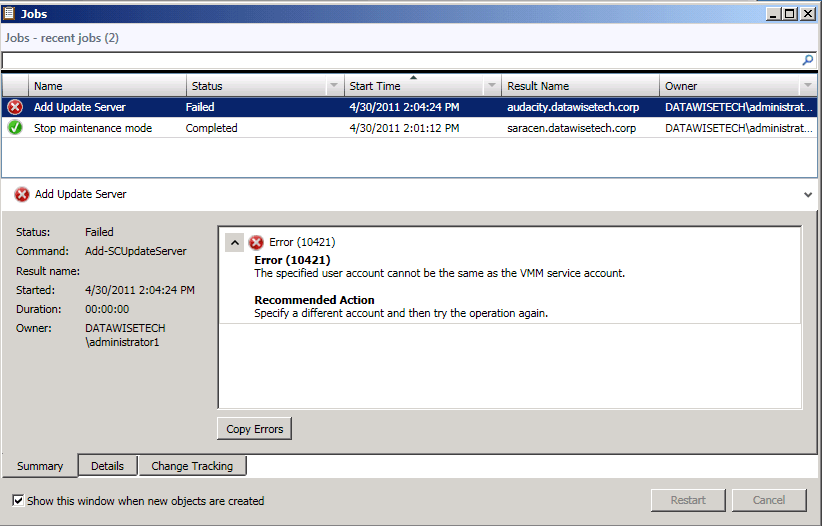
So how do we get this up and running? Well, it isn’t hard. Depending on your needs and environment you can choose to run WSUS and SCVMM on the same server or not. If you choose the latter please make sure you install the SWSUS Administration Console on the SCVMM server. This is achieved by downloading  WSUS 3.0 SP2 and installing it. Otherwise, just use the WSUS role from the roles available on Windows 2008 R2. This handles the prerequisites for you as well. It is also advisable to install the WSUS role on a separate server when your SCVMM 2012 Infrastructure is a highly available clustered one. For more information see http://technet.microsoft.com/en-us/library/gg675099.aspx . Time-saving tip: create a separate domain account for the WSUS server integration, it can not be the SCVMM 2012 service domain account.

Make sure you pay attention to the details in the documentation, don’t forget to install the WSUS 3.0 SP2 Administration Console on the SCVMM 2012 server or servers and to restart the SCVMM service when asked to. That will safe you some trouble. Also, realize that this WSUS Server will only be used for updating the SCVMM 2012 fabric and nothing else. So we do not configure anything except the operating system (W2K8R2) , and the languages needed. All other options & products that are not related to virtualization are unchecked as we don’t need them. Combine this with dynamic optimization to distribute the VM’s for you and you’re golden. A good thing to note here is that you’re completely in control. You as the virtualization infrastructure / SCVMM 2012 Fabric administrator control what happens regarding updates, service packs, …

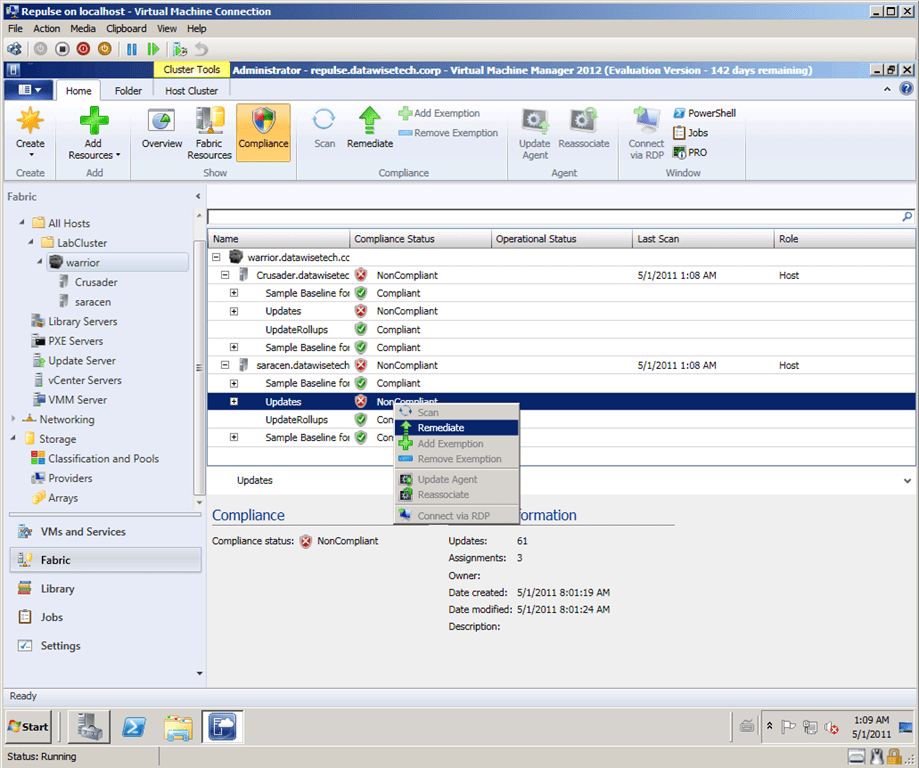
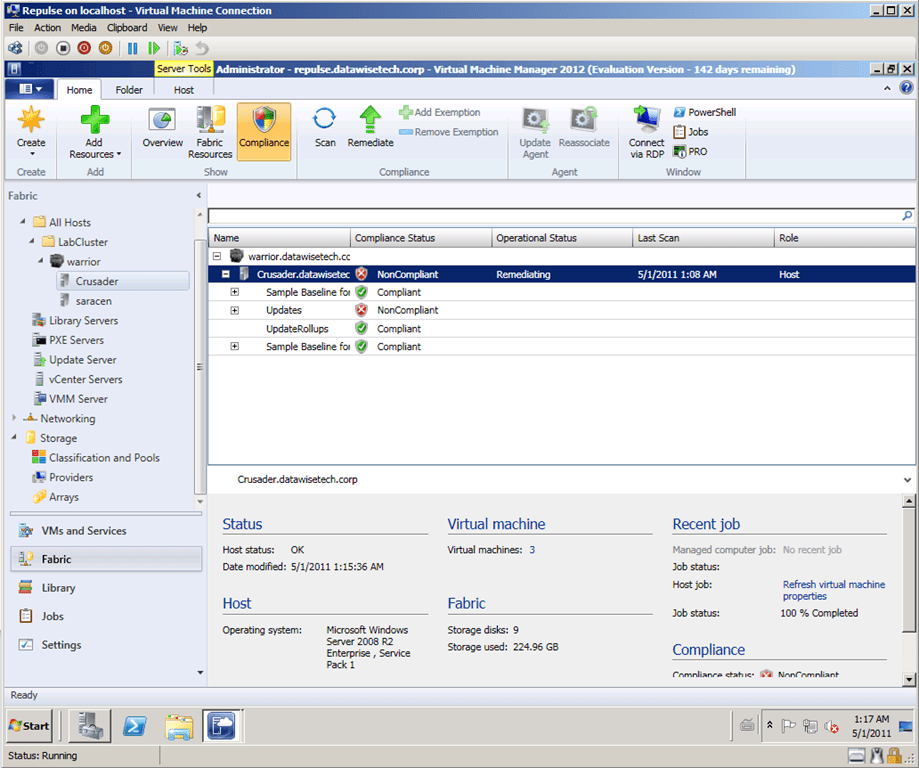
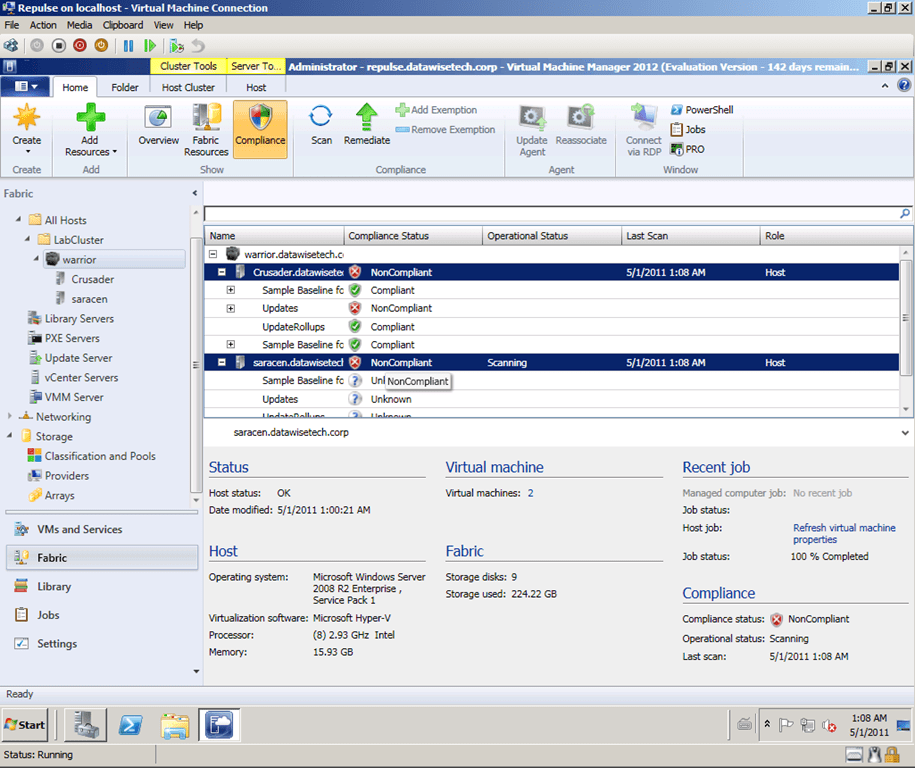
You do need to get used to the GUI a bit when playing around with SCVMM2012 for the first time to make sure you’re in the right spot, but once you get the hang of it you’ll do fine. I’ll leave you with some screenshots of my lab cluster being scanned to check the compliance status and then being remediated. It works pretty neatly.

Here are the hosts being scanned.

You can right-click and select remediate per baseline or select the host and select remediate form context menu or the ribbon bar.

The crusader host is being remediated. I could see it being restarted in the lab.

New KB Article 2494016 Related to Windows Server 2008 SP1 Hyper-V: Stop error 0x0000007a When Using CVS in Redirected Access

Well not a day after my blog post Extra Info on Clustering & Hyper-V with Dynamic Memory When You Start With Windows Server 2008 R2 SP1on important hotfixes for Hyper-V clustering with Windows Server 2008 R2 SP1 Microsoft releases a new hot fix for issue below. I’ll add it to the post to keep up to date.

Stop error 0x0000007a occurs on a virtual machine that is running on a Windows Server 2008 R2-based failover cluster with a cluster shared volume, and the state of the CSV is switched to redirected access

The KB article with instructions on how to get the hot fix is here: http://support.microsoft.com/kb/2494016/en-us?sd=rss&spid=14134

The scenario is detailed as follows:

Consider the following scenario:

  • You enable the cluster shared volume (CSV) feature on a Windows Server 2008 R2-based failover cluster.
  • You create a virtual machine on the CSV on a cluster node.
  • You start the virtual machine on the cluster node.
  • You move the CSV owner to another cluster node, and you change the state of CSV to redirected access.
  • The connection that is used for redirected access is switched to another connection when one of the following scenarios occurs:
    • The cable for local area network (LAN) is disconnected.
    • The related network adapter is disabled.
    • The connection is switched by using Failover Cluster Manager.

In this scenario, you receive a Stop error message that resembles the following in the virtual machine:

STOP 0x0000007a ( parameter1 , parameter2 , parameter3 , parameter4 )
KERNEL_DATA_INPAGE_ERROR

Note

  • The parameters in this Stop error message vary, depending on the configuration of the computer.
  • Not all "0x0000007a" Stop error messages are caused by this issue.
  • You may also receive other Stop error messages when this issue occurs. For example, you may receive a "0x0000004F" Stop error message.