Experience Days by TechNet BeLux

As a Microsoft MEET member and MVP, I’d like to invite you all to attend the Microsoft “Experience Days”.

728x90_v3

There are several tracks at the Experience Days from which you can choose. The complete track information can be found at here.

There are two tracks that are especially of interest to IP Pros: The Best of Microsoft Management Summit (MMS 2012) and Experience Windows Server 2012.

The Best of Microsoft Management Summit (MMS 2012)

During The Best of Microsoft Management Summit (MMS 2012), we will provide you with the best possible opportunity to learn about what’s new in System Center 2012. Led by experts who attended MMS 2012 in Las Vegas, you can expect in-depth sessions on infrastructure management, service delivery & automation, application management, desktop & device management.
Discover the full program

Experience Windows Server 2012

At Experience Windows Server 2012 day you will discover how Windows Server is going beyond virtualization by scaling and securing workload, how it will enable the modern work style by giving people access to information and data regardless of the infrastructure, network, device or application they use to access it. And you will discover the power of many servers with the simplicity of one by efficiently managing infrastructure while maximizing uptime and minimizing failures and downtime.

Join us and learn more about:

  • New Hyper-V Virtualization Platform
  • What’s new in Active Directory
  • Storage and Management Improvements
  • Clustering Improvements
  • Plus much more…   

    Discover the full program

    Hyper-V

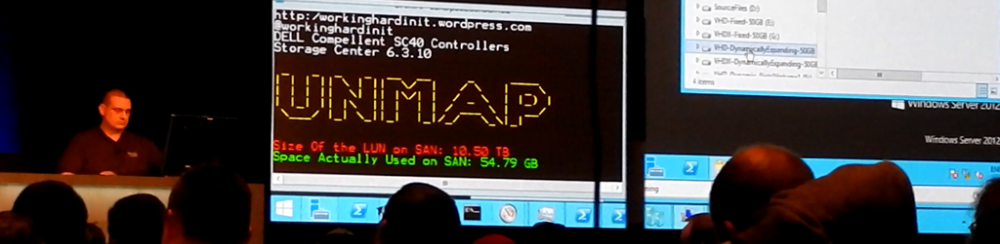
    I’ll be talking on June 7th at 15:00 – 16:00 about Windows Server 2012 Storage Evolved For Hyper-V in the Experience Windows Server 2012 track:

    Windows Server 2012 is a very storage centric version. We’ll cover the changes, improvements and additions to Windows Server 2012 storage capabilities and their impact on Hyper-V. We talk about the enhancements with the new virtual disk format (VHDX), offloaded data transfer (ODX), TRIM/UNMAP, large sector disks and the new storage options for Hyper-V including Storage Spaces, ReFS, Bitlocker, CSV 2.0, NTFS online scan/repair and SMB 3.0 file storage and what the latter means for Live Migration & Storage Options for Hyper-V

    Virtualization with Windows Server 2012 with Hyper-V is simply the best, bar none. If you watched Brad Anderson’s MMS 2012 Keynotes you know what’s coming and that he encouraged you to take the lead in all this. Well here’s you chance. If you agree that there is war on for talent, you also know and understand that knowledge will give you opportunities and choices. Invest in your future and as such in addressing and solving the business needs of your both clients and businesses. We all know it takes a serious effort in combination with a sustained commitment to become and stay competent in ICT. The TechNet BeLux team & the community is there to help you cultivate your talent and gain the knowledge you need.

     
  • Experts2Experts Virtualization Conference – Vienna May 25th-27th 2012

    I’m attending and speaking at one the of the best  small scale virtualization conferences out there. I’m talking about the Experts2Experts Virtualization Conference (E2EVC) organized by Alex Juschin for many years now. I’ll be speaking at the conference on “Making Sense of  RSS, DMVQ, SR-IOV, RDMA and other advanced networking features”. We’ll see where Windows Server 2012 & the new generation of Hyper-V is at in regards to these technologies, how it stacks up against some other solutions and what looks promising. In other words what we are looking at to use in real live once Windows Server 2012 goes RTM.

    I have the good fortune to attend some pretty big, impressive & high quality industry events. These are excellent places for networking and getting up to speed with the latest of the greatest form the big vendors and the ecosystem around it. But they are pretty expensive and large scale, so most people are so crazy busy at those you often miss out on some of the interaction, there is just to much going on.

    E2EVC is special and adds a different kind if value that goes beyond its low cost. For one, nobody is trying to sell you anything. All attendees and all speakers are IT Pro’s that design, build, work with and support the technologies that are discussed. Hence the name, Expert 2 Expert. It’s a reality check on what are people really using, trying, evaluating. You’ll see what is really hurting us and what really works.  An event like this isn’t driven by marketing. It’s driven by interests, passion for technology and even more important from a business perspective the solutions they can and do deliver in real live. This proves that you don’t need to charge premium prices to keep the riff raff out. The fact that 2 days of this conference are in a weekend tells you the attendees are going there with intend and purpose.

    The guys & gals attending & presenting are top notch. They don’t look  like slick advisers and analysts. It’s all very informal and relaxed. But make no mistake, these people are sharp and at the top of their game. Discussion and interaction is stimulated and lively. The aim is not to breed or create rock star speakers but to get people to share their experiences and knowledge. And here in lies the value. I really commend Alex Juschin for having succeeded in this.

    Fixing Hiccups in The SCVMM2008R2 GUI & Database

    As you might very well know by experience sometimes the System Center Virtual Machine Manager GUI and database get out of sync with reality about what’s going on for real on the cluster. I’ve blogged about this before in SCVMM 2008 R2 Phantom VM guests after Blue Screen and in System Center Virtual Machine Manager 2008 R2 Error 12711 & The cluster group could not be found (0×1395)

    The Issue

    Recently I had to trouble shoot the “Missing” status of some virtual machines on a Hyper-V cluster in SCVMM2008R2. Rebooting the hosts, guests, restarting agents, … none of the usual tricks for this behavior seemed to do the trick. The SCVMM2008R2 installation was also fully up to date with service packs & patches so there the issue dot originate.

    Repair was greyed out and was no use. We could have removed the host from SCVMM en add it again. That resets the database entries for that host en can help fix the issues but still is not guaranteed to work and you don’t learn what the root cause or solution is. But none of our usual tricks worked.We could have deleted the VMs from the database as in  but we didn’t have duplicates. Sure, this doesn’t delete any files or VM so it should show up again afterwards but why risk it not showing up again and having to go through fixing that.

    The Cause

    The VMs were in a “Missing” state after an attempted live migration during a manual patching cycle where the host was restarted the before the “start maintenance mode” had completed. A couple of those VMs where also Live Migrated at the same time with the Failover Cluster GUI. A bit of confusion al around so to speak nut luckily all VMs are fully operational an servicing applications & users so no crisis there.

    The Fix

    DISCLAIMER

    I’m not telling you to use this method to fix this issue but you can at your own risk. As always please make sure you have good and verified backups of anything that’s of value to you Smile

    We hade to investigate. The good news was that all VMs are up an running, there is no downtime at the moment and the cluster seems perfectly happy Smile.

    But there we see the first clue. The Virtual machines on the cluster are not running on the node SCVMM thinks they are running, hence the “Missing” status.

    First of all let’s find out what host the VM is really running on in the cluster and see what SCVMM thinks on what host the VM  is running. We run this little query against the VMM database. That gives us all hosts known to SCVMM.

    SELECT [HostID],[ComputerName] FROM [VMM].[dbo].[tbl_ADHC_Host]

    HostID                                                                        ComputerName

    559D0C84-59C3-4A0A-8446-3A6C43ABF618          node1.test.lab

    540C2477-00C3-4388-9F1B-31DBADAD1D8C        node2.test.lab

    40B109A2-9E6B-47BC-8FB5-748688BFC0DF         node3.test.lab

    C2DA03CE-011D-45E3-A389-200A3E3ED62E        node4.test.lab

    6FA4ABBA-6599-4C7A-B632-80449DB3C54C         node5.test.lab

    C0CF479F-F742-4851-B340-ED33C25E2013          node6.test.lab

    D2639875-603F-4F49-B498-F7183444120A             node7.test.lab

    CE119AAC-CF7E-4207-BE0B-03AAE0371165         node8.test.lab

    AB07E1C2-B123-4AF5-922B-82F77C5885A2           node9.test.lab

    (9 row(s) affected)

    Voila en now the fun starts. SCVMM GUI tells us “MissingVM” is missing on node4.

    We check this in the database to confirm:

    SELECT Name, ObjectState, HostId
    FROM VMM.dbo.tbl_WLC_VObject
    WHERE Name = 'MissingVM'
    GO

    Which is indeed node4

    Name                                                                                                                                                                                                                                                             ObjectState HostId

    ———  —  ————————————

    node4  220  C2DA03CE-011D-45E3-A389-200A3E3ED62E

    (1 row(s) affected)


    In SCVMM we see that the moving of the VM failed. Between node 4 and node 6.

    image

    Now let’s take a look at what the cluster thinks … yes there it is running happily on node 6 and not on node 4. There’s the mismatch causing the issue.

    So we need to fix this. We can Live Migrate the VM with the Failover Cluster GUI to the node SCVMM thinks the VM still resides on and see if that fixes it. If it does, great! You have to give SCVMM some time to detect all things and update its records.

    But what to do if it doesn’t work out?  We can get the HostId from the node where the VM is really running in the cluster, which we can see in the Failover Cluster GUI, from the query we ran above and than update the record:

    UPDATE VMM.dbo.tbl_WLC_VObject
    SET HostId  = 'C0CF479F-F742-4851-B340-ED33C25E2013'
    WHERE Name = 'MissingVM'
    GO

    We then reset the ObjectState to 0 to get rid of the Missing status. It would do this automatically but it takes a while.

    UPDATE VMM.dbo.tbl_WLC_VObject
    SET ObjectState = '0'
    WHERE Name = 'MissingVM'
    GO

    After some patience & Refreshing all is well again and test with live migrations proves that all works again.

    As I said before people get creative in how to achieve things due to inconsistencies, differences in functionality between Hyper-V Manager, Failover Cluster Manager and SCVMM 2008R2 can lead to some confusing situations. I’m happy to see that in Windows 8 the action you should perform using the Failover Cluster GUI or PowerShell are blocked in Hyper-V Manager. But SCVMM really needs a “reset” button that makes it check & validate that what it thinks is reality.

    Upgrading Hyper-V Cluster Nodes to Windows Server 2012 (Beta) – Part 3

    This is a multipart series based on some lab test & work I did.

    1. Part 1 Upgrading Hyper-V Cluster Nodes to Windows Server 2012 (Beta) – Part 1
    2. Part 2 Upgrading Hyper-V Cluster Nodes to Windows Server 2012 (Beta) – Part 2
    3. Part 3 Upgrading Hyper-V Cluster Nodes to Windows Server 2012 (Beta) – Part 3

    And we have arrived at part three of my adventures while “transitioning” my Hyper-V cluster nodes to Windows Server 2012. I prefer the term transition as is more correct. We can still not do a rolling upgrade a cluster cluster. We still need to create a new cluster and recuperate the evicted nodes.

    I’ll repeat myself here (again) by stating I did not reinstall the evicted nodes but upgraded them. Why, because I can and I wanted to try it out and see what happens. For production purposes I do advise you to rebuild nodes from scratch using a well defined and automated plan if possible. I already mentioned this in Upgrading Hyper-V Cluster Nodes to Windows Server 2012 (Beta) – Part 1

    Moving the Storage & Hyper-V Guests

    So we stopped Part 2 at a newly created cluster without any storage. That’s what we’ll be taking care of in this part.  Let’s recap what we already mentioned at the end of Part 2.

    We have several options for storage here. We could assign new storage but we cannot do a Quick Storage Migration between cluster using SCVMM2008R2 but that doesn’t fly as SCVMM2008R2 can’t manage Windows 2012 clusters and I don’t know if it ever will. We can do a good old manual or scripted export to and import from the new storage of the VMs what takes a considerable amount of time. You also need to have the extra storage available.

    We can also recuperate the old storage with the VMs still on there. This could get tricky as no two cluster should be able to see & use the storage at the same time. The benefit could be that we can just use the import type in Windows Server 2012 “Register the virtual machine in-place” (use the existing unique ID) and be done with it. We’ll try that one. We’ll still have some down time but it should be pretty fast. It’s only from Windows Server 2012 on that we’ll be able to do Shared Nothing Live Migrations between clusters Smile and live will be good. If you have a SAN you could also use clones to get this job done without less risk. You work on cloned data and keep the original around instead of using that for the process described below.

    So how do we approach this?

    Since Windows Server 2008 storage & clustering isn’t the pain it could be in earlier version. It’s the disk manager handling all that and it makes live a lot easier. All disks presented to a cluster node are off line to the operating system until you bring it online. Even if it contains data or is presented to another host, whether that is a member of another cluster or a stand alone host. Pretty cool. It also means you can have all your nodes on line during the process. The process of bringing the disk online and, if needed formatting it with NTFS and then adding it to the cluster as storage can be done on just one of the nodes.

    As you recall I unplugged the evicted node from the iSCSI storage (you could also disable the ports) before I upgraded it. The entire iSCSI configuration got upgraded perfectly so all I needed to do was plug the iSCSI cables in and the storage appeared offline. My old cluster node was up and running still accessing it. Pretty slick! And great as a demo but you can play it safer. That was fun Smile but perhaps we won’t be that brave in a production environment.

    Options

    You could decide to bring all LUNS over at once or one at the time. The process is the same. If you do it one by one you’ll have to rely on the above behavior to protect the LUNs against corruption or you can un-present the LUNS remaining on the old cluster from the new cluster so you’ll never have an issue. We’ve done both and it works out rather fine in testing. Windows clustering is really doing it’s best to prevent you from shooting yourself in the foot Smile

    Let’s say I go LUN by LUN. Now I can just remove the VMs from the old cluster using the Failover cluster GUI so they are no longer highly available on that node. When I have no more clustered VMs on a CSV LUN I can shut down all the guests in Hyper-V Manager and stop right there.

    On the old cluster I remove that LUN from the CSV storage and from the cluster storage. At that moment that LUN is already taken offline for you!

    image

    Pardon the silly size but I didn’t have space left to make a realistic screenshot Smile

    Great, Windows is protecting us against any possible data corruption! So now I can than un-present the LUN form the old cluster nodes. The next step is to enable the ISCI ports, present that LUN to the new cluster node or nodes (depends on where in the x number of node process you are) or just plug in the cable .

    You’ll see the new LUN off line than on the new cluster. We can than make the LUN on line so it will be available to add to the cluster. Just right click that disk and select “Online”.

    image

    image


    Right click on storage

    image


    Select an disk that’s available to add to the cluster.

    02


    Things has gotten a lot simpler with CSV in Windows Server 2012. No more enabling it with a funky warning message that’s well meant but is rather confusing an annoying. You just right click the disk and choose “Add to Cluster Shared Volumes” and that’s it.

    image


    And there it is. That disk in our new cluster is ready to use as a CSV.

    image


    So we can now us a nifty new capability in Windows Server 2012 Hyper-V: “Register the virtual machine in-place” (use the existing unique ID)

    05


    The wizard starts.

    06


    Select the folder where your VM or VMs live. yes you can do multiple given that your folder structure allows for this.

    07


    It’s found one VM in our folder

    08


    We click Next

    10


    We select “Register the virtual machine in-place” (use the existing unique ID) and click next.

    11

    If something is not right like some forgotten “saved” states you’ll get a change to dump those or cancel the process to deal with it properly before trying it again.

    12


    If virtual network names do not match you’ll get the opportunity to set correct that by specifying what virtual switch to use.

    13


    If all was well in the first place or after you’ve fixed any issues like the ones demonstrated above you’re good to go. Click finish and enjoy your Windows Server 2012 Hyper-V Guest.

    18


    At this point you can already start your VMs. I know that the next step is to make all these VMs highly available but here we have some good news as well. You can now make running VMs highly available. Yeah! They no longer need to be shut down. All this is done via the well know process so I’m not going to walk trough the entire process here. But the screen shot of a making a running VM highly available is worth posting Smile

    addrunningvm