During scripting some maintenance PowerShell scripts for Hyper-V guests I felt the need for a more accurate way to monitor the startup of a virtual machine. Pings, telnet to a known open port it all doesn’t do the job accurately enough as I want to know when CTRL+AL+DEL appears on the screen. So I pinged Jeff Wouters who told me I could monitor Get-VM -Name DC01 | Get-VMIntegrationService to detect when PrimaryStatusDescription goes to “OK”.
Now when you look at the Integration services there are 5 of them.
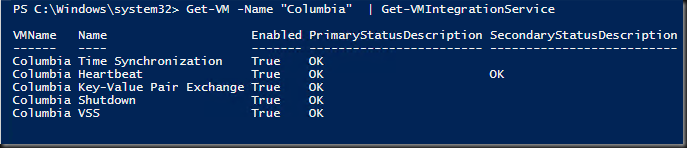
Which one is the best to use for our purpose? Well,I tested them out and after some experimenting with the various services I concluded that the PrimaryStatusDescription of the Key-Value Pair Exchange works best for this purpose. All others become available a bit to soon in the process of starting a VM, which seems logical.
Monitor a starting virtual machine
So how to use this in a script? We’ll here’s a snippet to monitor the boot process of a guest.
$Vm = Get-VM "MyVM"
start-VM "$Vm"
#This means the VM is now shutting down ...
$Counter = 0
$ProgressCount = 0
Do
{
    $Operational = Get-VM -Name $VM | Get-VMIntegrationService -Name "Key-Value Pair Exchange"
    $Counter = $Counter + 1
    $ProgressCount =  $ProgressCount +1
    $PercentComplete = ($ProgressCount * 20)
    Write-Progress -Activity "$VM" -status "VM starting up: $Status - Progressbar indicates activity, not a percent of completion: ($Counter Seconds)"  -percentComplete ($PercentComplete / 100 *100)
    if ($PercentComplete -gt 90) {$ProgressCount = 0}
    sleep 1
}
While ($Operational.PrimaryStatusDescription -ne "OK")
$Status = (Get-VM -Name $VM | Get-VMIntegrationService -Name "Key-Value Pair Exchange").PrimaryStatusDescription
Write-Progress -Activity "VM $VM is up and running" -status "VM status: $Status - We're done here. Completed in a total of $Counter seconds."  -percentComplete (100)
Monitor a stopping virtual machine
Likewise, sometime we want to monitor a VM shutting down, which is the same code as above but with reverse logic.
$Vm = Get-VM "MyVM"
stop-VM "$Vm"
$Counter = 0
$ProgressCount = 0
#This means the VM is now shutting down  in the retart cycle ...
   Do
   {
    $Operational = Get-VM -Name $Vm | Get-VMIntegrationService -Name "Key-Value Pair Exchange"
    $Counter = $Counter + 1
    $Status = (Get-VM -Name $Vm | Get-VMIntegrationService -Name "Key-Value Pair Exchange").PrimaryStatusDescription
    $ProgressCount =  $ProgressCount + 1
    $PercentComplete = ($ProgressCount * 20)
    Write-Progress -Activity "$VM" -status "VM shutting down : $Status - Progressbar indicates activity, not a percent of completion: ($Counter Seconds)"  -percentComplete ($PercentComplete / 100 *100)
    if ($PercentComplete -gt 90) {$ProgressCount = 0}
    sleep 1
   }
   While ($Operational.PrimaryStatusDescription -eq "OK")
   $Status = (Get-VM -Name $Vm | Get-VMIntegrationService -Name "Key-Value Pair Exchange").PrimaryStatusDescription
   Write-Progress -Activity "VM $Vm has now been shutdown" -status "VM status: $Status - We're done here. Completed in a total of $Counter seconds."  -percentComplete (100)
Monitor a restarting a virtual machine.
When in a PowerShell script you want to monitor progress of a virtual machine restarting you can combine both. You monitor shutdown and you monitor startup.
$VmThatRestarts = Get-VM "MyVM"
#Restart the VM
#This means the VM is now shutting down  in the retart cycle ...
 $Counter = 0
 $ProgressCount = 0
Do
{
    $Operational = Get-VM -Name $Vm | Get-VMIntegrationService -Name "Key-Value Pair Exchange"
    $Counter = $Counter + 1
    $Status = (Get-VM -Name $Vm | Get-VMIntegrationService -Name "Key-Value Pair Exchange").PrimaryStatusDescription
    $ProgressCount =  $ProgressCount + 1
    $PercentComplete = ($ProgressCount * 20)
    Write-Progress -Activity "$VM" -status "VM restarting - Shutdown phase : $Status - Progressbar indicates activity, not a percent of completion: ($Counter Seconds)"  -percentComplete ($PercentComplete / 100 *100)
    if ($PercentComplete -gt 90) {$ProgressCount = 0}
    sleep 1
}
While ($Operational.PrimaryStatusDescription -eq "OK")
$Status = (Get-VM -Name $Vm | Get-VMIntegrationService -Name "Key-Value Pair Exchange").PrimaryStatusDescription
Write-Progress -Activity "VM $Vm has now been shutdown in restart cycle" -status "VM status: $Status - VM has shut down in $Counter Seconds"  -percentComplete (100)

#Any thing worthwhile is worth adding 1 second of waiting for good measure :-)
Sleep 1

#This means the VM is now starting  ...
$ProgressCount = 0
Do
{
    $Operational = Get-VM -Name $VM | Get-VMIntegrationService -Name "Key-Value Pair Exchange"
    $Counter = $Counter + 1
    $ProgressCount =  $ProgressCount +1
    $PercentComplete = ($ProgressCount * 20)
    Write-Progress -Activity "$VM" -status "VM restarting - Startup phase: $Status - Progressbar indicates activity, not a percent of completion: ($Counter Seconds)"  -percentComplete ($PercentComplete / 100 *100)
    if ($PercentComplete -gt 90) {$ProgressCount = 0}
    sleep 1
}
While ($Operational.PrimaryStatusDescription -ne "OK")
$Status = (Get-VM -Name $VM | Get-VMIntegrationService -Name "Key-Value Pair Exchange").PrimaryStatusDescription
Write-Progress -Activity "VM $VM is up and running again" -status "VM status: $Status - We're done here. Completed in a total of $Counter seconds."  -percentComplete (100)
Note that in all the above snippets I’ve thrown some logic in to us the progress bar as an activity bar as I know of no way to calculate real % done in a startup, shutdown, restart process. It looks something like this in ISE

or like this in a PowerShell prompt





 . Reading this book allows you to tap into their collective brainpower and knowledge on this subject, which is extensive. These guys are part of the Hyper-V community and they live in this stuff!

