My First Hands On Experience With The System Center Virtual Machine Manager 2012 Beta

Today I made some time to take System Center Virtual Machine Manager 2012 (SCVMM2012) Beta for a little test drive. Nothing fancy yet. Just some first impressions and experiences. Is already had to VMs standing by. One running SQL Server 2008 R2 to take care of the database needs and one for installing SCVMM2012 on to. Normally, in further testing, I will install the self-service Portal on a separate machine for more flexibility but for now, it’s one host deal with a separate database server.

The documentation is already available on TechNet. I’m pretty sure this will grow a lot but the Installation guidelines are already pretty good. But as this is a test drive and I want to see how it behaves I didn’t get all the prerequisites ready from the start just to get a feel how the install behaves.

From the start we run into a symptom you need to take into consideration when using Dynamic Memory in a VM guest that was already discussed by Aidan Finn in Software Setup Does Not Meet Memory Requirements with Dynamic Memory Enabled. Just make sure you have plenty of memory during install time and afterward you can tweak it a bit to get some more breathing room on for the lab hosts.

The VMM 2012 setup wizard adds one prerequisite automatically for you if it isn’t installed and that’s the .NET Framework 3.5.1 feature is not installed (it is not installed by default).

Ok people, this is a bit rough and way pack with screenshots but here we go!

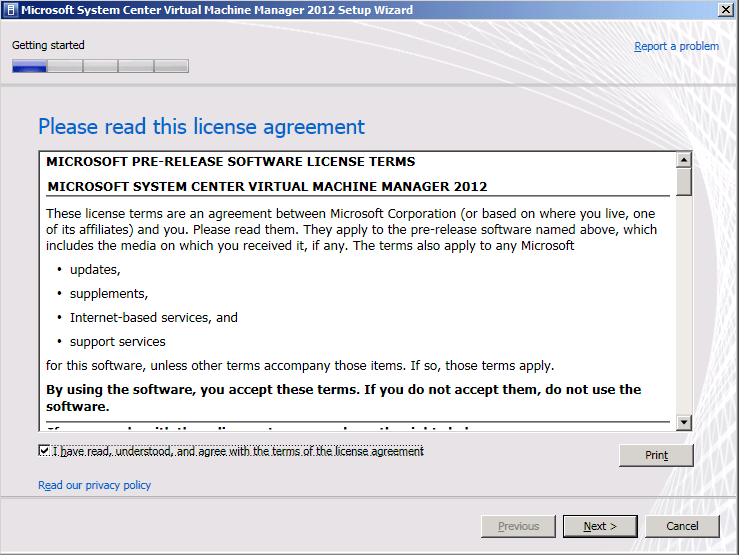
Start the setup and accept the License Agreement.
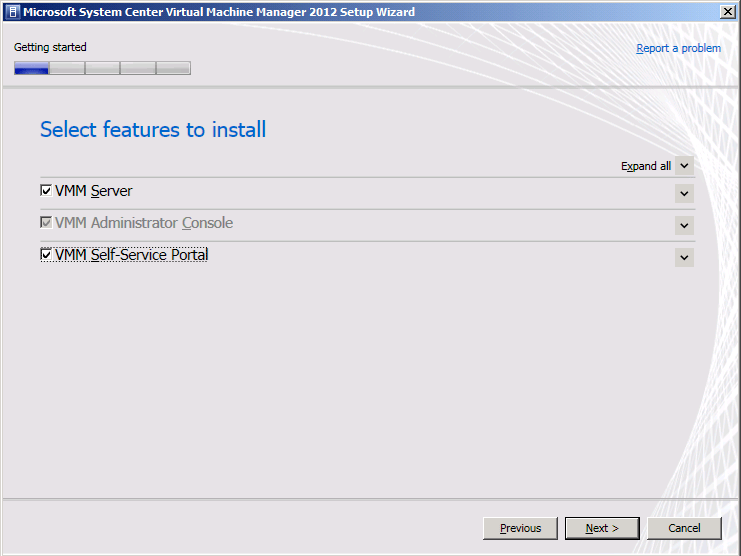
I opt to install on the roles on a single host
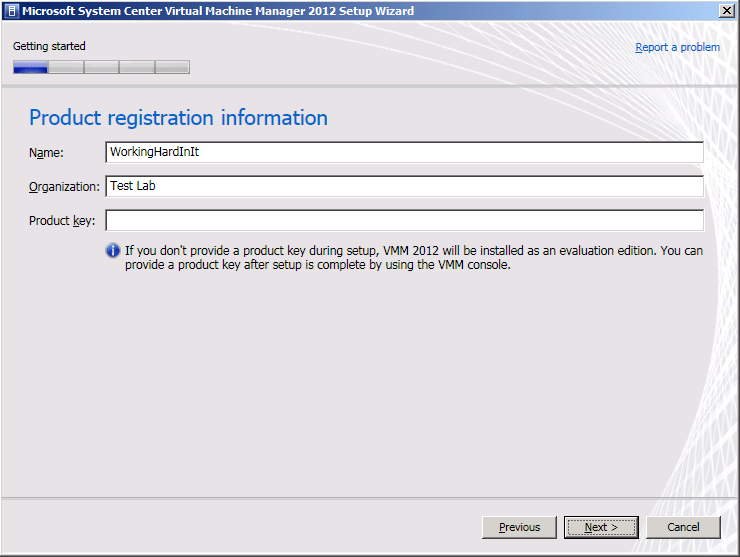
I provide the needed information, the key can wait, don’t worry about that here.
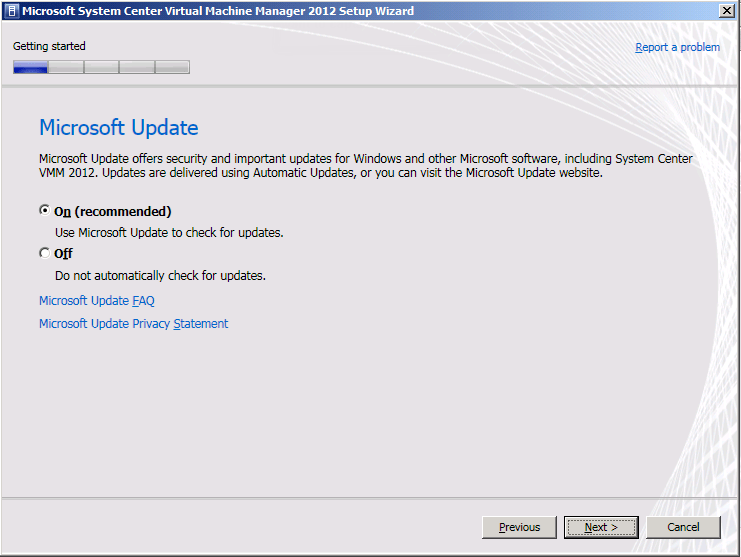
I’m opting into the Microsoft Update to keep my lab server running healthy & protected
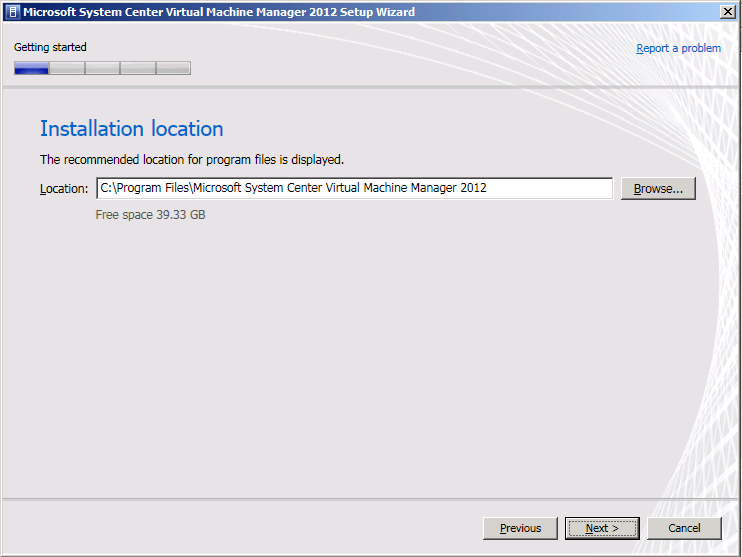
I’m happy with the default installation location
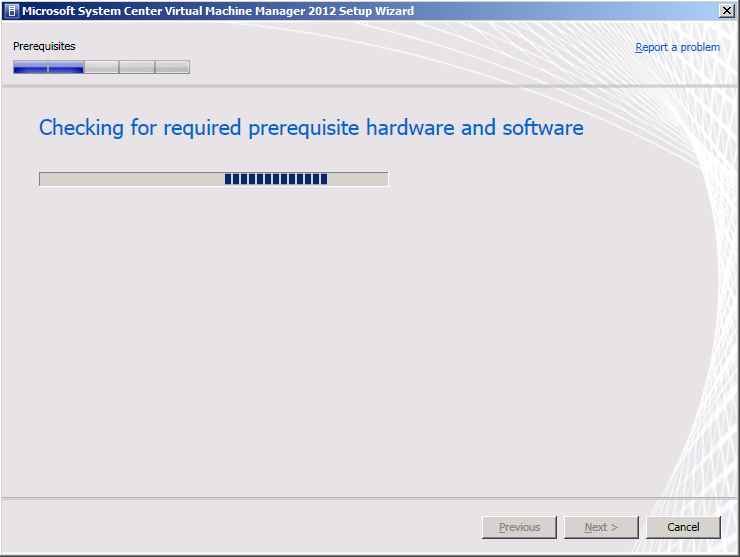
It’s checking the prerequisites
And it complains. I’ve been too cheap on memory and the Dynamic Memory settings are not bailing me out as already indicated above.
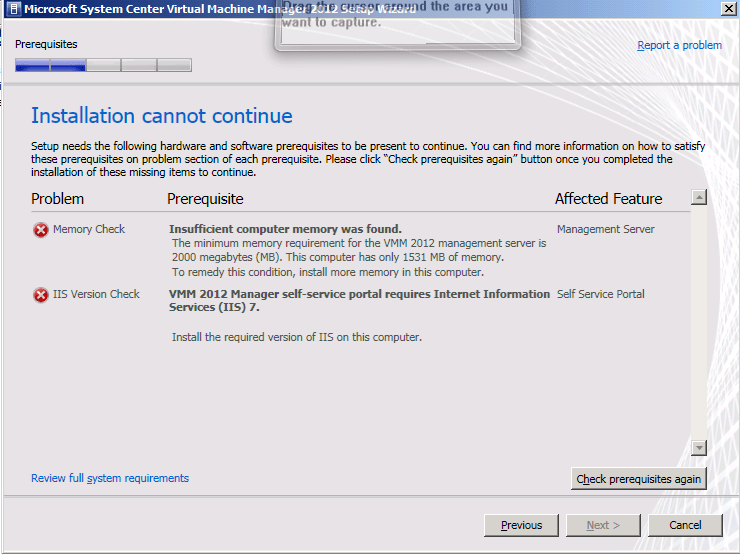
So I fix both issues by installing more memory and installing IIS. Make sure you read the TechNet documentation for all the IIS components you need.

  • .NET Extensibility
  • ASP.NET
  • Default Document
  • Directory Browsing
  • HTTP Errors
  • IIS 6 Metabase Compatibility
  • IIS 6 WMI Compatibility
  • ISAPI Extensions
  • ISAPI Filters
  • Request Filtering
  • Static Content

Then we rerun the prerequisites checks and we get another issue. We need the WAIK. You can avoid all these warnings or errors by reading the docs and preparing the server but as stated I wanted to get a look at how the process behaves. So we get the WAIK downloaded en install it.

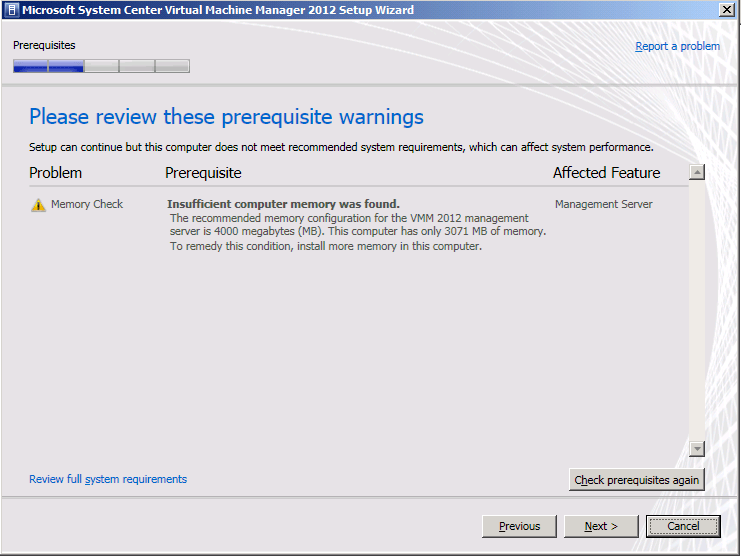
The installer still thinks I’m too cheap. But it’s only a warning now. I did end up giving the VM 4GB with a limit of 5 GB of RAM.
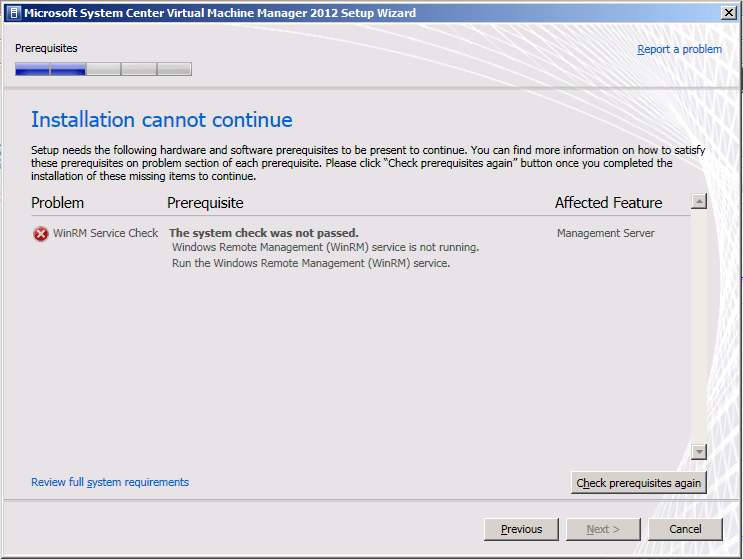
The next error is just because I was to fast to launch the setup, we need to give the winRM service some time to start. It’s a service that as a delayed start
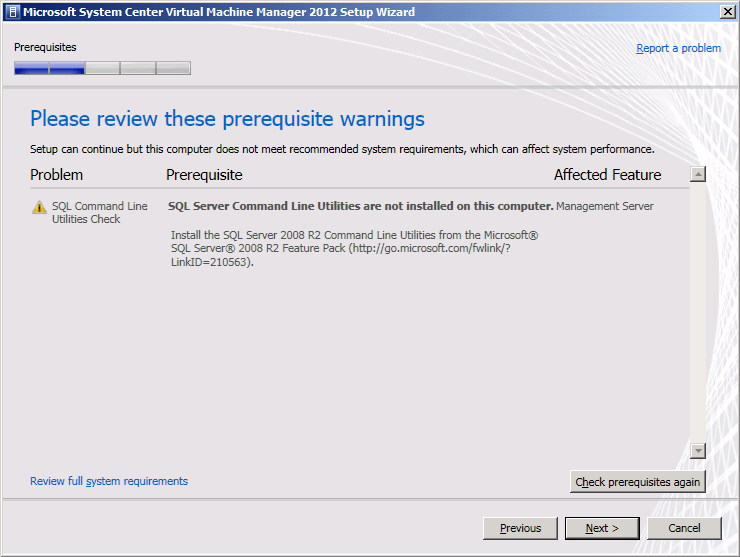
We didn’t do our prerequisites homework so we get nagged about the SQL Command Line Utilities. We can continue without them but when you do install these you’ll need to get the SQL Native Client installed on which the SQL Command Line Utilities depend.
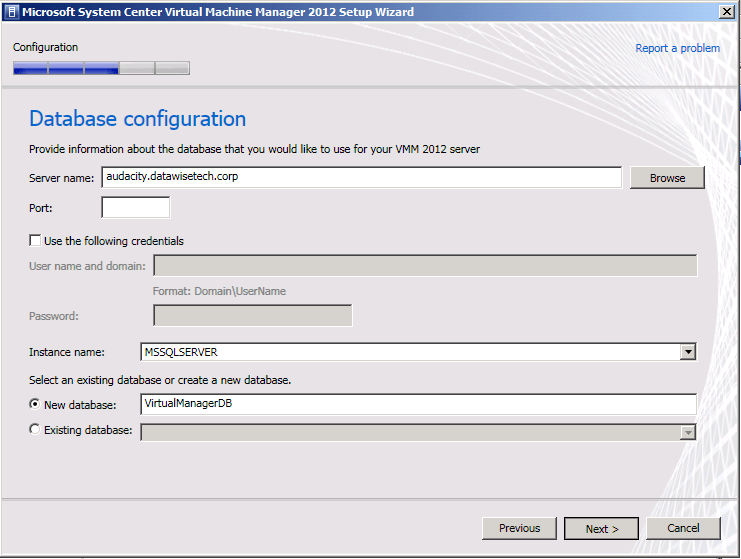
I have my database already up and running so I have no worries there. The account here needs to have permissions to install and configure the database. It ‘s used for that purpose only. As you can see I use the default instance and create a new database. Make sure your SQL Server is set up right for remote access, the firewall is configured, etc.
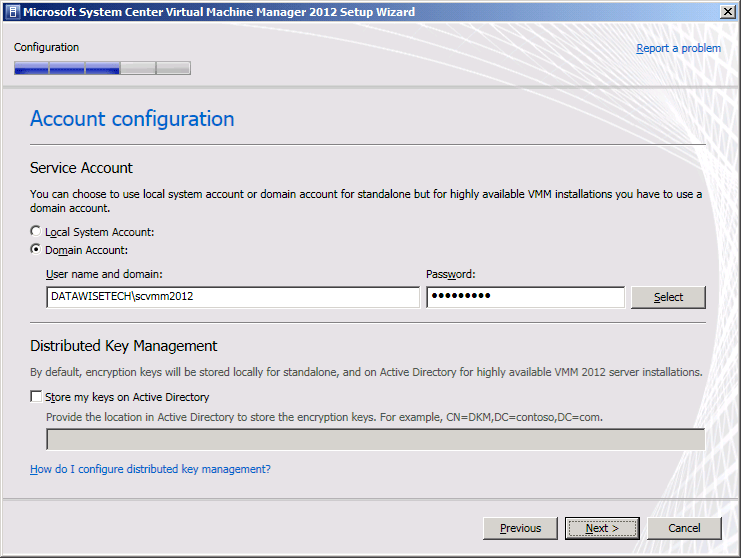
I’ve prepared a nice and shiny new domain account for the SCVMM2012 service to run under. I don’t use a manage service account because I’m not sure whether I might use this account on multiple machines in more elaborate fault-tolerant installations.
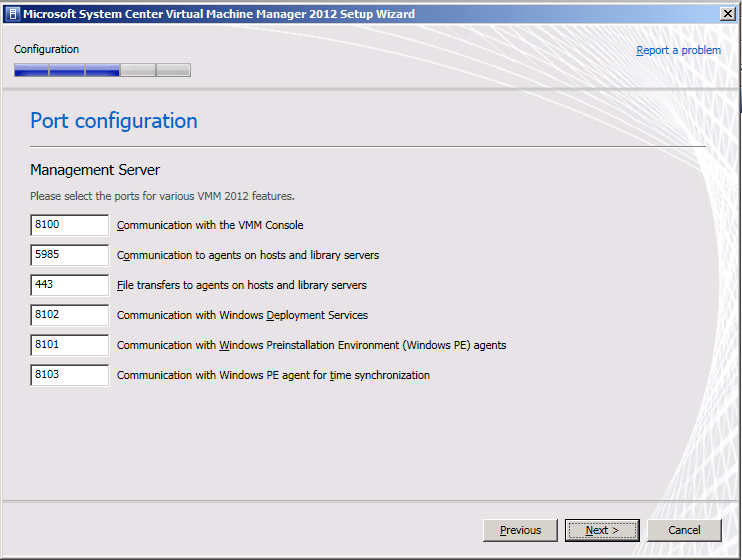
As I’m not very creative and don’t want to use non=default ports I’ll forget is elect to keep all the default ports.
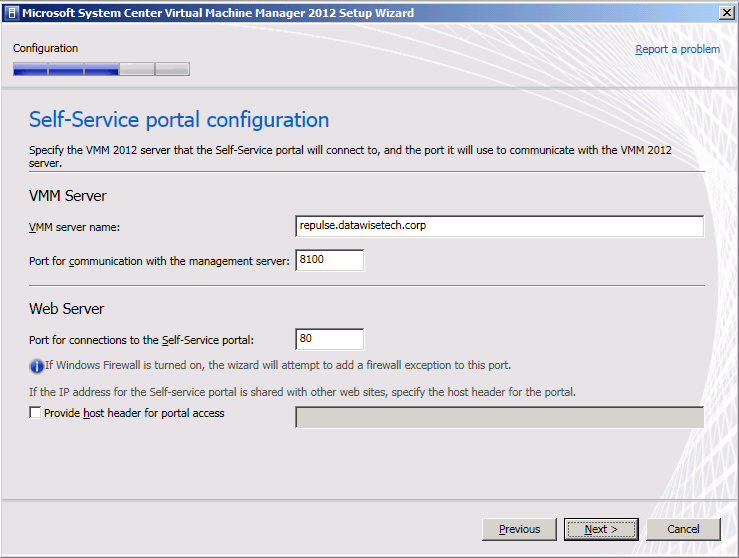
I also leave the default settings for the self-service portal.
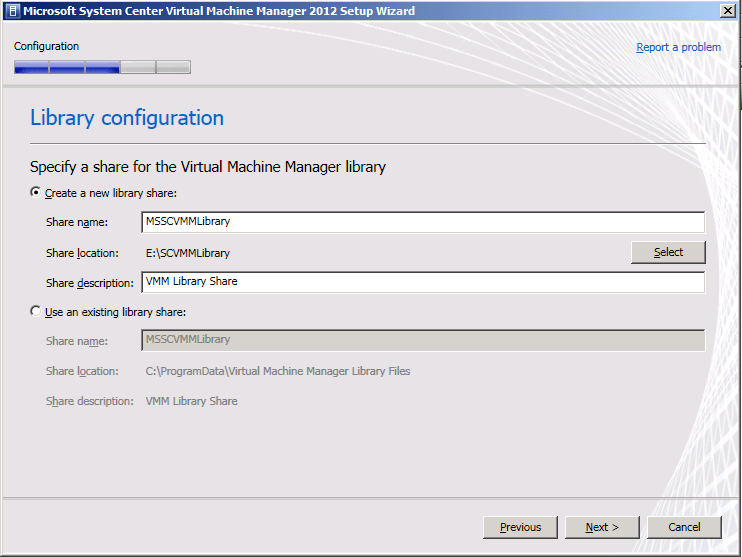
But I do change the location of the library share to a separate large disk Smile

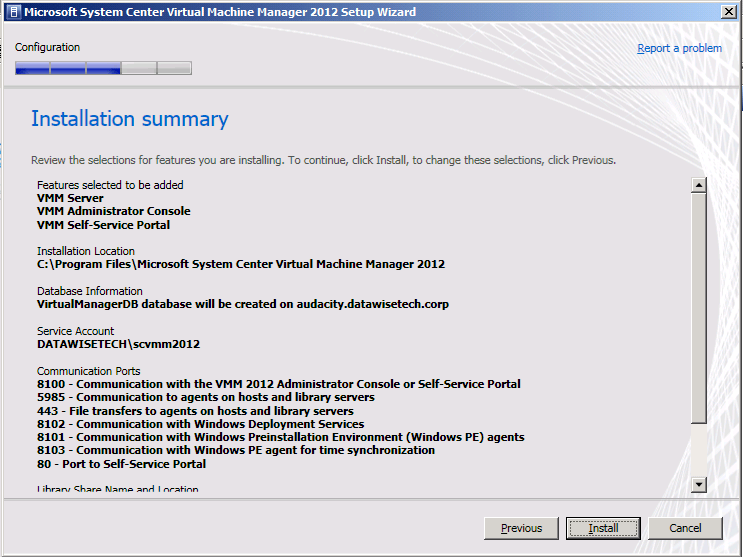
OK the installer is ready to rock.

The install goes very fast by the way. Went to get some coffee, called a colleague and voila …
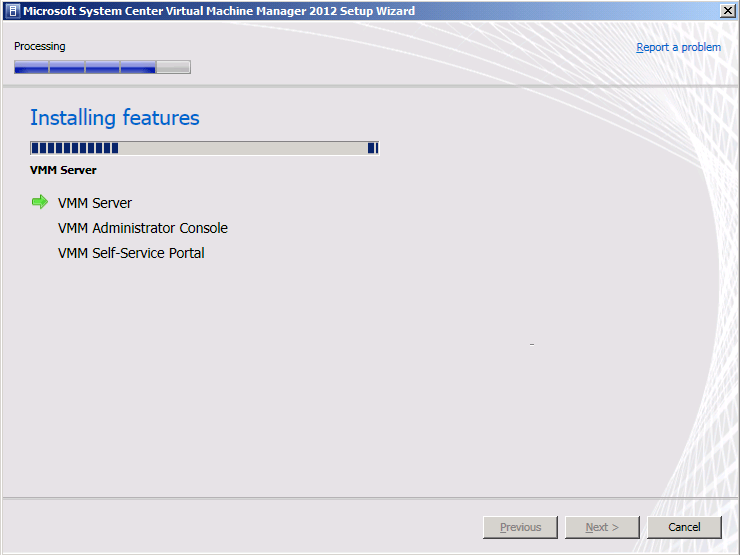
In my environment, it took about 6 minutes
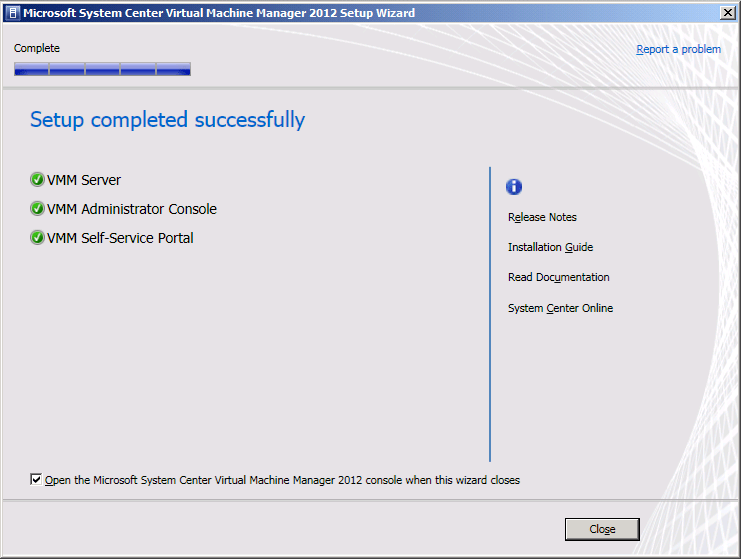
And after all that I got my reward SCVLL 2012 up and running
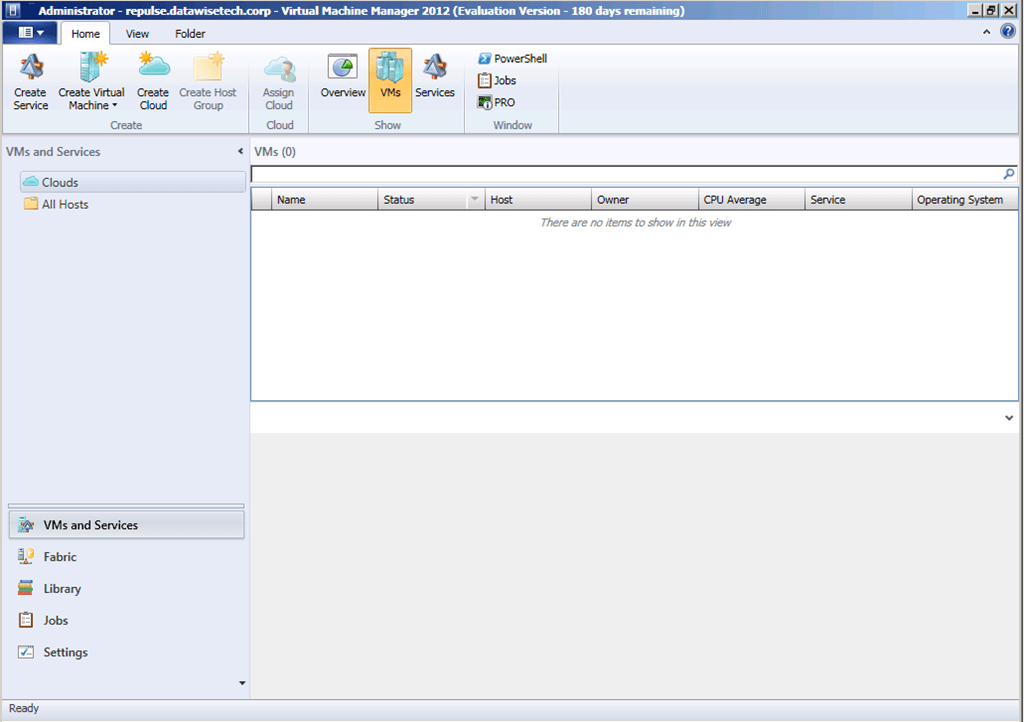
To which I add my test cluster
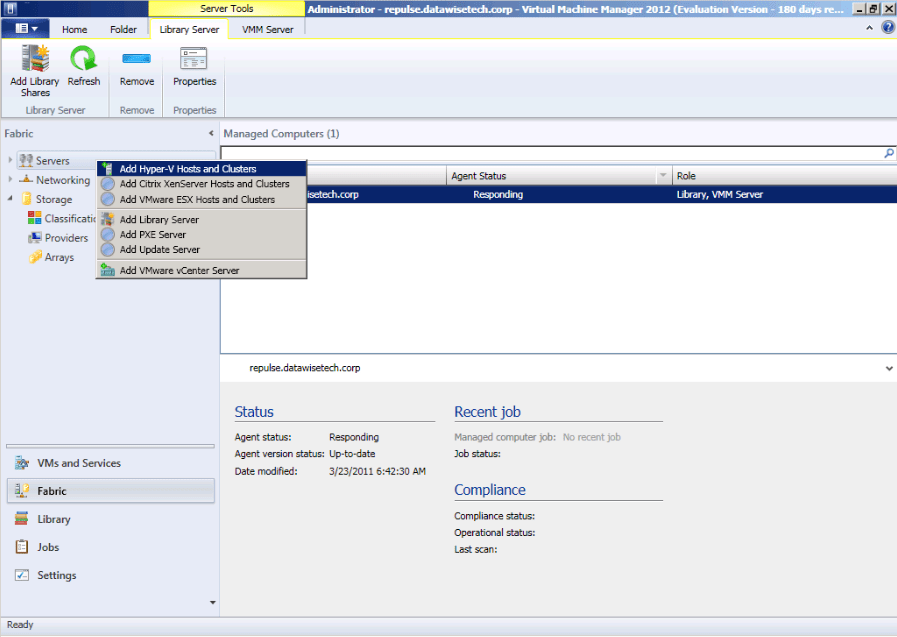
I need to provide some credentials that can discover the hosts and install the agents
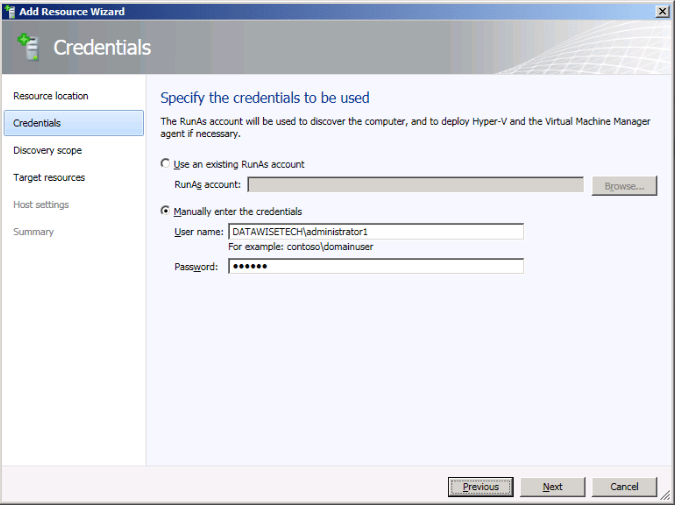
I add some cluster hosts
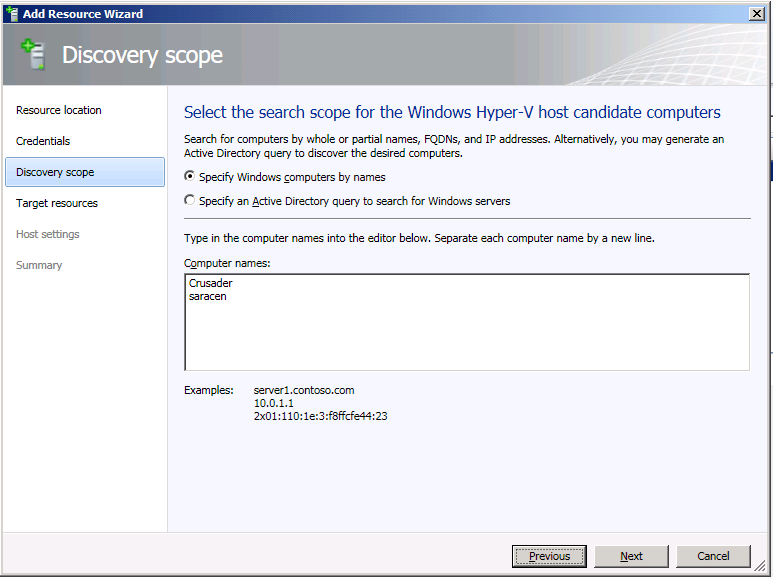
image

SCVMM2012 picks up that it’s a cluster
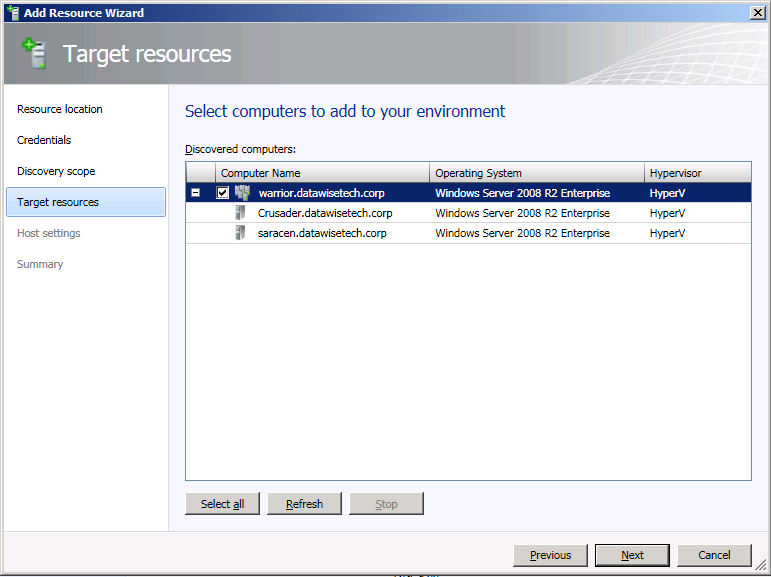
image

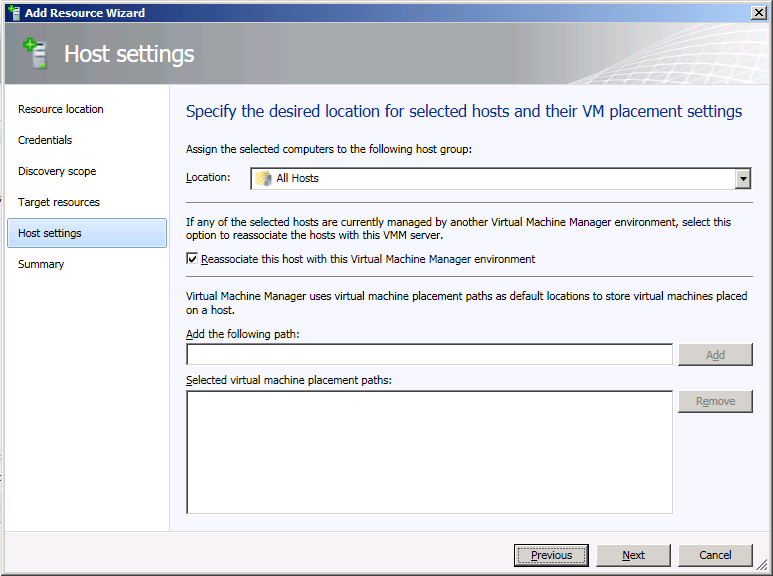
And I add it to All hosts group I created. neatly organizing already (neurotic behavior is widespread in the IT world)
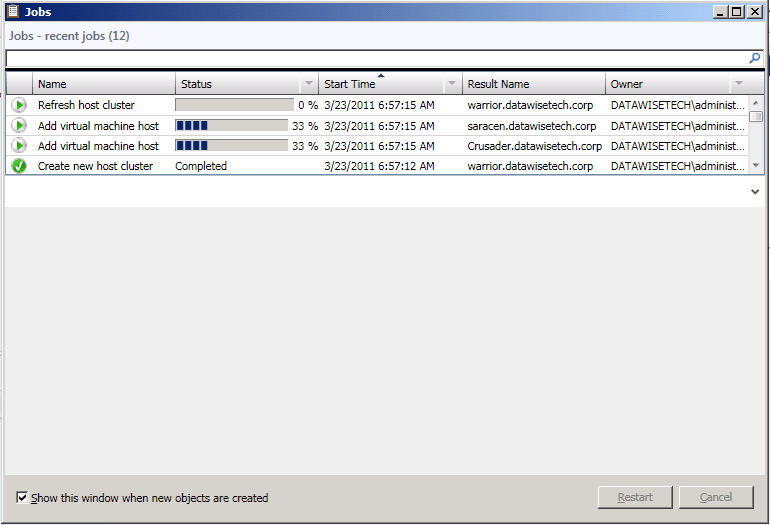
The cluster and hosts are added to SCVMM 2012
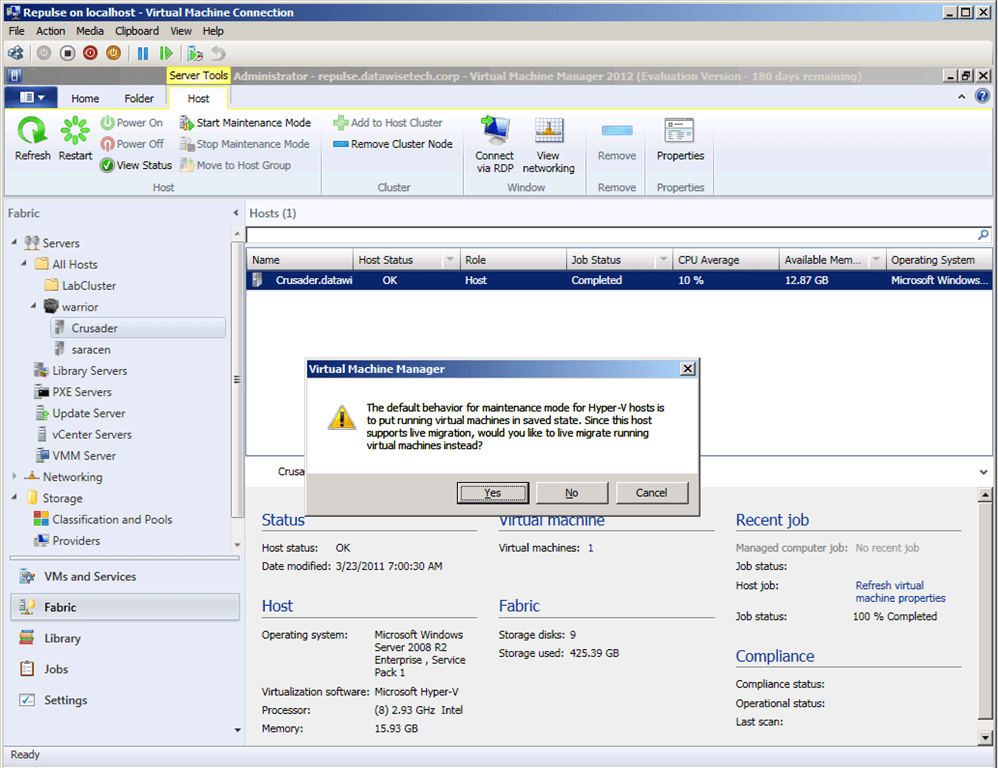
For fun, I put a host into maintenance mode.  It offers to use live migration as that is available
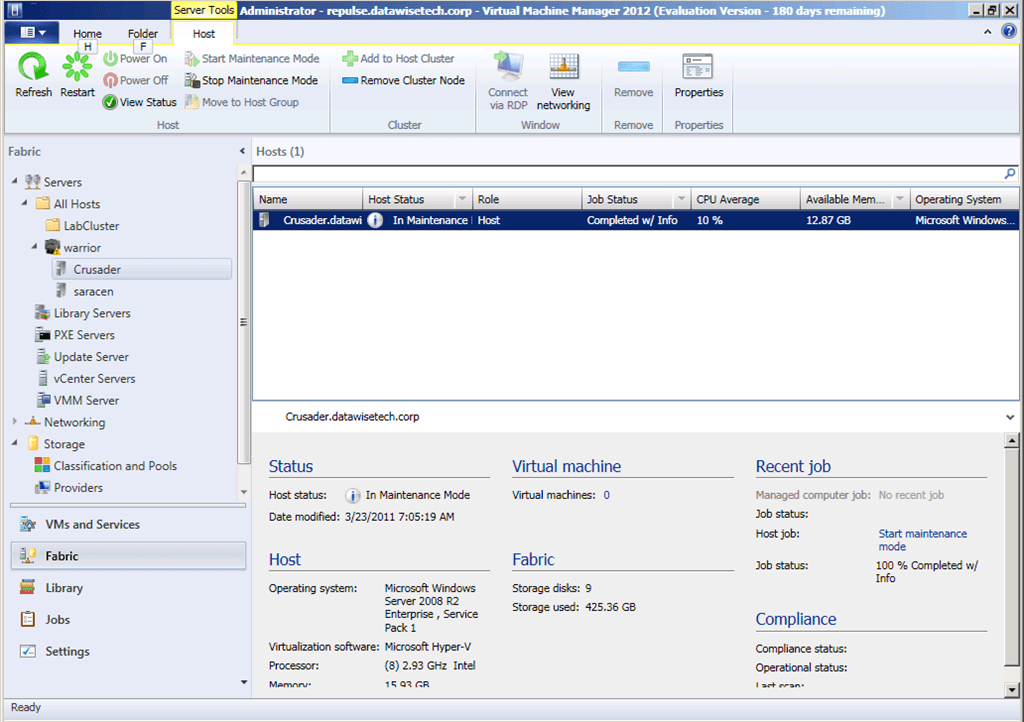
And that went just fine.
Well there you have it, a first rough hands-on experience with SCVMM2012 Beta.  We’re off to a very good start with this. More to follow later without any doubt.

System Center Virtual Machine Manager 2008 R2 SP1 & 2012 Béta Available

Good news, today March 2nd, 2011 System Center Virtual Machine Manager 2008 R2 SP1 went RTM. I’ll update this short post with the download link when it becomes available ==> UPDATE: download it here from Microsoft (Evaluation) or from your TechNet subscription or licensing site. Seems like we got all host & guest updates to W2K8R2SP1 done exactly on time to get this one installed and have a state of the art, up to date infrastructure. Today the 2012 Beta version became available for download (here) and the documentation site went life (here). Things are moving in the system center space. Busy times ahead! Yet 2 more  VMs to test with I the lab … and than Denali is coming.

No TechEd Europe 2011

Well it’s official. There will be no TechEd Europe in 2011. A quote from a Microsoft mail for Tech Days Belgium “… Since you have been attending TechEd Europe previously we wanted to inform you in person that Tech∙Ed Europe will not return in autumn 2011, but later in 2012.  …“

We’ve lost IT Forum a couple of years back and with no TechEd Europe in 2011 this means a barren landscape void of any major international Microsoft technical events in Europe. I think that’s a shame. The opportunities to network & interact with Microsoft employees, engage in passionate interactive discussion about technologies, solutions and  possibilities  with colleagues and peers from around the continent are sadly missing from my agenda this year. I always enjoyed to learn about their creative solutions to similar problems in an environment that is focused on what we love to do, where learning opportunities are abundant and the atmosphere is all about technology. I haven’t missed one in 10 years, sometimes against the odds.

To me TechEd is a key moment in the year. I use it to check my compass and adjust my bearings when needed. A good technical conference is a great place for both advancing what your are doing and reflecting on what can be done and remains to be done. Communication of visions, roadmaps and technology are paramount and I feel that I have lost the one event left we had as technologists in the Microsoft ecosystem in Europe that was our place to go and do that. As a good colleague touched upon. What’s Microsoft’s strategy and approach to what & when to communicate with it’s European audience? Local Events only? They are good, needed and of high quality but no substitute.  I’ll need to find another way to zero in my course this year.

Kick Starting Your Windows 7 Deployments With Mastering Windows 7 Deployment

I have to hand it to Aidan Finn, he doesn’t stop at sharing information via his blogs or the community. He joined forces with Darril Gibson & Kenneth van Surksum went the extra mile. The wrote a readable, useful book Mastering Windows 7 Deployment about a subject on which consolidated documentation is scarce, scattered around the internet or written badly so you still can’t figure it out or is to boring you just don’t read it. If I need to define the goal of this book: get people a good head start for Windows 7 deployments in a planned and organized fashion.

This is not a book for the absolute newbie who doesn’t know the difference between a local and a domain account. It isn’t targeted at the WDS/MDT experts who’ve solved, fixed and worked around any and all PXE boot, network errors, cryptic WDS or MDT deployment errors & configuration challenges known to man kind. In that case this stuff is known to you (or should be). The point is those experts have already learnt a lot the hard way and they put in a considerable effort to do so. But knowledge needs to be transferred and spread around and to do that you need to cover the basics and work up from there, showing progress and results. The progress and results motivate people.

In that respect, this books get’s you started on that path from chapter one and by page 5 you’re already being guided into auditing & reporting via MAPS to prepare a roll out proposal. The effort put into discussing the Application Compatibility Toolkit (ACT) is important. I remember the work that we needed to do for Vista x64 bit and how that paid off when deploying Windows 7. What surprises me it that a lot of IT Pro’s don’t even know about the ACT, file and registry virtualization or shims. I recommend another blog on this subject http://blogs.msdn.com/b/cjacks/ , Chris Jackson, the “App Compat Guy” and a very good conference speaker on the subject. The scenarios with the User State Migration Tool will benefit system administrators who dread touching end users their PC and the precious data it might contain. If so, I hope you are backing up the data on those workstations, if not than that is really scary.

Perhaps some readers will already be using certain tools touched upon in the book but not others. In that case this is a great way to start with them and see where they fit in and what they can do for you. We did Vista x64 bit deployments in 2008 with WDS; rolled out Windows 7 x64 in 2010 using WDS/MDT and I still found this book interesting enough to buy some copies and add it to the toolkit of my team. What I’d like to add as a useful hint: look into disable rearming by using <SkipRearm>1</SkipRearm> in the unattended XML file you can pass to sysprep as in “/generalize /quiet /unattend:<file_name.xml” so you don’t run into a when you do it more than 4 times on the same image (An error message occurs when you run "Sysprep /generalize" in Windows Vista or Windows 7: "A fatal error occurred while trying to Sysprep the machine").

The Microsoft Deployment Toolkit (MDT) sections point you directly to some gems we found very useful in our deployments. That you can pre stage computers in the MDT database to help make the roll outs as “light touch” as possible is cool, but that you can automate that with the MDT PowerShell module makes it really very valuable. See http://blogs.technet.com/b/mniehaus/archive/2009/05/15/manipulating-the-microsoft-deployment-toolkit-database-using-powershell.aspx for more details. Michael Niehaus is to MDT what Chris Jason is to ACT. As identifier we use the MAC address as we get that on a label on the PC and we can easily get a list of those to mass import them together with creating the computer objects in Active Directory. We also added driver profiles depending on the client make & model. When you combine this with boot from PXE provided by WDS to boot to an MDT WinPE, and remember WDS also gives you multicast, you have a real sweet solution going. This is the route we went last year and has served us well (we came from a pure WDS solutions, and RIS before that when we still did XP rollouts but that was more than 4 years ago Open-mouthed smile … time flies.

Task sequencer is a gem that we indeed also use to roll out certain default software like 7zip, a pdf reader, ISO burner, anti malware, etc. The fact that these are not in the image makes it very easy to deploy newer versions as they come available.

The chapter on KMS, VAMT, volume licensing will be of use to people who have never dealt with it coming from Windows 2003/XP

This book will come into its own for any SME or enterprise departmental system administrator with who needs to be launched swiftly and on his or her way to their targets, which are smooth Windows 7 deployments. A lot of production system administrators are in the progress of looking at Windows 7 and might have a lot of experience with Windows XP and Windows 2003 but not with Windows 2008(R2) and Vista/Windows 7. If you’re in that bracket you’re definitely going to get a kick start with this book and it contains some neat tips and tricks to get over some initial gotchas. Don’t think that this is for big enterprises only. Apart from the system center products most tools are free downloads or a part of the Windows server license you already own.

As always, the only way to understand technologies is to work with them, use them. That’s the way to gain insight, experience, and context. So play with this stuff in a lab. Run into a bunch issues and fix them. If you need to get up to speed with all this stuff then you should dig into this book with a hands on approach. The book will also help you make more sense of other information out there and you’ll be able to put that into context better. As a bonus, I’m pretty sure that anything you learn from it will help you with deploying Windows vNext as well.